





floyoofficial
26.8k
Image
Marketing
Photography
Production
Text2Image
z-image
Z-Image Turbo
Fast Image Generation in Seconds
Z-Image Turbo · Text to Image
Fast Image Generation in Seconds
_1786518453053.png?width=400&height=300&quality=80&resize=cover)
floyoofficial
10.5k
character consistency
Dataset
Image
Image to Image
LoRA
LoRAs
Qwen Image Edit 2509
Create Character LoRA Dataset
Qwen Image Edit 2509: Build a LoRA Dataset
Create Character LoRA Dataset
%20(1)_1777105835912.webp?width=400&height=300&quality=80&resize=contain&format=origin)
floyoofficial
9.6k
image to video
lora
LoRAs
Video
Video Generation
wan 2.2
Generate high quality video from a start frame, as well as an optional end frame with this Wan2.2 14b Image to Video workflow!
Wan 2.2 14B: Image to Video + End Frame
Generate high quality video from a start frame, as well as an optional end frame with this Wan2.2 14b Image to Video workflow!

floyoofficial
16.9k
API
gemini 3 pro
Image
Image2Image
typography
Google just released Nano Banana Pro, and honestly, it's a pretty big step up from the original Nano Banana. The main thing? It can actually put legible text in images now. Like, real text that you can read, not the garbled nonsense most AI models spit out.
Nano Banana Pro: Generate & Edit Images
Google just released Nano Banana Pro, and honestly, it's a pretty big step up from the original Nano Banana. The main thing? It can actually put legible text in images now. Like, real text that you can read, not the garbled nonsense most AI models spit out.
floyoofficial
11.4k
ai image generator
Image
Image to Image
Text to Image
z-image
Z-Image Turbo
Z-Image Turbo is Alibaba's open-source 6B model that turns a text prompt into photorealistic images in about 8 steps. Type a prompt, or rework an image.
Z-Image Turbo · Text or Image to Image
Z-Image Turbo is Alibaba's open-source 6B model that turns a text prompt into photorealistic images in about 8 steps. Type a prompt, or rework an image.
floyoofficial
5.9k
FusionX
Image to Video
Video
Video Generation
Wan
Animate a still into a cinematic clip with Wan 2.1 FusionX, a community fine-tune of Alibaba's 14B video model. Upload your image, describe the shot, hit run.
Wan 2.1 FusionX · Image to Video
Animate a still into a cinematic clip with Wan 2.1 FusionX, a community fine-tune of Alibaba's 14B video model. Upload your image, describe the shot, hit run.
floyoofficial
11.4k
Animation
character animation
Image to Video
Kling 2.6
motion transfer
Video
Transfer motion from any video onto your character with Kling 2.6 by Kuaishou. Upload a character image and a reference clip, describe the scene, hit run.
Kling 2.6 · Motion Control
Transfer motion from any video onto your character with Kling 2.6 by Kuaishou. Upload a character image and a reference clip, describe the scene, hit run.

Wan 2.6 Reference to Video
floyoofficial
5.4k
API
Flux
LoRAs
LoRa Training
FLUX is great at generating images, but locking in a specific aesthetic or character is easier with a LoRA. Here's how to create your own.
Fast LoRA Training for Flux via Floyo API
FLUX is great at generating images, but locking in a specific aesthetic or character is easier with a LoRA. Here's how to create your own.

floyoofficial
6.3k
API
Audio
Image to Video
LTX2.3
Video
Generate up to 4K video with sound using LTX-2.3 Pro, the quality tier of Lightricks' 22B model. Upload a start and end image, write the shot, hit run.
LTX-2.3 Pro · Image to Video With Audio
Generate up to 4K video with sound using LTX-2.3 Pro, the quality tier of Lightricks' 22B model. Upload a start and end image, write the shot, hit run.
_1786351368179.png?width=400&height=300&quality=80&resize=cover)
floyoofficial
8.4k
API
Image
Image2Image
image restoration
SeedVR2
SeedVR Upscale
super resolution
Upscale to Extreme Clarity
SeedVR2 · Image Upscaler
Upscale to Extreme Clarity
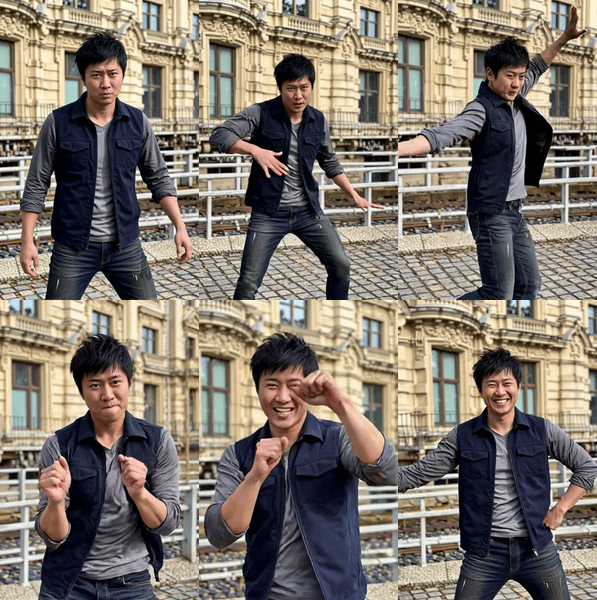
floyoofficial
11.7k
grok imagine
image to video
Video
video generation
Turn images into excellent video using the Grok Imagine
Grok Imagine: Image to Video with Audio
Turn images into excellent video using the Grok Imagine
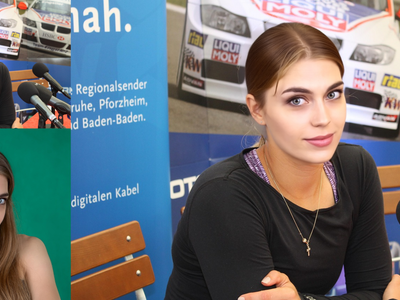
floyoofficial
9.9k
Face Swap
Image
Image to Image
Lora
LoRAs
Portrait
qwen image edit 2509
Swap a face between two photos with Qwen Image Edit 2509. Upload a main image and a reference, paint a mask on each face, hit run. Apache 2.0 open weights.
Qwen Image Edit 2509 · Face Swap
Swap a face between two photos with Qwen Image Edit 2509. Upload a main image and a reference, paint a mask on each face, hit run. Apache 2.0 open weights.
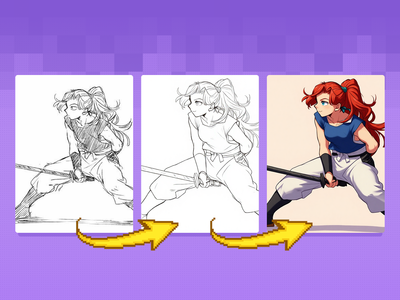
floyoofficial
3.3k
Flux Kontext
Image
Lineart
Previz
Sketch to Image
Quickly convert rough sketches into polished lineart and colorized concepts. Ideal for early storyboards, character designs, scene planning, and other visual explorations.
Flux Kontext Sketch to LineArt + Color Previz
Quickly convert rough sketches into polished lineart and colorized concepts. Ideal for early storyboards, character designs, scene planning, and other visual explorations.
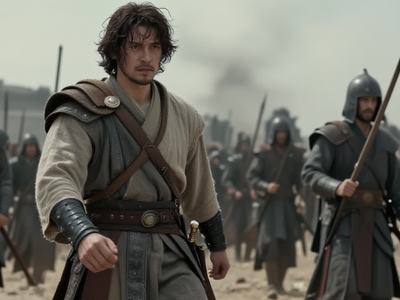
floyoofficial
7.8k
Controlnet
Depth
Image
Image2Image
Photography
Portrait
Pose Control
Z-Image-Turbo
Image to Image
Z-Image Turbo: ControlNet Image to Image
Image to Image
floyoofficial
2.8k
Character Sheet
Controlnet
Flux
Image
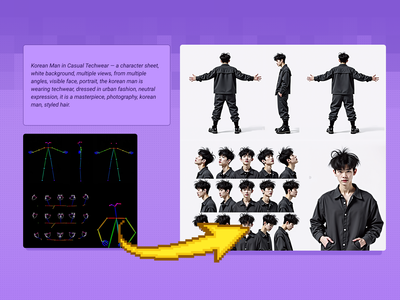
Create a character and a range of consistent outputs suitable for establishing character consistency, training a model, and ensuring consistency throughout multiple scenes. Key Inputs Image reference: Use the included pose sheet to show range of positions Prompt: as descriptive a prompt as possible
Flux Text to Character Sheet
Create a character and a range of consistent outputs suitable for establishing character consistency, training a model, and ensuring consistency throughout multiple scenes. Key Inputs Image reference: Use the included pose sheet to show range of positions Prompt: as descriptive a prompt as possible

floyoofficial
1.6k
360
Image2Video
Video
Wan2.1
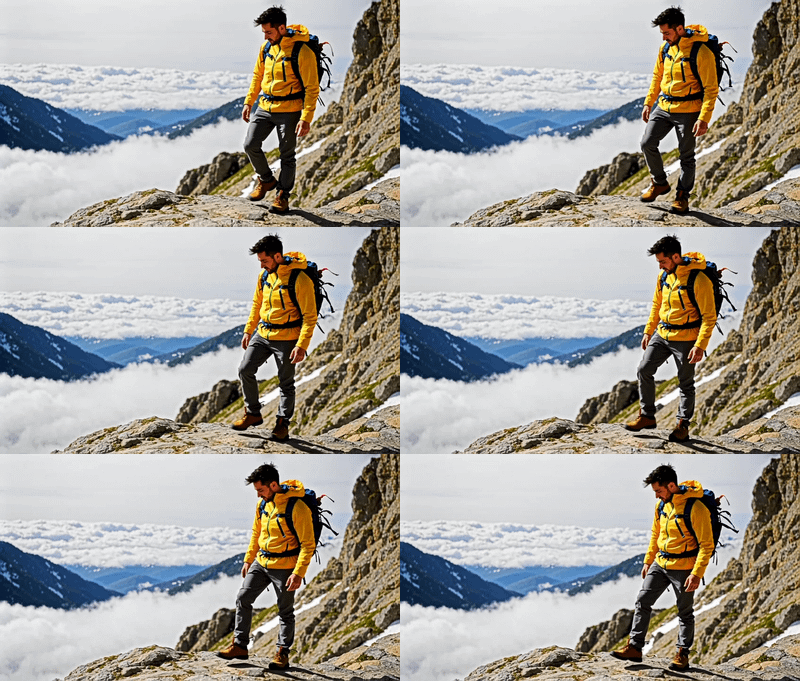
See an image of a character spin 360 degrees. Key Inputs Image reference: Use any JPG or PNG showing your subject clearly Width & height: Default resolution settings are noted: Default image resize resolution works best for portrait images, if the image is landscape change from 480x832 to 832x480 Prompt: Follow example format: The video shows (describe the subject), performs a r0t4tion 360 degrees rotation. Denoise: The amount of variance in the new image. Higher has more variance. File Format: H.264 and more
Image to Character Spin
See an image of a character spin 360 degrees. Key Inputs Image reference: Use any JPG or PNG showing your subject clearly Width & height: Default resolution settings are noted: Default image resize resolution works best for portrait images, if the image is landscape change from 480x832 to 832x480 Prompt: Follow example format: The video shows (describe the subject), performs a r0t4tion 360 degrees rotation. Denoise: The amount of variance in the new image. Higher has more variance. File Format: H.264 and more
floyoofficial
6.0k
Filmmaking
LoRAs
LTX 2
LTX 2 Fast
Open Source
Text2Video
Video
Videography
Generate 1080p video with synced sound from a text prompt using LTX-2, Lightricks' open-weight 19B model. Write the scene, hit run. Apache 2.0 open weights.
LTX-2 19B · Text to Video With Audio
Generate 1080p video with synced sound from a text prompt using LTX-2, Lightricks' open-weight 19B model. Write the scene, hit run. Apache 2.0 open weights.
floyoofficial
4.0k
2509
Image
Image2Image
multi-image
product photography
Qwen
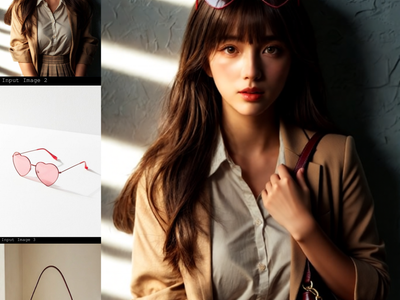
Merge up to three images into one scene with Qwen Image Edit 2509. Upload a subject, add items to place on it, describe the layout, hit run. Apache 2.0.
Qwen Image Edit 2509 · Combine Images
Merge up to three images into one scene with Qwen Image Edit 2509. Upload a subject, add items to place on it, describe the layout, hit run. Apache 2.0.
floyoofficial
3.1k
Audio
hailuo 3.0
image to video
minimax h3
text to video
Video
video with audio
Generate 2K video with stereo sound from a start image and a prompt using MiniMax H3 (Hailuo 3.0), the open-weights model. Mute the image to go text-only.
MiniMax H3 Open Weights · Image & Text to Video
Generate 2K video with stereo sound from a start image and a prompt using MiniMax H3 (Hailuo 3.0), the open-weights model. Mute the image to go text-only.
floyoofficial
9.8k
Animation
Film
Image2Video
VFX
Video
Wan2.6
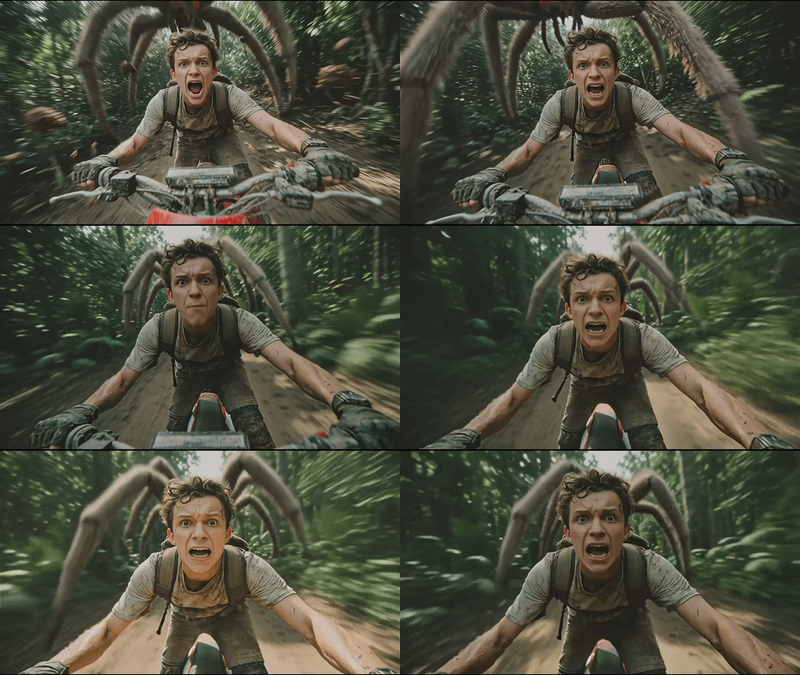
Turn a still image into a multi-shot video with sound using Wan 2.6 by Alibaba. The model plans camera cuts and syncs audio in one pass. Upload and run.
Wan 2.6 · Multi-Shot Image to Video
Turn a still image into a multi-shot video with sound using Wan 2.6 by Alibaba. The model plans camera cuts and syncs audio in one pass. Upload and run.
floyoofficial
1.9k
Image
Image2Image
image merging
Qwen
Qwen Image Edit
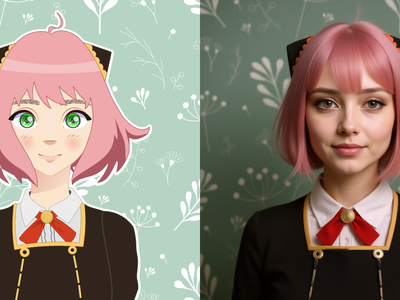
Merge up to three images into one scene with Qwen Image Edit 2509. Upload a subject, add items to place on it, describe the layout, hit run. Apache 2.0.
Qwen Image Edit 2509 · A2R
Merge up to three images into one scene with Qwen Image Edit 2509. Upload a subject, add items to place on it, describe the layout, hit run. Apache 2.0.
floyoofficial
2.0k
Flux
Image
LoRAs
LORA Training
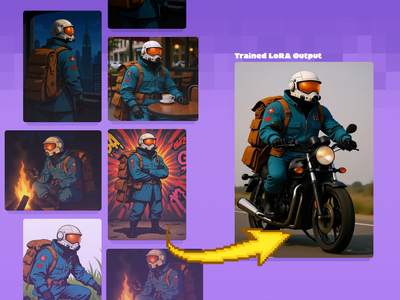
Created by @Kijai on Github, please support the original creator!
ComfyUI Flux LoRA Trainer
Created by @Kijai on Github, please support the original creator!

floyoofficial
4.4k
Outpainting
Video
Video to Video
Wan
Wan VACE video outpainting invites you to break free from the limits of the frame and explore endless creative possibilities.
Wan2.1 and VACE for Video to Video Outpainting
Wan VACE video outpainting invites you to break free from the limits of the frame and explore endless creative possibilities.
floyoofficial
6.2k
API
gemini flash image
Image
Image2Image
nano banana 2
Text2Image
typography
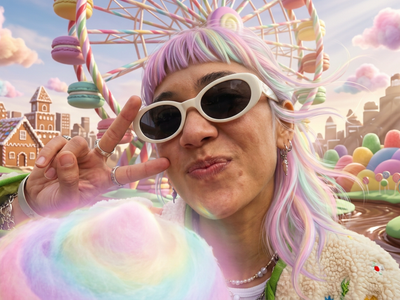
The top-ranked image model on Artificial Analysis and LM Arena. 4K output, text rendering, and subject consistency across 5 characters.
Nano Banana 2 · Image Generation & Editing
The top-ranked image model on Artificial Analysis and LM Arena. 4K output, text rendering, and subject consistency across 5 characters.
_1776927727959.webp?width=400&height=300&quality=80&resize=contain&format=origin)
floyoofficial
2.1k
Animation
Audio
Filmmaking
Image2Video
LTX 2 Pro
Video
Video Editing
video with audio
Outdated model. Please go to LTX 2.3 Image to video workflow to use LTX 2.3
LTX 2 Pro: Cinematic Image to Video
Outdated model. Please go to LTX 2.3 Image to video workflow to use LTX 2.3
floyoofficial
2.3k
Flux
Image
Kontext
Sketch to Image
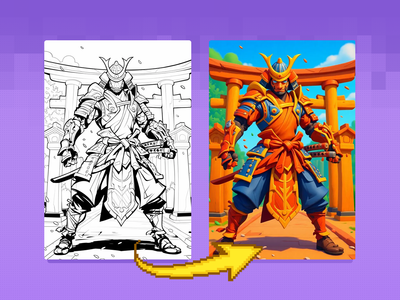
Bring your sketches to life in full color with Flux Kontext! Key Inputs Load Image – Upload the sketch you want to transform. Prompt – Describe the desired output style, such as: “Render this sketch as a realistic photo” or “Turn this sketch into a watercolor painting.”
Flux Kontext - Sketch to Image
Bring your sketches to life in full color with Flux Kontext! Key Inputs Load Image – Upload the sketch you want to transform. Prompt – Describe the desired output style, such as: “Render this sketch as a realistic photo” or “Turn this sketch into a watercolor painting.”
floyoofficial
1.3k
API
Flux
Image
Text to Image
Start with a prompt, and get a different render from a range of unique models at the same time.
Multi-Image Flux Ultra, Pro, Dev, Recraft+
Start with a prompt, and get a different render from a range of unique models at the same time.
floyoofficial
1.2k
Animation
Filmmaking
Flux
Game Development
Image
LoRA
LoRAs
Text to Image
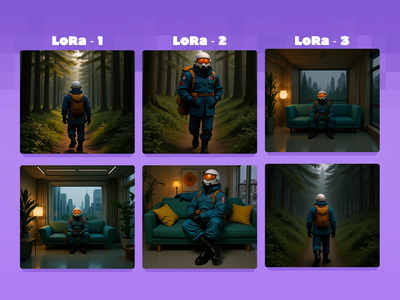
Test and compare multiple epochs of a character LoRA side by side with preset prompts When training a LoRA, you'll usually have a few checkpoints throughout the process to test. This workflow lets you load up to 4 LoRAs to test side by side, making it easier to determine which one is right for you! Key Inputs: LoRA Loaders: Load each LoRA epoch for the same character in up to 4 groups. Groups Bypasser: Enable/disable groups as needed. If you only have 2 epochs to test, disable the back 2 groups! Triggerword: Simply add the trigger word for your LoRA and it will auto-fill in the default prompts. Leave blank if you're using your own custom prompts that include the trigger word. LoRA Testing Prompts: Default prompts work well to get an idea of how your character will look in different situations, but feel free to replace them with your own prompts (max 4).
Flux Character LoRA Test and Compare
Test and compare multiple epochs of a character LoRA side by side with preset prompts When training a LoRA, you'll usually have a few checkpoints throughout the process to test. This workflow lets you load up to 4 LoRAs to test side by side, making it easier to determine which one is right for you! Key Inputs: LoRA Loaders: Load each LoRA epoch for the same character in up to 4 groups. Groups Bypasser: Enable/disable groups as needed. If you only have 2 epochs to test, disable the back 2 groups! Triggerword: Simply add the trigger word for your LoRA and it will auto-fill in the default prompts. Leave blank if you're using your own custom prompts that include the trigger word. LoRA Testing Prompts: Default prompts work well to get an idea of how your character will look in different situations, but feel free to replace them with your own prompts (max 4).
_1756358901929.png?width=400&height=300&quality=80&resize=cover)
floyoofficial
2.3k
Flux Dev
Image
image to image
photorealism
text to image
Generate images from text with FLUX.1 Dev, the 12B open-weight model from Black Forest Labs. Enable the image input to edit from a picture. Write a prompt, run.
FLUX.1 Dev · Text to Image With Image Input
Generate images from text with FLUX.1 Dev, the 12B open-weight model from Black Forest Labs. Enable the image input to edit from a picture. Write a prompt, run.
floyoofficial
5.3k
Flux
Flux.2 Klein
Image
Image2image
instruction editing
multi-image
Unified workflow: one model for text‑to‑image, image‑to‑image, and image editing
FLUX.2 Klein 9B: Edit Images by Prompt
Unified workflow: one model for text‑to‑image, image‑to‑image, and image editing
360° Character Turnaround & Sheet Workflow
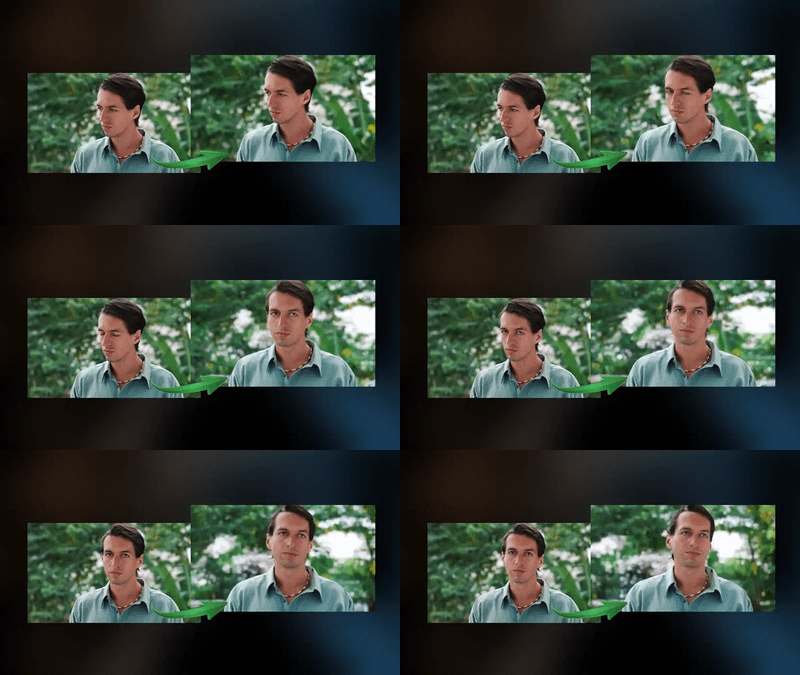
Video to Video with Camera Control with Wan
Adjust the camera angle of an existing video, like magic.
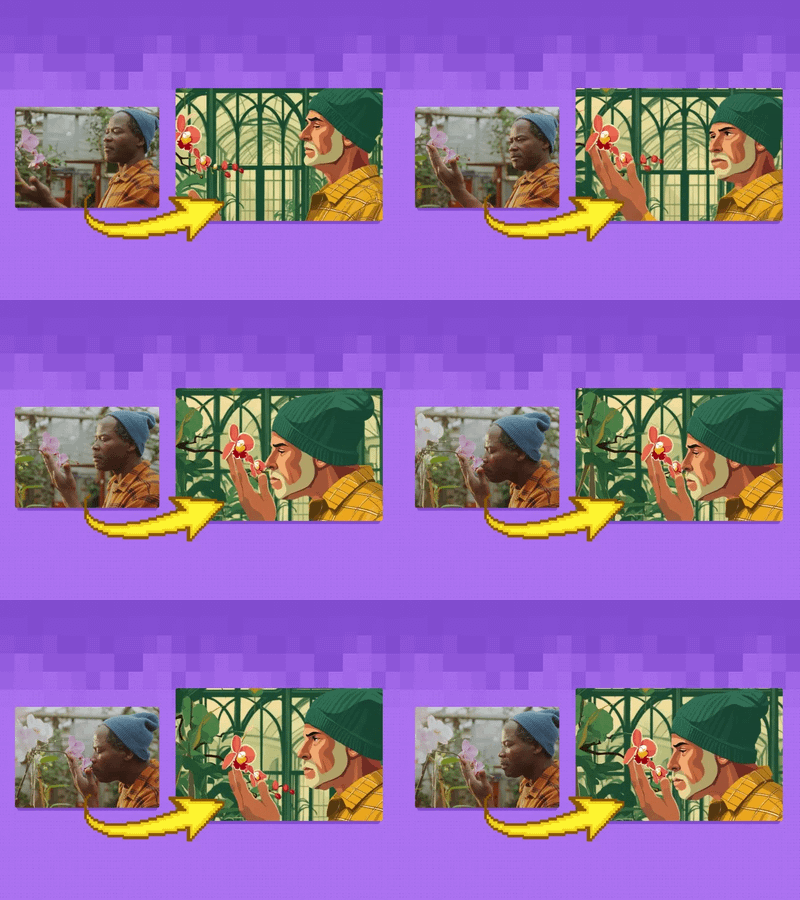
floyoofficial
4.3k
Controlnet
Flux
Video
Video2Video
Wan2.1
Create a new video by restyling an existing video with a reference image.
Wan2.1 Fun Control and Flux for V2V Restyle
Create a new video by restyling an existing video with a reference image.
_1758863167371.webp?width=400&height=300&quality=80&resize=contain&format=origin)
floyoofficial
1.7k
Flux
Flux Kontext
Image
Image2Image
kontext
LoRAs
panorama
Flux Kontext 360° Workflow - Seamless Panorama Generation Input: Simply upload an image in the "Load Image from Outputs" node Output: A 360° Panoramic image
Flux Kontext and HD360 LoRA for 360 Degree View
Flux Kontext 360° Workflow - Seamless Panorama Generation Input: Simply upload an image in the "Load Image from Outputs" node Output: A 360° Panoramic image

floyoofficial
1.3k
flux
flux kontext
Image
kontext
sebastian kamph
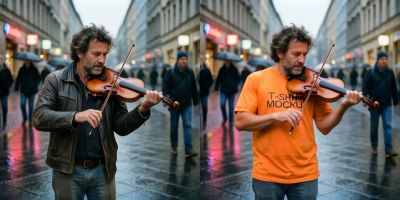
Load an image reference and use the smart Flux Kontext model to ask for anything. The model understands natural language and looks at your input image. Example: Put this man on a tropical island. This man is sleeping in a bed.
Flux Kontext - Quick & Easy
Load an image reference and use the smart Flux Kontext model to ask for anything. The model understands natural language and looks at your input image. Example: Put this man on a tropical island. This man is sleeping in a bed.
floyoofficial
6.1k
Clothes Swap
Flux
Flux.2 Klein
Image
Image Editing
Image to Image
virtual try-on
Swap clothes on any person using FLUX.2 Klein 4B and LanPaint. Upload a person and a garment photo, describe the swap, and hit run. Apache 2.0 open weights.
FLUX.2 Klein 4B · Swap Clothes
Swap clothes on any person using FLUX.2 Klein 4B and LanPaint. Upload a person and a garment photo, describe the swap, and hit run. Apache 2.0 open weights.
%20(1)_1775891000879.webp?width=400&height=300&quality=80&resize=contain&format=origin)
floyoofficial
4.8k
seedance
seedance 2.0
text to video
Video
video generation
Generate a video clip from a text prompt with Seedance 2.0 by ByteDance. Describe the scene, the action, and the camera. Pick a shape and length, hit run.
Seedance 2.0 · Text to Video
Generate a video clip from a text prompt with Seedance 2.0 by ByteDance. Describe the scene, the action, and the camera. Pick a shape and length, hit run.
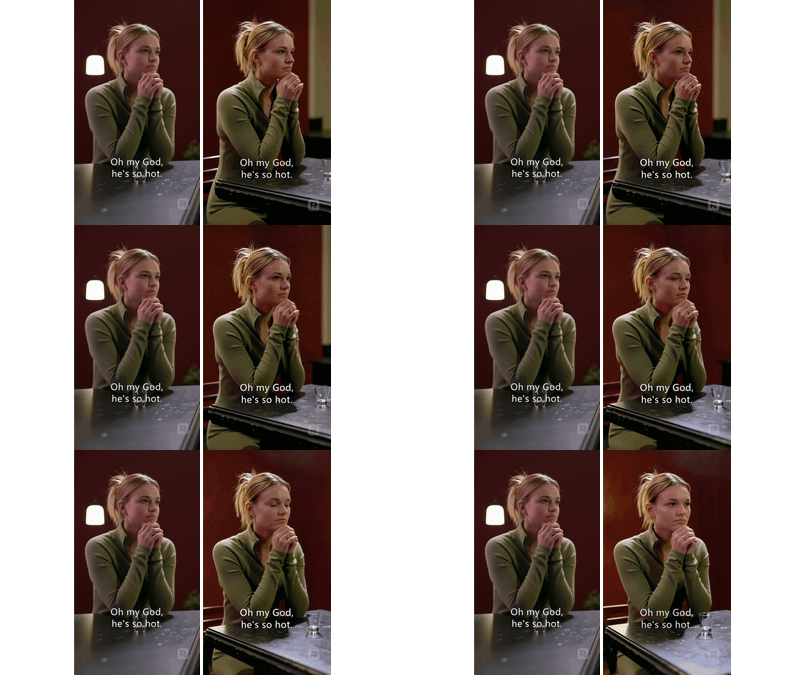
Image-to-Video with Reference Video (Prompt-Based Camera Rotation)
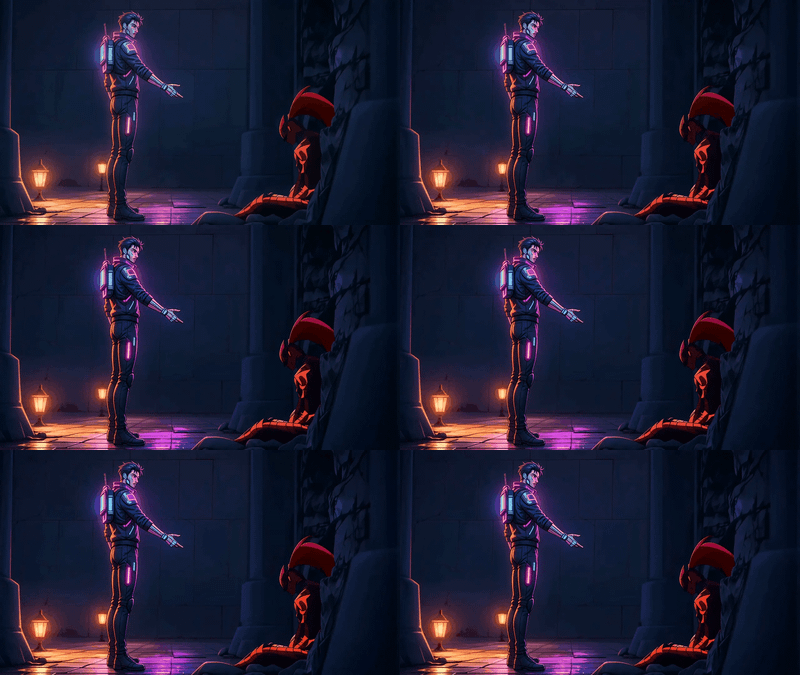
floyoofficial
2.6k
character design
consistency
film production
image to video
Video
video generation
wan
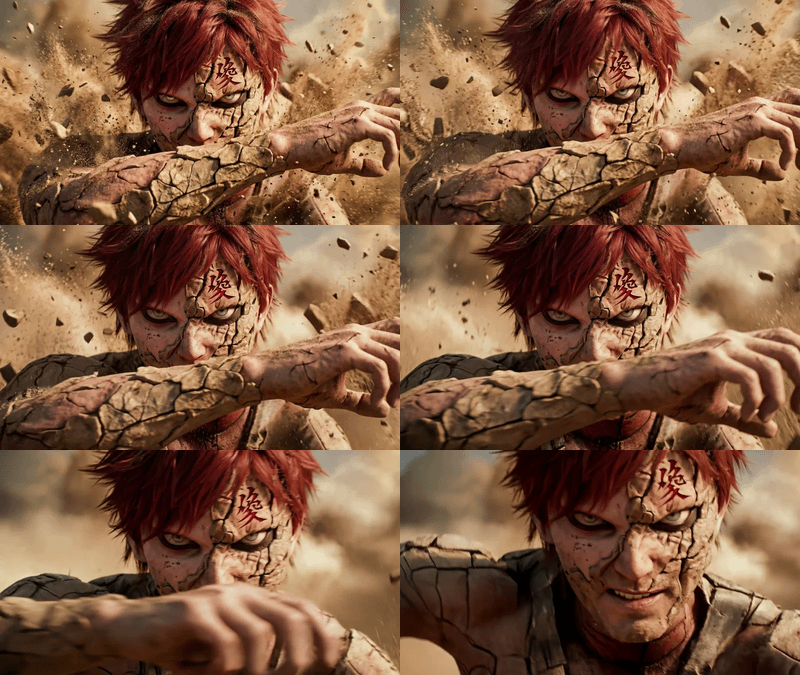
Wan 2.7 Reference to Video with Motion Control
Wan 2.7 Reference to Video with Motion Control
Wan 2.7 Reference to Video with Motion Control
floyoofficial
1.7k
API
Floyo API
Image to Video
Seedance 1.5 Pro
Video
Draft mode lets you first experiment at a low cost by generating 480p draft videos
Seedance 1.5 Pro with Draft Mode
Draft mode lets you first experiment at a low cost by generating 480p draft videos
_1758870047277.webp?width=400&height=300&quality=80&resize=contain&format=origin)
floyoofficial
4.0k
Animation
Audio
Filmmaking
Image to Video
Lipsync
Marketing
Multitalk
Video
Wan2.1
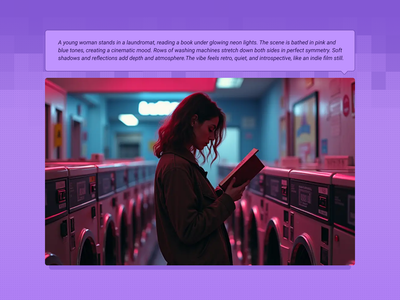
Turn any portrait - artwork, photos, or digital characters - into speaking, expressive videos that sync perfectly with audio input. MultiTalk handles lip movements, facial expressions, and body motion automatically.
Wan2.1 FusionX and MultiTalk - Image to Video
Turn any portrait - artwork, photos, or digital characters - into speaking, expressive videos that sync perfectly with audio input. MultiTalk handles lip movements, facial expressions, and body motion automatically.
floyoofficial
2.4k
Flux
Image
Text2Image
Create original images using only text prompts, which can be simple or elaborate. Key Inputs Prompt: as descriptive a prompt as possible Width & height: Optimal resolution settings are noted
Flux Text to Image
Create original images using only text prompts, which can be simple or elaborate. Key Inputs Prompt: as descriptive a prompt as possible Width & height: Optimal resolution settings are noted
floyoofficial
2.6k
Image2Video
Start and end frame
Video
Wan2.1
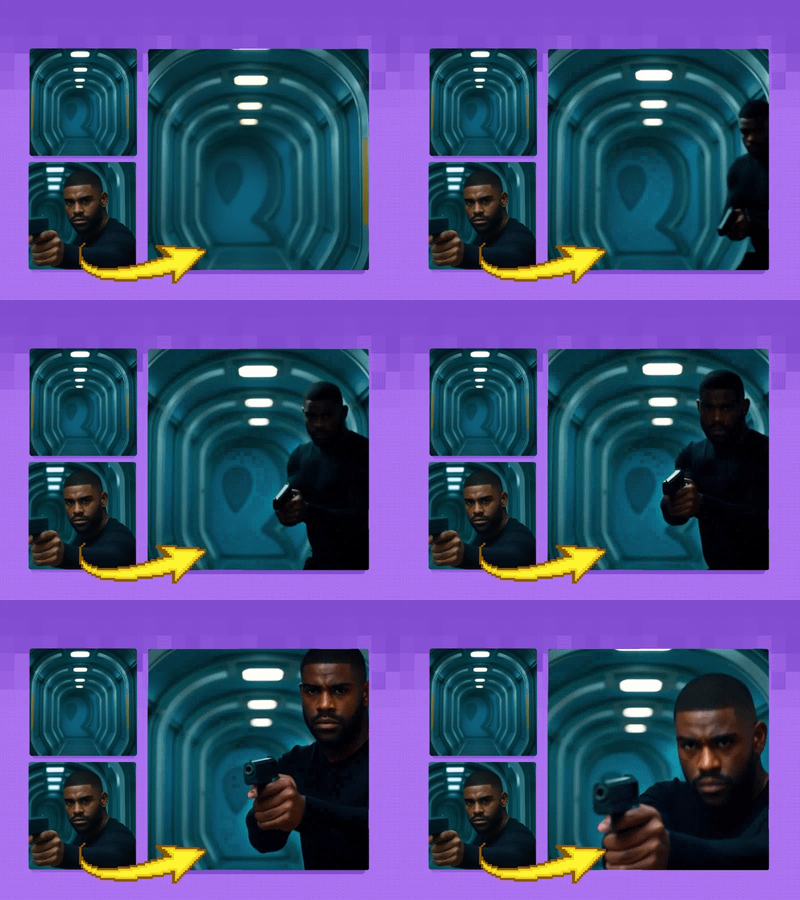
Used for image to video generation, defined by the first frame and end frame images.
Wan2.1 Start & End Frame Image to Video
Used for image to video generation, defined by the first frame and end frame images.
floyoofficial
5.2k
concept art
Fine-tuning
Image
Text2Image
Z-Image
Z-image-base
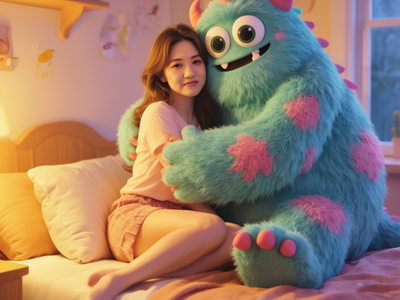
Create sunning images using z-image base model (non distlled).
Z-Image Base: High-Detail Text to Image
Create sunning images using z-image base model (non distlled).
floyoofficial
2.7k
Ace+
Fashion
Flux
Image
Image to Image
Virtual Try-on
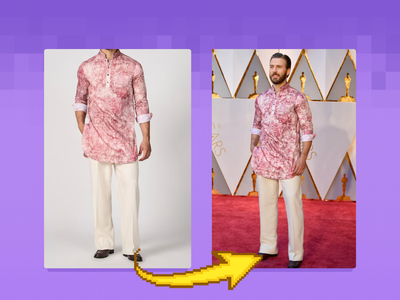
Virtual Outfit Try-On with Auto Segmentation Try virtual clothing on any subject using Flux Dev, Ace Plus, and Redux, with automatic segmentation. Great for concept previews, fashion mockups, or character styling. Key Inputs Outfit: Load the outfit image you want to apply. Make sure it's high quality — visible artifacts or distortions may carry over into the final result. Actor: Add the subject or character you want to dress. Ideally, use a clear, front-facing image. Human Parts Ultra: Choose which parts of the body the clothing should apply to. For example, for a long-sleeve shirt, select: torso, left arm, and right arm. This helps the model align the clothing properly during generation. Prompt: Default value works for most outfits, however you may try to adjust it to describe the desired outfit.
Flux Outfit Transfer
Virtual Outfit Try-On with Auto Segmentation Try virtual clothing on any subject using Flux Dev, Ace Plus, and Redux, with automatic segmentation. Great for concept previews, fashion mockups, or character styling. Key Inputs Outfit: Load the outfit image you want to apply. Make sure it's high quality — visible artifacts or distortions may carry over into the final result. Actor: Add the subject or character you want to dress. Ideally, use a clear, front-facing image. Human Parts Ultra: Choose which parts of the body the clothing should apply to. For example, for a long-sleeve shirt, select: torso, left arm, and right arm. This helps the model align the clothing properly during generation. Prompt: Default value works for most outfits, however you may try to adjust it to describe the desired outfit.
floyoofficial
2.3k
Flux
Image
UltimateSD
Upscale
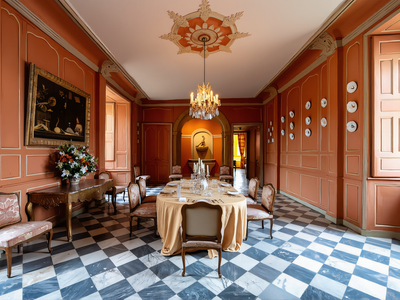
Double any image's resolution with FLUX.1 Dev and 4x-UltraSharp. Upload a picture, hit run, and get a sharp 2x upscale refined tile by tile. Open weights.
FLUX.1 Dev · Image Upscaler
Double any image's resolution with FLUX.1 Dev and 4x-UltraSharp. Upload a picture, hit run, and get a sharp 2x upscale refined tile by tile. Open weights.
floyoofficial
4.2k
Flux2
Image
Marketing
Photography
Text2Image
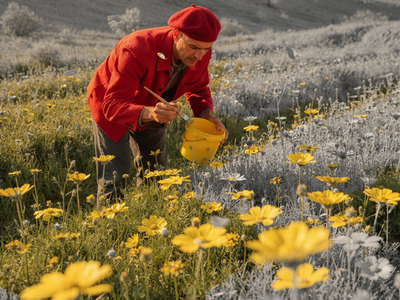
Generate photorealistic images with FLUX.2 Dev, the 32B open-weight model from Black Forest Labs. Write a prompt, add optional references, and hit run.
FLUX.2 Dev · Text to Image
Generate photorealistic images with FLUX.2 Dev, the 32B open-weight model from Black Forest Labs. Write a prompt, add optional references, and hit run.
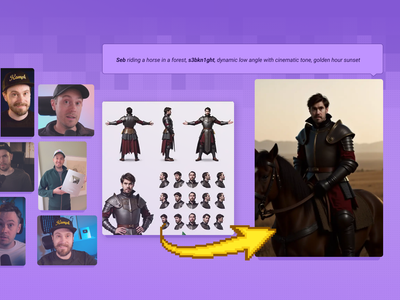
Text to Image with Multi-LoRA
Create consistent images with multiple LoRA models.

floyoofficial
2.8k
LoRAs
Recammaster
Video
Video to Video
Wan
Adjust the camera angle of an existing video, like magic.
Wan2.1 and RecamMaster for V2V Camera Control
Adjust the camera angle of an existing video, like magic.
_1767601871879.png?width=400&height=300&quality=80&resize=cover)
Character + Outfit → High-End Editorial Shoot

floyoofficial
1.7k
Audio
text to speech
TTS
VibeVoice
voice cloning
Clone any voice from a short clip and read your text in it using VibeVoice Large by Microsoft. Upload a voice sample, type your script, hit run. MIT license.
VibeVoice · Text to Speech
Clone any voice from a short clip and read your text in it using VibeVoice Large by Microsoft. Upload a voice sample, type your script, hit run. MIT license.

FlashVSR for Video Upscale
Upscale your videos
_1767784624270.png?width=400&height=300&quality=80&resize=cover)
floyoofficial
1.3k
API
Ecommerce
Image
Image2Image
Nano Banana Pro
Product Ads
Create grids of different angles for your ecommerce products.
Nano Banana Pro for Multi Grid View of Product Ads
Create grids of different angles for your ecommerce products.
floyoofficial
4.4k
Image
Image2Image
Multiple Angles
novel view
Qwen
Qwen Image Edit 2509
Re-render any subject from a new camera angle with Qwen Image Edit 2509 and a Multi-Angle LoRA. Upload one image, name the view, and hit run. Apache 2.0.
Qwen Image Edit 2509 · Change Camera Angle
Re-render any subject from a new camera angle with Qwen Image Edit 2509 and a Multi-Angle LoRA. Upload one image, name the view, and hit run. Apache 2.0.
floyoofficial
5.0k
Image
Image2Image
Image Editing
Seedream 5.0
Text2Image
Generate, edit, or blend images with Seedream 5.0 Lite, the ByteDance model that reasons through your instruction before drawing. Prompt it and hit run.
Seedream 5.0 Lite · Generate, Edit and Fuse
Generate, edit, or blend images with Seedream 5.0 Lite, the ByteDance model that reasons through your instruction before drawing. Prompt it and hit run.
floyoofficial
3.6k
composite
Image
Image to Image
portrait
product photography
qwen image edit 251
Reference Image
Place a subject into a new scene using Qwen Image Edit 2511 and the Kontext multi-reference method. Upload a subject and a background, describe the edit, run.
Qwen Image Edit 2511 · Composite
Place a subject into a new scene using Qwen Image Edit 2511 and the Kontext multi-reference method. Upload a subject and a background, describe the edit, run.
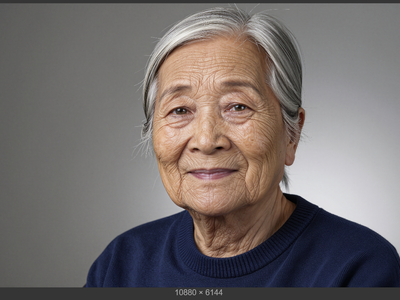
Z-Image Turbo + DyPE + SeedVR2 2.5 + TTP 16k reso
Controlnet
Flux
Image
Transform your images into something completely new, yet retaining specific details and composition from your original using flexible controls. Key Inputs Image reference: Use any JPG or PNG showing your subject clearly Prompt: as descriptive a prompt as possible Denoise Strength: The amount of variance in the new image. Higher has more variance. Width & height: Try and match the aspect ratio of the original if possible.
Image to Image with Flux ControlNet
Transform your images into something completely new, yet retaining specific details and composition from your original using flexible controls. Key Inputs Image reference: Use any JPG or PNG showing your subject clearly Prompt: as descriptive a prompt as possible Denoise Strength: The amount of variance in the new image. Higher has more variance. Width & height: Try and match the aspect ratio of the original if possible.

floyoofficial
1.2k
AnimateDiff
Control Image
HotshotXL
LoRAs
SDXL
Video
Video2Video
Breathe life into a character from an image reference using motion reference from a video. Key Inputs Image reference: Use any JPG or PNG showing your subject clearly and the style of your shot Load Video: Use any Mp4 that you would like to use for motion reference
Video to Video with Control Image
Breathe life into a character from an image reference using motion reference from a video. Key Inputs Image reference: Use any JPG or PNG showing your subject clearly and the style of your shot Load Video: Use any Mp4 that you would like to use for motion reference
floyoofficial
1.5k
Flux
Image
LoRa
LoRAs
Text2Image
Create an image from a trained AI model of something specific ( a specific figure, outfit, art style, product etc) to ensure specific details within.
Text to Image + LoRA model
Create an image from a trained AI model of something specific ( a specific figure, outfit, art style, product etc) to ensure specific details within.
_1762434919692.gif?width=400&height=300&quality=80&resize=contain&format=origin)
VEO3 Future of Video Creation
floyoofficial
1.6k
Character Sheet
Controlnet
Flux
Image
LoRAs
Generate a character sheet using a prompt and a LoRA model of a particular person for more accurate renders. Key Inputs Load Image: Use any JPG or PNG of your pose sheet Prompt: as descriptive a prompt as possible Width & height: Optimal resolution settings are noted at 1280px x 1280px Denoise: The amount of variance in the new image. Higher has more variance. ControlNet Strength: The amount of adherence to the original image. Higher has more adherence. Start Percent: The point in the generation process where the control starts exerting influence. (Have it start later, to let AI imagine first.) End Percent: The point in the generation process where the control stops exerting influence. (Have it end sooner, to let AI finish it off with some variation.) Flux Guidance: How much influence the prompt has over the image. Higher has more guidance.
Text to Character Sheet with a reference LoRA
Generate a character sheet using a prompt and a LoRA model of a particular person for more accurate renders. Key Inputs Load Image: Use any JPG or PNG of your pose sheet Prompt: as descriptive a prompt as possible Width & height: Optimal resolution settings are noted at 1280px x 1280px Denoise: The amount of variance in the new image. Higher has more variance. ControlNet Strength: The amount of adherence to the original image. Higher has more adherence. Start Percent: The point in the generation process where the control starts exerting influence. (Have it start later, to let AI imagine first.) End Percent: The point in the generation process where the control stops exerting influence. (Have it end sooner, to let AI finish it off with some variation.) Flux Guidance: How much influence the prompt has over the image. Higher has more guidance.
SeedVR2 and TTP Toolset 8k Image Upscale
_1786516256661.png?width=400&height=300&quality=80&resize=cover)
floyoofficial
8.2k
Flux
Flux.2 Klein
Image
Image2Image
Inpainting
LanPaint
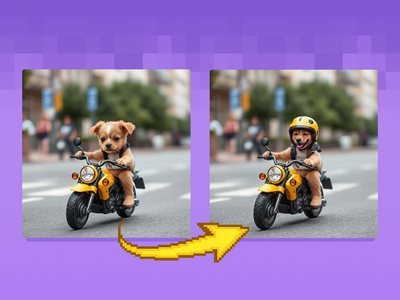
Inpainting image using Flux.2 Klein and LanPaint
FLUX.2 Klein 9B: Image Inpainting
Inpainting image using Flux.2 Klein and LanPaint
floyoofficial
1.0k
Flux
Image
Inpaint
Change specific details on just a portion of the image, sometimes known as inpainting or Erase & Replace. Key Inputs Image reference: Use any JPG or PNG showing your subject clearly Masking tools: Right-click to reveal the masking tool option, and create a mask of the desired area to inpaint Prompt: as descriptive a prompt as possible to help guide what you would like replaced in the masked area
Image Inpainting
Change specific details on just a portion of the image, sometimes known as inpainting or Erase & Replace. Key Inputs Image reference: Use any JPG or PNG showing your subject clearly Masking tools: Right-click to reveal the masking tool option, and create a mask of the desired area to inpaint Prompt: as descriptive a prompt as possible to help guide what you would like replaced in the masked area
floyoofficial
1.6k
Audio
hailuo 3.0
minimax h3
reference to video
Video
video editing
Swap a character or object into an existing clip with MiniMax H3 (Hailuo 3.0), the open-weights editor. Add a reference image, describe the change, and hit run.
MiniMax H3 Open Weights - Reference to Video
Swap a character or object into an existing clip with MiniMax H3 (Hailuo 3.0), the open-weights editor. Add a reference image, describe the change, and hit run.
_1774195486846.webp?width=400&height=300&quality=80&resize=contain&format=origin)
floyoofficial
1.9k
Animation
Image2Video
Kling
Kling 3.0 Pro
Video
Animate a still into a 4K clip with sound using Kling 3.0 Pro by Kuaishou. Upload a start and end image, describe the motion, and hit run. Up to 15 seconds.
Kling 3.0 Pro · Image to Video
Animate a still into a 4K clip with sound using Kling 3.0 Pro by Kuaishou. Upload a start and end image, describe the motion, and hit run. Up to 15 seconds.
floyoofficial
2.0k
character replacement
character swap
image to video
LoRAs
masking
Points Editor
vertical video
Video
Wan2.2 Animate
WanAnimateToVideo
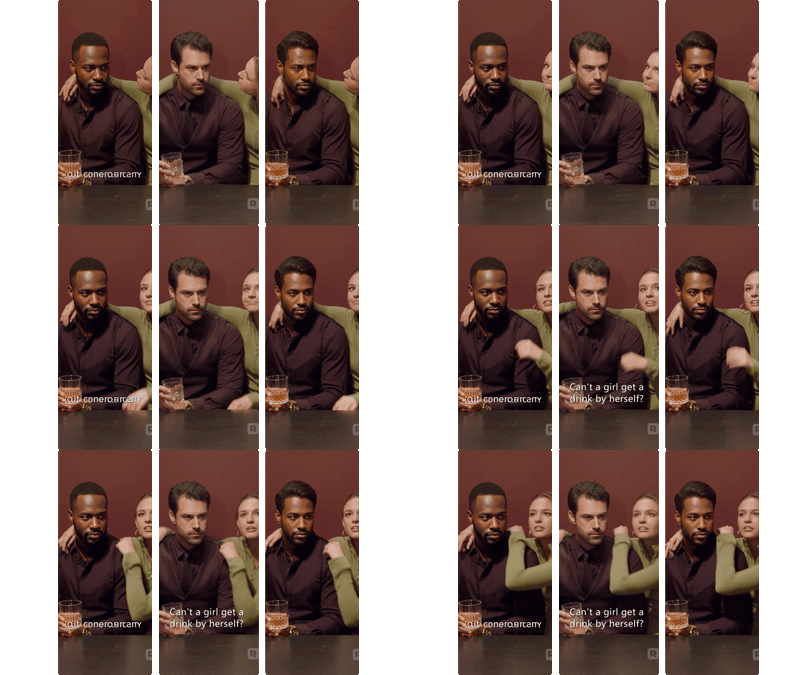
Vertical Video Character Face & Actor Swap (Wan 2.2 Animate)
_1771834011124.gif?width=400&height=300&quality=80&resize=contain&format=origin)
Image
Influencer
Product
Video
Build your AI influencer, stage the product moment, and animate the full promo in one workflow.
AI Influencer Ad Generator (Nano Banana + Wan 2.6)
Build your AI influencer, stage the product moment, and animate the full promo in one workflow.

floyoofficial
1.4k
3D
3D View
Animation
Architecture
Filmmaking
Game Development
Hunyuan 3D
Hunyuan3D
Image to 3D
A simple workflow to create a detailed & textured 3D model from a reference image.
Image to 3D with Hunyuan3D
A simple workflow to create a detailed & textured 3D model from a reference image.
floyoofficial
9.6k
FLUX
FLUX.2 Klein
Image
Image2Image
LoRA
LoRAs
realism
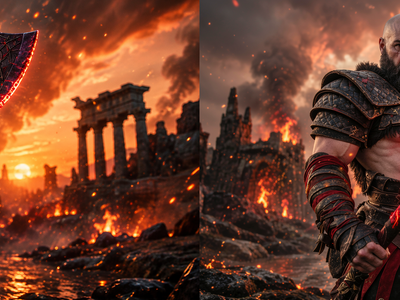
Create realistic image but in an enhanced details using FLUX.2 Klein 9B and with LoRA
FLUX.2 Klein 9B: Realistic Photo Enhancer
Create realistic image but in an enhanced details using FLUX.2 Klein 9B and with LoRA

floyoofficial
2.3k
API
Hunyuan
LoRAs
LORA Training
Hunyuan is great at generating videos, but locking in a specific aesthetic or character is easier with a LoRA.
LoRA Training Video with Hunyuan
Hunyuan is great at generating videos, but locking in a specific aesthetic or character is easier with a LoRA.
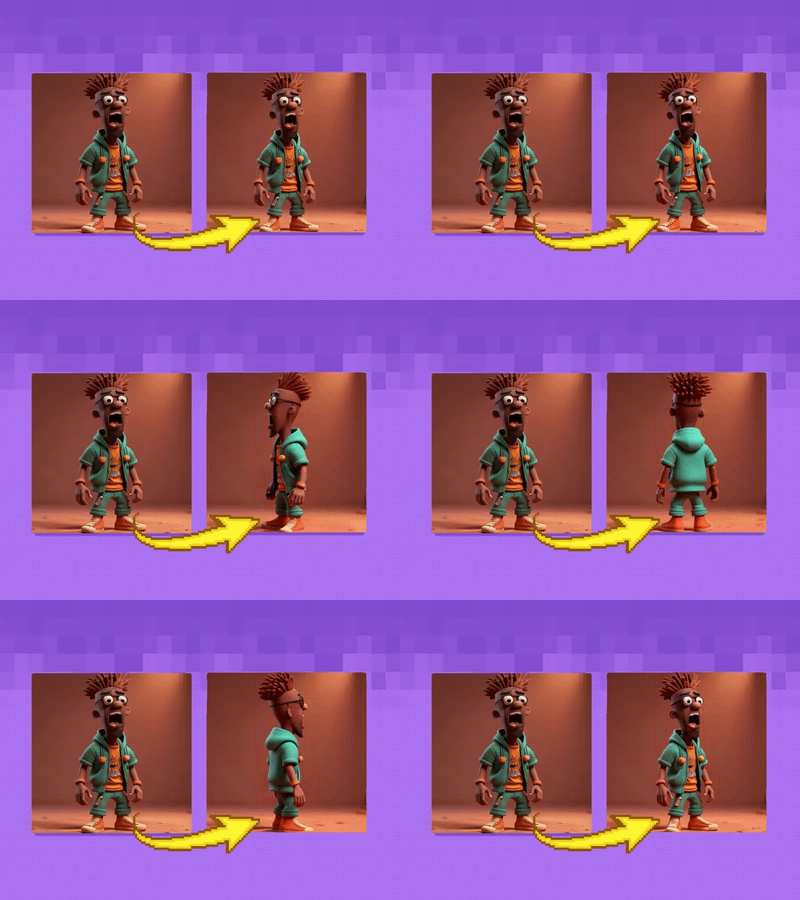
AniSora 3.2 and Wan2.2: Best Practices for Generating Smooth Character 3D Spin
floyoofficial
1.3k
api
Audio
hailuo 3.0
image to video
minimax h3
Video
video generation
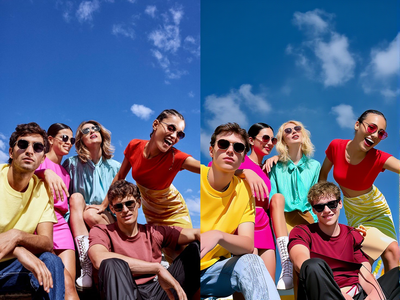
Bring a photo to life with MiniMax H3 (Hailuo 3.0). Upload an image, describe the motion, add optional references to guide the look, and hit run for a 2K clip.
MiniMax H3 · Reference to Video
Bring a photo to life with MiniMax H3 (Hailuo 3.0). Upload an image, describe the motion, add optional references to guide the look, and hit run for a 2K clip.
floyoofficial
2.6k
API
Controlnet
Floyo API
Image
Image2Image
LoRA
LoRAs
Z-Image Turbo
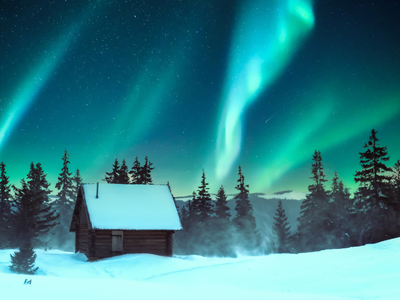
Creating Accurate Variety of Images
Z-Image Turbo with Controlnet 2.1 and Qwen VLM
Creating Accurate Variety of Images
floyoofficial
1.3k
animation
film production
image to video
vfx
Video
video generation
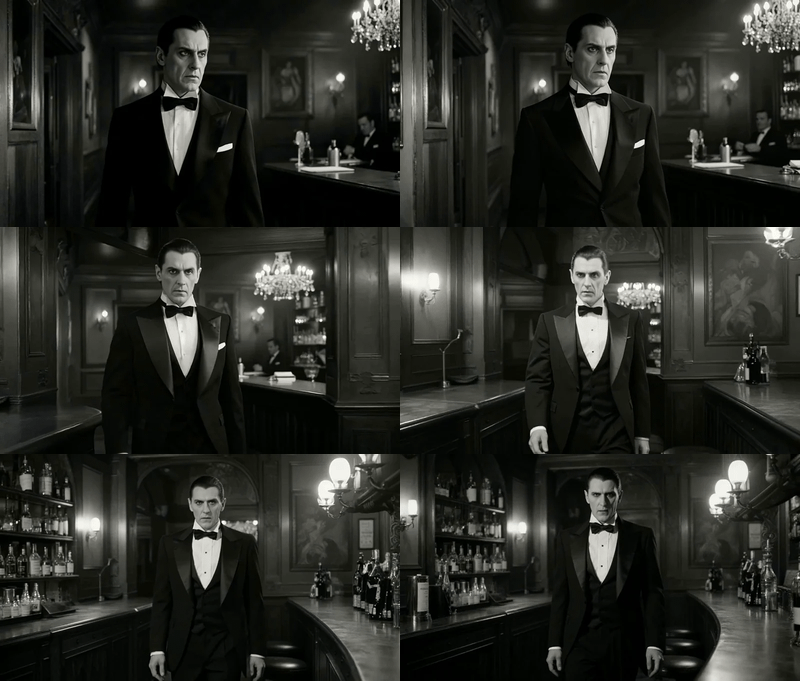
Animate any still into a video clip with Seedance 2.0 by ByteDance. Upload a start image, add an optional end frame, describe the motion, and hit run.
Seedance 2.0 · Image to Video
Animate any still into a video clip with Seedance 2.0 by ByteDance. Upload a start image, add an optional end frame, describe the motion, and hit run.
floyoofficial
1.1k
animation
film
image to video
seedance pro
Video
video generation
Animate a still into a 1080p clip with Seedance Pro by ByteDance. Upload a start and end image, describe the motion, and hit run. Smooth cinematic motion.
Image to Video with Seedance Pro API
Animate a still into a 1080p clip with Seedance Pro by ByteDance. Upload a start and end image, describe the motion, and hit run. Smooth cinematic motion.
floyoofficial
1.5k
Controlnet
Image
SD1.5
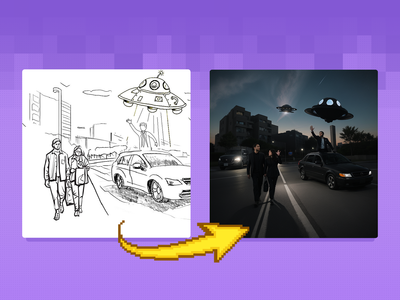
Turn your sketches into full blown scenes. Key Inputs Image reference: Use any JPG or PNG showing your subject clearly Prompt: as descriptive a prompt as possible Width & height: In pixels ControlNet Strength: The amount of adherence to the original image. Higher has more adherence. Start Percent: The point in the generation process where the control starts exerting influence. (Have it start later, to let AI imagine first.) End Percent: The point in the generation process where the control stops exerting influence. (Have it end sooner, to let AI finish it off with some variation.)
Sketch to Image
Turn your sketches into full blown scenes. Key Inputs Image reference: Use any JPG or PNG showing your subject clearly Prompt: as descriptive a prompt as possible Width & height: In pixels ControlNet Strength: The amount of adherence to the original image. Higher has more adherence. Start Percent: The point in the generation process where the control starts exerting influence. (Have it start later, to let AI imagine first.) End Percent: The point in the generation process where the control stops exerting influence. (Have it end sooner, to let AI finish it off with some variation.)
floyoofficial
6.4k
Flux
FLUX2 Klein
Image
Photography
photorealism
Text2Image
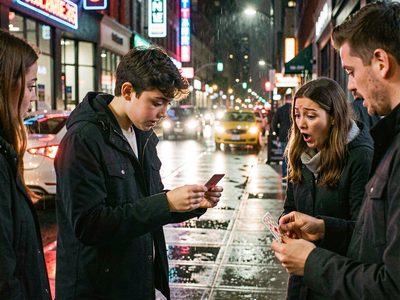
Create a high quality image using 9B model of Flux 2 Klein
FLUX.2 Klein 9B: Text to Image
Create a high quality image using 9B model of Flux 2 Klein
_1774789046971.png?width=400&height=300&quality=80&resize=cover)
Diffusion
Image
LoRA
LoRAs
Memory Efficient
Qwen Model
Upscale
Block-wise Image Upscaling with Qwen
Block-wise Image Upscaling with Qwen
Block-wise Image Upscaling with Qwen
floyoofficial
2.2k
character design
consistency
happy horse
image to video
reference to video
Video
video generation
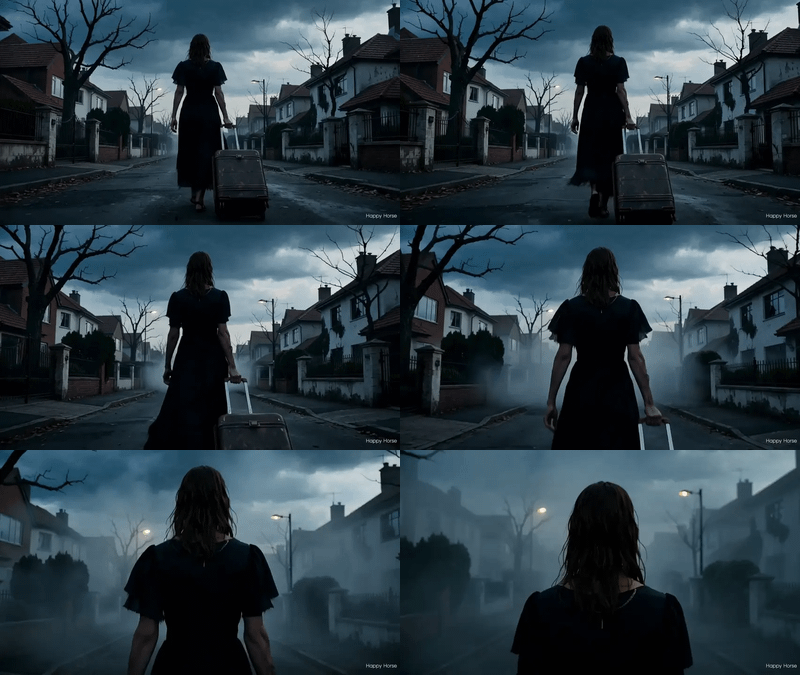
Turn up to 9 reference images plus a prompt into a 5-second video with Happy Horse 1.0. Keep characters, products, and style consistent across the shot.
Happy Horse 1.0 Reference to Video
Turn up to 9 reference images plus a prompt into a 5-second video with Happy Horse 1.0. Keep characters, products, and style consistent across the shot.
DyPe and Z-Image Turbo for High Quality Text to Image
Qwen Image Edit 2511 Lightning - Multi-Image Edit
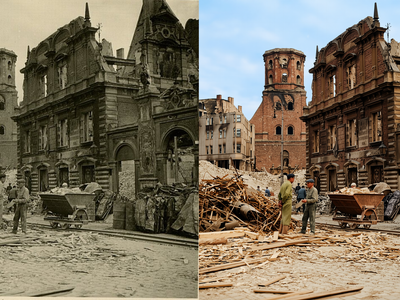
Qwen Image Edit 2511 Restore Damage Old Photograph
Restore Damage Old Photograph

Veo 3.1 Image to Video - First Frame and Optional Last Frame
floyoofficial
1.5k
Flux
Image
LoRa
LoRAs
Upscale
Double any image's resolution with style-guided detail using FLUX.1 Dev and a LoRA. Upload a picture, load your adapter, and hit run. 2x upscale, tile by tile.
FLUX.1 Dev · Upscale With LoRA
Double any image's resolution with style-guided detail using FLUX.1 Dev and a LoRA. Upload a picture, load your adapter, and hit run. 2x upscale, tile by tile.
floyoofficial
1.3k
Image
Image2Image
Image Editing
Lighting
LoRA
LoRAs
Multiple Angle Lighting
Qwen Image Edit 2509
Multiple Angle Lighting LoRA + 2511
Qwen Image 2512 · Text to Image
Text to image
floyoofficial
2.6k
Image
Inpaint
LoRa
LoRAs
Change specific details on just a portion of the image for inpainting or Erase & Replace, adding a LoRA for extra control.
Image Inpainting with LoRA
Change specific details on just a portion of the image for inpainting or Erase & Replace, adding a LoRA for extra control.
SeC Video Segmentation: Unleashing Adaptive, Semantic Object Tracking
floyoofficial
1.7k
API
Image to Video
Video
Compare between Luma Dream Machine and Kling Pro 1.6 via Fal API
Start/End Frame Multi-Video via Floyo API
Compare between Luma Dream Machine and Kling Pro 1.6 via Fal API
_1758870606082.webp?width=400&height=300&quality=80&resize=contain&format=origin)
floyoofficial
3.0k
Audio
MMaudio
Video
Video to Video
Generate synchronized audio with a given video input. It can be combined with video models to get videos with audio.
MMAudio: Video to Synced Audio
Generate synchronized audio with a given video input. It can be combined with video models to get videos with audio.
_1761821508019.webp?width=400&height=300&quality=80&resize=contain&format=origin)
Wan2.2 Fun Camera for Camera Control
Controlnet
Image
SD1.5
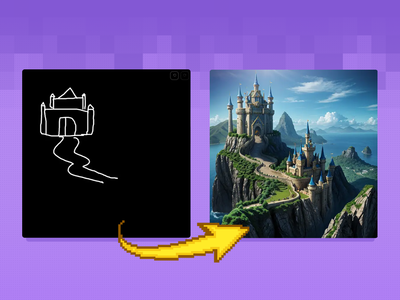
Turn your scribbles into a beautiful image with only a drawing tool and a text prompt. Key Inputs Scribble: Create your scribble with the painting and design tools Prompt: as descriptive a prompt as possible Width & height: Optimal resolution settings are noted ControlNet Strength: The amount of adherence to the original image. Higher has more adherence. Start Percent: The point in the generation process where the control starts exerting influence. (Have it start later, to let AI imagine first.) End Percent: The point in the generation process where the control stops exerting influence. (Have it end sooner, to let AI finish it off with some variation.)
Scribble to Image
Turn your scribbles into a beautiful image with only a drawing tool and a text prompt. Key Inputs Scribble: Create your scribble with the painting and design tools Prompt: as descriptive a prompt as possible Width & height: Optimal resolution settings are noted ControlNet Strength: The amount of adherence to the original image. Higher has more adherence. Start Percent: The point in the generation process where the control starts exerting influence. (Have it start later, to let AI imagine first.) End Percent: The point in the generation process where the control stops exerting influence. (Have it end sooner, to let AI finish it off with some variation.)
HunyuanVideo Foley: Create a Lifelike Sound
Flux.2 Klein Image Expansion / Outpaint
Wan Alpha Create Transparent Videos
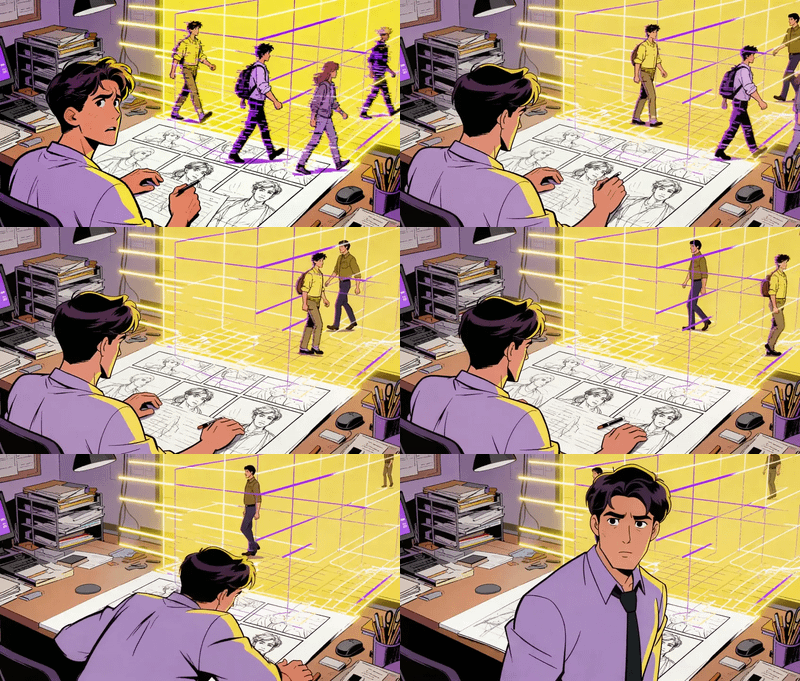
Seedance I2V: Image to Video in Minutes
floyoofficial
1.2k
Character Sheet
Image
Image to Image
SDXL
Generate a character sheet with multiple angles from a single input image as reference. Key Inputs Image reference: Use any JPG or PNG showing your subject clearly. If you're trying to create a full body output, a full body input must be provided.
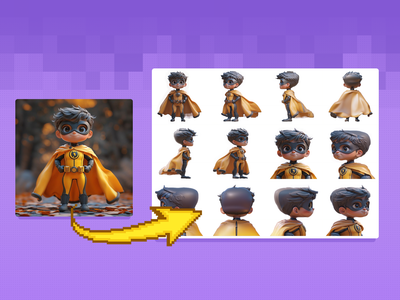
Image to Character Sheet
Generate a character sheet with multiple angles from a single input image as reference. Key Inputs Image reference: Use any JPG or PNG showing your subject clearly. If you're trying to create a full body output, a full body input must be provided.
floyoofficial
1.8k
ai video
API
multi reference
reference to video
seedance 2.0
Composite up to nine reference images into one video clip with Seedance 2.0 by ByteDance. Tag each image in the prompt, describe the scene, and hit run.
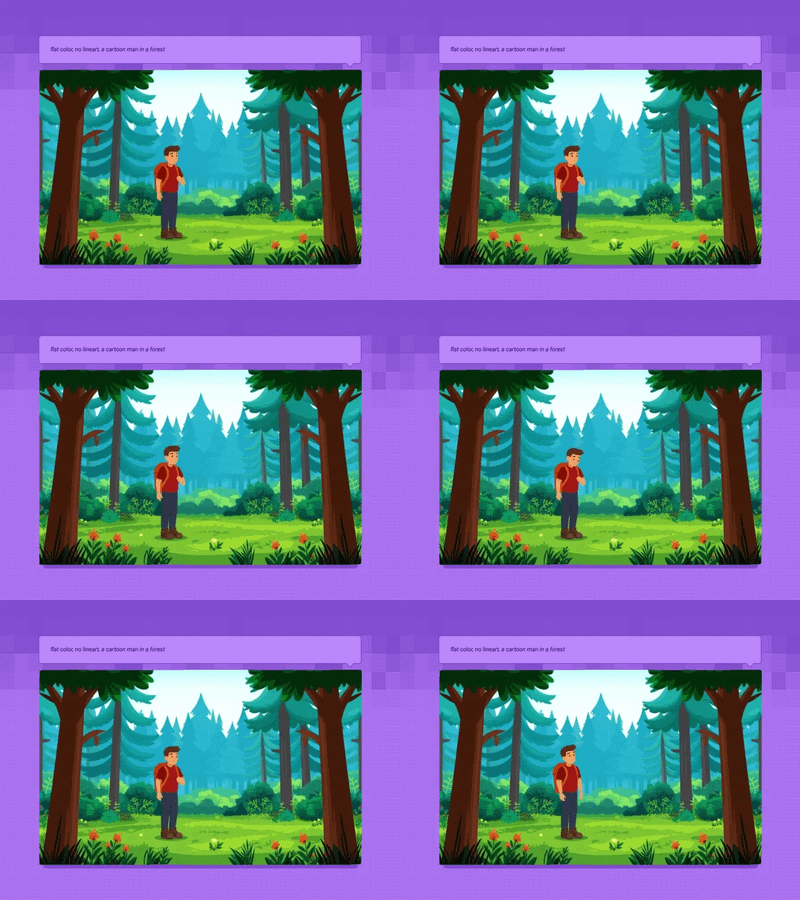
Seedance 2.0: Reference to Video
Composite up to nine reference images into one video clip with Seedance 2.0 by ByteDance. Tag each image in the prompt, describe the scene, and hit run.
floyoofficial
1.2k
LoRa
LoRAs
Text2Video
Video
Wan2.1
Generate a high-quality video from a text prompt and add in a LoRA for extra control over character or style consistency. Key Inputs Prompt: as descriptive a prompt as possible Load LoRA: Load your reference model here Width & height: Optimal resolution settings are noted File Format: H.264 and more
Text to Video and Wan with optional LoRA
Generate a high-quality video from a text prompt and add in a LoRA for extra control over character or style consistency. Key Inputs Prompt: as descriptive a prompt as possible Load LoRA: Load your reference model here Width & height: Optimal resolution settings are noted File Format: H.264 and more
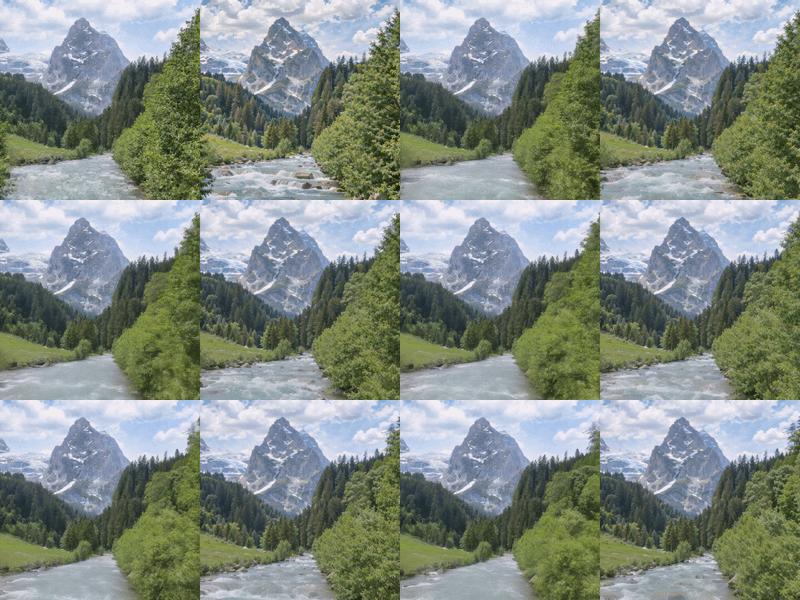
Wan2.2 Fun and RealismBoost LoRA for V2V
floyoofficial
3.7k
Anima2
character design
concept art
fantasy
Image
Text2Image
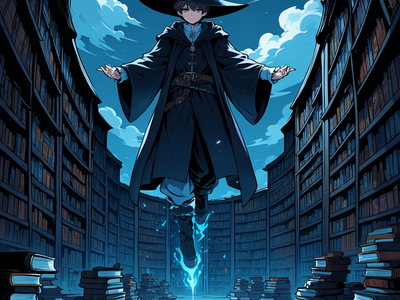
Generate anime and illustration art with Anima Preview 3, the 2B model from CircleStone Labs and Comfy Org. Write a prompt in tags or plain text, hit run.
Anima Preview 3 · Text to Image
Generate anime and illustration art with Anima Preview 3, the 2B model from CircleStone Labs and Comfy Org. Write a prompt in tags or plain text, hit run.
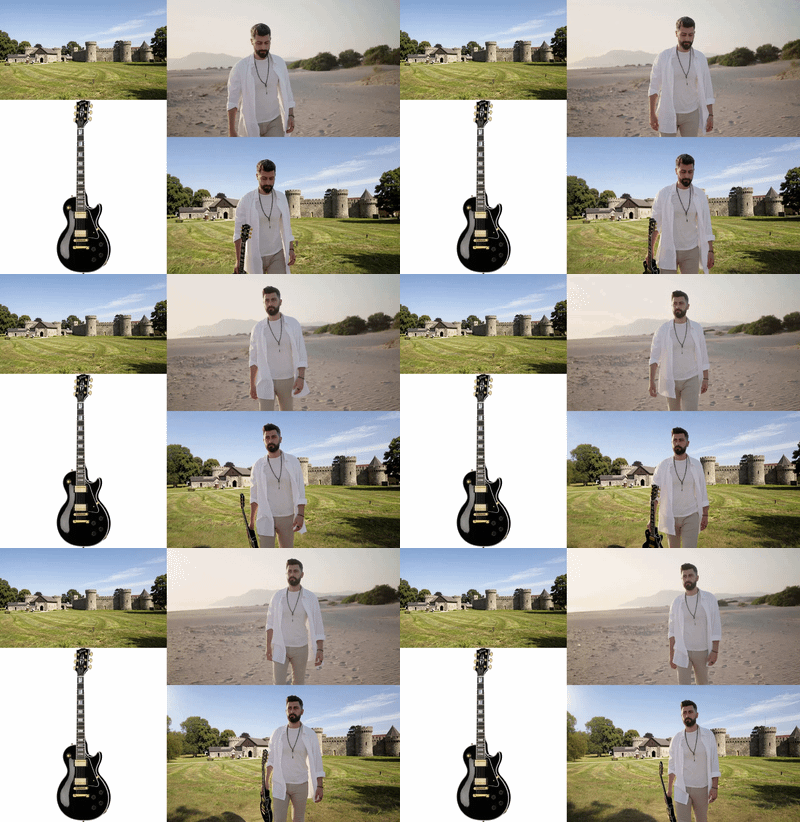
Kling Omni One Video to Video Edit
floyoofficial
1.6k
Image
Image2Image
Image Edit
LoRAs
Qwen Image Edit 2511
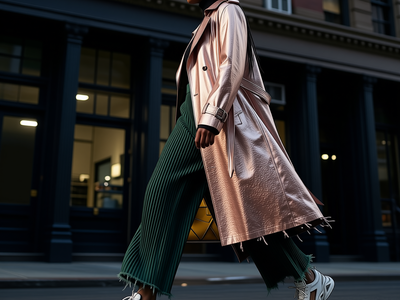
Set a precise camera angle with yaw, pitch, and distance using Qwen Image Edit 2511 and the Multi-Angle LoRA. Upload an image, dial in the view, hit run.
Qwen Image Edit 2511 · Camera Angle Control
Set a precise camera angle with yaw, pitch, and distance using Qwen Image Edit 2511 and the Multi-Angle LoRA. Upload an image, dial in the view, hit run.
floyoofficial
2.0k
animation
film production
image to video
Video
video generation
wan
Generate 1080p video with sound using Wan 2.7, Alibaba's flagship video model with a thinking mode. Upload a start image, describe the action, hit run.
Wan 2.7 · Image to Video With Audio
Generate 1080p video with sound using Wan 2.7, Alibaba's flagship video model with a thinking mode. Upload a start image, describe the action, hit run.
_1782470627803.webp?width=400&height=300&quality=80&resize=contain&format=origin)
ai video
audio
happy horse 1.1
image to video
Video
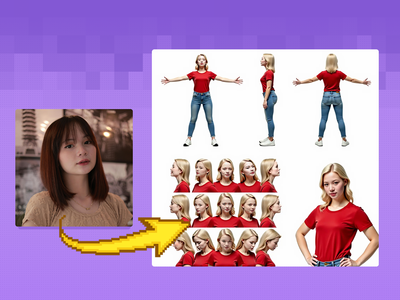
Upload a starting image and describe the motion you want. Happy Horse 1.1 animates it into a cinematic video with synchronized audio, dialogue, and lip-sync at up to 1080p.
Happy Horse 1.1 · Image to Video
Upload a starting image and describe the motion you want. Happy Horse 1.1 animates it into a cinematic video with synchronized audio, dialogue, and lip-sync at up to 1080p.
floyoofficial
1.3k
Character Sheet
Face Swap
Flux
Image
Take a character sheet and use a reference image to replace all the faces with that new person. Key Inputs Load Image: Use any JPG or PNG showing your pose sheet Load New Face: Use any JPG or PNG showing your subject clearly that you would like to swap into the pose sheet. Prompt: as descriptive a prompt as possible Width & height: Optimal resolution settings are noted at 1024px x 1024px Keep Proportion: Enable keep_proportion if you want to keep the same size with input and output Denoise: The amount of variance in the new image. Higher has more variance.
Image to Image Character Sheet Face Swap with Ace+
Take a character sheet and use a reference image to replace all the faces with that new person. Key Inputs Load Image: Use any JPG or PNG showing your pose sheet Load New Face: Use any JPG or PNG showing your subject clearly that you would like to swap into the pose sheet. Prompt: as descriptive a prompt as possible Width & height: Optimal resolution settings are noted at 1024px x 1024px Keep Proportion: Enable keep_proportion if you want to keep the same size with input and output Denoise: The amount of variance in the new image. Higher has more variance.

Kling V3 Pro Motion Control

Clothing & Accessories Replacement
_1774200945888.webp?width=400&height=300&quality=80&resize=contain&format=origin)
Next-Level Motion from Images using MiniMax

floyoofficial
1.0k
fx-integration
Image
image-to-image
LoRAs
qwen
reference-image
upscaling
Video
video-conditioning
wan21-funcontrol
Vertical Video FX Inserter - Qwen + Wan 2.1 FunControl
floyoofficial
1.9k
3D
3D Model
Hyper3D Rodin v2
Image to 3D
Rodin v2
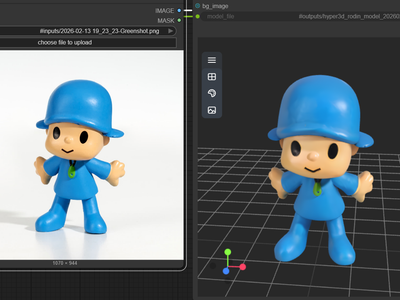
Turn your images into 3D using Hyper3D Rodin v2
Hyper3D Rodin V2 for Image to 3D
Turn your images into 3D using Hyper3D Rodin v2
Image
text2image
Wan2.1
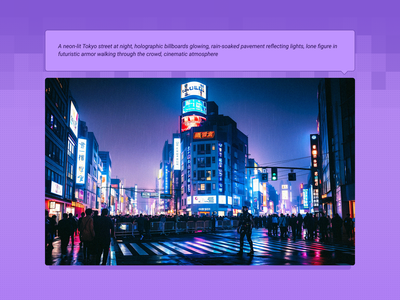
Created by @yanokusnir on Reddit, please support the original creator! https://www.reddit.com/r/StableDiffusion/comments/1lu7nxx/wan_21_txt2img_is_amazing/ If this is your workflow, please contact us at team@floyo.ai to claim it! Original post from the creator: Hello. This may not be news to some of you, but Wan 2.1 can generate beautiful cinematic images. I was wondering how Wan would work if I generated only one frame, so to use it as a txt2img model. I am honestly shocked by the results. All the attached images were generated in fullHD (1920x1080px) and on my RTX 4080 graphics card (16GB VRAM) it took about 42s per image. I used the GGUF model Q5_K_S, but I also tried Q3_K_S and the quality was still great. The only postprocessing I did was adding film grain. It adds the right vibe to the images and it wouldn't be as good without it. Last thing: For the first 5 images I used sampler euler with beta scheluder - the images are beautiful with vibrant colors. For the last three I used ddim_uniform as the scheluder and as you can see they are different, but I like the look even though it is not as striking. :) Enjoy.
Wan 2.1 Text2Image
Created by @yanokusnir on Reddit, please support the original creator! https://www.reddit.com/r/StableDiffusion/comments/1lu7nxx/wan_21_txt2img_is_amazing/ If this is your workflow, please contact us at team@floyo.ai to claim it! Original post from the creator: Hello. This may not be news to some of you, but Wan 2.1 can generate beautiful cinematic images. I was wondering how Wan would work if I generated only one frame, so to use it as a txt2img model. I am honestly shocked by the results. All the attached images were generated in fullHD (1920x1080px) and on my RTX 4080 graphics card (16GB VRAM) it took about 42s per image. I used the GGUF model Q5_K_S, but I also tried Q3_K_S and the quality was still great. The only postprocessing I did was adding film grain. It adds the right vibe to the images and it wouldn't be as good without it. Last thing: For the first 5 images I used sampler euler with beta scheluder - the images are beautiful with vibrant colors. For the last three I used ddim_uniform as the scheluder and as you can see they are different, but I like the look even though it is not as striking. :) Enjoy.

Vertical Video FX Insterter / Element Pass with Seedream + Wan
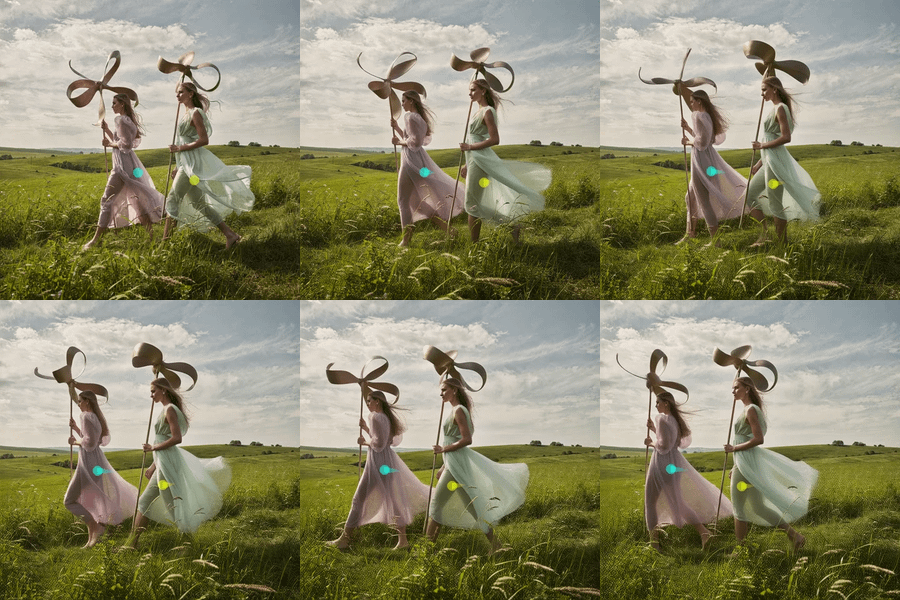
Wan2.1 + WanMOVE for Animating Movement using Trajectory Path
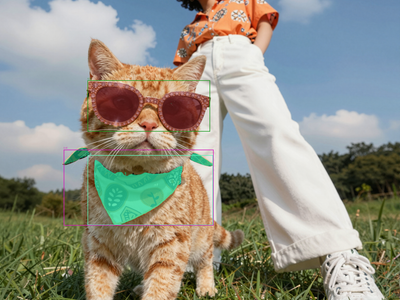
SAM3 Image Segmentation
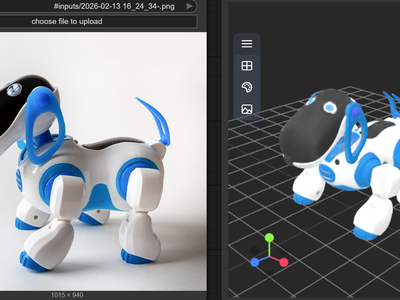
Tripo3D for Image to 3D
Create 3D model using Tripo3D with v2.5
_1783605502902.png?width=400&height=300&quality=80&resize=cover)
Image
image to image
multiangle
qwen image edit
relighting
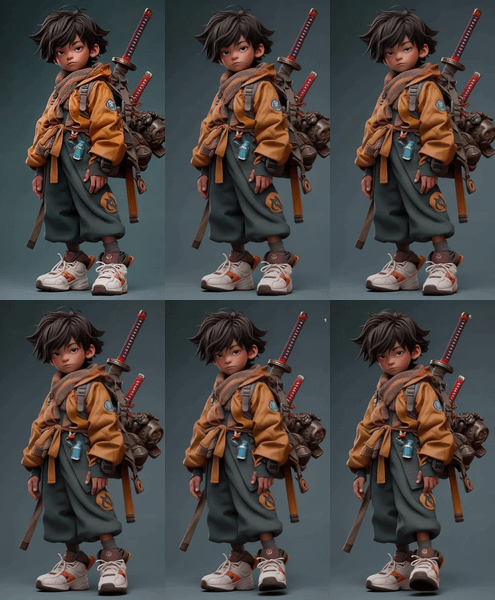
Upload one image and this workflow generates five relighted versions simultaneously, each lit from a different angle and direction, with full control over azimuth, elevation, intensity, and color.
Qwen Multiangle Light · Image to Image For Anime
Upload one image and this workflow generates five relighted versions simultaneously, each lit from a different angle and direction, with full control over azimuth, elevation, intensity, and color.
floyoofficial
6.0k
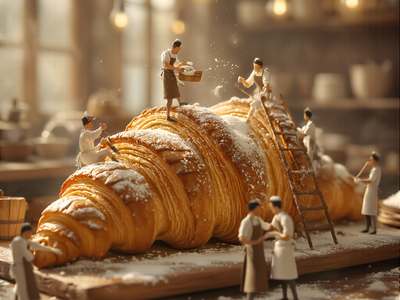
Chrome1 Radiance
Image
Macro Photography
Text2Image
Generate artifact-free images directly in pixel space with Chroma 1 Radiance. No VAE compression, no decode step. Write a prompt and hit run. Apache 2.0.
Chroma 1 Radiance · Text to Image
Generate artifact-free images directly in pixel space with Chroma 1 Radiance. No VAE compression, no decode step. Write a prompt and hit run. Apache 2.0.
floyoofficial
10.8k
Audio
Image to Video
LoRAs
LTX2.3
Video
Animate a face and keep identity locked through the clip with LTX-2.3 and a face LoRA. Upload a portrait, describe the scene, get 1080p video with audio.
LTX-2.3 · Face Consistent Image to Video
Animate a face and keep identity locked through the clip with LTX-2.3 and a face LoRA. Upload a portrait, describe the scene, get 1080p video with audio.
floyoofficial
1.4k
FLUX
FLUX.2 Klein
Ghost Mannequin
Image
Image2Image
LoRAs
SAM3
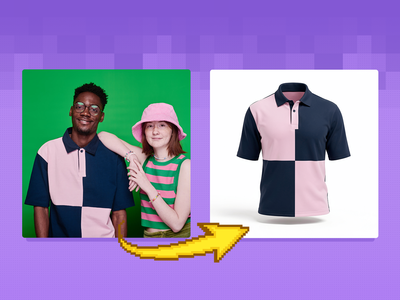
Create a ghost mannequin clothes using flux.2 klein, SAM3 and Ghost mannequin LoRA
FLUX.2 Klein 9B + SAM3 + GhostMannequin LoRA
Create a ghost mannequin clothes using flux.2 klein, SAM3 and Ghost mannequin LoRA
floyoofficial
1.1k
Image2Video
LTX
Video
Used for image to video generation, including first frame, end frame, or other multiple key frames. Key Inputs Load Image (Start Frame): Use any JPG or PNG showing your subject clearly to start your video Load Image (End Frame): Use any JPG or PNG showing your subject clearly to act as the last part of your video. Make sure it's the same resolution as the load image. Width & height: Optimal resolution settings are noted. LTX maximum resolution is 768x512 Prompt: as descriptive a prompt as possible
Image to Video with Multiframe Control
Used for image to video generation, including first frame, end frame, or other multiple key frames. Key Inputs Load Image (Start Frame): Use any JPG or PNG showing your subject clearly to start your video Load Image (End Frame): Use any JPG or PNG showing your subject clearly to act as the last part of your video. Make sure it's the same resolution as the load image. Width & height: Optimal resolution settings are noted. LTX maximum resolution is 768x512 Prompt: as descriptive a prompt as possible
Wan2.6 Text to Video
_1767112903535.webp?width=400&height=300&quality=80&resize=contain&format=origin)
360 Degree Product Video Using Nano Banana Pro
%20(2)_1774290976171.webp?width=400&height=300&quality=80&resize=contain&format=origin)
floyoofficial
1.1k
API
Floyo API
Kling
MotionControl
Video
Transfer movements from a reference video to any character image.
Kling 3.0 Standard Motion Control
Transfer movements from a reference video to any character image.
Qwen Image Edit – Multi-Angle Camera View
Kling Omni One Image to Video
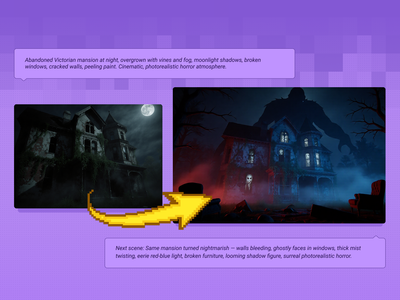
Qwen Image Edit 2509 + Flux Krea for Creating Next Scene
floyoofficial
2.0k
gemini 3 pro
Image
Image2Image
Image Editing
Nano Banana Pro Edit
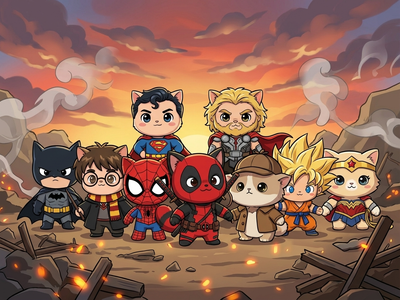
Edit any image with text using Nano Banana Pro, Google's Gemini 3 Pro image model. Upload your image, describe the change, add references, and hit run.
Nano Banana Pro · Edit Any Image
Edit any image with text using Nano Banana Pro, Google's Gemini 3 Pro image model. Upload your image, describe the change, add references, and hit run.
digital illustration
Image
image to image
recraft
style transfer
text to image
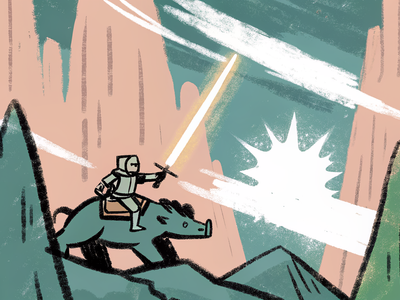
Transform an existing image with Recraft V3. Upload a reference, write a prompt, set strength, and pick a style. Controls how much of the original survives.
Recraft V3 Image to Image - Style Transfer
Transform an existing image with Recraft V3. Upload a reference, write a prompt, set strength, and pick a style. Controls how much of the original survives.
SAM3 for Video Masking using Text
Create a video masking using SAM3 and Text only.
_1786522681696.png?width=400&height=300&quality=80&resize=cover)
floyoofficial
9.7k
FLUX
Flux.2 Klein
Image
Image2Image
Image Editing
LoRA
LoRAs
Edit images with consistency of the subject or things using Flux.2 Klein 9B and a LoRA
FLUX.2 Klein 9B · Image to Image
Edit images with consistency of the subject or things using Flux.2 Klein 9B and a LoRA
Wan2.2 and Bullet Time LoRA: Transform Static Shots into Product Spins
Wan2.1 InfiniteTalk Video to Video
Animation
Filmmaking
Image2Video
Kling 2.6 Pro
Video
Create stunning videos using Kling 2.6 Pro
Kling 2.6 Pro for Image to Video
Create stunning videos using Kling 2.6 Pro
consistency
film production
happy horse
image to video
product photography
Video
video generation
Animate a still image with Happy Horse 1.0. Upload a frame, describe the motion you want, get a 5-second clip with stable physics and consistent details.
Happy Horse 1.0 - Image to Video
Animate a still image with Happy Horse 1.0. Upload a frame, describe the motion you want, get a 5-second clip with stable physics and consistent details.
Flux
Image
Redux
Create variations of a given image, or restyle them. It can be used to refine, explore, or transform ideas and concepts. Key Inputs Image reference: Use any JPG or PNG showing your subject clearly Width & height: In pixels Prompt: as descriptive a prompt as possible Strength (step 5: value): Strength of redux model, play around with the value to increase or decrease the amount of variation
Image Redux with Flux
Create variations of a given image, or restyle them. It can be used to refine, explore, or transform ideas and concepts. Key Inputs Image reference: Use any JPG or PNG showing your subject clearly Width & height: In pixels Prompt: as descriptive a prompt as possible Strength (step 5: value): Strength of redux model, play around with the value to increase or decrease the amount of variation
_1764582642632.webp?width=400&height=300&quality=80&resize=contain&format=origin)
Vertical Video Light & Mood Shift
FlatLogColor LoRA and Qwen Image Edit 2509

Chatterbox Text to Speech
Text to speech workflow using Chatterbox
floyoofficial
2.0k
Image
Image2Image
Light Restoration
LoRAs
Qwen
Qwen Image Edit 2509
Remove harsh light and shadow from any photo and relight it with soft, even illumination using Qwen Image Edit 2509 and a Relight LoRA. Upload and run.
Qwen Image Edit 2509 · Relight
Remove harsh light and shadow from any photo and relight it with soft, even illumination using Qwen Image Edit 2509 and a Relight LoRA. Upload and run.
floyoofficial
1.2k
Animation
Audio
Filmography
Image2Video
LoRAs
LTX 2
Open Source
Video
A workflow for ltx 2 image to video using distilled model
LTX 2 19B Fast for Image to Video
A workflow for ltx 2 image to video using distilled model

floyoofficial
1.4k
Masking
Segmentation
Video
Use a video clip and visual markers to segment/create masks of the subject or the inverse. Key Inputs Load Video: Use any Mp4 that you would like to segment or create a mask from Select subject: Use 3 green selectors to identify your subject and one red selector to identify the space outside your subject Modify markers: Shift+Click to add markers, Shift+Right Click to remove markers
Video Masking with Sam2 Comparison
Use a video clip and visual markers to segment/create masks of the subject or the inverse. Key Inputs Load Video: Use any Mp4 that you would like to segment or create a mask from Select subject: Use 3 green selectors to identify your subject and one red selector to identify the space outside your subject Modify markers: Shift+Click to add markers, Shift+Right Click to remove markers
e-commerce
gpt image 2
Image
image to image
inpainting
product photography
Edit images with OpenAI's GPT Image 2. Upload one or two images, write what you want changed, and the model rewrites the scene while keeping details intact.
GPT Image 2: Image Editing
Edit images with OpenAI's GPT Image 2. Upload one or two images, write what you want changed, and the model rewrites the scene while keeping details intact.
LTX 2.3 Image to Video with Two-Pass Upscaling
%20(2)_1774208003255.webp?width=400&height=300&quality=80&resize=contain&format=origin)
floyoofficial
1.8k
API
Floyo API
Topaz
Video
Video2Video
Video Upscale
Upload a video, pick your enhancement model and quality level, and Topaz Video AI sharpens, denoises, and upscales it. Audio is preserved. Output is H265 MP4.
Topaz Video Upscaler for Sharper Results
Upload a video, pick your enhancement model and quality level, and Topaz Video AI sharpens, denoises, and upscales it. Audio is preserved. Output is H265 MP4.
_1778129692947.png?width=400&height=300&quality=80&resize=cover)
FLUX.1 Kontext · 3D Print Style (Image to Image)
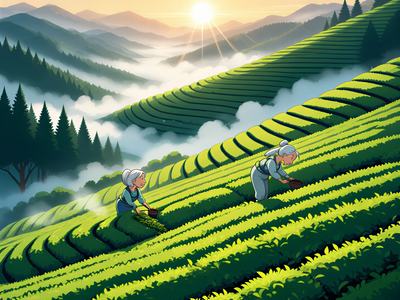
anime
character design
concept art
Image
seedvr
text to image
upscaling
z-anime
Generate anime and illustration art from text with Z-Anime, then upscale to 1080p with SeedVR. Compare the base render and the upscaled version side by side.
Z-Anime - Text to Image with SeedVR Upscale
Generate anime and illustration art from text with Z-Anime, then upscale to 1080p with SeedVR. Compare the base render and the upscaled version side by side.

floyoofficial
2.4k
FantasyTalking
Image2Video
Lipsync
Video
Wan2.1
Create high quality lipsync video from image inputs with Wan2.1 FantasyTalking Key Inputs Load Image: Select an image of a person with their face in clear view Load Audio: Choose audio file Frames: How many frames generated
Wan2.1 and FantasyTalking - Image2Video Lipsync
Create high quality lipsync video from image inputs with Wan2.1 FantasyTalking Key Inputs Load Image: Select an image of a person with their face in clear view Load Audio: Choose audio file Frames: How many frames generated
SAM3 for Video Masking using Points
Create a video masking using SAM3 and Points only.
Qwen Image Edit 2509 and Grayscale to Color LoRA
consistency
e-commerce
image to video
product photography
seedance 2.0
Video
video generation
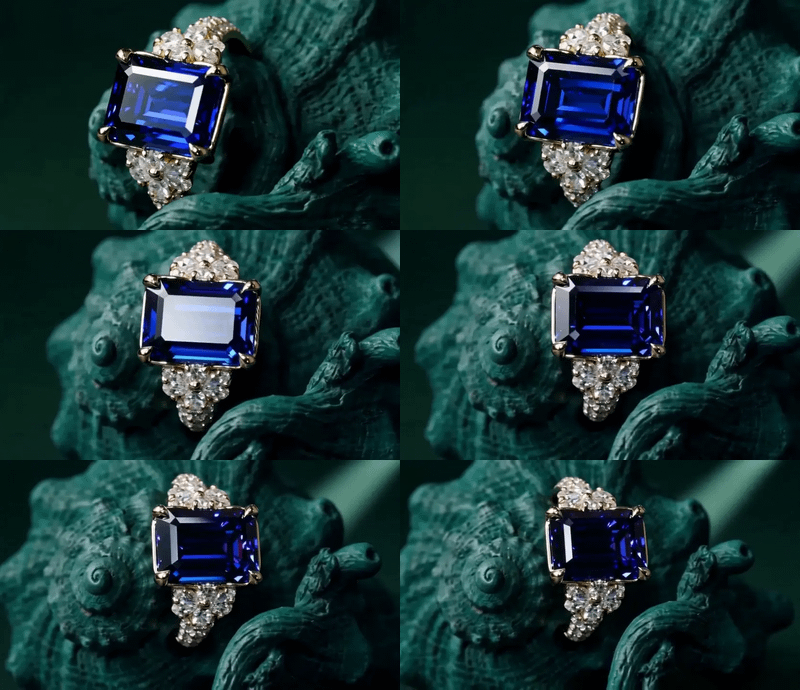
Animate jewelry from product photos with Seedance 2.0. Upload a start frame and up to 6 reference angles, describe the camera move, and get a 5-second clip.
Seedance 2.0 for Jewelry Scene Animator
Animate jewelry from product photos with Seedance 2.0. Upload a start frame and up to 6 reference angles, describe the camera move, and get a 5-second clip.
_1766997541061.png?width=400&height=300&quality=80&resize=cover)
Insert Products in Ecommerce Ads - NanoBanana Pro
3D
Api
Hunyuan
Image
Image to 3D
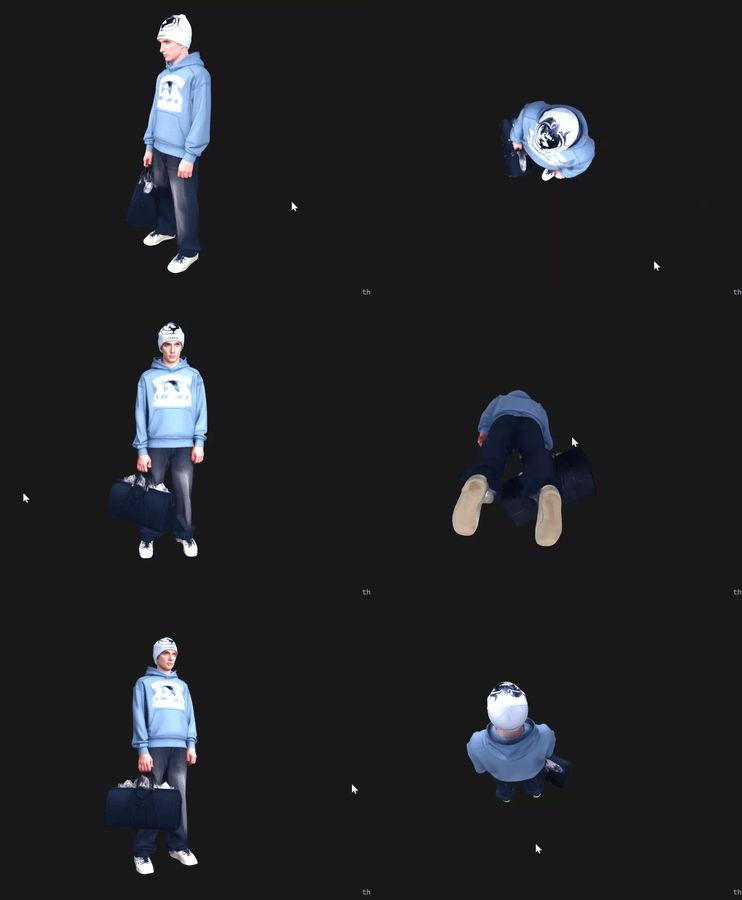
Turn any photo into a production-ready 3D model with Hunyuan 3D Pro. Get a GLB file, a thumbnail render, and an interactive turntable preview in under 60 seconds.
Hunyuan 3D Pro - Image to 3D Model
Turn any photo into a production-ready 3D model with Hunyuan 3D Pro. Get a GLB file, a thumbnail render, and an interactive turntable preview in under 60 seconds.

Grok Imagine for Text to Video
Create excellent videos using Grok Imagine for T2V
floyoofficial
1.2k
API
Audio
Filmography
Fimmaking
Floyo API
Image2Video
LTX 2 Fast
Video
Outdated model. Please go to LTX 2.3 Image to Video workflow to use LTX 2.3
LTX 2 Fast API for Image to Video
Outdated model. Please go to LTX 2.3 Image to Video workflow to use LTX 2.3
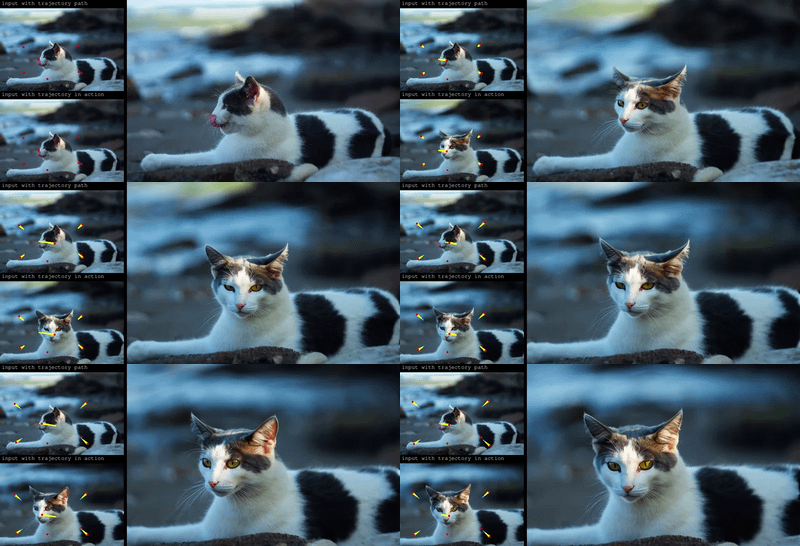
Wan2.1 and ATI for Control Video Motion: Draw Your Path, Get Your Video

VibeVoice Text to Speech Multi Speaker
Speech Multi Speaker
_1758800553742.webp?width=400&height=300&quality=80&resize=contain&format=origin)
Hunyuan
LoRa
LoRAs
Text2Video
Video
Integrate a custom model with your text prompt to create a video with a consistent character, style or element. Key Inputs Prompt: as descriptive a prompt as possible. Make sure to include the trigger word from your LoRA below Load LoRA: Load your reference model here Width & height: resolution settings are noted in pixels Guidance strength (CFG): Higher numbers adhere more to the prompt Flow Shift: For temporal consistency, adjust to tweak video smoothness.
Text to Video + Hunyuan LoRA
Integrate a custom model with your text prompt to create a video with a consistent character, style or element. Key Inputs Prompt: as descriptive a prompt as possible. Make sure to include the trigger word from your LoRA below Load LoRA: Load your reference model here Width & height: resolution settings are noted in pixels Guidance strength (CFG): Higher numbers adhere more to the prompt Flow Shift: For temporal consistency, adjust to tweak video smoothness.
floyoofficial
6.2k
API
background removal
E-commerce
Grok Imagine
Image
Image Editing
Image to Image
Style Transfer
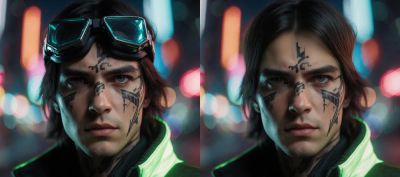
Edit any image with a text instruction using Grok Imagine. Upload a picture, describe the change, and get a side-by-side comparison back in under a second.
Grok Imagine: Edit Images with a Text Prompt
Edit any image with a text instruction using Grok Imagine. Upload a picture, describe the change, and get a side-by-side comparison back in under a second.
Image
Image to SVG
Qwen Image Edit 2511
SVG
SVG Potracer
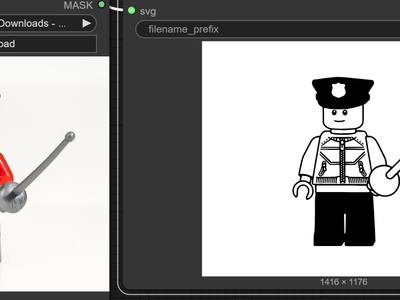
Create SVG image using Qwen Image Edit and SVG Potracer node
SVG Potracer + Qwen Image 2511 for Image to SVG
Create SVG image using Qwen Image Edit and SVG Potracer node
floyoofficial
1.9k
Image
Image2Image
Image Editing
Seedream 4.5
Text2Image
typography
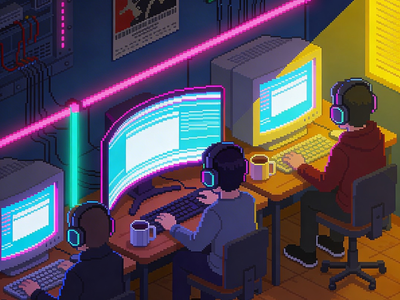
Generate images from a text prompt with Seedream 4.5, ByteDance's unified model for illustration, text rendering, and layouts. Write a prompt and hit run.
Seedream 4.5 · Text to Image
Generate images from a text prompt with Seedream 4.5, ByteDance's unified model for illustration, text rendering, and layouts. Write a prompt and hit run.
_1776068409140.webp?width=400&height=300&quality=80&resize=contain&format=origin)
Seedance 2.0 Fast Reference-to-Video
Flux LoRA Trainer
_1766051317506.webp?width=400&height=300&quality=80&resize=contain&format=origin)
Vertical Video Background & Scene Rebuild
floyoofficial
1.0k
3D
Chord
Game Design
Image
PBR Material
Text to 3D
Ubisoft
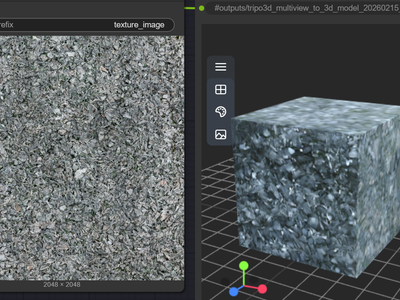
Create a 3D Game Material Asset using Chord Model from Ubisoft
Chord for PBR Material Generation using Text to 3D
Create a 3D Game Material Asset using Chord Model from Ubisoft
InfiniteTalk - Lip Sync Any Video to Any Audio
_1767704595216.png?width=400&height=300&quality=80&resize=cover)
Studio Relighting for Composited Products

LTX 2.3 Audio to Video
Image
image to image
infinite style
qwen
Restyle any photo with text. Type a style, hit Run, get the same image as anime, watercolor, claymation, or any look in 4 seconds with Qwen Image Edit.
Qwen Image Edit - Infinite Image Styles
Restyle any photo with text. Type a style, hit Run, get the same image as anime, watercolor, claymation, or any look in 4 seconds with Qwen Image Edit.
_1762345216109.gif?width=400&height=300&quality=80&resize=contain&format=origin)
Seedance Text to Video: Create Stunning video

Qwen3 Thinking Prompt Enhancer
_1785314230771.png?width=400&height=300&quality=80&resize=cover)
Nano Banana · Edit (Image to Image)
Meshy v6 for Image to 3D Model
Create a 3D model from Image using Meshy v6
LTX 2.3 Pro Text to Video
_1783585404420.webp?width=400&height=300&quality=80&resize=contain&format=origin)
audio
image to video
ltx 2.3
two-pass
Video
Upload an image and LTX Video 2.3 22B generates a 5-second video at 1080p with synchronized audio, using a two-pass pipeline that renders at low resolution first then upscales in latent space for sharp, detailed output.
LTX 2.3 Two-Pass · Image to Video For Anime
Upload an image and LTX Video 2.3 22B generates a 5-second video at 1080p with synchronized audio, using a two-pass pipeline that renders at low resolution first then upscales in latent space for sharp, detailed output.
_1779447402825.webp?width=400&height=300&quality=80&resize=contain&format=origin)
Audio
Film Production
Image to Video
LoRAs
ltx2.3
Video
Animate a still image with LTX 2.3 22B while a Cameraman IC-LoRA copies the camera motion from a reference video. Audio is generated in the same pass.
LTX 2.3 + IC-LoRA Cameraman: Image to Video
Animate a still image with LTX 2.3 22B while a Cameraman IC-LoRA copies the camera motion from a reference video. Audio is generated in the same pass.
Z-Image Turbo + Chord Image to PBR Material
SRPO Next-Gen Text-to-Image
%20(1)_1774207669060.webp?width=400&height=300&quality=80&resize=contain&format=origin)
floyoofficial
1.9k
animation
Ditto
lora
LoRAs
VACE
Video
Video2Video
Wan
Upload any video, describe a new style, and Wan 2.1 rewrites every frame. Ditto keeps motion and structure intact across anime, Pixar, clay, and dozens more.
Wan 2.1 Vid2Vid Style Transfer with Ditto
Upload any video, describe a new style, and Wan 2.1 rewrites every frame. Ditto keeps motion and structure intact across anime, Pixar, clay, and dozens more.
Image
text to image
z-image turbo
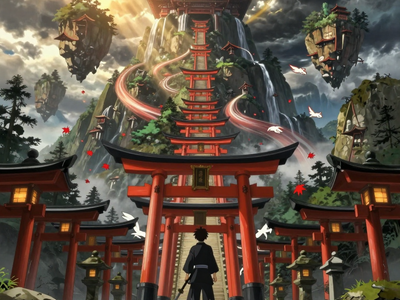
Write a prompt and Z-Image Turbo generates a photorealistic 1024x1024 image in 9 steps, using a 6-billion-parameter model distilled for speed with bilingual prompt support.
Z-Image Turbo · Text to Image For Anime
Write a prompt and Z-Image Turbo generates a photorealistic 1024x1024 image in 9 steps, using a 6-billion-parameter model distilled for speed with bilingual prompt support.
Ovi: Create a Talking Portrait
Flux
Image
Image to Image
Inpainting
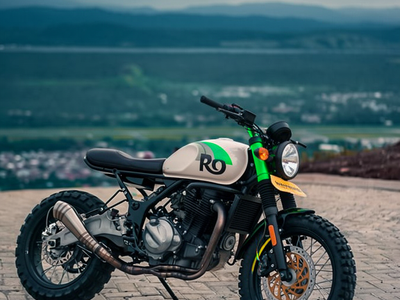
Paint a mask over the part of your product image you want to change, drop in a reference design, and Flux 2 Klein redraws only that region in four steps.
Partial Modification Reference Image using Flux.2
Paint a mask over the part of your product image you want to change, drop in a reference design, and Flux 2 Klein redraws only that region in four steps.
floyoofficial
2.6k
character animation
character replacement
LoRAs
motion transfer
scail 2
Video
video to video
wan 2.1
Transfer the motion from any video onto your own character with SCAIL 2, Z.ai's end-to-end character animation model built on Wan 2.1. Upload a video and a character photo, then hit run.
Wan2.1 + SCAIL-2 for Character Motion Transfer
Transfer the motion from any video onto your own character with SCAIL 2, Z.ai's end-to-end character animation model built on Wan 2.1. Upload a video and a character photo, then hit run.

ElevenLabs Text to Speech
ElevenLabs Text to Speech
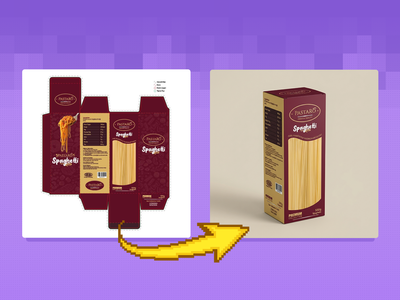
Create Photorealistic Packaging from Dielines

floyoofficial
1.5k
3D
Animation
Architecture
Flux
Game Development
Hunyuan 3D
Image to 3D
Upscaling
Create a 3D model from a reference image with Flux Dev texture upscaling.
Image to 3D with Hunyuan3D w/ Texture Upscale
Create a 3D model from a reference image with Flux Dev texture upscaling.
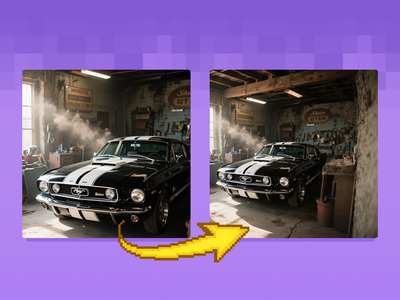
floyoofficial
1.5k
Flux
Image
Outpaint
Extend your images out for a wider field of view or just to see more of your subject. Expand compositions, change aspect ratios, or add creative elements while maintaining consistency in style, lighting, and detail while seamlessly blending with the existing artwork.
Flux Fill Dev Image Outpainting
Extend your images out for a wider field of view or just to see more of your subject. Expand compositions, change aspect ratios, or add creative elements while maintaining consistency in style, lighting, and detail while seamlessly blending with the existing artwork.
_1768981819654.webp?width=400&height=300&quality=80&resize=contain&format=origin)
Static Watermark Remover

floyoofficial
1.6k
Vace
Video
Wan
Created by @davcha on Civitai, please support the original creator! https://civitai.com/models/1674121/simple-self-forcing-wan13bvace-workflow If this is your workflow, please contact us at team@floyo.ai to claim it! Original guide from creator: This is a very simple workflow to run Self-Forcing Wan 1.3B + Vace, it only uses a single custom node, which everyone making videos should have: Kosinkadink/ComfyUI-VideoHelperSuite. Everything else is pure comfy core. You'll need to download the model of your choice from here lym00/Wan2.1-T2V-1.3B-Self-Forcing-VACE · Hugging Face, and put it inside your /path/to/models/diffusion_models folder. This workflow can be used as a very good start for experimenting. You can refer to this [2503.07598] VACE: All-in-One Video Creation and Editing for how to use Vace. You don't need to read the paper of course, the information you are interested in is mostly at the top of page 7, which I reproduce in the following: Basically, in the WanVaceToVideo node, you have 3 optional inputs: control_video, control_masks, and reference_image. control_video and control_masks are a little bit misleading. You don't have to provide a full video. You can in fact provide a variety of things to obtain various effects. For example: if you provide a single image, it's basically more or less equivalent to image2video. if you provide a sequence of images separated by empty images: img1, black, black, black, img2, black, black, black, img3, etc... then it's equivalent to interpolating all these img, filling the blacks. A special case of this one to make it clear is if you have img1, black, black, ..., black, img2, then it's equivalent to start_img, end_img to video. control_masks control where Wan should paint. Basically if wherever the mask is 1, the original image will be kept. So you can for example pad and/or mask an input image, like this: and use that image and mask as control_video and control_mask, and you'll basically do a image2video inpaint and outpaint. If you input a video in control_video, then you can control where the changes should happen in the same way, using control_mask. You'll need to set one mask per frame in the video. if you input an image preprocessed with openpose or a depthmap, you can finely control the movement in the video output. reference_image node is basically an image that you feed to Wan+Vace that serves as a reference point. For example, if you put the image of someone's face here, there's a good chance you'll get a video with that person's face.
Simple Self-Forcing Wan1.3B+Vace workflow
Created by @davcha on Civitai, please support the original creator! https://civitai.com/models/1674121/simple-self-forcing-wan13bvace-workflow If this is your workflow, please contact us at team@floyo.ai to claim it! Original guide from creator: This is a very simple workflow to run Self-Forcing Wan 1.3B + Vace, it only uses a single custom node, which everyone making videos should have: Kosinkadink/ComfyUI-VideoHelperSuite. Everything else is pure comfy core. You'll need to download the model of your choice from here lym00/Wan2.1-T2V-1.3B-Self-Forcing-VACE · Hugging Face, and put it inside your /path/to/models/diffusion_models folder. This workflow can be used as a very good start for experimenting. You can refer to this [2503.07598] VACE: All-in-One Video Creation and Editing for how to use Vace. You don't need to read the paper of course, the information you are interested in is mostly at the top of page 7, which I reproduce in the following: Basically, in the WanVaceToVideo node, you have 3 optional inputs: control_video, control_masks, and reference_image. control_video and control_masks are a little bit misleading. You don't have to provide a full video. You can in fact provide a variety of things to obtain various effects. For example: if you provide a single image, it's basically more or less equivalent to image2video. if you provide a sequence of images separated by empty images: img1, black, black, black, img2, black, black, black, img3, etc... then it's equivalent to interpolating all these img, filling the blacks. A special case of this one to make it clear is if you have img1, black, black, ..., black, img2, then it's equivalent to start_img, end_img to video. control_masks control where Wan should paint. Basically if wherever the mask is 1, the original image will be kept. So you can for example pad and/or mask an input image, like this: and use that image and mask as control_video and control_mask, and you'll basically do a image2video inpaint and outpaint. If you input a video in control_video, then you can control where the changes should happen in the same way, using control_mask. You'll need to set one mask per frame in the video. if you input an image preprocessed with openpose or a depthmap, you can finely control the movement in the video output. reference_image node is basically an image that you feed to Wan+Vace that serves as a reference point. For example, if you put the image of someone's face here, there's a good chance you'll get a video with that person's face.
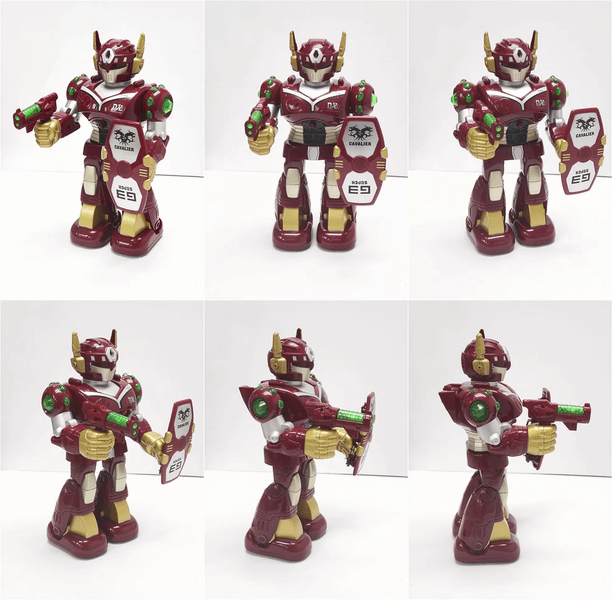
🔥Create Stunning 10 Second 3D Spin Shots
%20(1)_1782997033756.png?width=400&height=300&quality=80&resize=cover)
ai music generator
Audio
comfyui
instrumental music
sound effects
stability ai
stable audio 3
text to audio
Describe the track or sound you want and Stable Audio 3 Medium, Stability AI's open text-to-audio model, generates it. Write a prompt, set a length, and hit run.
Stable Audio 3 for Text to Music
Describe the track or sound you want and Stable Audio 3 Medium, Stability AI's open text-to-audio model, generates it. Write a prompt, set a length, and hit run.
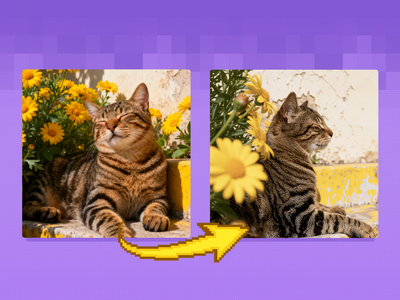
floyoofficial
3.3k
Camera Control
Image
Image2Image
LoRA
LoRAs
Qwen
Qwen Image Edit 2509
Re-render your subject from any camera angle with Qwen Image Edit 2509 and a Multi-Angle LoRA. Pan, tilt, rotate, wide-angle, or close-up. No trigger word.
Qwen Image Edit 2509 + Multi-Angle LoRA for Camera
Re-render your subject from any camera angle with Qwen Image Edit 2509 and a Multi-Angle LoRA. Pan, tilt, rotate, wide-angle, or close-up. No trigger word.
_1783598717832.webp?width=400&height=300&quality=80&resize=contain&format=origin)
Audio
ic-lora
LoRAs
ltx2.3
union control
Video
video to video
Upload a video and a style reference image. LTX 2.3 with IC LoRA Union Control restyles the full video to match the reference while preserving the original motion, body pose, and scene structure using blended depth, pose, and edge control.
LTX 2.3 IC LoRA Union Control · V2V For Anime
Upload a video and a style reference image. LTX 2.3 with IC LoRA Union Control restyles the full video to match the reference while preserving the original motion, body pose, and scene structure using blended depth, pose, and edge control.
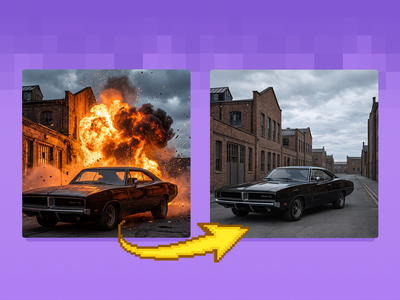
GPT Image 1.5
for Image Editing
_1779814564020.webp?width=400&height=300&quality=80&resize=contain&format=origin)
floyoofficial
1.7k
Inpainting
Video
Video to Video
Erase any object from a video and fill the gap with coherent motion using VOID by Netflix and SAM3 by Meta. Type the object name, hit run. Apache 2.0.
VOID · Video Object Removal
Erase any object from a video and fill the gap with coherent motion using VOID by Netflix and SAM3 by Meta. Type the object name, hit run. Apache 2.0.
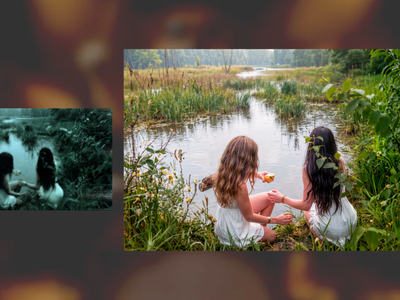
Anything2Real 2601A
animation
character design
image to video
kling
Video
video generation
Apply motion from a reference video to a still image with Kling 3.0 Pro.
Kling 3.0 Pro Motion Control
Apply motion from a reference video to a still image with Kling 3.0 Pro.
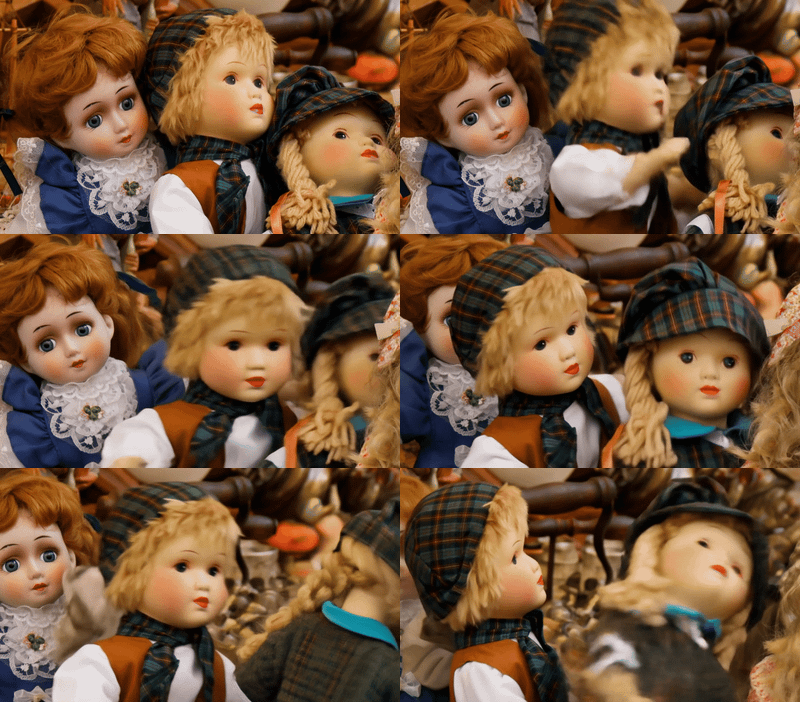
Kling Master 2.0 Create Engaging Video Content
film production
image to video
lora
ltx 2.5
upscaling
vfx
video generation
Upload an image and describe the motion
LTX 2.5 DEV Image to Video
Upload an image and describe the motion
high details
Image
text to image
z-image
Write a prompt and Z-Image Base generates a photorealistic image at 1024x1024 with 30 steps and the res_multistep sampler, using the undistilled 6B model for maximum detail and quality.
Z-Image Base · Text to Image For Anime
Write a prompt and Z-Image Base generates a photorealistic image at 1024x1024 with 30 steps and the res_multistep sampler, using the undistilled 6B model for maximum detail and quality.
floyoofficial
1.5k
Audio
LoRAs
LTX 2
Vid2Vid
Video
Video Detailer
Video Editing
It can enhance the detail of the video
Video Detailer using LTX 2 Vid2Vid
It can enhance the detail of the video
Image
Image to Image
PBR texture
Turn any reference image into a tileable wood texture with full PBR maps: basecolor, normal, roughness, metalness, and height. Built for Unreal and Blender.
Seamless PBR Texture Workflow
Turn any reference image into a tileable wood texture with full PBR maps: basecolor, normal, roughness, metalness, and height. Built for Unreal and Blender.
floyoofficial
1.3k
flux
flux 2 klein
Image
image to image
lora
LoRAs
outpainting
panorama
Turn any image into a full 360 equirectangular panorama with Klein 9B and a 360 ERP outpaint LoRA. Cut flat camera shots at any angle from the result.
Flux 2 Klein 9B + 360 Panorama ERP LoRA
Turn any image into a full 360 equirectangular panorama with Klein 9B and a 360 ERP outpaint LoRA. Cut flat camera shots at any angle from the result.

Camera Control
Image
Image2Vid
LoRAs
Qwen Image Edit 2511
Vid2Vid
Video
Wan2.6
Using witness cameras to recreate additional shots that were not captured by principal photography
Camera Angle Creation using Image2Vid
Using witness cameras to recreate additional shots that were not captured by principal photography
i2v
LTX 2.5
Video
Animate any image into a video clip with synced audio using LTX 2.5, Lightricks' 22B open-weights video model. Upload a frame, describe the motion, hit run.
LTX-2.5 for Image to Video
Animate any image into a video clip with synced audio using LTX 2.5, Lightricks' 22B open-weights video model. Upload a frame, describe the motion, hit run.
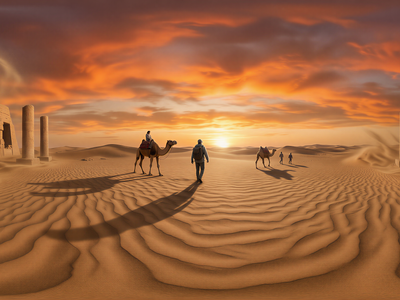
Qwen Image - Text to 360° HDRI Panorama
floyoofficial
1.6k
multi-reference
reference to video
video to video
wan 3.0 prime
Place a character into any video using Wan 3.0 Prime by Alibaba. Upload a face, a reference clip, and describe the scene. Prime fidelity, audio included.
Wan 3.0 Prime · Reference to Video
Place a character into any video using Wan 3.0 Prime by Alibaba. Upload a face, a reference clip, and describe the scene. Prime fidelity, audio included.
bytedance
image to video
seedance
seedance 2.5
video with audio
Animate a still with sound using Seedance 2.5, ByteDance's 30-second video model. Upload a start image, add an end frame, describe the motion, and hit run.
Seedance 2.5 · Image to Video With Audio
Animate a still with sound using Seedance 2.5, ByteDance's 30-second video model. Upload a start image, add an end frame, describe the motion, and hit run.

floyoofficial
1.1k
Alibaba
Audio
Text to Video
Video
Wan 2.7
Generate video from a text prompt using Alibaba's Wan 2.7 model. Set your resolution, aspect ratio, and duration, then hit Run. Audio input supported.
Wan 2.7 - Text to Video
Generate video from a text prompt using Alibaba's Wan 2.7 model. Set your resolution, aspect ratio, and duration, then hit Run. Audio input supported.
joy caption fine controls
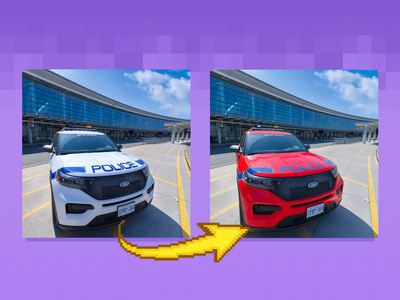
Capybara for Image Editing
Edit your cool images using Capybara

GPT Image 2.5 Sunburst
Image
Image Edit
Edit any image with a text instruction using GPT Image 2.5 Sunburst, OpenAI's precision image model. Upload an image, describe the change, and hit run.
GPT Image 2.5 Sunburst for Image Edit
Edit any image with a text instruction using GPT Image 2.5 Sunburst, OpenAI's precision image model. Upload an image, describe the change, and hit run.

floyoofficial
1.8k
controlnet
Image
inpainting
z-image-turbo
Repaint any masked area with a text instruction using Z-Image Turbo and depth-guided ControlNet. Upload an image, paint the mask, describe the edit, run.
Z-Image Turbo · Inpainting
Repaint any masked area with a text instruction using Z-Image Turbo and depth-guided ControlNet. Upload an image, paint the mask, describe the edit, run.
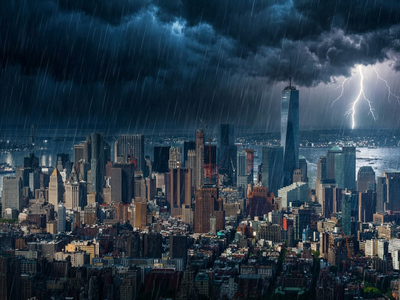
floyoofficial
1.1k
concept art
image to image
portrait
style transfer
text to image
wan
wan2.7 pro
Edit any image with Wan 2.7 Pro Unified, Alibaba's thinking-mode image model. Upload a picture, describe the change, and get a before-and-after comparison.
Wan 2.7 Pro · Image Editing
Edit any image with Wan 2.7 Pro Unified, Alibaba's thinking-mode image model. Upload a picture, describe the change, and get a before-and-after comparison.
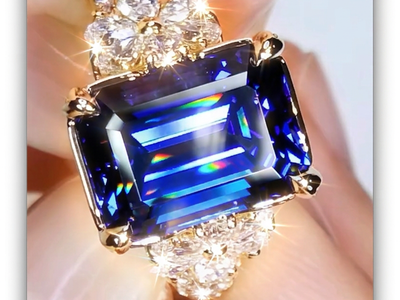
e-commerce
Image
image editing
image to image
jewelry
nano banana 2
product photography
Upload a jewelry photo and Nano Banana 2 adds natural light reflections, specular highlights, and prismatic refractions to every gemstone and diamond. Hit run.
Adding Sparkles to the Jewelry with Nano Banana 2
Upload a jewelry photo and Nano Banana 2 adds natural light reflections, specular highlights, and prismatic refractions to every gemstone and diamond. Hit run.
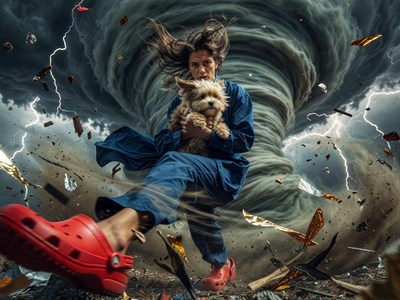
Grok Imagine: Fast Text to Image
Create cool images using Grok Imagine
_1783323049263.png?width=400&height=300&quality=80&resize=cover)
Image
lens turbo
microsoft lens
photorealistic
text to image
Write a prompt and Microsoft Lens Turbo generates a photorealistic image in 8 steps at 1280x720, using a 3.8B parameter model that matches the quality of models twice its size.
Microsoft Lens Turbo · Text to Image
Write a prompt and Microsoft Lens Turbo generates a photorealistic image in 8 steps at 1280x720, using a 3.8B parameter model that matches the quality of models twice its size.
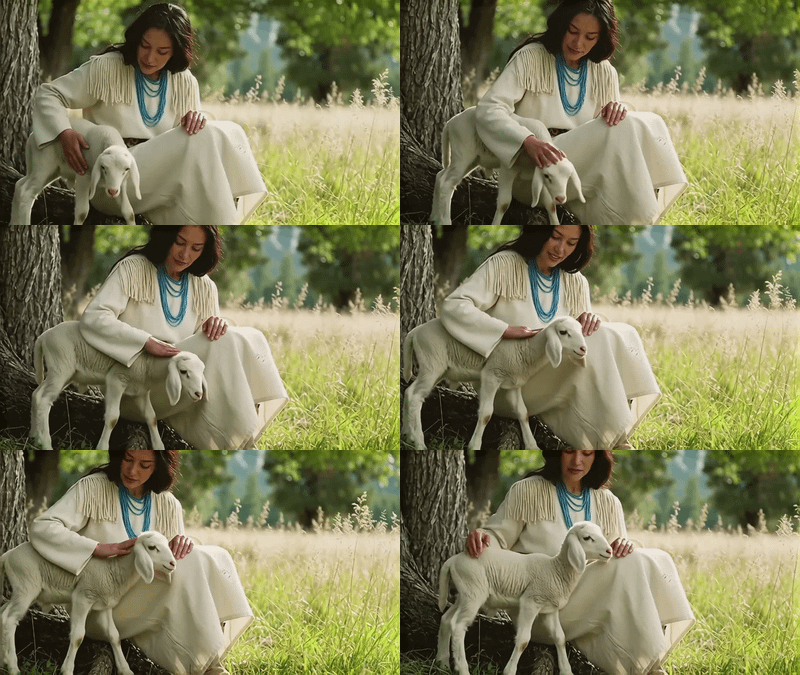
floyoofficial
1.3k
API
Audio
Floyo API
LTX 2 Retake
Video
Video2Video
Video Editing
Outdated model. Please go to LTX 2.3 Retake Video workflow to use LTX 2.3
LTX 2 Retake Video for Video Editing
Outdated model. Please go to LTX 2.3 Retake Video workflow to use LTX 2.3
floyoofficial
2.9k
Image
Image Editing
Qwen
Qwen Image Edit 2511
VNCCS Utils
Create different position of person using VNCCS custom node and Qwen Image Edit 2511
Qwen Image Edit 2511 and VNCCS Utils - Visual Pose
Create different position of person using VNCCS custom node and Qwen Image Edit 2511
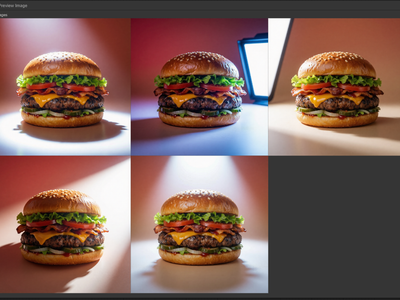
Image
Image Edit
Qwen
Qwen Image Edit 2511
Relighting
Relighting images using Qwen multiangle light node
Qwen Multiangle Light with Qwen Image Edit 2511
Relighting images using Qwen multiangle light node
image to video
seedance 2.0
Video
video generation
Animate any image into video with ByteDance's Seedance 2.0 Fast. Built-in audio generation, start and end frame control, and multiple aspect ratios. No setup needed.
Seedance 2.0 Fast - Image to Video with Audio
Animate any image into video with ByteDance's Seedance 2.0 Fast. Built-in audio generation, start and end frame control, and multiple aspect ratios. No setup needed.
_1783588651685.webp?width=400&height=300&quality=80&resize=contain&format=origin)
Audio
audio driven
image to video
lip sync
LoRAs
ltx2.3
Video
Upload a portrait and an audio file. LTX 2.3 generates a 10-second 1080p video where the character speaks or sings in sync with your audio, using a three-pass upscaling pipeline with vocal separation, NAG, and static camera locking.
LTX2.3 Lip Sync · Image + Audio to Video For Anime
Upload a portrait and an audio file. LTX 2.3 generates a 10-second 1080p video where the character speaks or sings in sync with your audio, using a three-pass upscaling pipeline with vocal separation, NAG, and static camera locking.
_1783426180163.webp?width=400&height=300&quality=80&resize=contain&format=origin)
API
Audio
Gemini
Prompt-Based Editing
Video
video to video
A prompt-based video editing workflow that lets you edit an existing video with a plain-language instruction using Google's Gemini Omni Flash model.
Gemini Omni Flash: Video Editing
A prompt-based video editing workflow that lets you edit an existing video with a plain-language instruction using Google's Gemini Omni Flash model.

Kling Image to Video with Reference Control
%20(3)_1774349172672.webp?width=400&height=300&quality=80&resize=contain&format=origin)
floyoofficial
2.1k
Audio
image to video
ltx 2
text to video
Video
video generation
Add seconds to an existing video with LTX 2.3. Upload a clip, set the duration and mode
LTX 2.3 - Extend Video
Add seconds to an existing video with LTX 2.3. Upload a clip, set the duration and mode
API
FloyoAPI
Image
Recraft
Text2Image
Generate images with Recraft V3 from a text prompt. Choose a preset size or custom dimensions, pick a style, and run.
Recraft V3 Text to Image
Generate images with Recraft V3 from a text prompt. Choose a preset size or custom dimensions, pick a style, and run.
_1782467465059.webp?width=400&height=300&quality=80&resize=contain&format=origin)
alibaba
dialogue
happy horse 1.1
text to video
Video
Describe a scene in plain language and Happy Horse 1.1 generates a cinematic video with synchronized audio, dialogue, and lip-sync at up to 1080p.
Happy Horse 1.1 · Text to Video
Describe a scene in plain language and Happy Horse 1.1 generates a cinematic video with synchronized audio, dialogue, and lip-sync at up to 1080p.
%20(2)_1783495852430.png?width=400&height=300&quality=80&resize=cover)
composite
Image
image to image
multi-reference
photoshoot
qwen image edit
Upload three images, a subject, an environment, and a prop or lighting reference, and Qwen Image Edit 2511 composites them into a single photorealistic editorial scene with matched lighting, scale, and perspective.
Qwen 2511 · Composite a Photoshoot For Anime
Upload three images, a subject, an environment, and a prop or lighting reference, and Qwen Image Edit 2511 composites them into a single photorealistic editorial scene with matched lighting, scale, and perspective.
LTX 2.0 – Prompting & Dynamic Camera Movement

Audio
Minimax
Minimax Speech 2.8 HD
TTS
Create realistic speech using Minimax speech 2.8
Minimax Speech 2.8 HD for Text to Speech
Create realistic speech using Minimax speech 2.8
Nano Banana Pro - Game Art Restyling
_1783406884076.png?width=400&height=300&quality=80&resize=cover)
API
Fast Generation
Image
Text to Image
A single-node text-to-image workflow that generates images from a written prompt using Google's Nano Banana Lite model (served via fal.ai). You write a prompt, pick an aspect ratio, and hit run — a built-in system prompt automatically enriches simple descriptions with composition
Nano Banana Lite: Text to Image
A single-node text-to-image workflow that generates images from a written prompt using Google's Nano Banana Lite model (served via fal.ai). You write a prompt, pick an aspect ratio, and hit run — a built-in system prompt automatically enriches simple descriptions with composition
Audio
Image
Image2Video
Kling Omni One
LoRAs
Next Scene LoRA
Qwen Image Edit 2511
Reference2Video
Video
Creating a reshoot for a character
Character Reshoot using Qwen Edit 2511 + Kling O1
Creating a reshoot for a character

image to text
llm
open source
qwen
text generation
vlm
Run Qwen 3.5 9B in ComfyUI as a text-only LLM or as a vision language model. Attach an image or a video, write your prompt, and get text back.
Qwen 3.5 9B for Open Source LLM and VLM
Run Qwen 3.5 9B in ComfyUI as a text-only LLM or as a vision language model. Attach an image or a video, write your prompt, and get text back.
e-commerce
image to video
nano banana
product photography
seedance
text to video
Video
video generation
Upload a person photo, describe your ad concept, and get a 15-second UGC video back. Add a product image optionally.
Turn a Photo Into a 15-Second Video Ad
Upload a person photo, describe your ad concept, and get a 15-second UGC video back. Add a product image optionally.

animation
concept art
film production
image to video
pixverse
pixverse c1
Video
Animate a reference image into cinematic video with PixVerse C1. Pick your duration up to 15 seconds, resolution up to 1080p, and optional native audio.
PixVerse C1 - Image to Video
Animate a reference image into cinematic video with PixVerse C1. Pick your duration up to 15 seconds, resolution up to 1080p, and optional native audio.
consistency
film production
happy horse
style transfer
vid2vid
Video
video generation
Edit any video with Happy Horse 1.0 by uploading up to 5 reference images. Swap backgrounds, change subjects, or shift style. Original motion stays intact.
Happy Horse 1.0 Video Editing
Edit any video with Happy Horse 1.0 by uploading up to 5 reference images. Swap backgrounds, change subjects, or shift style. Original motion stays intact.

floyoofficial
1.3k
Captioning
LLM
Prompt Generator
Qwen3VL
VLM
Upload an image or video and get a detailed text description from Qwen3-VL. Choose your model size, pick a preset prompt, or write your own. Runs in your browser.
Qwen3-VL Image and Video Captioning
Upload an image or video and get a detailed text description from Qwen3-VL. Choose your model size, pick a preset prompt, or write your own. Runs in your browser.
_1764570564795.webp?width=400&height=300&quality=80&resize=contain&format=origin)
Vertical Video Scene Extension & Coverage Generator
API
Image
Image2Image
Image Editing
Qwen Image Max Edit
Editing images using the flagship model of Qwen Image Max Edit
Qwen Image Max Edit for Editing Images
Editing images using the flagship model of Qwen Image Max Edit
_1778243880760.png?width=400&height=300&quality=80&resize=cover)
concept art
e-commerce
Image
image to image
nano banana 2
product photography
style transfer
Upload three reference images and Nano Banana 2 generates a new jewelry environment that matches their color, lighting, and visual style. Mood board to scene.
Jewelry Environment Creator with Nano Banana 2
Upload three reference images and Nano Banana 2 generates a new jewelry environment that matches their color, lighting, and visual style. Mood board to scene.
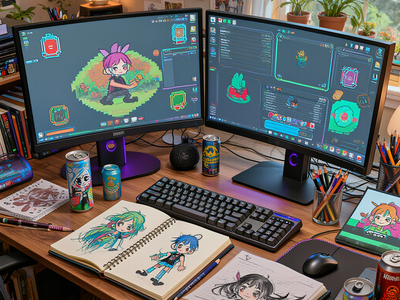
LongCat for Text to Image
Create cool images using the LongCat
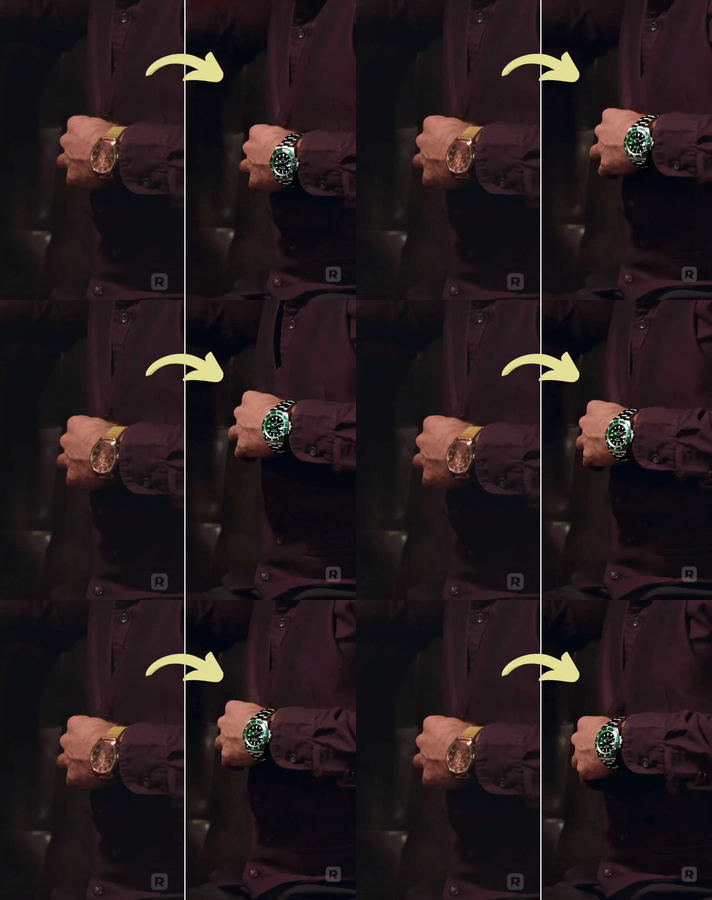
Realistic Product or Props Replacement

end frame
image to video
interpolation
start frame
Video
wan2.2
Upload a start image and an end image, describe the motion, and Wan 2.2 generates smooth video between them using a dual-model pipeline with high-noise and low-noise passes for maximum quality in 6 steps.
Wan 2.2 14B · Image to Video + End Frame For Anime
Upload a start image and an end image, describe the motion, and Wan 2.2 generates smooth video between them using a dual-model pipeline with high-noise and low-noise passes for maximum quality in 6 steps.
_1783949931860.webp?width=400&height=300&quality=80&resize=contain&format=origin)
4x upscale
seedvr2
Video
video restoration
video upscaler
Upload a low-resolution video and SeedVR2 upscales it to 1080p in a single diffusion step, restoring fine detail, removing compression artifacts, and maintaining temporal consistency across every frame.
SeedVR2 · Video Upscaler For Anime
Upload a low-resolution video and SeedVR2 upscales it to 1080p in a single diffusion step, restoring fine detail, removing compression artifacts, and maintaining temporal consistency across every frame.
_1763538074182.webp?width=400&height=300&quality=80&resize=contain&format=origin)
Boost Your Creative Video: Comprehensive Solutions
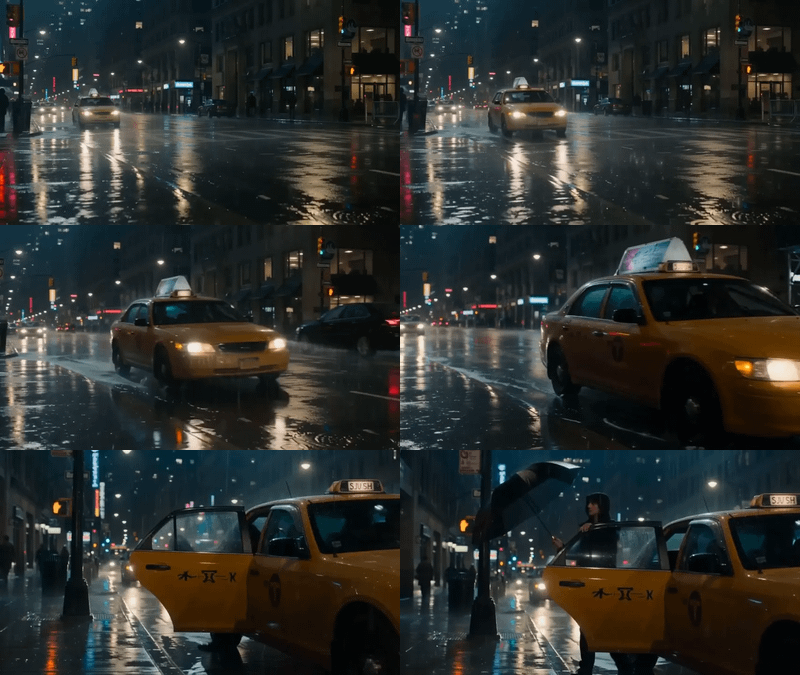
film production
pixverse
pixverse c1
text to video
vfx
Video
video generation
Generate cinematic video from text with PixVerse C1. Up to 1080p, up to 15 seconds, with optional native audio synchronized in the same generation pass.
PixVerse C1 - Text to Video
Generate cinematic video from text with PixVerse C1. Up to 1080p, up to 15 seconds, with optional native audio synchronized in the same generation pass.
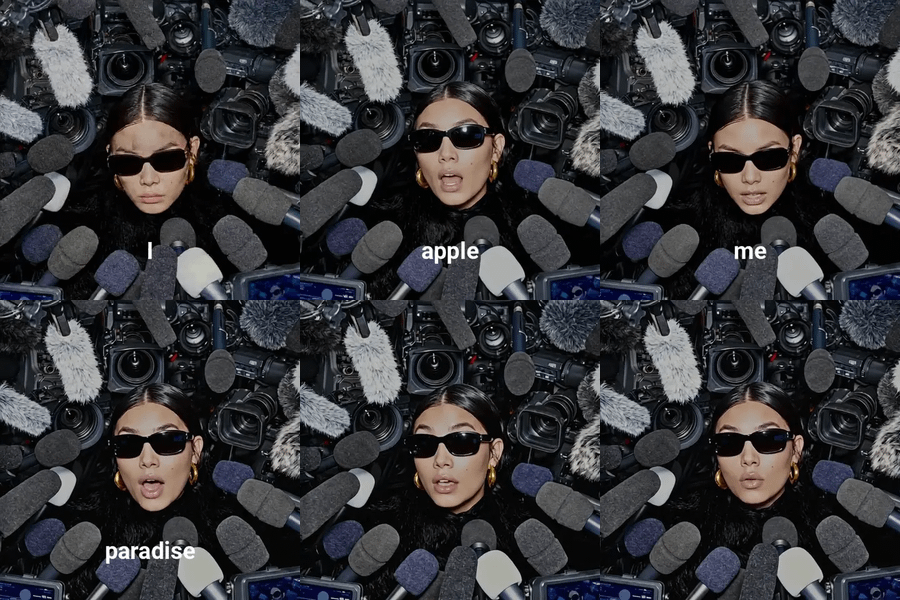
subtitling
vid2vid
Video
video generation
Upload a video and get it back with burned-in subtitles. Whisper transcribes the audio, then the text gets placed frame-by-frame with word-level timing.
Auto Subtitles with Whisper - Video to Video
Upload a video and get it back with burned-in subtitles. Whisper transcribes the audio, then the text gets placed frame-by-frame with word-level timing.
GPT Image 2.5 Flare
Image
Image Editing
Edit any image with a text instruction using GPT Image 2.5 Flare, OpenAI's fast image editing model. Upload a photo, describe the change, add optional references or a mask, and hit run.
GPT Image 2.5 Flare for Image Edit
Edit any image with a text instruction using GPT Image 2.5 Flare, OpenAI's fast image editing model. Upload a photo, describe the change, add optional references or a mask, and hit run.
_1777893762411.png?width=400&height=300&quality=80&resize=cover)
ACE-Step 1.5
Audio
Music Generation
Text to Audio
Create stunning music using ACE Step 1.5
ACE-Step 1.5 for Music Generation
Create stunning music using ACE Step 1.5

Audio
LoRAs
ltx2.3
object replacement
Video
video inpainting
video to video
Replace or add objects in a video with a single generation pass using LTX-Video 2.3 and a dedicated inpainting LoRA. Upload a video, draw a mask, describe the change, and hit run. Faster than the multi-pass version.
LTX 2.3 Video Inpainting · Video to Video
Replace or add objects in a video with a single generation pass using LTX-Video 2.3 and a dedicated inpainting LoRA. Upload a video, draw a mask, describe the change, and hit run. Faster than the multi-pass version.
background removal
concept art
Image
image to image
qwen
Qwen Image Layered
vfx
Upload one image and Qwen Image Layered pulls it apart into a clean foreground layer and a background layer you can edit, swap, or composite on their own.
Qwen Image Layered for Image Deconstruction
Upload one image and Qwen Image Layered pulls it apart into a clean foreground layer and a background layer you can edit, swap, or composite on their own.
API
Bedrock
Image
Nova Canvas
SDXL
Text to Image
Titan
Generate and compare images between 3 different models powered by Amazon Bedrock. Key Inputs Prompt: as descriptive a prompt as possible Models SDXL: Solid all-around performer with strong prompt adherence and wide style range Titan: Versatile model with built-in editing features and customization flexibility Nova Canvas: Quick iterations with creative flair, ideal for brainstorming and concept exploration
Amazon Bedrock - Text to Multi-Image with SDXL, Titan and Nova Canvas
Generate and compare images between 3 different models powered by Amazon Bedrock. Key Inputs Prompt: as descriptive a prompt as possible Models SDXL: Solid all-around performer with strong prompt adherence and wide style range Titan: Versatile model with built-in editing features and customization flexibility Nova Canvas: Quick iterations with creative flair, ideal for brainstorming and concept exploration

audio
speech to text
srt
STT
subtitles
transcription
whisper
Upload any audio file and Whisper transcribes it into text with word-level and segment-level SRT subtitle files. Auto language detection included.
Whisper Speech-to-Text and SRT Subtitle Generator
Upload any audio file and Whisper transcribes it into text with word-level and segment-level SRT subtitle files. Auto language detection included.
_1783405032028.png?width=400&height=300&quality=80&resize=cover)
API
Image
NanoBanana
Text to image
This workflow generates images from a text prompt using Nano Banana 2 Lite, Google's fast image model served through fal.ai. A built-in system prompt automatically expands simple prompts into detailed, well-composed scenes while respecting explicit instructions on style, color, l
Nano Banana 2 Lite: Text to Image
This workflow generates images from a text prompt using Nano Banana 2 Lite, Google's fast image model served through fal.ai. A built-in system prompt automatically expands simple prompts into detailed, well-composed scenes while respecting explicit instructions on style, color, l
Graphic Design Recomposer - Reframe Ads
API
Audio
Filmmaking
Filmography
Floyo API
LTX 2 Fast
Video
Outdated model. Please go to LTX 2.3 Text to Video workflow to use LTX 2.3
LTX 2 Fast API for Text to Video
Outdated model. Please go to LTX 2.3 Text to Video workflow to use LTX 2.3

SopranoTTS for Text to Speech
Turn speech using Soprano TTS
_1783067283308.png?width=400&height=300&quality=80&resize=cover)
flux 2 max
Image
image editing
image to image
multi-image
photorealistic
Upload an image to edit and up to eight reference images, describe the change, and FLUX.2 Max applies it with the highest editing consistency in the FLUX.2 family.
FLUX.2 Max Edit · Image to Image
Upload an image to edit and up to eight reference images, describe the change, and FLUX.2 Max applies it with the highest editing consistency in the FLUX.2 family.

3D Products with Logo - Wan2.6 Image to Video
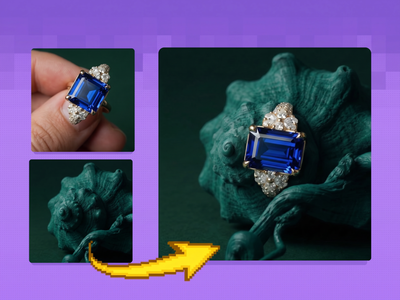
e-commerce
Image
image to image
nano banana 2
product photography
Drop a ring photo and a background into the same workflow. Nano Banana 2 composites the jewelry into the scene seven ways so you can cherry-pick the best take.
Jewelry Scene Compositor with Nano Banana 2
Drop a ring photo and a background into the same workflow. Nano Banana 2 composites the jewelry into the scene seven ways so you can cherry-pick the best take.
GPT Image 2.5 Sunburst
Image
Text to Image
Generate high-fidelity images from a text prompt using GPT Image 2.5 Sunburst, OpenAI's precision image model. Describe what you want and hit run.
GPT Image 2.5 Sunburst for Text to Image
Generate high-fidelity images from a text prompt using GPT Image 2.5 Sunburst, OpenAI's precision image model. Describe what you want and hit run.
_1762437195803.gif?width=400&height=300&quality=80&resize=contain&format=origin)
MiniMax Text-to-Video will Bring Your Creative Concepts to Life with Realistic Motion
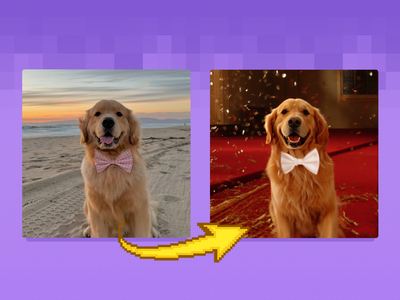
Modify the Image using InstantX Union ControlNet
_1783601661507.png?width=400&height=300&quality=80&resize=cover)
Controlnet
depth
Image
image to image
z-image
This workflow uses Z-Image Turbo with Fun ControlNet Union to transform a reference image into a new style while preserving its original structure. The input image is processed with a ControlNet preprocessor to retain pose, composition and spatial layout.
Z-Image Turbo: ControlNet Image to Image For Anime
This workflow uses Z-Image Turbo with Fun ControlNet Union to transform a reference image into a new style while preserving its original structure. The input image is processed with a ControlNet preprocessor to retain pose, composition and spatial layout.
_1764579820037.webp?width=400&height=300&quality=80&resize=contain&format=origin)
Vertical Video Scene Extension & Coverage Generator using Seedream +Wan
3D
API
Hunyuan
Image
Text to 3D
Generate a textured 3D model from a text prompt with Hunyuan 3D Pro. Describe an object, hit Run, and get a GLB file plus interactive 3D viewer in under 60 seconds.
Hunyuan 3D Pro - Text to 3D Model
Generate a textured 3D model from a text prompt with Hunyuan 3D Pro. Describe an object, hit Run, and get a GLB file plus interactive 3D viewer in under 60 seconds.

AILab
Audio to Text
Speech to Text
STT
Transcribe
Create a text from speech using Whisper STT
Whisper STT
Create a text from speech using Whisper STT
Kling 2.5 Image to Video

Image to Talking Video - LTX 2.3 + ElevenLabs UGC
Image
image generation
krea 2
krea 2 turbo
krea ai
LoRAs
lora styles
open source
text to image
Turn a text prompt into a finished image with Krea 2 Turbo, Krea AI's fast open-source image model. Type what you want to see, hit run, and get a result in seconds.
Krea 2 for Text to Image
Turn a text prompt into a finished image with Krea 2 Turbo, Krea AI's fast open-source image model. Type what you want to see, hit run, and get a result in seconds.

floyoofficial
1.6k
audio
Audio2Audio
Chatterbox
tts
TTS Audio Suite
voice conversion
Convert any voice to match a target speaker using ChatterBox TTS. Upload source and narrator audio, run it, get back a converted MP3. No voice training needed.
Voice Changer using TTS Audio Suite (ChatterBox)
Convert any voice to match a target speaker using ChatterBox TTS. Upload source and narrator audio, run it, get back a converted MP3. No voice training needed.
bytedance
seedance
seedance 2.5
text to video
video with audio
Generate video with sound from a text prompt using Seedance 2.5, ByteDance's 30-second video model. Write the scene, pick a shape and length, hit run.
Seedance 2.5 · Text to Video With Audio
Generate video with sound from a text prompt using Seedance 2.5, ByteDance's 30-second video model. Write the scene, pick a shape and length, hit run.
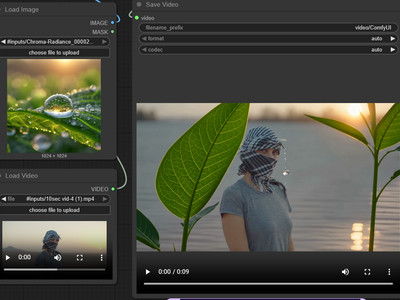
Floyo API
Image2Video
PixVerse
Video
You can swap object,, character and background using PixVerse
Pixverse Swap for Image to Video Swap
You can swap object,, character and background using PixVerse
_1769947817081.jpg?width=400&height=300&quality=80&resize=cover)
Kling 3.0 for Video Generation
Coming soon page for Kling 3.0
floyoofficial
1.4k
flux
flux 2 klein
Image
image to image
style transfer
Edit images with Flux 2 Klein 9B in 4 steps. KV Cache speeds every run by reusing attention work across steps. Upload an image, describe the edit, hit Run.
FLUX.2 Klein 9B · Image Editing With KV Cache
Edit images with Flux 2 Klein 9B in 4 steps. KV Cache speeds every run by reusing attention work across steps. Upload an image, describe the edit, hit Run.
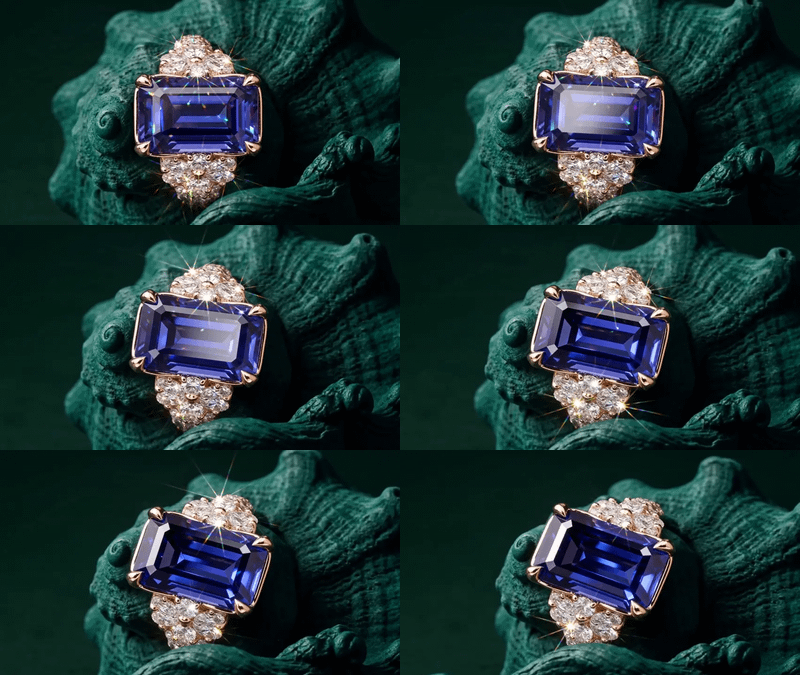
e-commerce
image to video
nano banana
product photography
seedance
Video
video generation
Animate jewelry shots with Seedance 2.0 while Nano Banana 2 adds natural sparkle, so the camera orbits the piece and light catches every facet as it turns.
Jewelry Animator and Sparkle with Seedance 2.0
Animate jewelry shots with Seedance 2.0 while Nano Banana 2 adds natural sparkle, so the camera orbits the piece and light catches every facet as it turns.
Kling Omni 1 Reference to Video
_1766992060792.png?width=400&height=300&quality=80&resize=cover)
Change Product Shots with NanoBanana Pro
_1783317569459.png?width=400&height=300&quality=80&resize=cover)
albedo
Image
material
normal map
pbr
texture
Upload a seamless texture and this workflow extracts a full PBR material set including albedo, normal, metallic, roughness, ambient occlusion, and height maps using Marigold and Lotus models.
Texture to PBR · Image to Material
Upload a seamless texture and this workflow extracts a full PBR material set including albedo, normal, metallic, roughness, ambient occlusion, and height maps using Marigold and Lotus models.
_1783410827677.png?width=400&height=300&quality=80&resize=cover)
Image
image to image
multi-reference
Nano banana lite
Upload up to 14 reference images and describe the change you want. Nano Banana 2 Lite, Google's fastest Gemini image model, applies the edit in about 4 seconds and returns the result.
Nano Banana 2 Lite · Image Editing
Upload up to 14 reference images and describe the change you want. Nano Banana 2 Lite, Google's fastest Gemini image model, applies the edit in about 4 seconds and returns the result.

Audio
Audio2Audio
SoproTTS
Text to Speech
TTS
Turn your text to excellent speech using SoproTTS
Sopro for Text to Speech
Turn your text to excellent speech using SoproTTS
flux
flux 2 klein
Image
image to image
inpainting
outpainting
panorama
Edit 360 panoramas with Flux 2 Klein 9B. Select a region, describe the change, and the edit gets composited back into your full panoramic image. No warping.
Flux 2 Klein 9B Panorama Inpainting
Edit 360 panoramas with Flux 2 Klein 9B. Select a region, describe the change, and the edit gets composited back into your full panoramic image. No warping.
_1785320341638.webp?width=400&height=300&quality=80&resize=contain&format=origin)
asmr
bytedance
product video
reference to video
seedance2.0
unboxing
Video
Upload a product photo and a hand/style reference, and Seedance 2.0 generates a 10-second vertical ASMR unboxing video with tapping sounds, paper folding, and slow satisfying reveals.
Seedance 2.0 ASMR Unboxing · Reference to Video
Upload a product photo and a hand/style reference, and Seedance 2.0 generates a 10-second vertical ASMR unboxing video with tapping sounds, paper folding, and slow satisfying reveals.
api
Audio
hailuo 3.0
minimax h3
text to video
Video
video generation
Type a prompt and get back a native 2K video clip with synchronized sound from MiniMax H3 (Hailuo 3.0). Describe the scene, pick a length, and hit run.
MiniMax H3 · Text to Video
Type a prompt and get back a native 2K video clip with synchronized sound from MiniMax H3 (Hailuo 3.0). Describe the scene, pick a length, and hit run.
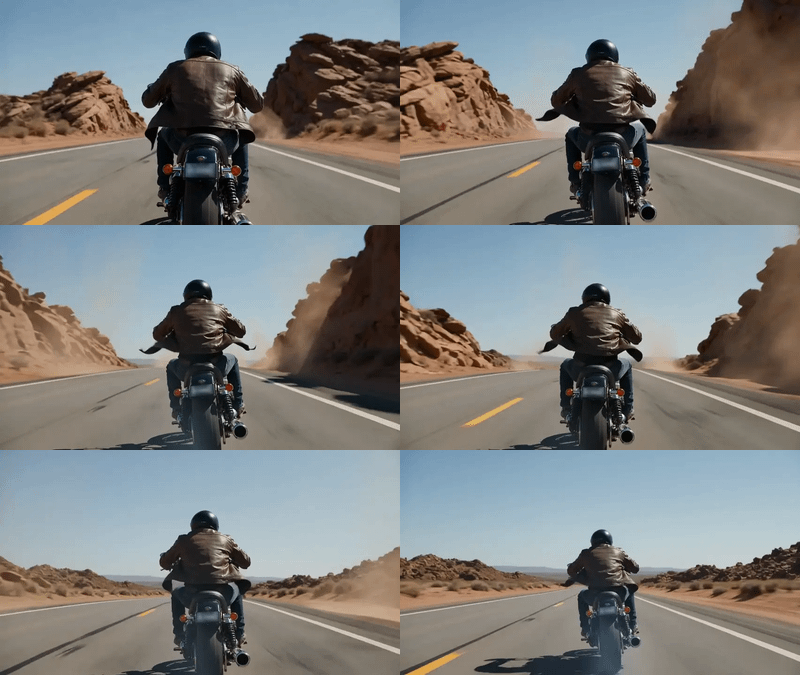
animation
film production
happy horse
text to video
Video
video generation
Generate cinematic video with synchronized audio from a text prompt using Alibaba's Happy Horse 1.0. Pick resolution, aspect ratio, and clip length up to 15s.
Happy Horse 1.0 - Text to Video
Generate cinematic video with synchronized audio from a text prompt using Alibaba's Happy Horse 1.0. Pick resolution, aspect ratio, and clip length up to 15s.
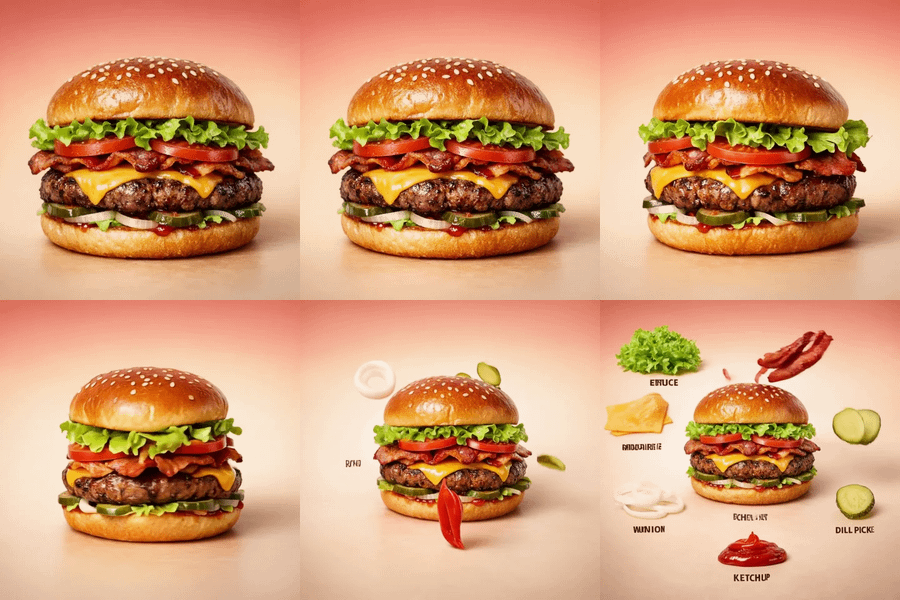
GPT-Image 1.5
Image
Image2Image
Image2Video
Kling 2.6
Text2Image
Video
VLM
Create a high quality demo for your products using Kling 2.6 Image to Video
Create Product Demo from Concept to Video
Create a high quality demo for your products using Kling 2.6 Image to Video
_1783417374872.gif?width=400&height=300&quality=80&resize=contain&format=origin)
ai video
audio
gemini omni flash
image to video
Video
Upload a starting image and describe the scene. Gemini Omni Flash by Google animates it into a 6-second video with native audio, cinematic motion, and synchronized sound effects.
Gemini Omni Flash · Image to Video
Upload a starting image and describe the scene. Gemini Omni Flash by Google animates it into a 6-second video with native audio, cinematic motion, and synchronized sound effects.
Insert Product into Existing Ad
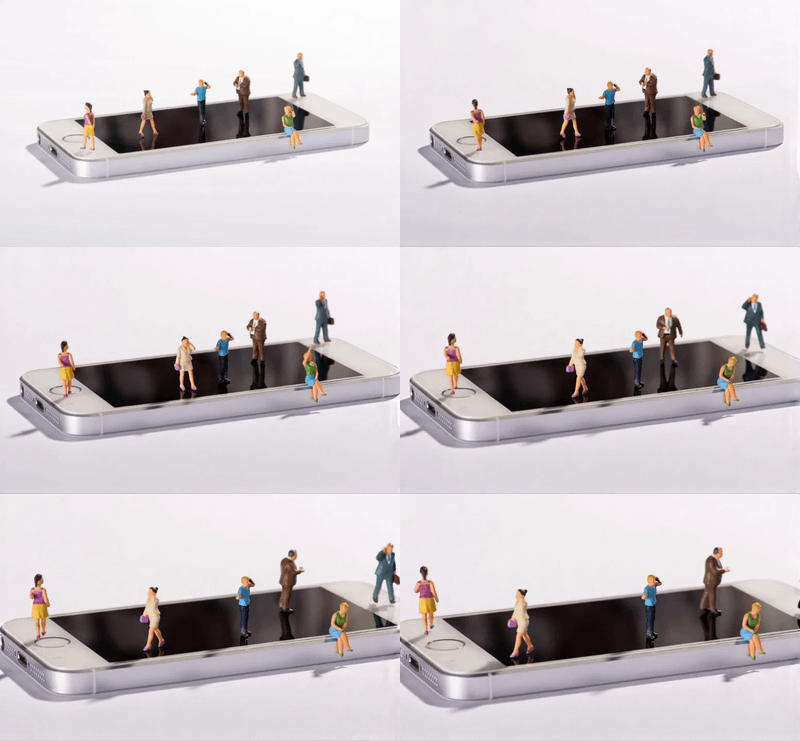
Vidu Q3 for Image to Video
Turn to images to real life

Audio
ChatterBox
Higgs
Text to Speech
TTS
VibeVoice
A workflow of TTS Audio Suite which can to use different type of audio models.
Multi Model for Voice Convesion and Text to Speech
A workflow of TTS Audio Suite which can to use different type of audio models.
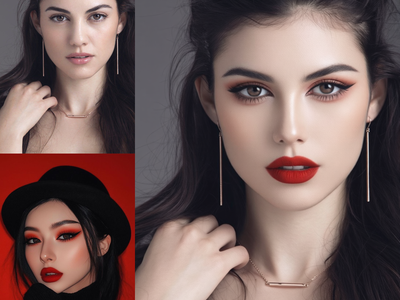
Flux
Image
Image to image
Opensource
Style transfer
Transfer makeup from a reference photo onto a portrait using FireRed Image Edit 1.1. Upload a face and a makeup reference, and the model applies the look while keeping pose and facial features intact.
FireRed Image Edit - Makeup Transfer
Transfer makeup from a reference photo onto a portrait using FireRed Image Edit 1.1. Upload a face and a makeup reference, and the model applies the look while keeping pose and facial features intact.

Kling O3 Video to Video — Standard Reference
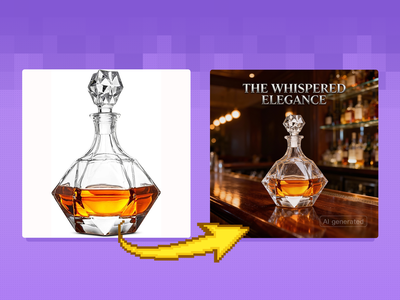
Create Cinematic Poster & Ad from Your Product
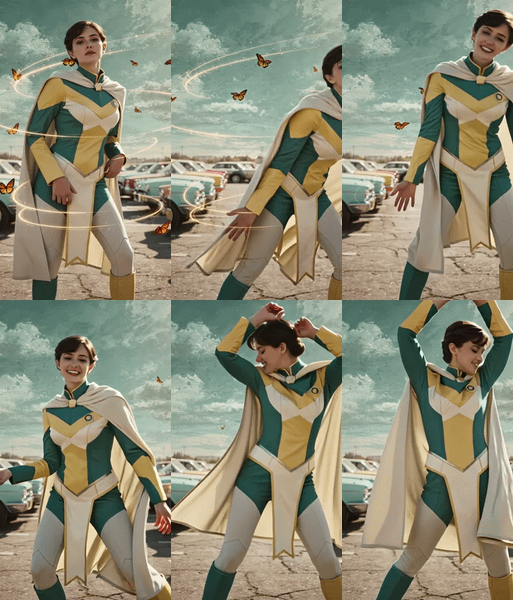
Wan2.1 + SCAIL for Animating Images for Movement
_1783415874459.gif?width=400&height=300&quality=80&resize=contain&format=origin)
ai video
audio
gemini omni flash
text to video
Video
Write a prompt describing a scene and Gemini Omni Flash by Google generates a video with native audio at up to 8 seconds in 16:9, ready to download as MP4.
Gemini Omni Flash · Text to Video
Write a prompt describing a scene and Gemini Omni Flash by Google generates a video with native audio at up to 8 seconds in 16:9, ready to download as MP4.
floyoofficial
1.1k
diversity
Image
LoRAs
Text To Image
Z-Image
Generate a different composition on every seed with Z-Image Turbo and the SDA diversity LoRA. Write a prompt, hit run, get layout variety. Apache 2.0.
Z-Image Turbo · Text to Image With Diversity LoRA
Generate a different composition on every seed with Z-Image Turbo and the SDA diversity LoRA. Write a prompt, hit run, get layout variety. Apache 2.0.
Veo 3.1 Image to Video
Audio
Flimography
LTX 2 Pro
Open Source
Text2Video
Video
Videography
An open source LTX 2 Pro for Text to Video
LTX 2 19B Pro for Text to Video
An open source LTX 2 Pro for Text to Video
Filmmaking
Kandinsky
Text2Video
Video
Videography
Creating excellent videos using Kandinsky
Kandinsky for Text to Video
Creating excellent videos using Kandinsky
floyoofficial
1.1k
concept art
Image
lora
LoRAs
portrait
SDA
text to image
z-image turbo
Generate images with Z-Image Turbo while the SDA diversity LoRA stops every seed from producing the same pose and composition. 8 steps, 2x upscale to 2048.
Z-Image Turbo + SDA LoRA for Diverse Text to Image
Generate images with Z-Image Turbo while the SDA diversity LoRA stops every seed from producing the same pose and composition. 8 steps, 2x upscale to 2048.
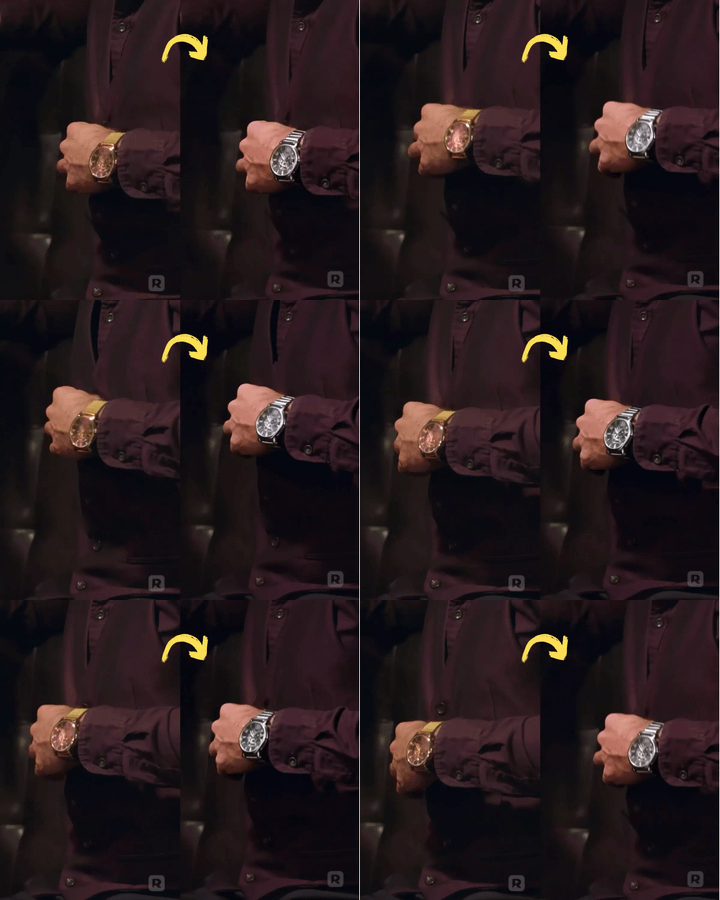
Vertical Video Prop & Object Replacement Using Seedream + Wan 2.2
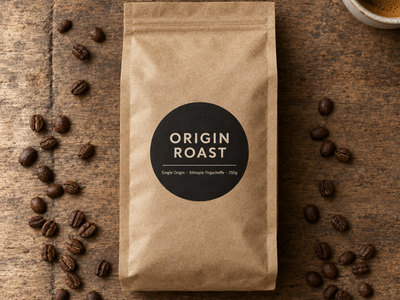
GPT Image 2.5 Flare
Image
Text to Image
Describe any image and GPT Image 2.5 Flare generates it. OpenAI's fastest image model, strong at product shots, clean layouts, and readable text. Write a prompt and hit run.
GPT Image 2.5 Flare for Text to Image
Describe any image and GPT Image 2.5 Flare generates it. OpenAI's fastest image model, strong at product shots, clean layouts, and readable text. Write a prompt and hit run.
Audio
first last frame
hailuo 3.0
image to video
minimax h3
Video
Animate between two images with MiniMax H3 (Hailuo 3.0). Upload a first frame and an optional last frame, describe the motion, and hit run for a short 2K clip.
MiniMax H3 · First & Last Frame to Video
Animate between two images with MiniMax H3 (Hailuo 3.0). Upload a first frame and an optional last frame, describe the motion, and hit run for a short 2K clip.
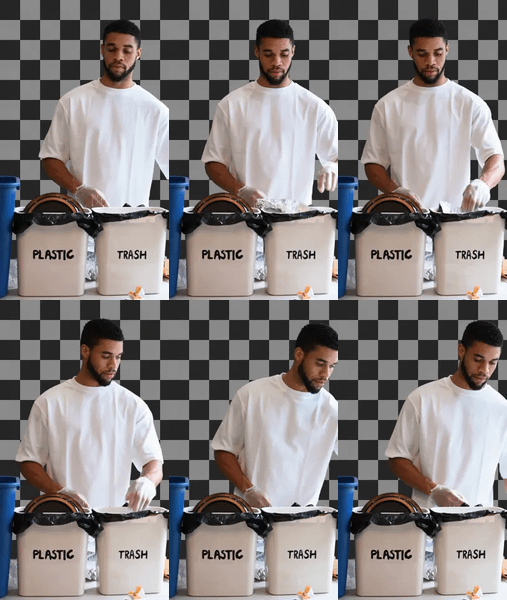
floyoofficial
1.4k
background removal
film production
vfx
Video
video generation
Upload green screen footage and get a clean alpha matte plus composite preview. Corridor Key's neural network handles hair, motion blur, and transparency.
Corridor Key Green Screen Keying for Video
Upload green screen footage and get a clean alpha matte plus composite preview. Corridor Key's neural network handles hair, motion blur, and transparency.
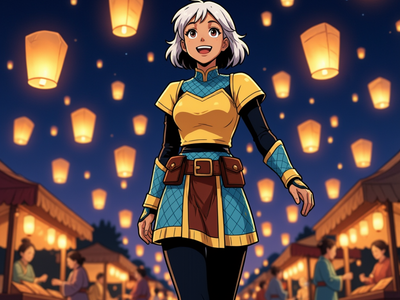
floyoofficial
1.0k
Base
Image
LoRA
LoRAs
Text to Image
Z-image
Generate stylized images with Z-Image Base and a community LoRA. Write a prompt starting with the trigger word, pick a size, hit run. Apache 2.0 open weights.
Z-Image Base · Text to Image With LoRA
Generate stylized images with Z-Image Base and a community LoRA. Write a prompt starting with the trigger word, pick a size, hit run. Apache 2.0 open weights.
_1783492112609.png?width=400&height=300&quality=80&resize=cover)
anima
anime
character art
illustration
Image
text to image
Write a prompt using natural language or Danbooru tags and Anima Preview 3 generates four anime-style illustrations at once, using a 2-billion-parameter model built specifically for anime, character art, and non-photorealistic styles.
Anima Preview 3 · Text to Image For Anime
Write a prompt using natural language or Danbooru tags and Anima Preview 3 generates four anime-style illustrations at once, using a 2-billion-parameter model built specifically for anime, character art, and non-photorealistic styles.
_1783603944360.png?width=400&height=300&quality=80&resize=cover)
camera control
Image
Image2Image
LoRAs
qwen
A image-editing workflow that generates a new camera angle of an image you provide. You load a source image, set horizontal_angle, vertical_angle, and zoom, and the node auto-writes a camera-instruction prompt (or you write your own) that's fed into the Qwen Image Edit 2511.
Qwen Edit 2511: Multi-Angle Camera For Anime
A image-editing workflow that generates a new camera angle of an image you provide. You load a source image, set horizontal_angle, vertical_angle, and zoom, and the node auto-writes a camera-instruction prompt (or you write your own) that's fed into the Qwen Image Edit 2511.
floyoofficial
2.9k
Flux
Flux.2 Klein
Image
LoRAs
Tryon
VTON
Try a clothes using Flux.2 Klein 9B and tryon LoRA from
FLUX.2 Klein 9B + Virtual Tryon LoRA
Try a clothes using Flux.2 Klein 9B and tryon LoRA from
_1775022984504.png?width=400&height=300&quality=80&resize=cover)
bitdance
Image
T2V
text to image
Generate photorealistic images from text prompts using BitDance 14B, a 14-billion parameter autoregressive model that predicts up to 64 visual tokens per step.
BitDance 14B - Text to Image
Generate photorealistic images from text prompts using BitDance 14B, a 14-billion parameter autoregressive model that predicts up to 64 visual tokens per step.
_1782473642860.webp?width=400&height=300&quality=80&resize=contain&format=origin)
ai video
character consistency
happy horse 1.1
reference to video
Video
Upload up to nine reference images of characters, objects, or scenes, and Happy Horse 1.1 generates a cinematic video that preserves their identity, style, and detail with synchronized audio.
Happy Horse 1.1 · Reference to Video
Upload up to nine reference images of characters, objects, or scenes, and Happy Horse 1.1 generates a cinematic video that preserves their identity, style, and detail with synchronized audio.
_1783065533774.png?width=400&height=300&quality=80&resize=cover)
flux 2 max
Image
photorealistic
text rendering
text to image
Write a prompt and FLUX.2 Max by Black Forest Labs generates the highest-quality image in the FLUX.2 family, with photorealistic detail, accurate text rendering, and strong prompt adherence.
FLUX.2 Max · Text to Image
Write a prompt and FLUX.2 Max by Black Forest Labs generates the highest-quality image in the FLUX.2 family, with photorealistic detail, accurate text rendering, and strong prompt adherence.
Kling Omni One Image Edit
_1784034393695.png?width=400&height=300&quality=80&resize=cover)
Z-Image Turbo: ControlNet I2I For Viral SNS
Image
Seedream 5.0 Flash
Text to Image
Generate photorealistic images from a text prompt using ByteDance's Seedream 5.0 Flash, the fastest model in the Seedream 5 family. Write a prompt and hit run.
Seedream 5.0 Flash for Text to Image
Generate photorealistic images from a text prompt using ByteDance's Seedream 5.0 Flash, the fastest model in the Seedream 5 family. Write a prompt and hit run.
Image
Image to Image
Virtual Try-On
Upload a photo of a person and a photo of a clothing item. Google's Virtual Try-On model fits the garment to the body and returns a realistic result. No prompt needed.
Google for Virtual Try-On
Upload a photo of a person and a photo of a clothing item. Google's Virtual Try-On model fits the garment to the body and returns a realistic result. No prompt needed.
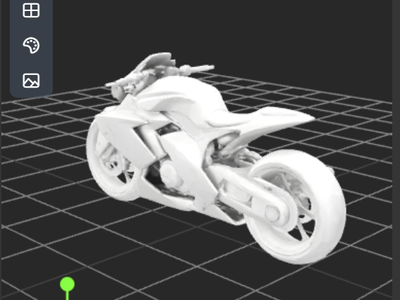
Meshy v6 Text to 3D Model
Create a 3D using Meshy v6 text to model
_1784206805705.webp?width=400&height=300&quality=80&resize=contain&format=origin)
Audio
audio video
image to video
ltx video
upscaling
Video
video generation
Animate any photo into a 1080p video with synchronized audio using LTX-Video 2.3, Lightricks' 22B open-source model. Upload an image, describe the motion, and hit run.
LTX 2.3 · Image to Video For Kids Edu
Animate any photo into a 1080p video with synchronized audio using LTX-Video 2.3, Lightricks' 22B open-source model. Upload an image, describe the motion, and hit run.
3D
Hi3D
Image to 3D
Multiview
Upload one to four photos of an object from different angles. Hi3D V3 reconstructs a textured, PBR-ready 3D model you can open in Blender, Unity, or Unreal.
Hi3D for Multiview to 3D
Upload one to four photos of an object from different angles. Hi3D V3 reconstructs a textured, PBR-ready 3D model you can open in Blender, Unity, or Unreal.
_1784388382354.webp?width=400&height=300&quality=80&resize=contain&format=origin)
4x upscale
SEEDVR2
Video
video upscale
Upload a low-resolution video and SeedVR2 upscales it to 1080p in a single diffusion step, restoring fine detail, removing compression artifacts, and maintaining temporal consistency across every frame.
SeedVR2 · Video Upscaler For Viral SNS
Upload a low-resolution video and SeedVR2 upscales it to 1080p in a single diffusion step, restoring fine detail, removing compression artifacts, and maintaining temporal consistency across every frame.
fashion video
reference to video
seedance 2.5
UGC
Upload a product photo and a model photo, describe the scene shot by shot, and Seedance 2.5 generates a vertical fashion video with sound.
Seedance 2.5 UGC Fashion Video · R2V
Upload a product photo and a model photo, describe the scene shot by shot, and Seedance 2.5 generates a vertical fashion video with sound.
GPT Image 1.5 Text to Image

color grading
darkroom
Image
image to image
style transfer
Nine color grading tools with 70+ presets for tone curves, lift/gamma/gain, log wheels, hue remapping, and saturation control. Instant results, no AI model.
DarkRoom Color Grading Toolkit for Image Editing
Nine color grading tools with 70+ presets for tone curves, lift/gamma/gain, log wheels, hue remapping, and saturation control. Instant results, no AI model.
3D
Hunyuan 3D v3.1
Image to 3D
Smart Topology
Upload a high-poly 3D model and retopologize it into clean, optimized geometry using Tencent's Hunyuan 3D PolyGen 1.5. Paste a model URL, pick your settings, and hit run.
Hunyuan 3D v3.1 for Smart Topology
Upload a high-poly 3D model and retopologize it into clean, optimized geometry using Tencent's Hunyuan 3D PolyGen 1.5. Paste a model URL, pick your settings, and hit run.
ai video
ltx-2.5 pro
text to video
video generation
Generate video clips from a text prompt using LTX-2.5 Pro, the quality tier of Lightricks' open-weights video model. Describe a scene, hit run, and get a 1080p clip back.
LTX-2.5 Pro · Text to Video
Generate video clips from a text prompt using LTX-2.5 Pro, the quality tier of Lightricks' open-weights video model. Describe a scene, hit run, and get a 1080p clip back.

Image
longcat
text rendering
text to image
Generate images from a text prompt using LongCat-Image, Meituan's 6B bilingual model with precise Chinese and English text rendering. Type a prompt and hit run.
LongCat Image · Text to Image For Kids Edu
Generate images from a text prompt using LongCat-Image, Meituan's 6B bilingual model with precise Chinese and English text rendering. Type a prompt and hit run.
Image
Luma Uni-1 Max
T2I
Generate high-fidelity images with Luma Uni-1 Max, a reasoning-first image model. Write a prompt, add reference images to guide the result, and hit run.
Luma Uni-1 Max for Text to Image
Generate high-fidelity images with Luma Uni-1 Max, a reasoning-first image model. Write a prompt, add reference images to guide the result, and hit run.
flux 2 video
flux 3
keyframes to video
text to video
FLUX 3 is Black Forest Labs' video model that hits up to 10 keyframes on a timeline you set. Upload your frames, place them, and get an HD clip with sound.
FLUX 3 · Keyframes to Video
FLUX 3 is Black Forest Labs' video model that hits up to 10 keyframes on a timeline you set. Upload your frames, place them, and get an HD clip with sound.
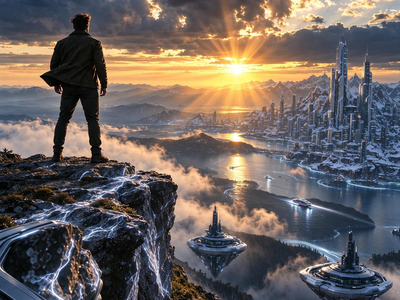
Image
Image Editing
Seedream 5.0 Flash Edit
Edit any image with a text instruction using Seedream 5.0 Flash, ByteDance's fast image editing model. Upload an image, describe the change, and hit run.
Seedream 5.0 Flash Edit for Image Editing
Edit any image with a text instruction using Seedream 5.0 Flash, ByteDance's fast image editing model. Upload an image, describe the change, and hit run.
_1784726960970.png?width=400&height=300&quality=80&resize=cover)
Image
image to image
multiangle
qwen image edit
Upload one image and this workflow generates five relighted versions simultaneously, each lit from a different angle and direction, with full control over azimuth, elevation, intensity, and color.
Qwen Multiangle Light · Img to Img For Short Drama
Upload one image and this workflow generates five relighted versions simultaneously, each lit from a different angle and direction, with full control over azimuth, elevation, intensity, and color.

Text to Speech
TTS
WhatDreamCost
Whisper
Speech calculator and TTS using Whisper and WhatDreamCost
TTS and Speech Length Calculator
Speech calculator and TTS using Whisper and WhatDreamCost
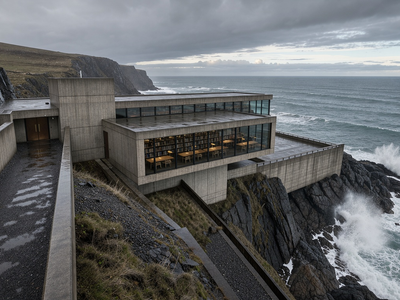
FLUX.3
Image
text to image
Generate images from a text prompt using FLUX.3 Image, Black Forest Labs' flagship model. Write a prompt, pick a size, and hit run.
FLUX.3 for Text to Image
Generate images from a text prompt using FLUX.3 Image, Black Forest Labs' flagship model. Write a prompt, pick a size, and hit run.
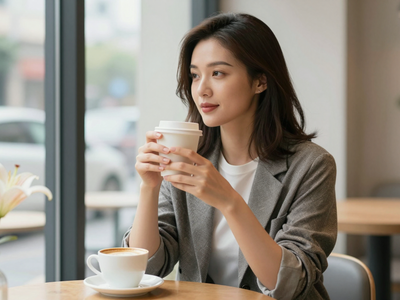
character generation
Image
LoRAs
text to image
wildcard prompt
z-image turbo
Create unique AI characters using Z-Image Turbo. Write a base prompt, add wildcard variations, and generate a different image every run.
Z-Image Turbo · Text to Image with Wildcards
Create unique AI characters using Z-Image Turbo. Write a base prompt, add wildcard variations, and generate a different image every run.

Kling O3 Standard Image to Video with Reference
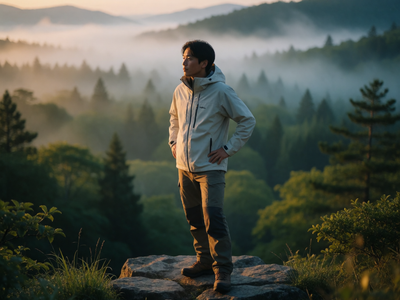
image to video
lora
LoRAs
Video
video generation
wan 2.2
Generate high quality video from a start frame, as well as an optional end frame with this Wan2.2 14b Image to Video workflow!
Wan 2.2 14B: Image to Video+End Frame For AD Film
Generate high quality video from a start frame, as well as an optional end frame with this Wan2.2 14b Image to Video workflow!
360 Orbit LoRA
FLF2V
Image
Minimax H3
Video
Upload a photo and MiniMax H3 with the Orbit LoRA animates a full 360 camera rotation around it, with synchronized stereo audio, in one pass. Upload, run, download.
Minimax H3 FLF2V + Orbit LoRA for 360 View
Upload a photo and MiniMax H3 with the Orbit LoRA animates a full 360 camera rotation around it, with synchronized stereo audio, in one pass. Upload, run, download.
3D
Hunyuan 3D v3.1 Pro
Text to 3D
Generate a textured 3D model from a text description using Tencent's Hunyuan 3D v3.1 Pro. Describe the object, set your polygon count, and hit run.
Hunyuan 3D v3.1 Pro for Text to 3D
Generate a textured 3D model from a text description using Tencent's Hunyuan 3D v3.1 Pro. Describe the object, set your polygon count, and hit run.
3D
Text to 3D
Tripo P2
Generate game-ready 3D models from text with Tripo P2 by Tripo AI. Get clean quad or triangle meshes with PBR textures. Describe an object and hit run.
Tripo P2 for Text to 3D
Generate game-ready 3D models from text with Tripo P2 by Tripo AI. Get clean quad or triangle meshes with PBR textures. Describe an object and hit run.
_1784269877533.png?width=400&height=300&quality=80&resize=cover)
Image
image to image
multi angle
qwen image edit
relight
Upload one image and this workflow generates five relighted versions simultaneously, each lit from a different angle and direction, with full control over azimuth, elevation, intensity, and color.
Qwen Multiangle Light · I2I For Viral SNS
Upload one image and this workflow generates five relighted versions simultaneously, each lit from a different angle and direction, with full control over azimuth, elevation, intensity, and color.

Cipher
Text
Encode plain text into cipher characters and decode it back. Paste a message, pick a cipher style, and get a disguised version only the matching decoder reads.
Text Manipulator
Encode plain text into cipher characters and decode it back. Paste a message, pick a cipher style, and get a disguised version only the matching decoder reads.
FLUX.3
Image
Image Editig
Edit any image with a text instruction using FLUX.3 Image by Black Forest Labs. Upload an image, describe the change, add optional reference images, and hit run.
FLUX.3 for Image Editing
Edit any image with a text instruction using FLUX.3 Image by Black Forest Labs. Upload an image, describe the change, add optional reference images, and hit run.
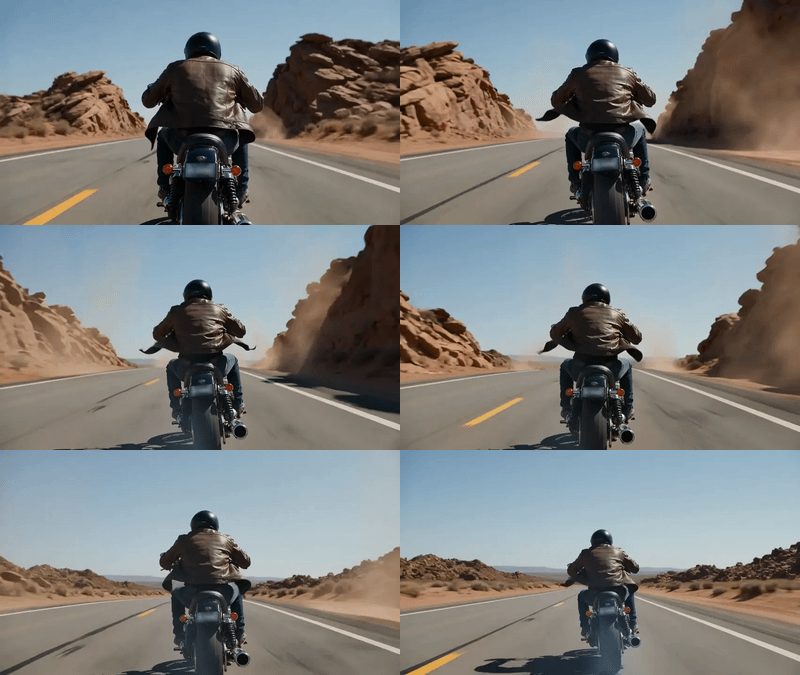
Image to Image
SAM 3.1
Segmentation
Video
Video to Video
Segment and track any object in images and video with SAM 3.1, Meta's concept segmentation model. Type what you want, hit run, and get clean masks back.
SAM3.1 for Image and Video Segmentation
Segment and track any object in images and video with SAM 3.1, Meta's concept segmentation model. Type what you want, hit run, and get clean masks back.
360 video
Audio
audio video
equirectangular
immersive
panorama
text to video
Video
vr
Describe a scene and LTX-2.3 by Lightricks generates a 360 video with synchronized sound that you can look around inside. Type a prompt and hit run.
LTX 2.3 for Text to 360 VR Video Panorama
Describe a scene and LTX-2.3 by Lightricks generates a 360 video with synchronized sound that you can look around inside. Type a prompt and hit run.
_1764320932433.webp?width=400&height=300&quality=80&resize=contain&format=origin)
Audio
Image
image-to-image
Lipsync
reference-image
seedream
upscaling
Video
Video-conditioning
wan2.1_funControl
Vertical Video Lighting & Mood Shift Using Seedream + Wan

3d generation
api
game assest
meshy
text to 3D
Describe any object and Meshy 7 generates a fully textured 3D model with PBR materials. Export as GLB, FBX, OBJ, USDZ, or STL. Write a prompt and run.
Meshy 7 · Text to 3D
Describe any object and Meshy 7 generates a fully textured 3D model with PBR materials. Export as GLB, FBX, OBJ, USDZ, or STL. Write a prompt and run.
flux 2 klein
Image
text to image
Write a prompt and FLUX.2 Klein 9B generates a photorealistic image at 1920x1280 in 20 steps, using a fast 9-billion-parameter model with strong prompt adherence and native negative prompt support.
FLUX.2 Klein 9B · Text to Image For Anime
Write a prompt and FLUX.2 Klein 9B generates a photorealistic image at 1920x1280 in 20 steps, using a fast 9-billion-parameter model with strong prompt adherence and native negative prompt support.
IC LoRa
Image
Image to Video
LTX-2.5
Motion Tracking
Video
Animate a still image along motion paths you draw with LTX-2.5 and the Motion Track IC-LoRA. Upload an image, sketch the tracks, write a prompt, and hit run.
LTX-2.5 ICLoRA Motion Track for Image to Video
Animate a still image along motion paths you draw with LTX-2.5 and the Motion Track IC-LoRA. Upload an image, sketch the tracks, write a prompt, and hit run.

audio
audio encryption
comfyui utility
encryption
modem
orion4d
text to audio
Encode text into audio signals using three modem methods (AFSK, OFDM, Spectral), then decode and verify integrity. Built with Orion4D nodes in ComfyUI.
Audio to Modem Encryption using Orion4D Secret
Encode text into audio signals using three modem methods (AFSK, OFDM, Spectral), then decode and verify integrity. Built with Orion4D nodes in ComfyUI.

audio
audio encryption
Image
image to image
spectrogram
Turn any image into audio by encoding it as a spectrogram. Upload a picture, set your frequency range, and get an MP3 that shows your image when visualized.
Audio to Spectogram using Orion4D Secret
Turn any image into audio by encoding it as a spectrogram. Upload a picture, set your frequency range, and get an MP3 that shows your image when visualized.
Audio
audio generation
foley
mmaudio v2
sound design
Video
video to audio
video to video
Generate synchronized sound effects for any video using MMAudio V2, the open-source video-to-audio model from Sony AI and University of Illinois. Upload a video, describe the sounds, and hit run.
MMAudio V2: Add Sound Effects to Any Video
Generate synchronized sound effects for any video using MMAudio V2, the open-source video-to-audio model from Sony AI and University of Illinois. Upload a video, describe the sounds, and hit run.

image editing
image to image
in-image text
reve 2.1
Reve 2.1 is Reve AI's layout-first editor that changes one element and keeps the rest, rendered in native 4K. Upload an image, describe the edit, and run.
Reve 2.1 · Edit (Image to Image)
Reve 2.1 is Reve AI's layout-first editor that changes one element and keeps the rest, rendered in native 4K. Upload an image, describe the edit, and run.
_1784212330847.webp?width=400&height=300&quality=80&resize=contain&format=origin)
Audio
image to video
lip sync
LoRAs
ltx video
talking head
Video
Animate a portrait photo with accurate lip sync using LTX-Video 2.3, Lightricks' 22B open-source model with a lip sync LoRA. Upload a photo and an audio clip, describe the scene, and hit run.
LTX 2.3 Lip Sync · Image to Video For Kids Edu
Animate a portrait photo with accurate lip sync using LTX-Video 2.3, Lightricks' 22B open-source model with a lip sync LoRA. Upload a photo and an audio clip, describe the scene, and hit run.
360
concept art
Image
image to image
nano banana
panorama
vfx
Turn any photo into a 360 equirectangular panorama with Nano Banana 2. Upload an image, hit run, and get a 2:1 wrap ready for VR scenes and skyboxes.
Nano Banana 2 for Image to 360 Panorama
Turn any photo into a 360 equirectangular panorama with Nano Banana 2. Upload an image, hit run, and get a 2:1 wrap ready for VR scenes and skyboxes.
Video
Generate video with sound from a text prompt using Google's Gemini Omni Flash 1.1. Describe a scene, set the duration and aspect ratio, and hit run.
Gemini Omni Flash 1.1 for Text to Video
Generate video with sound from a text prompt using Google's Gemini Omni Flash 1.1. Describe a scene, set the duration and aspect ratio, and hit run.
Creative Upscale
Image
Image to Image
Topaz
Upscale
Upscale any image up to 6x with Topaz Bloom 2, a diffusion-based creative upscaler that generates new detail as it enlarges. Upload an image, pick a scale factor, and hit run.
Topaz Image Upscale Creative
Upscale any image up to 6x with Topaz Bloom 2, a diffusion-based creative upscaler that generates new detail as it enlarges. Upload an image, pick a scale factor, and hit run.
Image
Kling v3
Text to Image
Edit any image with a text prompt using Kling Image 3.0, Kuaishou's identity-preserving image model. Upload your image, add face references to lock identity, describe the change, and hit run.
Kling v3 for Image Editing
Edit any image with a text prompt using Kling Image 3.0, Kuaishou's identity-preserving image model. Upload your image, add face references to lock identity, describe the change, and hit run.
concept art
e-commerce
flux
flux 2 klein
Image
image to image
lora
LoRAs
portrait
Highlight any area of your image in red and Flux 2 Klein 4B zooms into it, generating a full-resolution close-up with new detail. Six steps, fast results.
Flux 2 Klein 4B + Red Zoom LoRA for Image Zoom
Highlight any area of your image in red and Flux 2 Klein 4B zooms into it, generating a full-resolution close-up with new detail. Six steps, fast results.
Z-Image Turbo: Fast Image Generation For AD Film
Fast Image Generation in Seconds

Audio
LoRAs
LTX2.3
Vid2Vid
Video
Convert SDR video to 16-bit linear HDR with LTX-2.3 and the HDR IC-LoRA. Get EXR frames ready for color grading pipelines, plus a tone-mapped SDR preview.
LTX-2.3 IC-LoRA HDR for SDR to HDR Video
Convert SDR video to 16-bit linear HDR with LTX-2.3 and the HDR IC-LoRA. Get EXR frames ready for color grading pipelines, plus a tone-mapped SDR preview.
Bria
Image
Image to Image
Virtual Try-On
Upload a person photo and up to three garment images. Bria's FIBO-Edit 1.5 model dresses the person in those clothes, keeping their pose, face, and background intact.
Bria for Virtual Try-On
Upload a person photo and up to three garment images. Bria's FIBO-Edit 1.5 model dresses the person in those clothes, keeping their pose, face, and background intact.
Bria
Image to Image
Upscale
Upscale any image to 2x or 4x resolution using Bria Increase Resolution, a dedicated upscaling model trained on licensed data. Upload an image, pick your scale, and hit run.
Bria for Increase Resolution
Upscale any image to 2x or 4x resolution using Bria Increase Resolution, a dedicated upscaling model trained on licensed data. Upload an image, pick your scale, and hit run.
animation
film production
image to video
pixverse
transition
Video
video generation
Upload a start image and end image, describe the motion, and Pixverse C1 generates a video transition between them. Set duration, resolution, and audio.
Pixverse C1 Transition
Upload a start image and end image, describe the motion, and Pixverse C1 generates a video transition between them. Set duration, resolution, and audio.
_1784289870978.webp?width=400&height=300&quality=80&resize=contain&format=origin)
Audio
image to video
infinite talk
lipsync
talking avatar
Video
Upload a portrait and an audio file of any length, and InfiniteTalk generates a lip-synced talking avatar video that runs for the full duration of the audio using Wan 2.1 14B with windowed generation.
InfiniteTalk · Image to Video For Viral SNS
Upload a portrait and an audio file of any length, and InfiniteTalk generates a lip-synced talking avatar video that runs for the full duration of the audio using Wan 2.1 14B with windowed generation.
character animation
motion transfer
wan 2.2
wan animate 2
Transfer the motion from any reference video onto a character photo using Wan Animate 2, Alibaba's open-source 14B video model. Upload an image, upload a video, and hit run.
Wan Animate 2 · Motion Transfer R2V
Transfer the motion from any reference video onto a character photo using Wan Animate 2, Alibaba's open-source 14B video model. Upload an image, upload a video, and hit run.

Qwen 3.5 Plus for Multimodal LLM and VLM
Analyze your images or videos using you Qwen 3.5 Plus
_1783498909184.png?width=400&height=300&quality=80&resize=cover)
anime
Image
image to image
LoRAs
next scene
qwen
storyboard
text to image
Describe an anime scene in text, then direct the next shot with a camera or scene change prompt. This two-stage workflow generates connected anime frames with consistent characters, lighting, and composition using Qwen Image and the Next Scene LoRA.
Anime Next Scene · T2I + I2I For Anime
Describe an anime scene in text, then direct the next shot with a camera or scene change prompt. This two-stage workflow generates connected anime frames with consistent characters, lighting, and composition using Qwen Image and the Next Scene LoRA.

Kling O3 Pro Text to Video
_1783938504391.webp?width=400&height=300&quality=80&resize=contain&format=origin)
ai video
bytedance
mini
seedance2.0
text to video
Video
Write a prompt and Seedance 2.0 Mini by ByteDance generates a 5-second 720p video with native audio at low cost, powered by the same architecture as the full Seedance 2.0 model.
Seedance 2.0 Mini · Text to Video
Write a prompt and Seedance 2.0 Mini by ByteDance generates a 5-second 720p video with native audio at low cost, powered by the same architecture as the full Seedance 2.0 model.
ComfySketch for Creating Images
Draw cool images using comfysketch
ai image generator
int8
mage flow
mage-flow
microsoft
open source image model
qwen3-vl
text to image
Generate images from a text prompt with Mage-Flow, Microsoft's open-weight 4B image model. Pick an aspect ratio, describe the picture you want, and hit run.
Mage Flow for Text to Image
Generate images from a text prompt with Mage-Flow, Microsoft's open-weight 4B image model. Pick an aspect ratio, describe the picture you want, and hit run.
Z-Image Turbo: Fast Image Generation For Viral SNS

ASR
Audio to Text
qwen
STT
Upload an audio file and Qwen3 ASR 1.7B transcribes it to text. Supports 52 languages, auto-detects the language, and handles noisy audio. No setup needed.
Qwen3 ASR 1.7B - Speech to Text
Upload an audio file and Qwen3 ASR 1.7B transcribes it to text. Supports 52 languages, auto-detects the language, and handles noisy audio. No setup needed.
Background Removal
Image
Image Editing
Qwen Image 2.1
Upload a photo and Qwen Image 2.1 removes the background, returning a clean PNG cutout with a real transparent alpha channel. No masking, no post-processing.
Qwen Image 2.1 for Background Removal
Upload a photo and Qwen Image 2.1 removes the background, returning a clean PNG cutout with a real transparent alpha channel. No masking, no post-processing.
Image
Image Editing
Luma Uni-1 Max
Edit any image with a text instruction using Luma Uni-1 Max, Luma AI's highest-quality image model. Upload an image, describe the change, add optional reference images, and hit run.
Luma Uni-1 Max for Image Editing
Edit any image with a text instruction using Luma Uni-1 Max, Luma AI's highest-quality image model. Upload an image, describe the change, add optional reference images, and hit run.
accessibility
amateur radio
Audio
audio processing
chatterbox tts
morse code
text to speech
transcription
Upload Morse code audio, decode it to readable text, and convert to natural speech using ChatterboxTTS. Perfect for amateur radio transcription and accessibility.
Morse Code to Speech
Upload Morse code audio, decode it to readable text, and convert to natural speech using ChatterboxTTS. Perfect for amateur radio transcription and accessibility.
foley
sonilo
sound effects
video to audio
Add realistic, synced sound effects to any video using Sonilo V1.1, a video-native AI sound model. Upload a video, describe the sounds you want, and hit run.
Sonilo V1.1 · Video to Sound Effects
Add realistic, synced sound effects to any video using Sonilo V1.1, a video-native AI sound model. Upload a video, describe the sounds you want, and hit run.
cinematic
film production
moonvalley marey
text to video
Video
video generation
Generate cinematic 5 or 10 second 1080p video clips from a text prompt with Moonvalley Marey, a commercially-safe model trained only on licensed footage.
Moonvalley Marey - Text to Video
Generate cinematic 5 or 10 second 1080p video clips from a text prompt with Moonvalley Marey, a commercially-safe model trained only on licensed footage.
_1784222443668.png?width=400&height=300&quality=80&resize=cover)
illustrated scenes
Image
LoRAs
next scene
qwen image
storyboard
text to image
Describe an illustrated kids' scene and what happens next using Qwen Image and Qwen Image Edit 2509 by Alibaba. Get two style-matched images in one run.
First and Next Scene · Text to Image For Kids Edu
Describe an illustrated kids' scene and what happens next using Qwen Image and Qwen Image Edit 2509 by Alibaba. Get two style-matched images in one run.
color grading
darkroom
film emulation
Image
image to image
style transfer
Apply 111 color and 50 B&W film stocks to any image with physics-based grain, halation, print simulation, and cross-processing. No AI models needed.
Darkroom Film Stock Emulation for Image Editing
Apply 111 color and 50 B&W film stocks to any image with physics-based grain, halation, print simulation, and cross-processing. No AI models needed.

Z-Image Turbo: Fast Image Generation For Kids Edu

gemma 4
google deepmind
image to text
multimodal llm
opensource
vision language
Upload an image, ask a question or give an instruction, and get a written answer from Gemma 4 E4B, Google DeepMind's open-weights multimodal model. Add audio to transcribe or analyze it alongside the image.
Gemma 4 E4B: Ask Anything About an Image
Upload an image, ask a question or give an instruction, and get a written answer from Gemma 4 E4B, Google DeepMind's open-weights multimodal model. Add audio to transcribe or analyze it alongside the image.
I2V
Minimax H3
Open Source
Open Weights
T2V
Video
Generate video with native stereo audio using MiniMax H3 open weights. Write a prompt, add an optional start image and a style embedding, and hit run.
MiniMax H3 Open Weights TI2V with Style Embedding
Generate video with native stereo audio using MiniMax H3 open weights. Write a prompt, add an optional start image and a style embedding, and hit run.
Bria Fibo Edit 1.5
Image
Image Editing
Image to Image
Reference to Image
Edit any image with a plain-language instruction using FIBO Edit 1.5, Bria AI's structured image editing model trained on licensed data. Upload a photo, describe the change, and hit run.
Bria Fibo Edit 1.5 for Image Editing
Edit any image with a plain-language instruction using FIBO Edit 1.5, Bria AI's structured image editing model trained on licensed data. Upload a photo, describe the change, and hit run.
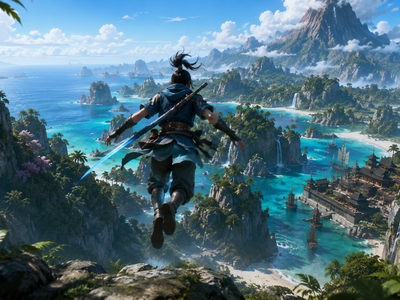
ai video
comfyui
image to video
lightricks
ltx 2.3
ltx-2.3
open weights
video with audio
Turn a still into a 1080p clip with synchronized sound using LTX-2.3, the open-weight 22B model from Lightricks. Upload an image, write the shot, hit run.
LTX-2.3: Image to Video With Audio
Turn a still into a 1080p clip with synchronized sound using LTX-2.3, the open-weight 22B model from Lightricks. Upload an image, write the shot, hit run.
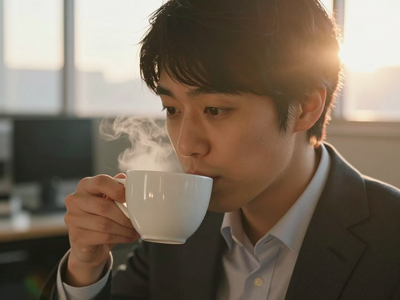
Z-Image Turbo: Fast Generation For Short Drama
Isometric Miniatures from a Selfie
_1786117652317.png?width=400&height=300&quality=80&resize=cover)
image remix
image to image
multi-image composite
reve 2.1
reve ai
Reve 2.1 is Reve AI's layout-first model that blends up to 8 reference images into one, in native 4K. Upload your references, describe the mix, and run.
Reve 2.1 · Remix (Multi-Image)
Reve 2.1 is Reve AI's layout-first model that blends up to 8 reference images into one, in native 4K. Upload your references, describe the mix, and run.
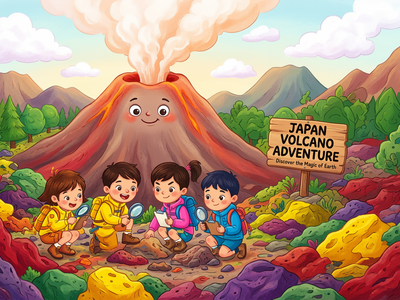
ernie image
Image
text rendering
text to image
Generate images from a text prompt using ERNIE-Image, Baidu's 8B DiT model with a built-in prompt enhancer and precise text rendering. Type a prompt and hit run.
ERNIE Image · Text to Image For Kids Edu
Generate images from a text prompt using ERNIE-Image, Baidu's 8B DiT model with a built-in prompt enhancer and precise text rendering. Type a prompt and hit run.
first last frame
flux 3
flux 3 video
image to video
FLUX 3 is Black Forest Labs' video model that builds the motion between two keyframes. Upload a start and end image for an HD clip up to 20 seconds.
FLUX 3 · First & Last Frame to Video
FLUX 3 is Black Forest Labs' video model that builds the motion between two keyframes. Upload a start and end image for an HD clip up to 20 seconds.
Face Upscale
Image to Image
Topaz
Upscale any photo with built-in face recovery using the Topaz Labs API. Upload an image, pick a scale factor, and hit run.
Topaz Image Face Upscale
Upscale any photo with built-in face recovery using the Topaz Labs API. Upload an image, pick a scale factor, and hit run.
3D
3D to 3D
Hunyuan 3D v3.1
Part Splitter
Break a 3D mesh into clean, separate components using Tencent's Hunyuan 3D Part Splitter. Paste a link to an FBX file, hit run, and download each part individually.
Hunyuan 3D v3.1 for Part Splitter
Break a 3D mesh into clean, separate components using Tencent's Hunyuan 3D Part Splitter. Paste a link to an FBX file, hit run, and download each part individually.
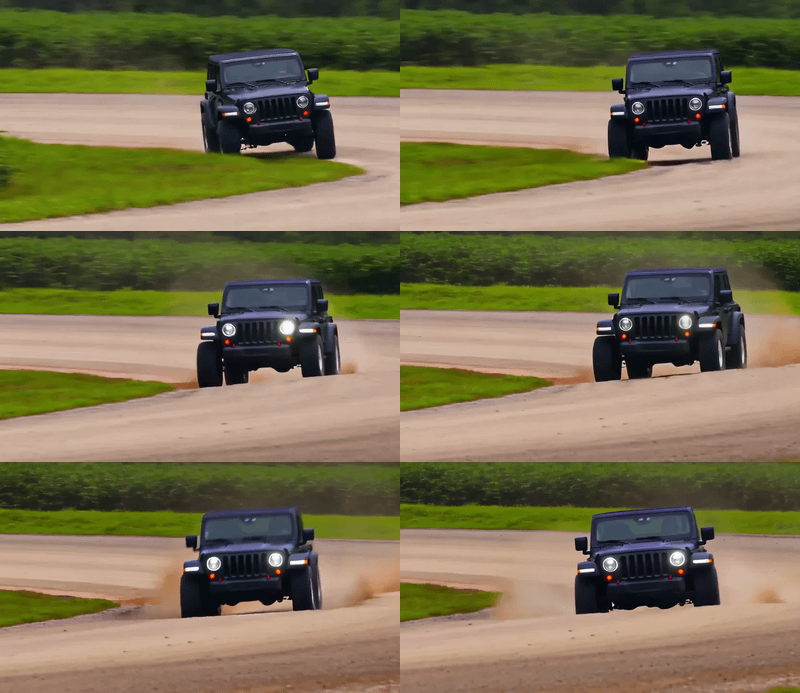
Krea Wan 14B Video to Video
_1783925218218.png?width=400&height=300&quality=80&resize=cover)
Image
image editing
image to image
style transfer
Edit any image with a text instruction using Boogu-Image-0.1-Edit, a 10B open-source model. Upload a photo, describe the change, and hit run.
Boogu Edit · Image to Image
Edit any image with a text instruction using Boogu-Image-0.1-Edit, a 10B open-source model. Upload a photo, describe the change, and hit run.
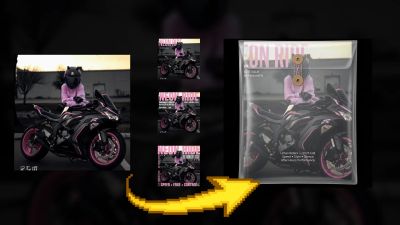
Create Magazine Cover & Package Design
_1784631878925.png?width=400&height=300&quality=80&resize=cover)
illustrated scene
Image
LoRAs
next scene
qwen image
text to image
Describe an illustrated drama scene and what happens next using Qwen Image and Qwen Image Edit 2509 by Alibaba. Get two style-matched images in one run.
First and Next Scene · T2V For Short Drama
Describe an illustrated drama scene and what happens next using Qwen Image and Qwen Image Edit 2509 by Alibaba. Get two style-matched images in one run.

Audio
audio video
image to video
ltx video
Video
video generation
Animate any photo into a 1080p video with synchronized audio using LTX-Video 2.3, Lightricks' 22B open-source model. Upload an image, describe the motion, and hit run.
LTX 2.3 Image to Video For AD Film
Animate any photo into a 1080p video with synchronized audio using LTX-Video 2.3, Lightricks' 22B open-source model. Upload an image, describe the motion, and hit run.
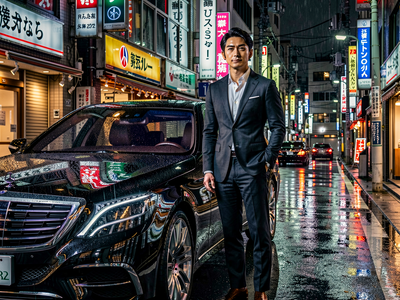
Flux
FLUX2 Klein
Image
photorealism
text to image
Create a high quality image using 9B model of Flux 2 Klein
FLUX.2 Klein 9B: Text to Image For AD Film
Create a high quality image using 9B model of Flux 2 Klein
ai video
ltx-2.5 fast
text to video
video generation
Generate video clips with synchronized audio from a text prompt using LTX-2.5 Fast, the speed tier of Lightricks' open-weights video model. Describe a scene, hit run, and get a clip with sound back in seconds.
LTX-2.5 Fast · Text to Video
Generate video clips with synchronized audio from a text prompt using LTX-2.5 Fast, the speed tier of Lightricks' open-weights video model. Describe a scene, hit run, and get a clip with sound back in seconds.

audio
multilingual
open source
text to speech
tts
voice clone
voxcpm2
Upload a short voice sample and type what you want it to say. VoxCPM2 clones the voice and generates new speech in 30 languages at 48 kHz studio quality.
VoxCPM2 for Voice Cloning
Upload a short voice sample and type what you want it to say. VoxCPM2 clones the voice and generates new speech in 30 languages at 48 kHz studio quality.
Gemini Omni Flash 1.1
r2v
Video
Turn a reference image into a short video with synchronized audio using Gemini Omni 1.1 Flash. Upload an image, describe the motion, and hit run.
Gemini Omni Flash 1.1 for Reference to Video
Turn a reference image into a short video with synchronized audio using Gemini Omni 1.1 Flash. Upload an image, describe the motion, and hit run.
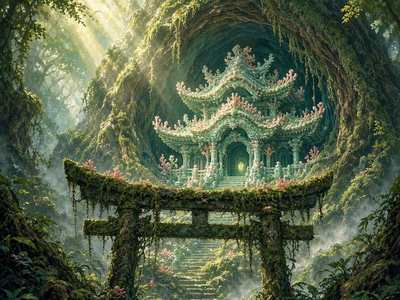
Grok Imagine Image 2.0
Image
Text to Image
Generate images from a text prompt using Grok Imagine Image 2.0, xAI's precision image model with strong text rendering and prompt accuracy. Write a prompt and hit run.
Grok Imagine Image 2.0 for Text to Image
Generate images from a text prompt using Grok Imagine Image 2.0, xAI's precision image model with strong text rendering and prompt accuracy. Write a prompt and hit run.
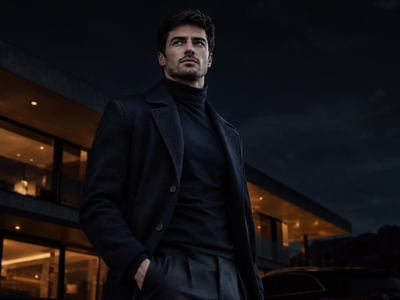
image editing
image to image
luma ai
luma uni-1
Edit any image with a text instruction using Luma Uni-1, a reasoning-first image model that changes only what you describe. Upload an image, describe the edit, and hit run.
Luma Uni-1 · Edit (Image to Image)
Edit any image with a text instruction using Luma Uni-1, a reasoning-first image model that changes only what you describe. Upload an image, describe the edit, and hit run.

Kling O3 Pro - Video to Video Edit
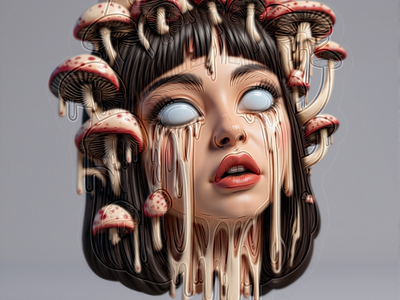
Dissolve image lighting Kontext V2
Gemini Omni Flash 1.1
Image to Video
Video
Turn a still image into a short video clip with synchronized audio using Google's Gemini Omni Flash 1.1. Upload a photo, describe the motion, and hit run.
Gemini Omni Flash 1.1 for Image to Video
Turn a still image into a short video clip with synchronized audio using Google's Gemini Omni Flash 1.1. Upload a photo, describe the motion, and hit run.
concept art
Image
text to image
z-image base
Create sunning images using z-image base model (non distlled).
Z-Image Base: High-Detail T2I For Short Drama
Create sunning images using z-image base model (non distlled).
_1784199733375.webp?width=400&height=300&quality=80&resize=contain&format=origin)
image to video
lora
LoRAs
Video
video generation
Generate high quality video from a start frame, as well as an optional end frame with this Wan2.2 14b Image to Video workflow!
Wan 2.2 14B: I2V + End Frame For Kids Edu
Generate high quality video from a start frame, as well as an optional end frame with this Wan2.2 14b Image to Video workflow!

Audio
indextts2
text to speech
voice cloning
Clone any voice and control emotional delivery with IndexTTS2, the open-weight TTS model. Upload a voice sample, type the text, and hit run. MIT license.
IndexTTS2 · Voice Cloning With Emotion Control
Clone any voice and control emotional delivery with IndexTTS2, the open-weight TTS model. Upload a voice sample, type the text, and hit run. MIT license.
ai video
minimax h3 max turbo
text to video
video generation
Generate short video clips with sound from a text prompt using MiniMax H3 Max Turbo, fal's speed-optimized video model. Describe a scene, hit run, and get a video with audio back in seconds.
MiniMax H3 Max Turbo · Text to Video
Generate short video clips with sound from a text prompt using MiniMax H3 Max Turbo, fal's speed-optimized video model. Describe a scene, hit run, and get a video with audio back in seconds.

Audio
audiodit
audio generation
longcat
text to speech
tts
Turn text into spoken audio with LongCat AudioDiT 3.5B, Meituan's open-source diffusion TTS model. Clean voice quality in English and Chinese, no setup.
LongCat AudioDiT for TTS
Turn text into spoken audio with LongCat AudioDiT 3.5B, Meituan's open-source diffusion TTS model. Clean voice quality in English and Chinese, no setup.
IC LoRA
LTX-2.5
Video
Video Outpainting
Video to Video
Extend any video beyond its original frame using LTX-2.5 with IC-LoRA outpainting. Upload a video, set a larger canvas size, and hit run.
LTX-2.5 ICLoRA Outpaint for Video Outpainting
Extend any video beyond its original frame using LTX-2.5 with IC-LoRA outpainting. Upload a video, set a larger canvas size, and hit run.
first frame and last frame
image to video
ltx-2.5
video generation
Set a start image and an end image. LTX-2.5, Lightricks' open-source 22B video model, fills in the motion and audio between them. Upload two frames and hit run.
LTX-2.5 · First and Last Frame to Video
Set a start image and an end image. LTX-2.5, Lightricks' open-source 22B video model, fills in the motion and audio between them. Upload two frames and hit run.
Vidu Q3 for Text to Video
Create good videos with Vidu Q3
_1768210693794.png?width=400&height=300&quality=80&resize=cover)
Ecommerce
Image
NanoBanana
Reference Image
Upload the outfit image to generate fashion billboard
Generate Fashion Billboard Using Outfit Image
Upload the outfit image to generate fashion billboard
4k image generator
reve 2.1
text to image
Reve 2.1 is Reve AI's layout-first model that plans an image, then renders it in native 4K with legible text. Type a prompt and run, no upscaling needed.
Reve 2.1 · Text to Image
Reve 2.1 is Reve AI's layout-first model that plans an image, then renders it in native 4K with legible text. Type a prompt and run, no upscaling needed.
background removal
film production
vfx
vid2vid
Video
video generation
Remove any subject from video with MatAnyone2. Auto-detects by text, tracks frame by frame, and outputs a green screen, matte, and side-by-side comparison.
MatAnyone2 V2V with Auto Segmentation
Remove any subject from video with MatAnyone2. Auto-detects by text, tracks frame by frame, and outputs a green screen, matte, and side-by-side comparison.
Kling 3.0 Pro for Text to Video
Create videos using Kling 3.0
alibaba
text to video
video with audio
wan 3.0 prime
Generate a high-fidelity clip with sound from a written prompt using Wan 3.0 Prime, the quality tier of Alibaba's latest video model. No image needed, just describe the shot.
Wan 3.0 Prime · Text to Video With Audio
Generate a high-fidelity clip with sound from a written prompt using Wan 3.0 Prime, the quality tier of Alibaba's latest video model. No image needed, just describe the shot.
_1785139616426.webp?width=400&height=300&quality=80&resize=contain&format=origin)
3D
3d mesh
image to 3d
moge
panorama to 3d
Turn a 360 panorama into a textured 3D mesh with MoGe-2, Microsoft's geometry model. Upload a panorama, hit run, and download a GLB you can open anywhere.
MoGe-2 · Panorama to 3D Mesh
Turn a 360 panorama into a textured 3D mesh with MoGe-2, Microsoft's geometry model. Upload a panorama, hit run, and download a GLB you can open anywhere.
Flux. 2 Klein INPAINT Segment Edit Accurate Image
character design
flux kontext
Image
image to image
lineart
sketch to image
Upload a rough sketch and describe the target style. Flux Kontext reads the composition, pose, and layout from your drawing and renders it as a full-color illustration, anime character, game asset, or any visual style you describe.
Flux Kontext · Sketch to Image For Anime
Upload a rough sketch and describe the target style. Flux Kontext reads the composition, pose, and layout from your drawing and renders it as a full-color illustration, anime character, game asset, or any visual style you describe.
_1784713456177.webp?width=400&height=300&quality=80&resize=contain&format=origin)
Audio
image to video
infinite talk
lipsync
talking avatar
Video
Upload a portrait and an audio file of any length, and InfiniteTalk generates a lip-synced talking avatar video that runs for the full duration of the audio using Wan 2.1 14B with windowed generation.
InfiniteTalk · Image to Video For Short Drama
Upload a portrait and an audio file of any length, and InfiniteTalk generates a lip-synced talking avatar video that runs for the full duration of the audio using Wan 2.1 14B with windowed generation.
Kling O3 Video to Video — Standard Edit

3D
3d asset
gaussian splatting
image to 3d
triposplat
Video
Turn one photo into a 3D Gaussian splat with TripoSplat by VAST-AI, plus colour, depth, normal, and clay turntable videos. Upload an image and hit run.
TripoSplat · Image to 3D Turnaround
Turn one photo into a 3D Gaussian splat with TripoSplat by VAST-AI, plus colour, depth, normal, and clay turntable videos. Upload an image and hit run.
_1783927380929.png?width=400&height=300&quality=80&resize=cover)
fast generation
Image
photorealism
text to image
Generate images from a text prompt in 4 steps using Boogu-Image-0.1-Turbo, a distilled 10B open-source model. Type a prompt and hit run.
Boogu Turbo · Text to Image
Generate images from a text prompt in 4 steps using Boogu-Image-0.1-Turbo, a distilled 10B open-source model. Type a prompt and hit run.

Qwen Thinking Prompt Refiner
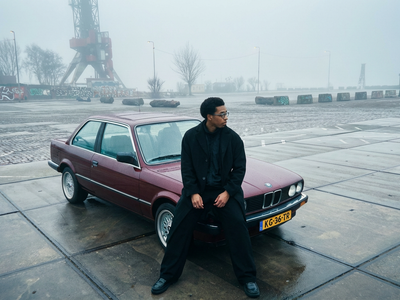
Nano Banana Pro Storyboard: 1 Image to 5 Shots
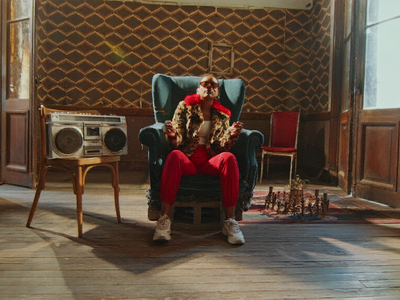
4k
concept art
flux
Image
image to image
product photography
upscaling
Upload any image and NVIDIA PiD rebuilds it at 4K in four diffusion steps. No tiling, no separate upscale model. Add a caption for guidance, or leave it blank.
NVIDIA PiD for 4k Image Upscale
Upload any image and NVIDIA PiD rebuilds it at 4K in four diffusion steps. No tiling, no separate upscale model. Add a caption for guidance, or leave it blank.
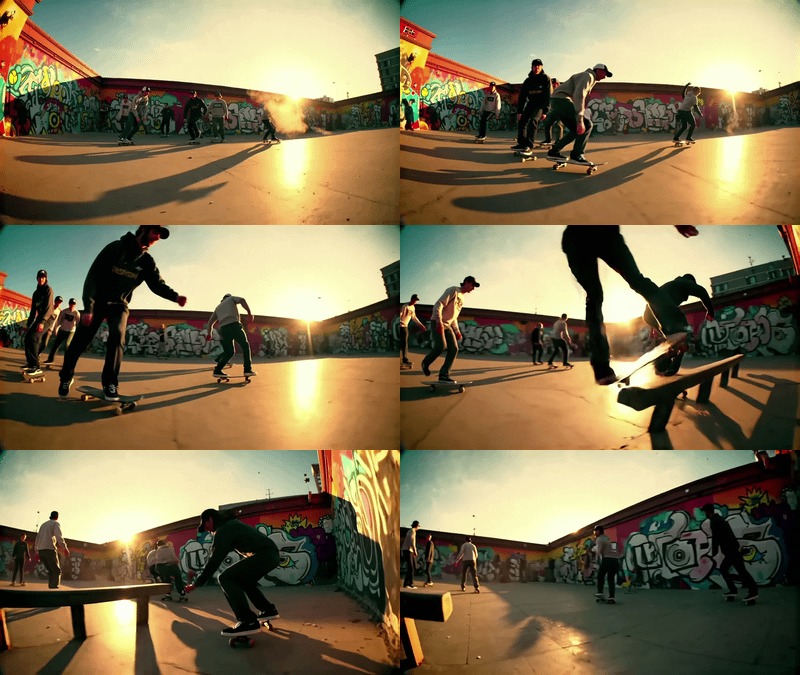
API
Audio
Filmmaking
Floyo API
LTX 2 Pro
Text to Video
Video
Videography
Outdated model. Please go to LTX 2.3 Pro Text to Video workflow to use LTX 2.3
LTX 2 Pro API for Text to Video
Outdated model. Please go to LTX 2.3 Pro Text to Video workflow to use LTX 2.3
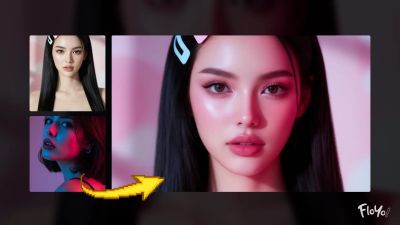
Qwen Image Edit – Portrait Light Migration
character design
character sheet
FaceAnalysis
Image
Image2Image
Image Dataset
InsightFace
lora
LoRAs
lora training
Upload a reference face, point to your dataset, and InsightFace filters out images that don't match. Cosine, L2 Norm, and Euclidean distance all supported.
InsightFace for Filtering Character LoRA Dataset
Upload a reference face, point to your dataset, and InsightFace filters out images that don't match. Cosine, L2 Norm, and Euclidean distance all supported.
Audio
Audio to Video
LTX 2.5
Video
Generate video from an audio file using LTX 2.5, Lightricks' 22B open-source video model. Upload audio, write a prompt, add a starting image if you want, and hit run.
LTX-2.5 for Audio to Video
Generate video from an audio file using LTX 2.5, Lightricks' 22B open-source video model. Upload audio, write a prompt, add a starting image if you want, and hit run.

capybara
Image
text rendering
text to image
Generate images from a text prompt using Capybara v0.1, a unified visual creation model built on HunyuanVideo 1.5. Type a prompt and hit run.
Capybara · Text to Image For Kids Edu
Generate images from a text prompt using Capybara v0.1, a unified visual creation model built on HunyuanVideo 1.5. Type a prompt and hit run.
_1782392938384.png?width=400&height=300&quality=80&resize=cover)
birefnet
Image
microscope
object isolation
rmbg
Drop in a microscope photo and BiRefNet finds the main subject, cuts it out, places it on a clean background, then upscales and sharpens it. Upload an image and hit run.
BiRefNet for Microscope Auto Segmentation
Drop in a microscope photo and BiRefNet finds the main subject, cuts it out, places it on a clean background, then upscales and sharpens it. Upload an image and hit run.
Audio
Audio Separation
Video to Audio
Upload a video, strip the audio, and split it into four clean stems (Bass, Drums, Other, and Vocals), then save your chosen stem as an MP3. No model required.
Audio Separation for Video to Audio
Upload a video, strip the audio, and split it into four clean stems (Bass, Drums, Other, and Vocals), then save your chosen stem as an MP3. No model required.
Image
Image Sharpen
Image to Image
Topaz
Sharpen any photo with Topaz Sharpen AI, the AI sharpening model by Topaz Labs. Upload an image, pick a sharpening mode, and hit run.
Topaz Image Sharpen
Sharpen any photo with Topaz Sharpen AI, the AI sharpening model by Topaz Labs. Upload an image, pick a sharpening mode, and hit run.
Gemini Omni Flash 1.1
V2V
Video
Video Edit
Edit a video with a text instruction using Gemini Omni Flash 1.1, Google's multimodal video model. Upload a clip, describe the change, and hit run.
Gemini Omni Flash 1.1 for Video Edit
Edit a video with a text instruction using Gemini Omni Flash 1.1, Google's multimodal video model. Upload a clip, describe the change, and hit run.
Image
Image Editing
Qwen Image 2.1 Edit
Edit any image with a text prompt using Qwen Image 2.1, Alibaba's open-source image editing model. Upload an image, describe the change, add an optional reference image, and hit run.
Qwen Image 2.1 Edit for Image Editing
Edit any image with a text prompt using Qwen Image 2.1, Alibaba's open-source image editing model. Upload an image, describe the change, add an optional reference image, and hit run.

Audio
dramabox
expressive speech
opensource
resemble ai
text to speech
Turn a scene-style prompt into a performed audio clip with DramaBox, Resemble AI's expressive open-source TTS model. Describe your speaker and delivery, optionally clone a voice, and hit run.
DramaBox: Direct a Voice Performance
Turn a scene-style prompt into a performed audio clip with DramaBox, Resemble AI's expressive open-source TTS model. Describe your speaker and delivery, optionally clone a voice, and hit run.
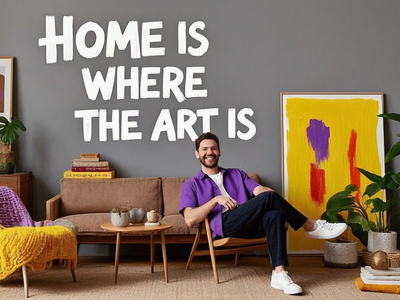
Ovis Text to Image
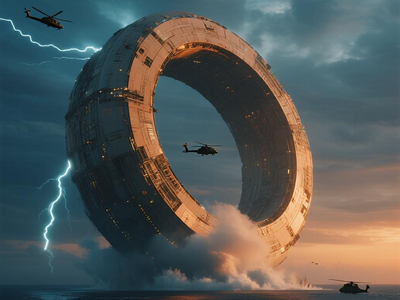
Dreamina 3.1 Text to Image

Product Placement in Video
custom style
fine-tune
ideogram v4
LoRAs
lora training
Upload your training images and this workflow fine-tunes a LoRA adapter on Ideogram V4, returning a download link for the trained LoRA file and config, ready to use in generation workflows.
Ideogram V4 LoRA Trainer · LoRA Training
Upload your training images and this workflow fine-tunes a LoRA adapter on Ideogram V4, returning a download link for the trained LoRA file and config, ready to use in generation workflows.
nano banana 2
seedance 2.5
spokesperson
ugc
video ad
Upload a person photo and describe a product ad. The workflow generates an opening frame with Nano Banana 2, writes a video script, and produces a finished clip with spoken dialogue and sound using Seedance 2.5.
Turn a Photo Into a Video Ad · Image to Video
Upload a person photo and describe a product ad. The workflow generates an opening frame with Nano Banana 2, writes a video script, and produces a finished clip with spoken dialogue and sound using Seedance 2.5.
_1784219337299.webp?width=400&height=300&quality=80&resize=contain&format=origin)
Audio
image to video
infinite talk
lipsync
talking avatar
Video
wan2.1
Upload a portrait and an audio file of any length, and InfiniteTalk generates a lip-synced talking avatar video that runs for the full duration of the audio using Wan 2.1 14B with windowed generation.
InfiniteTalk · Image to Video For Kids Edu
Upload a portrait and an audio file of any length, and InfiniteTalk generates a lip-synced talking avatar video that runs for the full duration of the audio using Wan 2.1 14B with windowed generation.
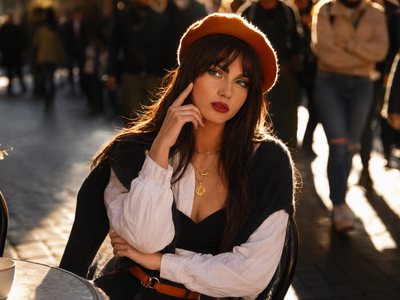
alibaba
image editing
multi-image
qwen image 3
Generate or edit images with Qwen Image 3, Alibaba's unified model built for dense text, infographics, and long prompts. Upload references or start from text.
Qwen Image 3.0 Unifired for Generate / Edit Image
Generate or edit images with Qwen Image 3, Alibaba's unified model built for dense text, infographics, and long prompts. Upload references or start from text.
_1787749481978.png?width=400&height=300&quality=80&resize=cover)
Audio
Minimax Music 3
Music
Text to Music
Generate complete songs with vocals and full instrumentation using MiniMax Music 3. Write a style caption, add lyrics, and hit run. Up to five minutes.
MiniMax Music 3 for Text to Music
Generate complete songs with vocals and full instrumentation using MiniMax Music 3. Write a style caption, add lyrics, and hit run. Up to five minutes.

Audio
CosyVoice3
Voice Clone
Clone any voice from a short audio clip using CosyVoice 3, Alibaba's multilingual zero-shot TTS model. Upload a voice sample, type your text, and hit run.
CosyVoice 3 for Voice Clone
Clone any voice from a short audio clip using CosyVoice 3, Alibaba's multilingual zero-shot TTS model. Upload a voice sample, type your text, and hit run.
concept art
Image
text to image
z-image base
Create sunning images using z-image base model (non distlled).
Z-Image Base: High-Detail T2I For Viral SNS
Create sunning images using z-image base model (non distlled).

character design
consistency
film production
image to video
Video
video generation
wan
Wan 2.7 Multi-Reference Image to Video
Wan 2.7 Multi-Reference Image to Video
Wan 2.7 Multi-Reference Image to Video
Wan 2.2 T2V Workflow with UnifiedReward Flex LoRA
Wan 2.2 T2V Workflow with UnifiedReward Flex LoRA
floyoofficial
1.2k
Bernini-R
Image Editing
Image Generation
Multi-Model
R2V
Video
Video Editing
Video Generation
Generate or edit video with Bernini-R, ByteDance's unified 14B renderer built on Wan 2.2. Upload an image, pick a task mode, describe the motion, hit run.
Bernini-R · Image to Video
Generate or edit video with Bernini-R, ByteDance's unified 14B renderer built on Wan 2.2. Upload an image, pick a task mode, describe the motion, hit run.
_1784631539897.webp?width=400&height=300&quality=80&resize=contain&format=origin)
image to video
lora
LoRAs
Video
video generation
wan2.2
Generate high quality video from a start frame, as well as an optional end frame with this Wan2.2 14b Image to Video workflow!
Wan 2.2 14B: I2v + End Frame For Short Drama
Generate high quality video from a start frame, as well as an optional end frame with this Wan2.2 14b Image to Video workflow!

Audio
audio generation
film production
longcat
text to speech
voice cloning
voiceover
Clone any voice from a short audio sample with LongCat AudioDiT 3.5B. Upload a reference clip, type what you want it to say, and get speech in that voice.
LongCat AudioDiT for Voice Clone
Clone any voice from a short audio sample with LongCat AudioDiT 3.5B. Upload a reference clip, type what you want it to say, and get speech in that voice.
concept art
Fine tuning
Image
text to image
z-image
Create sunning images using z-image base model (non distlled).
Z-Image Base: High-Detail Text to Img For AD Film
Create sunning images using z-image base model (non distlled).
chromatic aberration
darkroom
Image
image editing
image to image
lens correction
vignette
Apply chromatic aberration, vignette, barrel distortion, perspective correction, and full lens profiles from 102 real lenses to any image. No model needed.
DarkRoom Lens & Optics Tools for Image Editing
Apply chromatic aberration, vignette, barrel distortion, perspective correction, and full lens profiles from 102 real lenses to any image. No model needed.

Capybara for Text to Image
Create unique images using Capybara

Audio
Gemini 3.8 Flash
Text to Speech
TTS
Turn any script into spoken audio using Google's Gemini 3.8 Flash TTS. Pick a voice, describe the delivery style, and hit run.
Gemini 3.8 Flash TTS for Text to Speech
Turn any script into spoken audio using Google's Gemini 3.8 Flash TTS. Pick a voice, describe the delivery style, and hit run.
clay render
hailuo 3
minimax h3
video to video
Render a grey Blender clay pass into a finished, textured, lit clip with sound using MiniMax H3. Load your clay video, describe the look, and hit run.
MiniMax H3 · Clay Render to Final Render V2V
Render a grey Blender clay pass into a finished, textured, lit clip with sound using MiniMax H3. Load your clay video, describe the look, and hit run.
ai video
flux 3
flux 3 video
image to video
FLUX 3 is Black Forest Labs' multimodal video model that animates a still image into an HD clip up to 20 seconds. Upload an image, describe the motion, and run.
FLUX 3 · Image to Video
FLUX 3 is Black Forest Labs' multimodal video model that animates a still image into an HD clip up to 20 seconds. Upload an image, describe the motion, and run.
Image
photorealistic
qwen image 2512
text to image
Write a prompt and Qwen Image 2512 generates a high-resolution image at up to 1920x1280 in 50 steps, using Alibaba's latest dedicated image generation model with strong photorealism and bilingual prompt support.
Qwen Image 2512 · Text to Image For AD Film
Write a prompt and Qwen Image 2512 generates a high-resolution image at up to 1920x1280 in 50 steps, using Alibaba's latest dedicated image generation model with strong photorealism and bilingual prompt support.

Audio
Audio to Audio
Voice Cloning
Clone any voice from a short audio clip using Qwen3 TTS, Alibaba's open-source speech model. Upload a reference, type your text, and hit run. Ten languages.
Qwen3 for Voice Cloning
Clone any voice from a short audio clip using Qwen3 TTS, Alibaba's open-source speech model. Upload a reference, type your text, and hit run. Ten languages.

character design
consistency
film production
image to video
pixverse
pixverse c1
Video
video generation
Upload up to 7 reference images, tag each one, and generate a video that composes your characters, objects, and backgrounds into one scene with Pixverse C1.
Pixverse C1 Reference to Video
Upload up to 7 reference images, tag each one, and generate a video that composes your characters, objects, and backgrounds into one scene with Pixverse C1.

Flux
LoRAs
text to video
Video
Generate high-end furniture and interior design images with FLUX and multiple LoRAs. Perfect for product catalogs, showrooms, and design visualization.
FLUX Luxury Furniture Generator with LoRA Enhancem
Generate high-end furniture and interior design images with FLUX and multiple LoRAs. Perfect for product catalogs, showrooms, and design visualization.
Flux Video Upscale
Video
Video to Video
Upscale any video to 2K or 4K with FLUX Video Upscale by Black Forest Labs. Upload a clip, pick your scale factor, and hit run.
Flux Video Upscale
Upscale any video to 2K or 4K with FLUX Video Upscale by Black Forest Labs. Upload a clip, pick your scale factor, and hit run.
_1784633326012.webp?width=400&height=300&quality=80&resize=contain&format=origin)
Audio
audio video
image to video
ltx video
Video
video generation
Animate any photo into a 1080p video with synchronized audio using LTX-Video 2.3, Lightricks' 22B open-source model. Upload an image, describe the motion, and hit run.
LTX 2.3 Image to Video For Short Drama
Animate any photo into a 1080p video with synchronized audio using LTX-Video 2.3, Lightricks' 22B open-source model. Upload an image, describe the motion, and hit run.
flux
FLUX2 Klein
Image
text to image
Create a high quality image using 9B model of Flux 2 Klein
FLUX.2 Klein 9B: Text to Image For Short Drama
Create a high quality image using 9B model of Flux 2 Klein
_1784186621474.png?width=400&height=300&quality=80&resize=cover)
floyoofficial
1.4k
camera rotation
Image
image to image
LoRAs
multi-angle
qwen edit
Re-render any photo from a new camera angle using Qwen Image Edit 2511 with the Multi-Angle LoRA. Upload a photo, set horizontal and vertical rotation, and hit run.
Qwen 2511 Multi-Angle Camera · I2I For Kids Edu
Re-render any photo from a new camera angle using Qwen Image Edit 2511 with the Multi-Angle LoRA. Upload a photo, set horizontal and vertical rotation, and hit run.

Image
photorealistic
qwen image 2512
text to image
Write a prompt and Qwen Image 2512 generates a high-resolution image at up to 1920x1280 in 50 steps, using Alibaba's latest dedicated image generation model with strong photorealism and bilingual prompt support.
Qwen Image 2512 · Text to Image For Kids Edu
Write a prompt and Qwen Image 2512 generates a high-resolution image at up to 1920x1280 in 50 steps, using Alibaba's latest dedicated image generation model with strong photorealism and bilingual prompt support.
Image
photorealistic
qwen image 2512
text to image
Write a prompt and Qwen Image 2512 generates a high-resolution image at up to 1920x1280 in 50 steps, using Alibaba's latest dedicated image generation model with strong photorealism and bilingual prompt support.
Qwen Image 2512 · Text to Image For Short Drama
Write a prompt and Qwen Image 2512 generates a high-resolution image at up to 1920x1280 in 50 steps, using Alibaba's latest dedicated image generation model with strong photorealism and bilingual prompt support.
diversity
Image
LoRAs
photorealistic
sda
text to image
z-image turbo
Write a prompt and Z-Image Turbo generates a photorealistic image in 8 steps, with the SDA diversity LoRA ensuring each seed produces a distinct composition, pose, and camera angle. Output upscaled to 2048x2048.
Z-Image Turbo + SDA · Text to Image For AD Film
Write a prompt and Z-Image Turbo generates a photorealistic image in 8 steps, with the SDA diversity LoRA ensuring each seed produces a distinct composition, pose, and camera angle. Output upscaled to 2048x2048.
Image
Qwen Image Max
Text2Image
Create a high quality using the flagship model of Qwen Image
Qwen Image Max for Text to Image
Create a high quality using the flagship model of Qwen Image

Audio
IndexTTS 2.5
Voice Clone
Clone any voice and shape its emotion with IndexTTS-2. Upload a short reference clip, type your text, set the mood with eight sliders, and run.
IndexTTS 2.5 and TTS Audio Suite for Voice Cloning
Clone any voice and shape its emotion with IndexTTS-2. Upload a short reference clip, type your text, set the mood with eight sliders, and run.

ad film
Audio
comercial video
ltx video
text to video
Video
Generate cinematic ad film clips with synchronized audio using LTX-Video 2.3, Lightricks' 22B open-source model. Write a shot description and hit run. Toggle to image-to-video to animate a product photo.
LTX 2.3 Text to Video for Ad Film
Generate cinematic ad film clips with synchronized audio using LTX-Video 2.3, Lightricks' 22B open-source model. Write a shot description and hit run. Toggle to image-to-video to animate a product photo.
alibaba
comfyui
image to video
lightx2v
open source
video generation
wan 2.2
wan22
Animate a still with Wan 2.2 14B, Alibaba's open-weight video model. Two experts split the render and a speed LoRA holds it to six steps. Upload and run.
Wan 2.2 14B: Image to Video
Animate a still with Wan 2.2 14B, Alibaba's open-weight video model. Two experts split the render and a speed LoRA holds it to six steps. Upload and run.
3D
Image to 3D
Multiview to 3D
Tripo 3D v2.5
Upload up to four photos of your subject from different angles and Tripo3D v2.5 builds a textured 3D mesh, ready for game engines, animation, or 3D printing.
Tripo3D v2.5 for Multivew to 3D
Upload up to four photos of your subject from different angles and Tripo3D v2.5 builds a textured 3D mesh, ready for game engines, animation, or 3D printing.
_1784456468322.png?width=400&height=300&quality=80&resize=cover)
Image
image to image
multiangle
qwen image edit
Upload one image and this workflow generates five relighted versions simultaneously, each lit from a different angle and direction, with full control over azimuth, elevation, intensity, and color.
Qwen Multiangle Light · Image to Image For AD Film
Upload one image and this workflow generates five relighted versions simultaneously, each lit from a different angle and direction, with full control over azimuth, elevation, intensity, and color.
_1785394928035.webp?width=400&height=300&quality=80&resize=contain&format=origin)
Audio
black and white
colorize video
LoRAs
ltx-2
Video
video colorization
video restoration
Colorize black-and-white or faded video with LTX-2.3 by Lightricks. A local Gemma model reads the scene and writes the colour prompt, then you hit run.
LTX-2.3 · Video Colorization
Colorize black-and-white or faded video with LTX-2.3 by Lightricks. A local Gemma model reads the scene and writes the colour prompt, then you hit run.
_1784180871420.png?width=400&height=300&quality=80&resize=cover)
Z-Image Turbo: ControlNet I2I For Kids Edu
_1784560231815.webp?width=400&height=300&quality=80&resize=contain&format=origin)
Audio
image to video
infinite talk
lipsync
talking avatar
Video
Upload a portrait and an audio file of any length, and InfiniteTalk generates a lip-synced talking avatar video that runs for the full duration of the audio using Wan 2.1 14B with windowed generation.
InfiniteTalk · Image to Video For AD Film
Upload a portrait and an audio file of any length, and InfiniteTalk generates a lip-synced talking avatar video that runs for the full duration of the audio using Wan 2.1 14B with windowed generation.

Grok Imagine Image 2.0 Edit
Image
Image Editing
Edit any image with a text instruction using Grok Imagine Image 2.0, xAI's precision image model. Upload a photo, describe the change, and hit run.
Grok Imagine Image 2.0 Edit for Image Editing
Edit any image with a text instruction using Grok Imagine Image 2.0, xAI's precision image model. Upload a photo, describe the change, and hit run.
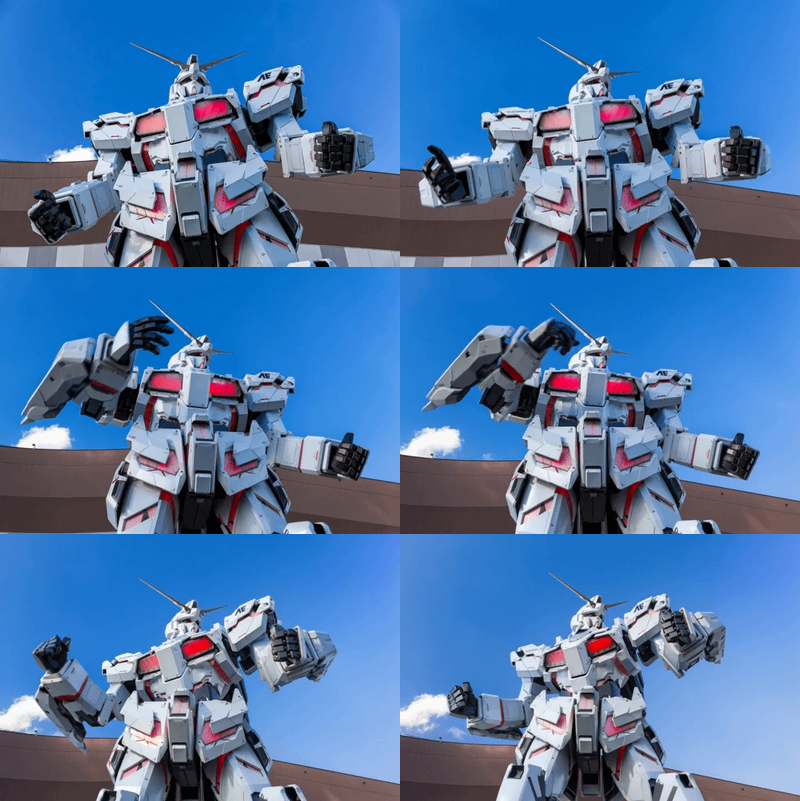
Kling 3.0 Standard for Image to Video
Animate the images using Kling 3.0 Standard
film production
image to video
marey
moonvalley
vfx
Video
video generation
Turn an image into cinematic 1080p video with Marey, Moonvalley's video model trained on licensed footage. 5s or 10s clips at 24fps, safe for commercial work.
Moonvalley Marey Image to Video
Turn an image into cinematic 1080p video with Marey, Moonvalley's video model trained on licensed footage. 5s or 10s clips at 24fps, safe for commercial work.
Image
image generation
krea 2
text to image
turbo
Write a prompt and Krea 2 Turbo generates a high-resolution image at 1920x1280 in 8 steps, using a fast turbo-distilled model with a Qwen 3 VL text encoder.
Krea 2 Turbo · Text to Image For Viral SNS
Write a prompt and Krea 2 Turbo generates a high-resolution image at 1920x1280 in 8 steps, using a fast turbo-distilled model with a Qwen 3 VL text encoder.

concept art
Image
text to image
z-image
Create sunning images using z-image base model (non distlled).
Z-Image Base: High-Detail T2I For Kids Edu
Create sunning images using z-image base model (non distlled).
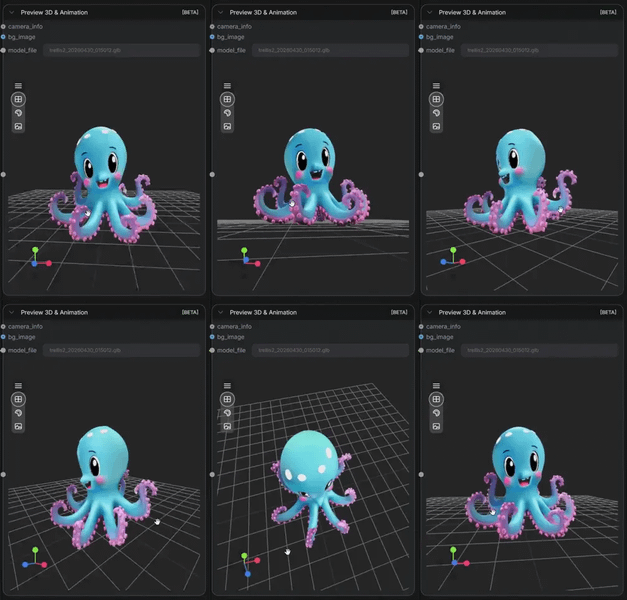
3D
3d generation
glb export
image to 3d
pbr materials
textured mesh
trellis 2
Upload an image and Trellis 2 builds a textured 3D mesh with PBR materials. Outputs GLB ready for Blender, Unity, or Unreal in about a minute on an H100.
Trellis 2 Image to 3D
Upload an image and Trellis 2 builds a textured 3D mesh with PBR materials. Outputs GLB ready for Blender, Unity, or Unreal in about a minute on an H100.
%20(2400%20x%201080%20px)%20(2430%20x%201080%20px)%20(10)_1771484497818.png?width=400&height=300&quality=80&resize=cover)
Single Image to Multiple Consistent Shots

Audio
Audio to Audio
Voice Change
Voice Conversion
Convert any voice recording into a different speaker using CosyVoice 3 by Alibaba. Upload two audio clips, hit run, and get it re-spoken in a new voice.
CosyVoice3 for Voice Conversion
Convert any voice recording into a different speaker using CosyVoice 3 by Alibaba. Upload two audio clips, hit run, and get it re-spoken in a new voice.
_1784715617459.webp?width=400&height=300&quality=80&resize=contain&format=origin)
animate
LoRAs
motion transfer
pose transfer
Video
video to video
Transfer any character into a reference video's motion using Wan 2.2 Animate 14B with ViTPose and SAM2 preprocessing. Upload a video and a character photo, describe the scene, and hit run.
Wan 2.2 Animate · Video to Video For Short Drama
Transfer any character into a reference video's motion using Wan 2.2 Animate 14B with ViTPose and SAM2 preprocessing. Upload a video and a character photo, describe the scene, and hit run.

Audio
Audio2Audio
Audio Editing
Step Audio EditX
Voice Cloning
Upload a voice sample, transcribe it automatically with Whisper, then use Step-Audio EditX to clone that voice speaking your custom script. No trigger word needed.
Step Audio EditX for Voice Cloning
Upload a voice sample, transcribe it automatically with Whisper, then use Step-Audio EditX to clone that voice speaking your custom script. No trigger word needed.
_1784377717345.webp?width=400&height=300&quality=80&resize=contain&format=origin)
animate
LoRAs
motion transfer
pose transfer
Video
Wan2.2
Transfer any character into a reference video's motion using Wan 2.2 Animate 14B with ViTPose and SAM2 preprocessing. Upload a video and a character photo, describe the scene, and hit run.
Wan 2.2 Animate · Video to Video For Viral SNS
Transfer any character into a reference video's motion using Wan 2.2 Animate 14B with ViTPose and SAM2 preprocessing. Upload a video and a character photo, describe the scene, and hit run.
api
Minimax H3 Max
T2V
Video
Generate video with native stereo sound from a text prompt using MiniMax H3 Max, fal's post-trained version of MiniMax H3. Write a prompt, pick a duration, and hit run.
Minimax H3 Max for Text to Video
Generate video with native stereo sound from a text prompt using MiniMax H3 Max, fal's post-trained version of MiniMax H3. Write a prompt, pick a duration, and hit run.
Flux
FLUX2 Klein
Image
photography
text to image
Create a high quality image using 9B model of Flux 2 Klein
FLUX.2 Klein 9B: Text to Image For Viral SNS
Create a high quality image using 9B model of Flux 2 Klein

Audio
Gemini 3.8 Flash Lite
Text to Speech
TTS
Turn any script into spoken audio using Google's Gemini 3.8 Flash-Lite TTS. Pick a voice, set the tone, and hit run.
Gemini 3.8 Flash Lite TTS for Text to Speech
Turn any script into spoken audio using Google's Gemini 3.8 Flash-Lite TTS. Pick a voice, set the tone, and hit run.
3D
Image to 3D
Tripo P2
Upload one image and Tripo P2 builds a textured, game-ready 3D model with optional PBR materials. Preview it in the 3D viewer, then download.
Tripo P2 for Image to 3D
Upload one image and Tripo P2 builds a textured, game-ready 3D model with optional PBR materials. Preview it in the 3D viewer, then download.
_1784294216174.png?width=400&height=300&quality=80&resize=cover)
illustrated scene
Image
LoRAs
next scene
qwen image
text to image
Describe an illustrated kids' scene and what happens next using Qwen Image and Qwen Image Edit 2509 by Alibaba. Get two style-matched images in one run.
First and Next Scene · Text to Image For Viral SNS
Describe an illustrated kids' scene and what happens next using Qwen Image and Qwen Image Edit 2509 by Alibaba. Get two style-matched images in one run.
3d model generation
image to 3d
Meshy7
muti image
Build a textured 3D mesh from up to four photos of the same object using Meshy 7, the image-to-3D model from Meshy. Upload your reference shots and hit run.
Meshy 7 · Multi Image to 3D
Build a textured 3D mesh from up to four photos of the same object using Meshy 7, the image-to-3D model from Meshy. Upload your reference shots and hit run.
_1784274825977.webp?width=400&height=300&quality=80&resize=contain&format=origin)
image to video
lora
LoRAs
Video
video generation
wan2.2
Generate high quality video from a start frame, as well as an optional end frame with this Wan2.2 14b Image to Video workflow!
Wan 2.2 14B: I2V + End Frame For Viral SNS
Generate high quality video from a start frame, as well as an optional end frame with this Wan2.2 14b Image to Video workflow!
LTX 2.5
SDR to HDR
V2V
Video
Convert standard video to HDR using LTX-2.5 with a dedicated SDR-to-HDR IC-LoRA by Lightricks. Upload an SDR video, hit run, and get back an HDR master with EXR frames.
LTX-2.5 IC LoRA for SDR to HDR
Convert standard video to HDR using LTX-2.5 with a dedicated SDR-to-HDR IC-LoRA by Lightricks. Upload an SDR video, hit run, and get back an HDR master with EXR frames.

3D
3d mesh
depth map
glb
image to 3d
panorama
Upload one photo and MoGe 2 by Microsoft Research converts it into a textured 3D mesh with depth maps, normal maps, and a downloadable GLB file. Hit run.
MoGe 2 for Perspective Image to 3D Mesh
Upload one photo and MoGe 2 by Microsoft Research converts it into a textured 3D mesh with depth maps, normal maps, and a downloadable GLB file. Hit run.

Audio to Audio
Fish Audio S2.1
Voice Cloning
Clone a voice from short audio samples and generate speech from text using Fish Audio S2.1 Pro. Upload recordings, type your script, and hit run.
Fish Audio S2.1 for Voice Cloning
Clone a voice from short audio samples and generate speech from text using Fish Audio S2.1 Pro. Upload recordings, type your script, and hit run.
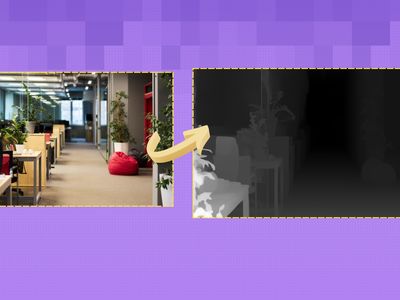
3d
apple
concept art
depth estimation
depth map
Image
panorama
Upload a 360 panorama and get a full panoramic depth map using Apple's SHARP model. Multi-view estimation, stitched back into equirectangular format. Hit run.
Panorama to Panorama Depth and Normal Map
Upload a 360 panorama and get a full panoramic depth map using Apple's SHARP model. Multi-view estimation, stitched back into equirectangular format. Hit run.
Image
image generation
krea2
text to image
turbo
Write a prompt and Krea 2 Turbo generates a high-resolution image at 1920x1280 in 8 steps, using a fast turbo-distilled model with a Qwen 3 VL text encoder.
Krea 2 Turbo · Text to Image For Kids Edu
Write a prompt and Krea 2 Turbo generates a high-resolution image at 1920x1280 in 8 steps, using a fast turbo-distilled model with a Qwen 3 VL text encoder.
_1763991450209.png?width=400&height=300&quality=80&resize=cover)
Image Transformation using Anime2Reality LoRA

Fish Speech Voice Cloning TTS with Emotion Tags
Emotion Tags

Audio
audiodit
dialogue
longcat
multi-speaker
text to speech
voice cloning
Clone two voices from short audio samples and generate dialogue between them with LongCat AudioDiT 3.5B. Upload your references, write your script, hit run.
LongCat AudioDiT for Multi Speaker TTS
Clone two voices from short audio samples and generate dialogue between them with LongCat AudioDiT 3.5B. Upload your references, write your script, hit run.
seedance 2.0
text to video
Video
video generation
Generate video with native audio from a text prompt using Seedance 2.0 Fast. Describe a scene, pick a duration and aspect ratio, get a clip with synced sound.
Seedance 2.0 Fast - Text to Video
Generate video with native audio from a text prompt using Seedance 2.0 Fast. Describe a scene, pick a duration and aspect ratio, get a clip with synced sound.
4k
concept art
Image
portrait
qwen
text to image
upscaling
Generate with Qwen Image 2512 and let NVIDIA PiD decode straight to 4K. One prompt, one run, a 4096px image with no separate upscale pass needed.
Qwen Image 2512 and NVIDIA PiD Text to 4k Image
Generate with Qwen Image 2512 and let NVIDIA PiD decode straight to 4K. One prompt, one run, a 4096px image with no separate upscale pass needed.
_1784123816860.webp?width=400&height=300&quality=80&resize=contain&format=origin)
4x upscale
seedvr2
Video
video restoration
video upscale
Upload a low-resolution video and SeedVR2 upscales it to 1080p in a single diffusion step, restoring fine detail, removing compression artifacts, and maintaining temporal consistency across every frame.
SeedVR2 · Video Upscaler For Kids Edu
Upload a low-resolution video and SeedVR2 upscales it to 1080p in a single diffusion step, restoring fine detail, removing compression artifacts, and maintaining temporal consistency across every frame.
Image
Qwen Image 2.1
Text to Image
Generate images from a text prompt using Qwen Image 2.1, Alibaba's open-weight diffusion model with strong text rendering and product photography. Write a prompt, pick a size, and hit run.
Qwen Image 2.1 for Text to Image
Generate images from a text prompt using Qwen Image 2.1, Alibaba's open-weight diffusion model with strong text rendering and product photography. Write a prompt, pick a size, and hit run.
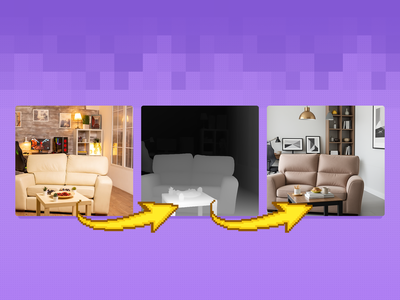
floyoofficial
1.5k
Fun Controlnet Union 2602
Image
Image2Image
Image Editing
Qwen
Qwen Image 2512
Transform your mages using the Qwen Image 2512 and with Fun Controlnet Union 2602
Qwen Image 2512 + Fun Controlnet Union 2602
Transform your mages using the Qwen Image 2512 and with Fun Controlnet Union 2602
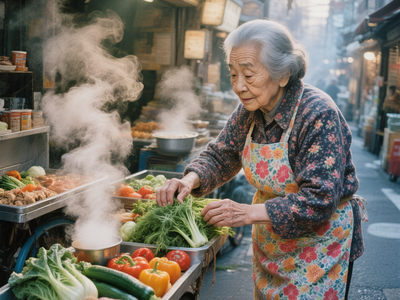
HunyuanImage 3.0 Text to Image

Audio
comercial video
short drama
text to video
Video
Generate cinematic short drama clips with synchronized audio using LTX-Video 2.3, Lightricks' 22B open-source model. Write a shot description and hit run. Toggle to image-to-video to animate a product photo.
LTX 2.3 Text to Video for Short Drama
Generate cinematic short drama clips with synchronized audio using LTX-Video 2.3, Lightricks' 22B open-source model. Write a shot description and hit run. Toggle to image-to-video to animate a product photo.

Audio
Audio to Audio
Qwen3 TTS
Voice Cloning
Upload a 3-second voice clip, type what you want it to say, and Qwen3-TTS speaks it in that voice. Ten languages, built-in emotion controls, open source.
Qwen3 TTS DVA for Voice Cloning
Upload a 3-second voice clip, type what you want it to say, and Qwen3-TTS speaks it in that voice. Ten languages, built-in emotion controls, open source.

audio
multilingual
text to speech
tts
voice cloning
voice design
voxcpm2
Turn text into spoken audio with VoxCPM2. Describe the voice you want in plain language, type what it should say, and hit run. 30 languages, 48 kHz output.
VoxCPM2 for Text to Speech
Turn text into spoken audio with VoxCPM2. Describe the voice you want in plain language, type what it should say, and hit run. 30 languages, 48 kHz output.
_1784455245988.png?width=400&height=300&quality=80&resize=cover)
consistency lora
flux 2 klein
Image
image editing
image to image
LoRAs
Edit any image with a text instruction using FLUX.2 Klein 9B by Black Forest Labs, with a Consistency LoRA to keep results close to the original. Upload a photo, describe the change, and hit run.
FLUX.2 Klein 9B Consistency LoRA · I2I For AD Film
Edit any image with a text instruction using FLUX.2 Klein 9B by Black Forest Labs, with a Consistency LoRA to keep results close to the original. Upload a photo, describe the change, and hit run.
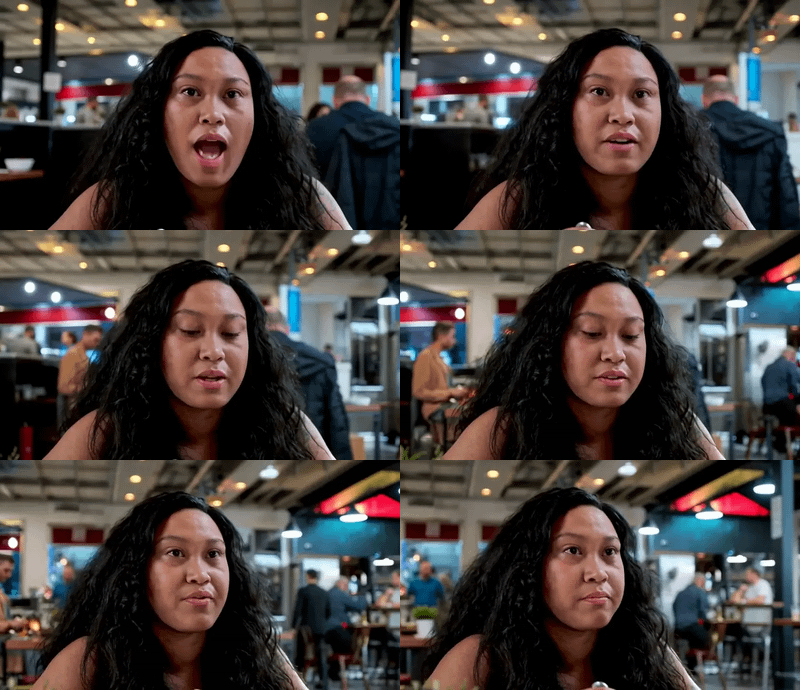
camera angle control
camera motion
film production
seedance 2.0
vfx
vid2vid
Video
video generation
Take any video and re-shoot it with a new camera move. Seedance 2.0 keeps your scene intact and pulls the camera motion from a reference clip you upload.
Seedance 2.0 for Camera Angle and Motion Control
Take any video and re-shoot it with a new camera move. Seedance 2.0 keeps your scene intact and pulls the camera motion from a reference clip you upload.
_1784626401143.webp?width=400&height=300&quality=80&resize=contain&format=origin)
4x upscale
seedvr2
Video
video upscaler
Upload a low-resolution video and SeedVR2 upscales it to 1080p in a single diffusion step, restoring fine detail, removing compression artifacts, and maintaining temporal consistency across every frame.
SeedVR2 · Video Upscaler For Short Drama
Upload a low-resolution video and SeedVR2 upscales it to 1080p in a single diffusion step, restoring fine detail, removing compression artifacts, and maintaining temporal consistency across every frame.
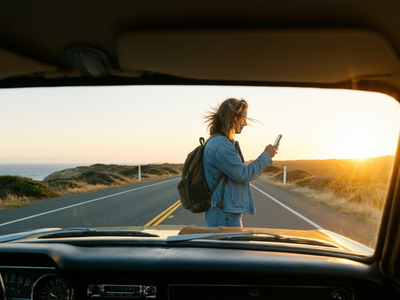
Image
photorealistic
qwen image 2512
text to image
Write a prompt and Qwen Image 2512 generates a high-resolution image at up to 1920x1280 in 50 steps, using Alibaba's latest dedicated image generation model with strong photorealism and bilingual prompt support.
Qwen Image 2512 · Text to Image For Viral SNS
Write a prompt and Qwen Image 2512 generates a high-resolution image at up to 1920x1280 in 50 steps, using Alibaba's latest dedicated image generation model with strong photorealism and bilingual prompt support.
_1784188861172.png?width=400&height=300&quality=80&resize=cover)
Image
image to image
multi angle
qwen image edit
relight
Upload one image and this workflow generates five relighted versions simultaneously, each lit from a different angle and direction, with full control over azimuth, elevation, intensity, and color.
Qwen Multiangle Light · Image to Image For Kids Ed
Upload one image and this workflow generates five relighted versions simultaneously, each lit from a different angle and direction, with full control over azimuth, elevation, intensity, and color.
_1783503668284.png?width=400&height=300&quality=80&resize=cover)
cel shading
flux 2 klein
Image
image to image
real to anime
style transfer
Upload any photo or render and FLUX.2 Klein converts it into an anime-style illustration with cel shading, clean lineart, and vibrant color, then upscales the result to high resolution.
R2A for Klein · Image to Image For Anime
Upload any photo or render and FLUX.2 Klein converts it into an anime-style illustration with cel shading, clean lineart, and vibrant color, then upscales the result to high resolution.
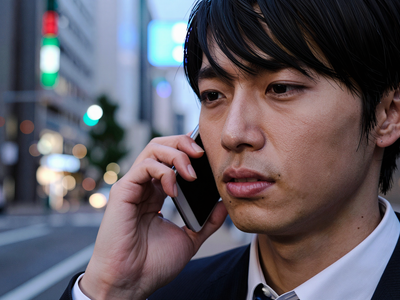
dype
high resolution
Image
LoRAs
text to image
z-turbo
Generate sharp 2K images from a text prompt using Z-Image Turbo with DyPE resolution scaling and a DeJPEG cleanup LoRA. Type a prompt and hit run.
DyPE + Z-Turbo · Text to Image For Short Drama
Generate sharp 2K images from a text prompt using Z-Image Turbo with DyPE resolution scaling and a DeJPEG cleanup LoRA. Type a prompt and hit run.

Audio
Audio to Audio
SeedVC
Timbre Transfer
Voice Change
Voice Conversion
Convert any voice into another with Seed-VC. Upload a source audio and a short reference clip, and the model rebuilds the audio in the reference voice.
Timbre Transfer (SeedVC) for Voice Change
Convert any voice into another with Seed-VC. Upload a source audio and a short reference clip, and the model rebuilds the audio in the reference voice.

LongCat AudioDiT 3.5B - TTS, Voice Clone, Multi-Sp
_1782833857439.png?width=400&height=300&quality=80&resize=cover)
custom style
fine-tune
ideogram v4
Image
lora
LoRAs
text to image
Paste the URL of a trained Ideogram V4 LoRA and write a prompt. The workflow generates images with your custom subject, style, or identity applied, using up to three LoRAs at once.
Ideogram V4 + LoRA · Text to Image
Paste the URL of a trained Ideogram V4 LoRA and write a prompt. The workflow generates images with your custom subject, style, or identity applied, using up to three LoRAs at once.
3D
Image to 3D
Tripo P1
Upload one image and Tripo P1 builds a textured 3D model from it, with clean topology and PBR materials, ready for game engines, VR, and 3D editors.
Tripo P1 for Image to 3D
Upload one image and Tripo P1 builds a textured 3D model from it, with clean topology and PBR materials, ready for game engines, VR, and 3D editors.
_1774777336819.png?width=400&height=300&quality=80&resize=cover)
Grok
Image
image-to-image
multi-style
prompt-based editing
Multi-Style Image Transformation Workflow (One Input → Multiple Outputs)
Multi-Style Image Transformation Workflow
Multi-Style Image Transformation Workflow (One Input → Multiple Outputs)
_1784596438092.webp?width=400&height=300&quality=80&resize=contain&format=origin)
animate
LoRAs
motion transfer
pose transfer
Video
wan2.2
Transfer any character into a reference video's motion using Wan 2.2 Animate 14B with ViTPose and SAM2 preprocessing. Upload a video and a character photo, describe the scene, and hit run.
Wan 2.2 Animate · Video to Video For AD Film
Transfer any character into a reference video's motion using Wan 2.2 Animate 14B with ViTPose and SAM2 preprocessing. Upload a video and a character photo, describe the scene, and hit run.
_1774783037628.png?width=400&height=300&quality=80&resize=cover)
Image
image-to-image
Nano banana
Omnipotent
Upload up to 3 reference images for a face, clothing, and scene, then describe what you want. Nano Banana 2 combines all three into one composed output.
Omnipotent Image 2.0 – Multi-Image Scene Composer
Upload up to 3 reference images for a face, clothing, and scene, then describe what you want. Nano Banana 2 combines all three into one composed output.

audio
audio watermarking
content tracking
provenance
steganography
Upload any audio file, write the text to hide, and get back two watermarked copies. Steganography packs more data. Frequency encoding survives MP3 compression.
Audio Watermarking using Orion 4D Secret
Upload any audio file, write the text to hide, and get back two watermarked copies. Steganography packs more data. Frequency encoding survives MP3 compression.

Filmography
Kling
Kling 3.0 Standard
Text2Video
Video
Create videos using Kling 3.0 Standard
Kling 3.0 Standard for Text to Video
Create videos using Kling 3.0 Standard

audio
gemini
gemini 3.1 flash tts
multi-speaker
text to speech
tts
voiceover
Turn any script into natural spoken audio with Gemini 3.1 Flash TTS, Google's text-to-speech model. Type your text, pick a voice, describe the tone, and hit run.
Gemini 3.1 Flash TTS for Text to Speech:
Turn any script into natural spoken audio with Gemini 3.1 Flash TTS, Google's text-to-speech model. Type your text, pick a voice, describe the tone, and hit run.
3D
Text to 3D
Tripo P1
Upload a photo and Tripo P1 generates a textured 3D model with clean low-poly topology, ready for game engines, 3D viewers, or further editing. No modeling required.
Tripo P1 for Text to 3D
Upload a photo and Tripo P1 generates a textured 3D model with clean low-poly topology, ready for game engines, 3D viewers, or further editing. No modeling required.
Image
lens turbo
microsoft lens
photorealistic
text to image
Write a prompt and Microsoft Lens Turbo generates a photorealistic image in 8 steps at 1280x720, using a 3.8B parameter model that matches the quality of models twice its size.
Microsoft Lens Turbo · Text to Image For AD Film
Write a prompt and Microsoft Lens Turbo generates a photorealistic image in 8 steps at 1280x720, using a 3.8B parameter model that matches the quality of models twice its size.

Kling O3 Pro - Image to Video
Audio
SFX
Sonilo v1.1
V2V
Upload a video and Sonilo v1.1 generates synchronized sound effects matched to the on-screen action. Describe the sounds you want or let the model read the scene on its own, then hit run.
Sonilo v1.1 for Video Sound Effects
Upload a video and Sonilo v1.1 generates synchronized sound effects matched to the on-screen action. Describe the sounds you want or let the model read the scene on its own, then hit run.
Image
Image Editing
Text to Image
Generate images from text or edit existing ones using Qwen Image 3.0 Pro, Alibaba's flagship image model. Write a prompt, add reference images to edit, and hit run.
Qwen Image 3.0 Pro Unified for Generated / Edit
Generate images from text or edit existing ones using Qwen Image 3.0 Pro, Alibaba's flagship image model. Write a prompt, add reference images to edit, and hit run.
ai video generator
comfyui video
image to video
lightricks
ltx 2.3
ltx director
text to video
video with audio
Build a clip on a timeline with LTX 2.3, the open-weight 22B model that writes picture and synced audio in one pass. Drop an image in, write the shot, run.
LTX 2.3 and LTXDirector for Video Generation
Build a clip on a timeline with LTX 2.3, the open-weight 22B model that writes picture and synced audio in one pass. Drop an image in, write the shot, run.
IC LoRA
Ingredients
LoRAs
LTX-2.5
Video
Upload a reference sheet of characters, props, or locations, describe the action in a prompt, and LTX-2.5 with the Ingredients IC-LoRA generates a video with synced audio.
LTX-2.5 ICLoRA Ingredients for Reference to Video
Upload a reference sheet of characters, props, or locations, describe the action in a prompt, and LTX-2.5 with the Ingredients IC-LoRA generates a video with synced audio.
Audio Refiner
Minimax H3
Video
Generate video with synchronized stereo audio from a text prompt using MiniMax H3, the open-source multimodal model by MiniMax. Write what you want to see and hear, then hit run.
Minimax H3 with Audio Refiner for Text to Video
Generate video with synchronized stereo audio from a text prompt using MiniMax H3, the open-source multimodal model by MiniMax. Write what you want to see and hear, then hit run.
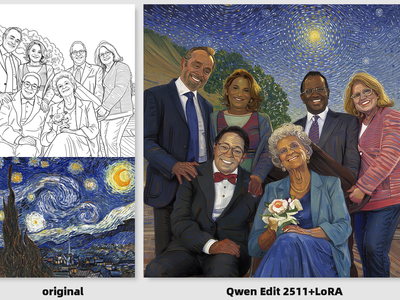
floyoofficial
2.0k
Image
Image Editing
LoRA
LoRAs
Qwen Image Edit 2511
Style Transfer
Create new images from your lineart drawing or sketch using the style transfer LoRA and Qwen Image Edit 2511
Qwen Image Edit 2511 + Style Transfer LoRA
Create new images from your lineart drawing or sketch using the style transfer LoRA and Qwen Image Edit 2511
drawing to image
Image
image editing
krea 2
krea 2 turbo
LoRAs
sketch to image
Turn a rough sketch into a photorealistic image that keeps your layout, using Krea 2 Turbo and an Identity Edit LoRA. Upload a drawing, describe it, hit run.
Krea 2 · Drawing to Image
Turn a rough sketch into a photorealistic image that keeps your layout, using Krea 2 Turbo and an Identity Edit LoRA. Upload a drawing, describe it, hit run.
Image
Image to Image
Topaz
Topaz Image Super Focus
Fix soft or out-of-focus photos with Topaz Super Focus V2, an AI focus recovery model by Topaz Labs. Upload an image, adjust the strength, and hit run.
Topaz Image Super Focus
Fix soft or out-of-focus photos with Topaz Super Focus V2, an AI focus recovery model by Topaz Labs. Upload an image, adjust the strength, and hit run.

API
Video
Video2Video
Edit your video with Kling O3 Pro. Upload a clip, describe what to change, set duration and aspect ratio. Audio is preserved by default.
Kling O3 Pro - Video to Video Reference
Edit your video with Kling O3 Pro. Upload a clip, describe what to change, set duration and aspect ratio. Audio is preserved by default.
diversity
Image
LoRAs
photorealistic
sda
text to image
Write a prompt and Z-Image Turbo generates a photorealistic image in 8 steps, with the SDA diversity LoRA ensuring each seed produces a distinct composition, pose, and camera angle. Output upscaled to 2048x2048.
Z-Img Turbo + SDA · Text to Image For Short Drama
Write a prompt and Z-Image Turbo generates a photorealistic image in 8 steps, with the SDA diversity LoRA ensuring each seed produces a distinct composition, pose, and camera angle. Output upscaled to 2048x2048.
_1785747141980.png?width=400&height=300&quality=80&resize=cover)
ai image editing
Image
image editing
mage flow edit
Edit, combine, or transform one or two images using natural language. Change backgrounds, merge scenes, swap outfits, add objects, or create entirely new compositions in just a few seconds.
Mage Flow Edit· AI Image Editing
Edit, combine, or transform one or two images using natural language. Change backgrounds, merge scenes, swap outfits, add objects, or create entirely new compositions in just a few seconds.
e-commerce
Image
image to image
portrait
product photography
style transfer
Camera raw editing inside ComfyUI. White balance, exposure, HSL, clarity, vibrance, sharpening, noise reduction, and skin tone tools with before/after previews.
DarkRoom Camera Raw Tools for Image Editing
Camera raw editing inside ComfyUI. White balance, exposure, HSL, clarity, vibrance, sharpening, noise reduction, and skin tone tools with before/after previews.
_1784725996401.png?width=400&height=300&quality=80&resize=cover)
consistency lora
flux
Image
image to image
klein
LoRAs
Edit any image with a text instruction using FLUX.2 Klein 9B by Black Forest Labs, with a Consistency LoRA to keep results close to the original. Upload a photo, describe the change, and hit run.
FLUX.2 Consistency LoRA · I2I For Short Drama
Edit any image with a text instruction using FLUX.2 Klein 9B by Black Forest Labs, with a Consistency LoRA to keep results close to the original. Upload a photo, describe the change, and hit run.
_1785315685944.webp?width=400&height=300&quality=80&resize=contain&format=origin)
Audio
clean plate
LoRAs
ltx-2
object removal
Video
video inpainting
Erase people and moving objects from a video and rebuild the scene behind them with LTX-2.3 by Lightricks. Upload a clip, describe the empty shot, hit run.
LTX-2.3 · Clean Plate (Video Object Removal)
Erase people and moving objects from a video and rebuild the scene behind them with LTX-2.3 by Lightricks. Upload a clip, describe the empty shot, hit run.
extend video
flux 3
flux 3 video
video continuation
FLUX 3 is Black Forest Labs' video model that continues a clip where it left off. Upload a video for up to 20 seconds of new footage, with sound.
FLUX 3 · Extend Video
FLUX 3 is Black Forest Labs' video model that continues a clip where it left off. Upload a video for up to 20 seconds of new footage, with sound.
_1784553991012.webp?width=400&height=300&quality=80&resize=contain&format=origin)
4x upscale
seedvr2
Video
video upscale
Upload a low-resolution video and SeedVR2 upscales it to 1080p in a single diffusion step, restoring fine detail, removing compression artifacts, and maintaining temporal consistency across every frame.
SeedVR2 · Video Upscaler For AD Film
Upload a low-resolution video and SeedVR2 upscales it to 1080p in a single diffusion step, restoring fine detail, removing compression artifacts, and maintaining temporal consistency across every frame.

API
Audio
audio generation
expressive tts
text to speech
voice synthesis
Expressive Text to Speech
Fish Audio S2 TTS - Expressive Text to Speech
Expressive Text to Speech
_1782815066892.png?width=400&height=300&quality=80&resize=cover)
ideogram v4
Image
text rendering
text to image
typography
Write a prompt and Ideogram V4 generates a design-grade image with the most accurate text rendering of any open-weight model, at up to native 2K resolution.
Ideogram V4 · Text to Image
Write a prompt and Ideogram V4 generates a design-grade image with the most accurate text rendering of any open-weight model, at up to native 2K resolution.
Image
lens turbo
photorealistic
text to image
Write a prompt and Microsoft Lens Turbo generates a photorealistic image in 8 steps at 1280x720, using a 3.8B parameter model that matches the quality of models twice its size.
Microsoft Lens Turbo · Text to Img For Short Drama
Write a prompt and Microsoft Lens Turbo generates a photorealistic image in 8 steps at 1280x720, using a 3.8B parameter model that matches the quality of models twice its size.
Flux
FLUX2 Klein
Image
Photography
photorealism
Text2Image
Create a high quality image using 9B model of Flux 2 Klein
FLUX.2 Klein 9B: Text to Image For Kids Edu
Create a high quality image using 9B model of Flux 2 Klein
_1785419692848.png?width=400&height=300&quality=80&resize=cover)
flux2
flux.2 klein
Image
image editing
image to image
Edit one photo using a second as reference, then refine and 4x upscale it with FLUX.2 Klein 9B by Black Forest Labs. Upload two images, describe the edit, run.
FLUX.2 Klein 9B · Multi-image Edit + Upscale
Edit one photo using a second as reference, then refine and 4x upscale it with FLUX.2 Klein 9B by Black Forest Labs. Upload two images, describe the edit, run.
alibaba
video style transfer
video to video
wan 3.0
Re-render any video in a new visual style using Wan 3.0 by Alibaba. Upload a clip, describe the target look, and hit run. Motion preserved, audio included.
Wan 3.0 · Reference to Video
Re-render any video in a new visual style using Wan 3.0 by Alibaba. Upload a clip, describe the target look, and hit run. Motion preserved, audio included.
animation
character design
concept art
Image
lumina
portrait
text to image
Generate high-quality anime images with NetaYume Lumina, a fine-tuned model built on Lumina Image 2.0. Describe a scene, hit run, get detailed anime art.
NetaYume Lumina Text to Image
Generate high-quality anime images with NetaYume Lumina, a fine-tuned model built on Lumina Image 2.0. Describe a scene, hit run, get detailed anime art.
_1784444920013.png?width=400&height=300&quality=80&resize=cover)
illustrated scene
Image
LoRAs
next scene
qwen image
text to image
Describe an illustrated AD Film scene and what happens next using Qwen Image and Qwen Image Edit 2509 by Alibaba. Get two style-matched images in one run.
First and Next Scene · Text to Image For AD Film
Describe an illustrated AD Film scene and what happens next using Qwen Image and Qwen Image Edit 2509 by Alibaba. Get two style-matched images in one run.
_1782818117647.png?width=400&height=300&quality=80&resize=cover)
ideogram v4
Image
image editing
image to image
Upload an image and describe the change you want. Ideogram V4 transforms it while preserving your composition, with the strength slider controlling how far the result moves from the original.
Ideogram V4 · Image to Image
Upload an image and describe the change you want. Ideogram V4 transforms it while preserving your composition, with the strength slider controlling how far the result moves from the original.
ai video generator
black forest labs
flux 3 video
text to video
Video
FLUX 3 is Black Forest Labs' multimodal video model that turns a text prompt into an HD clip up to 20 seconds, with multi-shot scenes. Type a prompt and run.
FLUX 3 · Text to Video
FLUX 3 is Black Forest Labs' multimodal video model that turns a text prompt into an HD clip up to 20 seconds, with multi-shot scenes. Type a prompt and run.
Image
Topaz
Upscale
Upscale any image up to 4x with Topaz Gigapixel precision models, including face enhancement and detail recovery. Upload an image and hit run.
Topaz Image Upscale Precision
Upscale any image up to 4x with Topaz Gigapixel precision models, including face enhancement and detail recovery. Upload an image and hit run.

asr
audio
qwen
speech to text
subtitles
transcription
Upload audio and Qwen3's ASR engine returns the transcript, word-level timing for SRT subtitles, and an optional translation to English. Language auto-detected.
Qwen3 ASR: Transcribe Audio
Upload audio and Qwen3's ASR engine returns the transcript, word-level timing for SRT subtitles, and an optional translation to English. Language auto-detected.
_1784728284241.png?width=400&height=300&quality=80&resize=cover)
flux 2 klein
Image
image expansion
outpaint
Video
Expand any photo with new content on any side using FLUX.2 Klein 9B for outpainting and SeedVR2 7B Sharp for upscaling. Upload a photo, set the expansion width, and hit run.
FLUX.2 Klein Image Expansion · I2I For Short Drama
Expand any photo with new content on any side using FLUX.2 Klein 9B for outpainting and SeedVR2 7B Sharp for upscaling. Upload a photo, set the expansion width, and hit run.
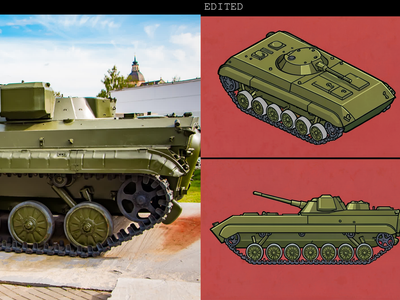
floyoofficial
2.0k
Flux
Flux.2 Klein 4B
Image
Image2Image
LoRAs
Create sprite sheet for game characters in using flux 2 Klein 4B
FLUX.2 Klein 4B for Text to Sprite Sheet
Create sprite sheet for game characters in using flux 2 Klein 4B
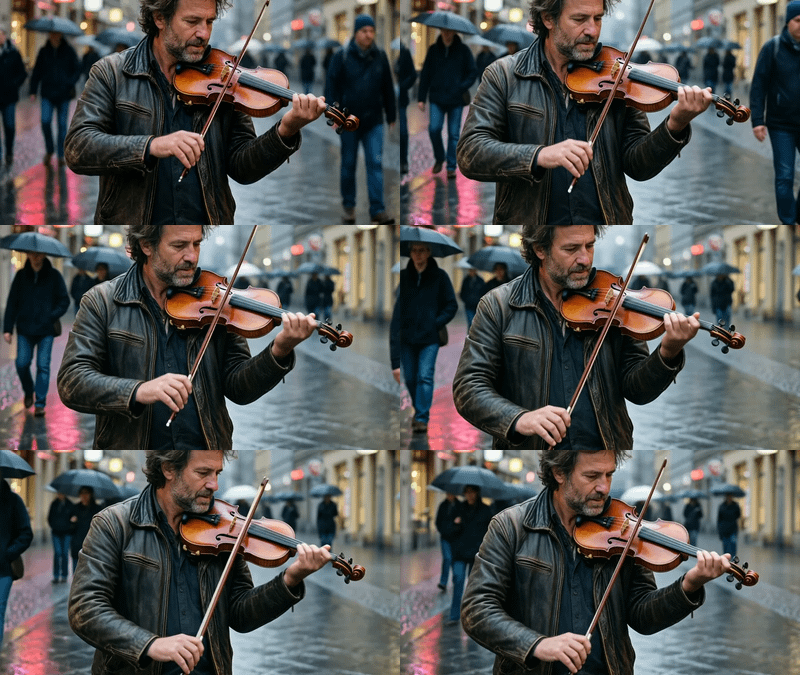
HunyuanVideo 1.5 for Image to Video
_1784457575070.png?width=400&height=300&quality=80&resize=cover)
camera control
Image
image to image
LoRAs
qwen
A image-editing workflow that generates a new camera angle of an image you provide. You load a source image, set horizontal_angle, vertical_angle, and zoom, and the node auto-writes a camera-instruction prompt (or you write your own) that's fed into the Qwen Image Edit 2511.
Qwen Edit 2511: Multi-Angle Camera For AD Film
A image-editing workflow that generates a new camera angle of an image you provide. You load a source image, set horizontal_angle, vertical_angle, and zoom, and the node auto-writes a camera-instruction prompt (or you write your own) that's fed into the Qwen Image Edit 2511.
SAM2
Segment Anything 2
Video
video2video
Video Mask
Create a video mark frame by frame using Segment Anything 2
Segment Anything 2 for Creating Video Mask
Create a video mark frame by frame using Segment Anything 2

dype
high resolution
Image
LoRAs
text to image
z-image turbo
Generate sharp 2K images from a text prompt using Z-Image Turbo with DyPE resolution scaling and a DeJPEG cleanup LoRA. Type a prompt and hit run.
DyPE + Z-Image Turbo · Text to Image For AD Film
Generate sharp 2K images from a text prompt using Z-Image Turbo with DyPE resolution scaling and a DeJPEG cleanup LoRA. Type a prompt and hit run.
Image
image generation
krea 2
krea 2 turbo
text to image
Turn a text prompt into a finished image with Krea 2 Turbo, Krea AI's fast open-source image model. Type what you want to see, hit run, and get a result in seconds.
Krea 2 for Text to Image For AD Film
Turn a text prompt into a finished image with Krea 2 Turbo, Krea AI's fast open-source image model. Type what you want to see, hit run, and get a result in seconds.
Generative Upscale
Image
Topaz
Upscale
Upscale any image up to 4x with Topaz Wonder 3, a generative model that rebuilds missing detail instead of stretching pixels. Upload an image, pick a scale, and hit run.
Topaz Image Upscale Generative
Upscale any image up to 4x with Topaz Wonder 3, a generative model that rebuilds missing detail instead of stretching pixels. Upload an image, pick a scale, and hit run.

Kling O3 Pro Image to Video with Reference
floyoofficial
1.7k
Flux
Flux.2 Klein
Image
Image Outpainting
LoRAs
Outpaint image using Flux 2 Klein 4B using LanPaint and Outpaint LoRA
FLUX.2 Klein 4B for Image Outpainting
Outpaint image using Flux 2 Klein 4B using LanPaint and Outpaint LoRA
_1774416566203.webp?width=400&height=300&quality=80&resize=contain&format=origin)
Audio
image to video
ltx 2
retake
vid2vid
Video
video generation
Re-generate a specific segment of an existing video with LTX 2.3.
LTX 2.3 - Retake Video
Re-generate a specific segment of an existing video with LTX 2.3.
_1767292063423.webp?width=400&height=300&quality=80&resize=contain&format=origin)
Create a Fashion Shoot - NanoBanana + Kling

Audio
Audio2Audio
Step Audio EditX
Voice Editing
Edit existing voice recordings with Step-Audio EditX. Change emotion, dialect, or style. Whisper transcribes your audio so you describe the edit, not the source.
Step Audio EditX for Voice Editing
Edit existing voice recordings with Step-Audio EditX. Change emotion, dialect, or style. Whisper transcribes your audio so you describe the edit, not the source.
_1783319220986.gif?width=400&height=300&quality=80&resize=contain&format=origin)
3D
3d reconstruction
gaussian splat
image to 3d
ply
sharp
Upload one image and Apple's SHARP model generates a 3D Gaussian Splat in under a second, with a live 3D preview and a downloadable PLY file.
SHARP · Image to 3D Gaussian Splat
Upload one image and Apple's SHARP model generates a 3D Gaussian Splat in under a second, with a live 3D preview and a downloadable PLY file.
3d model
3d printing
glb
hi3d
image to 3d
Upload one image and Hi3D V3 by Math Magic reconstructs it into a high-detail 3D model with textures and PBR materials. Pick your format and download.
Hi3D V3 · Image to 3D
Upload one image and Hi3D V3 by Math Magic reconstructs it into a high-detail 3D model with textures and PBR materials. Pick your format and download.

Audio
audio transcription
qwen
speech to text
SRT
subtitle generation
Transcribe any audio file to text and timed SRT subtitles using Qwen3's speech recognition engine. Upload your audio, get broadcast-ready captions back.
Qwen3 ASR via TTS Audio Suite for SRT Builder
Transcribe any audio file to text and timed SRT subtitles using Qwen3's speech recognition engine. Upload your audio, get broadcast-ready captions back.
Audio
Image
Image2Image
Image2Video
Kling Omni One Video Edit
Qwen Image Edit 2511
Video
Editing the character in the video without losing quality using video to video workflow
Change in the Character using Image2Vid
Editing the character in the video without losing quality using video to video workflow
Audio
concept art
image to video
prompt relay
rogala
text overlay
vfx
Video
video generation
Turn a photo into a multi-scene video with synced audio and burnt-in text using LTX 2.3 and Prompt Relay. Upload an image, script your beats, hit run.
LTX 2.3 + Rogala for Prompt Relay and Overlay Txt
Turn a photo into a multi-scene video with synced audio and burnt-in text using LTX 2.3 and Prompt Relay. Upload an image, script your beats, hit run.
_1784727585940.png?width=400&height=300&quality=80&resize=cover)
camera control
Image
image to image
LoRAs
qwen
A image-editing workflow that generates a new camera angle of an image you provide. You load a source image, set horizontal_angle, vertical_angle, and zoom, and the node auto-writes a camera-instruction prompt (or you write your own) that's fed into the Qwen Image Edit 2511.
Qwen Edit 2511: Multi-Angle Camera For Short Drama
A image-editing workflow that generates a new camera angle of an image you provide. You load a source image, set horizontal_angle, vertical_angle, and zoom, and the node auto-writes a camera-instruction prompt (or you write your own) that's fed into the Qwen Image Edit 2511.
_1774791423297.png?width=400&height=300&quality=80&resize=cover)
Z-Image Turbo - 2K Upscaler
Z-Image Turbo - 2K Upscaler

concept art
consistency
Image
image to image
longcat-image-edit
portrait
style transfer
Upload one image, write an instruction, and LongCat-Image-Edit rewrites the parts you describe while keeping the rest identical. Bilingual prompts, 8 steps.
LongCat-Image-Edit - Instruction Image Editing
Upload one image, write an instruction, and LongCat-Image-Edit rewrites the parts you describe while keeping the rest identical. Bilingual prompts, 8 steps.

image editing
image to image
joyai
joyai image edit
Edit any image with spatial instructions using JoyAI Image Edit, the open-weight 24B model from JD.com. Move, rotate, add, or remove objects with text.
JoyAI Image Edit · Image to Image
Edit any image with spatial instructions using JoyAI Image Edit, the open-weight 24B model from JD.com. Move, rotate, add, or remove objects with text.
_1790169383348.png?width=400&height=300&quality=80&resize=cover)
Audio
Lyria 3.5
Text to Music
Generate full songs and soundtracks from a text prompt using Google's Lyria 3.5 music model. Describe the genre, instruments, and structure, then hit run.
Lyria 3.5 for Text to Music
Generate full songs and soundtracks from a text prompt using Google's Lyria 3.5 music model. Describe the genre, instruments, and structure, then hit run.
image generation
luma uni-1
text to image
Generate images from a text prompt using Luma Uni-1, a reasoning-first image model that plans composition before rendering. Describe the scene, add optional reference images, and hit run.
Luma Uni-1 · Text to Image
Generate images from a text prompt using Luma Uni-1, a reasoning-first image model that plans composition before rendering. Describe the scene, add optional reference images, and hit run.
_1784458768715.png?width=400&height=300&quality=80&resize=cover)
flux 2 klein
Image
image expansion
outpaint
Video
Expand any photo with new content on any side using FLUX.2 Klein 9B for outpainting and SeedVR2 7B Sharp for upscaling. Upload a photo, set the expansion width, and hit run.
FLUX.2 Klein Image Expansion · I2I For AD Film
Expand any photo with new content on any side using FLUX.2 Klein 9B for outpainting and SeedVR2 7B Sharp for upscaling. Upload a photo, set the expansion width, and hit run.
_1784303031486.webp?width=400&height=300&quality=80&resize=contain&format=origin)
vace
Video
video outpainting
video to video
wan2.1
Upload a video and Wan 2.1 with the VACE module extends the frame outward, filling in new content that matches the original scene, motion, and lighting.
Wan 2.1 Outpaint · Video to Video For Viral SNS
Upload a video and Wan 2.1 with the VACE module extends the frame outward, filling in new content that matches the original scene, motion, and lighting.
product demo
product tutorial
reference to video
seedance 2.5
Upload a product photo and a presenter photo, describe the tutorial scene, and Seedance 2.5 generates a landscape video with the presenter demonstrating the product, with sound included.
Seedance 2.5 Product Tutorial · Reference to Video
Upload a product photo and a presenter photo, describe the tutorial scene, and Seedance 2.5 generates a landscape video with the presenter demonstrating the product, with sound included.
%20(1)_1785310497269.webp?width=400&height=300&quality=80&resize=contain&format=origin)
Audio
LoRAs
ltx
motion transfer
Video
video to video
Transfer the movement from any reference video onto your portrait with LTX-2.3 by Lightricks, audio and all. Upload a photo and a clip, then hit run.
LTX-2.3 · Motion Transfer (Pose)
Transfer the movement from any reference video onto your portrait with LTX-2.3 by Lightricks, audio and all. Upload a photo and a clip, then hit run.
_1777893963929.png?width=400&height=300&quality=80&resize=cover)
floyoofficial
1.1k
ace-step
ace-step 1.5 XL
Audio
audio generation
instrumental
lyrics
music generation
text to music
Generate full songs with ACE-Step 1.5 XL Base. Write a style prompt, add structured lyrics like [Intro] [Verse] [Chorus], pick BPM and key, get an MP3.
ACE-Step 1.5 XL - Text to Music
Generate full songs with ACE-Step 1.5 XL Base. Write a style prompt, add structured lyrics like [Intro] [Verse] [Chorus], pick BPM and key, get an MP3.
floyoofficial
1.7k
alibaba
image to video
video with audio
wan 3.0 prime
Animate a still into a high-fidelity clip with sound using Wan 3.0 Prime, the quality tier of Alibaba's latest video model. Upload an image, describe the shot.
Wan 3.0 Prime · Image to Video With Audio
Animate a still into a high-fidelity clip with sound using Wan 3.0 Prime, the quality tier of Alibaba's latest video model. Upload an image, describe the shot.
alibaba
text to video
tongyi lab
video with audio
wan 3.0
Generate up to 30 seconds of 1080p video with sound using Wan 3.0, Alibaba's latest video model. Write a prompt, set the duration, and hit run. Audio included.
Wan 3.0 · Text to Video With Audio
Generate up to 30 seconds of 1080p video with sound using Wan 3.0, Alibaba's latest video model. Write a prompt, set the duration, and hit run. Audio included.
Image
Kling v3
Text to Image
Generate images from a text prompt using Kling Image V3, Kuaishou's latest image model. Add reference photos to keep faces and objects consistent, then hit run.
Kling v3 for Text to Image
Generate images from a text prompt using Kling Image V3, Kuaishou's latest image model. Add reference photos to keep faces and objects consistent, then hit run.
ltx 2.5
open source
text to video
Video
video generation
Generate video with synchronized audio from a text prompt using LTX-2.5, the 22B open-weights model by Lightricks. Write a scene, hit run, get a clip with sound.
LTX-2.5 for Text to Video
Generate video with synchronized audio from a text prompt using LTX-2.5, the 22B open-weights model by Lightricks. Write a scene, hit run, get a clip with sound.
floyoofficial
1.4k
concept art
e-commerce
Image
image to image
product photography
style transfer
wan
Edit any image with Wan 2.7 Unified, Alibaba's thinking-mode model. Upload a picture, describe the change, and preview the result. Thinking mode on by default.
Wan 2.7 · Image Editing
Edit any image with Wan 2.7 Unified, Alibaba's thinking-mode model. Upload a picture, describe the change, and preview the result. Thinking mode on by default.
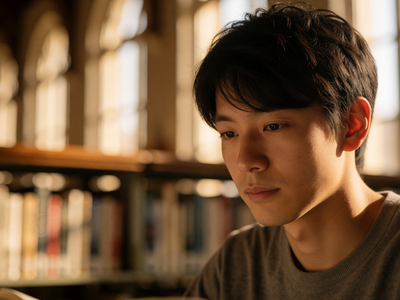
Image
image generation
krea 2
text to image
Write a prompt and Krea 2 Turbo generates a high-resolution image at 1920x1280 in 8 steps, using a fast turbo-distilled model with a Qwen 3 VL text encoder.
Krea 2 Turbo · Text to Image For Short Drama
Write a prompt and Krea 2 Turbo generates a high-resolution image at 1920x1280 in 8 steps, using a fast turbo-distilled model with a Qwen 3 VL text encoder.

3D generation
api
image to 3D
meshy
Upload a photo or concept image and Meshy 7 generates a textured 3D model that matches it. Export as GLB, FBX, OBJ, USDZ, or STL. No 3D modeling needed.
Meshy 7 · Image to 3D
Upload a photo or concept image and Meshy 7 generates a textured 3D model that matches it. Export as GLB, FBX, OBJ, USDZ, or STL. No 3D modeling needed.
_1776233014021.png?width=400&height=300&quality=80&resize=cover)
e-commerce
Image
QR Code
text to image
Type a URL or any text and get three scannable codes at once: a standard QR code, an Aztec barcode, and a branded creative QR with your logo in the center.
Orion 4D QR Code Generator from Text or URL
Type a URL or any text and get three scannable codes at once: a standard QR code, an Aztec barcode, and a branded creative QR with your logo in the center.
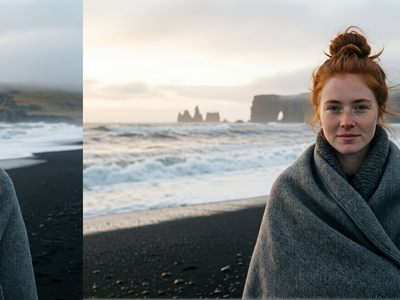
floyoofficial
2.7k
4k Upscale
Image
Image2Image
Image Edit
Image Upscale
Qwen Image Edit 2511
Upscale to 2k to 4k
Upscaling Images to 4k using Qwen Image Edit 2511
Upscale to 2k to 4k
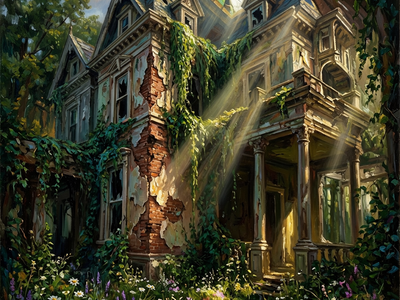
floyoofficial
2.0k
concept art
ernie image
Image
prompt enhancement
text to image
Generate images with Baidu's ERNIE Image model. Write a short prompt and let the built-in AI enhancer expand it into rich detail. Toggle the enhancer on or off.
ERNIE Image - Text to Image
Generate images with Baidu's ERNIE Image model. Write a short prompt and let the built-in AI enhancer expand it into rich detail. Toggle the enhancer on or off.
_1777893876118.png?width=400&height=300&quality=80&resize=cover)
Audio
instrumental
minimax music 2.6
music generation
song generation
soundtrack
text to music
Text-to-music with Minimax Music 2.6. Generate songs with vocals and backing from a style prompt and lyrics, or toggle instrumental mode for score only.
Minimax Music 2.6 - Text to Music
Text-to-music with Minimax Music 2.6. Generate songs with vocals and backing from a style prompt and lyrics, or toggle instrumental mode for score only.
_1781095044969.png?width=400&height=300&quality=80&resize=cover)
character design
concept art
consistency
flux 2 klein
Image
image to image
portrait
Edit a photo of a person with Klein 9B while an identity transfer enhancer keeps their face and likeness locked, so they still look like themselves after.
Flux.2 Klein Enhancer for Identity Transfer
Edit a photo of a person with Klein 9B while an identity transfer enhancer keeps their face and likeness locked, so they still look like themselves after.
3D
Hunyuan 3D v3.1
Image to 3D
Multiview to 3D
Upload a photo and Hunyuan 3D v3.1 Pro, Tencent's production-grade 3D model, generates a textured mesh you can download as a GLB file. Add extra angle photos to improve the result.
Hunyuan 3D v3.1 Pro for Image to 3D
Upload a photo and Hunyuan 3D v3.1 Pro, Tencent's production-grade 3D model, generates a textured mesh you can download as a GLB file. Add extra angle photos to improve the result.
_1783321634939.png?width=400&height=300&quality=80&resize=cover)
3D
3d to image
gaussian splat
Image
LoRAs
ply
qwen image edit
restoration
splat cleanup
Upload a screenshot from a 3D Gaussian Splat viewer and Qwen Image Edit 2511 with a specialized Gaussian restoration LoRA repairs blank areas, removes splat artifacts, and outputs a clean photorealistic image in 4 steps.
Gaussian Splat to Image · Image to Image
Upload a screenshot from a 3D Gaussian Splat viewer and Qwen Image Edit 2511 with a specialized Gaussian restoration LoRA repairs blank areas, removes splat artifacts, and outputs a clean photorealistic image in 4 steps.

Moonvalley Marey Pose Transfer - Video to Video

Moonvalley Marey Motion Transfer - Video to Video

Audio
Audio to Audio
voice clone
Clone any voice and change the emotional delivery. Upload audio, type new text, adjust emotions, and get speech with different feelings using the same voice.
Change Emotion using IndexTTS2
Clone any voice and change the emotional delivery. Upload audio, type new text, adjust emotions, and get speech with different feelings using the same voice.
alibaba
image to video
video with audio
wan 3.0
Animate a still into a 30-second clip with sound using Wan 3.0, Alibaba's latest video model. Upload an image, describe the motion, and hit run. 1080p output.
Wan 3.0 · Image to Video With Audio
Animate a still into a 30-second clip with sound using Wan 3.0, Alibaba's latest video model. Upload an image, describe the motion, and hit run. 1080p output.
_1782111515139.png?width=400&height=300&quality=80&resize=cover)
anime
anime-turbo
illustration
Image
LoRAs
restyle
Turn a photo or sketch into an anime illustration with Anima Base v1.0 plus the Turbo LoRA. Upload an image, describe the look you want, and hit run.
Anima Turbo: Restyle Any Photo Into Anime Art
Turn a photo or sketch into an anime illustration with Anima Base v1.0 plus the Turbo LoRA. Upload an image, describe the look you want, and hit run.
_1784278032814.webp?width=400&height=300&quality=80&resize=contain&format=origin)
Audio
audio video
Image to video
ltx video
text to video
Video
Animate a photo or generate video from text with synchronized audio using LTX-Video 2.3, Lightricks' 22B open-source model. Upload an image or toggle to text-only mode, describe the scene, and hit run.
LTX 2.3 · Image and Text to Video For Viral SNS
Animate a photo or generate video from text with synchronized audio using LTX-Video 2.3, Lightricks' 22B open-source model. Upload an image or toggle to text-only mode, describe the scene, and hit run.
_1784197306076.png?width=400&height=300&quality=80&resize=cover)
composite
Image
image to image
portrait
product photography
Drop a person into any background with the lighting you choose, using Qwen Image Edit 2511. Upload three images, hit run, and keep the identity intact.
Qwen 2511: Composite a Photoshoot For Kids Edu
Drop a person into any background with the lighting you choose, using Qwen Image Edit 2511. Upload three images, hit run, and keep the identity intact.
_1784292470325.webp?width=400&height=300&quality=80&resize=contain&format=origin)
Audio
image to video
lipsync
LoRAs
ltx video
Video
Animate a portrait photo with accurate lip sync using LTX-Video 2.3, Lightricks' 22B open-source model with a lip sync LoRA. Upload a photo and an audio clip, describe the scene, and hit run.
LTX 2.3 Lip Sync · Image to Video For Viral SNS
Animate a portrait photo with accurate lip sync using LTX-Video 2.3, Lightricks' 22B open-source model with a lip sync LoRA. Upload a photo and an audio clip, describe the scene, and hit run.
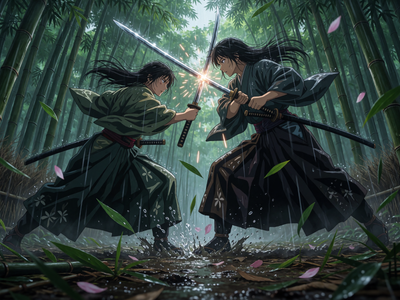
Image
Image generation
Krea2
text to image
turbo
Write a prompt and Krea 2 Turbo generates a high-resolution image at 1920x1280 in 8 steps, using a fast turbo-distilled model with a Qwen 3 VL text encoder.
Krea 2 Turbo · Text to Image For Anime
Write a prompt and Krea 2 Turbo generates a high-resolution image at 1920x1280 in 8 steps, using a fast turbo-distilled model with a Qwen 3 VL text encoder.