


1. Concepting with text (Txt→Img)
Turn written ideas into visual starting points by exploring multiple character directions, outfits, and styles from simple text prompts or briefs.


Z-Image Turbo · Text to Image
Fast Image Generation in Seconds
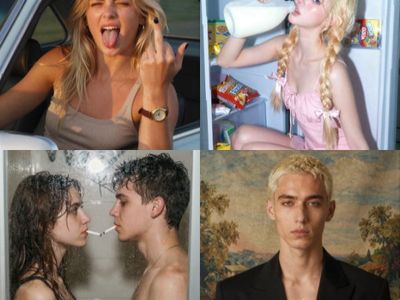

Z Image Turbo Text to Image ( Latent + Model Upscale
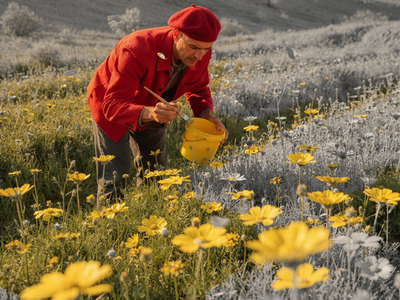
FLUX.2 Dev · Text to Image
Generate photorealistic images with FLUX.2 Dev, the 32B open-weight model from Black Forest Labs. Write a prompt, add optional references, and hit run.


GPT Image 2: Text to Image
Generate stunning, highly detailed images from just a text prompt using GPT Image 2.
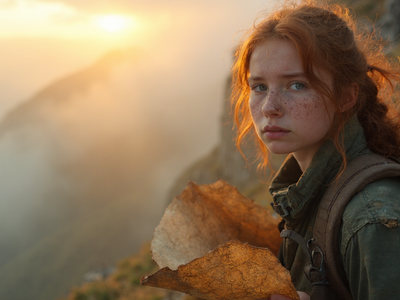
SRPO Next-Gen Text-to-Image
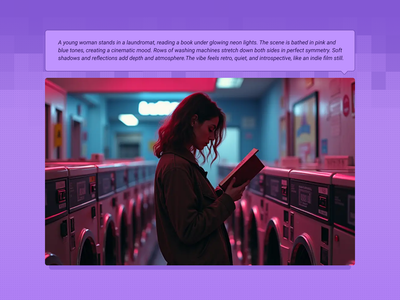
Flux Text to Image
Create original images using only text prompts, which can be simple or elaborate. Key Inputs Prompt: as descriptive a prompt as possible Width & height: Optimal resolution settings are noted
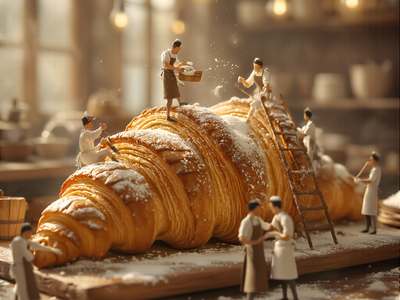
Chroma 1 Radiance · Text to Image
Generate artifact-free images directly in pixel space with Chroma 1 Radiance. No VAE compression, no decode step. Write a prompt and hit run. Apache 2.0.
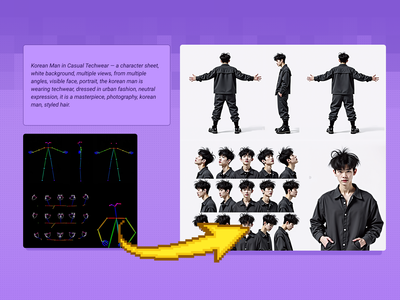
Flux Text to Character Sheet
Create a character and a range of consistent outputs suitable for establishing character consistency, training a model, and ensuring consistency throughout multiple scenes. Key Inputs Image reference: Use the included pose sheet to show range of positions Prompt: as descriptive a prompt as possible
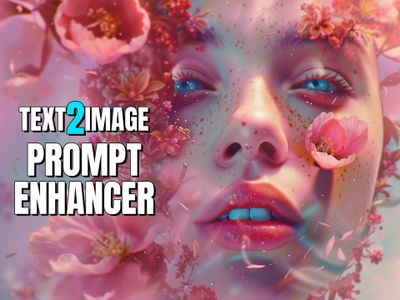
Text2Image + Prompt Enhancer LLM for Flux
Classic Flux text2image with an added LLM to improve your prompts.
2. Use images & sketches for development (Img→Img)
Feed in sketches, mood boards, or reference photos to iterate on silhouettes, costumes, props, and world details while preserving your core design.
_1786522681696.png?width=400&height=300&quality=80&resize=cover)
FLUX.2 Klein 9B · Image to Image
Edit images with consistency of the subject or things using Flux.2 Klein 9B and a LoRA
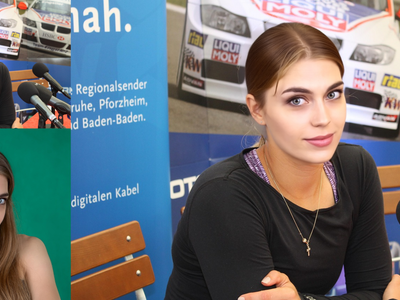
Qwen Image Edit 2509 · Face Swap
Swap a face between two photos with Qwen Image Edit 2509. Upload a main image and a reference, paint a mask on each face, hit run. Apache 2.0 open weights.
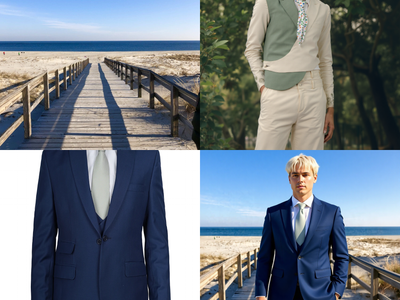

Flux Kontext Multi-Image Reference
Combine up to 3 reference images into one with Flux Kontext Key Inputs Load Image (3x): Load 3 different reference images. Prompt: Describe how to combine these images, see default value for example.
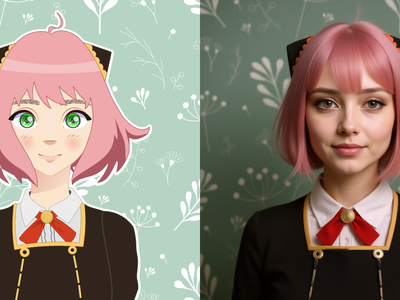
Qwen Image Edit 2509 · A2R
Merge up to three images into one scene with Qwen Image Edit 2509. Upload a subject, add items to place on it, describe the layout, hit run. Apache 2.0.
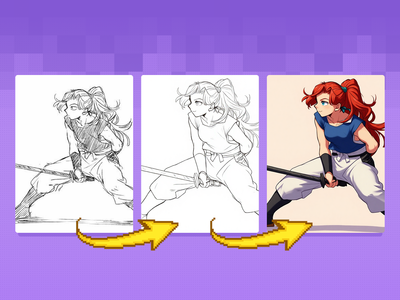
Flux Kontext Sketch to LineArt + Color Previz
Quickly convert rough sketches into polished lineart and colorized concepts. Ideal for early storyboards, character designs, scene planning, and other visual explorations.
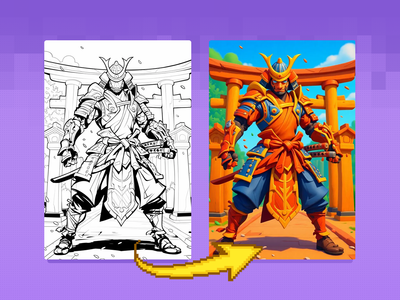
Flux Kontext - Sketch to Image
Bring your sketches to life in full color with Flux Kontext! Key Inputs Load Image – Upload the sketch you want to transform. Prompt – Describe the desired output style, such as: “Render this sketch as a realistic photo” or “Turn this sketch into a watercolor painting.”
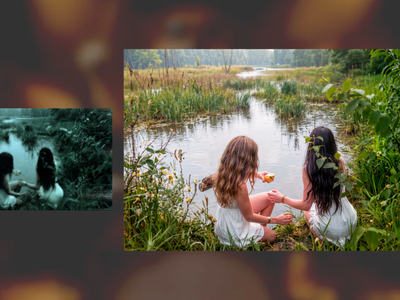
Anything2Real 2601A
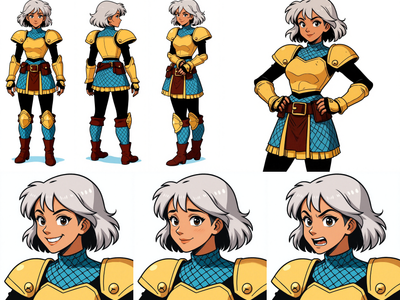
Image to Character Sheet with Kontext
Create a character sheet with multiple poses and expressions from a single image!
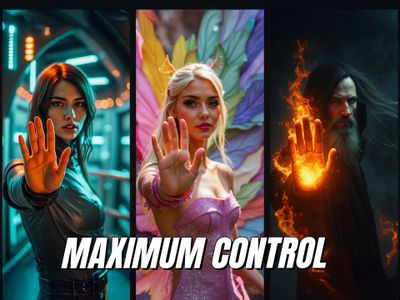
Flux ControlNet 2.0 - All-in-one
Latest and greatest Flux ControlNet workflow.
_1758863167371.webp?width=400&height=300&quality=80&resize=contain&format=origin)
Flux Kontext and HD360 LoRA for 360 Degree View
Flux Kontext 360° Workflow - Seamless Panorama Generation Input: Simply upload an image in the "Load Image from Outputs" node Output: A 360° Panoramic image
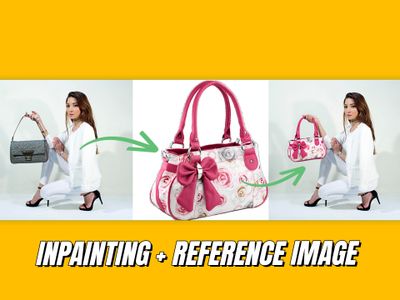
Inpainting with reference image
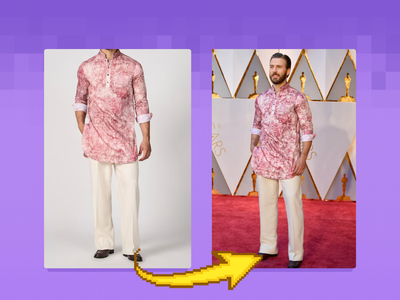
Flux Outfit Transfer
Virtual Outfit Try-On with Auto Segmentation Try virtual clothing on any subject using Flux Dev, Ace Plus, and Redux, with automatic segmentation. Great for concept previews, fashion mockups, or character styling. Key Inputs Outfit: Load the outfit image you want to apply. Make sure it's high quality — visible artifacts or distortions may carry over into the final result. Actor: Add the subject or character you want to dress. Ideally, use a clear, front-facing image. Human Parts Ultra: Choose which parts of the body the clothing should apply to. For example, for a long-sleeve shirt, select: torso, left arm, and right arm. This helps the model align the clothing properly during generation. Prompt: Default value works for most outfits, however you may try to adjust it to describe the desired outfit.
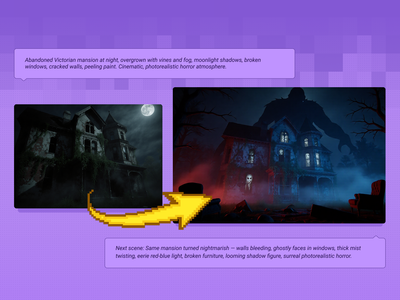
Qwen Image Edit 2509 + Flux Krea for Creating Next Scene
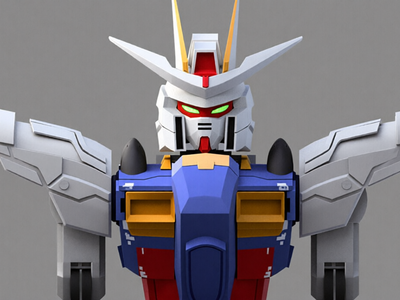
Qwen Image Edit 2509 and Grayscale to Color LoRA
3. Enhance & edit existing images
Polish and refine existing concepts by adjusting faces, poses, lighting, and materials, or generating variations that stay on model for production use.
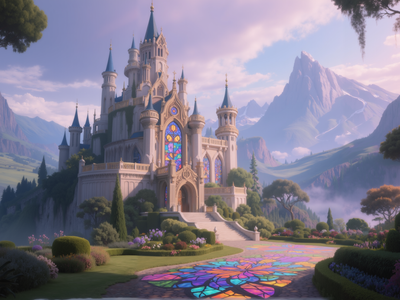
Flux Simple Inpainting
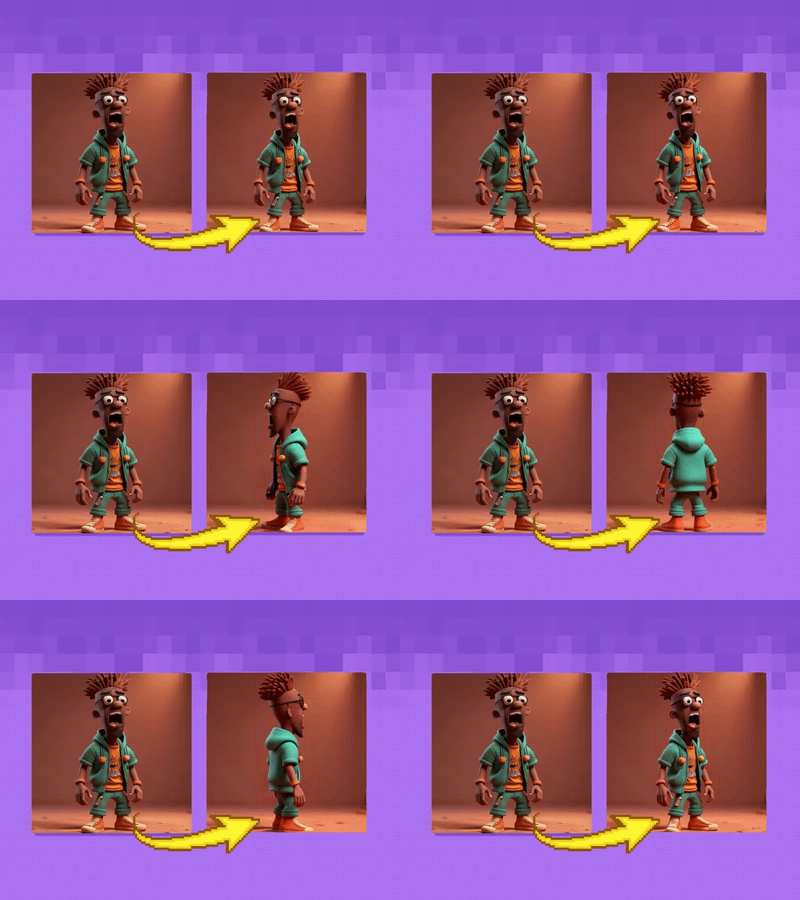
AniSora 3.2 and Wan2.2: Best Practices for Generating Smooth Character 3D Spin
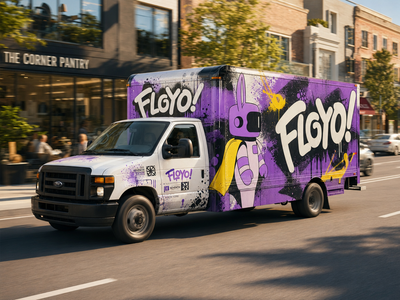
GPT Image 2: Image Editing
Edit images with OpenAI's GPT Image 2. Upload one or two images, write what you want changed, and the model rewrites the scene while keeping details intact.
_1786351368179.png?width=400&height=300&quality=80&resize=cover)
SeedVR2 · Image Upscaler
Upscale to Extreme Clarity
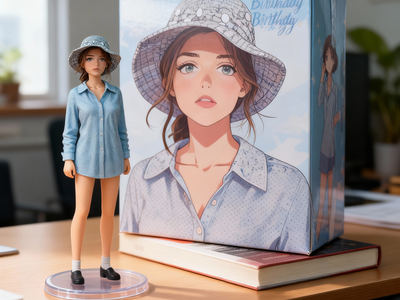
Seedream 4.0 Edit: Unleash Creativity of Editing
Seedream
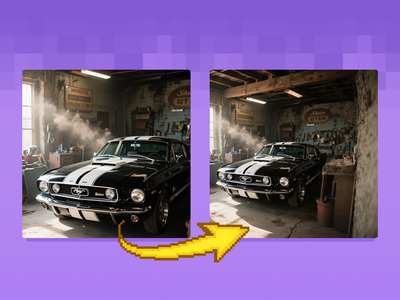
Flux Fill Dev Image Outpainting
Extend your images out for a wider field of view or just to see more of your subject. Expand compositions, change aspect ratios, or add creative elements while maintaining consistency in style, lighting, and detail while seamlessly blending with the existing artwork.
FLUX.1 Dev · Image Upscaler
Double any image's resolution with FLUX.1 Dev and 4x-UltraSharp. Upload a picture, hit run, and get a sharp 2x upscale refined tile by tile. Open weights.
Ultimate Upscaler
Flux ultimate SD upscaler with detailer daemon and tile controlnet. Easy but extremely powerful.
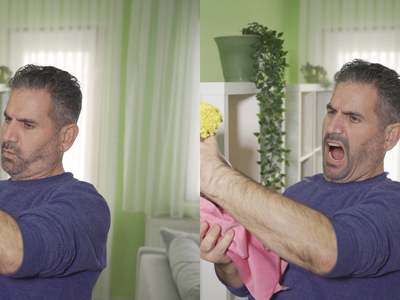
Flux Kontext Inpainting
Inpaint with the power of Flux Kontext, providing additional content-awareness.
Qwen Image Edit 2509 · Change Camera Angle
Re-render any subject from a new camera angle with Qwen Image Edit 2509 and a Multi-Angle LoRA. Upload one image, name the view, and hit run. Apache 2.0.
Qwen Image Edit 2509 + Flux Krea for Creating Next Scene
4. Lighting & color exploration
Workflows that focus on achieving the perfect lighting and look
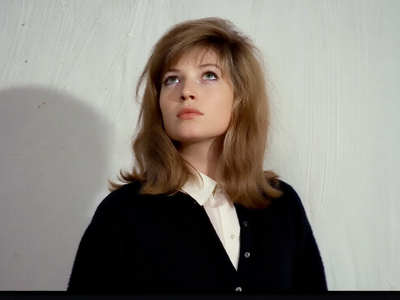
Qwen Image Edit 2509 · Relight
Remove harsh light and shadow from any photo and relight it with soft, even illumination using Qwen Image Edit 2509 and a Relight LoRA. Upload and run.
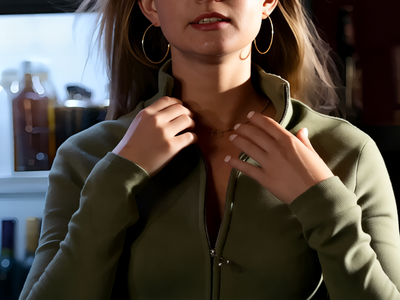
Multiple Angle Lighting LoRA + 2511
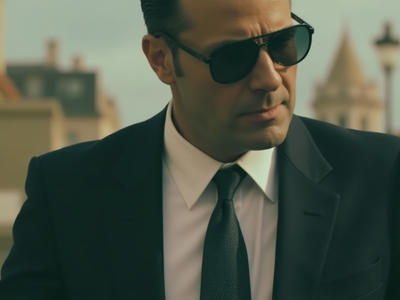
Flux Text2Image w/ 2 Tone Color Grade
Generate cinematic images using Flux with the simple workflow to choose color tint in highlights and shadows Key Inputs Prompt: Set text prompt SDXLResolution: Choose your aspect ratio/resolution Seed: Choose either a fixed or random seed (default value: fixed) Highlights/Shadows: Choose color grade
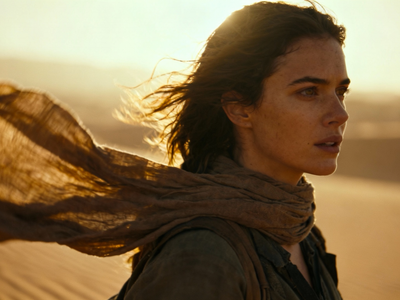
FlatLogColor LoRA and Qwen Image Edit 2509