

Change Product Shots with NanoBanana Pro
Ecommerce
Image
Image to Image
NanoBanana
Reference image
975
_1766992060792.png?width=1400&height=620&quality=80&resize=contain)
_1766992060792.png?width=1400&height=620&quality=80&resize=contain)
_1766992060792.png?width=1400&height=620&quality=80&resize=contain)
_1766992060792.png?width=1400&height=620&quality=80&resize=contain)
_1766992060792.png?width=104&height=104&quality=80&resize=cover)
_1766992060792.png?width=104&height=104&quality=80&resize=cover)
_1766992060792.png?width=104&height=104&quality=80&resize=cover)
_1766992060792.png?width=104&height=104&quality=80&resize=cover)

Nodes & Models
NanoBananaProUnified_floyo
Note
LoadImage
WorkflowGraphics
GetImageSize
ResizeAndPadImage
ImageBatch
SaveImage
Image-Based Product Placement
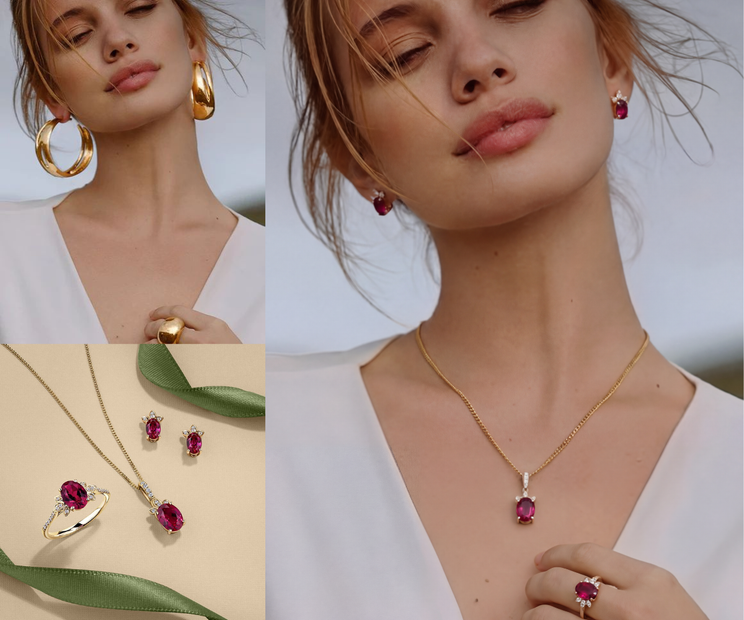
This workflow lets you insert a product into a model’s photo—such as a lipstick, gloss, bottle, or cosmetic—while keeping the original image exactly the same.
You don’t need a new photoshoot.
The system places the product naturally while preserving everything else:
✔ Same face and expression
✔ Same pose and hand position
✔ Same background
✔ Same lighting and mood
Only the product is added—cleanly and realistically.
How It Works
1. Upload the Model Image
Add the photo of the person you want to use.
This image provides:
✔ facial expression
✔ pose
✔ background
✔ lighting
Everything in this image is preserved.
2. Upload the Product Image
Add a clean image of the product you want to place
(for example: lipstick, gloss tube, bottle).
This tells the system:
“This is the product that should appear in the final image.”
3. Match Size & Resolution
The workflow automatically:
✔ resizes the product
✔ matches image dimensions
✔ aligns both images properly
This ensures the product fits naturally in the scene.
4. Combine Model + Product
The images are merged so the product appears correctly positioned
(as if the model is holding or posing with it).
The system maintains:
✔ correct scale
✔ natural placement
✔ realistic proportions
5. Generate the Final Image
AI refines the result with:
✔ consistent lighting
✔ realistic shadows
✔ clean edges
✔ natural blending
6. Save the Output
Download the finished image once it’s ready.
🎯 Final Result
You get a polished, studio-quality image where:
✨ The product looks naturally integrated
✨ The model remains completely unchanged
✨ No reshoot is required
✨ Perfect for ads, e-commerce, and brand marketing
The final image looks like the product was part of the original shoot from the start.
Read more

_1786518453053.png?width=400&height=300&quality=80&resize=cover)




