Grok Imagine: Fast Text to Image
Create cool images using Grok Imagine
Grok
Image
photorealism
Text2Image
3.4k

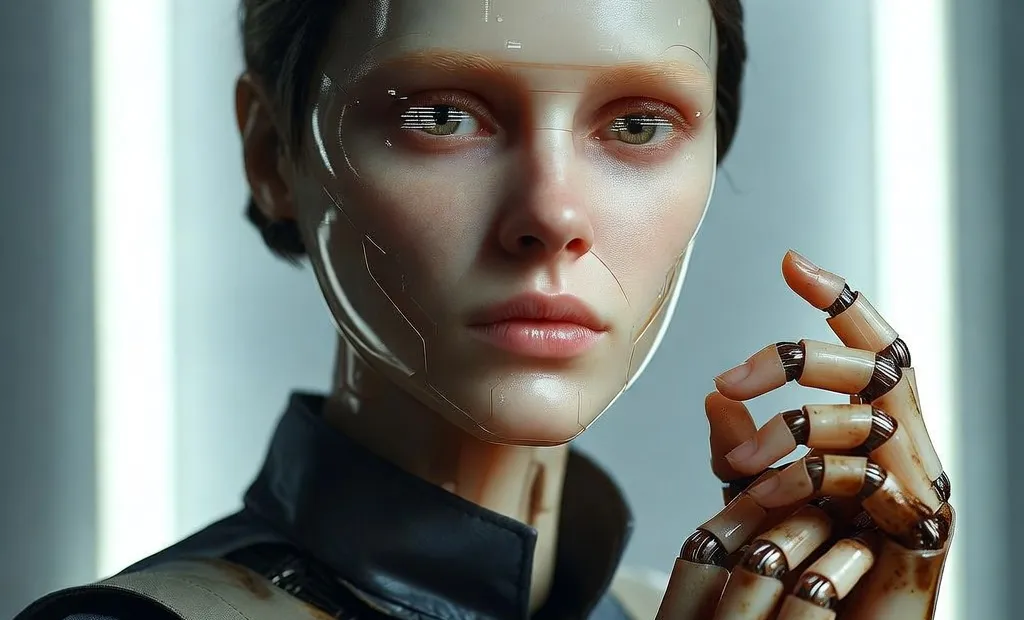


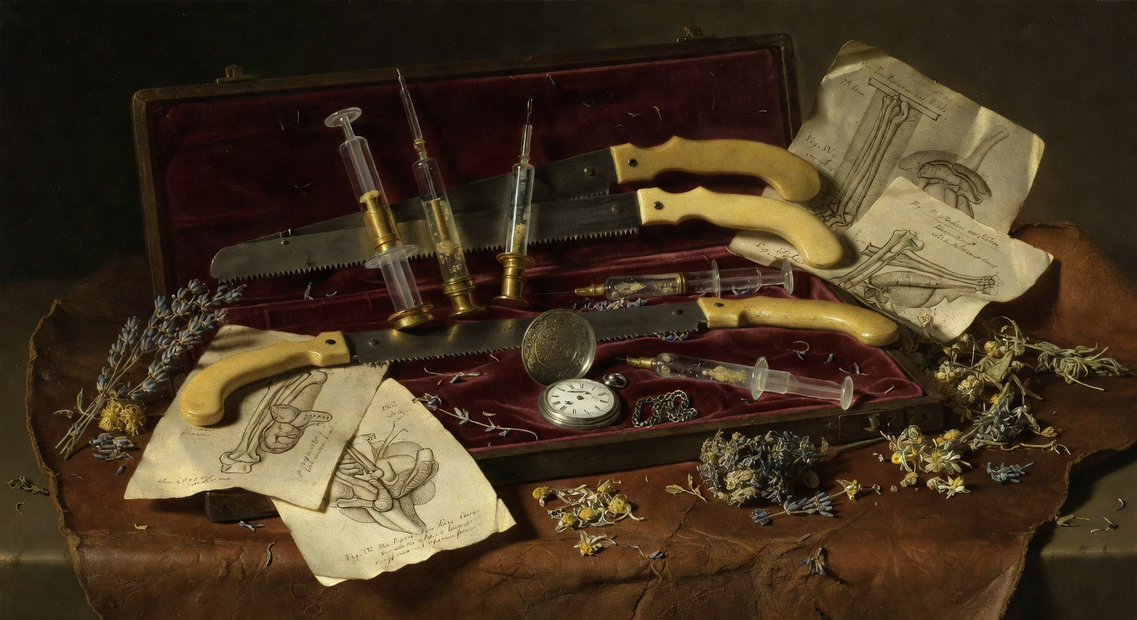

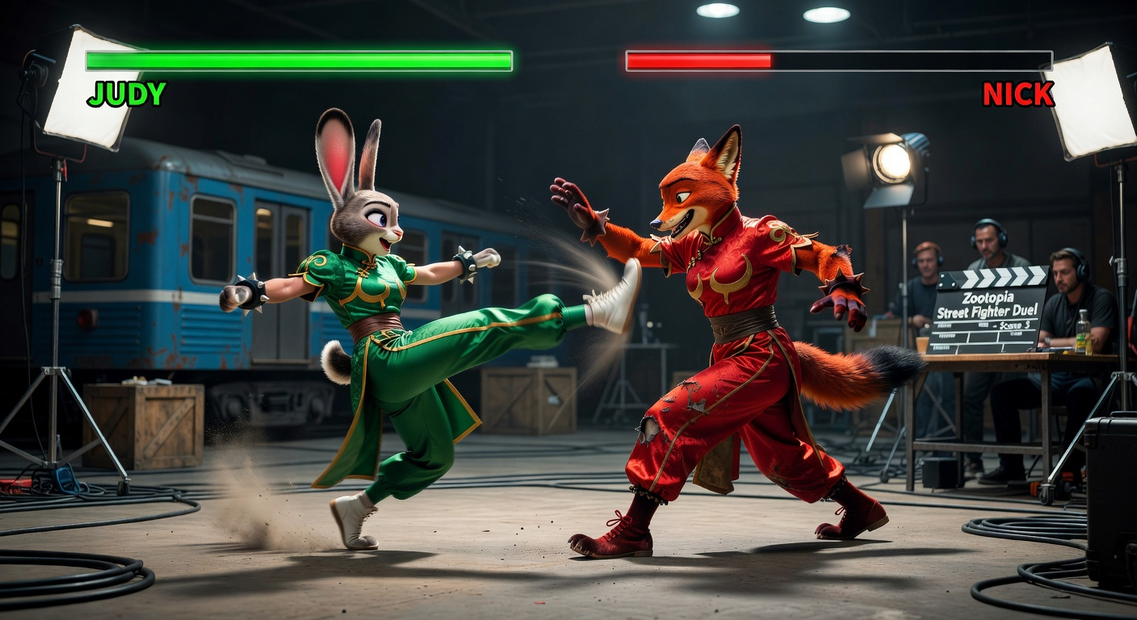







ABOUT THE WORKFLOW
Generate a Picture From a Prompt Write what you want to see and hit run. Grok Imagine reads your prompt, builds the picture, and returns it. One node, one step, typically under a second.
Partner node. This workflow calls an external API, so each run uses credits from your API wallet. No API key needed. Floyo handles the connection.
Model
Grok Imagine by xAI, powered by the Aurora engine. A closed autoregressive model trained on billions of text-and-image examples. Fast at photorealistic portraits, product shots, and cinematic stills. Launched August 2025, reached 1.0 in February 2026.
HOW IT WORKS
Step 1. Write your prompt Describe the picture. Name the subject, the lighting, the framing, and the mood. Detailed instructions are followed closely. Works great with: portraits · product scenes · poster art · cinematic stills
Step 2. Pick a shape Choose an aspect ratio. Square, landscape, and portrait are all available.
Step 3. Hit run and download The picture comes back and is saved. One image per run at the default settings. Ready for: Photoshop · Figma · Canva · any editor
First time? Leave every setting as-is. The defaults (1 image · 1:1 · JPEG) are the right starting point for almost everyone.
RECOMMENDED SETTINGS
Quick-start guide. Find the goal that matches yours and copy the settings.
Standard image (most people) — 1 image · 1:1 · JPEG. The right starting point for almost everyone.
Want a landscape or portrait — Switch the aspect ratio. The model handles a range of shapes, so match it to where the picture is going.
Want options to choose from — Raise the number of images. You get several takes on the same prompt in one run and keep the strongest. Image count drives cost.
Need a different file type — Switch the output format away from JPEG.
The picture does not match the prompt — Add more detail. Name the lighting, the camera angle, and the mood. Short vague prompts return generic results.
Want readable text in the picture — Spell it out in the prompt and say where it goes. Aurora handles text better than most models, though it is not its strongest area.
Prompt: Describe the picture as a shot, not a keyword list. "Portrait of a young android mechanic with oil-stained hands, soft rim lighting, shallow depth of field, studio photography style" gives you more than "android mechanic portrait." Adding a photography or film style at the end anchors the look.
LEARN
📹 Videos
ComfyUI 101 Free Course ft. Sebastian Kamph
Floyo 101 for Team Collaboration
✨ Quick links
USE CASES
📸 Portraits and Headshots Generate photorealistic faces with natural skin, controlled lighting, and depth of field in under a second.
🛍️ Product and Marketing Build product scenes and hero shots from a text description without a photo shoot.
🎬 Cinematic Stills Create film-look frames with specific camera language, grading, and atmosphere for mood boards or pitch decks.
⚡ Rapid Ideation Test visual ideas at speed. Sub-second generation means you can iterate on a prompt dozens of times in a few minutes.
WHAT WORKS BEST / WHAT TO AVOID
✅ Works great
Detailed prompts with lighting, framing, and mood
Photorealistic portraits and character work
Product shots and poster-style compositions
High-volume prompt iteration where speed matters
⚠️ May produce softer results
Short keyword prompts with no context
Fine text rendering inside the picture
Precise anatomical detail in complex poses
Work that needs open weights or local control
FAQ
What is Grok Imagine? Grok Imagine is xAI's image generation platform, powered by the Aurora engine. Aurora is an autoregressive mixture-of-experts model trained on billions of text-and-image examples, which sets it apart from the diffusion models most other image generators use. It launched in August 2025, reached 1.0 in February 2026, and is known for fast generation, typically under a second per image.
Is Grok Imagine free? Grok Imagine is a closed, paid model. Through xAI directly, images run about $0.07 each via the API. On Floyo the cost comes out of your API wallet credits, and you pay only when you generate. There is no free tier through the API.
Can I use Grok Imagine images commercially? Yes. xAI's terms of service permit commercial use of generated images across all access tiers, with no revenue threshold. There is no IP indemnification, so if an output infringes on a third party's rights, the liability sits with you. Review the current terms before using output in paid work.
What resolution does Grok Imagine output? xAI does not publicly disclose the native resolution. API documentation lists 1024 x 1024 as the standard output size, with 1024 x 768 and 768 x 1024 for landscape and portrait. The aspect ratio selector on this workflow maps to those options.
How does Grok Imagine compare to Nano Banana Pro or Qwen Image 2512? Grok Imagine is the fastest of the three, with sub-second generation. Nano Banana Pro (Google Gemini 3 Pro) outputs at higher resolution and handles multi-reference editing. Qwen Image 2512 is open weight under Apache 2.0 and leads on readable text rendering. Pick Grok Imagine when speed and iteration matter most, Nano Banana Pro for editing and compositing, and Qwen Image 2512 for open weights and bilingual text in the image.
Is Grok Imagine open source? No. It is a closed model with no published weights. Aurora runs through xAI's infrastructure and is not available for local deployment or fine-tuning.
How to run Grok Imagine online? You can run Grok Imagine online through Floyo. No installation, no setup, no API key to wire up. Open the workflow in your browser, write a prompt, and hit run. Free to try.
WHY FLOYO?
Floyo is the only platform with team collaboration for ComfyUI in the browser. You run workflows with no install. You share run history, assets, and models across your team. You pay only when you generate. Floyo supports open-source and closed-source models.
A designer runs an edit and likes the result. A teammate opens that exact run from shared history and keeps going. No file handoffs. No version confusion.
For studios and enterprise teams, Floyo adds private workspaces, pooled resources, and a team usage dashboard. Other ComfyUI cloud tools run for one person at a time. Floyo runs for the whole team, with transparent per-generation costs.
Ready to try it? Write a prompt and run it. The picture comes back in under a second.
Questions? Watch the free course or check the FAQ above.
Read more