floyo logo
Powered by
ThinkDiffusion
floyo logo
Powered by
ThinkDiffusion

Insert Product into Existing Ad

65

Insert Product into Existing Ad — Workflow Overview

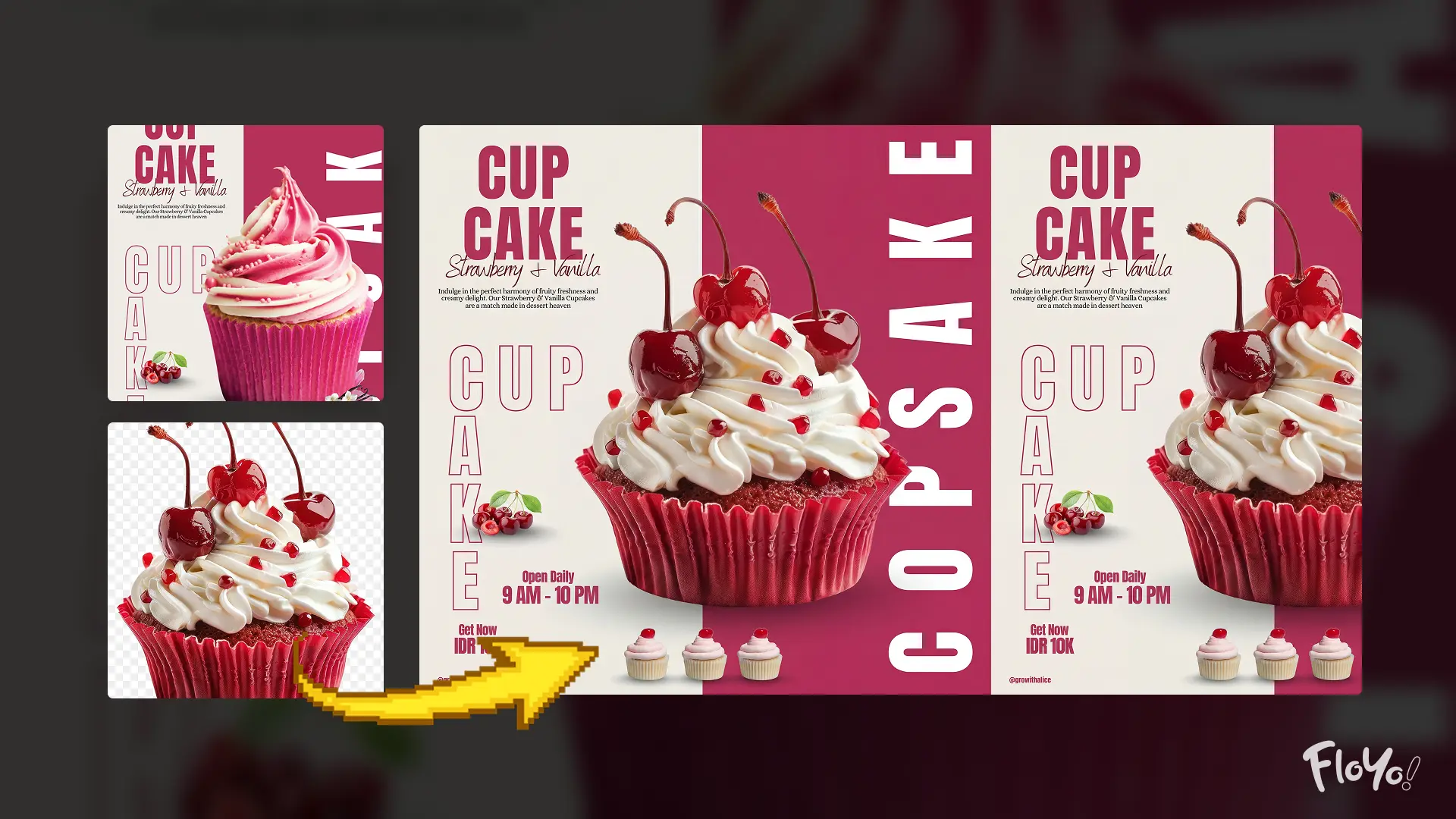
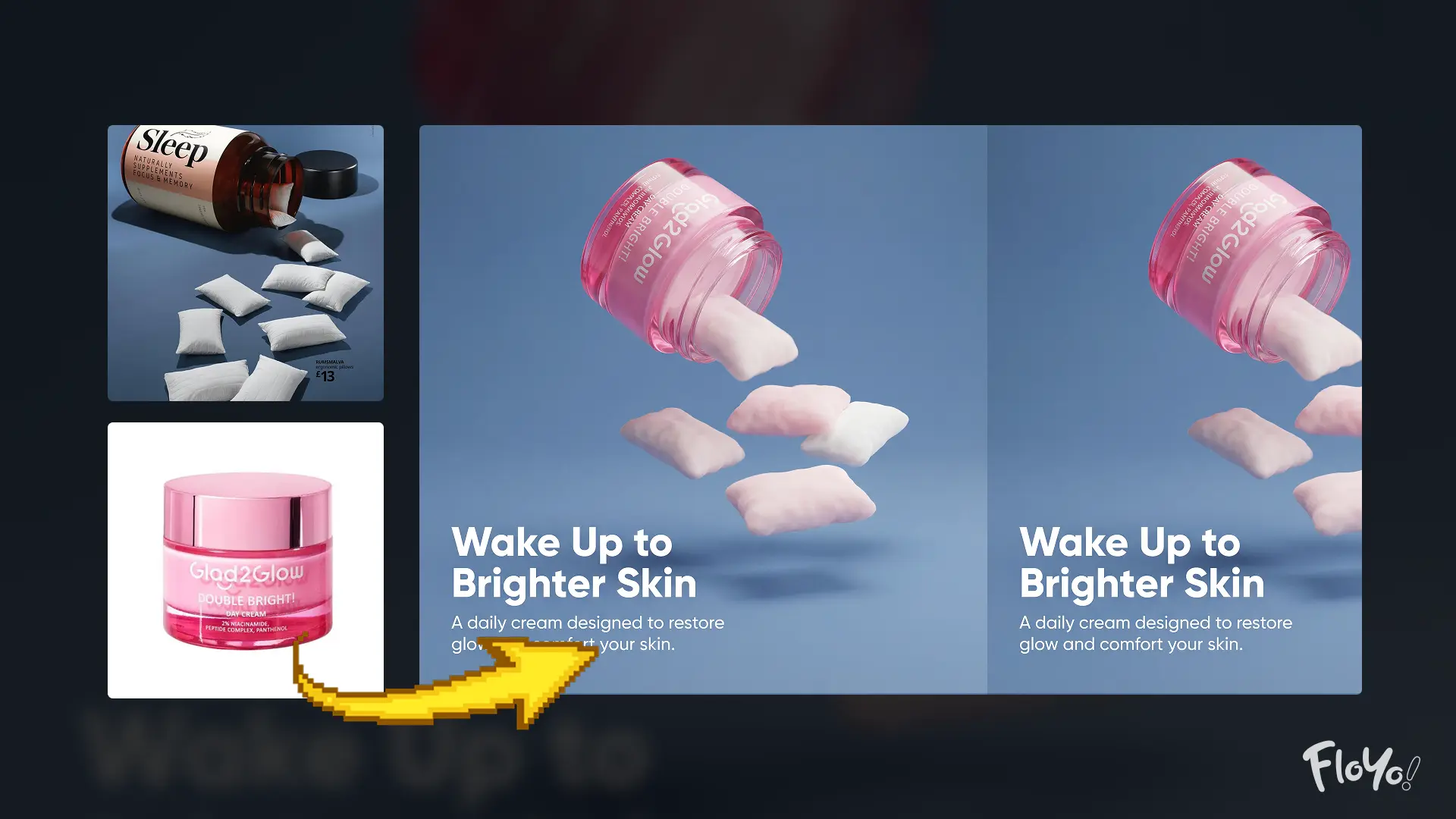
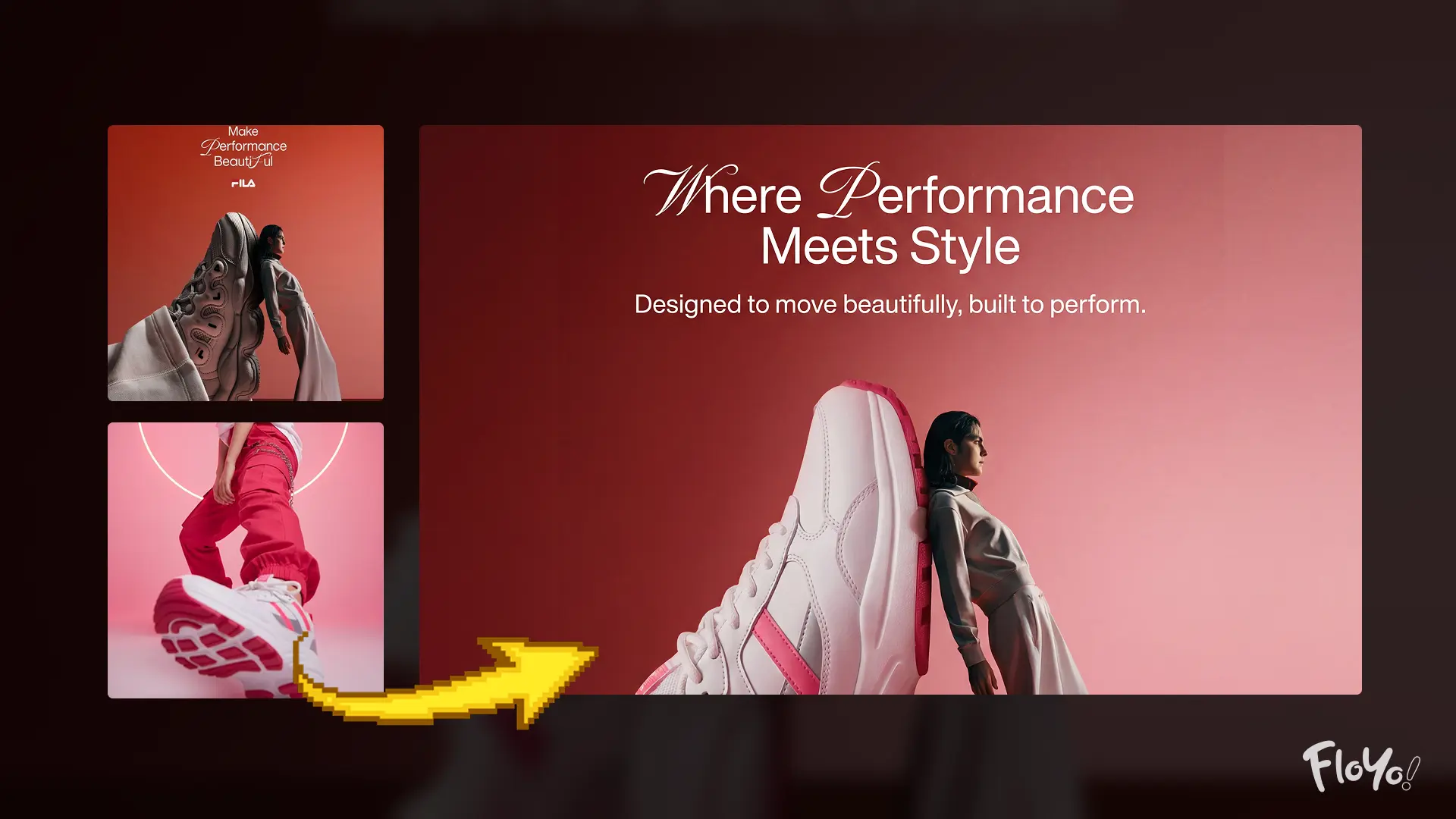
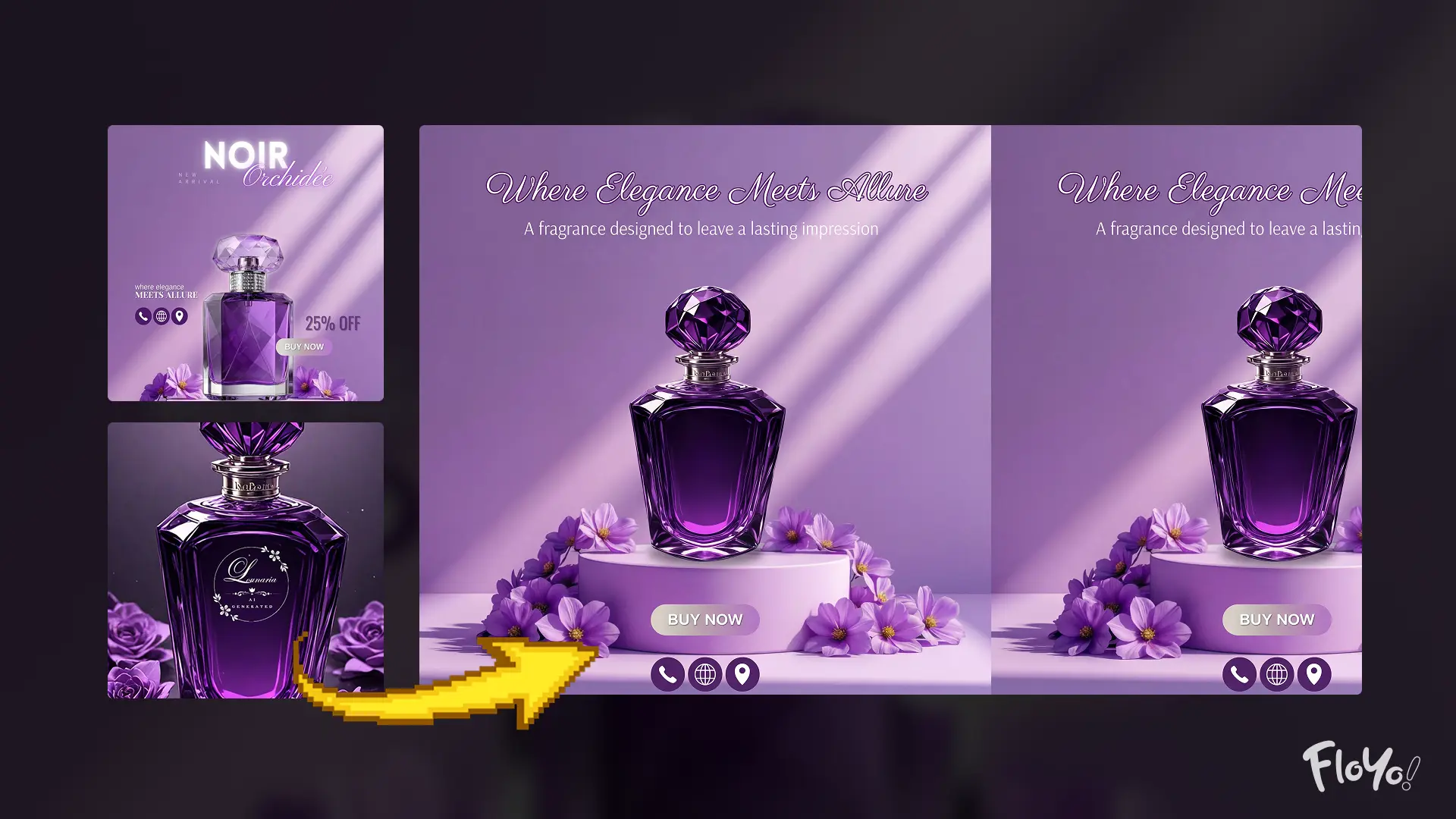
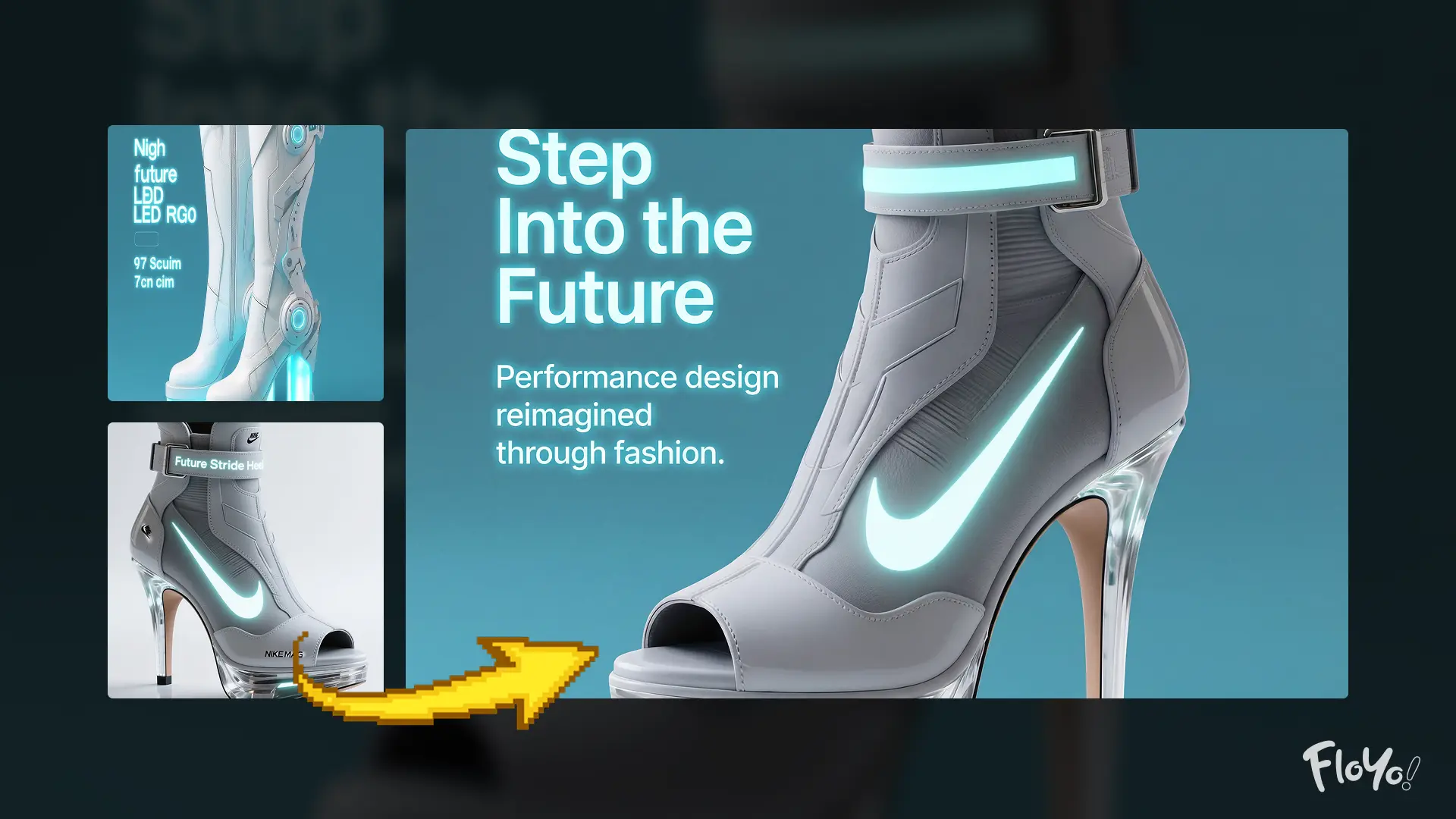
This workflow allows you to seamlessly insert a new product into an existing advertisement while preserving the original ad’s creative direction. It keeps the layout, composition, lighting, typography style, and overall visual hierarchy intact, ensuring the final output looks like a professionally redesigned campaign—not an edited image.

No manual design work, no layout rebuilding, and no re-shoots required.


How It Works (Step-by-Step)

1. Load the Reference Ad (Layout & Style Source)

Upload an existing advertisement that will act as the visual blueprint.
This reference defines:

  • Composition and framing

  • Typography placement and scale

  • Lighting direction and shadows

  • Color mood and design language

Think of this as locking the ad’s creative DNA.


2. Load the New Product Image

Upload the product you want to feature in the ad.
For best results, use a clean product image with clear shape, texture, and lighting.

This image supplies the subject that will be integrated into the reference layout.


3. Define the Product & Ad Intent

Describe the product and the type of advertisement you want to create using a single prompt.

You can control:

  • Product appearance and emphasis

  • Editorial or commercial tone

  • Color balance and mood

  • Headline and supporting copy (if the reference ad includes text)

The workflow ensures any generated text matches the original typography style and placement.


4. Replace the Original Product

The workflow removes the existing product from the reference ad and inserts the new product in the exact same position, scale, and perspective.

During this step, it:

  • Matches lighting and shadows

  • Aligns reflections and highlights

  • Preserves depth and realism

  • Maintains the original layout structure


5. Harmonize Design & Finish

The inserted product is visually blended into the scene by:

  • Matching texture, grain, and print artifacts

  • Adjusting contrast and color harmony

  • Ensuring the product feels native to the ad

Nothing looks pasted or artificial—the ad remains cohesive and professional.


6. Generate the Final Advertisement

The workflow outputs a high-quality, print-ready advertisement that looks like it was originally designed for your product.

Everything except the product remains unchanged, allowing you to reuse proven ad designs with entirely new subjects.


Final Result

A polished, high-end advertisement where your product seamlessly replaces the original—while the layout, typography, lighting, and visual storytelling remain perfectly intact. Ideal for rapid ad iteration, concept testing, and reusing premium ad designs across multiple products.

Read more

N
Generates in about 25 secs

Nodes & Models

NanoBananaProUnified_floyo
PrimitiveStringMultiline
WorkflowGraphics
Note
LoadImage
GetImageSize
RegexReplace
ResizeAndPadImage
ImageBatch
SaveImage

Insert Product into Existing Ad — Workflow Overview

This workflow allows you to seamlessly insert a new product into an existing advertisement while preserving the original ad’s creative direction. It keeps the layout, composition, lighting, typography style, and overall visual hierarchy intact, ensuring the final output looks like a professionally redesigned campaign—not an edited image.

No manual design work, no layout rebuilding, and no re-shoots required.


How It Works (Step-by-Step)

1. Load the Reference Ad (Layout & Style Source)

Upload an existing advertisement that will act as the visual blueprint.
This reference defines:

  • Composition and framing

  • Typography placement and scale

  • Lighting direction and shadows

  • Color mood and design language

Think of this as locking the ad’s creative DNA.


2. Load the New Product Image

Upload the product you want to feature in the ad.
For best results, use a clean product image with clear shape, texture, and lighting.

This image supplies the subject that will be integrated into the reference layout.


3. Define the Product & Ad Intent

Describe the product and the type of advertisement you want to create using a single prompt.

You can control:

  • Product appearance and emphasis

  • Editorial or commercial tone

  • Color balance and mood

  • Headline and supporting copy (if the reference ad includes text)

The workflow ensures any generated text matches the original typography style and placement.


4. Replace the Original Product

The workflow removes the existing product from the reference ad and inserts the new product in the exact same position, scale, and perspective.

During this step, it:

  • Matches lighting and shadows

  • Aligns reflections and highlights

  • Preserves depth and realism

  • Maintains the original layout structure


5. Harmonize Design & Finish

The inserted product is visually blended into the scene by:

  • Matching texture, grain, and print artifacts

  • Adjusting contrast and color harmony

  • Ensuring the product feels native to the ad

Nothing looks pasted or artificial—the ad remains cohesive and professional.


6. Generate the Final Advertisement

The workflow outputs a high-quality, print-ready advertisement that looks like it was originally designed for your product.

Everything except the product remains unchanged, allowing you to reuse proven ad designs with entirely new subjects.


Final Result

A polished, high-end advertisement where your product seamlessly replaces the original—while the layout, typography, lighting, and visual storytelling remain perfectly intact. Ideal for rapid ad iteration, concept testing, and reusing premium ad designs across multiple products.

Read more

N
FloYo: Insert Product into Existing Ad