floyo logo
Powered by
ThinkDiffusion
floyo logo
Powered by
ThinkDiffusion
Open-Source Models hero

OPEN-SOURCE MODELS

Run top open-source AI workflows for text-to-image, text-to-video, image editing, image-to-video, and video-to-video in one place, with no setup required.

Open-source AI models for image and video generation have caught up to closed systems. Z-Image generates photorealistic images in under a second. Wan produces cinematic video with motion and audio. Flux handles everything from text-to-image to inpainting to outpainting.

This page collects the workflows built on these models, organized by what you're trying to do. Every workflow runs in your browser on Floyo. Pick a task, upload your inputs, hit run.


1. Text to Image

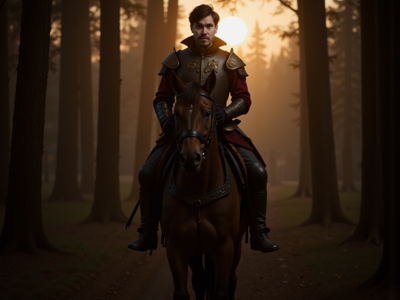
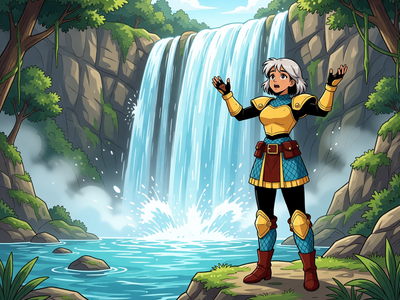
Write a prompt, get an image. These workflows turn text descriptions into photographs, illustrations, concept art, and product shots. The model you pick determines the look, the speed, and how well it follows your prompt.
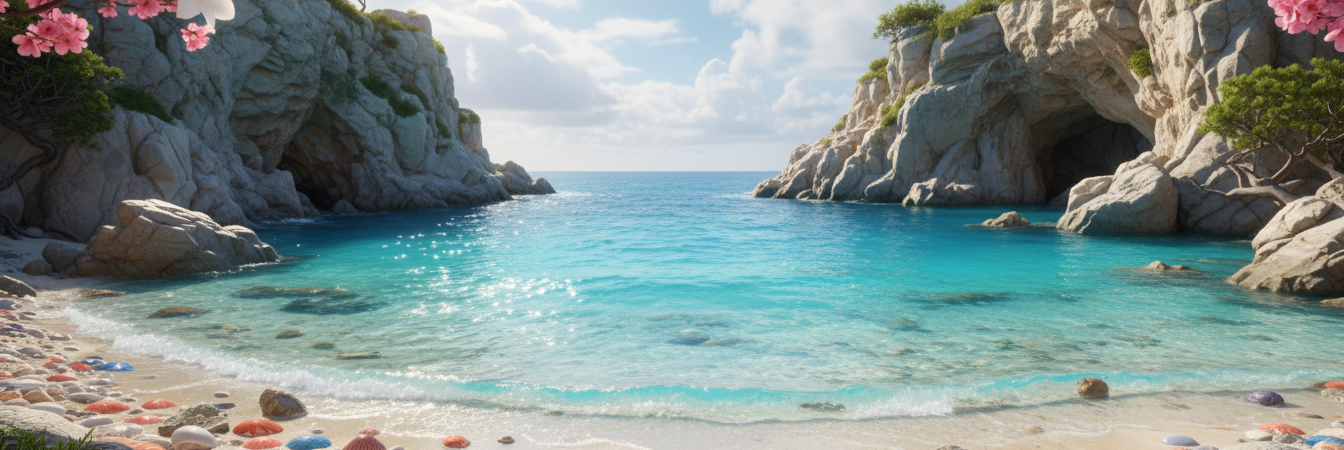
Z-Image Turbo - Text to Image w/ Optional Image Input (Image to Image)

Image to Image

Text to Image

Z-Image Turbo

Z-Image Turbo - Text to Image w/ Optional Image Input (Image to Image)

Z-Image Base for Text to Image

Text2Image

Z-Image

Z-image-base

Create sunning images using z-image base model (non distlled).
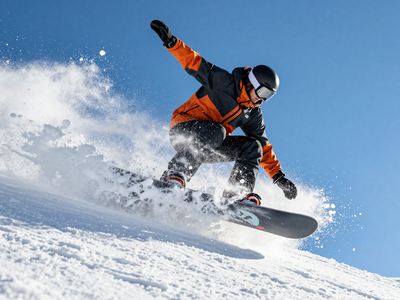
Z-Image Base for Text to Image

Create sunning images using z-image base model (non distlled).

Chroma 1 Radiance Text to Image

Chrome1 Radiance

Macro Photography

Text2Image

Chroma 1 Radiance Text to Image

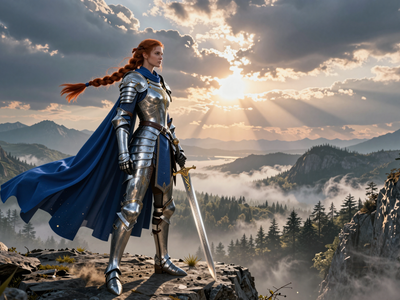
Z Image Turbo Text to Image ( Latent + Model Upscale
goshnii

goshnii

2.3k

#comfyui

goshniiai

Upscaler

Z Image Comfyui

#zimageturbo

Z Image turbo comfyui workflow

#zimageturbotutorial

Z Image workflow

Z Image Turbo Text to Image ( Latent + Model Upscale

DyPe and Z-Image Turbo for High Quality Text to Image

DyPE

Photography

Portrait

Z-Image Turbo

DyPe and Z-Image Turbo for High Quality Text to Image

Flux Dev - Text to Image w/ Optional Image Input

Flux Dev

image to image

text to image

Flux Dev - Text to Image w/ Optional Image Input

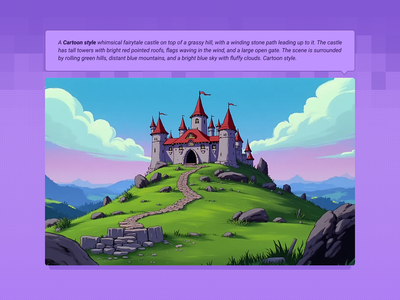
Text to Image with Multi-LoRA

Flux

LoRa

Text2Image

Create consistent images with multiple LoRA models.
Text to Image with Multi-LoRA

Create consistent images with multiple LoRA models.

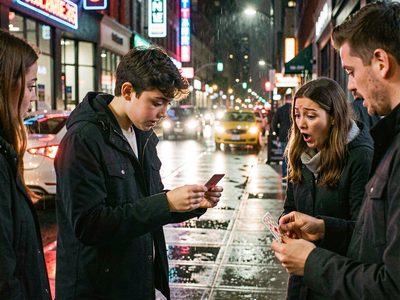
Text to Image + LoRA model

Flux

LoRa

Text2Image

Create an image from a trained AI model of something specific ( a specific figure, outfit, art style, product etc) to ensure specific details within.
Text to Image + LoRA model

Create an image from a trained AI model of something specific ( a specific figure, outfit, art style, product etc) to ensure specific details within.

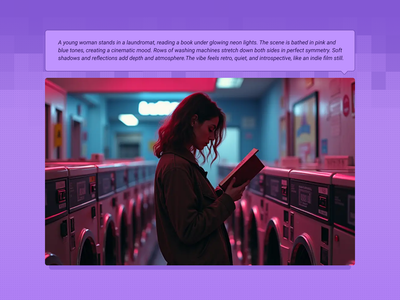
FLUX.2 Klein 9B for Text to Image

Flux

FLUX2 Klein

Photography

Text2Image

Create a high quality image using 9B model of Flux 2 Klein
FLUX.2 Klein 9B for Text to Image

Create a high quality image using 9B model of Flux 2 Klein

Flux Text to Image

Flux

Text2Image

Create original images using only text prompts, which can be simple or elaborate. Key Inputs Prompt: as descriptive a prompt as possible Width & height: Optimal resolution settings are noted
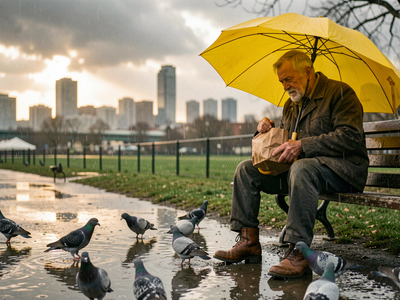
Flux Text to Image

Create original images using only text prompts, which can be simple or elaborate. Key Inputs Prompt: as descriptive a prompt as possible Width & height: Optimal resolution settings are noted

Flux 2 Klein 9b - Text to Image

Fast

Flux 2

Flux 2 Klein

Text to image

A simple text to image workflow using the Flux 2 Klein 9B model.
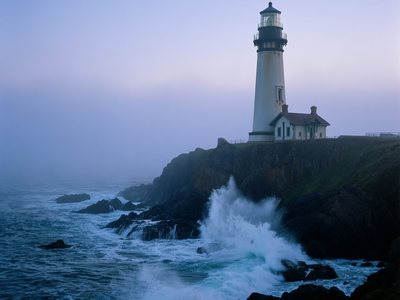
Flux 2 Klein 9b - Text to Image

A simple text to image workflow using the Flux 2 Klein 9B model.

Qwen Image 2512 Text to Image

Photography

Qwen

Qwen Image 2512

Text2Image

Qwen Image 2512 Text to Image

Capybara for Text to Image

Capybara

Text2Image

Create unique images using Capybara

Capybara for Text to Image

Create unique images using Capybara

Which open-source model is best for text-to-image?

It depends on what you need. Z-Image Turbo is the fastest option with strong photorealism and accurate text rendering. Z-Image Base is the same model without distillation, giving you more control with LoRAs and negative prompts at the cost of speed. Flux handles complex prompts and diverse styles well. Flux 2 Klein 9B is a newer, smaller Flux variant that balances quality and speed.

Z-Image Turbo generates in 8 steps. On Floyo that means near-instant results. It's the #1 ranked open-source text-to-image model on the Artificial Analysis leaderboard. Strong at photorealistic portraits, product shots, and accurate text rendering in English and Chinese. Runs on under 16GB of VRAM.

Z-Image Base is the non-distilled version. Slower (30 steps), but it supports CFG scaling and responds to negative prompts. This is the one to pick when you're fine-tuning with LoRAs or need precise control over what the model avoids. Maximum quality ceiling.

Flux is the generalist. Handles a wide range of styles, follows complex multi-subject prompts, and has a mature LoRA ecosystem. Flux Dev gives you the full model. Flux 2 Klein 9B is the newer compact variant with fast generation.

Qwen Image 2512 is a newer contender from Alibaba with strong prompt adherence and photographic quality.

Chroma 1 Radiance is tuned for macro photography and fine texture work.

Want speed? Start with Z-Image Turbo. Need LoRA support? Use Z-Image Base or Flux with a LoRA workflow. Trying a new model? Qwen and Chroma are worth experimenting with.

2. Text to Video

Describe a scene, get a video. These workflows generate motion, camera movement, lighting, and (in some cases) synchronized audio from a text prompt.
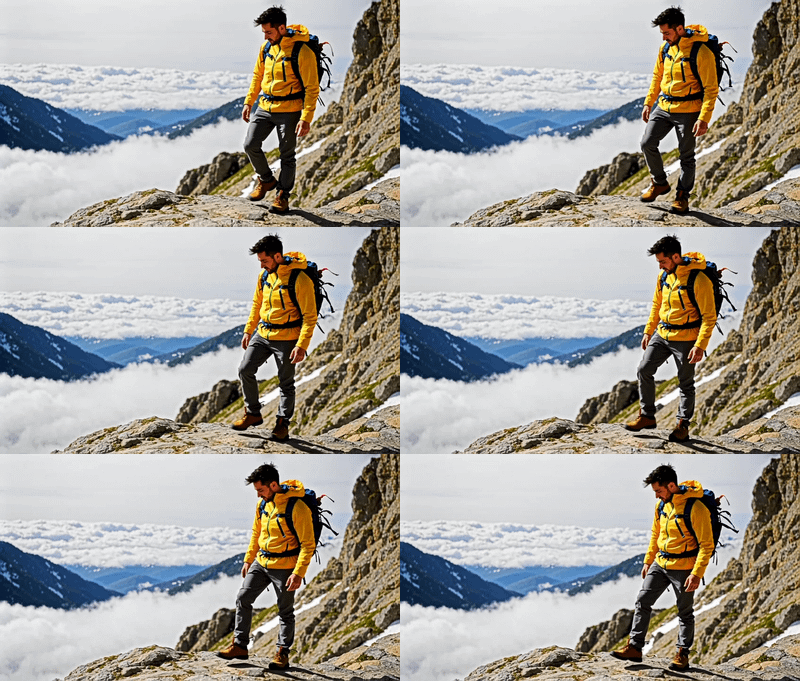
LTX 2 19B Fast for Text to Video

Filmmaking

LTX 2

LTX 2 Fast

Open Source

Text2Video

Videography

A text video model using LTX 2

LTX 2 19B Fast for Text to Video

A text video model using LTX 2

Text to Video and Wan with optional LoRA

LoRa

Text2Video

Wan2.1

Generate a high-quality video from a text prompt and add in a LoRA for extra control over character or style consistency. Key Inputs Prompt: as descriptive a prompt as possible Load LoRA: Load your reference model here Width & height: Optimal resolution settings are noted File Format: H.264 and more

Text to Video and Wan with optional LoRA

Generate a high-quality video from a text prompt and add in a LoRA for extra control over character or style consistency. Key Inputs Prompt: as descriptive a prompt as possible Load LoRA: Load your reference model here Width & height: Optimal resolution settings are noted File Format: H.264 and more

Text to Video + Hunyuan LoRA

Hunyuan

LoRa

Text2Video

Integrate a custom model with your text prompt to create a video with a consistent character, style or element. Key Inputs Prompt: as descriptive a prompt as possible. Make sure to include the trigger word from your LoRA below Load LoRA: Load your reference model here Width & height: resolution settings are noted in pixels Guidance strength (CFG): Higher numbers adhere more to the prompt Flow Shift: For temporal consistency, adjust to tweak video smoothness.
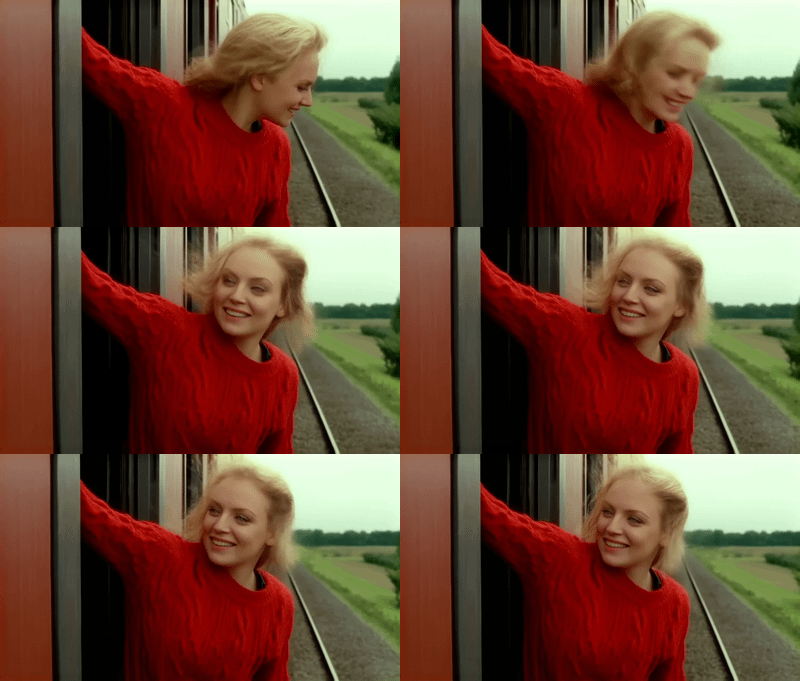
Text to Video + Hunyuan LoRA

Integrate a custom model with your text prompt to create a video with a consistent character, style or element. Key Inputs Prompt: as descriptive a prompt as possible. Make sure to include the trigger word from your LoRA below Load LoRA: Load your reference model here Width & height: resolution settings are noted in pixels Guidance strength (CFG): Higher numbers adhere more to the prompt Flow Shift: For temporal consistency, adjust to tweak video smoothness.

LTX 2 19B Pro for Text to Video

Flimography

LTX 2 Pro

Open Source

Text2Video

Videography

An open source LTX 2 Pro for Text to Video
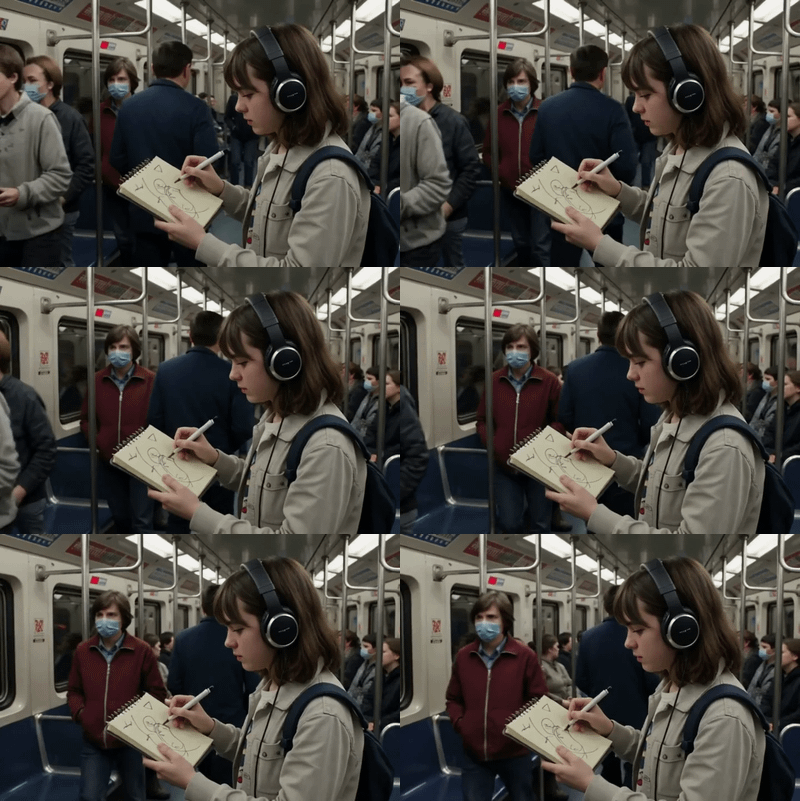
LTX 2 19B Pro for Text to Video

An open source LTX 2 Pro for Text to Video

Kandinsky for Text to Video

Filmmaking

Kandinsky

Text2Video

Videography

Creating excellent videos using Kandinsky

Kandinsky for Text to Video

Creating excellent videos using Kandinsky

How do you generate video from text with open-source models?

Write a detailed prompt describing the subject, action, environment, camera movement, and lighting. The more specific you are, the better the output. LTX models generate synchronized audio alongside the video. Wan models handle complex motion and longer durations. Hunyuan works well with LoRAs for character and style consistency.

Your prompt Think in shots, not keywords. "A chef enters a busy kitchen, camera tracks from behind as steam rises from copper pots, warm tungsten lighting, ambient kitchen noise" gives the model a scene to build. "Chef in kitchen" gives it almost nothing.

Want camera control? Use terms like "dolly-in," "tracking shot," "over-the-shoulder," "low angle." These models understand professional camera language.

Model choice LTX is covered on its own collection page. For this page, the key players are Wan (2.1, 2.2, 2.6) and Hunyuan.

Wan excels at complex motion and comes in multiple sizes. Wan 2.6 is the latest, with multi-shot storytelling and audio sync. Wan 2.1 and 2.2 are mature, well-tested, and have strong LoRA support.

Hunyuan works well when paired with LoRAs for character consistency. If you have a trained LoRA of a specific person, product, or style, Hunyuan + LoRA is a strong combo for keeping that look consistent across video clips.

Kandinsky is an alternative model for text-to-video generation with a different visual style.

3. Image to Image

Upload an image, change it. These workflows cover face swaps, inpainting, outpainting, style transfer, upscaling, controlnet-guided generation, and image editing with text instructions.
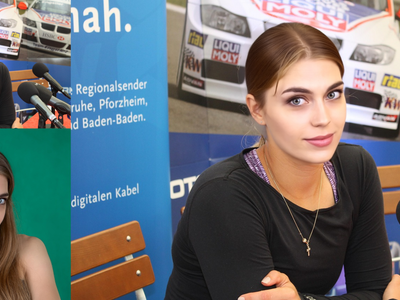
Qwen Image Edit 2509 Face Swap and Inpainting

Face Swap

Image2Image

Inpainting

Qwen

Qwen Image Edit 2509

Face Swap and Inpainting

Qwen Image Edit 2509 Face Swap and Inpainting

Face Swap and Inpainting

Z-Image Turbo Controlnet 2.1 Image to Image

Controlnet

Image2Image

Photography

Portrait

Z-Image-Turbo

Image to Image

Z-Image Turbo Controlnet 2.1 Image to Image

Image to Image

Multi-Angle LoRA and Qwen Image Edit 2509: Unlocking Dynamic Camera Control for Your Images

Image2Image

Multiple Angles

Qwen

Qwen Image Edit 2509

Multi-Angle LoRA and Qwen Image Edit 2509: Unlocking Dynamic Camera Control for Your Images

FLUX.2 Klein 9B for Image Editing

Flux

Flux.2 Klein

Image2image

Unified workflow: one model for text‑to‑image, image‑to‑image, and image editing
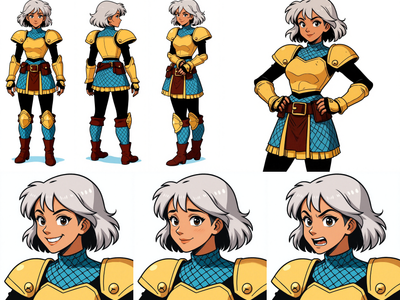
FLUX.2 Klein 9B for Image Editing

Unified workflow: one model for text‑to‑image, image‑to‑image, and image editing

Image to Character Sheet with Kontext

Character Sheet

Flux

Image to Image

Kontext

Create a character sheet with multiple poses and expressions from a single image!

Image to Character Sheet with Kontext

Create a character sheet with multiple poses and expressions from a single image!
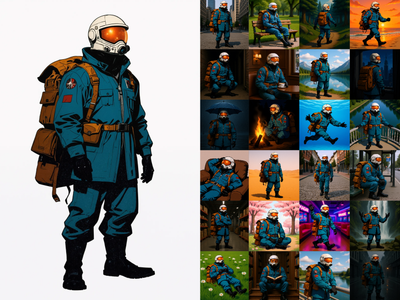
Flux Kontext - Single Image to Character LoRA

Dataset

Flux

Kontext

LoRa

Training

Generate a 60-Image LoRA Dataset from a Single Character Image

Flux Kontext - Single Image to Character LoRA

Generate a 60-Image LoRA Dataset from a Single Character Image
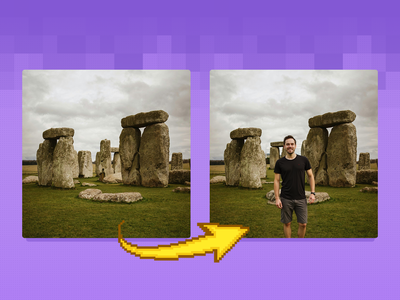
Image Inpainting with LoRA

Image

Inpaint

LoRa

Change specific details on just a portion of the image for inpainting or Erase & Replace, adding a LoRA for extra control.
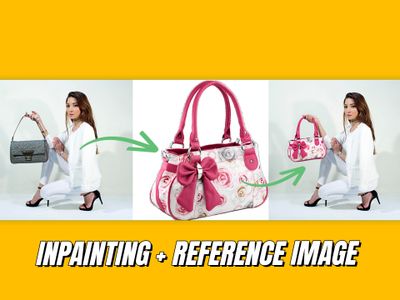
Image Inpainting with LoRA

Change specific details on just a portion of the image for inpainting or Erase & Replace, adding a LoRA for extra control.

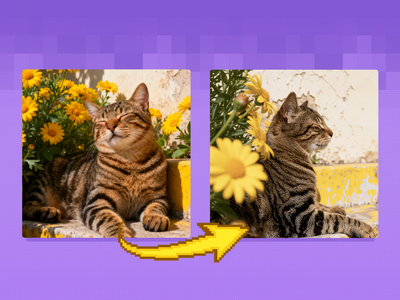
Inpainting with reference image
flux

flux kontext

inpaint

inpainting

kontext

Inpainting with reference image

Multiple Angle LoRA and Qwen Image Edit 2509 for Dynamic Camera View

Camera Control

Image2Image

LoRA

Qwen

Qwen Image Edit 2509

Multiple Angle LoRA and Qwen Image Edit 2509 for Dynamic Camera View

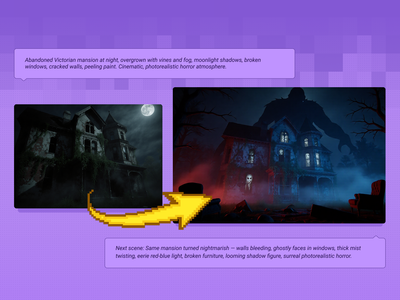
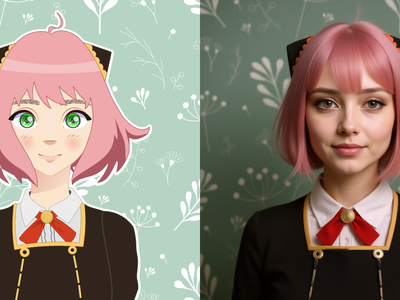
 Qwen Image Edit 2509 + Flux Krea for Creating Next Scene
Filmography

Flux

Flux Krea

Photography

Qwen

Qwen Image Edit 2509

Qwen Image Edit 2509 + Flux Krea for Creating Next Scene

Qwen Image Edit - Edit Image Easily

Image2Image

Qwen

Qwen Image Edit

Qwen Image Edit - Edit Image Easily

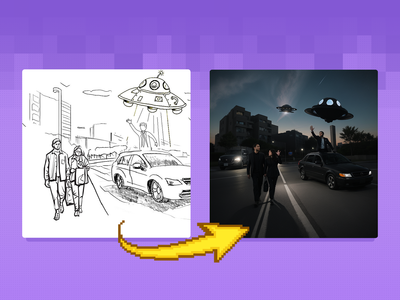
Sketch to Image

Controlnet

SD1.5

Turn your sketches into full blown scenes. Key Inputs Image reference: Use any JPG or PNG showing your subject clearly Prompt: as descriptive a prompt as possible Width & height: In pixels ControlNet Strength: The amount of adherence to the original image. Higher has more adherence. Start Percent: The point in the generation process where the control starts exerting influence. (Have it start later, to let AI imagine first.) End Percent: The point in the generation process where the control stops exerting influence. (Have it end sooner, to let AI finish it off with some variation.)
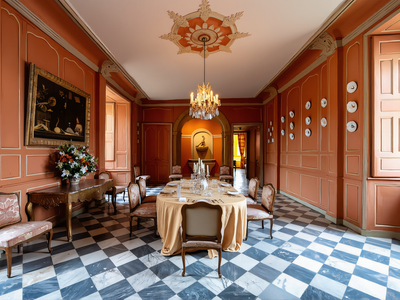
Sketch to Image

Turn your sketches into full blown scenes. Key Inputs Image reference: Use any JPG or PNG showing your subject clearly Prompt: as descriptive a prompt as possible Width & height: In pixels ControlNet Strength: The amount of adherence to the original image. Higher has more adherence. Start Percent: The point in the generation process where the control starts exerting influence. (Have it start later, to let AI imagine first.) End Percent: The point in the generation process where the control stops exerting influence. (Have it end sooner, to let AI finish it off with some variation.)

Flux Image Upscaler with UltimateSD

Flux

Image

UltimateSD

Upscale

A simple workflow to enlarge & add detail to an existing image. Key Inputs Image: Use any JPG or PNG Upscale by: The factor of magnification Denoise: The amount of variance in the new image. Higher has more variance.

Flux Image Upscaler with UltimateSD

A simple workflow to enlarge & add detail to an existing image. Key Inputs Image: Use any JPG or PNG Upscale by: The factor of magnification Denoise: The amount of variance in the new image. Higher has more variance.

Image Upscaler with LoRA

Flux

Image

LoRa

Upscale

Create a larger more detailed image along with an extra AI model for fine tuned guidance. Key Inputs Load Image: Use any JPG or PNG showing your subject clearly Load LoRA: Load your reference model here Prompt: as descriptive a prompt as possible Upscale by: The factor of magnification Denoise: The amount of variance in the new image. Higher has more variance.

Image Upscaler with LoRA

Create a larger more detailed image along with an extra AI model for fine tuned guidance. Key Inputs Load Image: Use any JPG or PNG showing your subject clearly Load LoRA: Load your reference model here Prompt: as descriptive a prompt as possible Upscale by: The factor of magnification Denoise: The amount of variance in the new image. Higher has more variance.

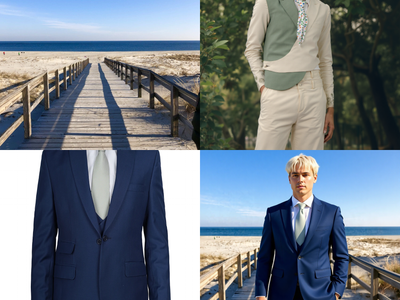
Flux Kontext Multi-Image Reference

Flux

Kontext

Combine up to 3 reference images into one with Flux Kontext Key Inputs Load Image (3x): Load 3 different reference images. Prompt: Describe how to combine these images, see default value for example.
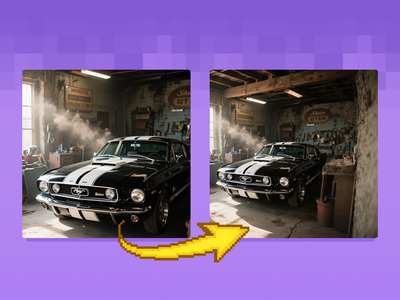
Flux Kontext Multi-Image Reference

Combine up to 3 reference images into one with Flux Kontext Key Inputs Load Image (3x): Load 3 different reference images. Prompt: Describe how to combine these images, see default value for example.

Flux Fill Dev Image Outpainting

Flux

Image

Outpaint

Extend your images out for a wider field of view or just to see more of your subject. Expand compositions, change aspect ratios, or add creative elements while maintaining consistency in style, lighting, and detail while seamlessly blending with the existing artwork. Enhance visuals, create immersive scenes, and repurpose images for different formats without losing their original essence. Key Inputs Image reference: Use any JPG or PNG showing your subject clearly Prompt: as descriptive a prompt as possible to describe the area you want to extend out to Left, Right, Top, Bottom: Amount of extension in pixels Feathering: Amount of radius around the original image in pixels that the AI generated outpainting will blend with the original
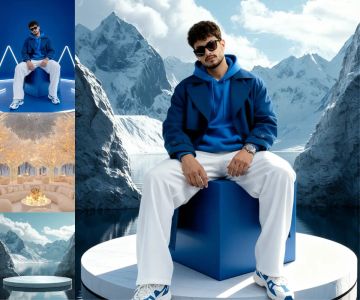
Flux Fill Dev Image Outpainting

Extend your images out for a wider field of view or just to see more of your subject. Expand compositions, change aspect ratios, or add creative elements while maintaining consistency in style, lighting, and detail while seamlessly blending with the existing artwork. Enhance visuals, create immersive scenes, and repurpose images for different formats without losing their original essence. Key Inputs Image reference: Use any JPG or PNG showing your subject clearly Prompt: as descriptive a prompt as possible to describe the area you want to extend out to Left, Right, Top, Bottom: Amount of extension in pixels Feathering: Amount of radius around the original image in pixels that the AI generated outpainting will blend with the original

Create Images Using Qwen Image Edit 2511

Image to Image

Qwen2511

Reference Image

Qwen Image edit 2511

Create Images Using Qwen Image Edit 2511

Qwen Image edit 2511

Qwen 2511 Edit - Single Image to Character Dataset

Character Dataset

Prompt List

Qwen 2511

Create a 60 image character dataset from one character image or sheet.

Qwen 2511 Edit - Single Image to Character Dataset

Create a 60 image character dataset from one character image or sheet.
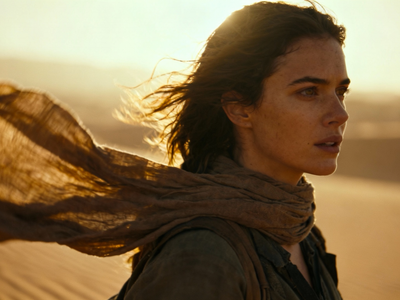
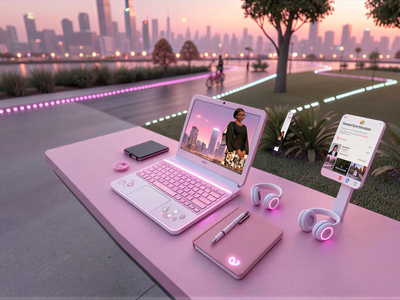
FlatLogColor LoRA and Qwen Image Edit 2509
FlatLogColor

LoRA

Photography

Qwen

Qwen Image Edit 2509

FlatLogColor LoRA and Qwen Image Edit 2509

Flux.2 Klein Image Expansion / Outpaint

Flux

Image to Image

Klein

Outpaint

Flux.2 Klein Image Expansion / Outpaint

How do you edit images with AI?

Upload your image and describe the change you want. For targeted edits (face swap, object replacement), use an inpainting workflow with a mask. For full-image style changes or structural edits, use an image-to-image workflow with a prompt. For expanding the frame, use outpainting. For making images larger and sharper, use an upscaler.

Qwen Image Edit is the strongest all-around editor on this page. It handles face swaps, inpainting, text-guided edits, and multi-angle camera control. The 2511 version is the latest. The 2509 version is well-tested with more workflows built around it.

Z-Image Turbo Controlnet keeps the structure of your input image (pose, edges, depth) and regenerates the visual style around it. Want to turn a photo into concept art while keeping the exact pose? This is the workflow.

Flux Klein 9B for Image Editing is a unified workflow that handles text-to-image, image-to-image, and image editing in one model. Good if you want one workflow for multiple tasks.

Flux Kontext is built for character consistency. Upload a reference image, and it generates new views, poses, or scenes of the same character. The multi-image variant takes up to 3 references for combining elements.

Upscaling makes images bigger and sharper. Two options here: the UltimateSD upscaler (no LoRA needed, straightforward) and the LoRA upscaler (adds fine-tuned detail guidance during the upscale).

4. Image to Video

Upload a still image and animate it. These workflows turn photos, concept art, storyboard frames, and portraits into video clips with motion, camera movement, and in some cases audio and lip sync.

Wan2.2 14b - Image to Video w/ Optional Last Frame

Animation

Filmmaking

First and last frame

Game Development

Image to Video

Wan2.2

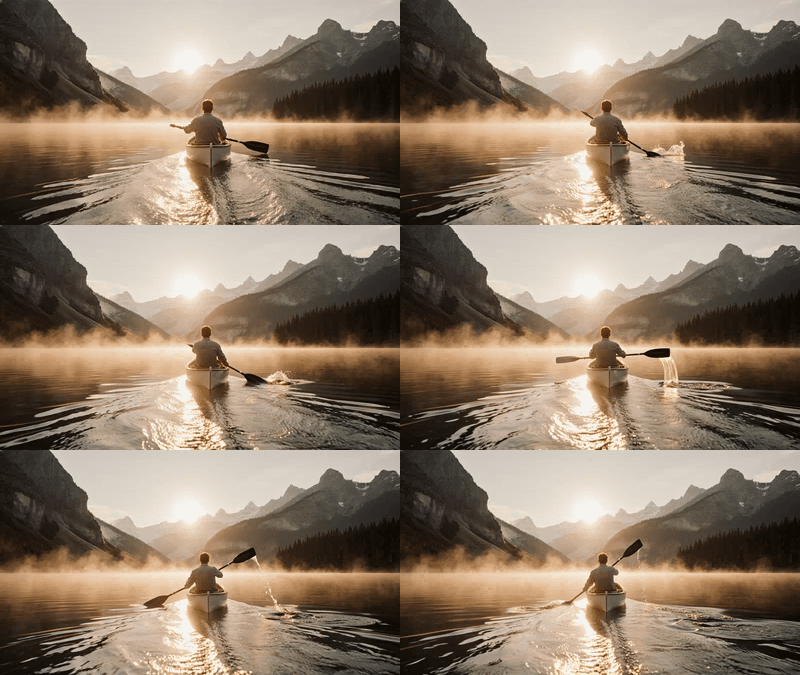
Generate high quality video from a start frame, as well as an optional end frame with this Wan2.2 14b Image to Video workflow!
Wan2.2 14b - Image to Video w/ Optional Last Frame

Generate high quality video from a start frame, as well as an optional end frame with this Wan2.2 14b Image to Video workflow!

Wan2.1 FusionX Image2Video

Image to Video

Wan

Created by @vrgamedevgirl on Civitai, please support the original creator!

Wan2.1 FusionX Image2Video

Created by @vrgamedevgirl on Civitai, please support the original creator!

Wan2.1 FusionX and MultiTalk - Image to Video

Animation

Filmmaking

Image to Video

Lipsync

Marketing

Multitalk

Wan2.1

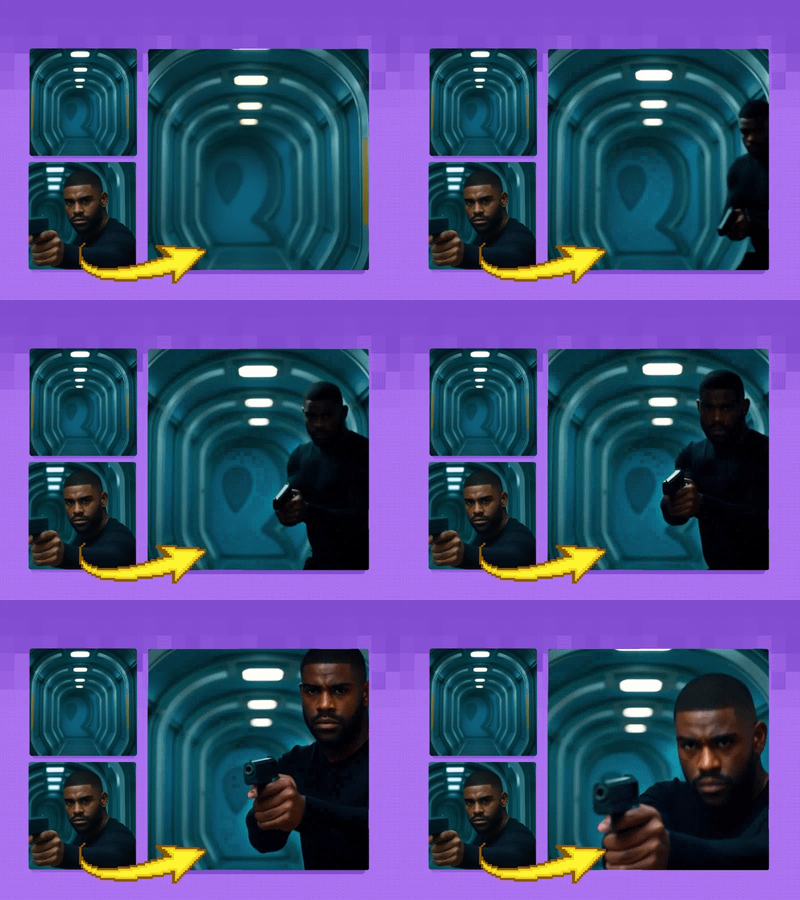
Turn any portrait - artwork, photos, or digital characters - into speaking, expressive videos that sync perfectly with audio input. MultiTalk handles lip movements, facial expressions, and body motion automatically.
Wan2.1 FusionX and MultiTalk - Image to Video

Turn any portrait - artwork, photos, or digital characters - into speaking, expressive videos that sync perfectly with audio input. MultiTalk handles lip movements, facial expressions, and body motion automatically.

Wan2.1 Start & End Frame Image to Video

Image2Video

Start and end frame

Wan2.1

Used for image to video generation, defined by the first frame and end frame images.

Wan2.1 Start & End Frame Image to Video

Used for image to video generation, defined by the first frame and end frame images.

Image to Video with Wan

[Video]

Turn still images into amazing videos with just prompts, using the SOTA Wan video model.

Image to Video with Wan

Turn still images into amazing videos with just prompts, using the SOTA Wan video model.

LoRA Training Video with Hunyuan

API

Hunyuan

LORA Training

Hunyuan is great at generating videos, but locking in a specific aesthetic or character is easier with a  LoRA. Here's how to create your own. Quick start recipe Upload a Zip file of curated images + captions. Enable is_style and include a unique trigger phrase. Compare checkpoints with a range of steps to find the sweet spot. Training overview This workflow trains a Hunyuan LoRa using the Fal.ai API. Since it's not training in ComfyUI directly, you can run this workflow on a Quick machine. Processing takes 5-10 minutes with the default settings. Open the ComfyUI directory and navigate to the ../input/ folder, from there you will create a new folder and upload your image data set there. If you create a new folder named "Test", the path should look like: ../user_data/comfyui/input/Test The default settings work very well – if you would like to add a trigger word for your LoRa, you can do that in the Trigger Word field. Once finished, a new URL will appear in your Preview Text node. Copy the URL and paste the path directly to your ../comfyui/models/LoRA/ by using the Upload by URL feature in the file browser. Prepping your dataset Fewer, ultra‑high‑res (≈1024×1024+) images beat many low‑quality ones. Every image must clearly represent the style or individual and be artifact‑free. For people, aim for at least 10-20 images in different background (5 headshots, 5 wholebody, 5 halfbody, 5 in other scene) Captioning Give the style a unique trigger phrase (so as not be confused with a regular word or term). For better prompt control, add custom captions that describe content only—leave style cues to the trigger phrase. Create accompanying .txt files with the same name as the image its describing. If you do add custom captions, be sure to turn on is_style to skip auto‑captioning. It is set to off by default. Training steps The default is set to around 2000, but you can train multiple checkpoints (e.g., 500, 1000, 1500, 2000) and pick the one that balances style fidelity with prompt responsiveness. Too few steps: the character becomes less realistic or the style fades. Too many steps: model overfits and stops obeying prompts. Output Path Will be a URL in the Preview Text Node. Copy the URL and paste the path directly to your ../comfyui/models/LoRA/ by using the Upload by URL feature in the file browser.

LoRA Training Video with Hunyuan

Hunyuan is great at generating videos, but locking in a specific aesthetic or character is easier with a  LoRA. Here's how to create your own. Quick start recipe Upload a Zip file of curated images + captions. Enable is_style and include a unique trigger phrase. Compare checkpoints with a range of steps to find the sweet spot. Training overview This workflow trains a Hunyuan LoRa using the Fal.ai API. Since it's not training in ComfyUI directly, you can run this workflow on a Quick machine. Processing takes 5-10 minutes with the default settings. Open the ComfyUI directory and navigate to the ../input/ folder, from there you will create a new folder and upload your image data set there. If you create a new folder named "Test", the path should look like: ../user_data/comfyui/input/Test The default settings work very well – if you would like to add a trigger word for your LoRa, you can do that in the Trigger Word field. Once finished, a new URL will appear in your Preview Text node. Copy the URL and paste the path directly to your ../comfyui/models/LoRA/ by using the Upload by URL feature in the file browser. Prepping your dataset Fewer, ultra‑high‑res (≈1024×1024+) images beat many low‑quality ones. Every image must clearly represent the style or individual and be artifact‑free. For people, aim for at least 10-20 images in different background (5 headshots, 5 wholebody, 5 halfbody, 5 in other scene) Captioning Give the style a unique trigger phrase (so as not be confused with a regular word or term). For better prompt control, add custom captions that describe content only—leave style cues to the trigger phrase. Create accompanying .txt files with the same name as the image its describing. If you do add custom captions, be sure to turn on is_style to skip auto‑captioning. It is set to off by default. Training steps The default is set to around 2000, but you can train multiple checkpoints (e.g., 500, 1000, 1500, 2000) and pick the one that balances style fidelity with prompt responsiveness. Too few steps: the character becomes less realistic or the style fades. Too many steps: model overfits and stops obeying prompts. Output Path Will be a URL in the Preview Text Node. Copy the URL and paste the path directly to your ../comfyui/models/LoRA/ by using the Upload by URL feature in the file browser.

Wan2.1 VACE & Ditto: Artistic Makeovers for Video

Ditto

VACE

Video2Video

Wan

DSd

Wan2.1 VACE & Ditto: Artistic Makeovers for Video

DSd

Segment Anything 2 for Creating Video Mask

SAM2

Segment Anything 2

video2video

Video Mask

Create a video mark frame by frame using Segment Anything 2

Segment Anything 2 for Creating Video Mask

Create a video mark frame by frame using Segment Anything 2

One-Video Sprite Sheet Pipeline
ashree

ashree

113

Image to Video

Nanobanana

Sprite-Sheet

Crate video sprite sheet character

One-Video Sprite Sheet Pipeline

Crate video sprite sheet character

Wan2.1 and FantasyTalking - Image2Video Lipsync

FantasyTalking

Image2Video

Lipsync

Wan2.1

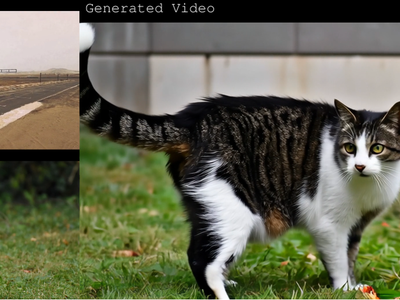
Create high quality lipsync video from image inputs with Wan2.1 FantasyTalking Key Inputs Load Image: Select an image of a person with their face in clear view Load Audio: Choose audio file Frames: How many frames generated
Wan2.1 and FantasyTalking - Image2Video Lipsync

Create high quality lipsync video from image inputs with Wan2.1 FantasyTalking Key Inputs Load Image: Select an image of a person with their face in clear view Load Audio: Choose audio file Frames: How many frames generated

Wan2.1 Uni3C Image to Video
clem

clem

753

Image to Video

Uni3C

Wan

Wan2.1 Uni3C Image to Video

InfiniteTalk | Image to Video: Unlimited Talking Avatar with Lip-sync
mdmz

mdmz

1.4k

ai avatar

image to video

infinite talk

Infinitetalk

lip-sync

InfiniteTalk | Image to Video: Unlimited Talking Avatar with Lip-sync

How do you turn an image into a video with AI?

Upload your image and write a prompt describing the motion you want. Don't describe what's already visible. Describe what moves, how the camera behaves, and what sounds emerge. Wan 2.2 is the most popular model here, with strong motion quality and optional start/end frame control. For lip sync and talking portraits, pair Wan with MultiTalk or FantasyTalking.

Your image Works with any still: photos, illustrations, product shots, character art, storyboard frames. The model reads composition, lighting, and style from your image and keeps the output visually consistent.

Your prompt Focus on change. If your image shows a street scene, don't write "a city street at night." Write "camera pans slowly right, headlights sweep across wet pavement, distant sirens."

Start and end frames Some Wan workflows accept both a first frame and a last frame. The model generates the motion between them. This gives you precise control over where the clip starts and where it ends.

Lip sync MultiTalk and FantasyTalking add lip movement, facial expressions, and body motion from audio input. Upload a portrait and an audio clip, and the model animates the face to match the speech.

5. Video to Video

Upload existing footage and transform it. Change the style, adjust the camera angle, extend the frame, reframe the aspect ratio, or apply a reference image as a visual style guide. The original motion carries through.

Wan2.1 and VACE for Video to Video Outpainting

Outpainting

Video to Video

Wan

Wan VACE video outpainting invites you to break free from the limits of the frame and explore endless creative possibilities.

Wan2.1 and VACE for Video to Video Outpainting

Wan VACE video outpainting invites you to break free from the limits of the frame and explore endless creative possibilities.

Video to Video with Control Image

AnimateDiff

Control Image

HotshotXL

SDXL

Video2Video

Breathe life into a character from an image reference using motion reference from a video. Key Inputs Image reference: Use any JPG or PNG showing your subject clearly and the style of your shot Load Video: Use any Mp4 that you would like to use for motion reference
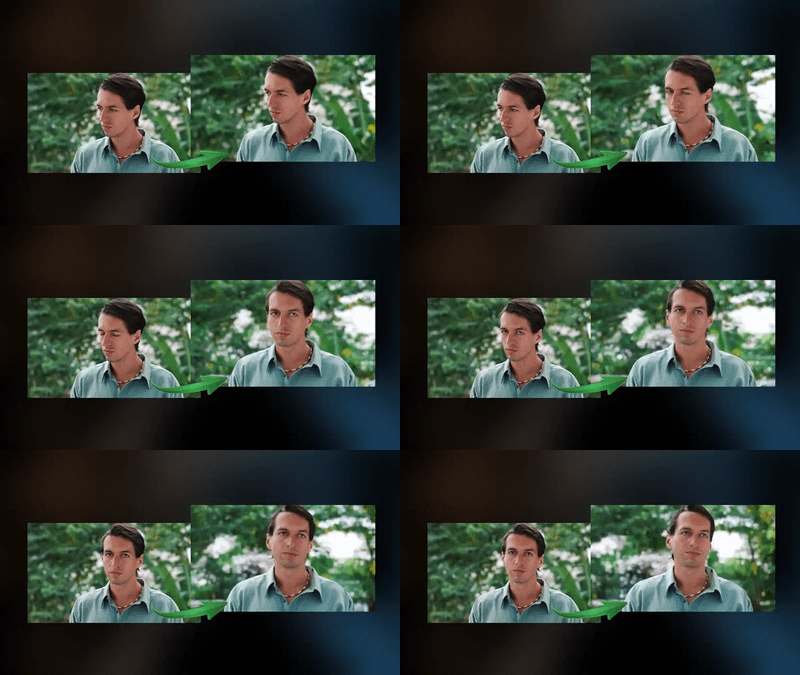
Video to Video with Control Image

Breathe life into a character from an image reference using motion reference from a video. Key Inputs Image reference: Use any JPG or PNG showing your subject clearly and the style of your shot Load Video: Use any Mp4 that you would like to use for motion reference

Video to Video with Camera Control with Wan

[Video]

Adjust the camera angle of an existing video, like magic.

Video to Video with Camera Control with Wan

Adjust the camera angle of an existing video, like magic.

Wan2 Video to Video

style transfer

v2v

video

Upload a video and the edited first frame
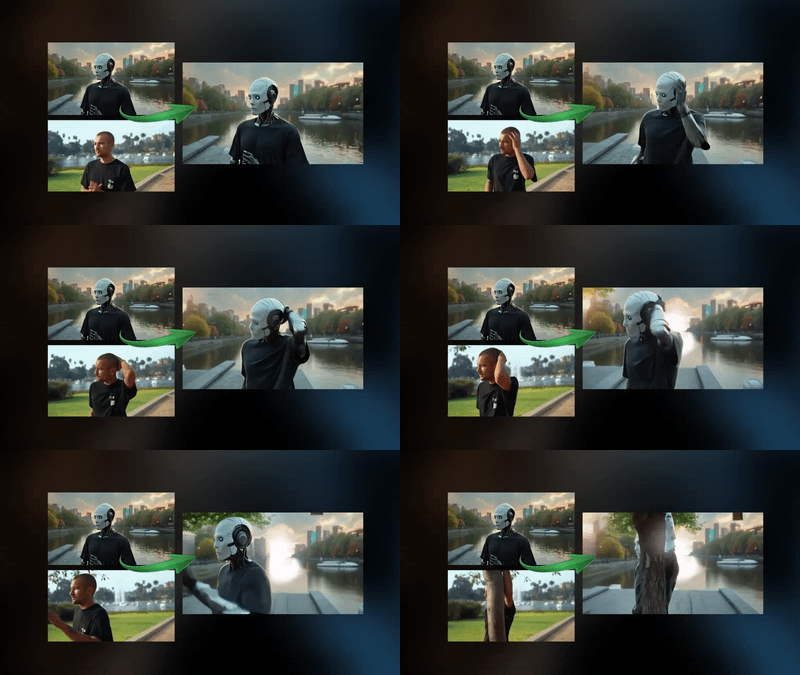
Wan2 Video to Video

Upload a video and the edited first frame

Video to Video Restyle with Wan

[Video]

Create a new video by restyling an existing video with a reference image.

Video to Video Restyle with Wan

Create a new video by restyling an existing video with a reference image.
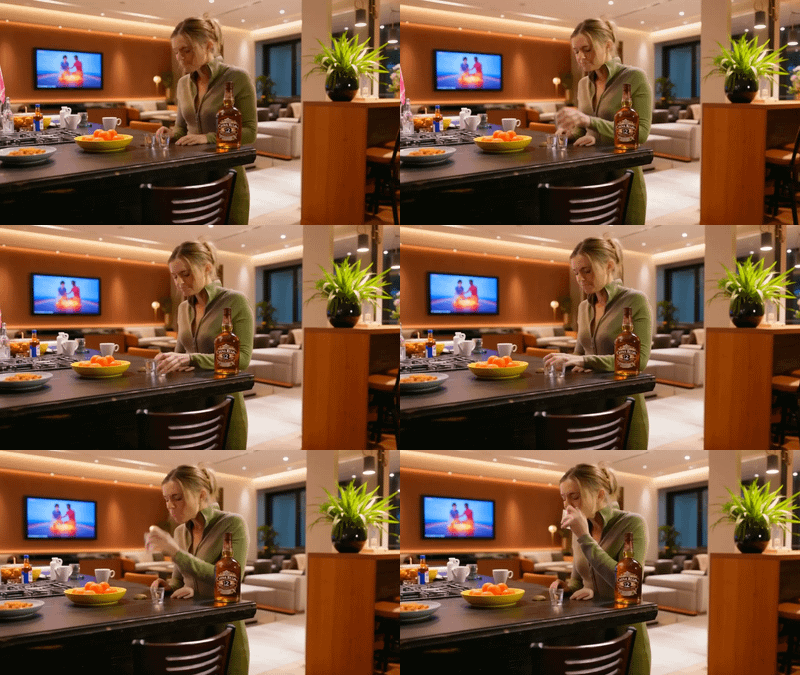
Vertical to Horizontal Video Reframe
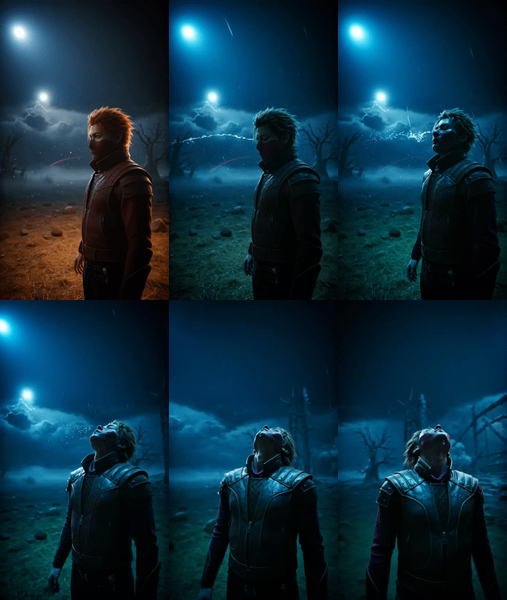
Video to Video

Wan2.1

Vertical to Horizontal Video Reframe

Horizontal to Vertical Video Reframe

Video to Video

Wan2.1

Horizontal to Vertical Video Reframe

How do you restyle or reframe a video with AI?

Upload your source video and describe the target output. For style changes, write a prompt describing the new look and set the denoise strength. For camera angle adjustments, use a camera control workflow. For aspect ratio conversion, use a reframing workflow. Lower denoise keeps more of your original footage. Higher denoise gives the model more creative freedom.

Style transfer Upload a video and a reference image showing the target style. The model redraws every frame to match the reference while keeping your original motion intact. Works for turning footage into animation, changing color grading, or applying an artistic look.

Camera control The Wan camera control workflow lets you adjust the viewing angle of existing footage. This is post-production camera work on footage that's already been shot.

Outpainting Wan VACE extends your video frame beyond its borders. The model fills in the new area while keeping the original content and motion intact. Useful for aspect ratio conversion or revealing more of a scene.

Aspect ratio reframing Two purpose-built workflows convert between vertical and horizontal video. The model fills in the missing frame area instead of cropping.

What are open-source AI workflows good for?

Open-source models give you the same core capabilities as closed systems without per-image or per-video costs once you're running them. They support LoRA fine-tuning for custom characters, products, and styles. On Floyo, you get all of this without installing anything.

Character and brand consistency. Train a LoRA on your character or product, then use it across text-to-image, image-to-image, and video workflows. The same trained model works in Z-Image, Flux, Wan, and Hunyuan pipelines.

Product photography. Z-Image Turbo generates product shots fast enough to iterate on lighting, angle, and background in minutes. Pair it with an upscaler for print-ready resolution.

Video pre-production. Generate storyboard animations with Wan I2V. Test camera angles with the camera control workflow. Build animatics from concept art before committing to production.

Content creation at scale. Text-to-image for social media visuals. Image-to-video for animated posts. Video-to-video for restyling existing footage to match a campaign look.

Honest limitations. Character consistency across long video clips can drift. Readable text in generated video doesn't work. Multi-person scenes with complex interactions produce artifacts. Fine detail in hands and fingers is better than it was a year ago but still imperfect.

FAQ

What is the best open-source model for text-to-image? Z-Image Turbo is the top-ranked open-source model on the Artificial Analysis leaderboard as of early 2026. It generates in 8 steps with strong photorealism and bilingual text rendering. Flux is the best generalist with broad style range and a large LoRA ecosystem. Your choice depends on whether you need speed and photorealism (Z-Image) or style flexibility (Flux).

What is the best open-source model for AI video generation? Wan 2.2 is the most popular on Floyo for image-to-video work. LTX 2.3 generates synchronized audio and video in one pass. Wan 2.6 adds multi-shot storytelling and reference-to-video. For video with character LoRAs, Hunyuan has the best support. Each model has a different strength.

Can I use LoRAs with these workflows? Yes. Multiple workflows support LoRA loading for characters, styles, and products. Flux, Z-Image Base, Wan, and Hunyuan all have LoRA-compatible workflows. Some workflows support stacking multiple LoRAs at once.

What is the difference between Z-Image Turbo and Z-Image Base? Turbo is the distilled version. It generates in 8 steps, runs on under 16GB VRAM, and is optimized for speed. Base is the full model. It takes 30 steps, supports CFG scaling and negative prompts, and produces the highest quality ceiling. Use Turbo for production speed. Use Base for fine-tuning and maximum control.

How do I add lip sync to an AI-generated video? Use a lip sync workflow like MultiTalk, FantasyTalking, or InfiniteTalk. Upload a portrait image and an audio clip. The model generates video with lip movement, facial expressions, and body motion matched to the audio. InfiniteTalk supports unlimited-length output.

How do I run open-source AI workflows online? You can run these workflows online through Floyo. No installation, no setup. Open any workflow in your browser, upload your inputs, and hit run. Free to try.

Table of Contents