


1. THE LATEST
Hot off the model press from Blackforest Labs!
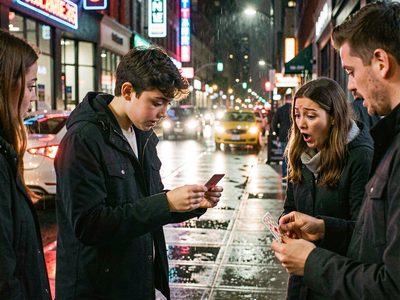

FLUX.2 Klein 9B: Text to Image
Create a high quality image using 9B model of Flux 2 Klein

FLUX.2 Klein 9B: Edit Images by Prompt
Unified workflow: one model for text‑to‑image, image‑to‑image, and image editing
_1786516256661.png?width=400&height=300&quality=80&resize=cover)
FLUX.2 Klein 9B: Image Inpainting
Inpainting image using Flux.2 Klein and LanPaint
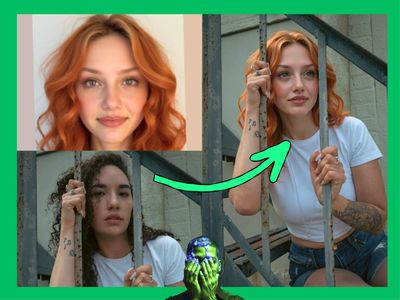

Flux 2 Klein 9b - Perfect Face swap
Instead of using outdated or unstable techniques, this workflow was designed to take full advantage of FLUX 2 KLEIN's editing capabilities—using a face image and a reference character image to produce clean, highly consistent results.
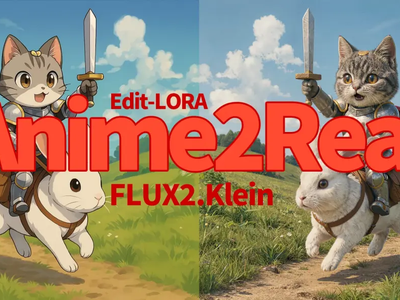

A2R for Klein
A2R Klein
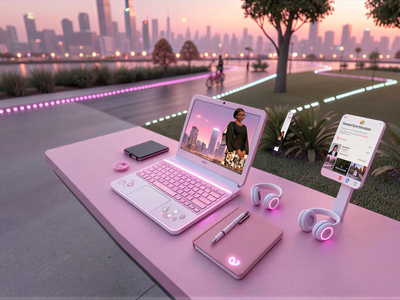
Flux.2 Klein Image Expansion / Outpaint
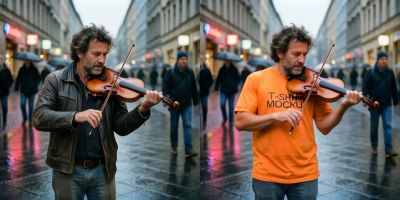
FLUX.2 Klein 4B · Swap Clothes
Swap clothes on any person using FLUX.2 Klein 4B and LanPaint. Upload a person and a garment photo, describe the swap, and hit run. Apache 2.0 open weights.
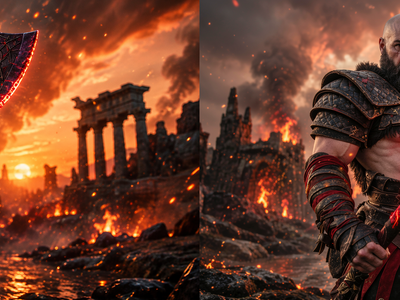
FLUX.2 Klein 9B: Realistic Photo Enhancer
Create realistic image but in an enhanced details using FLUX.2 Klein 9B and with LoRA
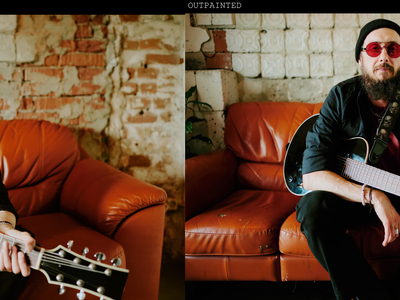
FLUX.2 Klein 4B for Image Outpainting
Outpaint image using Flux 2 Klein 4B using LanPaint and Outpaint LoRA
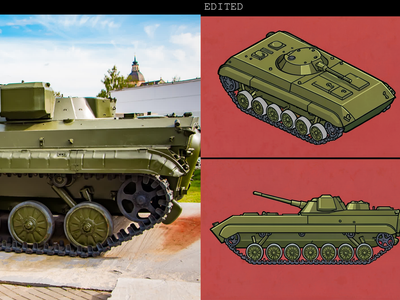
FLUX.2 Klein 4B for Text to Sprite Sheet
Create sprite sheet for game characters in using flux 2 Klein 4B
_1786522681696.png?width=400&height=300&quality=80&resize=cover)
FLUX.2 Klein 9B · Image to Image
Edit images with consistency of the subject or things using Flux.2 Klein 9B and a LoRA
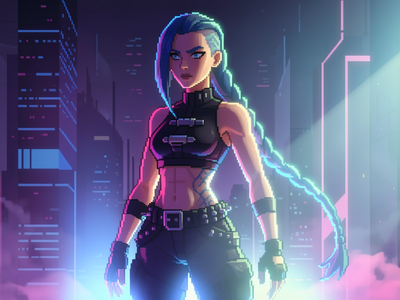
Flux. 2 Klein INPAINT Segment Edit Accurate Image
_1773328638189.png?width=400&height=300&quality=80&resize=cover)

Flux 2 Klein 9B - One Image Edit
Image Editor
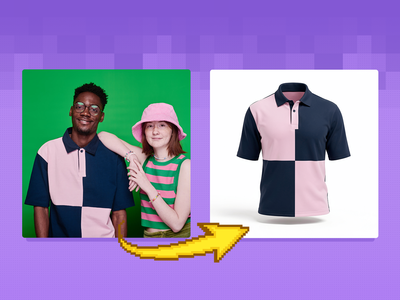
FLUX.2 Klein 9B + SAM3 + GhostMannequin LoRA
Create a ghost mannequin clothes using flux.2 klein, SAM3 and Ghost mannequin LoRA
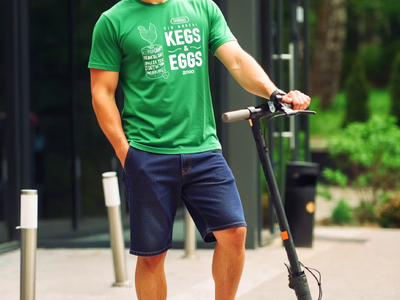
FLUX.2 Klein 9B + Virtual Tryon LoRA
Try a clothes using Flux.2 Klein 9B and tryon LoRA from
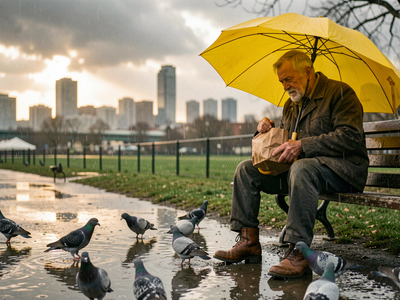
Flux 2 Klein 9b - Text to Image
A simple text to image workflow using the Flux 2 Klein 9B model.
2. CORE FUNCTIONALITY
Workflows based on core capabilities.
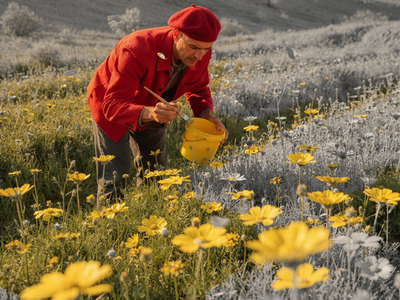
FLUX.2 Dev · Text to Image
Generate photorealistic images with FLUX.2 Dev, the 32B open-weight model from Black Forest Labs. Write a prompt, add optional references, and hit run.
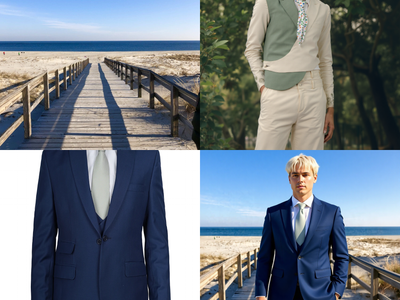

Flux Kontext Multi-Image Reference
Combine up to 3 reference images into one with Flux Kontext Key Inputs Load Image (3x): Load 3 different reference images. Prompt: Describe how to combine these images, see default value for example.
_1756358901929.png?width=400&height=300&quality=80&resize=cover)
FLUX.1 Dev · Text to Image With Image Input
Generate images from text with FLUX.1 Dev, the 12B open-weight model from Black Forest Labs. Enable the image input to edit from a picture. Write a prompt, run.
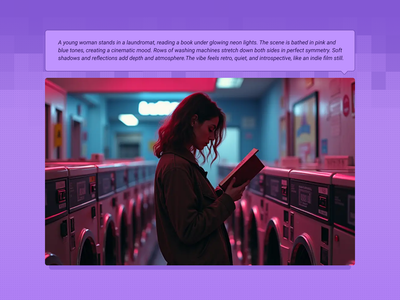
Flux Text to Image
Create original images using only text prompts, which can be simple or elaborate. Key Inputs Prompt: as descriptive a prompt as possible Width & height: Optimal resolution settings are noted
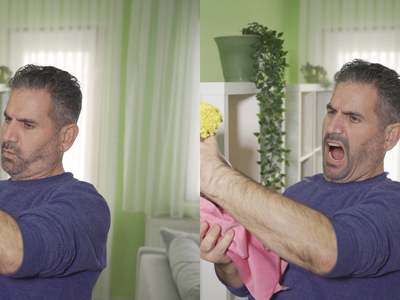
Flux Kontext Inpainting
Inpaint with the power of Flux Kontext, providing additional content-awareness.
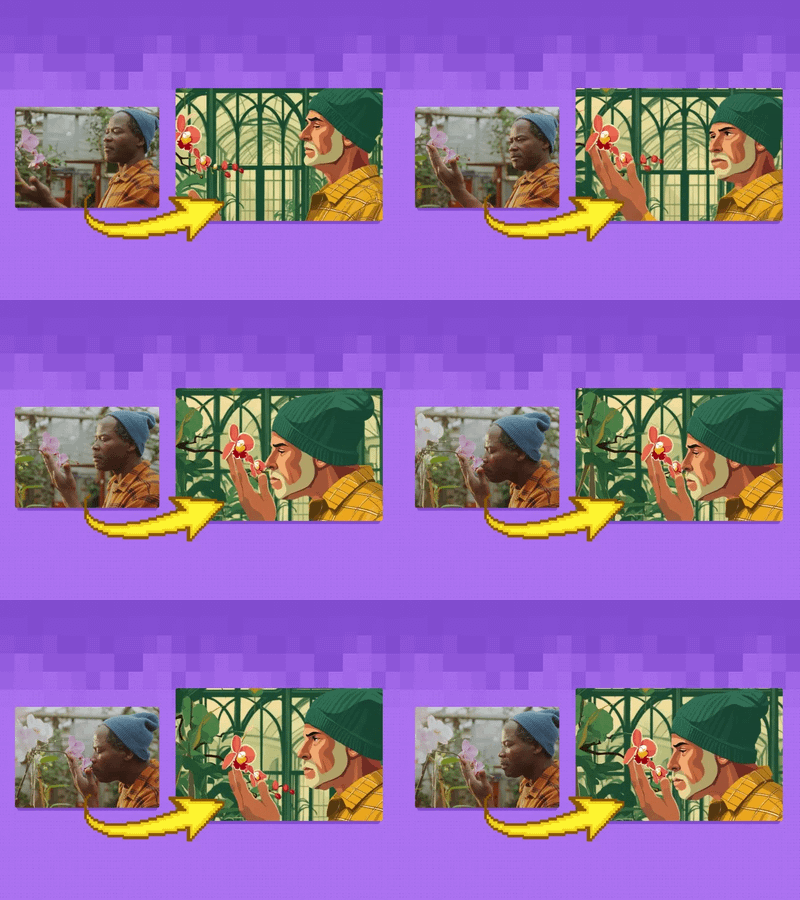
Wan2.1 Fun Control and Flux for V2V Restyle
Create a new video by restyling an existing video with a reference image.

Flux Kontext - Quick & Easy
Load an image reference and use the smart Flux Kontext model to ask for anything. The model understands natural language and looks at your input image. Example: Put this man on a tropical island. This man is sleeping in a bed.

SMART FACE SWAPPER - Ace++ Flux Face swap
Face swapper built with Flux and ACE++. Works with added details too, like hats, jewelry. Smart features, use natural language.
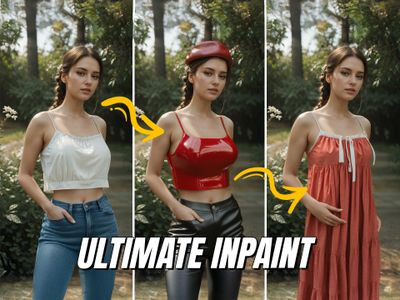
Flux Inpaint - ULTIMATE workflow.
Flux inpainting with Flux fill model and regular Flux dev model. All in one Flux inpainting workflow that easily AI retouches any image.
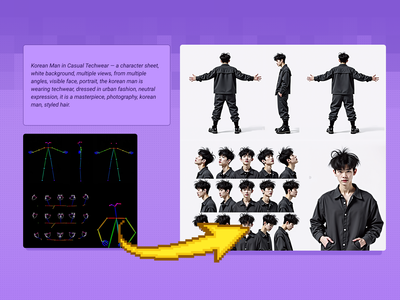
Flux Text to Character Sheet
Create a character and a range of consistent outputs suitable for establishing character consistency, training a model, and ensuring consistency throughout multiple scenes. Key Inputs Image reference: Use the included pose sheet to show range of positions Prompt: as descriptive a prompt as possible
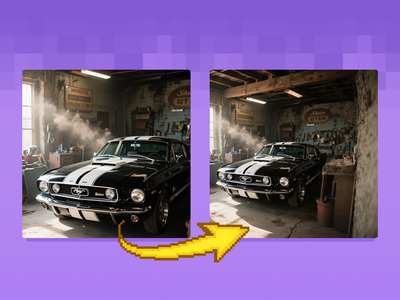
Flux Fill Dev Image Outpainting
Extend your images out for a wider field of view or just to see more of your subject. Expand compositions, change aspect ratios, or add creative elements while maintaining consistency in style, lighting, and detail while seamlessly blending with the existing artwork.
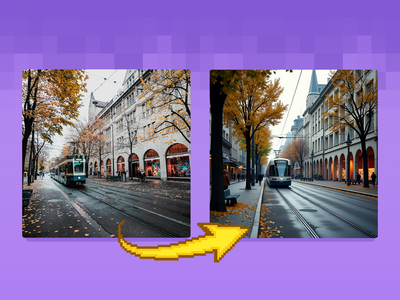
Image Redux with Flux
Create variations of a given image, or restyle them. It can be used to refine, explore, or transform ideas and concepts. Key Inputs Image reference: Use any JPG or PNG showing your subject clearly Width & height: In pixels Prompt: as descriptive a prompt as possible Strength (step 5: value): Strength of redux model, play around with the value to increase or decrease the amount of variation
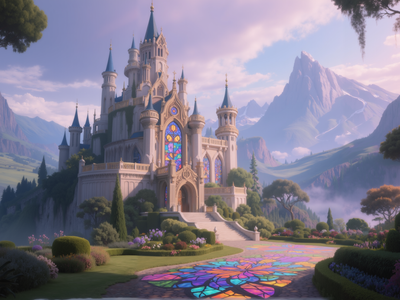
Flux Simple Inpainting
3: Customizations.
Workflows that combine other models, and extend Flux capabilities beyond core functionality.
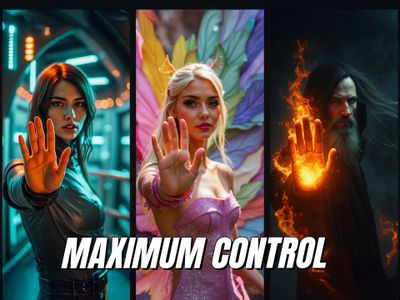
Flux ControlNet 2.0 - All-in-one
Latest and greatest Flux ControlNet workflow.
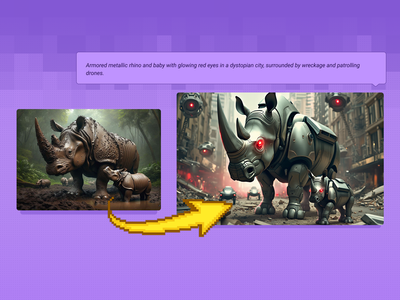
Image to Image with Flux ControlNet
Transform your images into something completely new, yet retaining specific details and composition from your original using flexible controls. Key Inputs Image reference: Use any JPG or PNG showing your subject clearly Prompt: as descriptive a prompt as possible Denoise Strength: The amount of variance in the new image. Higher has more variance. Width & height: Try and match the aspect ratio of the original if possible.
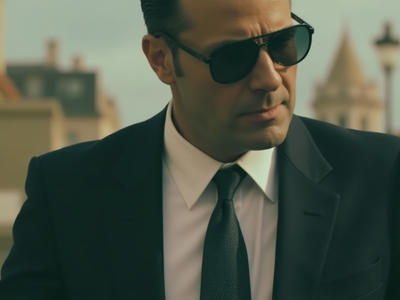
Flux Text2Image w/ 2 Tone Color Grade
Generate cinematic images using Flux with the simple workflow to choose color tint in highlights and shadows Key Inputs Prompt: Set text prompt SDXLResolution: Choose your aspect ratio/resolution Seed: Choose either a fixed or random seed (default value: fixed) Highlights/Shadows: Choose color grade
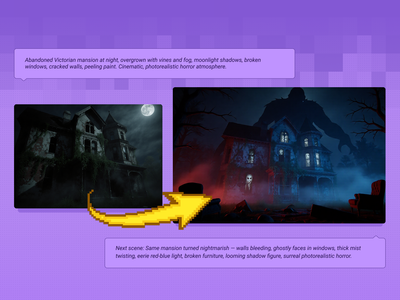
Qwen Image Edit 2509 + Flux Krea for Creating Next Scene
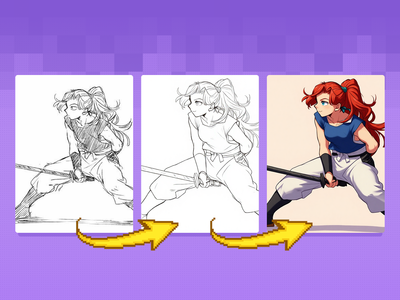
Flux Kontext Sketch to LineArt + Color Previz
Quickly convert rough sketches into polished lineart and colorized concepts. Ideal for early storyboards, character designs, scene planning, and other visual explorations.
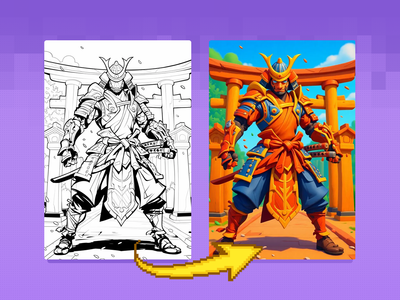
Flux Kontext - Sketch to Image
Bring your sketches to life in full color with Flux Kontext! Key Inputs Load Image – Upload the sketch you want to transform. Prompt – Describe the desired output style, such as: “Render this sketch as a realistic photo” or “Turn this sketch into a watercolor painting.”
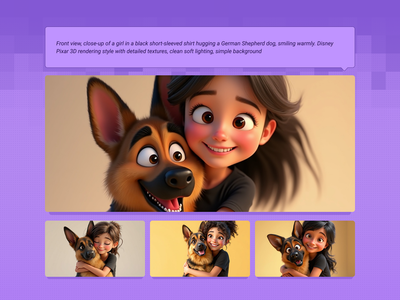
Multi-Image Flux Ultra, Pro, Dev, Recraft+
Start with a prompt, and get a different render from a range of unique models at the same time.
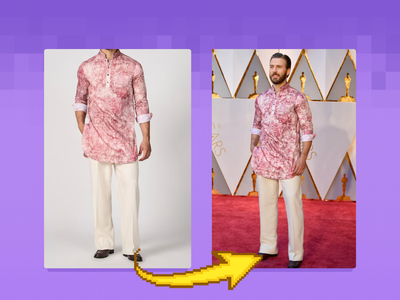
Flux Outfit Transfer
Virtual Outfit Try-On with Auto Segmentation Try virtual clothing on any subject using Flux Dev, Ace Plus, and Redux, with automatic segmentation. Great for concept previews, fashion mockups, or character styling. Key Inputs Outfit: Load the outfit image you want to apply. Make sure it's high quality — visible artifacts or distortions may carry over into the final result. Actor: Add the subject or character you want to dress. Ideally, use a clear, front-facing image. Human Parts Ultra: Choose which parts of the body the clothing should apply to. For example, for a long-sleeve shirt, select: torso, left arm, and right arm. This helps the model align the clothing properly during generation. Prompt: Default value works for most outfits, however you may try to adjust it to describe the desired outfit.
_1758863167371.webp?width=400&height=300&quality=80&resize=contain&format=origin)
Flux Kontext and HD360 LoRA for 360 Degree View
Flux Kontext 360° Workflow - Seamless Panorama Generation Input: Simply upload an image in the "Load Image from Outputs" node Output: A 360° Panoramic image
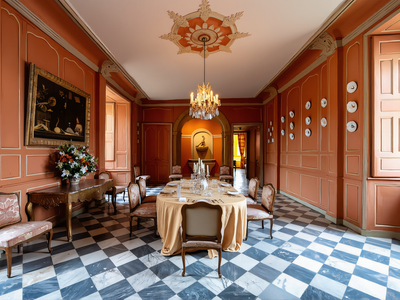
FLUX.1 Dev · Image Upscaler
Double any image's resolution with FLUX.1 Dev and 4x-UltraSharp. Upload a picture, hit run, and get a sharp 2x upscale refined tile by tile. Open weights.
4. LoRA TRAINING & USAGE.
Workflows to train and use Flux.
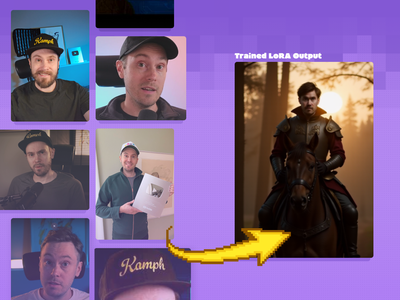
Fast LoRA Training for Flux via Floyo API
FLUX is great at generating images, but locking in a specific aesthetic or character is easier with a LoRA. Here's how to create your own.
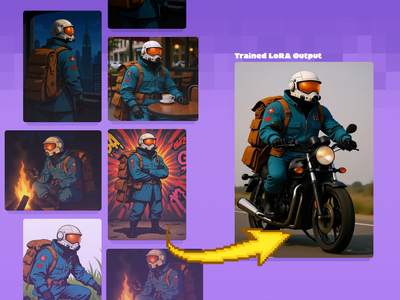
ComfyUI Flux LoRA Trainer
Created by @Kijai on Github, please support the original creator!
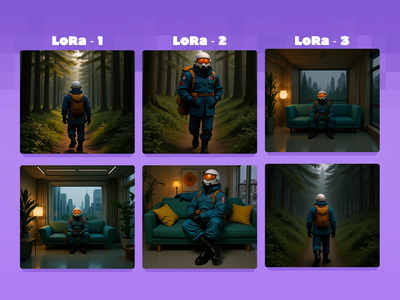
Flux Character LoRA Test and Compare
Test and compare multiple epochs of a character LoRA side by side with preset prompts When training a LoRA, you'll usually have a few checkpoints throughout the process to test. This workflow lets you load up to 4 LoRAs to test side by side, making it easier to determine which one is right for you! Key Inputs: LoRA Loaders: Load each LoRA epoch for the same character in up to 4 groups. Groups Bypasser: Enable/disable groups as needed. If you only have 2 epochs to test, disable the back 2 groups! Triggerword: Simply add the trigger word for your LoRA and it will auto-fill in the default prompts. Leave blank if you're using your own custom prompts that include the trigger word. LoRA Testing Prompts: Default prompts work well to get an idea of how your character will look in different situations, but feel free to replace them with your own prompts (max 4).
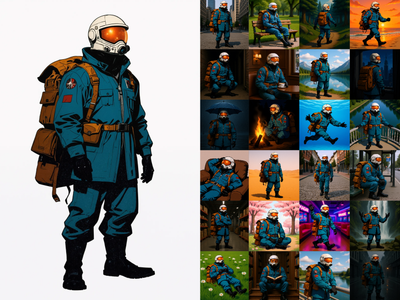
Flux Kontext - Single Image to Character LoRA
Generate a 60-Image LoRA Dataset from a Single Character Image
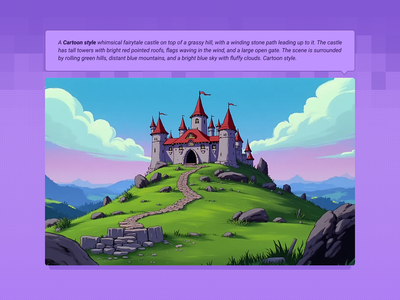
Text to Image + LoRA model
Create an image from a trained AI model of something specific ( a specific figure, outfit, art style, product etc) to ensure specific details within.
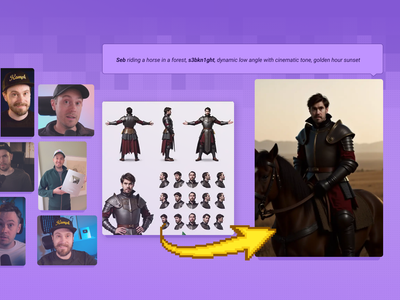
Text to Image with Multi-LoRA
Create consistent images with multiple LoRA models.
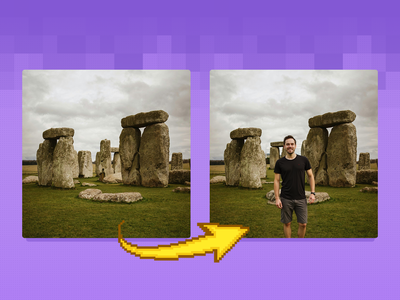
Image Inpainting with LoRA
Change specific details on just a portion of the image for inpainting or Erase & Replace, adding a LoRA for extra control.
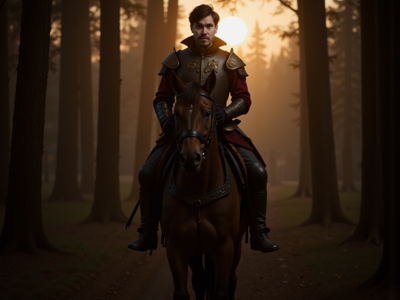
FLUX.1 Dev · Upscale With LoRA
Double any image's resolution with style-guided detail using FLUX.1 Dev and a LoRA. Upload a picture, load your adapter, and hit run. 2x upscale, tile by tile.