Flux Kontext Multi-Image Reference
Combine up to 3 reference images into one with Flux Kontext Key Inputs Load Image (3x): Load 3 different reference images. Prompt: Describe how to combine these images, see default value for example.
Flux
Image
Kontext
5.3k
Nodes & Models
EmptyLatentImage
DualCLIPLoader
clip_l.safetensors
t5xxl_fp16.safetensors
VAELoader
ae.safetensors
UNETLoader
FLUX1/flux1-dev-kontext_fp8_scaled.safetensors
LoadImage
CLIPTextEncode
ConditioningZeroOut
ImageConcatFromBatch
FluxKontextImageScale
PreviewImage
VAEEncode
ReferenceLatent
FluxGuidance
KSampler
VAEDecode
SaveImage
ImpactMakeImageBatch
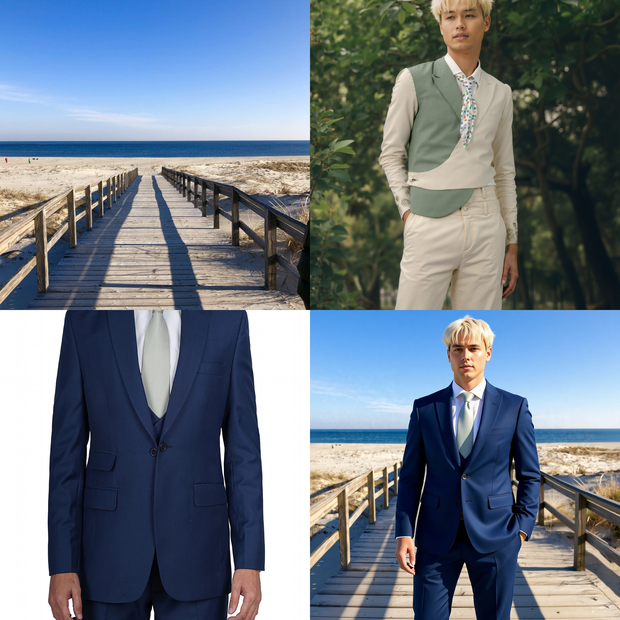
Load up to three reference images, write a prompt describing what to take from each, and Flux Kontext Dev generates a new image combining elements from all three. The workflow uses the image concatenation method: all references are merged into a single wide composite, VAE-encoded together, and passed through a single ReferenceLatent node. This approach is faster than chaining individual reference latents and produces better results with the FluxKontextImageScale node that handles the composite.
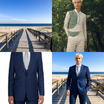
The default prompt shows the pattern in action: a background scene, a model, and a suit are combined into one image: "the man wears a blue suit on a bridge at the beach."
How do you use Flux Kontext with multiple image references?
Load your reference images into the three LoadImage nodes. Write a prompt describing what to take from each. Describe the elements by their visual content, not by position ("image 1", "image 2"). The workflow merges your references into a horizontal composite, encodes it as a single reference latent, and Kontext generates from that combined visual context.
Reference images (LoadImage nodes x3) Three reference images feed into this workflow via separate LoadImage nodes. Each connects to ImpactMakeImageBatch, which assembles them into a batch. ImageConcatFromBatch then arranges them in a horizontal row (3 columns, no size-matching, max 4096px wide) before FluxKontextImageScale processes the composite for Kontext.
Tips for reference selection:
Resize your input images to a consistent resolution before loading them. The community has found that pre-resizing inputs produces more predictable results with the concatenation method than relying on the node to handle mismatched sizes.
Use clean, well-cropped references where the element you want is prominent. If you need to isolate a specific part of an image (a piece of clothing, a face, an object), crop or mask it before loading. SAM2-based segmentation can help here.
All three slots are active by default. If you only need two references, you can disconnect the third LoadImage node or replace it with the same image as one of the others.
Prompt (CLIPTextEncode) This is the most critical part of multi-reference generation. How you reference your input images in the prompt determines what Kontext extracts from the composite.
What works:
Describe elements by their visual content: "the blue jacket from the left portion of the reference," "the face from the center," "the background scene on the right."
Position references using left/center/right because the composite is a horizontal arrangement. Those spatial terms map directly to the concatenated layout.
Be specific about what to do with each element: "the man wears the suit from the right reference against the background from the left reference."
What doesn't work:
"Image 1" and "image 2": Kontext doesn't understand positional labels like this. The model sees a single wide composite image with no internal labels.
Vague instructions like "combine the two looks": the model needs to know which element from which part of the composite to use.
The default prompt ("the man wears a blue suit on a bridge at the beach") is intentionally simple. For complex multi-element combinations, write out each element and its source region explicitly.
Guidance (FluxGuidance, default: 2.5) Controls how strongly the model follows the prompt. 2.5 is a moderate setting for Flux Dev. Lower values (1.5 to 2.0) give the model more creative latitude. Higher values (3.0 to 4.0) tighten prompt adherence but can push outputs toward over-saturation or rigid composition. For multi-reference edits where precision matters, staying in the 2.5 to 3.5 range keeps the model on task without over-constraining.
Steps (KSampler, default: 20) 20 steps is the standard quality target for Flux Dev. For faster iteration while testing prompts, drop to 10 to 12 steps. The composition will be mostly correct at that count even if fine details are softer. Run at 20 for final output.
CFG (KSampler, default: 1) Flux Dev runs at CFG 1. The guidance scale is handled by the FluxGuidance node instead of the sampler CFG. Leave the KSampler CFG at 1 and adjust the FluxGuidance value to change prompt adherence.
Sampler / scheduler (KSampler, default: euler / simple) Euler + simple is the correct pairing for Flux Dev. Leave these unchanged.
Seed (KSampler, default: randomize) Randomized by default. Fix the seed when you're iterating on prompt phrasing so the composition variable is isolated from random variation.
Resolution (EmptyLatentImage "Set Resolution", default: 1024x1024) Set the output generation resolution here. 1024x1024 is the default. Flux Dev handles non-square outputs well. Adjust width and height for landscape or portrait outputs. The composite reference is processed separately via FluxKontextImageScale, so the output resolution is independent of the reference composite dimensions.
How the concatenation pipeline works Three LoadImage nodes feed ImpactMakeImageBatch, which assembles them into an image batch. ImageConcatFromBatch arranges the batch into a horizontal 3-column composite (max 4096px wide, no forced size-matching). FluxKontextImageScale prepares this composite for the Kontext encoding. VAEEncode converts it to latent space. ReferenceLatent anchors the positive conditioning to this encoded composite. FluxGuidance applies the guidance scale. The KSampler generates from an empty 1024x1024 latent, guided by the combined reference conditioning.
The negative conditioning is zeroed out via ConditioningZeroOut. There's no negative prompt text node. CFG is at 1, so adding a negative text prompt won't affect output.
Models loaded
flux1-dev-kontext_fp8_scaled.safetensors: Flux Kontext Dev, fp8 scaled
CLIP: clip_l.safetensors + t5xxl_fp16.safetensors (DualCLIPLoader, flux mode)
VAE: ae.safetensors
What is Flux Kontext multi-image reference editing good for?
It's for generation tasks where you need to pull specific visual elements from multiple source images and combine them in a single output. A subject from one image, a garment from another, a background from a third, described precisely in a single prompt. The concatenation method keeps generation fast and the single ReferenceLatent architecture handles the combined context cleanly.
Outfit and clothing replacement is the clearest use case. Take a character or model reference, a specific garment reference, and a background or scene reference, and describe exactly what combination you want. The model extracts the clothing from its reference and applies it to the subject without needing separate inpainting passes.
Product mockups and composite scenes benefit from the three-slot structure. A product image, a lifestyle background, and a person or lifestyle element can be combined in a single generation step rather than multiple sequential edits.
Style and identity combination is where prompting precision matters most. Kontext reads a single composite image, so spatial descriptors (left, center, right) are the practical vocabulary for directing what comes from which reference. "The face from the center reference against the outfit from the right reference on the background from the left" is the kind of instruction that produces predictable results.
Limitations worth knowing: the concatenation method is faster but less precise than individual reference latent chaining when you need strict separation between elements. For highly specific single-element control, the community recommends pre-cropping or masking the specific element from the source image before loading it as a reference. Generic instructions without spatial grounding ("combine image 1 and image 2") consistently produce unpredictable results.
FAQ
Why can't I just say "image 1" and "image 2" in my Kontext prompt?
Flux Kontext sees a single horizontal composite, not three labeled images. The model has no way to map "image 1" to the first reference. Use spatial descriptors instead: "from the left portion of the reference," "from the center," "from the right." These map directly to the concatenated layout since images are arranged left to right in the composite.
Should I resize my reference images before loading them?
Yes. Pre-resizing to a consistent resolution before loading into the workflow produces more predictable results than letting the concatenation node handle mismatched sizes. The community has found this is one of the most reliable ways to improve output consistency with the concatenation method.
When should I use image concatenation vs. chaining Reference Latents separately?
The concatenation method (this workflow) is faster and generally produces better results with FluxKontextImageScale handling the composite. Reference latent chaining takes about twice as long and gives more precise individual control per reference, but yields worse results in most tests. Use concatenation as the default; switch to chaining only if you need strict isolation between individual references that concatenation isn't achieving.
Can I use fewer than three reference images?
Yes. Disconnect the third LoadImage node or connect the same image twice to fill the slot. The ImpactMakeImageBatch node assembles whatever is connected. Two references produce a two-image composite, processed the same way.
How do I run Flux Kontext multi-image reference editing online?
You can run this workflow online through Floyo. No installation, no setup. Open the workflow in your browser, upload your reference images, and hit run. Free to try.
Read more