

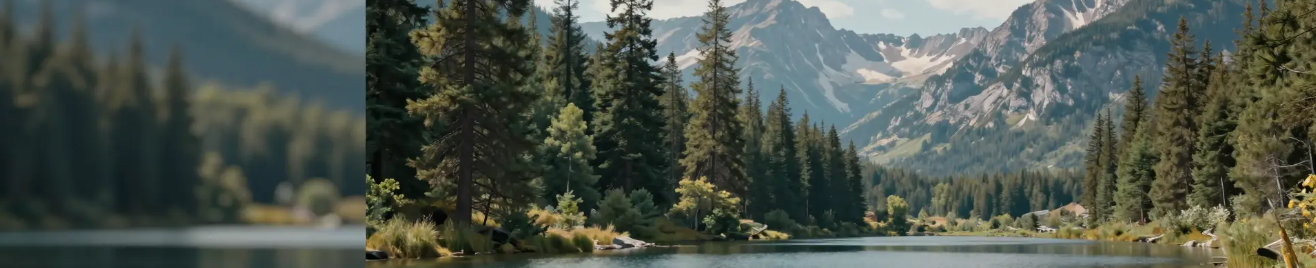
UPSCALING
Upscale images to 4K/8K quality in seconds while preserving detail and sharpness.
Overview
A quick read before you jump in. Helps you know what to pick and why.
These workflows take a low-resolution image and return a high-resolution version with real detail added. AI upscaling is not simple pixel stretching. The model generates new texture, sharpness, and fine detail based on learned patterns. The output holds up on a 4K monitor, in print, or in a broadcast delivery.
The fastest path to sharp 4K output. Photorealistic content upscales cleanly with minimal artifacts. 3,200+ runs on Floyo.
The two-stage pipeline for maximum resolution. Handles 8K output without memory issues. 921 runs on Floyo.
Load your own LoRA to guide upscaling style. Good for keeping stylized art or fine-tuned characters consistent across a batch.
Upscaling workflows on Floyo
Pick a workflow that suits your needs and start building something amazing right away.
_1786351368179.png?width=400&height=300&quality=80&resize=cover)

floyoofficial
8.8k
API
Image
Image2Image
image restoration
SeedVR2
SeedVR Upscale
super resolution
Upscale to Extreme Clarity
SeedVR2 · Image Upscaler
Upscale to Extreme Clarity

SeedVR2 and TTP Toolset 8k Image Upscale
_1774791423297.png?width=400&height=300&quality=80&resize=cover)
Z-Image Turbo - 2K Upscaler
Z-Image Turbo - 2K Upscaler
_1774789046971.png?width=400&height=300&quality=80&resize=cover)
Diffusion
Image
LoRA
LoRAs
Memory Efficient
Qwen Model
Upscale
Block-wise Image Upscaling with Qwen
Block-wise Image Upscaling with Qwen
Block-wise Image Upscaling with Qwen
floyoofficial
1.6k
Flux
Image
LoRa
LoRAs
Upscale
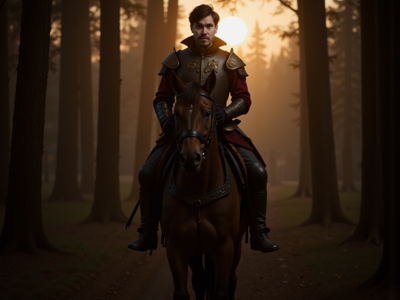
Double any image's resolution with style-guided detail using FLUX.1 Dev and a LoRA. Upload a picture, load your adapter, and hit run. 2x upscale, tile by tile.
FLUX.1 Dev · Upscale With LoRA
Double any image's resolution with style-guided detail using FLUX.1 Dev and a LoRA. Upload a picture, load your adapter, and hit run. 2x upscale, tile by tile.
floyoofficial
2.5k
Flux
Image
UltimateSD
Upscale
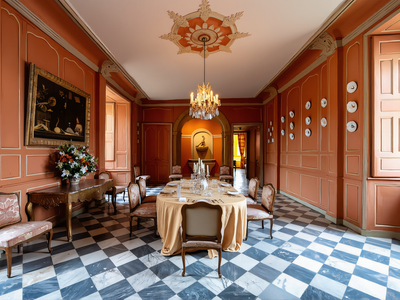
Double any image's resolution with FLUX.1 Dev and 4x-UltraSharp. Upload a picture, hit run, and get a sharp 2x upscale refined tile by tile. Open weights.
FLUX.1 Dev · Image Upscaler
Double any image's resolution with FLUX.1 Dev and 4x-UltraSharp. Upload a picture, hit run, and get a sharp 2x upscale refined tile by tile. Open weights.
💡 Tips for getting a good result
📏 Input resolution
Clean 512px or 1024px images upscale the best. Small or blurry inputs give the AI less to work with and produce softer results. If your source image is already compressed, consider regenerating it before upscaling.
🎚️ Denoise setting
Start at 0.3–0.5 for most images. Lower values (0.1–0.3) keep the result closer to the original. Higher values (0.5–0.8) let the AI add more new detail but may change what the image looks like. Adjust based on how much creative liberty you want.
🔗 Chaining with inpainting
If you need both upscaling and inpainting, upscale first. Inpainting at higher resolution gives the model more pixels to fix problem areas and produces cleaner results. Both steps run in the same Floyo session without re-uploading the file.
Which workflow for which job ?
All six workflows side by side. Use this table to match your output requirement to the right tool.
| Workflow | Best For | Max Output | Speed | Key Differentiator |
|---|---|---|---|---|
| SeedVR2 | Portraits, product shots, photorealistic AI images | 4K | Fast | Sharpest single-pass output. Lowest artifact rate on photorealistic content. |
| SeedVR2 + TTP | Print, billboard, large-format delivery | 8K | Slower | Only workflow that reliably hits 8K without memory issues. |
| Flux + UltimateSD | VFX, concept art, controlled quality | 4K | Medium | Adjustable magnification and denoise. Most parameter control. |
| LoRA Upscaler | Game art, stylized illustration, fine-tuned subjects | 4K | Medium | Custom LoRA guides style during upscaling. Consistency across asset sets. |
| Qwen Block-wise | Large inputs, unusual aspect ratios, edge cases | 4K+ | Variable | Tile-based processing avoids VRAM limits on complex inputs. |
| Z-Image Turbo | Social assets, drafts, quick iteration | 2K | Fastest | One-pass speed and low compute cost. Not for production delivery. |
SeedVR2
The default pick for photorealistic upscaling to 4K. Sharp output, low artifact rate, fast single-pass execution. If you are not sure which to use, start here.
Portraits · product photography · AI-generated images · 4K
SeedVR2 + TTP Toolset
The only two-stage pipeline on Floyo that reaches 8K reliably. Use when the final output goes to print, billboard, or large-format digital display.
Print · billboard · packaging · 8K delivery
Frequently asked questions
Common questions about running upscaling workflows on Floyo.
Floyo gives you free GPU time and $1 in API credits on signup to test upscaling workflows. After that, you pay per second of GPU compute used. There is no monthly minimum and no idle charges. You are billed only when a workflow is running.
No. Floyo runs in your browser. You do not need to install Python, ComfyUI, model weights, or any dependencies. Open the workflow, upload your image, and run. All computation happens on Floyo's H100 NVL GPUs.
The SeedVR2 + TTP Toolset workflow outputs 8K resolution images. Other workflows top out at 4K. There is no hard cap imposed by Floyo. Practical limits depend on the input image size and the magnification factor you set.
Yes. The upscaling workflows accept any JPG or PNG image regardless of how it was generated. Upload a Midjourney export, a DALL-E image, a Stable Diffusion output, or a photograph. The upscaler works on all of them.
Upscaling increases the resolution of the full image. Inpainting fixes specific areas (faces, hands, textures) without changing the rest. They serve different purposes and work well together: upscale first to get the resolution up, then inpaint problem areas at the higher resolution.
Yes. Floyo is the only ComfyUI cloud platform with team collaboration. When you run an upscaling workflow, the result appears in your team's shared run history. Team members can view, download, or keep refining the output without anyone needing to manually export and send the file.