Qwen Image Edit 2509 + Multi-Angle LoRA for Camera
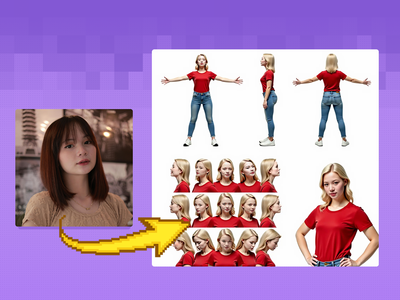
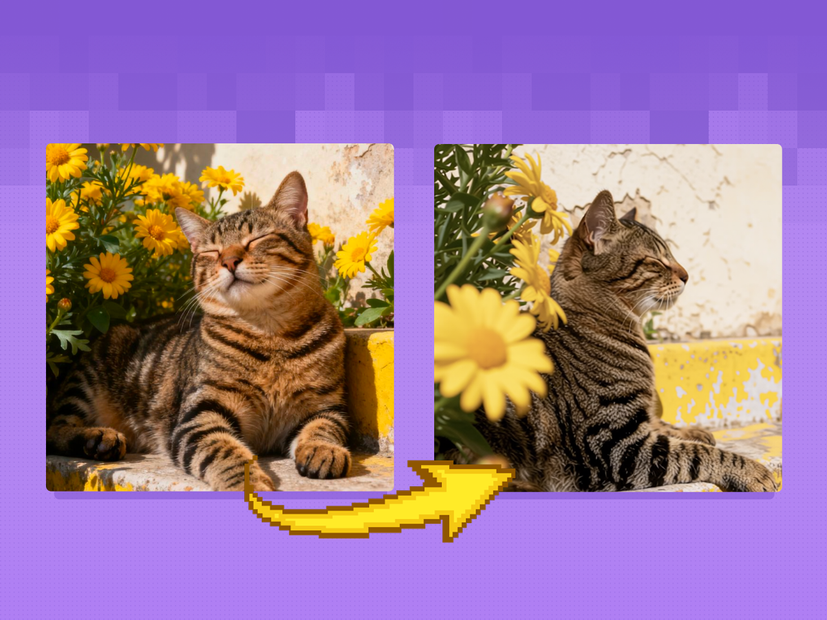
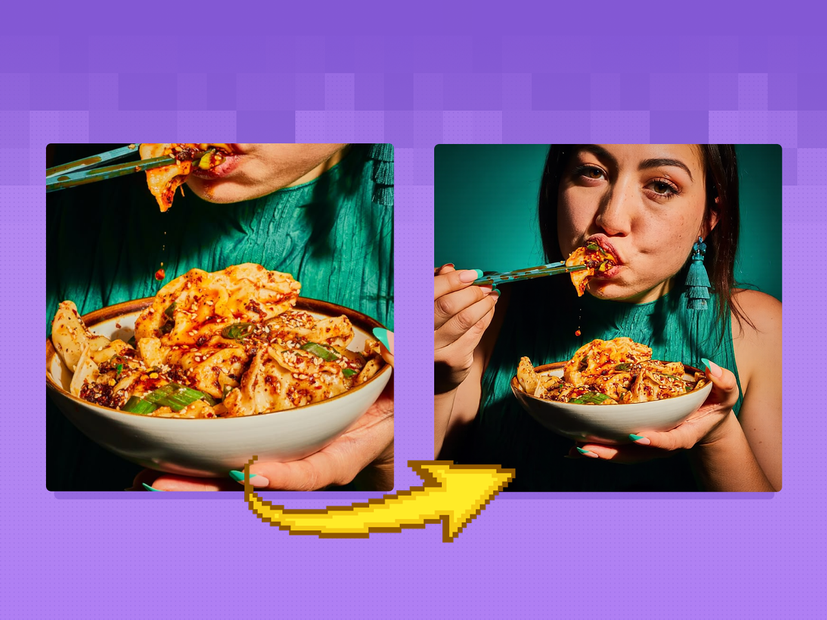
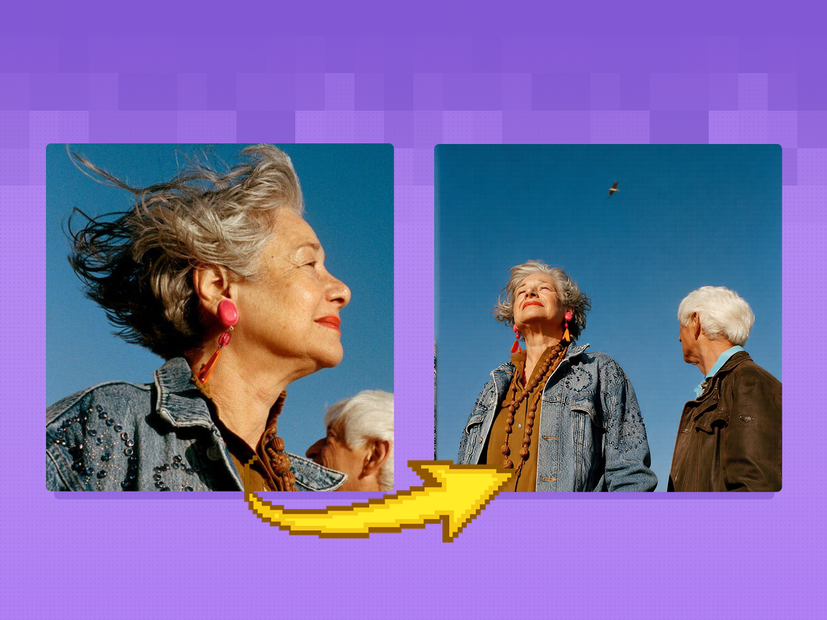
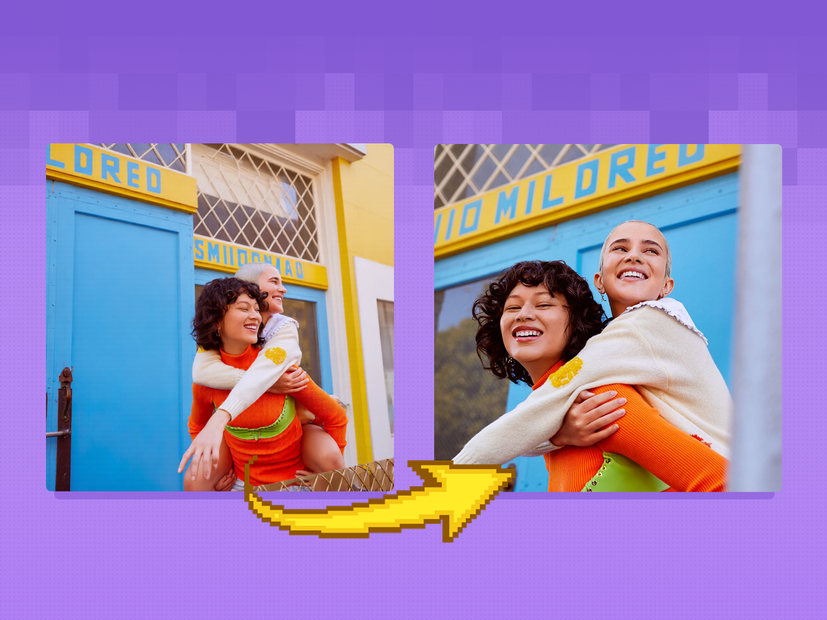
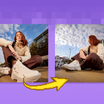
Re-render your subject from any camera angle with Qwen Image Edit 2509 and a Multi-Angle LoRA. Pan, tilt, rotate, wide-angle, or close-up. No trigger word.
Camera Control
Image
Image2Image
LoRA
LoRAs
Qwen
Qwen Image Edit 2509
3.3k





Nodes & Models
CLIPLoader
qwen_2.5_vl_7b_fp8_scaled.safetensors
VAELoader
qwen_image_vae.safetensors
UNETLoader
qwen_image_edit_2509_fp8_e4m3fn.safetensors
LoadImage
Note
easy positive
CameraControlPromptNode
ModelSamplingAuraFlow
TextEncodeQwenImageEditPlus
StringConcatenate
LoraLoaderModelOnly
multi-angle.safetensors
Qwen-Image-Edit-2509-Lightning-4steps-V1.0-bf16.safetensors
EmptyLatentImage
KSampler
VAEDecode
PreviewImage
Get Image Size
Description:
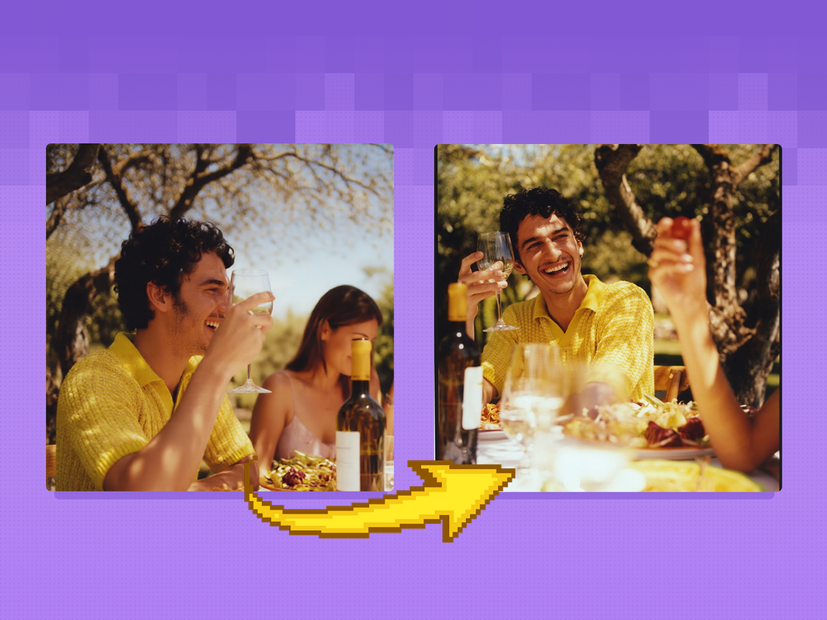
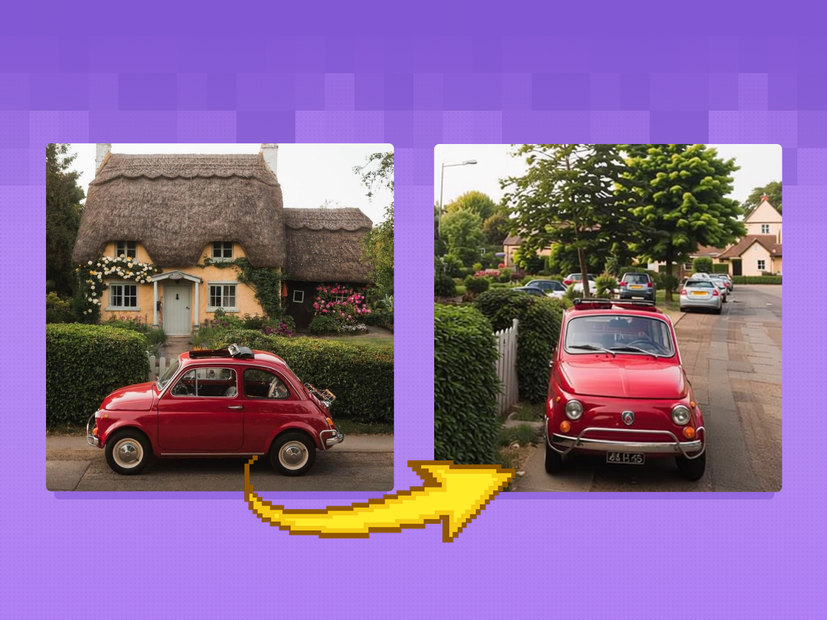
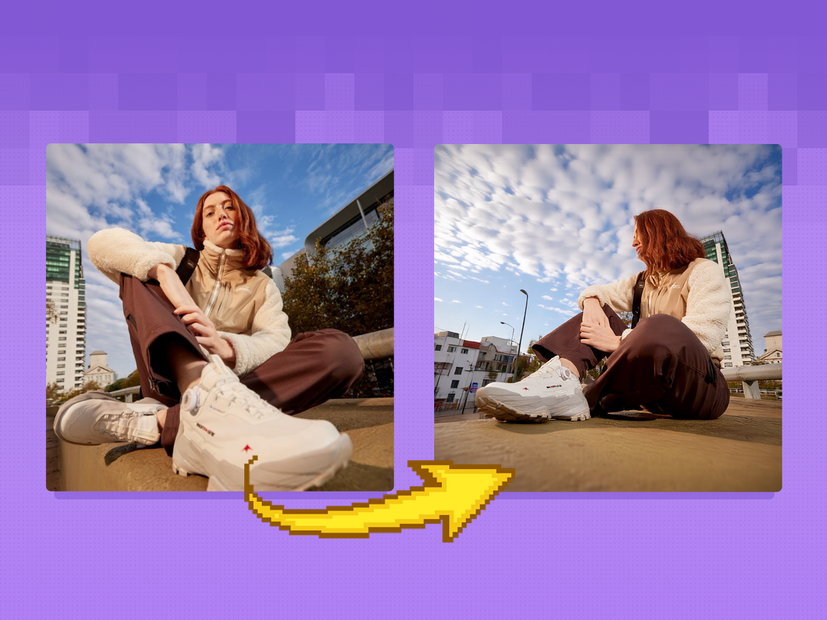
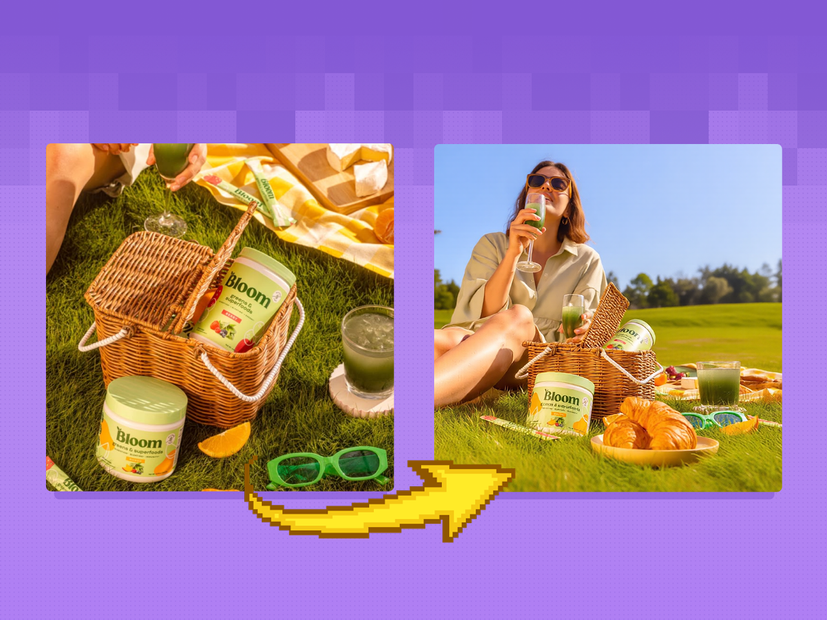
Change the camera angle on any photo or illustration using Qwen Image Edit 2509 and the Multi-Angle LoRA.
Upload an image, pick a camera direction (rotate left, pan right, tilt up, zoom to close-up), and the model redraws your image from that new angle. A Lightning LoRA keeps generation fast at 4 steps. Output matches your input resolution.
No trigger words needed. Pick your angle, hit run.
How do you change the camera angle on an image with Qwen Image Edit 2509?
Upload your image, set the camera direction using either the visual camera control node or a text prompt, and run. The Multi-Angle LoRA tells Qwen Image Edit 2509 how to redraw your image from the new perspective. A Lightning LoRA cuts generation to 4 steps.
Camera Control Node (Option 1) The fastest way to set your angle. You get sliders for pan, tilt, zoom, and rotation. Want to rotate the camera 90 degrees right? Set the rotation slider to 90. Need a top-down view? Tilt the camera downward. Toggles let you switch between wide-angle and close-up shots. Start here if you want quick, visual control without typing anything.
Text Prompt (Option 2) Write camera directions in plain language. Examples from the workflow: "Rotate the camera 45 degrees to the right," "Turn the camera to a wide-angle lens," "Turn the camera to a close-up." You can chain multiple directions in one prompt. Use this when you want more specific or combined camera movements that the sliders can not express in one pass.
Negative Prompt Describe what you do not want in the output. The default targets common image artifacts: unnatural skin, oversharpening, plastic texture, harsh lighting, blemishes. Adjust to match your subject.
Steps Default is 4 (thanks to the Lightning LoRA). More steps will not improve results much here. Leave it at 4.
Seed Controls randomness. Lock it to compare different camera angles on the same image. Change it to get variation.
What is the Multi-Angle Camera LoRA good for?
This workflow is built for rotating, panning, and re-angling existing images without regenerating the subject from scratch. It works best when you need the same scene from a different camera position and want to keep the subject recognizable.
Product shots that need multiple angles from a single photo. Character concept art where you want front, side, and three-quarter views from one reference. Architectural renders where you need to show a building from eye level and then from above.
The model handles moderate angle changes well. Extreme rotations (like going from a front-facing portrait to a full back view) will push the limits of what the LoRA can infer, since it has to fill in information that was never in the original image.
For edits that do not involve camera angle (changing outfits, swapping backgrounds, retouching), use a standard Qwen Image Edit 2509 workflow instead. This one is purpose-built for camera movement.
FAQ
What camera movements can the Multi-Angle LoRA handle? Pan left and right, tilt up and down, rotate clockwise and counterclockwise, and switch between wide-angle and close-up framing. You can combine multiple movements in a single generation.
How many steps does this Qwen Image Edit workflow need? Four. The Lightning LoRA is optimized for 4-step generation with the euler sampler and simple scheduler. Adding more steps will not noticeably improve quality.
Can I use this workflow for non-camera edits? It is designed for camera angle changes. If you need general image editing (object removal, style transfer, background swaps), use a standard Qwen Image Edit 2509 workflow without the Multi-Angle LoRA.
Does the Multi-Angle LoRA work with other models? This workflow is built for Qwen Image Edit 2509. The LoRA and Lightning distillation are matched to that model. Swapping in a different base model will not produce the same results.
How to run Qwen Image Edit 2509 with camera control online? You can run Qwen Image Edit 2509 with the Multi-Angle LoRA online through Floyo. No installation, no setup. Open the workflow in your browser, upload your image, and hit run. Free to try.
Read more
_1786518453053.png?width=400&height=300&quality=80&resize=cover)

_1786522681696.png?width=400&height=300&quality=80&resize=cover)