

FLUX.2 Klein 4B · Swap Clothes
Swap clothes on any person using FLUX.2 Klein 4B and LanPaint. Upload a person and a garment photo, describe the swap, and hit run. Apache 2.0 open weights.
Clothes Swap
Flux
Flux.2 Klein
Image
Image Editing
Image to Image
virtual try-on
6.1k


Nodes & Models
UNETLoader
flux-2-klein-4b.safetensors
PrimitiveFloat
CLIPLoader
qwen_3_4b.safetensors
Anything Everywhere
VAELoader
flux2-vae.safetensors
FluxGuidance
LoadImage
GetImageSize
VAEEncode
VAEDecode
ConditioningZeroOut
ReferenceLatent
EmptyFlux2LatentImage
ImageScaleToTotalPixels
SaveImage
LanPaint_KSampler
CLIPTextEncode
ImageConcanate
SetLatentNoiseMask
ComfySwitchNode
ABOUT THE WORKFLOW
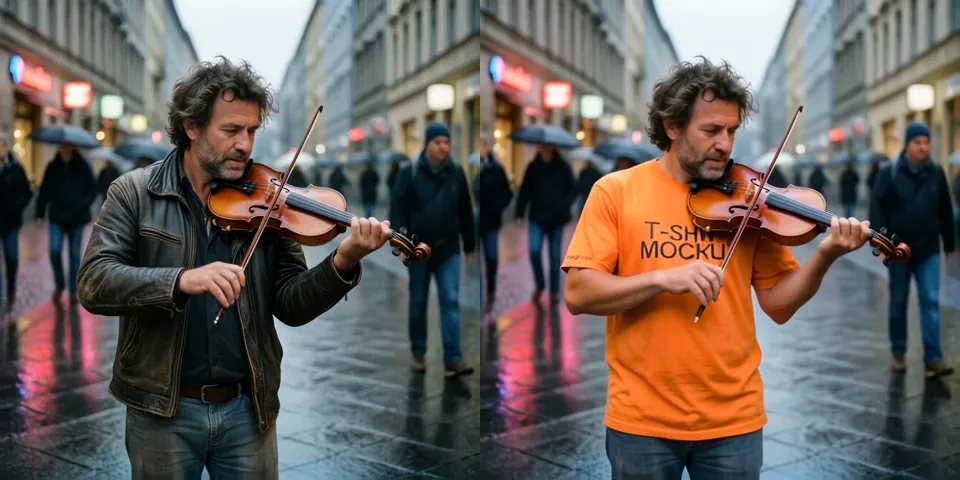
Dress Someone in New Clothes Upload a photo of a person and a photo of the garment. The model masks the clothing area automatically, paints the new outfit in, and keeps the rest of the picture untouched. A side-by-side comparison is saved so you can judge the swap at a glance.
Model
FLUX.2 Klein 4B by Black Forest Labs. Released January 2026. The fast, lightweight end of the Klein family at four billion parameters with a Qwen 3 4B text encoder. Open weights under Apache 2.0. Free for commercial use.
LanPaint. An open-source inpainting sampler that handles automatic mask generation and guided inpainting on top of any compatible diffusion model. It isolates the clothing region and paints the new garment into it.
HOW IT WORKS
Step 1. Upload the person A clear photo where the clothing area is visible. This is Image 1. Works great with: full-body shots · upper-body portraits · fashion photos
Step 2. Upload the garment A clean product shot of the clothing you want to put on them. This is Image 2. Works great with: flat lays · product photos · catalogue images
Step 3. Describe the swap Name the clothes to replace and what to replace them with. "Replace the clothes in Image 1 with the red tshirt from Image 2, while keeping the colors consistent."
Step 4. Hit run and download The model masks the clothing, inpaints the new garment in four passes, and saves the result under Flux2_Klein. A side-by-side comparison of the original and the result is saved under ComfyUI. Ready for: Photoshop · Figma · Canva · any editor
First time? Leave every setting as-is. The defaults (0.5 megapixels · 4 steps · CFG 1 · random seed) are the right starting point for almost everyone.
RECOMMENDED SETTINGS
Quick-start guide. Find the goal that matches yours and copy the settings.
Standard swap (most people) — 0.5 megapixels · 4 steps · CFG 1 · random seed. The right starting point for almost everyone.
The garment colour is off — Name the colour and the material in the prompt. "Replace with the navy linen shirt from Image 2" holds colour better than "replace the shirt."
Edges bleed around the collar or cuffs — The mask is automatic. Complex layered outfits and hair overlapping the garment are where it struggles most. A cleaner source photo helps more than raising steps.
Want a larger output — The megapixels value inside the subgraph controls working resolution. Raise it for a sharper result, but generation time climbs with pixel count.
Want a different take — The seed runs on random by default. Set a fixed number to reproduce a result you liked.
Want to skip the automatic mask — The subgraph has a switch labelled "Disable Inpainting." Turn it on to run without the LanPaint mask, which turns the workflow into a standard reference-based edit.
Prompt: Name the swap plainly. "Replace the clothes in Image 1 with the red tshirt from Image 2, keeping the colors consistent" gives you more than "put Image 2 on Image 1." Calling out the colour and the material anchors the result.
LEARN
📹 Videos
ComfyUI 101 Free Course ft. Sebastian Kamph
Floyo 101 for Team Collaboration
✨ Quick links
USE CASES
👗 Virtual Try-On Show a customer how a garment looks on a model or on themselves, from a single product photo.
🛍️ E-commerce Catalogue Dress the same model in several outfits from flat product shots without a reshoot for each one.
🎨 Costume and Character Design Test different costumes on a character reference without redrawing or re-rendering.
📱 Social and Marketing Generate outfit variations on one model for a campaign or a social post series.
WHAT WORKS BEST / WHAT TO AVOID
✅ Works great
Clear person photos with the clothing area fully visible
Clean flat-lay or catalogue product shots of the garment
Prompts that name the colour, material, and garment type
Simple, unobstructed clothing swaps (tshirts, jackets, dresses)
⚠️ May produce softer results
Layered outfits where garments overlap each other
Hair, accessories, or arms heavily covering the clothing area
Mismatched aspect ratios between the two input photos
Detailed patterns that need to wrap accurately around the body
FAQ
What is FLUX.2 Klein 4B? FLUX.2 Klein 4B is the lightweight end of Black Forest Labs' Klein family, released January 2026. It is a four billion parameter rectified flow transformer with a Qwen 3 4B text encoder, step distilled to four inference steps. It is released under Apache 2.0, making it free for commercial use with no revenue threshold.
What is LanPaint? LanPaint is an open-source inpainting framework that generates masks automatically and guides the diffusion model to paint only inside the masked region. In this workflow it detects the clothing area on the person, masks it, and directs FLUX.2 Klein 4B to inpaint the new garment without touching the rest of the picture.
Does the mask happen automatically? Yes. You do not draw or upload a mask. LanPaint detects the clothing region from the person photo and the prompt, generates the mask, and the inpainting runs inside it. Complex edges like hair over a collar are where the automatic mask is weakest.
Can I use FLUX.2 Klein 4B output commercially? Yes. The 4B model is released under Apache 2.0, which allows commercial use, modification, and self-hosted deployment with no revenue threshold and no territory restrictions. This is the permissive model in the Klein family; the 9B model ships under a non-commercial licence.
How does this compare to the FLUX.2 Klein 9B consistency edit workflow? Different model, different approach. The 9B workflow uses a consistency LoRA for general-purpose image editing at higher fidelity. This workflow uses the 4B model with LanPaint for targeted clothing swaps with automatic masking. Pick the 9B for broad edits where quality matters most, and this one for fast, mask-based garment swaps under a permissive licence.
What resolution does this workflow output? The working resolution defaults to 0.5 megapixels. The megapixel value is adjustable inside the subgraph for larger output, though generation time climbs with pixel count.
How to run FLUX.2 Klein 4B clothes swap online? You can run FLUX.2 Klein 4B clothes swap online through Floyo. No installation, no setup, no model downloads. Open the workflow in your browser, upload a person and a garment, describe the swap, and hit run. Free to try.
WHY FLOYO?
Floyo is the only platform with team collaboration for ComfyUI in the browser. You run workflows with no install. You share run history, assets, and models across your team. You pay only when you generate. Floyo supports open-source and closed-source models.
A designer runs an edit and likes the result. A teammate opens that exact run from shared history and keeps going. No file handoffs. No version confusion.
For studios and enterprise teams, Floyo adds private workspaces, pooled resources, and a team usage dashboard. Other ComfyUI cloud tools run for one person at a time. Floyo runs for the whole team, with transparent per-generation costs.
Ready to try it? Upload a person and a garment, describe the swap, and run it. The settings are already set.
Questions? Watch the free course or check the FAQ above.
Read more
_1786522681696.png?width=400&height=300&quality=80&resize=cover)

_1786516256661.png?width=400&height=300&quality=80&resize=cover)




