Qwen Image Edit 2509 · A2R
Merge up to three images into one scene with Qwen Image Edit 2509. Upload a subject, add items to place on it, describe the layout, hit run. Apache 2.0.
Image
Image2Image
image merging
Qwen
Qwen Image Edit
1.9k
_1787296520838.png?width=1400&height=620&quality=80&resize=contain)
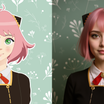
_1787296520838.png?width=104&height=104&quality=80&resize=cover)

Nodes & Models
LoadImage
MarkdownNote
UNETLoader
qwen_image_edit_fp8_e4m3fn.safetensors
CLIPLoader
qwen_2.5_vl_7b_fp8_scaled.safetensors
KSampler
VAELoader
qwen_image_vae.safetensors
VAEDecode
LoraLoaderModelOnly
Qwen-Image-Lightning-4steps-V1.0.safetensors
TextEncodeQwenImageEdit
ModelSamplingAuraFlow
CFGNorm
VAEEncode
ImageScaleToTotalPixels
PreviewImage
ImageConcanate
ABOUT THE WORKFLOW
Combine Images Into One Scene
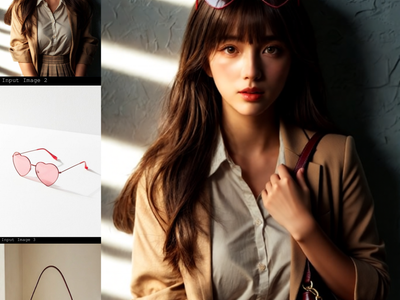
Upload up to three images and describe how to merge them. Put a hat from one photo on a person from another, add an accessory from a third. The model blends them into a single picture in four passes and saves the result alongside a labelled comparison grid.
Model
Qwen Image Edit 2509 by the Qwen team at Alibaba. The September 2025 update to the 20 billion parameter Qwen Image Edit model with a Qwen 2.5 VL 7B encoder. Strong at compositing subjects and products into one scene while keeping each element recognisable.
Lightning 4-step LoRA. A speed adapter that compresses sampling to four passes.
HOW IT WORKS
Step 1. Upload your subject
The main element, like a person, a character, or a pet. This is image 1.
Works great with: portraits · characters · pets · product models
Step 2. Upload the first item
An item to place on or near the subject, like a piece of clothing, an accessory, or a prop. This is image 2.
Step 3. Upload a second item (optional)
A second item to add. This is image 3. Leave it off for a two-image composite.
Step 4. Write the combination
Refer to each image by number: "the person in image 1 wears the hat in image 3 and the goggles in image 2."
Step 5. Hit run and download
The model blends the elements in four passes. The result is saved under 2509/image, and a labelled comparison grid of all inputs and the output is saved alongside it.
Ready for: Photoshop · Figma · Canva · any editor
First time? Leave every setting as-is. The defaults (1 megapixel · 4 steps · CFG 1 · random seed) are the right starting point for almost everyone.
RECOMMENDED SETTINGS
Quick-start guide. Find the goal that matches yours and copy the settings.
Standard composite (most people) — 1 megapixel · 4 steps · CFG 1 · random seed. The right starting point for almost everyone.
An element is missing or garbled — Rewrite the prompt to name what each image supplies more precisely. "The person in image 1 wears the cap in image 3" is clearer than "combine these."
The result blends the wrong elements — Check the image numbers in your prompt against the order of the loaders. Image 1 is the Model Image loader, image 2 is Product 1, image 3 is Product 2.
Want a different take — The seed runs on random by default. Set a fixed number to reproduce a result you liked.
Lighting clashes between inputs — The model handles moderate differences, but inputs with wildly different light direction or colour temperature blend less cleanly. Match the lighting across your source images when possible.
Want a larger output — Raise the megapixel value. The model works at whatever size you set, but generation time climbs with pixel count.
Prompt: Refer to each image by number and name what it contributes. "The person in image 1 wears the goggles from image 2 on her head and the cap from image 3. She is outdoors." gives you more than "combine these three images." Name where each item goes on the subject, not what the items look like.
LEARN
📹 Videos
ComfyUI 101 Free Course ft. Sebastian Kamph
Floyo 101 for Team Collaboration
✨ Quick links
USE CASES
👗 Virtual Try-On
Put a piece of clothing or an accessory from a product photo onto a person from a portrait.
🛍️ Product Compositing
Place a product on a model or in a scene from separate source images without a reshoot.
🎨 Character Assembly
Build a character from parts: take a face from one reference, a costume from another, and a prop from a third.
📸 Catalogue Variations
Run the same subject through several product images to generate a set of composites from one shoot.
WHAT WORKS BEST / WHAT TO AVOID
✅ Works great
Prompts that name each image by number and say where it goes
Two to three inputs with distinct roles (subject, item, item)
Source images with similar lighting and perspective
Items that sit naturally on or near the subject
⚠️ May produce softer results
Vague prompts like "combine these" with no placement detail
Source images with clashing lighting or wildly different styles
Three complex elements competing for attention
Expecting the model to invent a plausible pose for an impossible placement
FAQ
What is Qwen Image Edit 2509?
Qwen Image Edit 2509 is the September 2025 update to Alibaba's 20 billion parameter Qwen Image Edit model. It added multi-image editing, supporting combinations like person plus product and person plus scene, and improved identity preservation across poses and styles. This workflow uses its multi-image compositing mode to merge up to three source images into one scene.
How do I tell the model which element comes from which image?
Refer to each image by number in the prompt: "the person in image 1," "the goggles in image 2," "the cap in image 3." The numbers match the order of the loaders on the canvas. Without numbered references, the model guesses which element goes where.
Why does this workflow only take four steps?
A Lightning 4-step LoRA is loaded on the model. It compresses the sampling schedule so the composite resolves in four passes instead of the full 50 the base model normally takes. Four is the tuned sweet spot for this adapter.
Can I use only two images?
Yes. Leave the third loader empty and write the prompt with only image 1 and image 2. The model handles two-image and three-image composites the same way.
Is Qwen Image Edit 2509 free for commercial use?
Yes. It is released under Apache 2.0, which allows commercial use, modification, and self-hosted deployment with no revenue threshold and no territory restrictions.
How does this compare to the Qwen Image Edit 2509 face swap workflow?
Both run on the same base model. Face swap is specialised for replacing one face with another using masks, DWPose, and colour matching. This workflow is general-purpose compositing: it merges subjects and items from separate images into one scene without masks. Use face swap for face replacement and this one for assembling elements.
How to run Qwen Image Edit 2509 compositing online?
You can run Qwen Image Edit 2509 compositing online through Floyo. No installation, no setup, no model downloads. Open the workflow in your browser, upload your images, write the combination, and hit run. Free to try.
WHY FLOYO?
Floyo is the only platform with team collaboration for ComfyUI in the browser. You run workflows with no install. You share run history, assets, and models across your team. You pay only when you generate. Floyo supports open-source and closed-source models.
A designer runs an edit and likes the result. A teammate opens that exact run from shared history and keeps going. No file handoffs. No version confusion.
For studios and enterprise teams, Floyo adds private workspaces, pooled resources, and a team usage dashboard. Other ComfyUI cloud tools run for one person at a time. Floyo runs for the whole team, with transparent per-generation costs.
Ready to try it?
Upload your subject and items, describe how they fit together, and run it. The settings are already set.
Questions? Watch the free course or check the FAQ above.
Read more