Qwen Image Edit 2509 · Relight
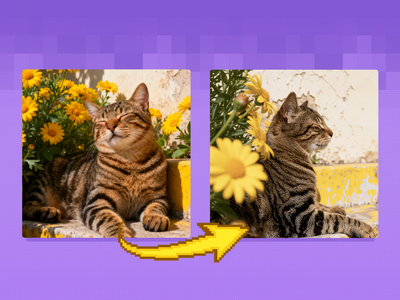
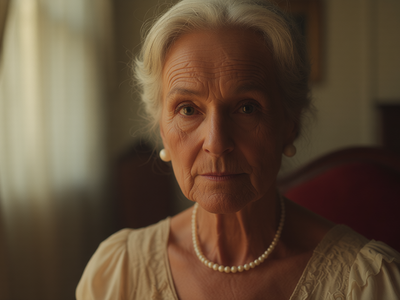
Remove harsh light and shadow from any photo and relight it with soft, even illumination using Qwen Image Edit 2509 and a Relight LoRA. Upload and run.
Image
Image2Image
Light Restoration
LoRAs
Qwen
Qwen Image Edit 2509
2.0k

Nodes & Models
LoadImage
UNETLoader
qwen_image_edit_2509_fp8_e4m3fn.safetensors
TextEncodeQwenImageEditPlus
CLIPLoader
qwen_2.5_vl_7b_fp8_scaled.safetensors
VAEEncode
VAELoader
qwen_image_vae.safetensors
LoraLoaderModelOnly
Qwen-Edit-Relight.safetensors
Qwen-Image-Lightning-8steps-V1.0.safetensors
VAEDecode
KSampler
ModelSamplingAuraFlow
ImageScaleToTotalPixels
CFGNorm
easy imageSize
SaveImage
ABOUT THE WORKFLOW
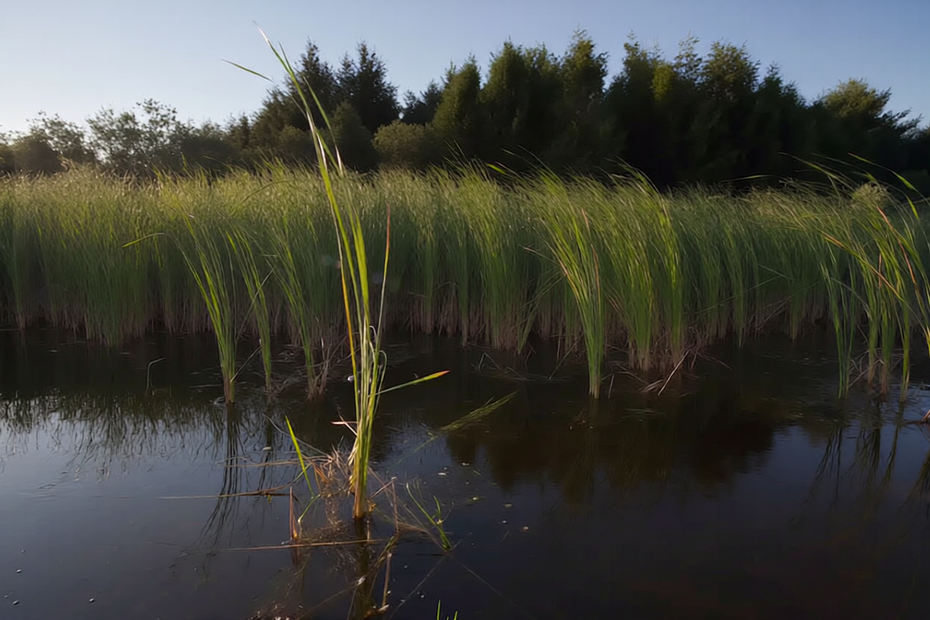
Relight a Photo Upload a picture with harsh highlights, deep shadows, or uneven light. The Relight LoRA steers the model to strip the existing lighting and replace it with soft, even illumination while keeping the subject and the scene intact. The result comes back at about one megapixel.
Model
Qwen Image Edit 2509 by the Qwen team at Alibaba. The September 2025 update to the 20 billion parameter Qwen Image Edit model with a Qwen 2.5 VL 7B encoder.
Relight LoRA by dx8152. A community adapter trained on relighting pairs that teaches the model to remove existing light and shadow and apply new, controlled illumination. Released under Apache 2.0.
Lightning 8-step LoRA by LightX2V. A speed adapter that compresses sampling to run in 8 passes.
HOW IT WORKS
Step 1. Upload your photo The picture you want relit. Portraits, interiors, and product shots with harsh or uneven light benefit most. Works great with: portraits · product shots · interiors · outdoor photos
Step 2. Hit run The prompt is already written to remove light and shadow and relight with soft, even illumination. The image is scaled to one megapixel, passed through the two LoRAs, and re-rendered in 8 passes.
Step 3. Download The relit photo is saved under ComfyUI. Ready for: Photoshop · Figma · Canva · any editor
First time? Leave every setting as-is. The defaults (1 megapixel · 8 steps · CFG 1 · Relight LoRA strength 1 · random seed) are the right starting point for almost everyone.
RECOMMENDED SETTINGS
Quick-start guide. Find the goal that matches yours and copy the settings.
Standard relight (most people) — 1 megapixel · 8 steps · CFG 1 · Relight LoRA strength 1 · random seed. The right starting point for almost everyone.
Want different lighting instead of soft fill — Rewrite the prompt to describe the light you want. "Relight using warm golden hour light from the left" or "relight with overhead studio softbox, no shadows." The LoRA handles relighting in general, not only shadow removal.
The relight changed the subject's appearance — Lower the Relight LoRA strength below 1. At 0.7 the adapter still relights but the model holds identity more tightly.
Want to see another take — The seed runs on random by default. Set a fixed number to reproduce a result you liked.
Detail looks soft after relighting — Raise steps from 8 toward 12. The Lightning LoRA is tuned for 8 steps, and a few more passes can recover fine texture.
Want creative relighting, not correction — Describe the source and direction of the new light in the prompt. The Relight LoRA supports both restoration (removing existing light) and creative relighting (adding new light from a described source).
Prompt: The default prompt reads "Remove the light and shadow, and relight the image using soft light (without obvious light spots and shadows)." That handles the most common case. For creative relighting, replace it with a description of the light source and direction you want, and the LoRA follows it.
LEARN
📹 Videos
ComfyUI 101 Free Course ft. Sebastian Kamph
Floyo 101 for Team Collaboration
✨ Quick links
USE CASES
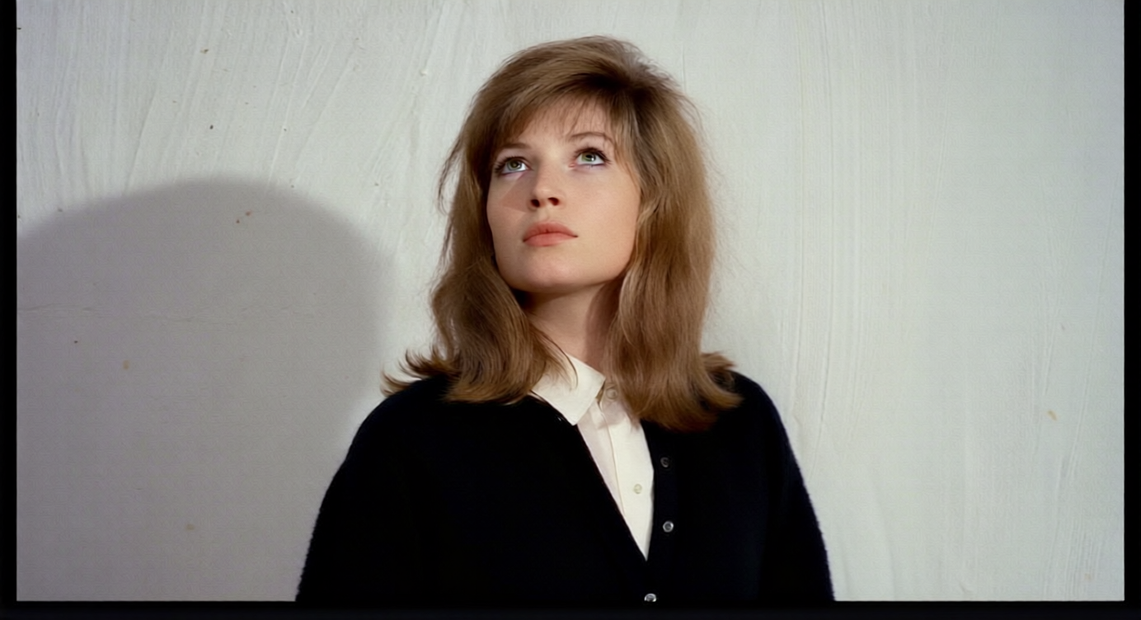
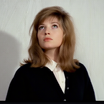
📸 Portrait Retouching Flatten harsh shadows on a face, fill dark eye sockets, and even out skin tones without touching the subject's features.
🛍️ Product Photography Clean up uneven studio light on a product shot so the object reads evenly across every angle.
🏠 Real Estate and Interior Balance blown windows and dark corners in an interior shot so the whole room reads in one exposure.
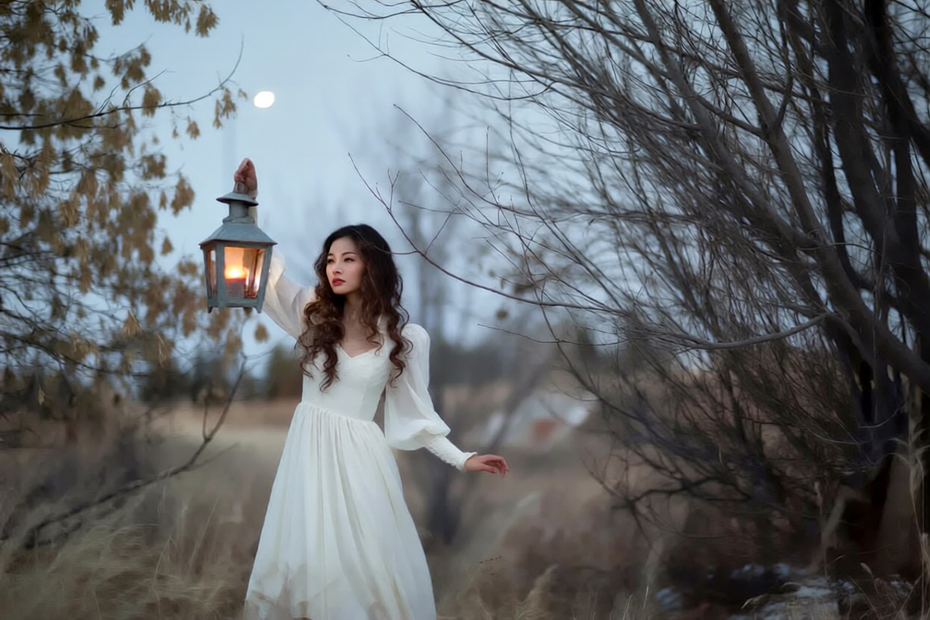
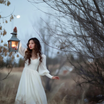
🎨 Creative Relighting Replace the existing light with a different source, direction, or colour for a new mood on the same frame.
WHAT WORKS BEST / WHAT TO AVOID
✅ Works great
Photos with harsh highlights and deep shadows
Single-subject frames where the light problem is clear
Portraits with unflattering or uneven light
Product shots with hot spots or dark patches
⚠️ May produce softer results
Photos that are already well lit (the LoRA still changes them)
Heavy backlighting where the subject is a silhouette
Images with fine detail in the shadow areas that the model invents rather than recovers
Leaving the LoRA at full strength when the lighting only needs a small correction
FAQ
What is the Relight LoRA? It is a community adapter by dx8152, trained on relighting pairs using the Qwen Image Edit 2509 base model. It teaches the model to read the existing light in a photo, remove it, and apply new illumination from a described source. It supports both restoration (stripping harsh light to soft fill) and creative relighting (adding a new light direction or colour). Released under Apache 2.0 on Hugging Face.
Does this workflow only do soft fill light? By default, yes. The shipped prompt asks for soft light without obvious spots or shadows. But the LoRA handles creative relighting too. Rewrite the prompt to describe the light you want, like "golden hour from the left" or "cool blue overhead," and the model follows it.
What is the Lightning LoRA doing? It compresses the sampling schedule so the edit runs in 8 passes instead of the full 30 or more the base model normally takes. It is loaded alongside the Relight LoRA and both stay active during the same run.
Will the relight change the subject's face or colours? It tries not to, but at full LoRA strength some identity drift can appear, especially on skin. Lowering the Relight LoRA strength toward 0.7 reduces this. The model is stronger at holding identity when the original photo is well exposed outside the problem area.
Is this workflow free for commercial use? The base Qwen Image Edit 2509 model is Apache 2.0. The Relight LoRA by dx8152 is also released under Apache 2.0. The Lightning 8-step LoRA by LightX2V is available on Hugging Face under its own terms. Check each component before using output commercially.
How does this compare to the Camera Angle and Face Swap workflows? All three run on the same Qwen Image Edit 2509 base model with different community LoRAs. Camera Angle re-renders a subject from a new view. Face Swap maps a reference face onto a target body. This workflow relights a photo. They share the same base checkpoint and the same Lightning speed adapter.
How to run Qwen Image Edit 2509 relighting online? You can run Qwen Image Edit 2509 relighting online through Floyo. No installation, no setup, no model downloads. Open the workflow in your browser, upload a photo, and hit run. Free to try.
WHY FLOYO?
Floyo is the only platform with team collaboration for ComfyUI in the browser. You run workflows with no install. You share run history, assets, and models across your team. You pay only when you generate. Floyo supports open-source and closed-source models.
A designer runs an edit and likes the result. A teammate opens that exact run from shared history and keeps going. No file handoffs. No version confusion.
For studios and enterprise teams, Floyo adds private workspaces, pooled resources, and a team usage dashboard. Other ComfyUI cloud tools run for one person at a time. Floyo runs for the whole team, with transparent per-generation costs.
Ready to try it? Upload a photo with harsh or uneven light and run it. The prompt and settings are already set.
Questions? Watch the free course or check the FAQ above.
Read more