GPT Image 2: Image Editing
Edit images with OpenAI's GPT Image 2. Upload one or two images, write what you want changed, and the model rewrites the scene while keeping details intact.
e-commerce
gpt image 2
Image
image to image
inpainting
product photography
743
_1777410531660.png?width=1400&height=620&quality=80&resize=contain)
_1777410538824.png?width=1400&height=620&quality=80&resize=contain)
_1777410531660.png?width=104&height=104&quality=80&resize=cover)
_1777410538824.png?width=104&height=104&quality=80&resize=cover)

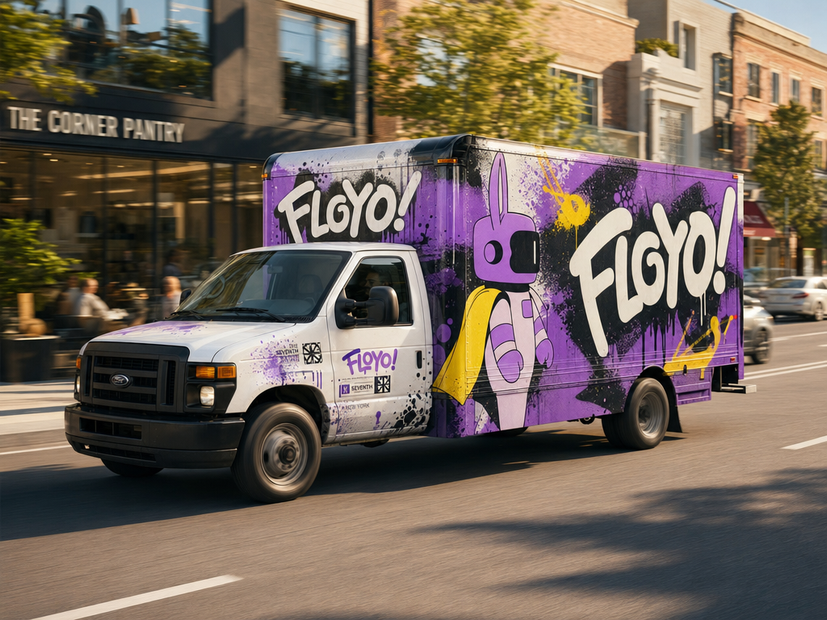
Image editing with GPT Image 2, OpenAI's autoregressive image model released April 2026.
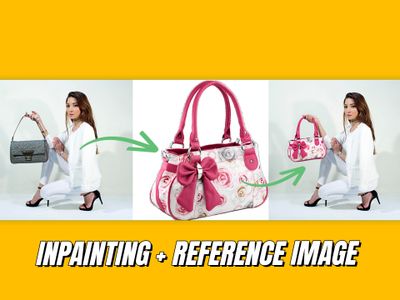
Upload an image, describe the edit in plain language, and the model rewrites only the parts you asked for. Add a second image to mix elements between two photos. Add a mask if you want the edit confined to a specific region.
The output stays close to the original. Faces, packaging text, and fine details hold up across edits, which is what older diffusion editors tend to break.
How do you edit images with GPT Image 2?
Upload your source image as image1. Add a second reference (image2) if you want to combine elements from two photos. Add a mask if the edit should only happen in a specific area. Write a clear edit prompt: what to change, what to keep, what the result should look like. Pick output size, quality, and how many variations you want, then run.
Image1 The image you want to edit. The model treats this as the source: composition, identity, and details should mostly survive the edit unless your prompt says otherwise.
Image2 (optional) A second reference. Use it when you want to pull elements from another photo: a different outfit, a different background, a logo or product to drop in. Leave it empty for single-image edits.
Mask (optional) Use a mask when you want the edit confined to a specific region: face only, product only, sky only. Skip it for full-image edits.
Prompt Write what should change and what should stay. Pattern: 'change [thing] to [new state], keep [thing] the same, the result should look [description]'. The cleaner the instruction, the cleaner the edit. GPT Image 2 follows long, structured edit prompts well, including ones with text content you want rendered into the image.
Image size Landscape 1024x768 is the default. Match the aspect ratio of your source where possible to avoid awkward crops. Higher resolutions are available when you want a final-quality output.
Quality High, medium, or low. High is sharper and renders text and small details better. Medium and low cut cost for fast iteration. Run low quality first to test prompt wording, then bump to high once the edit reads correctly.
Number of images Generate multiple variations of the same edit per run. Useful when the first attempt is close but not quite right.
Output format PNG by default.
What is GPT Image 2 image editing good for?
Edits where details have to survive: product packaging with legible labels, faces that should stay recognizable, brand graphics where the type can't drift, e-commerce shots where the item must look identical across backgrounds. The model's strength on text rendering and identity preservation makes it a strong fit for production work that older editors struggle with.
Best for product photography variants, ad creative iteration, background swaps where the subject must stay consistent, outfit and color changes on a model, and any edit where text on the image (labels, signage, packaging) has to read correctly afterward.
Also strong for two-image composites: putting a product into a new scene, swapping a person into a different background, blending elements from two references into one image.
Skip this if you want a wild stylistic transformation. GPT Image 2 is positioned for accuracy and identity preservation. For full style transfer or aggressive reinterpretation, an image-to-image diffusion workflow with high denoise is a better tool.
FAQ
What kind of edits does GPT Image 2 handle well? Targeted edits that preserve identity. Outfit changes, background swaps, object addition or removal, packaging variants, color and lighting changes. The model is built to keep the rest of the image stable while only the prompted region changes.
Can GPT Image 2 edit text inside an image? Yes. Text editing is one of the model's strongest uses. You can rewrite a label, change a sign, swap headline copy, or add new typography to a graphic and have the result render legibly in dense or multilingual layouts.
Does GPT Image 2 support inpainting with a mask? Yes. Pass a mask along with the source image and the model confines the edit to the masked region. Skip the mask for full-image edits.
What's the difference between using one image and two images? One image is a single-source edit: you change parts of that image. Two images is a composite: the model can pull elements from image2 (a product, a person, a style reference) and integrate them with image1. Use it when the edit needs visual material from somewhere else.
Is GPT Image 2 better than GPT Image 1.5 for editing? Yes for most cases. The reasoning step in GPT Image 2 plans the edit before drawing, which improves identity preservation and text rendering. Edits feel more controlled and details hold up better at higher resolutions.
How to run GPT Image 2 image editing online? You can run GPT Image 2 image editing online through Floyo. No installation, no setup. Open the workflow in your browser, upload your image, write your edit, and hit run. Free to try.
Read more