floyo logo
Powered by
ThinkDiffusion
Pricing
floyo logo
Powered by
ThinkDiffusion
Pricing
Inpainting hero

INPAINTING

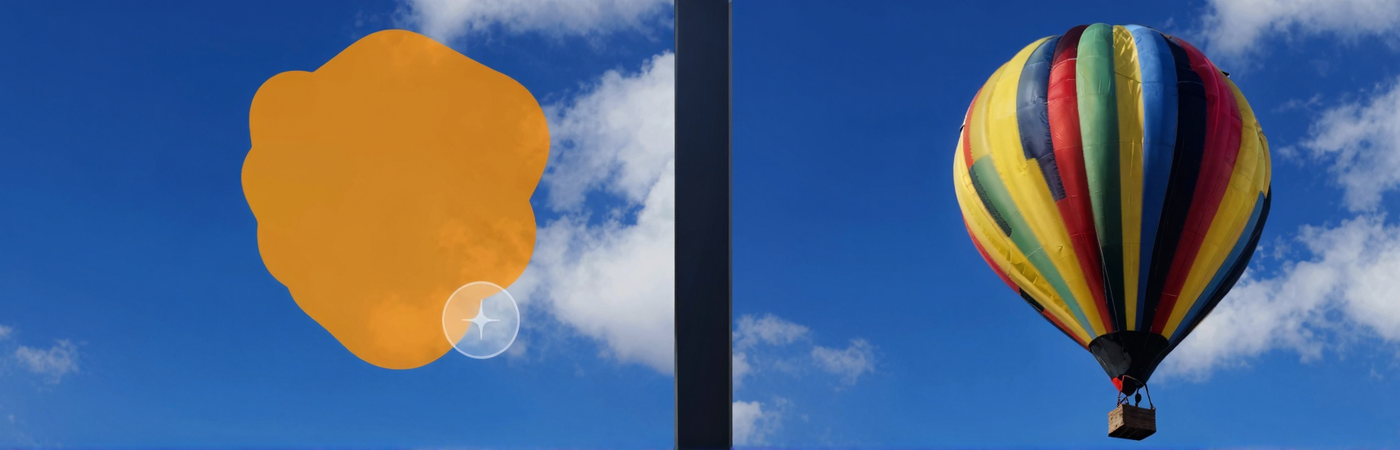
Remove, replace, and rebuild image regions with prompt-driven inpainting workflows.

Overview

A quick read before you jump in. Helps you know what to pick and why.

Most AI-generated images have at least one thing wrong. A distorted hand. A face that does not quite look right. A texture that breaks the illusion. Regenerating the entire image throws away everything that was good. Inpainting lets you fix the 5% that is wrong without touching the 95% that works.

😶 Face swap or face correction
Start with Qwen Face Swap

Dual-reference logic rebuilds identity into the actual scene lighting. 3,500+ runs on Floyo. Best face results of all seven workflows.

🔄 Object removal or replacement
Use Flux Kontext Inpainting

Scene-aware model that understands what should replace the masked area based on full image context. 2,200+ runs on Floyo.

🖌️ First time or simple fix
Start with Image Inpainting

The simplest entry point. Mask the area, write a prompt, run. Good starting point for most inpainting tasks before reaching for specialist workflows.

Inpainting workflows on Floyo

Pick a workflow that suits your needs and start building something amazing right away.

Z-Image Turbo Inpainting

controlnet

inpainting

z-image-turbo

Z-Image Turbo Inpainting

Z-Image Turbo Inpainting

Z-Image Turbo Inpainting

Qwen Image Edit 2509 Face Swap and Inpainting

Face Swap

Image2Image

Inpainting

Qwen

Qwen Image Edit 2509

Face Swap and Inpainting

Qwen Image Edit 2509 Face Swap and Inpainting

Face Swap and Inpainting

Flux Kontext Inpainting

Flux

Inpainting

Kontext

Inpaint with the power of Flux Kontext, providing additional content-awareness.

Flux Kontext Inpainting

Inpaint with the power of Flux Kontext, providing additional content-awareness.
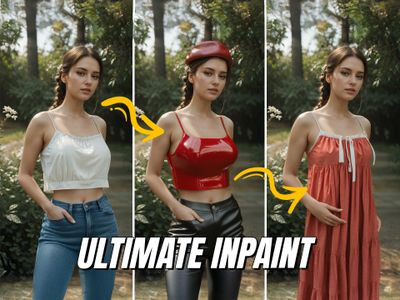
Flux Inpaint - ULTIMATE workflow.

flux

flux inpaint

flux inpainting

inpaint

inpainting

retouch

sebastian kamph

Flux inpainting with Flux fill model and regular Flux dev model. All in one Flux inpainting workflow that easily AI retouches any image.

Flux Inpaint - ULTIMATE workflow.

Flux inpainting with Flux fill model and regular Flux dev model. All in one Flux inpainting workflow that easily AI retouches any image.

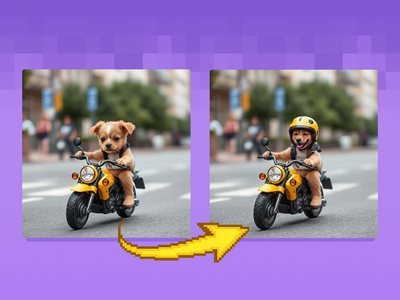
Inpainting with reference image
flux

flux kontext

inpaint

inpainting

kontext

Inpainting with reference image

Image Inpainting

Flux

Image

Inpaint

Change specific details on just a portion of the image, sometimes known as inpainting or Erase & Replace. Key Inputs Image reference: Use any JPG or PNG showing your subject clearly Masking tools: Right-click to reveal the masking tool option, and create a mask of the desired area to inpaint Prompt: as descriptive a prompt as possible to help guide what you would like replaced in the masked area

Image Inpainting

Change specific details on just a portion of the image, sometimes known as inpainting or Erase & Replace. Key Inputs Image reference: Use any JPG or PNG showing your subject clearly Masking tools: Right-click to reveal the masking tool option, and create a mask of the desired area to inpaint Prompt: as descriptive a prompt as possible to help guide what you would like replaced in the masked area

FLUX.2 Klein 9B Image Inpainting

Flux

Flux.2 Klein

Image2Image

Inpainting

LanPaint

Inpainting image using Flux.2 Klein and LanPaint

FLUX.2 Klein 9B Image Inpainting

Inpainting image using Flux.2 Klein and LanPaint

💡 Tips for getting a good inpaint result

📏 Mask bigger than you think

Extend the mask 10-20px beyond the edges of what you want to fix. For face repairs, mask the entire face, not just the problem area. For object removal, include the shadow the object casts. Tight masking is the most common inpainting mistake.

🎚️ Denoise by change size

Small fix (blemish, minor texture) = 0.3-0.5. Medium change (object swap, face fix) = 0.5-0.7. Major replacement (new element, complete content change) = 0.7-0.9. Using too-low denoise for a major change is the top cause of blurry or incomplete results.

✏️ Describe what to generate

"Clean wooden floor with natural grain pattern, matching the warm lighting" produces much better results than "remove the chair." The AI needs to know what to put in the space, not what to take away. Always describe what should appear, not what was there.

🔗 Chain small fixes

If an image has several problems, fix them one at a time. Each inpainting pass is cleaner when it has one objective. Fix the hand first, save the result, then fix the texture. If you hit repeated failures on the same area, try a different workflow rather than running the same one again.

Which inpainting workflow for which job ?

All workflows matched to their best use case.

Use Case Best Workflow Why
🖼️ Basic object removal or replacement Image Inpainting Simplest workflow. Mask the area, write a prompt, run. Good starting point for most tasks.
😶 Face swap with identity preservation Qwen Image Edit 2509 Dual-reference logic rebuilds identity into the scene's lighting and environment. 3.5k runs.
🔄 Content-aware scene editing Flux Kontext Inpainting Understands full scene context when deciding what fills the masked area. 2.2k runs.
✂️ Precise mask-based editing with multiple models Flux Inpaint ULTIMATE Combines Flux Fill and Flux Dev. Most manual control over the inpainting process. 1.6k runs.
🖼️ Reference-guided replacement Inpainting with Reference Provide a reference image to guide the fill when text prompts alone are not enough. 1.3k runs.
🧩 Lightweight model for fast iteration FLUX.2 Klein 9B Faster execution for multiple mask-and-fix cycles. Good for draft-stage iteration. 1.2k runs.
👓 Depth-aware structural fixes Z-Image Turbo Inpainting ControlNet-based. Respects depth structure of the scene. Good for architectural corrections.
🏆 Best for face fixes

Qwen Image Edit 2509

The highest-run workflow on Floyo for inpainting. Dual-reference face rebuilding produces results that look like they belong in the scene. Start here for any face-related fix.

Face swap · face correction · identity work · portrait retouching

🔄 Best for scene and object edits

Flux Kontext Inpainting

Scene-aware model that reads the full image before generating what fills the mask. Strong at object removal, background swaps, and e-commerce product editing.

Object removal · background swaps · product editing · content replacement

Frequently asked questions

Common questions about running inpainting workflows on Floyo.

Can I inpaint images from Midjourney, DALL-E, or other AI tools?

Yes. Inpainting workflows accept any JPG or PNG regardless of how it was generated. Upload a Midjourney output, a DALL-E image, a Stable Diffusion generation, a Flux image, or a photograph. The inpainting model works on all of them.

How do I create a mask for inpainting?

Most inpainting workflows include a built-in masking tool. Right-click on the Load Image node to access the masking option. Paint over the area you want to fix. The mask should cover the problem area plus a 10-20 pixel margin for blending.

What denoise setting should I use for inpainting?

It depends on how much you want to change. Subtle fixes like skin texture or minor blemishes: 0.3-0.5. Moderate changes like object swaps or face correction: 0.5-0.7. Major replacement, completely different content: 0.7-0.9. Start at 0.5-0.6 for most tasks.

Why does my inpainting look blurry?

The most likely cause is denoise set too low. At values under 0.3, the model does not generate enough detail to match the sharpness of surrounding pixels. Increase denoise to at least 0.5. Also make sure you are inpainting at full resolution, not a downscaled version of the image.

Can inpainting fix AI-generated hands?

Yes. Distorted hands are the most common AI generation defect and a primary inpainting use case. Mask the entire hand (not just the fingers), write a specific prompt ("human right hand, five fingers, relaxed natural pose, matching skin tone and lighting"), and set denoise to 0.6-0.7. Expect 2-3 attempts. Hands are hard for AI.

Can I inpaint multiple areas of an image at once?

You can mask multiple areas in a single pass, but results are usually better when you fix one area at a time. Each inpainting pass is cleaner when it has a single objective. Fix the hand first, save the result, then fix the texture, then remove the unwanted object.

What is soft inpainting?

Soft inpainting uses a gradient mask instead of a binary on/off mask. The center of the mask gets full replacement. The edges get gradual blending with the original content. This produces the most natural-looking results because there is no hard boundary between original and regenerated pixels. In ComfyUI, soft inpainting is achieved through mask feathering nodes or by creating gradient masks manually.

Table of Contents