

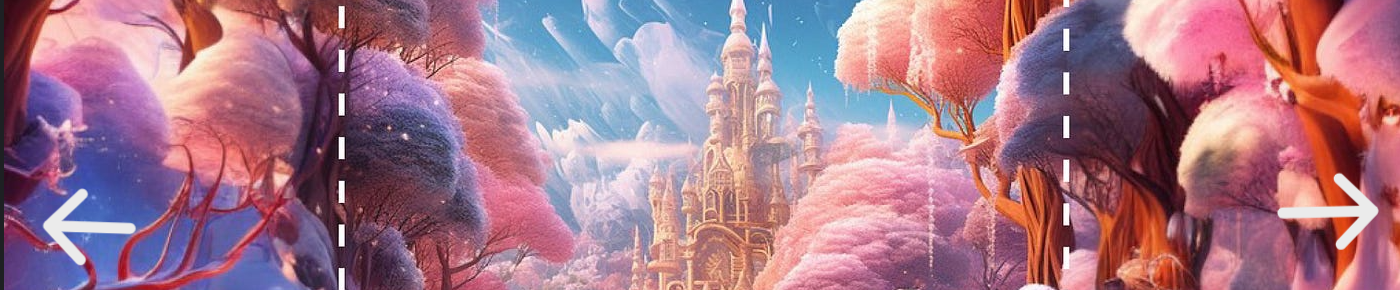
OUTPAINTING
Seamlessly extend image boundaries while preserving style, lighting, and composition.
Overview
A quick read before you jump in. Helps you know what to pick and why.
These workflows extend images beyond their original edges. Your image looks great but the framing is wrong, the canvas is too tight, or the client needs a different aspect ratio. Outpainting solves this without regenerating from scratch. The AI reads edge pixels and continues the scene outward, matching style, lighting, and detail.
Most control over expansion direction and feathering. Best at natural lighting and texture continuation. 670 runs on Floyo.
Strongest at maintaining content coherence across complex expansion boundaries. 326 runs on Floyo.
Lighter model that runs faster on Floyo. Good when you need 3-5 small expansion passes quickly. 324 runs.
Outpainting workflows on floyo
Pick a workflow that suits your needs and start building something amazing right away.

floyoofficial
1.6k
Flux
Image
Outpaint
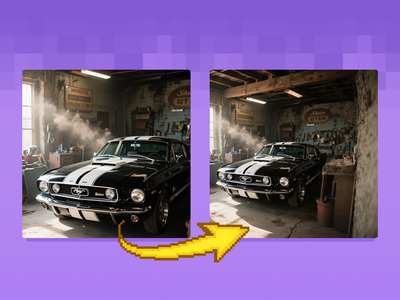
Extend your images out for a wider field of view or just to see more of your subject. Expand compositions, change aspect ratios, or add creative elements while maintaining consistency in style, lighting, and detail while seamlessly blending with the existing artwork.
Flux Fill Dev Image Outpainting
Extend your images out for a wider field of view or just to see more of your subject. Expand compositions, change aspect ratios, or add creative elements while maintaining consistency in style, lighting, and detail while seamlessly blending with the existing artwork.
floyoofficial
1.9k
Flux
Flux.2 Klein
Image
Image Outpainting
LoRAs
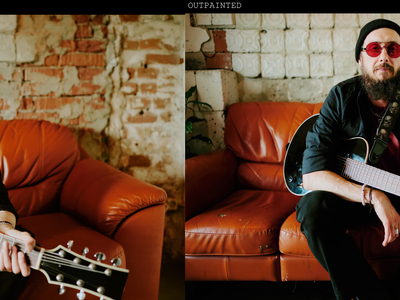
Outpaint image using Flux 2 Klein 4B using LanPaint and Outpaint LoRA
FLUX.2 Klein 4B for Image Outpainting
Outpaint image using Flux 2 Klein 4B using LanPaint and Outpaint LoRA

Qwen Edit 2511 OUTPAINTING
OUTPAINTING
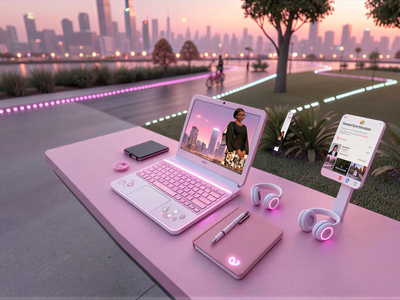
Flux.2 Klein Image Expansion / Outpaint
💡 Tips for getting a good outpaint result
✏️ Describe the expansion area
Write a prompt for what you want in the new area, not a description of the whole image. Be specific about environment, lighting, and style. "Continuation of a sunlit forest path with dappled shadows" works better than "more trees."
🪄 Use feathering to blend
Start at 40-80px. This controls how much the original edge blends into the new content. Too low leaves a visible seam. Too high overwrites too much of the original. Increase if you see hard edges on the output.
📐 Expand in steps
Expand 128-256px at a time rather than one large jump. Each pass gives the AI fresh edge pixels to work from. Large single-pass expansions often produce less coherent results at the edges.
🎯 Match direction to content
Expanding downward on a landscape is easier for the AI than expanding upward into empty sky. Think about what content naturally exists in the expansion direction. Add more prompt detail when expanding into ambiguous or open areas.
Which outpainting workflow for which job ?
All four workflows side by side. Match your use case to the right tool.
| Use Case | Best Workflow | Why |
|---|---|---|
| 🌄 Natural scenes, landscapes, environments | Flux Fill Dev | Best at continuing natural lighting and texture. Most feathering control. 670 runs. |
| 🧩 General canvas expansion | Flux.2 Klein | Good speed-quality balance for standard outpainting. Reliable across most image types. 618 runs. |
| 🎭 Interiors, crowds, multi-element scenes | Qwen Edit 2511 | Strongest content coherence on complex expansion boundaries. 326 runs. |
| ⚡ Quick iterative multi-pass expansion | FLUX.2 Klein 4B | Lighter model, faster execution. Good for 3-5 small 128-256px passes. 324 runs. |
Flux Fill Dev Image Outpainting
The default pick for outpainting on Floyo. The most feathering control, the most runs, and the best results on natural lighting and texture. If you are not sure which to use, start here.
Landscapes · product backgrounds · scene extension · aspect ratio change
Qwen Edit 2511 Outpainting
When the scene has many overlapping elements that need to stay coherent across the expansion boundary, Qwen Edit 2511 handles it better than Flux-based workflows.
Interiors · crowds · architectural · complex layering
Frequently asked questions
Common questions about running outpainting workflows on Floyo.
Floyo offers a free trial so you can test outpainting workflows before committing. After that, Floyo charges per second of GPU compute. No monthly minimum. No idle charges. You are billed only when a workflow runs on Floyo's H100 NVL GPUs.
No. Floyo runs in your browser. You do not need to install Python, ComfyUI, model weights, or any dependencies. Open an outpainting workflow on Floyo, upload your image, set your expansion direction, and run. All computation happens on Floyo's H100 NVL GPUs.
Yes. All Floyo outpainting workflows accept any JPG or PNG regardless of how it was generated. Midjourney outputs, DALL-E images, Stable Diffusion generations, and photographs all work on Floyo's outpainting workflows.
There is no hard limit on Floyo, but quality decreases with larger single-pass expansions. For best results, expand 128–256px per pass and run multiple passes. Each pass gives the AI fresh edge pixels to work from, producing more natural results than one large expansion.
Outpainting generates new content outside the original image boundaries to expand the canvas. Inpainting replaces content inside the image to fix or change specific areas. Outpainting extends; inpainting repairs. Both run on Floyo's H100 NVL GPUs and can be chained together in the same session.
Yes. Floyo is the only ComfyUI cloud platform with team collaboration. When you run an outpainting workflow, the result appears in your team's shared run history. Team members can view, download, or continue refining the output from any machine without you exporting and sending the file.