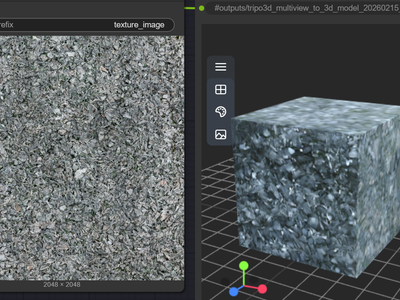
Seamless PBR Texture Workflow
Turn any reference image into a tileable wood texture with full PBR maps: basecolor, normal, roughness, metalness, and height. Built for Unreal and Blender.
Image
Image to Image
PBR texture
339


Nodes & Models
Note
CheckpointLoaderSimple
Raymnants.6.2.safetensors
LoadImage
SeamlessTile
CLIPTextEncode
MakeCircularVAE
ImageScale
VAEEncode
KSampler
VAEDecode
SaveImage
Image Save
ChordLoadModel
chord_v1.safetensors
ChordMaterialEstimation
ChordNormalToHeight
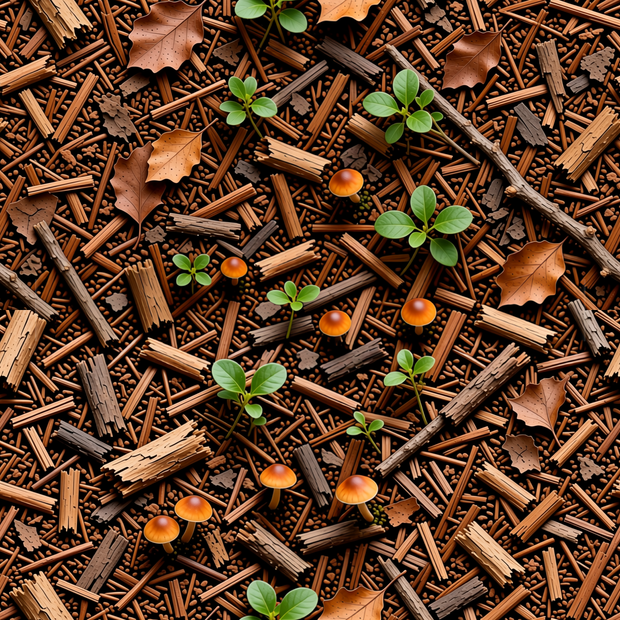
Turn a reference image into a tileable texture with a full PBR map set.
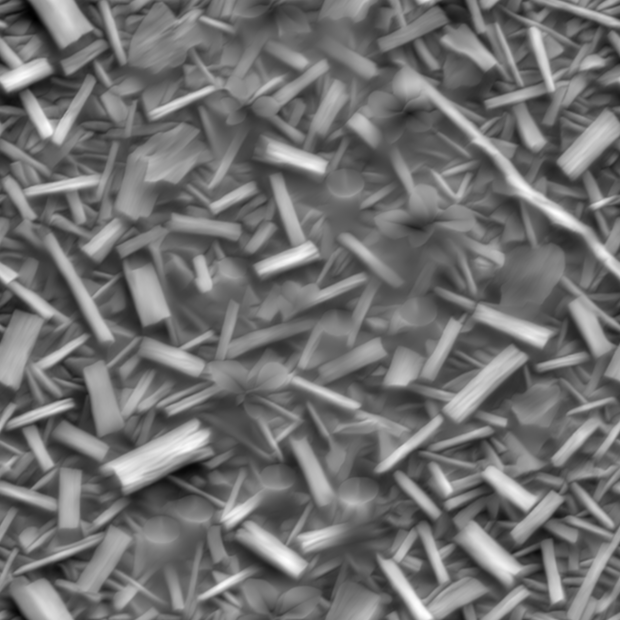
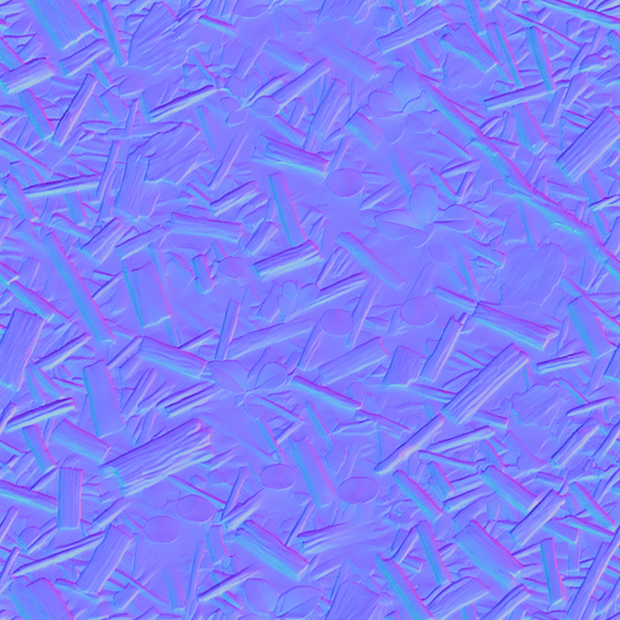
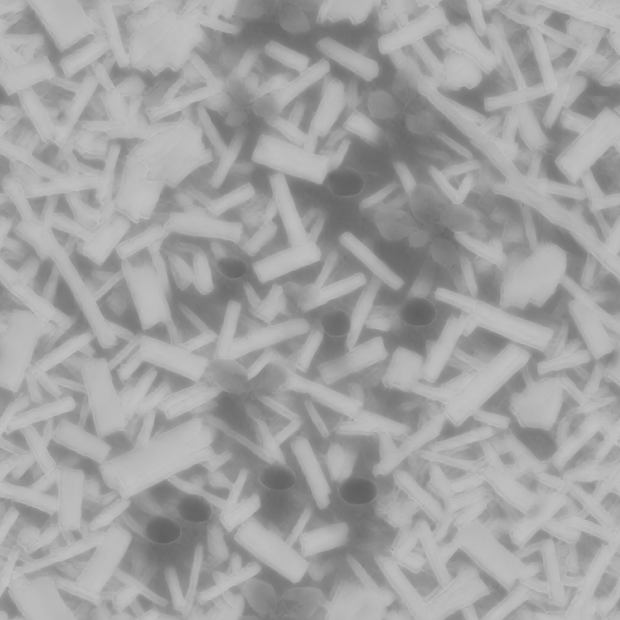
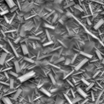
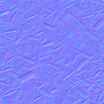
Upload a wood sample (or any flat material), tune the prompt, and the workflow rebuilds it as a 2048×2048 tile that loops without visible edges. Then Ubisoft's Chord model estimates basecolor, normal, roughness, and metalness from that texture, and a normal-to-height node derives the height map.
The prompts are tuned for warm oak plank flooring out of the box. Change them to make walnut, maple, stone, fabric, or anything else.
How do you generate tileable PBR textures from a reference image?
Upload a flat overhead reference, write a prompt that describes the material you want, and the workflow tiles it into a 2048×2048 texture that loops without seams. Ubisoft's Chord model then estimates basecolor, normal, roughness, and metalness from that texture, and a height map gets derived from the normal. You get a complete PBR set ready for Unreal or Blender.
Reference image The starting point. The workflow refines this rather than building from scratch, so pick something close to the texture you want. A clean overhead shot of wood, stone, fabric, or any flat surface works best. Avoid strong shadows or perspective angles.
Positive prompt This describes what the final texture should look like. The default is tuned for warm oak plank flooring with cathedral grain and visible plank divisions. Want a different wood? Swap "oak" for "walnut" or "ash". Going for stone? Rewrite the prompt around marble, slate, or concrete. The more specific your material description, the closer the result.
Negative prompt This is what to keep out. The defaults block seams, shadows, perspective, watermarks, and yellow pine tones. Add your own dislikes here if certain wood types or artifacts keep showing up.
Denoise (default 0.6) This controls how much the workflow changes your reference. Want the output to stay close to your input? Drop to 0.3 or 0.4. Want bigger material reinterpretation? Push to 0.75 or 0.85. Higher denoise gives more creative freedom but the model can drift from your reference.
Tiling toggle On by default. It locks the edges so the texture loops without visible seams when repeated across a surface. Leave it on for game and 3D work. Turn it off only if you want a standalone image rather than a repeating material.
Resolution (default 2048×2048) Set on the ImageScale node. 2048 is the sweet spot for most game and archviz work. Drop to 1024 for faster previews. Push to 4096 for hero assets the camera lingers on, though render time goes up.
Steps and CFG (40 / 4.5) The defaults are tuned. Steps below 25 start losing grain detail. CFG above 6 makes the output follow the prompt harder but can wash out subtle texture variation. The catch: pushing CFG too far also kills the natural noise that makes wood look like wood.
Color space (output) Basecolor saves as sRGB. Normal, roughness, metalness, and height save as linear. Set them this way in your engine or the lighting will look off.
What is this workflow good for?
Game environments, archviz scenes, and 3D asset work that need materials tiling cleanly across large surfaces while responding correctly to lighting. You get the full PBR map set in one run, so the textures drop into Unreal, Unity, Blender, or Substance without extra material conversion. The wood tuning makes it the fastest path to flooring, paneling, and furniture surfaces.
Game floors, walls, and props where the same material needs to repeat across a level without showing seam lines. Archviz interiors where photoreal wood, stone, or fabric needs to read at any camera distance. Concept work where you want a fast PBR material to prototype with rather than waiting on hand-painted authoring.
Swap the prompt and it handles any material the Chord model can estimate: stone, brick, fabric, concrete, metal. The wood-tuned defaults are a starting point, not a limit.
When to skip it: a single illustration where the texture won't repeat. Materials needing hand-painted art direction for stylized work. Surfaces in your project that don't use PBR shading at all.
FAQ
What is a seamless PBR texture? A material image that loops without visible edges when tiled across a 3D surface, paired with maps describing how the material responds to light. PBR stands for physically based rendering. The standard set is basecolor, normal, roughness, metalness, and height. Together they let one texture look correct under any lighting condition.
How do you make a texture tileable in ComfyUI? You wrap the model so its left and right edges match, and its top and bottom edges match, during diffusion. This workflow uses SeamlessTile and a circular VAE to handle the wrapping. The output tiles cleanly across any surface with no seam line where the texture meets itself.
What size should PBR textures be for games? For most game and archviz work, 2048×2048 is the standard. It holds detail for surfaces seen up close without burning VRAM. Use 1024 for distant or background materials. Reserve 4096 for hero props the camera spends time on.
What is the Chord model from Ubisoft? Chord is an open-source material estimator from Ubisoft La Forge. It takes one texture image and predicts the PBR map set: basecolor, normal, roughness, and metalness. The workflow derives height from the normal map afterward. It replaces hours of hand authoring in Substance or Photoshop.
How do you run seamless PBR textures online? You can run seamless PBR texture workflows online through Floyo. No installation, no setup. Open the workflow in your browser, upload your reference image, and hit run. Free to try.
Read more

_1786518453053.png?width=400&height=300&quality=80&resize=cover)