

Qwen Image Edit - Infinite Image Styles
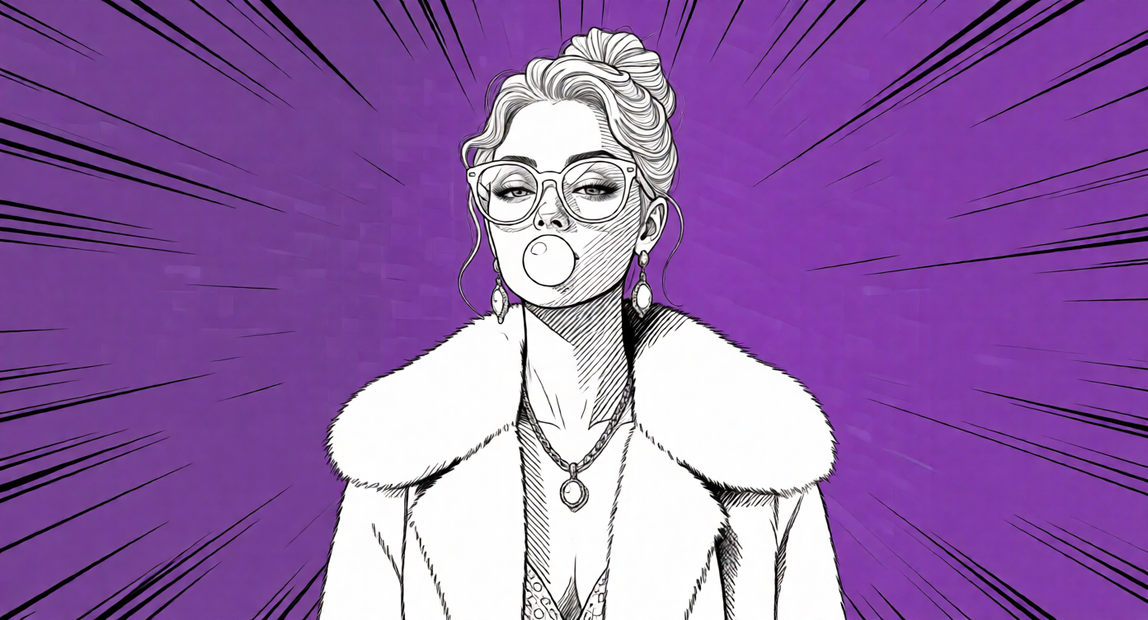
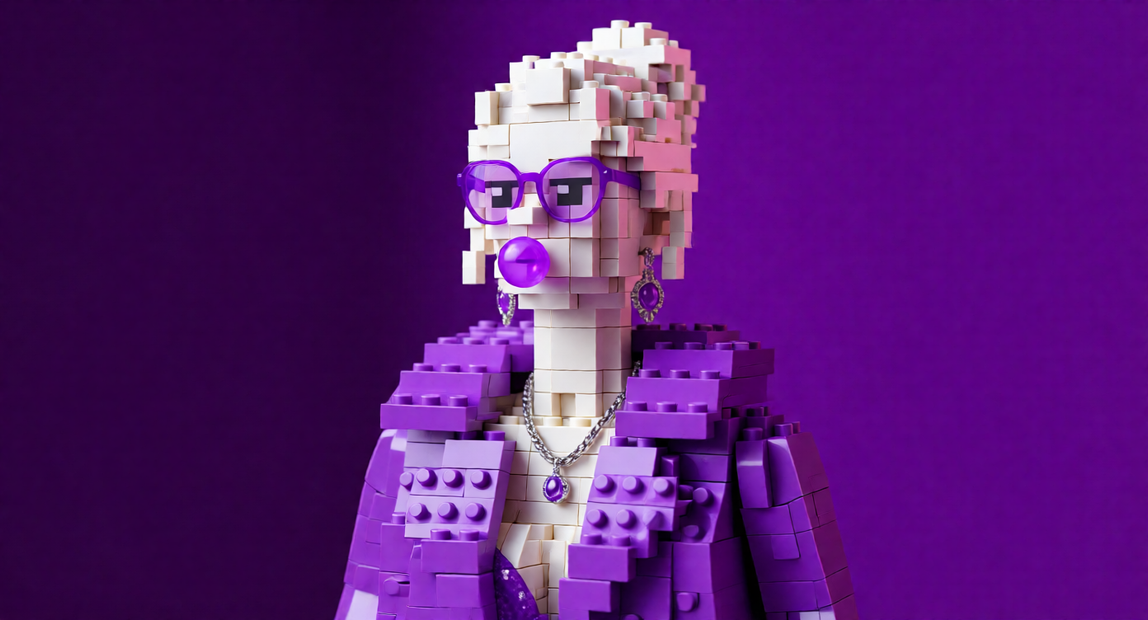
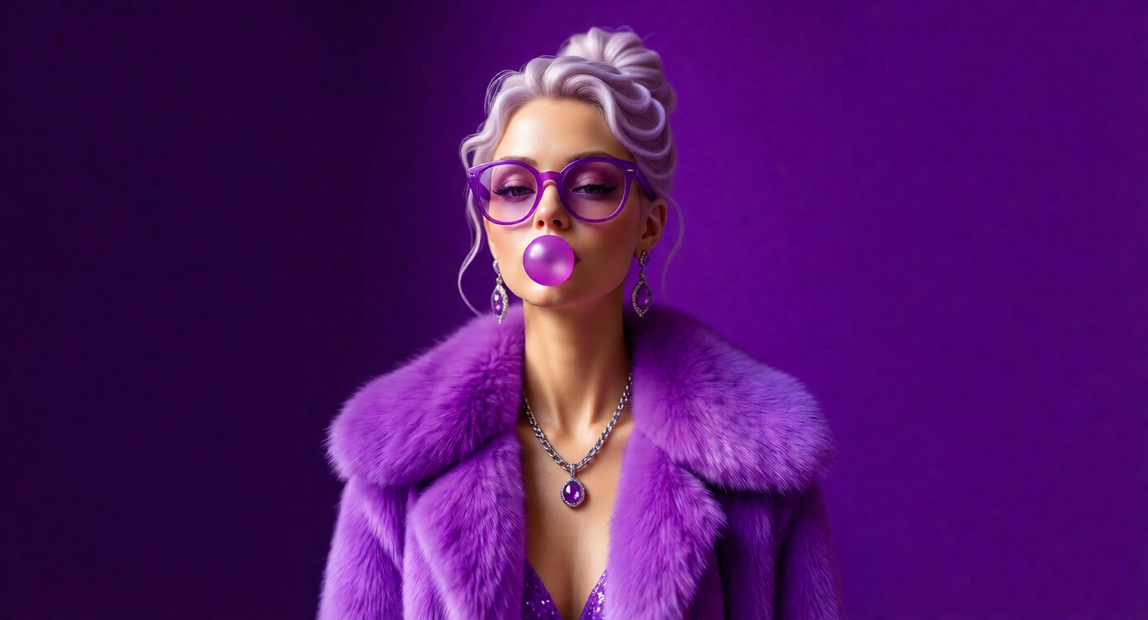
Restyle any photo with text. Type a style, hit Run, get the same image as anime, watercolor, claymation, or any look in 4 seconds with Qwen Image Edit.
Image
image to image
infinite style
qwen
386





Nodes & Models
UNETLoader
qwen_image_edit_2511_fp8_e4m3fn.safetensors
CLIPLoader
qwen_2.5_vl_7b_fp8_scaled.safetensors
VAELoader
qwen_image_vae.safetensors
LoadImage
PrimitiveStringMultiline
MarkdownNote
LoraLoaderModelOnly
Qwen-Image-Edit-2511-Lightning-4steps-V1.0-bf16.safetensors
FluxKontextImageScale
StringConcatenate
ModelSamplingAuraFlow
VAEEncode
TextEncodeQwenImageEditPlus
KSampler
VAEDecode
SaveImage
Image Comparer (rgthree)
Drop in any photo, type what style you want, and Qwen Image Edit restyles it while keeping the composition and subject intact.
The prompt is built from three editable text boxes (instruction, style, modifiers) that get joined automatically. Swap in any style you can describe in words: anime, oil painting, origami, pixel art, claymation, cinematic film still, low poly 3D, stained glass. No preset dropdowns, no prefix conventions.
A 4-step Lightning LoRA handles generation, so each run takes about four seconds.
How do you restyle an image with Qwen Image Edit?
Upload a photo to the Load Image node. In the orange STYLE box, type the style you want, like "studio ghibli inspired" or "watercolor painting, soft brushstrokes, paper texture." The INSTRUCTION and MODIFIERS boxes get joined to it automatically. Hit Run. The original composition stays put while the look transforms.
Load Image Your source photo. The workflow auto-scales it to a Qwen-friendly resolution, so any input size works. Photos with a clear subject (portraits, single-subject product shots, landscape with a focal point) give cleaner restyles than cluttered scenes.
[2] STYLE box The main thing you'll edit. Write any style in plain English. Concrete words beat vague mood words: "claymation, plasticine texture, stop motion aesthetic" works better than "claymation". The note inside the workflow has ~30 ready-to-copy presets across anime, painting, craft, cinematic, and 3D/digital categories.
[1] INSTRUCTION box Defaults to "Transform this image into." Swap to "Reimagine this as" or "Convert this scene to" if you want different framing on the edit.
[3] MODIFIERS box Optional quality and lighting words appended at the end. Empty it out for a cleaner result if your style descriptor is already detailed enough.
KSampler denoise Controls how much the image changes. 0.6 keeps lots of original detail, 0.85 (default) is a strong restyle, 0.95+ gives the model freedom to rework the composition.
Lightning LoRA toggle On by default for 4-step generation. Mute the LoRA node if you want full quality at 20 steps with CFG 4 instead.
What is this workflow good for?
Restyling reference images, mood boards, concept art, and personal photos into specific artistic looks without re-shooting or commissioning custom art. Best when you have a clear source image and want to test how it would look across many art styles like anime, oil, watercolor, low poly, claymation, or cinematic. Strong for batch restyles where the input is the variable, not the style.
Concept artists use this to mock up the same scene in three different art directions for client presentations. Game designers test how a character would look in anime, comic, and 3D styles before committing to a pipeline. Marketing teams turn product photos into illustrated versions for social posts. Personal users restyle photos as art prints, gifts, or social content.
The workflow holds composition firmly at the default 0.85 denoise, so faces, poses, and product silhouettes carry through cleanly. For more radical transformations where you want the model to reinterpret the scene, bump denoise to 0.95 or above.
Doing pure text-to-image with no source photo? A regular text-to-image workflow will give you more creative range. This one is built around having a real image to start from.
FAQ
What style descriptions work best with Qwen Image Edit? Specific, concrete art direction beats vague mood words. "Watercolor painting, soft brushstrokes, paper texture, bleeding edges" gives a sharper result than the bare word "watercolor." Reference real movements, mediums, or production styles (gouache, claymation, anamorphic film still, low poly 3D render). The workflow note lists ~30 tested presets to copy from.
How long does Qwen Image Edit take with the Lightning LoRA? About 4 seconds per image on an H100, 8-12 seconds on a 4090. The 4-step Lightning LoRA handles the speed. Disable it and bump steps to 20 with CFG 4 if you need higher fidelity for hero shots, which takes around 30-40 seconds.
Why does my output keep losing the original subject's face? Denoise is too high. Drop the KSampler denoise value from 0.85 to 0.7 or 0.6. Faces are the first thing to drift when the model gets too much freedom. The trade-off is less stylization, so for strong style transfer with face preservation, try 0.75 as a middle ground.
Can I use multiple reference images with Qwen Image Edit? Yes. The TextEncodeQwenImageEditPlus nodes have image2 and image3 input slots that are unused by default. Add more LoadImage nodes and FluxKontextImageScale nodes, wire them to image2 and image3, and reference them in your prompt as "image 2" and "image 3" the way Qwen Image Edit expects.
What's the difference between this and the SDXL Prompt Styler approach? The SDXL Prompt Styler ships with a strict dropdown of 107 named presets and quirky naming conventions like "sai-cinematic." This workflow uses free-text style descriptions, so you're not bound to any preset list. The trade-off is that you have to write the style yourself instead of picking from a menu, but the included preset library covers the common cases.
Read more








