Kling O3 Pro - Video to Video Edit
API
Vid2Vid
Video
video generation
636

Nodes & Models
KlingO3ProVideoToVideoEdit_floyo
VideoToFrames
WorkflowGraphics
LoadVideo
LoadImage
VHS_VideoCombine
VHS_VideoCombine
Upload a video, describe the changes you want, and Kling O3 Pro rewrites the content while keeping your clip's structure intact. Your original audio stays by default — no extra steps needed.
No duration controls, no resolution settings. The output matches the length of your input. Write your prompt, hit run.
How do you use Kling O3 Pro for video-to-video editing?
Upload your video, write a prompt describing what to change, and Kling O3 Pro handles the rest. The model rewrites the visual content of your clip based on your description. Audio is preserved by default. Output length matches your input.
video Your source clip. Upload the video you want to edit. This is the only required input — everything else is optional or already set to a sensible default.
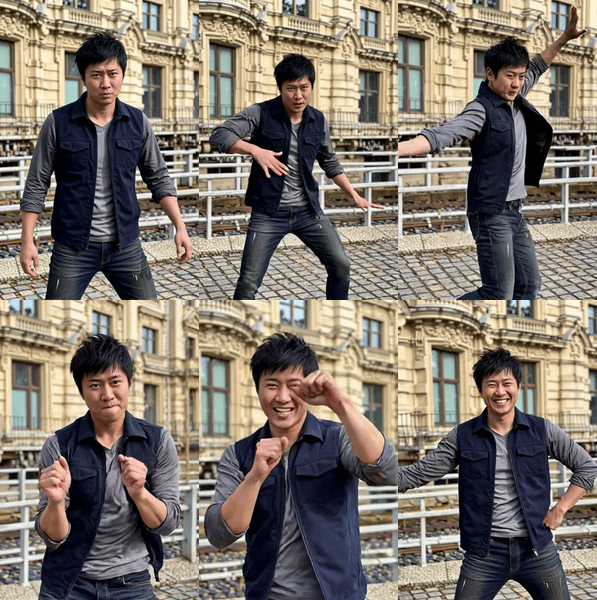
prompt Describe what you want changed. Be specific about the subject or action you're replacing. The default example — "replace the woman with a man" — shows the kind of instruction the model responds well to. Want to swap an outfit? Change the setting? Rewrite the subject entirely? Put it here.
keep_audio Defaults to true. Your original audio track carries over automatically. Turn it off only if you want a silent output or plan to add new audio downstream.
shot_type Defaults to "customize." Leave it there unless you have a specific reason to change it.
image_1 / element_1_frontal_image Optional reference images. Plug in a photo if you want the model to target a specific person or element in the edit. Useful when you need consistency across a face or object.
input_video_url An alternative to uploading a file directly. Paste a URL to your source video if you're working from a hosted clip instead.
What is Kling O3 Pro video-to-video editing good for?
It's built for scene-level edits where the structure of the original clip stays the same but the subject, character, or content changes. Think subject swaps, character replacements, and visual rewrites — not frame-by-frame corrections or subtle retouching.
Good fit for: replacing a person with another, changing what someone is wearing, swapping the main subject while keeping the background motion, or transforming a character's appearance across a full clip.
The output length matches your input — there's no way to trim or extend from within this workflow. Bring a clip that's already the right length.
If you only need a quick static image edit, a Kling image-to-image workflow will be faster. This one is specifically for moving footage.
FAQ
What kind of prompt works best with Kling O3 Pro video-to-video? Short, direct instructions work well. Describe the target state, not the process — "a woman in a red dress walking" rather than "change the blue dress to red." The clearer the subject and action, the more predictable the result.
Does the output video keep the same length as my input? Yes. The model edits the content of your clip but doesn't change its duration. What goes in length-wise is what comes out.
Can I use a reference image to control who appears in the edited video? Yes. Connect a photo to the image_1 input to give the model a visual target. Useful when you want a specific person or character to appear consistently across the clip.
What happens to the audio when I edit a video? By default, keep_audio is set to true, so your original audio track is preserved in the output. Set it to false if you want a silent output.
How do I run Kling O3 Pro video-to-video online? You can run it online through Floyo. No installation, no setup. Open the workflow in your browser, upload your video, and hit run.
Read more