Grok Imagine: Image to Video with Audio
Turn images into excellent video using the Grok Imagine
grok imagine
image to video
Video
video generation
12.1k






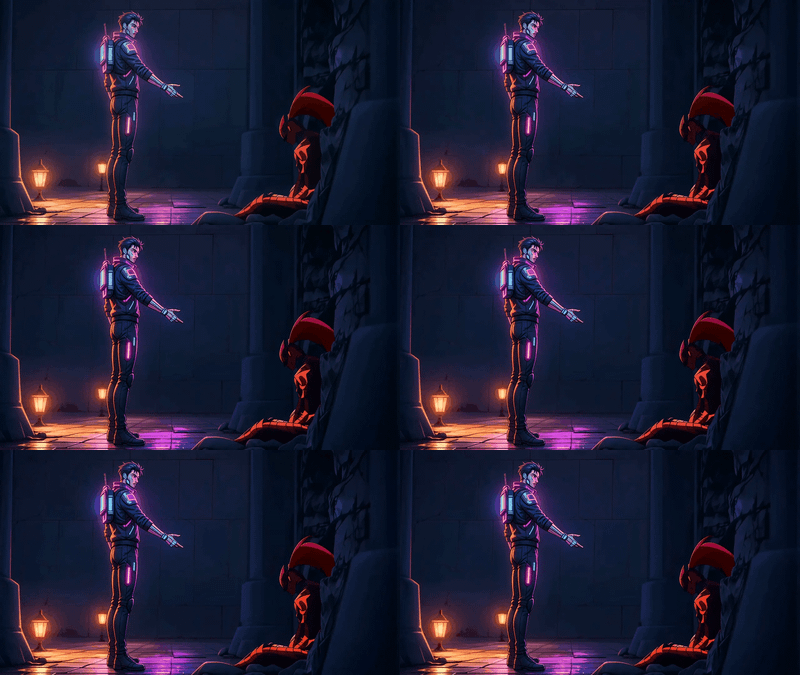
HOW IT WORKS
Step 1. Upload your image The still you want to animate. A clear subject with room to move gives the cleanest motion. Works great with: photos · portraits · product shots · character art

Step 2. Describe the motion Write a short prompt for what should move and how. You can describe the sound and mood too, like "the raccoon steps forward and waves as the camera zooms out."
Step 3. Hit run and download You get back a 720P clip with synced audio generated in the same pass. Preview it in the workflow, then download. Ready for: Premiere · CapCut · DaVinci Resolve · any editor
First time? Leave every setting as-is. The defaults (720p · 6 seconds · auto aspect ratio) are the right starting point for almost everyone.
RECOMMENDED SETTINGS
Quick-start guide. Find the goal that matches yours and copy the settings.
Standard clip (most people) Start here — 720p · 6 seconds · auto aspect ratio. The right starting point for almost everyone.
Want a faster render — Drop to 480p. The clip generates quicker, with a small trade in sharpness.
Want a longer clip — Raise the duration. More seconds give the motion more room to play out and take a little longer to generate.
Want sound or a voice — Describe the audio in your prompt. Grok Imagine generates synced sound effects and ambience in the same pass as the video.
Set the shape — Switch the aspect ratio from auto to 16:9 or 9:16 to match where the clip will post.
Motion is too wild or too still — Name the action and its pace plainly. "A slow zoom out as she turns to camera" steers better than "make it move."
Prompt: Describe what moves, how it moves, the camera, and the mood. Keep it concrete. Adding a sound cue in the same prompt tells the model what to score the clip with.
USE CASES
🎬 Social & Short-form Animate a single image into a clip for Reels, Shorts, or TikTok, with sound included from the start.
🛍️ Product & Marketing Turn a product still into a short motion teaser with ambience, no shoot and no separate audio pass.
🎨 Artists & Illustrators Bring character art or a portrait to life with motion and a matching soundtrack while the style holds.
🎭 Creators & Meme-makers Make a quick, shareable animated clip from any image. Upload, run, and post.
WHAT WORKS BEST / WHAT TO AVOID
✅ Works great
A clear subject with room to move
A clean, well-lit source image
A prompt that names the motion and sound
Simple, describable action
⚠️ May produce softer results
Cluttered frames with no clear subject
Fast or extreme motion in a short clip
Low-resolution or blurry source images
Vague prompts with no motion described
NEW TO COMFYUI?
Start with the free ComfyUI for Beginners Course on Floyo. Sixteen short videos take you from zero to running your own AI workflows. No setup headaches, no jargon, clear hands-on lessons. Watch the course, then run any workflow here in your browser.
👉 Watch the free ComfyUI for Beginners Course →
FAQ
What is Grok Imagine? Grok Imagine is xAI's image and video generation system, built on its Aurora architecture. This workflow runs the image-to-video model: you give it a still and a motion prompt, and it animates the image into a short clip with sound. The autoregressive design helps it hold the subject and framing steady across the clip.
Does Grok Imagine generate audio along with the video? Yes, and it is a defining feature. Grok Imagine produces synchronized audio in the same pass as the video, covering sound effects, ambience, and lip-sync, all driven by your prompt. There is no separate recording or dubbing step, so the clip comes out with sound built in.
What resolution and length does this workflow produce? It defaults to 720P at 6 seconds. You can drop to 480p for a faster render or raise the duration for a longer clip. Grok Imagine generates at 24fps, which gives the motion a smooth, cinematic feel.
How is Grok Imagine different from other image-to-video models? Two things set it apart: built-in audio and its Aurora architecture. Many image-to-video models output silent clips you have to score yourself, while Grok Imagine generates picture and sound together. The autoregressive approach also helps reduce subject warping, so faces and objects stay consistent across the clip.
Can I use a vertical or square image? Yes. Grok Imagine supports several aspect ratios, so a vertical or square source works as well as a widescreen one. Set the aspect ratio to match your image, which is worth doing for vertical social formats.
Can I use the results commercially? Yes. Videos you generate on Floyo carry full commercial rights, so you can use them in social posts, ads, client work, and shipped projects. You are responsible for having the right to use the source image you upload.
How to run Grok Imagine online? You can run Grok Imagine online through Floyo. No installation, no setup, no API keys to wire up. Open the workflow in your browser, upload an image, write a prompt, and hit run. Free to try.
WHY FLOYO?
Floyo is the only platform with team collaboration for ComfyUI in the browser. You run workflows with no install. You share run history, assets, and models across your team. You pay only when you generate. Floyo supports open-source and closed-source models.
A creator runs a clip and likes the result. A teammate opens that exact run from shared history and keeps going. No file handoffs. No version confusion.
For studios and enterprise teams, Floyo adds private workspaces, pooled resources, and a team usage dashboard. Other ComfyUI cloud tools run for one person at a time. Floyo runs for the whole team, with transparent per-generation costs.
Ready to try it? Upload your image and run it. Write a short motion prompt and the settings are already set.
Questions? Watch the free course or check the FAQ above.
Read more