Ideogram V4 LoRA Trainer · LoRA Training
Upload your training images and this workflow fine-tunes a LoRA adapter on Ideogram V4, returning a download link for the trained LoRA file and config, ready to use in generation workflows.
custom style
fine-tune
ideogram v4
LoRAs
lora training
0
136


Nodes & Models
IdeogramV4LoraTrainer_floyo
LoadImage
FloyoStickyNote
ShowText|pysssss
ShowText|pysssss
ShowText|pysssss
ABOUT THE WORKFLOW
Train Your Own LoRA
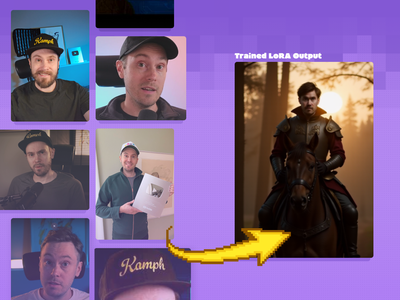
Upload a set of training images of a character, product, style, or subject. The workflow fine-tunes a LoRA adapter on Ideogram V4 using your images and a caption. When training finishes, it returns download URLs for the LoRA file and its config. Load the trained LoRA into any Ideogram V4 generation workflow to produce images of your subject on demand.
Partner node. This workflow calls an external API, so each run uses credits from your API wallet. No API key needed. Floyo handles the connection.
Model
Ideogram V4 (4.0) by Ideogram AI. A 9.3-billion-parameter open-weight Diffusion Transformer. LoRA training adapts the model to reproduce a specific person, product, art style, or visual identity from a small set of example images.
HOW IT WORKS
Step 1. Upload your training images
Load the images that define what you want the LoRA to learn. For a character, use clear photos from different angles. For a style, use images that share the same aesthetic. For a product, use clean shots showing the item from multiple views.
Step 2. Set the caption
The default caption is "a photo in TOK style," where TOK is the trigger word. When you generate with the trained LoRA later, include TOK in your prompt to activate the learned style or subject. Change the caption to describe your subject more specifically if needed.
Step 3. Adjust training settings (optional)
Steps, learning rate, and resolution are preconfigured. Leave them as-is for most training runs.
Step 4. Hit run and wait
Training runs remotely and takes several minutes depending on the number of images and steps. When finished, the workflow displays two URLs: one for the trained LoRA file and one for the config file. Download both.
First time? Leave every setting as-is. The defaults (1000 steps, 0.0001 learning rate, auto resolution) are the right starting point for almost everyone.
RECOMMENDED SETTINGS
Quick-start guide. Find the goal that matches yours and copy the settings.
Standard LoRA training (most people) — 1000 steps, 0.0001 learning rate, auto resolution, default caption with TOK trigger. No changes needed.
Character or face LoRA — Use 15 to 30 clear, well-lit photos from different angles and expressions. Keep backgrounds simple. The model learns the face and build from consistent features across the set.
Product LoRA — Use 10 to 20 clean product shots on neutral backgrounds. Include different angles and scales. The model learns the shape, color, branding, and material.
Style LoRA — Use 20 to 40 images that share the same visual style. The more consistent the aesthetic across your training set, the stronger the style transfer.
Training seems too slow — Reduce steps to 500 for a faster run. Quality may drop slightly, but it is often enough for a first test.
LoRA output is too weak or too strong — This depends on inference weight, not training settings. When you load the LoRA into a generation workflow, adjust the LoRA strength slider to dial in the effect.
Custom caption — Replace the default caption with something more specific to your subject. "A photo of TOK, a golden retriever with a red collar" gives the model more context during training. Always keep the TOK trigger word.
Prompt: The caption field is your training prompt, not a generation prompt. Keep it simple and descriptive. "A photo in TOK style" works for most cases. Add subject details if you want the model to associate TOK with a specific identity.
LEARN
📹 Videos
ComfyUI 101 Free Course ft. Sebastian Kamph
Floyo 101 for Team Collaboration
✨ Quick links
USE CASES
👤 Character and Portrait Consistency
Train a LoRA on photos of a person to generate consistent images of them in new scenes, outfits, and settings. Useful for virtual influencers, personal branding, and character-driven content.
🛍️ Product and Brand Identity
Train on product photos to generate on-brand visuals at scale. Place the product in new environments, lighting setups, and campaign contexts without reshooting.
🎨 Custom Art Style
Train on a set of images that share a visual style and apply that aesthetic to any prompt. Build a house style for a studio, brand, or publication.
📦 E-commerce at Scale
Train once on a product, then generate dozens of lifestyle shots, seasonal variations, and platform-specific formats from text prompts alone.
WHAT WORKS BEST / WHAT TO AVOID
✅ Works great
15 to 40 high-quality, consistent training images
Clear, well-lit photos with the subject prominent
Simple or neutral backgrounds in training images
Consistent subject across the set (same person, same product, same style)
⚠️ May produce softer results
Fewer than 10 training images
Blurry, low-resolution, or heavily filtered photos
Wildly inconsistent images (different subjects, mixed styles)
Overly complex backgrounds that compete with the subject
FAQ
What is LoRA training?
LoRA (Low-Rank Adaptation) is a fine-tuning technique that teaches a base model to reproduce a specific subject, style, or identity from a small set of example images. Instead of retraining the full model, LoRA adjusts a small adapter layer that sits on top. The result is a lightweight file you load at inference time to activate the learned concept.
How many training images do I need?
For a character or face, 15 to 30 photos from different angles and expressions. For a product, 10 to 20 clean shots. For a style, 20 to 40 images with a consistent aesthetic. More is not always better. Consistent quality matters more than quantity.
What is the TOK trigger word?
TOK is the default token that activates your trained LoRA during image generation. When you write a prompt like "a photo of TOK sitting in a café," the model applies the learned identity or style to that generation. You can change the trigger word in the caption field before training.
How long does training take?
Training runs remotely on external infrastructure. At the default 1000 steps, expect several minutes. The exact time depends on the number of images and resolution. The workflow displays download URLs for the LoRA and config files when training completes.
How do I use the trained LoRA after training?
Download the LoRA file and config from the URLs the workflow returns. Load the LoRA into an Ideogram V4 text-to-image or image-to-image workflow. Include the TOK trigger word in your prompt and adjust the LoRA strength slider to control how strongly the learned identity applies.
Can I use a trained LoRA commercially?
Ideogram V4 is released with a commercial license. LoRAs trained on it inherit those terms. Make sure you have the rights to the images you train on, especially for character or brand work.
How to train a LoRA on Ideogram V4 online?
You can train a LoRA on Ideogram V4 online through Floyo. No installation, no setup, no local GPU needed. Open the workflow in your browser, upload your training images, and hit run. Free to try.
WHY FLOYO?
Floyo is the only platform with team collaboration for ComfyUI in the browser. You run workflows with no install. You share run history, assets, and models across your team. You pay only when you generate. Floyo supports open-source and closed-source models.
A designer runs an edit and likes the result. A teammate opens that exact run from shared history and keeps going. No file handoffs. No version confusion.
For studios and enterprise teams, Floyo adds private workspaces, pooled resources, and a team usage dashboard. Other ComfyUI cloud tools run for one person at a time. Floyo runs for the whole team, with transparent per-generation costs.
Ready to try it?
Upload your training images, set the caption, and hit run. The training settings are already configured.
Questions? Watch the free course or check the FAQ above.
Read more