Wan 2.2 + Qwen V2V Restyle · Video to Video
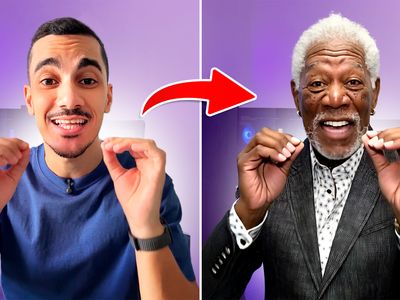
Upload a video, describe the target style, and a parallel pipeline generates a style reference frame with Qwen Image Edit 2511 while Wan 2.2 Animate restyles the full video with pose-guided structural control.
Image
LoRAs
pose transfer
qwen image edit
restyle
style transfer
Video
video to video
wan2.2
136
_1783176800866.webp)

Nodes & Models
Fast Groups Bypasser (rgthree)
UNETLoader
qwen_image_edit_2511_bf16.safetensors
CLIPVisionLoader
clip_vision_h.safetensors
INTConstant
CLIPLoader
qwen_2.5_vl_7b_fp8_scaled.safetensors
umt5_xxl_fp8_e4m3fn_scaled.safetensors
Text Multiline
Label (rgthree)
VAELoader
qwen_image_vae.safetensors
WanVideoTorchCompileSettings
LoraLoaderModelOnly
Qwen-Image-Edit-2511-Lightning-4steps-V1.0-bf16.safetensors
WanVideoVAELoader
Wan2_1_VAE_bf16.safetensors
ModelSamplingAuraFlow
WanVideoLoraSelectMulti
WanAnimate_relight_lora_fp16.safetensors
lightx2v_I2V_14B_480p_cfg_step_distill_rank128_bf16.safetensors
CFGNorm
VAEEncode
WanVideoBlockSwap
FluxKontextMultiReferenceLatentMethod
LoadImage
WanVideoModelLoader
Wan2_2-Animate-14B_fp8_e4m3fn_scaled_KJ.safetensors
KSampler
CLIPTextEncode
VAEDecode
TextEncodeQwenImageEditPlus
WanVideoSetLoRAs
ImageScaleToTotalPixels
WanVideoTextEmbedBridge
SaveImage
WanVideoSetBlockSwap
WanVideoSampler
PreviewImage
WanVideoDecode
WanVideoAnimateEmbeds
ImageResizeKJv2
WanVideoClipVisionEncode
ImageCropByMaskAndResize
FaceMaskFromPoseKeypoints
Reroute
PixelPerfectResolution
DWPreprocessor
FloyoStickyNote
VHS_LoadVideo
VHS_SelectImages
VHS_VideoCombine
ABOUT THE WORKFLOW
Restyle a Video with Parallel Processing
Upload a reference video. The workflow runs two branches at the same time. Branch A extracts the first frame and transforms it into a style reference image using Qwen Image Edit 2511 based on your style prompt. Branch B extracts body, hand, and face keypoints from every frame, then feeds them alongside the style reference into Wan 2.2 Animate 14B to restyle the full video. The original motion, pose, and timing carry over. The new style applies to every frame. The output is an MP4 at 16fps.
Model
Wan 2.2 Animate 14B by Alibaba. The latest generation of the Wan video model with native animation and relighting support, paired with a distilled LoRA for 6-step generation and a relighting LoRA for consistent lighting across restyled frames.
Qwen Image Edit 2511 by Alibaba. Generates a single restyled frame from the first video frame based on the style prompt, setting the visual target for the full restyle.
HOW IT WORKS
Step 1. Upload your reference video
The video you want to restyle. The workflow loads up to 96 frames at 16fps and resizes to 960x544 for processing.
Works great with: live-action footage · AI-generated clips · screen recordings · stock video
Step 2. Write the style prompt
Describe the target visual style for the Qwen branch. "Transform into anime style" generates an anime-styled reference frame. "Oil painting, thick brushstrokes, warm palette" generates a painterly reference. This single frame sets the look for the entire video.
Step 3. Write the video prompt
Describe the action and style for the Wan 2.2 branch. "3D man talking" or "Anime woman walking through a neon city" tells the video model what motion and aesthetic to generate. Match this to the style prompt for consistency.
Step 4. Upload a style reference image (optional)
Upload your own image to use as the style target instead of generating one with Qwen. Skip this to let the workflow generate one from the style prompt.
Step 5. Hit run and download
Both branches run in parallel. Qwen generates the style frame while Wan 2.2 loads and prepares. The restyled video saves as an MP4 at 16fps.
Ready for: Premiere · DaVinci Resolve · After Effects · TikTok · YouTube · Instagram
First time? Upload a video, write a style prompt for Qwen and a matching video prompt for Wan, and hit run. Leave all other settings as-is.
RECOMMENDED SETTINGS
Quick-start guide. Find the goal that matches yours and copy the settings.
Standard video restyle — Leave defaults (6 steps, CFG 1, shift 5, 960x544). Upload your video, write both prompts, run.
Different art style — Change the Qwen style prompt. "Watercolor illustration, soft edges, muted tones" or "Cyberpunk neon, dark cityscape, high contrast" or "Ghibli-style anime, soft lighting, pastel skies" each produce a different visual target.
Stronger pose preservation — The DWPose preprocessor extracts body, hand, and face keypoints from every frame. If the pose drifts, check that the source video has clear, unoccluded body positions. Well-lit footage with visible limbs tracks best.
Different resolution — Change the Width and Height values (default 1280x720 target). Higher resolution produces sharper output but takes longer.
Style reference not matching the prompt — Regenerate the Qwen frame by changing the seed, or upload your own style reference image to bypass the Qwen branch entirely.
Flickering between frames — Lower the distilled LoRA strength from 1.2 toward 0.8. Higher distillation strength speeds generation but can reduce temporal consistency.
Relighting looks off — The relighting LoRA (strength 1.0) adjusts lighting to match the style reference. Lower it toward 0.5 for more natural lighting that stays closer to the original video.
Prompt: Write two prompts that align. The style prompt describes the look ("Transform into anime style"). The video prompt describes the action and aesthetic ("Anime woman walking through rain"). Matching style language across both produces consistent output. "Anime style" in one and "realistic photography" in the other creates a conflict.
LEARN
📹 Videos
ComfyUI 101 Free Course ft. Sebastian Kamph
Floyo 101 for Team Collaboration
✨ Quick links
USE CASES
🎨 Full Video Style Transfer
Restyle live-action footage into anime, 3D, watercolor, oil painting, or any target aesthetic while keeping the original motion and body language.
🎬 Look Development and Previsualization
Test visual styles on existing footage before committing to full production. Generate multiple restyles from the same reference video with different prompts and compare.
📱 Social Content Repurposing
Transform stock footage, screen recordings, or existing clips into stylized content for TikTok, Reels, and Shorts without reshooting.
🎮 Game and Animation Reference
Convert live-action reference clips into the target art style (cel-shaded, pixel art, 3D render) for use as animation guides or storyboard previews.
WHAT WORKS BEST / WHAT TO AVOID
✅ Works great
Videos with clear subjects and consistent lighting
Moderate motion (walking, talking, gesturing) where pose keypoints are readable
Style prompts that describe a specific aesthetic with visual detail
Matching style and video prompt language for consistent output
⚠️ May produce softer results
Videos with rapid scene cuts or extreme camera shake
Dark or low-contrast footage where pose detection is unreliable
Mismatched prompts (anime style prompt with photorealistic video prompt)
Very long source videos beyond the 96-frame load cap
FAQ
What is Wan 2.2 Animate?
Wan 2.2 Animate 14B is the latest generation of Alibaba's Wan video model. It builds on Wan 2.1 with improved animation quality, native relighting support, and stronger temporal consistency. In this workflow it handles the frame-by-frame video restyle using pose-guided structural control from DWPose keypoints.
How does the parallel pipeline work?
The workflow runs two branches at the same time. Branch A uses Qwen Image Edit 2511 to generate a single restyled frame from the first video frame. Branch B uses Wan 2.2 Animate to restyle the full video guided by the style reference from Branch A and the pose keypoints extracted from every frame. Parallel execution means the style frame generates while the video model loads, reducing total wait time.
What is the difference between Wan 2.2 and Wan 2.1 for restyling?
Wan 2.2 Animate improves motion quality, temporal consistency, and relighting over Wan 2.1. The relighting LoRA included in this workflow adjusts lighting across frames to match the style reference, which Wan 2.1 workflows handle less consistently.
Can I use my own style reference image instead of generating one?
Yes. Upload your image into the style reference input and skip the Qwen generation step. The Wan 2.2 branch reads the uploaded image as the visual style target for the restyle.
Does the restyle preserve the original body movement?
Yes. The DWPose preprocessor extracts body, hand, and face keypoints from every frame of the source video. Wan 2.2 Animate uses these keypoints as structural guides, so the original pose and gesture timing carry through to the restyled output.
Is Wan 2.2 Animate licensed for commercial use?
Wan 2.2 Animate is an open-source model by Alibaba. Qwen Image Edit 2511 is also open-source by Alibaba. The LoRAs included have their own license terms. Check each component's license on its model page for commercial use in your specific project.
How to run Wan 2.2 video-to-video restyle online?
You can run Wan 2.2 video-to-video restyle online through Floyo. No installation, no setup, no local GPU needed. Open the workflow in your browser, upload your video, and hit run. Free to try.
WHY FLOYO?
Floyo is the only platform with team collaboration for ComfyUI in the browser. You run workflows with no install. You share run history, assets, and models across your team. You pay only when you generate. Floyo supports open-source and closed-source models.
A designer runs an edit and likes the result. A teammate opens that exact run from shared history and keeps going. No file handoffs. No version confusion.
For studios and enterprise teams, Floyo adds private workspaces, pooled resources, and a team usage dashboard. Other ComfyUI cloud tools run for one person at a time. Floyo runs for the whole team, with transparent per-generation costs.
Ready to try it?
Upload a video, describe the target style, and hit run.
Questions? Watch the free course or check the FAQ above.
Read more