

Tripo P2 for Text to 3D
Generate game-ready 3D models from text with Tripo P2 by Tripo AI. Get clean quad or triangle meshes with PBR textures. Describe an object and hit run.
3D
Text to 3D
Tripo P2
23


Nodes & Models
Tripo3dP2TextTo3d_floyo
ShowText|pysssss
ShowText|pysssss
Preview3D
PreviewImage
ABOUT THE WORKFLOW
Describe It, Get a Model
Write a description of one object and run it. Tripo P2 builds the 3D shape, paints a texture onto it, and returns a model you can spin around in the viewer, plus a still render and a link to download the file.
Partner node. This workflow calls an external API, so each run uses credits from your API wallet. No API key needed. Floyo handles the connection.
Model
Tripo P2 by Tripo AI, also called Smart Mesh P2.0. A closed 3D model strong at game-ready props, characters, vehicles, and buildings with clean topology and native quad mesh output.
HOW IT WORKS
Step 1. Describe your object
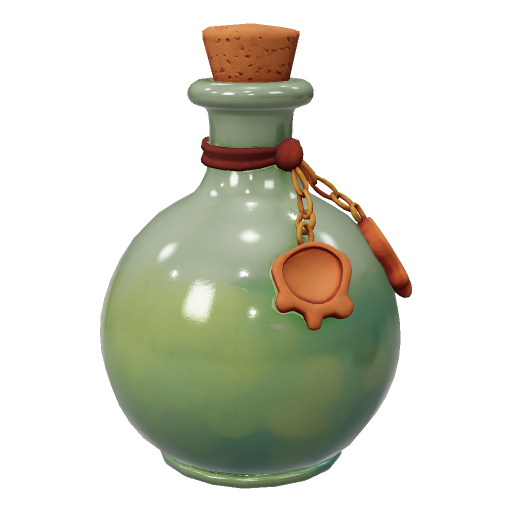
Write a prompt for one object. Say its shape, materials, colors, and style. A sample prompt for a potion bottle is filled in, so replace it with your own.
Works great with: props · characters · vehicles · buildings
Step 2. Add a negative prompt (optional)
List anything you want kept out of the result, like "extra limbs" or "floating parts." It is empty by default.
Step 3. Set the mesh options (optional)
Turn on quad mesh if you plan to rig or animate the model. Set a face limit to cap polygon count, or leave it on auto. Switch texture quality to detailed for sharper textures.
Step 4. Hit run and check the model
Tripo P2 generates the textured mesh and loads it into the 3D viewer so you can rotate and inspect it. A still render and a link to the model file appear beside it for download.
Ready for: Blender · Unity · Unreal Engine
First time? Leave every setting as-is. The defaults (textured · PBR on · standard texture quality · auto face limit · triangle mesh) are the right starting point for almost everyone.
RECOMMENDED SETTINGS
Quick-start guide. Find the goal that matches yours and copy the settings.
Standard game prop (most people) — Texture on · PBR on · standard texture quality · auto face limit · quad mesh off · random seeds. The right starting point for almost everyone.
Want to rig or animate the model? — Turn on quad mesh. Four-sided faces deform cleanly and are easier to edit. The face limit caps at 25,000 with quads on.
Need a lighter mesh for mobile or VR? — Set a face limit instead of auto. Lower numbers give a lighter mesh with less detail. The max is 50,000 triangles.
Want sharper textures? — Switch texture quality from standard to detailed.
Want to reproduce a result you liked? — Set the model seed and texture seed to fixed numbers instead of random. Change the prompt one detail at a time from there.
The shape comes out wrong? — Rewrite the prompt before changing settings. Name the silhouette, parts, and proportions plainly.
Several objects merged into one blob? — Tripo P2 builds one object per run. Generate each prop separately and assemble them in your 3D app.
Prompt: Describe one object with its shape, materials, and style. "A weathered wooden treasure chest with iron bands and a brass lock, hand-painted style" works far better than "a cool chest in a dungeon."
LEARN
📹 Videos
ComfyUI 101 Free Course ft. Sebastian Kamph
Floyo 101 for Team Collaboration
✨ Quick links
USE CASES
🎮 Game Props
Describe a weapon, potion, crate, or chest and get a textured, low-poly asset ready to drop into a game engine.
🧍 Characters for Rigging
Generate a character with quad topology so it deforms cleanly when you rig and animate it.
🥽 VR, AR & Mobile Assets
Set a face limit to keep meshes light enough for headsets and phones without a manual decimation pass.
🎨 Blockouts & Prototyping
Turn a written idea into a 3D object in one run to test scale, silhouette, and style before a full modeling pass.
WHAT WORKS BEST / WHAT TO AVOID
✅ Works great
One standalone object per prompt
Clear descriptions of shape, materials, and style
Props, characters, vehicles, and buildings
Quad mesh for assets you plan to animate
⚠️ May produce softer results
Whole scenes or several objects in one prompt
Tiny, intricate surface detail
Vague prompts like "something cool"
Very low face limits on detailed objects
FAQ
What is Tripo P2?
Tripo P2 is a 3D generation model from Tripo AI, also called Smart Mesh P2.0 and the successor to Smart Mesh P1.0. It generates game-ready 3D models with clean topology and textures, and it can output native quad meshes. This workflow runs its text-to-3D mode, so you start from a written description.
Does Tripo P2 support quad meshes?
Yes. Native quad topology is one of its headline features. Quad mesh output goes up to 25,000 faces, and triangle output goes up to 50,000 faces. Quads are easier to rig, subdivide, and hand-edit than triangle meshes.
What is the difference between Tripo P2 and Tripo 4.0?
They are separate models built for different jobs. Tripo P2 targets game-ready assets with efficient polygon budgets and clean topology for real-time use. Tripo 4.0 is Tripo AI's high-fidelity flagship, with sharper textures and more geometric detail. Pick P2 when the asset is headed into a game engine or needs rigging.
Is Tripo P2 open source?
No. Tripo P2 is a closed model with no public weights, so it runs through an API rather than on your own GPU. Each generation is billed per run instead of requiring local hardware.
Can Tripo P2 generate a full 3D scene?
No. Tripo P2 builds one object per run, and prompts that describe a whole scene tend to merge into a single shape. Generate each object separately and assemble the scene in Blender, Unity, or Unreal.
Can I use Tripo P2 models in commercial projects?
Tripo P2 is a proprietary Tripo AI model, so commercial use is governed by Tripo AI's terms rather than an open license. Review Tripo AI's current terms before shipping generated assets in a game or client project.
How to run Tripo P2 online?
You can run Tripo P2 online through Floyo. No installation, no setup, no API key to wire up. Open the workflow in your browser, upload your inputs, and hit run. Free to try.
WHY FLOYO?
Floyo is the only platform with team collaboration for ComfyUI in the browser. You run workflows with no install. You share run history, assets, and models across your team. You pay only when you generate. Floyo supports open-source and closed-source models.
A designer runs an edit and likes the result. A teammate opens that exact run from shared history and keeps going. No file handoffs. No version confusion.
For studios and enterprise teams, Floyo adds private workspaces, pooled resources, and a team usage dashboard. Other ComfyUI cloud tools run for one person at a time. Floyo runs for the whole team, with transparent per-generation costs.
Ready to try it?
Describe one object and run it. The settings are already set.
Questions? Watch the free course or check the FAQ above.
Read more

_1783028563354.gif?width=400&height=300&quality=80&resize=contain&format=origin)


