Tripo P2 for Image to 3D
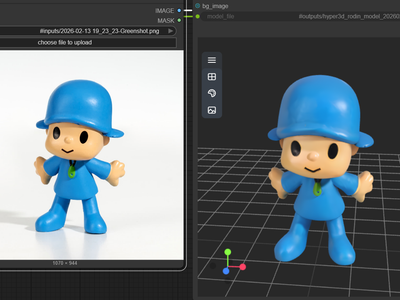
Upload one image and Tripo P2 builds a textured, game-ready 3D model with optional PBR materials. Preview it in the 3D viewer, then download.
3D
Image to 3D
Tripo P2
33


Nodes & Models
Tripo3dP2ImageTo3d_floyo
LoadImage
Preview3D
PreviewImage
ShowText|pysssss
ShowText|pysssss
ABOUT THE WORKFLOW
Turn an Image Into a 3D Model
Upload a photo, render, or concept sketch of an object or character. Tripo P2 reads the image and builds a full 3D mesh with textures and materials. You get a preview render, a 3D viewer to spin the model, and a download link.
Partner node. This workflow calls an external API, so each run uses credits from your API wallet. No API key needed. Floyo handles the connection.
Model
Tripo P2 (Smart Mesh P2.0) by Tripo AI. A 3D foundation model that generates game-ready meshes with native quad topology and PBR textures from a single image.
HOW IT WORKS
Step 1. Upload your image
One clear subject, fully in frame, on a clean background. The model reads depth, shape, and surface detail from this single view.
Works great with: product shots · characters · concept art · props
Step 2. Hit run
The settings are preset. Tripo P2 builds the 3D shape, then paints textures and materials onto it. Expect 2 to 5 minutes per generation.
Step 3. Inspect and download
A preview render appears alongside a 3D viewer where you can spin the model to check all sides. The download link shows in the text box below.
Ready for: Unity · Unreal · Blender · Maya · Godot
First time? Leave every setting as-is. The defaults (standard textures, PBR on, auto face count) are the right starting point for almost everyone.
RECOMMENDED SETTINGS
Quick-start guide. Find the goal that matches yours and copy the settings.
Standard use (most people) — Face limit: auto · Texture: on · PBR: on · Texture quality: standard · Quad: off. The right starting point for almost everyone.
Need a riggable character or deformable asset — Turn quad mesh on. Quad topology gives you clean edge loops that subdivide and deform without a retopology pass.
Building for mobile or low-poly pipelines — Set a face limit. Lower counts keep the asset within mobile polygon budgets.
Want sharper surface detail for hero shots — Raise the texture quality. Higher settings produce cleaner albedo and material maps at close range.
Reproducing a result you liked — Lock the model seed and texture seed. Random seeds give you a different take each run.
Shape is not matching the reference — Use a cleaner source image with even lighting and a plain background. Try a new seed before changing other settings.
Prompt: No prompt needed. Tripo P2 reads from the image only. Shape quality depends on how clearly the subject is framed. A well-lit, single-object shot on a neutral background produces the best mesh.
LEARN
📹 Videos
ComfyUI 101 Free Course ft. Sebastian Kamph
Floyo 101 for Team Collaboration
✨ Quick links
USE CASES
🎮 Game Developers
Upload a concept image of a character, vehicle, or prop and get a textured mesh you can drop into Unity, Unreal, or Godot without manual retopology.
🎨 3D Artists & Character Designers
Turn a reference sketch or painted concept into a 3D starting point. Use quad mode for assets you plan to rig and animate.
🏗️ Archviz & Product Design
Generate 3D models of furniture, fixtures, or products from a single photo to place into scene compositions or client presentations.
🛍️ E-Commerce & Marketing
Convert product photos into 3D models for interactive viewers, AR try-on, or 360-degree product spins on a storefront.
🖨️ 3D Printing
Generate a mesh from a reference image as a starting point for print-ready models. Set a face limit to control polygon density before export.
WHAT WORKS BEST / WHAT TO AVOID
✅ Works great
Single objects on a plain background
Product shots with even lighting
Characters in a neutral pose
Clean concept art and renders
⚠️ May produce softer results
Cluttered scenes with multiple overlapping objects
Heavy shadows or extreme lighting
Flat 2D illustrations with no depth cues
Transparent or reflective surfaces like glass
FAQ
What is Tripo P2 and how does it compare to P1?
Tripo P2 (Smart Mesh P2.0) is the latest 3D generation model from Tripo AI. It follows P1.0 and improves on it with sharper textures, higher mesh accuracy, native quad topology, and a polygon ceiling of 50,000 triangles or 25,000 quad faces. P1 textures were built for mid-distance viewing. P2 textures hold up at close range with optional PBR material maps.
What is quad mesh topology and why does it matter?
Quad topology means the mesh is built from four-sided polygons instead of triangles. Quads are the industry standard for characters and deformable objects because they subdivide predictably, deform cleanly around joints, and make UV unwrapping easier. Tripo P2 is the first AI 3D model to generate quad topology natively, which means less manual retopology before rigging and animation.
Can I use Tripo P2 output in Unity, Unreal, and Blender?
Yes. The workflow outputs a GLB file you can import into Unity, Unreal, Blender, Maya, Godot, and other standard 3D tools. Textures and PBR materials are included in the file. No conversion step needed.
How is Tripo P2 different from Meshy or Rodin?
Tripo P2 is focused on game-ready assets with clean topology and controlled polygon counts. Meshy offers a broader feature set with a polished interface and large community, but Tripo generates cleaner low-poly topology faster. Rodin targets high-fidelity hero assets with more detail. Choose Tripo P2 when you need riggable, engine-ready meshes without a retopology pass.
Is Tripo P2 good for 3D printing?
Tripo P2 can produce a starting mesh for 3D printing. Its auto-repair feature addresses common non-manifold geometry and holes before export. Set a face limit to control polygon density, and inspect the model in the 3D viewer before downloading. Complex organic shapes may need minor cleanup in Blender or Meshmixer before slicing.
Are Tripo P2 outputs licensed for commercial use?
Tripo P2 is a closed, proprietary model. Commercial use of generated assets is allowed under Tripo's current terms. Review the latest terms on Tripo's site before shipping assets in a commercial product, game, or client project.
How to run Tripo P2 image to 3D online?
You can run Tripo P2 image to 3D online through Floyo. No installation, no setup, no API key to wire up. Open the workflow in your browser, upload your image, and hit run. Free to try.
WHY FLOYO?
Floyo is the only platform with team collaboration for ComfyUI in the browser. You run workflows with no install. You share run history, assets, and models across your team. You pay only when you generate. Floyo supports open-source and closed-source models.
A designer runs an edit and likes the result. A teammate opens that exact run from shared history and keeps going. No file handoffs. No version confusion.
For studios and enterprise teams, Floyo adds private workspaces, pooled resources, and a team usage dashboard. Other ComfyUI cloud tools run for one person at a time. Floyo runs for the whole team, with transparent per-generation costs.
Ready to try it?
Upload an image of an object or character and run it. The settings are already set.
Questions? Watch the free course or check the FAQ above.
Read more