

Tripo P1 for Text to 3D
Upload a photo and Tripo P1 generates a textured 3D model with clean low-poly topology, ready for game engines, 3D viewers, or further editing. No modeling required.
3D
Text to 3D
Tripo P1
45



Nodes & Models
Tripo3dP1TextTo3d_floyo
ShowText|pysssss
ShowText|pysssss
Preview3D
PreviewImage
ABOUT THE WORKFLOW
Turn a Photo Into a 3D Model
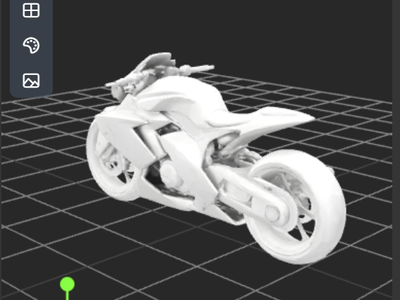
Upload a photo of any object. Tripo P1 reads the shape, lighting, and surface detail, then generates a textured 3D model with clean topology in seconds. You get a GLB file with PBR materials, a rendered preview, and a download link.
Partner node. This workflow calls an external API, so each run uses credits from your API wallet. No API key needed. Floyo handles the connection.
Model
Tripo P1 (Smart Mesh P1.0) by Tripo AI (VAST). A native 3D diffusion model optimized for fast, low-poly asset generation with clean topology and PBR textures.
HOW IT WORKS
Step 1. Upload your image
One photo of the object you want as a 3D model. Front-facing, well-lit shots with a clean background give the best results.
Works great with: product shots · characters · props · vehicles · furniture
Step 2. Hit run
The settings are already configured. For a first run, change nothing. The model processes your image and returns a textured 3D asset in seconds.
Step 3. Preview and download
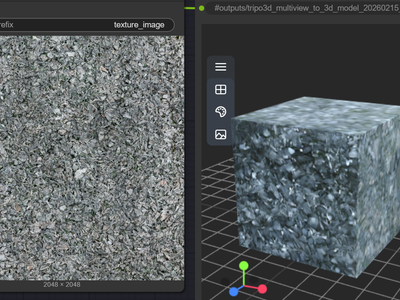
You get a GLB file with PBR textures, a rendered preview image from one angle, and a download URL shown on canvas.
Ready for: Unity · Unreal · Blender · any 3D viewer
First time? Leave every setting as-is. The defaults (auto face limit, texture on, random seed) are the right starting point for almost everyone.
RECOMMENDED SETTINGS
Quick-start guide. Find the goal that matches yours and copy the settings.
Standard use (most people) — Auto face limit · texture on · random seed. The right starting point for almost everyone.
Game-ready asset with a polygon budget — Set the face limit to your target count (e.g. 10,000 for mobile, 50,000 for PC). The model caps geometry at that number.
Quick blockout or silhouette check — Turn texture off. You get a plain untextured mesh, faster to inspect for shape accuracy before committing to a full textured run.
Reproduce a result you liked — Set the seed to the number from your previous run. Same seed plus same image gives the same output.
Back detail looks off — The model sees one side of the object and infers the rest. Use a front-facing, centered shot with visible edges. Symmetrical objects produce the cleanest unseen faces.
Mesh has artifacts or rough geometry — Switch to a photo with a plain background and even lighting. Busy scenes and heavy shadows confuse the geometry.
Prompt: This workflow has no text prompt. The model reads the image directly. The quality of your photo is the prompt. Use a clean, well-lit shot with the subject centered and the background uncluttered.
LEARN
📹 Videos
ComfyUI 101 Free Course ft. Sebastian Kamph
Floyo 101 for Team Collaboration
✨ Quick links
USE CASES
🎮 Game Developers
Upload concept art or a reference photo and get a low-poly GLB with PBR textures that drops straight into Unity or Unreal. Skip the manual modeling step for props, vehicles, and environment pieces.
🎨 3D Artists and Motion Designers
Generate a base mesh from a reference image in seconds, then refine it in Blender or your DCC of choice. Faster than modeling from scratch when you need a starting point.
🛍️ Product Visualization
Turn a product photo into a 3D model for e-commerce previews, AR try-ons, or marketing renders. One photo in, a textured asset out.
💡 Concept Artists and Art Directors
Rapid 3D blockouts from 2D sketches or mood board images. Check a design from every angle before committing to a full production model.
🏗️ Architecture and Real Estate
Convert photos of furniture, fixtures, or building elements into 3D assets for walkthroughs and presentations.
WHAT WORKS BEST / WHAT TO AVOID
✅ Works great
Front-facing, centered subjects
Clean or plain backgrounds
Even, diffuse lighting
Objects with clear silhouettes and visible edges
⚠️ May produce softer results
Busy or cluttered backgrounds
Heavy shadows or extreme lighting
Objects photographed at steep angles
Fine back detail on asymmetrical subjects
FAQ
What is Tripo P1 and how does it generate 3D models from images?
Tripo P1 (also called Smart Mesh P1.0) is a native 3D diffusion model by Tripo AI. It reads the shape, lighting, and surface detail in a single photo and generates a full 3D mesh with PBR textures directly in three-dimensional space. Unlike older approaches that predict geometry point by point, P1 resolves the global structure holistically, producing cleaner topology and more stable geometry.
What file format does the output use, and does it work in Unity, Unreal, and Blender?
The output is a standard GLB file with PBR texture maps baked in. In Unity, import the GLB directly or convert to FBX. In Unreal, drag it into the content browser. In Blender, use File > Import > glTF 2.0. No conversion tools or third-party plugins required.
What is the difference between Tripo P1 and Tripo H3.1?
P1 is the speed model. It generates clean low-poly meshes with game-ready topology in seconds, optimized for rapid prototyping and real-time engines. H3.1 is the detail model, built for high-fidelity hero assets with denser geometry and finer surface quality. Use P1 for fast iteration and production props. Use H3.1 when visual detail matters more than speed.
Do I need multiple photos or a 360 scan to use this workflow?
No. Tripo P1 works from a single flat photo. The model infers the unseen sides of the object from the visible geometry and surface cues. Multi-view input is not supported in this workflow. For best results, use a front-facing shot with the full shape visible.
Can I control the polygon count for mobile or web use?
Yes. The face limit setting lets you cap the polygon count. Set it to a specific number (e.g. 5,000 for mobile, 50,000 for desktop) and the model keeps the mesh within that budget. Leave it on auto and the model picks a count based on the object's complexity.
Can I use Tripo P1 outputs for commercial projects?
Tripo P1 is a proprietary API model. Commercial use is governed by Tripo AI's terms, which allow commercial rights on paid plans. Review Tripo's current terms for your specific use case, and make sure you have the rights to any image you upload.
How to run Tripo P1 image to 3D online?
You can run Tripo P1 image to 3D online through Floyo. No installation, no setup, no API key to wire up. Open the workflow in your browser, upload your image, and hit run. Free to try.
WHY FLOYO?
Floyo is the only platform with team collaboration for ComfyUI in the browser. You run workflows with no install. You share run history, assets, and models across your team. You pay only when you generate. Floyo supports open-source and closed-source models.
A designer runs an edit and likes the result. A teammate opens that exact run from shared history and keeps going. No file handoffs. No version confusion.
For studios and enterprise teams, Floyo adds private workspaces, pooled resources, and a team usage dashboard. Other ComfyUI cloud tools run for one person at a time. Floyo runs for the whole team, with transparent per-generation costs.
Ready to try it?
Upload a photo of any object and run it. The settings are already set.
Questions? Watch the free course or check the FAQ above.
Read more

_1783028563354.gif?width=400&height=300&quality=80&resize=contain&format=origin)


