Tripo P1 for Image to 3D
Upload one image and Tripo P1 builds a textured 3D model from it, with clean topology and PBR materials, ready for game engines, VR, and 3D editors.
3D
Image to 3D
Tripo P1
40


Nodes & Models
Tripo3dP1ImageTo3d_floyo
LoadImage
Preview3D
PreviewImage
ShowText|pysssss
ShowText|pysssss
ABOUT THE WORKFLOW
Turn an Image Into a 3D Model
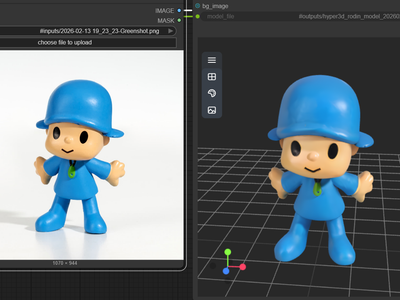
Upload a photo of any object. Tripo P1 reads the shape, depth, and surface from your image and builds a textured 3D mesh in one pass. You get a GLB file with PBR materials and a rendered preview back.
Partner node. This workflow calls an external API, so each run uses credits from your API wallet. No API key needed. Floyo handles the connection.
Model
Tripo P1 by Tripo AI (VAST). A native 3D diffusion model that generates engine-ready meshes with clean low-poly topology and PBR textures from a single image.
HOW IT WORKS
Step 1. Upload your image
One photo of the object you want as a 3D model. Front-facing, centered, with a clean background works best.
Works great with: product shots · characters · props · concept art
Step 2. Hit run
The settings are already dialled in. Leave everything as-is for your first run. The model sends your image to Tripo's servers, builds the mesh and textures, and returns a GLB file with a rendered preview.
Step 3. Preview and download
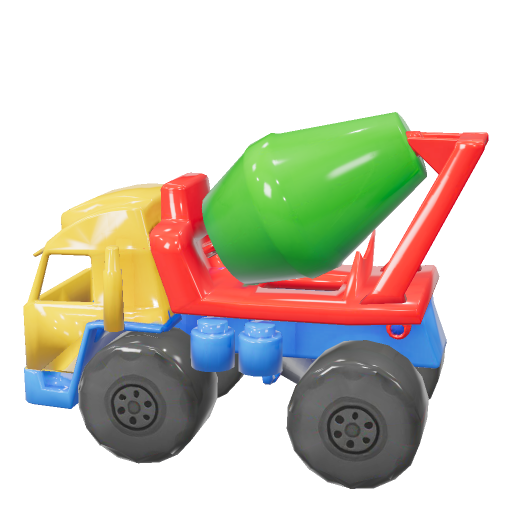
The GLB opens in the 3D viewer on canvas. Rotate it, inspect it, then download or export.
Ready for: Unity · Unreal · Blender · any GLB viewer
First time? Leave every setting as-is. The defaults (texture on, face limit auto, random seed) are the right starting point for almost everyone.
RECOMMENDED SETTINGS
Quick-start guide. Find the goal that matches yours and copy the settings.
Standard use (most people) — Texture on, face limit auto, random seed. The right starting point for almost everyone.
Need a lower poly count for mobile or web — Set face limit to a specific number (e.g. 5000 or 10000) to cap the polygon count for real-time engines or browser viewers.
Want to reproduce an exact result — Lock the seed to a specific number. Same image plus same seed gives the same mesh.
Need an untextured base mesh for manual texturing — Turn texture off. You get the raw geometry without PBR maps, ready to texture in Substance or Blender.
The back of the model looks off — The model infers unseen surfaces from one view. Use a front-facing image with visible edges and a clean silhouette. Complex or occluded shapes produce weaker back detail.
The mesh has too many polygons for your engine — Set face limit to match your polygon budget. Auto lets the model decide, which may exceed what a mobile or web viewer handles.
Prompt: No prompt needed. This workflow takes an image only. The quality of the output depends on the image: clean backgrounds, even lighting, and a centered subject with visible edges give the best results.
LEARN
📹 Videos
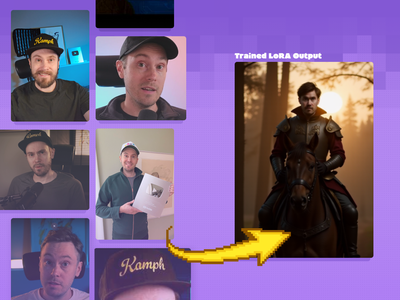
ComfyUI 101 Free Course ft. Sebastian Kamph
Floyo 101 for Team Collaboration
✨ Quick links
USE CASES
🎮 Game Developers
Upload a concept drawing or reference photo and get a game-ready GLB with clean topology, sized for Unity or Unreal without manual retopology.
🥽 VR and AR Creators
Turn product photos, props, or environment pieces into 3D assets you can place in a scene. Set a face limit to keep meshes light for real-time rendering.
🛍️ E-commerce and Product Visualization
Convert product photography into interactive 3D models for web viewers, configurators, or AR try-on experiences.
🎨 Concept Artists and 3D Modelers
Generate a base mesh from a painted front view or sketch. Use it as a starting point for sculpting, or drop it straight into a scene for layout and blocking.
🖨️ 3D Printing
Turn a photo of an object into a printable mesh. Set face limit to auto for maximum detail, then export the GLB for slicing.
WHAT WORKS BEST / WHAT TO AVOID
✅ Works great
Front-facing, centered subjects
Clean or plain backgrounds
Even, diffused lighting
Objects with clear silhouettes and visible edges
⚠️ May produce softer results
Busy or cluttered backgrounds
Objects with fine back detail not visible in the photo
Extreme angles or heavy foreshortening
Transparent or highly reflective surfaces
FAQ
What is Tripo P1 and how is it different from Tripo 3.1?
Tripo P1 is a native 3D diffusion model by Tripo AI (VAST). Unlike earlier Tripo versions that reconstruct 3D from predicted depth maps, P1 generates geometry directly in 3D space. The result is cleaner topology and more stable surfaces, especially on organic shapes. Tripo 3.1 is the general-purpose model with more post-processing options. P1 is the production-grade option optimized for engine-ready output.
What file format does Tripo P1 output?
The output is a GLB file with PBR textures (base color, normal, roughness, metallic). GLB is the binary version of glTF, the standard format for real-time 3D. It opens in Unity, Unreal, Blender, Three.js, and any GLB-compatible viewer or engine without conversion.
Can Tripo P1 generate 3D models from sketches or concept art?
Yes. Photos, digital illustrations, sketches, and AI-generated concept art all work as input. The model reads shape, shading, and surface cues from whatever you upload. Clean line art with clear silhouettes produces good geometry. Loose or abstract sketches may produce less defined meshes.
Does Tripo P1 support multi-view input?
This workflow uses single-image input. Multi-view input (front, left, back, right) is available in a separate Tripo P1 multi-view workflow. Multi-view gives the model more information about the object and produces more accurate geometry on all sides.
Can I use Tripo P1 3D models for commercial projects?
Tripo P1 is a proprietary API model. Commercial use of generated assets is allowed under Tripo AI's terms of service. Review their current terms for your specific use case, especially for projects involving resale of generated assets.
What does the face limit setting do?
Face limit sets the maximum polygon count for the output mesh. Auto lets the model decide, which produces the highest detail the model can generate. Setting a specific number (e.g. 5000 or 10000) caps the geometry, useful when you need meshes that run in mobile games, web viewers, or AR experiences with polygon budgets.
How to run Tripo P1 image to 3D online?
You can run Tripo P1 image to 3D online through Floyo. No installation, no setup, no API key to wire up. Open the workflow in your browser, upload your image, and hit run. Free to try.
WHY FLOYO?
Floyo is the only platform with team collaboration for ComfyUI in the browser. You run workflows with no install. You share run history, assets, and models across your team. You pay only when you generate. Floyo supports open-source and closed-source models.
A designer runs an edit and likes the result. A teammate opens that exact run from shared history and keeps going. No file handoffs. No version confusion.
For studios and enterprise teams, Floyo adds private workspaces, pooled resources, and a team usage dashboard. Other ComfyUI cloud tools run for one person at a time. Floyo runs for the whole team, with transparent per-generation costs.
Ready to try it?
Upload a photo of any object and hit run. The settings are already set.
Questions? Watch the free course or check the FAQ above.
Read more