Seedance 2.5 Flash for Reference to Video
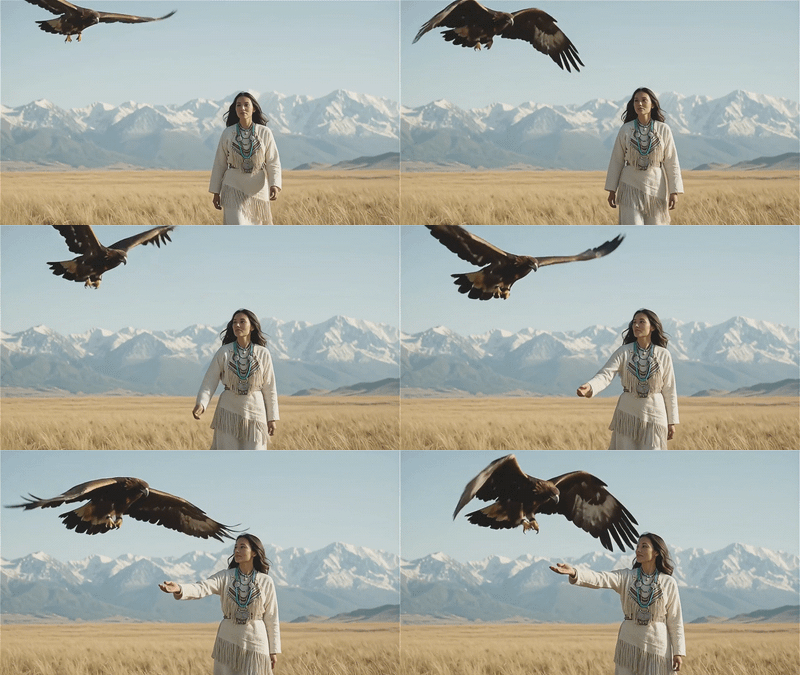
Turn reference images, clips and audio into a short video with sound using Seedance 2.5 Flash. Upload a reference, name it in your prompt, and hit run.
Reference to Video
Seedance 2.5 Flash
Video
9

ABOUT THE WORKFLOW
Animate your references into video
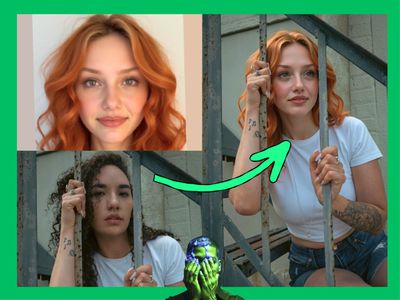
Upload a photo of the person, product or scene you want to keep, then describe what should happen in the shot. If you want the motion or sound to follow something specific, add a video clip or an audio track. You get back a short MP4 with generated sound, and your subject stays consistent from start to finish.
Partner node. This workflow calls an external API, so each run uses credits from your API wallet. No API key needed. Floyo handles the connection.
Model
Seedance 2.5 Flash by ByteDance Seed, the fast tier of Seedance 2.5. It keeps a character or product consistent across a clip, follows detailed prompts, and generates synced audio and lip-synced speech. It costs less than the full model.
HOW IT WORKS
Step 1. Upload your reference image
Add a clear shot of the subject you want to keep in the video. This becomes @Image1 in your prompt. You can add up to 10 reference images for more angles, characters or props.
Works great with: character portraits · product shots · location photos
Step 2. Write your prompt
Describe the action, the camera and the sound, and refer to your inputs by name. Example: "@Image1 walks through a sunlit market, camera tracking beside him, soft city sounds."
Step 3. Add a reference video (optional)
The video slot is switched off by default. Turn it on and upload a clip when you want the new video to copy its motion or camera move. You can also use it to edit or extend that clip. Refer to it as @Video1.
Step 4. Add a reference audio track (optional)
The audio slot is also off by default. Turn it on to give the model a voice, song or sound to match. Refer to it as @Audio1. Reference video and audio can total 30 seconds at most.
Step 5. Choose your output settings
Pick a resolution (480p or 720p), a duration (4 to 30 seconds) and an aspect ratio. Leave task type on auto. It looks at your inputs and decides whether to make a new clip, edit your video or extend it.
Step 6. Run and download
The model builds the clip with sound included. The finished MP4 saves to your outputs, ready to post or cut into an edit.
Ready for: TikTok · Instagram Reels · YouTube Shorts · Premiere Pro · CapCut
First time? Leave every setting as-is. The defaults are the right starting point for almost everyone.
RECOMMENDED SETTINGS
Reference Images (image_1 to image_10)
Up to 10 images — image_1 is wired by default
300 to 6,000 px on each side
Aspect ratio between 0.4 and 2.5 (width divided by height)
Up to 30 MB per image — a big PNG is compressed to fit when it can
Reference images don’t change the price
Reference Videos (video_1 to video_5)
Up to 5 videos — video_1 is wired but bypassed by default
2 to 30 seconds each, 30 seconds or less all together
MP4 or MOV, H.264 or H.265 — AV1 does not work
24 to 60 fps
407,696 to 8,295,044 pixels (854x480 up to 3840x2160 for 16:9)
Aspect ratio between 0.4 and 2.5
Up to 200 MB per video
Reference video seconds are billed with the output at a lower rate — minimum charge is 5/3 of output length (9s for a 5s output)
Reference Audio Clips (audio_1 to audio_5)
Up to 5 clips — audio_1 is wired but bypassed by default
2 to 30 seconds each, 30 seconds or less all together
Up to 15 MB as sent — the node sends audio uncompressed, so even a small MP3 can be too big
A mono or stereo clip at 48 kHz or lower always fits; a 96 kHz stereo clip fits only up to about 20 seconds
Reference audio clips don’t change the price
Prompt (Required)
Say what to make and what each reference is for: the person, the product, the place, the voice
Example: "the woman from the image walks along the beach and talks in the voice from the audio clip"
For edit, say what to change, then what must stay the same
For extend, say what happens next
Task Type
Options: auto, reference, edit, extend — default auto
auto: the model reads from your prompt whether you want a new video, an edit, or an extension
reference: makes a new video from your references
edit: changes your video and keeps its length — needs a video of 4s or longer, aspect_ratio adaptive, duration -1
extend: continues your video — needs a video and aspect_ratio adaptive
Picking edit or extend sets aspect_ratio and duration for you — one undo puts the old values back
Resolution
Options: 480p, 720p
Default: 720p
720p costs about 2.25x as much as 480p
Duration
Options: 4 to 30 seconds, or -1
Default: 5 seconds
-1 lets the model pick a length from 4 to 30 seconds (about 10s in testing)
On edit, -1 keeps your video’s length
Aspect Ratio
Options: 21:9, 16:9, 4:3, 1:1, 3:4, 9:16, adaptive
Default: 16:9
adaptive lets the model pick the shape; on edit and extend it follows your video
Generate Audio, Output Format, Seed
generate_audio: on or off — default on
output_format: mp4 or mov — default mp4
seed: -1 to 2,147,483,647 — default -1 (new random seed every run)
Output
One video per run via video_url output
MP4 or MOV, with sound unless generate_audio is off
Saved via DownloadVideo node (prefix "video/Floyo")
Common Error-Causing Mistakes to Avoid
Empty prompt — will be rejected
No reference connected — at least one image, video, or audio clip is required
task_type edit without aspect_ratio adaptive and duration -1 — will be rejected
task_type edit with a video shorter than 4 seconds — will be rejected
task_type extend without aspect_ratio adaptive — will be rejected
task_type edit or extend with no video connected — will be rejected
Reference video too short/long, wrong format, AV1, under 24 fps, over 200 MB, or out of pixel range — will be rejected
Reference videos totaling more than 30 seconds — will be rejected
Reference audio over 15 MB as sent (often a 96 kHz stereo clip) — will be rejected
Reference audio clips totaling more than 30 seconds — will be rejected
task_type auto reading your prompt as an edit when you wanted a new video — reword the prompt or pick reference
Famous characters, songs, photos of famous people, or copyrighted movie clips — can be refused by the copyright check
Recommended Safe Defaults
Resolution: 720p (480p for cheaper test runs)
Duration: 5 seconds
Aspect ratio: 16:9 for new videos, adaptive for edit or extend
Task type: auto, or reference for a guaranteed new video
Generate audio: on
Output format: mp4
Seed: -1 (random)
Keep reference videos at 24–60 fps, H.264, under 30 seconds total
Keep audio clips at 48 kHz or lower, under 30 seconds total
Name what each reference is for in the prompt
LEARN
📹 Videos
ComfyUI 101 Free Course ft. Sebastian Kamph
Floyo 101 for Team Collaboration
✨ Quick links
USE CASES
🛍️ Product videos
Upload a packshot and get a short ad clip where the product stays accurate in every frame.
🎭 Consistent characters
Use one character image across several runs to build a series of shots with the same face and outfit.
📱 Social content at speed
Turn a single photo into a vertical clip with sound for Reels, TikTok or Shorts.
🎬 Motion transfer
Pair your subject image with a reference clip to recreate a dance, a walk cycle or a camera move.
🗣️ Talking clips
Add a voice track as reference audio and get a clip with lip-synced speech.
WHAT WORKS BEST / WHAT TO AVOID
✅ Works great
Sharp, well-lit reference images with the subject clearly visible
Prompts that name each reference (@Image1, @Video1) and say what it is for
Short 5-second drafts at 480p before you commit to longer runs
Reference clips with one clear motion or camera move
⚠️ May produce softer results
Blurry, cropped or heavily filtered reference images
Prompts that pack many actions into a 5-second clip
Several unrelated references with no explanation of what each one is for
Expecting output above 720p, which is the most this model can produce
FAQ
What is Seedance 2.5 Flash?
Seedance 2.5 Flash is a video generation model from ByteDance Seed. It's also sold as Dreamina Seedance 2.5 Flash, and it's the fast, lower-cost tier of Seedance 2.5. It makes 480p or 720p videos 4 to 30 seconds long, with generated sound and lip-synced speech.
How does Seedance 2.5 Flash reference to video work?
You give it a text prompt plus reference media: up to 10 images, 5 videos and 5 audio clips. You name each one in the prompt (@Image1, @Video1, @Audio1), and the model uses them to guide the subject, the motion and the sound. It can generate a new clip, edit a reference video or extend one.
What is the difference between Seedance 2.5 Flash and Seedance 2.5?
Flash is the faster and cheaper tier, built for drafts and high-volume work. It goes up to 720p and takes up to 10 images, 5 videos and 5 audio clips. The full Seedance 2.5 accepts more references and goes to higher resolution.
Does Seedance 2.5 Flash generate audio?
Yes. Audio generation is on by default. It adds sound effects, ambience and lip-synced speech that match the video. You can also upload a reference audio track for the model to follow.
How long can a Seedance 2.5 Flash video be?
Between 4 and 30 seconds per generation. Reference video and audio together can run up to 30 seconds. Longer clips and higher resolution cost more per run.
Is Seedance 2.5 Flash open source?
No. Seedance 2.5 Flash is a closed model from ByteDance, available only through an API. There are no open weights to download or run locally.
How to run Seedance 2.5 Flash online?
You can run Seedance 2.5 Flash online through Floyo. No installation, no setup, no API key to wire up. Open the workflow in your browser, upload your inputs, and hit run. Free to try.
WHY FLOYO?
Floyo is the only platform with team collaboration for ComfyUI in the browser. You run workflows with no install. You share run history, assets, and models across your team. You pay only when you generate. Floyo supports open-source and closed-source models.
A designer runs an edit and likes the result. A teammate opens that exact run from shared history and keeps going. No file handoffs. No version confusion.
For studios and enterprise teams, Floyo adds private workspaces, pooled resources, and a team usage dashboard. Other ComfyUI cloud tools run for one person at a time. Floyo runs for the whole team, with transparent per-generation costs.
Ready to try it?
Upload a reference image, name it in your prompt, and get your first clip with sound.
Questions? Watch the free course or check the FAQ above.
Read more