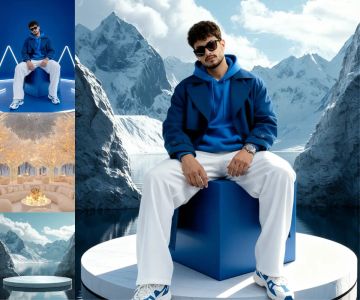
Qwen Image Edit 2511 · Composite a Photoshoot
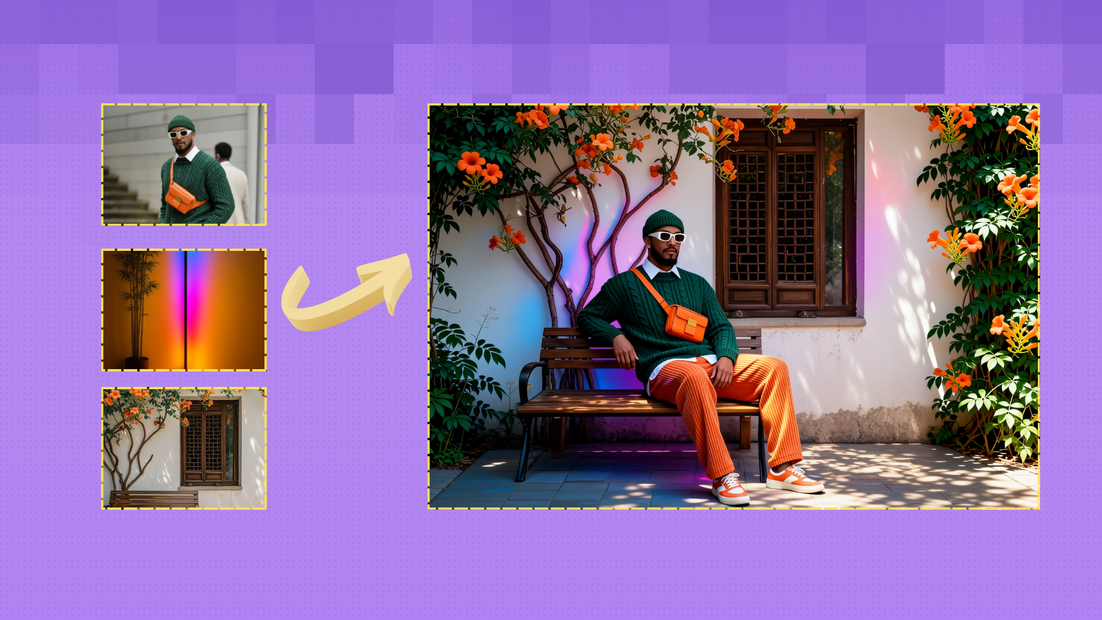
Upload three images, a subject, an environment, and a prop or lighting reference, and Qwen Image Edit 2511 composites them into a single photorealistic editorial scene with matched lighting, scale, and perspective.
composite
editorial
Image
multi-reference
photoshoot
qwen image edit
458
_1782845684321.png?width=1400&height=620&quality=80&resize=contain)
_1782845684321.png?width=1400&height=620&quality=80&resize=contain)
_1782845684321.png?width=104&height=104&quality=80&resize=cover)
_1782845684321.png?width=104&height=104&quality=80&resize=cover)

ABOUT THE WORKFLOW
Composite a Photoshoot
Upload three separate images: a subject (person or product), an environment (interior, studio, or location), and a reference element (a chair, prop, or lighting mood). The workflow composites the subject into the environment, seated on or interacting with the prop, with realistic lighting, scale, depth, and contact shadows. Identity, facial features, outfit, and body proportions are preserved from the subject image. The result reads as a single shot from a styled editorial photoshoot.
Model
Qwen Image Edit 2511 (bf16) by Alibaba. A multi-reference image editing model that composites elements from separate source images into a coherent scene while preserving identity, lighting, and spatial relationships.
Qwen Image Edit 2511 Lightning LoRA (V1.0). A speed adapter that drops generation to 4 steps while maintaining compositing quality.
HOW IT WORKS
Step 1. Upload your subject image
The person or product you want to place into the scene. Clear, well-lit photos with visible face, outfit, and body work best.
Works great with: portraits · full-body shots · fashion photography · product photos
Step 2. Upload your environment image
The interior, studio, or location where you want the subject placed. This becomes the background and sets the spatial context.
Step 3. Upload your reference element
A prop (chair, sofa, desk), a lighting mood, or any visual element you want integrated into the composite. The model places the subject in relation to this element.
Step 4. Edit the prompt
The prompt tells the model how to combine the three images. The default describes an editorial portrait composite: subject seated on a chair in the interior with dramatic cinematic lighting. Edit it to match your specific scene.
Step 5. Hit run and download
Qwen Image Edit 2511 composites the three inputs into one photorealistic image in 4 steps.
Ready for: lookbooks · editorial portfolios · e-commerce · social media · client presentations
First time? Upload your three images, leave the prompt and settings as-is, and hit run. Edit the prompt only to match your specific scene.
RECOMMENDED SETTINGS
Quick-start guide. Find the goal that matches yours and copy the settings.
Standard editorial composite (most people) — Upload three images, leave the defaults (4 steps, CFG 1, 1.6MP). Edit the prompt to describe your specific scene. No other changes needed.
Different pose or interaction — Edit the prompt to describe how the subject relates to the environment and prop. "Standing in the doorway leaning against the frame" or "sitting cross-legged on the floor" changes the pose the model generates.
Product instead of a person — Upload a product shot as the subject and describe how it sits in the environment. "Place the handbag on the marble table in the reference interior, match the warm window light" works the same way.
Lighting looks flat or mismatched — Add specific lighting direction in the prompt: "soft key light from the left, warm fill from the window, deep shadows on the right side." The model reads lighting cues from all three reference images and blends them.
Subject identity drifting — Strengthen the preservation language in the prompt: "Preserve the subject's exact face, skin tone, hair, makeup, and outfit. Do not change any feature of the person." The negative prompt already guards against identity drift.
Scale or perspective looks off — Add spatial cues: "The subject is the same height as the chair back" or "eye level is at the midpoint of the room." Explicit scale references help the model place the subject correctly.
Prompt: Describe the composite in three parts: where the subject goes, what to preserve, and what lighting to apply. "Place the subject from image 1 seated on the chair from image 3 in the interior from image 2. Preserve identity, face, outfit, and proportions exactly. Apply dramatic cinematic lighting with soft highlights and contact shadows." The more specific you are about pose, scale, and lighting, the cleaner the composite.
LEARN
📹 Videos
ComfyUI 101 Free Course ft. Sebastian Kamph
Floyo 101 for Team Collaboration
✨ Quick links
USE CASES
📸 Fashion and Editorial Lookbooks
Composite a model into styled interiors, studios, or locations without booking the space or coordinating a full shoot. Swap environments across an entire lookbook from the same subject photos.
🛍️ E-commerce and Product Styling
Place a product into lifestyle settings with matched lighting and realistic shadows. Generate dozens of scene variations from a single product shot.
🏠 Interior and Real Estate Staging
Place styled furniture, decor, or a person into an empty room. Use the prop reference to control what goes where.
🎨 Concept Art and Mood Board Composites
Combine a character reference, an environment reference, and a lighting mood into a single concept frame for pitches, pre-production, and creative direction.
WHAT WORKS BEST / WHAT TO AVOID
✅ Works great
Clear, well-lit subject photos with visible face and full body
Environment images with strong spatial cues (floors, walls, furniture)
Prop references that show scale and context (chairs, tables, doorways)
Prompts that specify pose, scale, and lighting direction
⚠️ May produce softer results
Heavily cropped subject images with missing limbs or partial body
Environments with extreme perspective or fisheye distortion
Conflicting lighting between the three source images with no prompt guidance
Vague prompts that do not specify how the subject relates to the environment
FAQ
What is multi-reference compositing?
Multi-reference compositing takes elements from separate images and combines them into a single coherent scene. This workflow uses three references: a subject (person or product), an environment (background and spatial context), and a prop or lighting element. The model reads each reference and generates a composite where the subject is placed realistically in the environment with matched lighting, scale, perspective, and contact shadows.
Does the workflow preserve the subject's face and identity?
Yes. The prompt and negative prompt are configured to lock facial features, skin tone, hairstyle, makeup, jewelry, outfit, and body proportions from the subject image. The model applies the pose and lighting changes without altering the person's identity.
Can I use this for products instead of people?
Yes. Upload a product shot as the subject image and describe the placement in the prompt. "Place the sneaker on the wooden shelf in the reference interior, match the warm ambient light" works the same way as a portrait composite.
How does the model handle lighting between different source images?
The model reads lighting cues from all three inputs and blends them based on the prompt. For the best results, describe the target lighting explicitly: "soft key light from the left, warm fill, deep shadows on the right." If the three sources have very different lighting, the prompt guidance becomes more important.
What resolution does this workflow output?
The workflow scales inputs to approximately 1.6 megapixels for processing. The output is at the same resolution. For higher-resolution results, pair this workflow with an upscaler.
Is Qwen Image Edit 2511 licensed for commercial use?
Yes. Qwen Image Edit 2511 is an open-source model by Alibaba released under an open license. Outputs are yours to use in commercial projects including editorial work, e-commerce, client presentations, and advertising. Ensure you have the rights to the images you use as inputs.
How to run AI photoshoot compositing online?
You can run AI photoshoot compositing online through Floyo. No installation, no setup, no local GPU needed. Open the workflow in your browser, upload your three reference images, and hit run. Free to try.
WHY FLOYO?
Floyo is the only platform with team collaboration for ComfyUI in the browser. You run workflows with no install. You share run history, assets, and models across your team. You pay only when you generate. Floyo supports open-source and closed-source models.
A designer runs an edit and likes the result. A teammate opens that exact run from shared history and keeps going. No file handoffs. No version confusion.
For studios and enterprise teams, Floyo adds private workspaces, pooled resources, and a team usage dashboard. Other ComfyUI cloud tools run for one person at a time. Floyo runs for the whole team, with transparent per-generation costs.
Ready to try it?
Upload your subject, environment, and prop reference, then hit run. The compositing prompt is already set.
Questions? Watch the free course or check the FAQ above.
Read more