Qwen Image 3 · Character Pose Transfer
Redraw any character in a new body pose using Qwen Image 3 by Alibaba. Upload a character photo and a pose reference, and hit run.
character
image to image
pose transfer
qwen image 3
97




ABOUT THE WORKFLOW
Transfer a pose onto your character
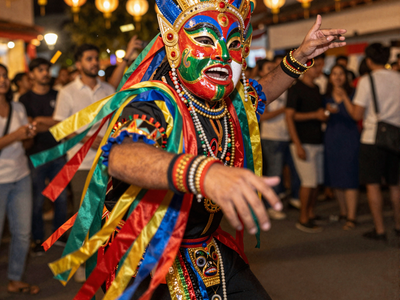
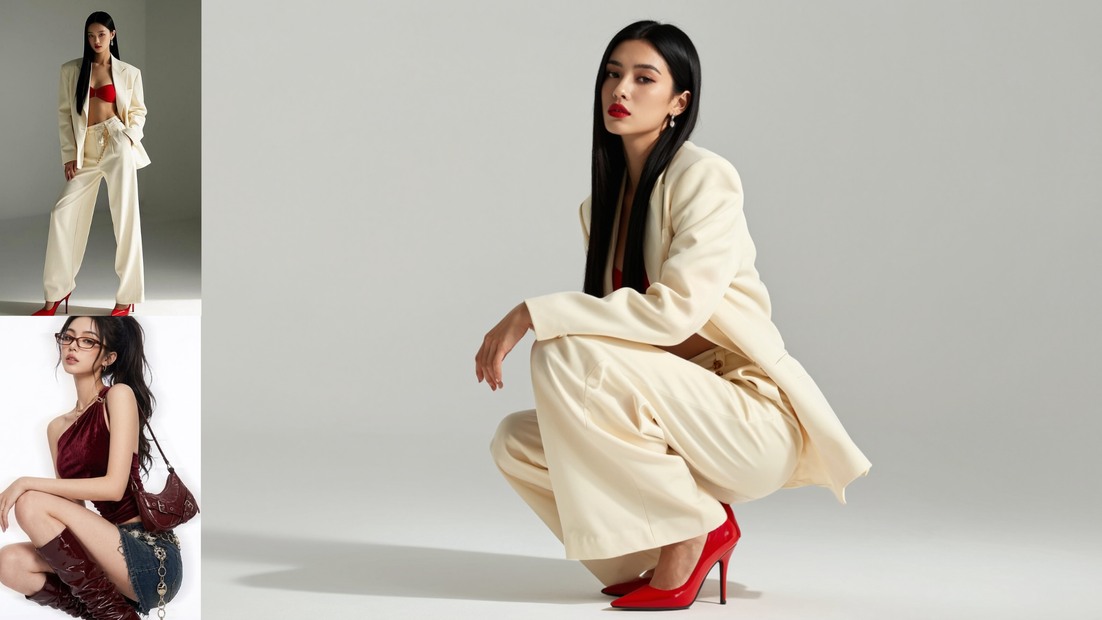
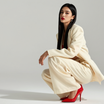
Upload a photo of a character and a photo of someone in the pose you want. Qwen Image 3 redraws your character in the new pose, keeping the face, hair, and outfit. No ControlNet, no skeleton extraction. That’s it.
Partner node. This workflow calls an external API, so each run uses credits from your API wallet. No API key needed. Floyo handles the connection.
Model
Qwen Image 3 by Alibaba (Qwen team). A unified image model strong at multi-image reference edits, dense text rendering, and long-prompt instruction following. Uses multi-image understanding for pose transfer instead of ControlNet.
HOW IT WORKS
Step 1. Upload your character photo
The person you want to redraw. A clear, well-lit photo with a simple background works best.
Works great with: portraits · full-body shots · headshots · AI-generated characters
Step 2. Upload a body pose photo
A photo of someone in the pose you want. Any clear full-body shot works. The model reads both images and matches the pose to your character.
Step 3. Describe the scene
The prompt tells the model what to keep (face, outfit) and what to change (setting, lighting, style). The default prompt works well for a first run.
Step 4. Hit run and download
Qwen Image 3 generates your character in the new pose and saves the image. One image per run.
Ready for: Photoshop · Figma · Canva · any editor
First time? Leave every setting as-is. The defaults are the right starting point for almost everyone.
RECOMMENDED SETTINGS
Quick-start guide. Find the goal that matches yours and copy the settings.
Standard pose transfer (most people) — qwen-image-3.0 · match input size · prompt extend on. The right starting point for almost everyone.
Want the output at a specific resolution — Switch size mode from “match input” to “custom” and set the width and height you need.
Want more precise instruction following — Turn prompt extend off. The model will follow your prompt word for word instead of expanding it.
Want to reproduce a result — Lock the seed to a fixed number. Same inputs + same seed = same output.
Need dense text or complex layouts in the output — Switch to qwen-image-3.0-pro. Pro handles text rendering and intricate compositions better, at a higher cost per image.
Face or identity drifting from the source — Make the prompt more explicit: “Keep the exact face, hair color, and hairstyle from the first image.” Use a clear, front-facing character photo.
Prompt: Tell the model which image is the character and which is the pose. “Redraw the person from the first image in the exact body pose shown in the second image. Keep the face and outfit.” is clear. “Put them in this pose” is not, because the model does not know which image is which.
LEARN
📹 Videos
ComfyUI 101 Free Course ft. Sebastian Kamph
Floyo 101 for Team Collaboration
✨ Quick links
USE CASES
🎨 Character Sheet Generation
Create consistent character views across multiple poses from a single reference photo. Useful for animation pre-production, game design, and illustration pipelines.
🛍️ E-commerce and Catalog Shots
Repose a model wearing your product into different stances without a new photoshoot. Standing, sitting, walking, holding an object.
📐 Storyboard and Concept Art
Place your character into action poses pulled from reference photos. Test compositions and blocking before committing to full illustration or 3D work.
🎭 Social Content and Avatars
Generate profile images, social posts, or marketing visuals of a character in expressive or branded poses without a camera.
WHAT WORKS BEST / WHAT TO AVOID
✅ Works great
Clear, well-lit character photos with simple backgrounds
Full-body pose references with visible limbs and distinct posture
Prompts that specify what to keep (face, outfit) and what to change (setting, lighting)
Single-character transfers
⚠️ May produce softer results
Cropped or obscured pose references where limbs are hidden
Character photos with busy or cluttered backgrounds
Prompts that skip mentioning which image is the character and which is the pose
Extreme or physically unusual poses
FAQ
What is Qwen Image 3?
Qwen Image 3 is a unified image generation model by Alibaba’s Qwen team, released July 2026. It handles text-to-image generation, image editing, style transfer, and multi-image merging in one model. It accepts prompts up to 4,500 tokens and renders legible text in 12 languages. This workflow uses its multi-image understanding to transfer a body pose from one photo onto a character from another.
How is this different from ControlNet pose transfer?
ControlNet extracts a skeleton from the pose image and uses it as a structural guide during generation. Qwen Image 3 skips the skeleton step entirely. It reads both images as visual references and redraws the character in the new pose through instruction following. The result is less precise for exact joint angles but simpler to set up and stronger at preserving the character’s identity.
Can I use a third reference image?
Yes. The workflow has a third image input (image_3) that you can connect. Use it for an additional reference, such as a background to place the character in, a clothing reference, or a style guide. Describe its role in your prompt.
Does prompt extend change the result?
Yes. Prompt extend is on by default. The model rewrites your prompt internally to add more detail before generating. This usually improves results. Turn it off if you need the model to follow your exact wording without interpretation.
Can I use the results commercially?
Qwen Image 3 is a closed model, API only. Commercial use is governed by Alibaba’s terms of service. Review their current terms before using outputs in commercial projects.
How to run Qwen Image 3 pose transfer online?
You can run Qwen Image 3 Character Pose Transfer online through Floyo. No installation, no setup, no API key to wire up. Open the workflow in your browser, upload your images, and hit run. Free to try.
WHY FLOYO?
Floyo is the only platform with team collaboration for ComfyUI in the browser. You run workflows with no install. You share run history, assets, and models across your team. You pay only when you generate. Floyo supports open-source and closed-source models.
A designer runs an edit and likes the result. A teammate opens that exact run from shared history and keeps going. No file handoffs. No version confusion.
For studios and enterprise teams, Floyo adds private workspaces, pooled resources, and a team usage dashboard. Other ComfyUI cloud tools run for one person at a time. Floyo runs for the whole team, with transparent per-generation costs.
Ready to try it?
Upload a character photo and a pose reference, and hit run. The prompt is already set.
Questions? Watch the free course or check the FAQ above.
Read more