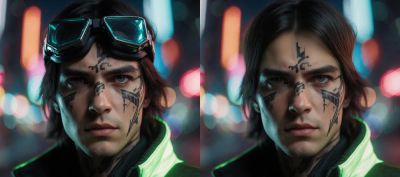
Qwen Image 2.1 for Background Removal
Upload a photo and Qwen Image 2.1 removes the background, returning a clean PNG cutout with a real transparent alpha channel. No masking, no post-processing.
Background Removal
Image
Image Editing
Qwen Image 2.1
60

Nodes & Models
LoadImage
UNETLoader
qwen_image_2.1_int8_convrot.safetensors
CLIPLoader
qwen3vl_8b_int8_convrot.safetensors
VAELoader
qwen_image_2.1_vae_bf16.safetensors
EmptyLatentImage
QwenImage21Cache
TextEncodeQwenImage21
ComfySwitchNode
KSampler
VAEDecode
SaveImageAdvanced
ImageCompare
ABOUT THE WORKFLOW
Remove a Background
Upload a photo and get back a clean cutout with a transparent background. The model reads your image and a pre-filled prompt, isolates the subject, and outputs a PNG with a native alpha channel. No separate masking or background removal step needed.
Model
Qwen Image 2.1 by Alibaba's Qwen team. A 7B unified image model that handles generation, editing, and native RGBA transparency in a single checkpoint. Strong at background removal, object isolation, and local edits.
HOW IT WORKS
Step 1. Upload your photo
The image you want to cut out. Any aspect ratio works.
Works great with: product shots · portraits · objects · logos
Step 2. Leave the prompt or write your own
The prompt is pre-filled: "Remove the background, and output a PNG image." For a standard cutout, change nothing. To do a different edit instead, replace the prompt with your own instruction.
Step 3. Hit run and download
The model isolates the subject and returns a transparent PNG. A before/after comparison shows on canvas so you can check the edges.
Ready for: Photoshop · Figma · Canva · Unity · any editor that reads PNG alpha
First time? Leave every setting as-is. The defaults (1024px · 25 steps · random seed) are the right starting point for almost everyone.
RECOMMENDED SETTINGS
Quick-start guide. Find the goal that matches yours and copy the settings.
Standard cutout (most people) — 1024px · 25 steps · CFG 1 · random seed. The right starting point for almost everyone.
Need a higher resolution cutout — Raise resolution to 2048. Expect a longer run. Stay at multiples of 16.
Want a fast preview first — Drop resolution to 512 and steps to 15. Check the edges, then re-run at full res.
Reproducing or tweaking a good result — Lock the seed to the number from your last run. Same seed, same cutout.
Want to swap the background instead of removing it — Replace the prompt: "Replace the background with a sunny beach" or "Put the subject in a dark studio with soft rim lighting."
Edges look rough or incomplete — Rewrite the prompt to be more specific about the subject before raising steps. "Remove the background from the sneaker" works better than "Remove the background."
Prompt: The default prompt handles clean cutouts. To change the edit, replace the whole prompt rather than adding to it. Be specific about what to keep and what to remove. "Remove the background from the person, keep hair detail" is clearer than "Remove background."
LEARN
📹 Videos
ComfyUI 101 Free Course ft. Sebastian Kamph
Floyo 101 for Team Collaboration
✨ Quick links
USE CASES
🛍️ Product Photography
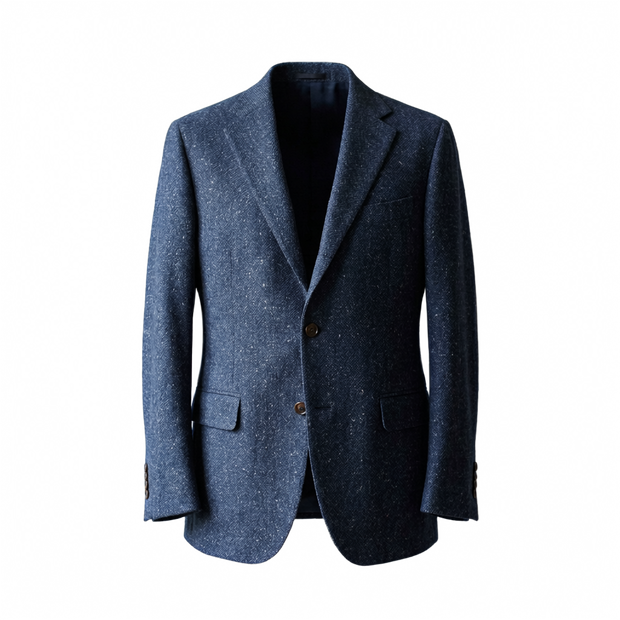
Upload a product shot and get a transparent cutout ready to drop onto a white background, a lifestyle scene, or a marketplace listing.
🎨 Design & Compositing
Cut out subjects for layered compositions in Photoshop, Figma, or Canva without tracing edges by hand.
🎮 Game & App Assets
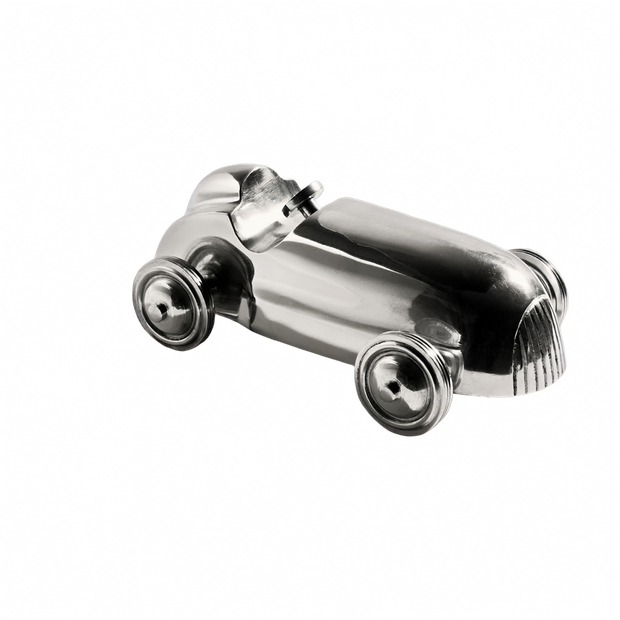
Extract characters, objects, or UI elements as transparent PNGs that drop straight into Unity, Unreal, or any sprite pipeline.
📸 Portrait Cutouts
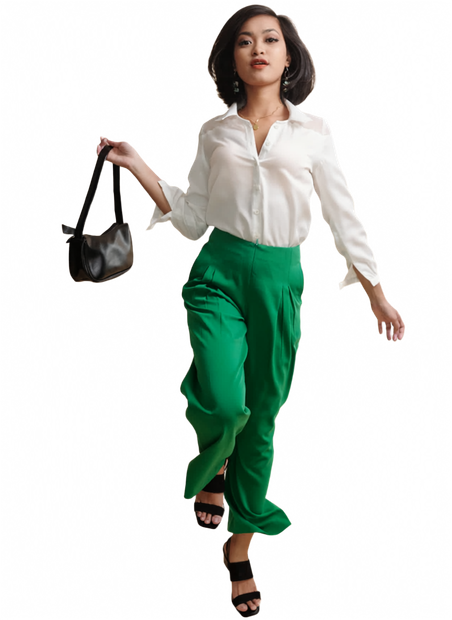
Isolate a person from a busy background for headshots, team pages, or social media content. The model handles hair and soft edges better than a hard mask.
WHAT WORKS BEST / WHAT TO AVOID
✅ Works great
Clean photos with a clear subject
Good contrast between subject and background
Product shots on solid or simple backgrounds
Portraits with even lighting
⚠️ May produce softer results
Subjects that blend into the background (similar colors)
Extremely busy or cluttered scenes
Heavy bokeh or shallow depth of field
Very fine detail like wire fencing or lace
FAQ
What is Qwen Image 2.1?
Qwen Image 2.1 is a 7B parameter image model from Alibaba's Qwen team, released September 20, 2026. It handles both image generation and image editing in a single model and outputs native RGBA images with a real alpha channel. That means background removal happens inside the model itself, not as a separate post-processing step.
How does Qwen Image 2.1 remove backgrounds differently from other tools?
Most background removal tools generate an RGB image and then run a separate segmentation model to cut out the subject. That second step often introduces edge artifacts around hair, smoke, or soft boundaries. Qwen Image 2.1 generates the transparency directly in the diffusion process, producing a clean alpha channel from the start. The cutout and the generation are one step.
Is Qwen Image 2.1 better than dedicated background removal tools like remove.bg?
For standard product shots on clean backgrounds, dedicated removers are fast and reliable. Qwen Image 2.1 is stronger when you need to combine removal with other edits in one pass, when the subject has complex edges, or when you want to swap the background rather than delete it. It is also a single model you can run without sending images to an external service.
Can I use Qwen Image 2.1 outputs for commercial projects?
Qwen Image 2.1 is released under the Qwen Research License, which covers non-commercial research and evaluation. Commercial use requires a separate agreement with Alibaba. Check the current license terms before using outputs in shipped products, client work, or revenue-generating projects.
What resolution should I use for background removal?
1024px is the default and works well for most cutouts. For larger assets or print work, try 2048. Resolution must be a multiple of 16. Past 2048, the model may still run but output quality can soften.
Does Qwen Image 2.1 handle hair and fine edges well?
Yes. Because the model generates the alpha channel natively rather than cutting it after the fact, soft edges like hair, fur, and semi-transparent materials come through cleaner than with a separate masking tool. For the best results, use a well-lit photo where the subject contrasts with the background.
How to run Qwen Image 2.1 background removal online?
You can run Qwen Image 2.1 background removal online through Floyo. No installation, no setup, no API key to wire up. Open the workflow in your browser, upload your image, and hit run. Free to try.
WHY FLOYO?
Floyo is the only platform with team collaboration for ComfyUI in the browser. You run workflows with no install. You share run history, assets, and models across your team. You pay only when you generate. Floyo supports open-source and closed-source models.
A designer runs a cutout and likes the result. A teammate opens that exact run from shared history and keeps going. No file handoffs. No version confusion.
For studios and enterprise teams, Floyo adds private workspaces, pooled resources, and a team usage dashboard. Other ComfyUI cloud tools run for one person at a time. Floyo runs for the whole team, with transparent per-generation costs.
Ready to try it?
Upload a photo and run it. The prompt is already set for a clean cutout.
Questions? Watch the free course or check the FAQ above.
Read more
_1786522681696.png?width=400&height=300&quality=80&resize=cover)