Qwen Image 2.1 Edit for Image Editing
Edit any image with a text prompt using Qwen Image 2.1, Alibaba's open-source image editing model. Upload an image, describe the change, add an optional reference image, and hit run.
Image
Image Editing
Qwen Image 2.1 Edit
125


Nodes & Models
ResolutionSelector
Note
LoadImage
UNETLoader
qwen_image_2.1_int8_convrot.safetensors
CLIPLoader
qwen3vl_8b_bf16.safetensors
VAELoader
qwen_image_2.1_vae_bf16.safetensors
EmptyLatentImage
QwenImage21Cache
TextEncodeQwenImage21
ComfySwitchNode
KSampler
VAEDecode
SaveImageAdvanced
ImageCompare
ABOUT THE WORKFLOW
Edit an Image
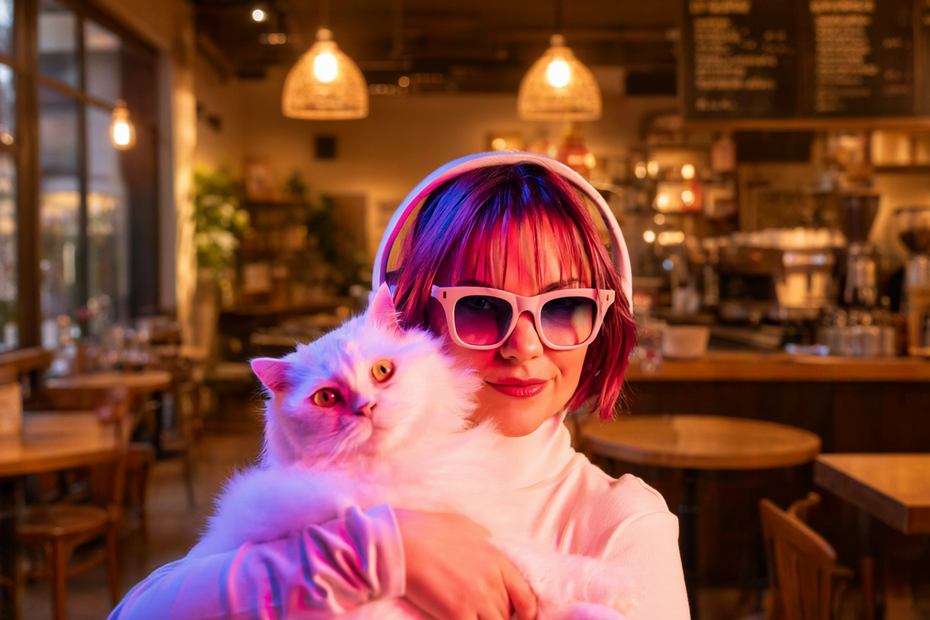
Upload an image and describe the change you want. Qwen Image 2.1 reads the image and your instruction together, then generates the edited version. Add a reference image to guide the edit with clothing, a face, or a background.
Model
Qwen Image 2.1 by Alibaba. A 7B open-source image model that handles single-image edits, multi-reference compositing, and portrait lighting. Outputs up to 2K (2048x2048) natively.
HOW IT WORKS
Step 1. Upload your image
The image you want to edit. Any subject, scene, or style.
Works great with: photos · portraits · products · illustrations
Step 2. Describe the edit
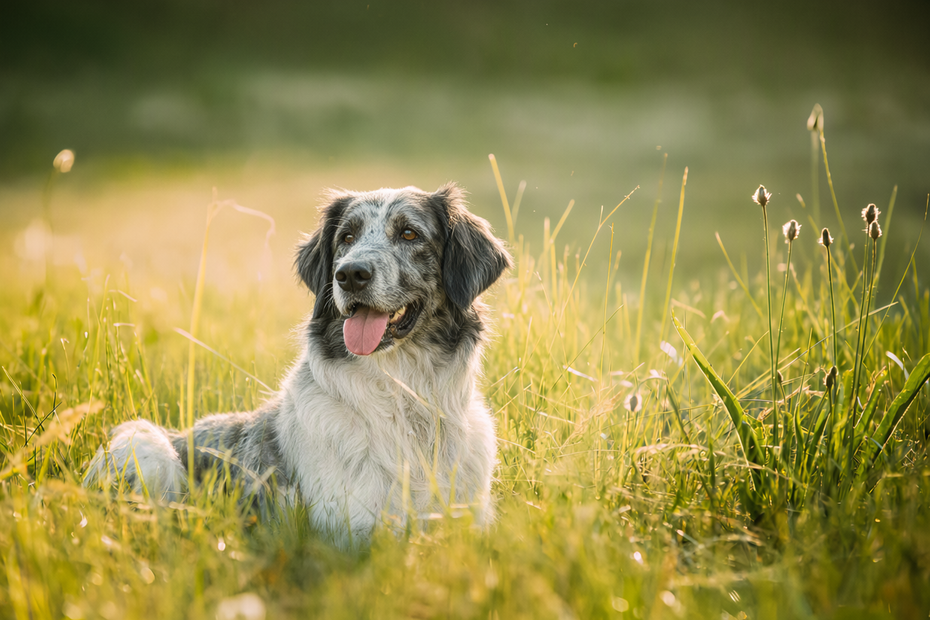
Say what to change in plain language. "Change the cat into a dog" or "swap the background to a beach at sunset." Be specific about what to change and what to keep.
Step 3. Add a reference image (optional)
Turn on the second image loader and upload a reference. A piece of clothing for a wardrobe swap, a face for a likeness transfer, or a background to drop in. Mention it in your prompt so the model knows what to do with it.
Step 4. Hit run and download
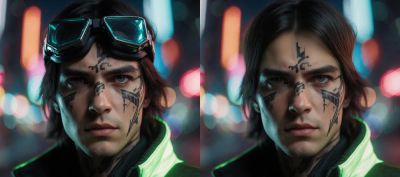
The model applies the edit and saves the result as a PNG. A before-and-after slider shows what changed.
Ready for: Photoshop · Figma · Canva · any editor
First time? Leave every setting as-is. The defaults (1024px resolution · 25 steps · random seed) are the right starting point for almost everyone.
RECOMMENDED SETTINGS
Quick-start guide. Find the goal that matches yours and copy the settings.
Standard edit (most people) — 1024 resolution · 25 steps · random seed · no reference image. The right starting point for almost everyone.
Higher detail output — Set resolution to 2048 for 2K output. Sharper results, longer generation time.
Keep the original image dimensions — Set resolution to 0. The output matches the input size, rounded to multiples of 32.
Guide the edit with a reference — Turn on the second image loader and upload clothing, a face, or a background. Describe what the reference contributes in your prompt.
Reproduce a result you liked — Lock the seed number. Same seed plus same prompt gives the same output, so you can tweak one thing at a time.
The edit is shifting the composition — Keep resolution close to the input image size. Large mismatches between input and output dimensions cause layout drift.
The edit is not landing — Rewrite the prompt before raising steps. Specific instructions ("change the jacket to red leather, keep everything else") beat vague ones ("make it look different").
Prompt: Describe the change and what to preserve. "Change the background to a snowy mountain, keep the subject and lighting" is clearer than "add snow." When using a reference image, say what it contributes: "dress the subject in the outfit from the reference image."
LEARN
📹 Videos
ComfyUI 101 Free Course ft. Sebastian Kamph
Floyo 101 for Team Collaboration
✨ Quick links
USE CASES
🎨 Style Transfers
Upload a photo and restyle it into illustration, anime, watercolor, or any look with a single prompt.
🛍️ Product Photo Editing
Swap backgrounds, change product colors, or place items into new scenes without a reshoot.
👗 Virtual Wardrobe Swaps
Upload a portrait and a reference outfit. The model dresses the subject in the new clothing while keeping the pose and lighting.
🖼️ Concept Art Iteration
Take an existing render or sketch and redirect it with text. Change time of day, swap materials, or shift the mood without starting over.
🔄 Batch Variation Testing
Run the same image with different prompts or seeds to generate a range of edits for review.
WHAT WORKS BEST / WHAT TO AVOID
✅ Works great
Clear, specific edit instructions
Single subject images with clean composition
Reference images that match the edit type (clothing ref for wardrobe swap)
Resolution set close to the input image size
⚠️ May produce softer results
Vague prompts like "make it better" or "improve this"
Very long or multi-step instructions in one prompt
Large resolution mismatch between input and output
Multiple conflicting edits in a single run
FAQ
What is Qwen Image 2.1 and who made it?
Qwen Image 2.1 is an open-source image model made by Alibaba's Qwen team, released in September 2026. It is a 7B parameter model that unifies image generation and editing in one architecture. It uses a Qwen3-VL 8B vision encoder to read text prompts and up to 10 reference images together, then generates or edits images at up to 2K (2048x2048) resolution.
How does Qwen Image 2.1 image editing work?
You upload an image and write a text instruction describing the change. The model reads the image and your prompt as a single input, understands what to keep and what to change, and generates a new image with the edit applied. You can also add reference images to guide the edit, such as an outfit to swap onto a subject or a background to composite in.
What is the maximum resolution for Qwen Image 2.1?
Qwen Image 2.1 supports native output up to 2K (2048x2048 pixels). The default resolution is 1024, which scales the output to roughly 1024x1024 total pixel area while following the input image's aspect ratio. Set resolution to 0 to keep the original image dimensions. All outputs round to multiples of 32.
Can Qwen Image 2.1 use reference images for editing?
Yes. This workflow supports one reference image by default, and the underlying model accepts up to 10 reference images in addition to the base image. Upload a reference and describe what it contributes in your prompt. This works for wardrobe swaps, style matching, object insertion, and background compositing.
Is Qwen Image 2.1 free for commercial use?
Qwen Image 2.1 is released under the Qwen Research License. It is free for non-commercial and research use. Commercial use requires a separate agreement from Alibaba. Review the license terms on the model's Hugging Face page before using outputs in commercial projects.
How is Qwen Image 2.1 different from Qwen Image Edit?
Qwen Image 2.1 is the successor to both Qwen-Image (20B) and Qwen-Image-Edit, unified into a single 7B model. It handles generation, editing, and multi-reference compositing in one architecture, where the older models required separate pipelines. The newer model is smaller, faster, and supports transparent RGBA output natively.
How to run Qwen Image 2.1 online?
You can run Qwen Image 2.1 online through Floyo. No installation, no setup, no model downloads to manage. Open the workflow in your browser, upload your image, describe the edit, and hit run. Free to try.
WHY FLOYO?
Floyo is the only platform with team collaboration for ComfyUI in the browser. You run workflows with no install. You share run history, assets, and models across your team. You pay only when you generate. Floyo supports open-source and closed-source models.
A designer runs an edit and likes the result. A teammate opens that exact run from shared history and keeps going. No file handoffs. No version confusion.
For studios and enterprise teams, Floyo adds private workspaces, pooled resources, and a team usage dashboard. Other ComfyUI cloud tools run for one person at a time. Floyo runs for the whole team, with transparent per-generation costs.
Ready to try it?
Upload an image, describe the change, and run it. The prompt and settings are already set.
Questions? Watch the free course or check the FAQ above.
Read more
_1786522681696.png?width=400&height=300&quality=80&resize=cover)