Pika H3 Flex for First Last Frame to Video
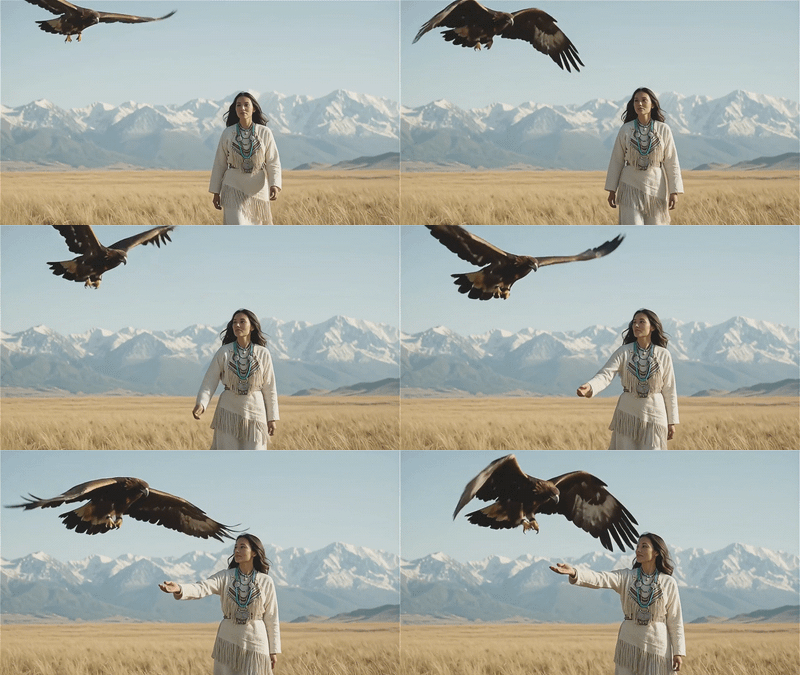
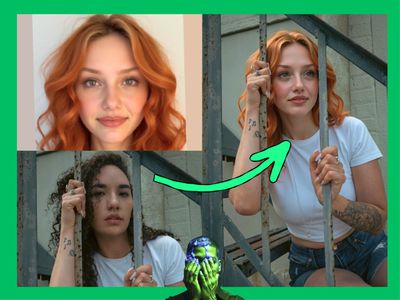
Set a start image and an end image, describe the motion between them, and Pika H3 Flex generates a video with synchronized audio in six steps. Upload two frames, write a prompt, and hit run.
First Frame Last Frame
Pika H3 Flex
Video
90

Nodes & Models
LoadImage
VAELoader
minimax_h3_video_vae_int8_convrot.safetensors
minimax_h3_audio_vae_fp32.safetensors
KSamplerSelect
UNETLoader
minimax_h3_fl2va_pruned_int8_convrot.safetensors
CLIPLoader
qwen3vl_32b_minimax_h3_nvfp4_awq.safetensors
RandomNoise
PrimitiveFloat
ManualSigmas
MarkdownNote
GetImageSize
LoraLoaderModelOnly
pika_h3_flex_fl2va_v1_bf16.safetensors
ComfyMathExpression
PrimitiveInt
MiniMaxH3ImageToVideo
BasicGuider
SamplerCustomAdvanced
VAEDecode
VAEDecodeAudio
CreateVideo
SaveVideo
ABOUT THE WORKFLOW
Animate between two frames
Upload a first frame and a last frame. Describe what happens in between. The model generates a video that moves from one image to the other, with synchronized stereo audio baked in. No separate audio step, no post-production sync.
Model
Pika H3 Flex by Pika, built on MiniMax H3. A 33B video and audio model distilled to six sampling steps. Strong at smooth motion, natural transitions, and generating matched sound alongside the picture.
HOW IT WORKS
Step 1. Upload a first frame
The image your video starts on. Any photo, render, or screenshot works.
Works great with: photos · illustrations · renders · AI-generated images
Step 2. Upload a last frame
The image your video ends on. The model fills in the motion between your two frames.
Works great with: a different pose · a new angle · a scene change
Step 3. Describe the motion
Write what happens between the two frames. Say what moves, how it moves, and what the scene sounds like. Be specific. “She spins and the background tears open” is better than “movement happens.”
Step 4. Hit run and download
The model generates a video with stereo audio in six steps. Preview it in the workflow, then download.
Ready for: Premiere · DaVinci Resolve · After Effects · any NLE
First time? Leave every setting as-is. The defaults (5 seconds · auto resolution · random seed) are the right starting point for almost everyone.
RECOMMENDED SETTINGS
Duration (5–15 s)
Under 5 s: runs, but untested.
Over 15 s: untested, and long clips run out of memory.
Non-number: error.
Video size (follows first frame, about 480–768 px short side, max about 1 MP)
Under 16 px: error.
Under 480 px: soft, low detail.
Over 1 MP: slow, untested.
Phone photo (12 MP): almost certainly out of memory.
Aspect ratio (21:9 to 9:21)
Outside that range: composition breaks.
Last frame
Different shape: edges get cropped.
Missing file: error.
Frame rate (24, allowed 1–120)
Outside 1–120: error.
Anything but 24: audio goes out of sync.
Pika strength (1, allowed −100 to 100)
Outside that range: error.
Any value other than 1: worse output, and 0 gives noise.
Steps (6)
Fewer: flicker.
More: slower, no gain.
Empty: error or blank video.
Sampler (lcm)
Anything else: worse output.
Seed
Any value is fine. It doesn’t affect quality.
LEARN
📹 Videos
ComfyUI 101 Free Course ft. Sebastian Kamph
Floyo 101 for Team Collaboration
✨ Quick links
USE CASES
🎬 Scene Transitions
Set a start frame and an end frame from two different shots. The model builds a smooth transition with matched audio, ready to drop into a timeline.
📱 Social Content
Turn a before-and-after into a short video. Product reveals, makeovers, room transformations. Upload both states and let the model fill in the motion.
🎨 Animation from Stills
Start with two keyframes from a storyboard or concept art. The model interpolates the motion between them, with sound, so you can pitch a sequence without animating it by hand.
🎮 Cinematic Cutscenes
Feed the model two game renders or concept frames. It generates the in-between action with cinematic motion and synchronized audio for prototyping cutscenes or trailers.
WHAT WORKS BEST / WHAT TO AVOID
✅ Works great
Two frames with the same subject in different poses or positions
Clear, well-lit source images with a defined scene
Specific motion prompts that describe what moves and when
Adding a soundscape description for matched audio
⚠️ May produce softer results
Two frames with completely different subjects or scenes
Heavily composited or collaged source images
Vague prompts like “make it move” with no direction
Very long durations (10+ seconds) with complex motion
FAQ
What is Pika H3 Flex?
Pika H3 Flex is an open-weights video model released by Pika on October 29, 2026. It is built on top of MiniMax H3, a 33B omni-modal video and audio model, and distilled down to six sampling steps. It generates video with synchronized stereo audio from text, first frame, last frame, or a combination of both frames. The weights are published on Hugging Face as LoRA adapters that load on top of the base MiniMax H3 checkpoint.
How is first-and-last-frame generation different from image-to-video?
Standard image-to-video takes one starting image and lets the model decide where the motion ends up. First-and-last-frame generation locks both ends: you choose the start, you choose the finish, and the model fills in the motion between them. That gives you far more control over the final result, especially for transitions, reveals, and any shot where you know exactly where the action needs to land.
Does Pika H3 Flex generate audio automatically?
Yes. The model generates video and 32 kHz stereo audio in a single pass. No separate audio model, no manual syncing. The audio matches the visual content. You can improve the sound by adding a soundscape description to the end of your prompt, naming the sounds you want to hear.
What resolution does this workflow output?
The resolution is pulled from your first frame and rounded to the nearest multiple of 32. Upload a 1080x1920 first frame and the output matches that ratio. The base model outputs at 768p. For higher resolutions, crop or resize your input frames to the size you need before uploading.
Can I use Pika H3 Flex outputs commercially?
Pika H3 Flex is distributed under the MiniMax H3 Community License. It is not a fully permissive open-source license. Commercial use is allowed under certain conditions. Review the license terms on the Hugging Face model card before using outputs in shipped products.
What is the difference between Pika H3 Flex and standard MiniMax H3?
MiniMax H3 is the base model and runs at 50 sampling steps. Pika took that model, post-trained it on their own video and audio data, and distilled it to six steps. The result is faster generation with comparable or better visual and audio quality. Pika reports higher scores than the base H3 across video technical quality, video aesthetics, audio aesthetics, and audio-video alignment benchmarks.
How to run Pika H3 Flex online?
You can run Pika H3 Flex online through Floyo. No installation, no setup, no API key to wire up. Open the workflow in your browser, upload your inputs, and hit run. Free to try.
WHY FLOYO?
Floyo is the only platform with team collaboration for ComfyUI in the browser. You run workflows with no install. You share run history, assets, and models across your team. You pay only when you generate. Floyo supports open-source and closed-source models.
A designer runs an edit and likes the result. A teammate opens that exact run from shared history and keeps going. No file handoffs. No version confusion.
For studios and enterprise teams, Floyo adds private workspaces, pooled resources, and a team usage dashboard. Other ComfyUI cloud tools run for one person at a time. Floyo runs for the whole team, with transparent per-generation costs.
Ready to try it?
Upload a first frame, a last frame, and describe the motion. The settings are already set.
Questions? Watch the free course or check the FAQ above.
Read more