

Krea 2 Turbo · Text to Image For Viral SNS
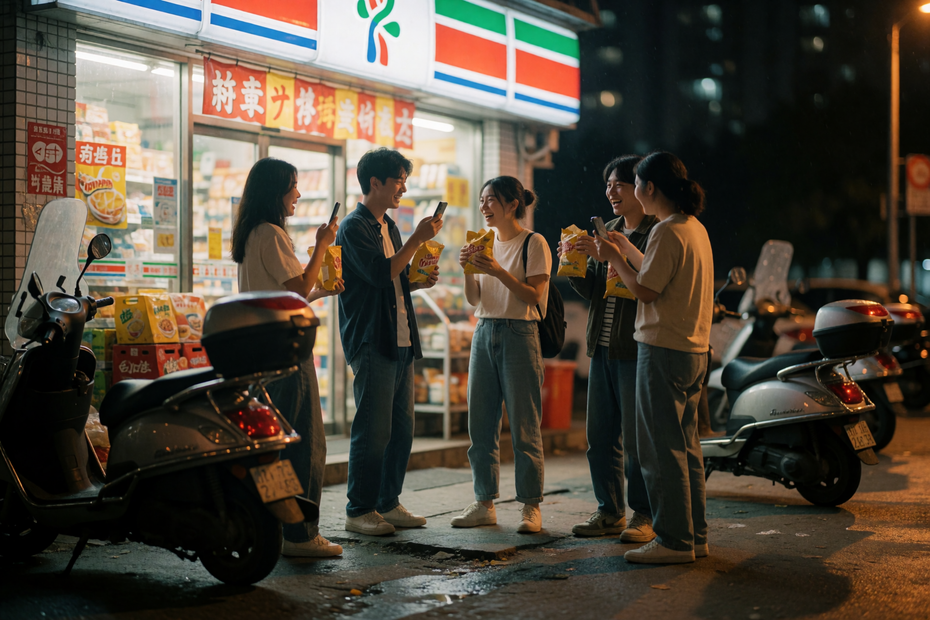
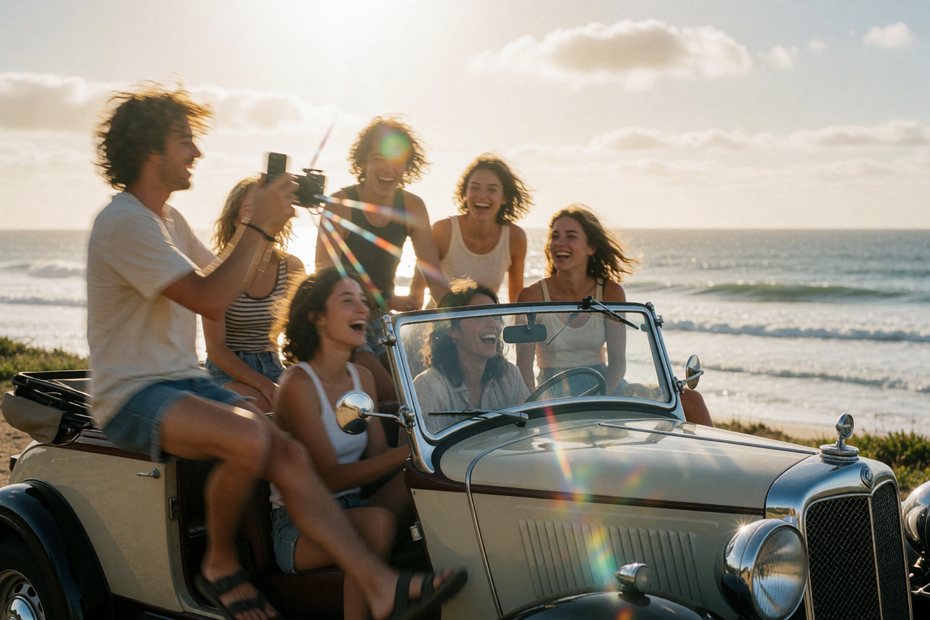
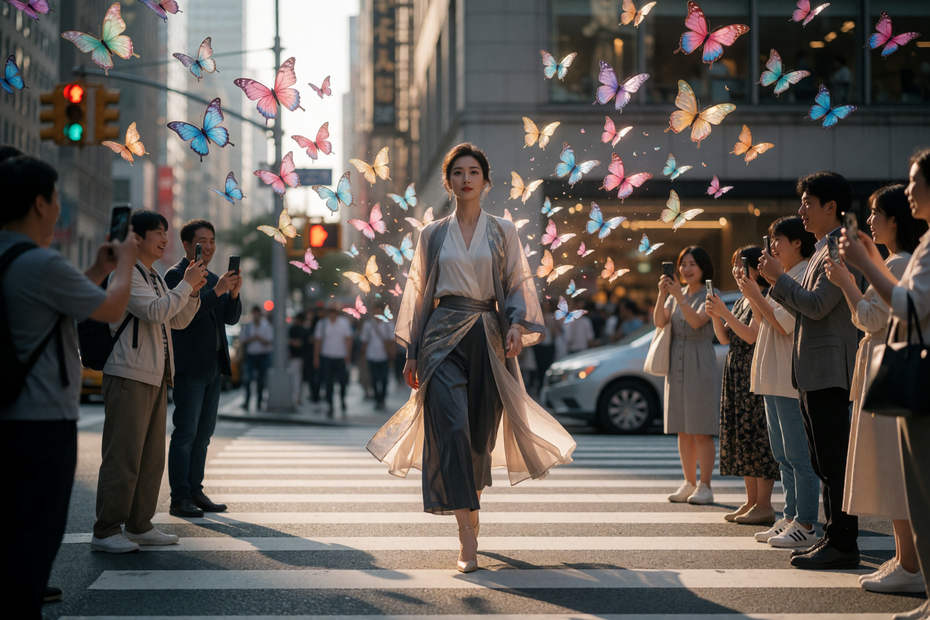
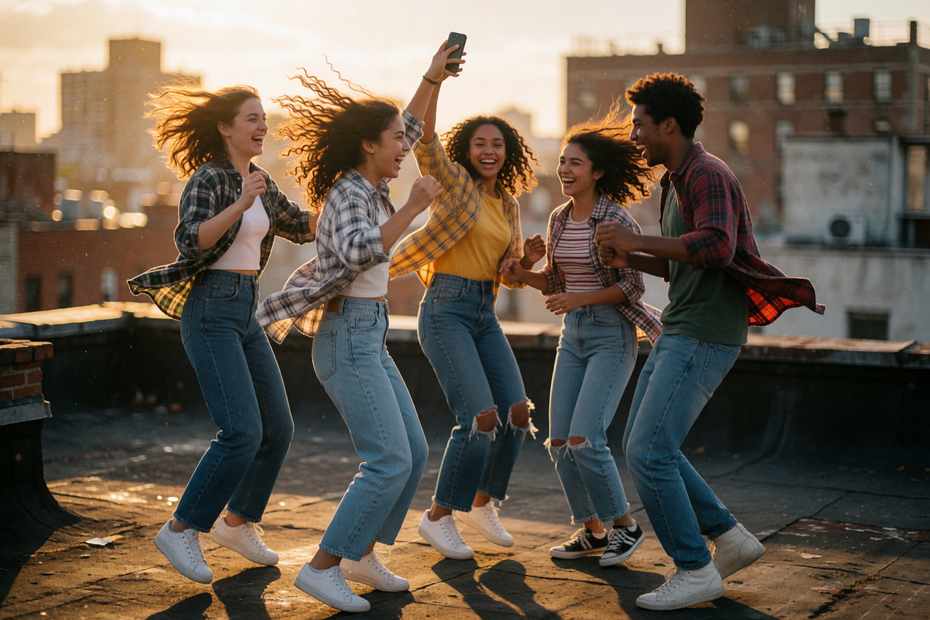
Write a prompt and Krea 2 Turbo generates a high-resolution image at 1920x1280 in 8 steps, using a fast turbo-distilled model with a Qwen 3 VL text encoder.
Image
image generation
krea 2
text to image
turbo
300




Nodes & Models
PrimitiveStringMultiline
KSampler
EmptyLatentImage
CLIPTextEncode
VAEDecode
SaveImage
UNETLoader
krea2_turbo_fp8_scaled.safetensors
CLIPLoader
qwen3vl_4b_fp8_scaled.safetensors
VAELoader
qwen_image_vae.safetensors
ConditioningZeroOut
LoraLoaderModelOnly
krea2_darkbrush-krea-2-for-text-to-image-IVuQM-Ye.safetensors
TextGenerate
StringConcatenate
PreviewAny
ComfySwitchNode
PrimitiveBoolean
FloyoStickyNote
ABOUT THE WORKFLOW
Generate an Image from Text
Write a prompt describing the image you want. Krea 2 Turbo generates it at 1920x1280 in 8 steps. The model is distilled for speed while maintaining strong visual quality and prompt adherence. One prompt in, one image out.
Model
Krea 2 Turbo (fp8 scaled) by Krea AI. A turbo-distilled image generation model paired with a Qwen 3 VL 4B text encoder and the Qwen Image VAE. Generates high-resolution images in 8 steps at CFG 1.
HOW IT WORKS
Step 1. Write your prompt
Describe the image: subject, setting, lighting, camera, composition, and style. The model handles detailed scene descriptions, character art, and photographic language.
Works great with: character art · anime · portraits · concept art · editorial stills · product shots
Step 2. Hit run and download
Krea 2 Turbo generates the image at 1920x1280 in 8 steps and saves it.
Ready for: Photoshop · Figma · Canva · social media · web · print
First time? Write a detailed prompt and hit run. Leave all settings as-is.
RECOMMENDED SETTINGS
Quick-start guide. Find the goal that matches yours and copy the settings.
Standard image generation — 1920x1280, 8 steps, CFG 1, euler sampler, seed randomized. Write your prompt and run.
Different aspect ratio — Change the EmptyLatentImage dimensions. 1280x1920 for portrait. 1280x1280 for square. 1920x1080 for 16:9 widescreen.
Multiple images per run — Raise the batch size from 1 to 2, 3, or 4. Each image in the batch uses the same prompt with a different noise seed, giving you variations to choose from.
Explore compositions — Keep seed on randomize. Each seed produces a different layout and interpretation. Lock the seed once you find a result you want to refine.
Result looks generic or misses details — Write a longer, more specific prompt. Include lighting direction, material textures, camera angle, and color temperature. The Qwen 3 VL encoder handles detailed descriptions well.
Prompt: Write with visual specificity. Describe the subject, then the environment, then the camera and lighting. Long, detailed prompts produce sharper results than short ones.
LEARN
📹 Videos
ComfyUI 101 Free Course ft. Sebastian Kamph
Floyo 101 for Team Collaboration
✨ Quick links
USE CASES
🎨 Character Art and Illustration
Generate detailed character designs, anime key visuals, and fantasy illustrations with complex compositions and atmospheric lighting.
📸 Concept Photography
Produce photorealistic scene concepts with specific camera, lens, and lighting descriptions for mood boards, pitch decks, and creative briefs.
⚡ Rapid Prompt Exploration
Test visual directions, compositions, and styles at 8-step speed. Generate multiple batches to compare interpretations before committing to a final look.
📱 Social Media and Marketing Visuals
Create on-brand images at high resolution across aspect ratios for posts, banners, and web content from a single prompt.
WHAT WORKS BEST / WHAT TO AVOID
✅ Works great
Detailed, multi-sentence prompts with specific visual descriptions
Character art, anime, and stylized illustration
Photographic language (lens, exposure, lighting, color grading)
High resolution output at 1920x1280
⚠️ May produce softer results
Very short prompts with no visual detail
Complex in-image text rendering
Exact brand logo reproduction
Resolutions significantly above 1920x1280 without upscaling
FAQ
What is Krea 2 Turbo?
Krea 2 Turbo is a turbo-distilled text-to-image model by Krea AI. It generates high-resolution images in 8 steps at CFG 1 using a Qwen 3 VL 4B text encoder for prompt understanding and the Qwen Image VAE for decoding. The turbo distillation makes it one of the faster open-weight image generators available.
How fast is Krea 2 Turbo compared to other models?
At 8 steps with CFG 1, Krea 2 Turbo generates a 1920x1280 image in seconds on a modern GPU. Standard non-distilled workflows typically require 20 to 50 steps. The turbo distillation cuts generation time significantly with minimal quality loss.
What resolution does this workflow output?
The default is 1920x1280 (3:2 landscape). You can change the dimensions in the EmptyLatentImage node to target different aspect ratios.
Can I generate multiple images per run?
Yes. Raise the batch size in the EmptyLatentImage node from 1 to 2, 3, or 4. Each image generates with a different noise sample from the same prompt, giving you composition and detail variations to choose from.
Does Krea 2 Turbo support negative prompts?
The workflow includes a negative conditioning path (ConditioningZeroOut), but no default negative prompt text is set. Add negative terms in a separate CLIP encode node if you need to exclude specific elements.
Is Krea 2 Turbo licensed for commercial use?
Check the current license terms on the Krea AI model page or Hugging Face repo for commercial use in your specific project.
How to run Krea 2 Turbo online?
You can run Krea 2 Turbo online through Floyo. No installation, no setup, no local GPU needed. Open the workflow in your browser, write your prompt, and hit run. Free to try.
WHY FLOYO?
Floyo is the only platform with team collaboration for ComfyUI in the browser. You run workflows with no install. You share run history, assets, and models across your team. You pay only when you generate. Floyo supports open-source and closed-source models.
A designer runs an edit and likes the result. A teammate opens that exact run from shared history and keeps going. No file handoffs. No version confusion.
For studios and enterprise teams, Floyo adds private workspaces, pooled resources, and a team usage dashboard. Other ComfyUI cloud tools run for one person at a time. Floyo runs for the whole team, with transparent per-generation costs.
Ready to try it?
Write a detailed prompt and hit run. The image generates in seconds.
Questions? Watch the free course or check the FAQ above.
Read more








