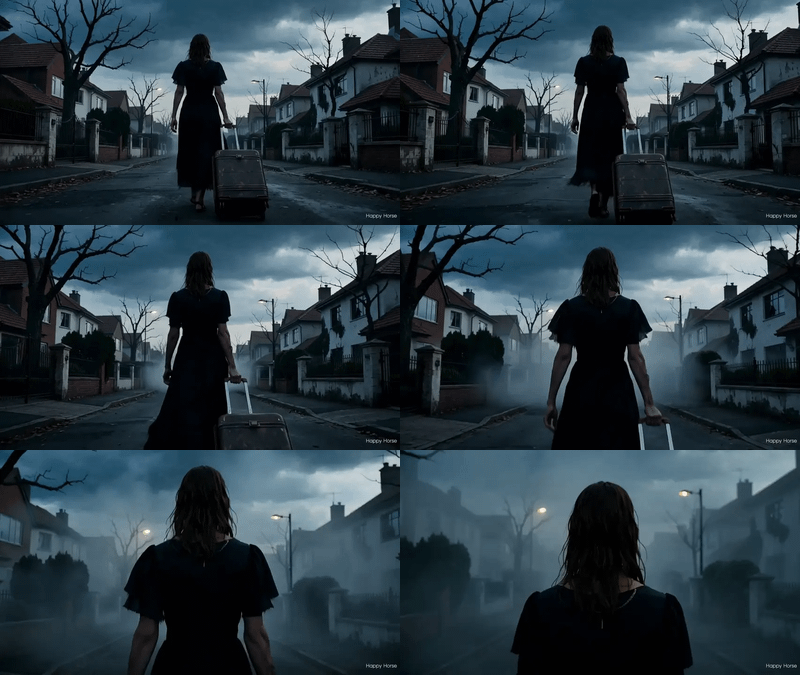
Kling v4.0 · Reference to Video
Create a video from your own images, clips, characters, and voices using Kling v4.0 by Kuaishou. Upload your references, describe what to make, and hit run.
kling v4
reference to video
video generation
189

ABOUT THE WORKFLOW
Build a video from references
Upload images, video clips, and character references, then describe what you want. Kling v4.0 combines your inputs into a new video with sound. Swap characters between clips, match motion from a reference video, or add a custom voice. That’s it.
Partner node. This workflow calls an external API, so each run uses credits from your API wallet. No API key needed. Floyo handles the connection.
Model
Kling v4.0 by Kuaishou (Kling AI). Strong at stable motion, smooth camera work, and character consistency when using element references. Succeeds Kling 3.0.
HOW IT WORKS
Step 1. Upload a start image (optional)
The image used as the first frame. Any format, any size. Leave it empty to let Kling generate the opening frame from your prompt and references.
Works great with: photos · illustrations · product shots · AI-generated images
Step 2. Upload a reference video (optional)
A short clip (3 to 30 s) that guides the motion, timing, or style of the result. Use @Video1 in your prompt to point at it. You can connect up to 5 clips.
Step 3. Write a prompt
Describe what the video should show. Use the @ tags printed on each input socket to tell Kling which reference to use where. @Video1 for your clip, @Element1 for a character, @Image1 for a reference image.
Step 4. Hit run and download
Kling creates the video with sound. Preview the result, then download the MP4.
Ready for: Premiere Pro · DaVinci Resolve · After Effects · any editor
First time? Leave every setting as-is. The defaults are the right starting point for almost everyone.
RECOMMENDED SETTINGS
Prompt
Required unless
multi_promptis usedReference inputs using @ tags:
@Image1,@Video1,@Element1, etc.Up to 8,000 tokens
State each asset's role and what to preserve or exclude
Use concrete visual language — avoid abstract terms like "premium look"
Negative prompts are generally discouraged; the only recommended ones are excluding subtitles and background music
Duration
Range: 3–30 seconds, in 1-second increments
Default (FAL API): 5 seconds
Default (Kling native): 10 seconds
Use 3–5 seconds for quick tests / lower cost
Kling 4.0 Flash variant is capped at 3–20 seconds
Resolution
Options:
720p,1080pDefault:
1080p720p costs roughly a third less — good for testing
4K is listed in Kling’s official spec but not yet available via the FAL API
Kling 4.0 Flash is locked to 720p only
Aspect Ratio
Options:
auto,16:9,9:16,1:1,21:9Default:
16:9autoadapts the ratio to the references provided21:9is supported only on Kling v4.0 (not older versions)Input images and videos must have an aspect ratio between 2:5 and 5:2
Reference Images (image_urls)
Maximum: 10 images total
Referenced as
@Image1,@Image2, etc.Max 30 MB per image
Aspect ratio must be between 2:5 and 5:2
All images count toward the 15 total reference asset cap
Keyframes
Middle frames (
middle_image_urls): up to 8End frame (
end_image_url): 1Start frame (
start_image_url): 1 (optional)All keyframes count toward the image reference limit
Reference Videos (video_urls)
Maximum: 5 video clips
Each clip: 3–30 seconds
Combined duration limit: 30 seconds total (across all videos + element videos)
Max 300 MB per video
Aspect ratio must be between 2:5 and 5:2
Referenced as
@Video1,@Video2, etc.Connecting any video reference switches to the higher pricing rate
Elements
Maximum: 7 total elements
Up to 3 may be video-based elements
Up to 3 may have a
voice_idReferenced as
@Element1,@Element2, etc.Element image: 1 frontal image + 1–3 reference images (additional angles)
Element video: 3–8 seconds per video element
Element videos count toward the shared 5-clip / 30-second video quota
Voice Profiles (voice_ids)
Maximum: 3 per generation task (including voices bound to elements)
5–30 seconds of audio needed to create a voice profile
Max 50 MB per audio file
Referenced as
@Voice1,@Voice2, etc.
Total Reference Limit
Hard cap: 15 total reference assets across images, videos, voice profiles, and elements combined
Individual per-type limits add up to more than 15, so the 15 combined cap is the binding constraint
Reference videos, videos for editing, and video elements share one video quota: up to 5 clips and 30 seconds combined
Multi-Prompt (Multi-Shot)
Optional alternative to a single prompt
Each shot has its own
promptandduration(default 5 seconds per shot)Total duration = sum of all shot durations
Still must stay within 3–30 seconds total
Common Error-Causing Mistakes to Avoid
Empty prompt with no
multi_prompt→ run failsDuration below 3 or above 30 seconds → rejected
More than 10 images → rejected
More than 5 video clips → rejected
Combined video duration exceeding 30 seconds → rejected
More than 7 elements → rejected
More than 3 voice profiles → rejected
More than 15 total reference assets → rejected
Element video shorter than 3s or longer than 8s → rejected
Individual reference video shorter than 3s or longer than 30s → rejected
Image or video aspect ratio outside 2:5–5:2 range → rejected
Image over 30 MB or video over 300 MB → rejected
Using
21:9aspect ratio on older Kling versions → unsupportedStarting prompt with "Edit @Video1" instead of "Reference @Video1" → triggers editing mode instead of reference mode
Recommended Safe Defaults for Reliable Runs
Prompt: descriptive, concrete, under 8K tokens, with @ tags for each asset
Duration: 5 seconds for testing, 10 seconds for production
Resolution: 720p for drafts, 1080p for final output
Aspect ratio:
16:9orautoReferences: keep total under 15 assets; keep combined video under 30 seconds
Elements: start with image-based elements (simpler than video-based)
Voices: limit to 1–2 unless multi-character narration is needed
LEARN
📹 Videos
ComfyUI 101 Free Course ft. Sebastian Kamph
Floyo 101 for Team Collaboration
✨ Quick links
USE CASES
🎭 Character Swaps
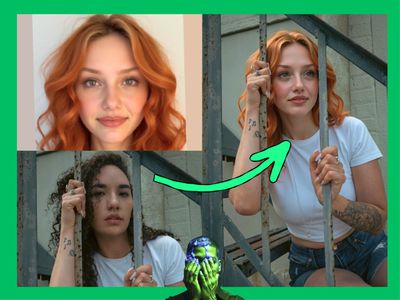
Replace a person in an existing clip with a different character. Upload the clip as a reference video and the new character as an element. Kling transfers the motion while keeping the new face consistent.
🛍️ Product Ad Variations
Take one product video and swap in different items, backgrounds, or talent to create multiple ad versions from a single shoot.
🎬 Motion Transfer
Upload a reference clip with the camera movement or action you want, plus a start image with your scene. Kling applies the reference motion to your image.
🎤 Talking Head with Custom Voice
Combine a character element with a voice ID to create a speaking character video. Useful for explainers, avatars, and multilingual content.
🎥 Storyboard to Polished Clip
Feed storyboard frames as keyframes and a reference clip for motion style. Kling fills the gaps between your frames, guided by the clip’s pacing and camera work.
WHAT WORKS BEST / WHAT TO AVOID
✅ Works great
Clear @ tag references in the prompt linking each input to its role
Single character swaps with a good frontal image of the new character
Reference clips with distinct, readable motion
Clean start images with a single subject
⚠️ May produce softer results
Prompts that skip the @ tags and describe inputs vaguely
Too many references at once (close to the 15 reference limit)
Reference clips with fast cuts or heavy motion blur
Conflicting instructions between multiple reference inputs
FAQ
What is Kling v4.0 Reference to Video?
Kling v4.0 Reference to Video is the most flexible Kling v4.0 workflow. It accepts images, video clips, character elements, keyframes, and voice IDs as inputs and combines them into a new video with sound based on your prompt. Use it when you need to control specific aspects of the output, like who appears, how they move, or what they sound like.
What are the @ tags and how do I use them?
Each input socket has a label with an @ tag, like @Video1, @Element1, or @Image1. Use these tags in your prompt to tell Kling which input to use where. “Replace the character in @Video1 with @Element1” is clear. Without the tags, Kling may not know which reference you mean.
What are elements?
Elements are character references. Each element can have a frontal image, additional reference images for extra angles, a video, and a voice ID. You can use up to 7 elements per run. They keep a character consistent across the video.
Does connecting a video clip cost more?
Yes. Connecting any video reference switches to the higher rate. You also pay for each second of video you connect. Start with short clips at 720p to test before committing to longer or higher-resolution runs.
What are the input limits per run?
Up to 5 video clips, 10 images, 7 elements, 3 voices, and 15 total references per run. Keyframes (up to 8 middle frames + 1 end frame) count separately from reference images.
Can I use Kling v4.0 outputs commercially?
Kling v4.0 is a closed-weights, API-only model. Commercial use is governed by Kuaishou’s terms of service. Review their current terms before using outputs in commercial projects.
How to run Kling v4.0 Reference to Video online?
You can run Kling v4.0 Reference to Video online through Floyo. No installation, no setup, no API key to wire up. Open the workflow in your browser, upload your references, and hit run. Free to try.
WHY FLOYO?
Floyo is the only platform with team collaboration for ComfyUI in the browser. You run workflows with no install. You share run history, assets, and models across your team. You pay only when you generate. Floyo supports open-source and closed-source models.
A designer runs an edit and likes the result. A teammate opens that exact run from shared history and keeps going. No file handoffs. No version confusion.
For studios and enterprise teams, Floyo adds private workspaces, pooled resources, and a team usage dashboard. Other ComfyUI cloud tools run for one person at a time. Floyo runs for the whole team, with transparent per-generation costs.
Ready to try it?
Upload your first reference, describe what to make, and hit run. The settings are already set.
Questions? Watch the free course or check the FAQ above.
Read more