Kling v3 for Text to Image
Generate images from a text prompt using Kling Image V3, Kuaishou's latest image model. Add reference photos to keep faces and objects consistent, then hit run.
Image
Kling v3
Text to Image
4
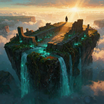
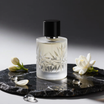
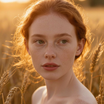

ABOUT THE WORKFLOW
Generate an Image from Text
Write a prompt describing what you want to see. Add reference photos of faces or objects to keep them consistent across generations. The model returns a still image matching your description.
Partner node. This workflow calls an external API, so each run uses credits from your API wallet. No API key needed. Floyo handles the connection.
Model
Kling Image V3 by Kuaishou Technology. Strong at scene composition, natural lighting, readable text in images, and face consistency with element references.
HOW IT WORKS
Step 1. Write your prompt
Describe the full scene: subject, setting, lighting, camera angle, mood. The more specific the prompt, the closer the result.
Works great with: portraits · landscapes · product shots · cinematic scenes
Step 2. Add element references (optional)
Upload a clear frontal photo of a face or object, plus extra angles, to keep it consistent in the output. Up to 10 separate elements, each with a frontal image and up to three reference images.
Step 3. Set aspect ratio and resolution (optional)
Pick the shape and size for your output. Defaults are 16:9 at 1K.
Step 4. Hit run and download
The model generates the image and previews it on canvas. Download when ready.
Ready for: Photoshop · Figma · Canva · any editor
First time? Leave every setting as-is. The defaults (16:9 · 1K · 1 image · PNG) are the right starting point for almost everyone.
RECOMMENDED SETTINGS
Quick-start guide. Find the goal that matches yours and copy the settings.
Standard generation (most people) — 16:9 · 1K · 1 image · PNG. The right starting point for almost everyone.
Want a square or vertical image — Change the aspect ratio to 1:1 for square or 9:16 for vertical. All other settings stay the same.
Need sharper output for print or large display — Switch resolution to 2K. Costs roughly double per image.
Want options to choose from — Raise the number of images to generate several versions in one run. Each image is billed separately.
Keeping a character consistent across images — Upload a clear frontal photo as the element's frontal image, then add two or three extra angles as references. Name the element in your prompt.
The output does not match the prompt — Write the full scene in one sentence. Vague prompts produce generic results. "A woman in a red coat walking through a snow-covered alley, soft morning light, wide shot" works better than "woman in snow."
Getting unwanted elements in the image — Add a negative prompt describing what to exclude.
Prompt: Write the full scene in one descriptive sentence: subject, setting, lighting, angle, mood. "A ceramic coffee mug on a marble counter, warm side light, overhead angle, minimal background" lands better than "coffee mug photo."
LEARN
📹 Videos
ComfyUI 101 Free Course ft. Sebastian Kamph
Floyo 101 for Team Collaboration
✨ Quick links
USE CASES
📸 Portrait & Character Work
Upload a face reference and generate consistent character shots across different scenes, outfits, and lighting setups.
🎮 Game Art & Concept Design
Generate environment concepts, character designs, and item art from detailed prompts without waiting for a full render pipeline.
🛍️ Product & Marketing Visuals
Create styled product shots, campaign imagery, and social content from a text description and optional object references.
🎬 Storyboarding & Pre-production
Block out shots for a sequence with consistent characters by locking element references and changing the scene prompt each run.
🔤 Text-in-Image Graphics
Generate images with readable text baked in, such as posters, signs, or title cards, where most models fail.
WHAT WORKS BEST / WHAT TO AVOID
✅ Works great
Detailed, descriptive scene prompts
Clear frontal reference photos for character consistency
Naturalistic lighting and photographic compositions
Prompts that include text to render in the image
⚠️ May produce softer results
Abstract or highly stylized art directions
Very short or vague prompts
Low-quality or off-angle reference images
Multiple conflicting elements without clear prompt guidance
FAQ
What is Kling Image V3?
Kling Image V3 is the latest image generation model from Kuaishou Technology, released as part of the Kling 3.0 suite. It generates still images from text prompts and supports element references for face and object consistency. It outputs at 1K or 2K resolution across multiple aspect ratios.
How do element references work in Kling Image V3?
Element references let you upload photos of a specific face or object so the model keeps that identity consistent in the generated image. Each element takes one frontal photo plus up to three additional reference angles. You can use up to 10 separate elements per run. Name each element in your prompt so the model knows where to place it.
Can Kling Image V3 render readable text inside images?
Yes. Readable text rendering is one of the model's strengths. Spell out the exact words you want in the image within your prompt. It handles signs, labels, and short titles well, which sets it apart from many other image models.
What is the difference between 1K and 2K resolution in Kling Image V3?
1K is the standard output and works well for screens, social media, and previews. 2K produces a sharper image at roughly double the cost per generation. Use 2K when the image will be printed, displayed at large size, or needs fine detail.
Is Kling Image V3 output licensed for commercial use?
Yes. Commercial usage rights are included with images generated through the Kling API. You can use outputs in client work, marketing materials, games, and published projects.
How is Kling Image V3 different from Flux, Midjourney, or Stable Diffusion?
Kling Image V3 is a closed-weights API model, so there are no local weights to download or fine-tune. Its main differentiators are built-in element references for character and object consistency across generations, strong text rendering in images, and natural photographic lighting. Flux and Stable Diffusion offer open weights for local customization. Midjourney runs through its own platform. Kling runs through an API, and this workflow connects to it with no key setup required.
How to run Kling Image V3 online?
You can run Kling Image V3 online through Floyo. No installation, no setup, no API key to wire up. Open the workflow in your browser, write your prompt, and hit run. Free to try.
WHY FLOYO?
Floyo is the only platform with team collaboration for ComfyUI in the browser. You run workflows with no install. You share run history, assets, and models across your team. You pay only when you generate. Floyo supports open-source and closed-source models.
A designer runs a generation and likes the result. A teammate opens that exact run from shared history and keeps going. No file handoffs. No version confusion.
For studios and enterprise teams, Floyo adds private workspaces, pooled resources, and a team usage dashboard. Other ComfyUI cloud tools run for one person at a time. Floyo runs for the whole team, with transparent per-generation costs.
Ready to try it?
Write a prompt, add your references if you have them, and hit run.
Questions? Watch the free course or check the FAQ above.
Read more