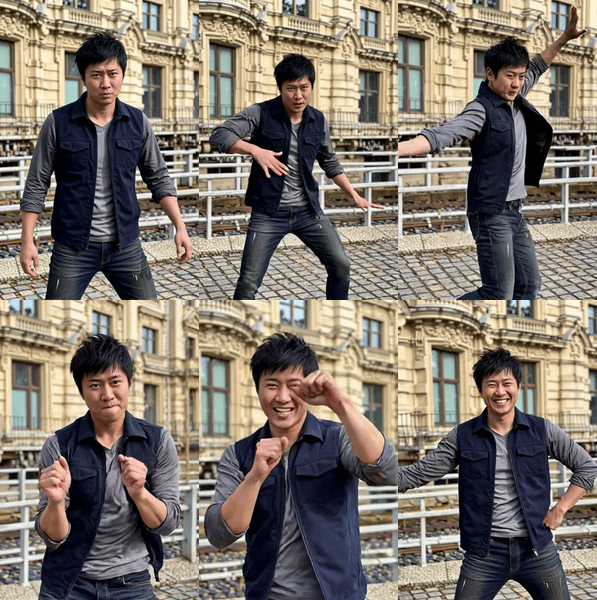
Kling O3 Pro - Image to Video
API
image to video
Video
1.1k

Nodes & Models
KlingO3ProReference_floyo
VideoToFrames
WorkflowGraphics
LoadImage
VHS_VideoCombine
VHS_VideoCombine
Kling O3 Pro with image input. Upload a photo as the first frame, write a prompt, and get a video back.
Upload your reference image, write what should happen in the video, pick a duration and aspect ratio, and hit Run. Kling O3 Pro handles motion, lighting, and temporal coherence from there.
Works at 5 seconds by default. Aspect ratio is 16:9 out of the box.
How do you use Kling O3 Pro for image-to-video generation?
Upload an starting image, write a prompt describing the motion or scene, set duration and aspect ratio, and run. Kling O3 Pro generates video that matches your image and follows your prompt. No start image? Go text-only and it generates from your description alone.

Start image Want your video to begin from a specific frame? Upload your reference photo here. It anchors the first frame of the video and gives the model something to build motion from. Skip it and Kling generates from your prompt alone.
Prompt Describe what should happen in the video. Motion works better when you describe it explicitly. "A tiger walking through tall grass, wind moving the blades" gives the model something to work with. Vague prompts produce vague motion.
Duration Default is 5 seconds. Longer clips give motion more room to develop but take more time to generate. Start at 5 and go longer once you like the direction.
Aspect ratio Default is 16:9. That fits most screens and social media landscape formats. If you are shooting for vertical (TikTok, Reels), switch to 9:16.
Shot type Set to "customize" by default. This gives you flexibility on how the camera frames the subject. Experiment once you have your prompt and image working.
Generate audio Off by default. Turn it on and Kling will add audio to the video output.
What is Kling O3 Pro image-to-video good for?
Kling O3 Pro image-to-video is good for animating still photos, creating short cinematic clips from reference images, and prototyping video concepts from text. It handles both: image-anchored and prompt-only generation in the same workflow.
Product shots you want to see in motion. Portrait photos where you want the subject to move naturally. Concept art you want to see come alive. Travel photos turned into short atmospheric clips.
The image input makes this workflow flexible. When you have a reference frame, use it to anchor the output. When you are ideating without assets, go text-only and iterate on the prompt.
The catch: video generation takes time. Five seconds of output is not five seconds of compute. Plan your iterations accordingly, and keep prompts specific to get predictable motion.
FAQ
What duration options does Kling O3 Pro support? The default is 5 seconds. Longer durations are available in the duration dropdown. Longer clips give motion more space to develop but increase generation time proportionally.
How do I get better motion in Kling O3 Pro outputs? Write motion into your prompt explicitly. Describe what moves, how it moves, and what the camera does. "Camera slowly pans left as fog rolls through a forest at dawn" gives the model clear directional instructions.
What aspect ratios does this workflow support? Default is 16:9. The aspect ratio dropdown includes other options including vertical formats. Match your aspect ratio to your intended output platform before you run.
How do I run Kling O3 Pro online without installing anything? You can run Kling O3 Pro online through Floyo. No installation, no setup. Open the workflow in your browser, upload your inputs, and hit run.
Read more