Ideogram v4.5 for Image Editing
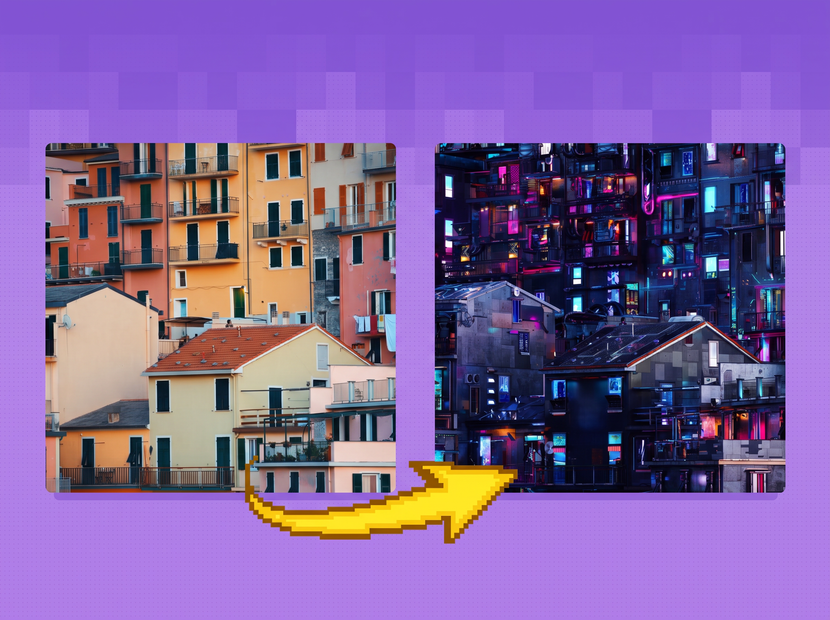
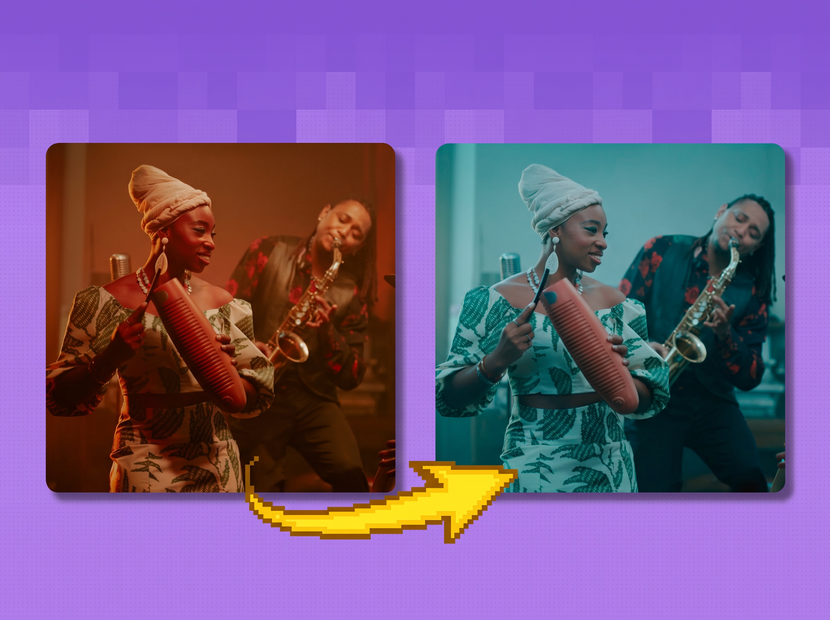
Edit any image with a text instruction using Ideogram v4.5, the precise edit model by Ideogram. Upload an image, describe the change, and hit run.
Ideogram v4.5
Image
Image Editing
114



Nodes & Models
IdeogramV45Edit_floyo
LoadImage
MarkdownNote
PreviewImage
ABOUT THE WORKFLOW
Edit an Image
Upload an image and describe the change you want. Ideogram v4.5 applies the edit and preserves everything you did not mention. Add a mask to lock the edit to a specific area, or add reference images to guide the style or subject. That’s it.
Partner node. This workflow calls an external API, so each run uses credits from your API wallet. No API key needed. Floyo handles the connection.
Model
Ideogram v4.5 by Ideogram, Inc. A proprietary editing model built for precise, multi-turn edits that preserve untouched pixels and render accurate in-image text.
HOW IT WORKS
Step 1. Upload your image
The image you want to edit. JPEG, PNG, or WEBP, up to 25 MB.
Works great with: photos · product shots · designs · illustrations
Step 2. Describe the change
Write a prompt saying what to change and what to keep. Text or JSON format, up to 10,000 characters. Example: “change the wall color to dark green, keep the furniture.”
Step 3. Paint a mask (optional)
Draw over the area you want the edit to touch. Without a mask, the model decides what to change based on your prompt.
Step 4. Add reference images (optional)
Upload up to five reference images to guide the edit with a style, subject, or specific look. JPEG, PNG, or WEBP, 25 MB each.
Step 5. Hit run and download
Ideogram v4.5 applies the edit and returns the result. Preview it in the workflow, then download.
Ready for: Photoshop · Figma · Canva · any editor
First time? Leave every setting as-is. The defaults (Auto aspect ratio · High quality on paid plans · Magic Prompt on) are the right starting point for almost everyone.
RECOMMENDED SETTINGS
Quick-start guide. Find the goal that matches yours and copy the settings.
Standard edit (most people) — Auto aspect ratio · High quality · 4 images · Magic Prompt on. The right starting point for almost everyone.
Want options to choose from — Set number of images up to 8 and pick the strongest edit. Note: attaching references drops the default to 2.
Want a specific output shape — Set the aspect ratio to a fixed ratio from the Square, Landscape, or Portrait groups. Ratios up to 6:1 and 1:6 are supported. The 3:1 and 1:3 ratios require 2K resolution.
Need exact pixel dimensions — Attach at least one reference image, set Custom Size to Custom, and enter width and height. Each side must be a multiple of 32, minimum 256 px, and the total area cannot exceed 4,194,304 pixels (2048 × 2048 equivalent).
Need a transparent background — Open Advanced settings and set Background to Transparent. Good for editing assets that go into a layered comp.
The edit keeps adding elements you did not ask for — Turn Magic Prompt off. It rewrites your prompt behind the scenes, which can push the output away from your original intent. Magic Prompt is automatically hidden when reference images are attached.
The wrong part of the image changes — Add a mask to lock the edit to the area you want changed.
Getting errors on custom sizes — Check three things: both sides divisible by 32, neither side below 256 px, and total pixel area under 4.19 megapixels. Aspect ratios wider than 6:1 or taller than 1:6 also fail. Do not attach more than five reference images.
Prompt: Describe the change and what to preserve in the same sentence. “Swap the background to a beach at sunset, keep the subject and lighting” is clearer than “make it look beachy.” When editing or adding text in the image, spell out the exact words you want.
LEARN
📹 Videos
ComfyUI 101 Free Course ft. Sebastian Kamph
Floyo 101 for Team Collaboration
✨ Quick links
USE CASES
🖼️ Background & Object Edits
Swap backgrounds, remove objects, or replace details in a shot without rebuilding the image from scratch.
🔤 Text Changes in Images
Edit or add legible text on signs, labels, packaging, or titles. Ideogram v4.5 renders in-image text more accurately than most editing models.
🛍️ Product & Marketing
Adjust product shots, swap colors, restyle props, or adapt an image for a new campaign with a single prompt.
🎨 Style Transfer with References
Upload reference images to match a specific look, art style, or color palette while keeping your original composition intact.
🔁 Multi-Turn Retouching
Run several rounds of edits on the same image without drift. The model preserves untouched pixels across repeated passes.
WHAT WORKS BEST / WHAT TO AVOID
✅ Works great
Specific, targeted edit instructions
Single, clean source images
Background swaps and object changes
Adding or changing readable text in images
Multi-turn editing on the same image
⚠️ May produce softer results
Vague instructions like “make it better”
Too many conflicting changes in one prompt
Crowded images with many overlapping subjects
Using all five reference images without clear prompt guidance
FAQ
What is Ideogram v4.5 and what makes it different from other image editing models?
Ideogram v4.5 is an image editing model made by Ideogram, Inc. It is built for precise edits: it changes what you ask for and preserves what you do not mention. Its standout strengths are multi-turn editing without pixel drift, accurate in-image text rendering, and support for up to five reference images per edit. Most editing models lose consistency after a few rounds of changes. Ideogram v4.5 is designed to hold the image stable across repeated edits.
Can Ideogram v4.5 add or change readable text in an image?
Yes. Accurate text rendering is one of its core strengths. You can add new text to signs, labels, packaging, or titles, or change existing text in the image. Spell out the exact words you want in the prompt so the model renders them correctly.
What does Magic Prompt do and when should I turn it off?
Magic Prompt rewrites your prompt behind the scenes to add detail and improve results. It starts on by default. Turn it off when you want the model to follow your exact wording without expansion, or when the output keeps adding elements you did not ask for. Magic Prompt is automatically hidden when reference images are attached.
What are the resolution and size limits?
You can choose 1K or 2K resolution. When aspect ratio is set to Auto, the model decides the output size and the resolution menu is hidden. For custom pixel dimensions (available when references are attached), each side must be a multiple of 32, at least 256 px, and the total pixel area cannot exceed 4,194,304 pixels (equivalent to 2048 × 2048). Aspect ratios cannot be wider than 6:1 or taller than 1:6.
Does Ideogram v4.5 add a watermark to the output?
Ideogram applies an invisible SynthID watermark to mark outputs as AI-generated. It does not change how the image looks.
Can I use Ideogram v4.5 outputs for commercial projects?
Ideogram v4.5 is a proprietary model, so commercial use is governed by Ideogram’s terms of service rather than an open license. Commercial use is generally permitted, but review Ideogram’s current terms and make sure you have the rights to any image you upload.
How to run Ideogram v4.5 image editing online?
You can run Ideogram v4.5 image editing online through Floyo. No installation, no setup, no API key to wire up. Open the workflow in your browser, upload your image, describe the edit, and hit run. Free to try.
WHY FLOYO?
Floyo is the only platform with team collaboration for ComfyUI in the browser. You run workflows with no install. You share run history, assets, and models across your team. You pay only when you generate. Floyo supports open-source and closed-source models.
A designer runs an edit and likes the result. A teammate opens that exact run from shared history and keeps going. No file handoffs. No version confusion.
For studios and enterprise teams, Floyo adds private workspaces, pooled resources, and a team usage dashboard. Other ComfyUI cloud tools run for one person at a time. Floyo runs for the whole team, with transparent per-generation costs.
Ready to try it?
Upload an image, describe the change, and run it. The settings are already set.
Questions? Watch the free course or check the FAQ above.
Read more