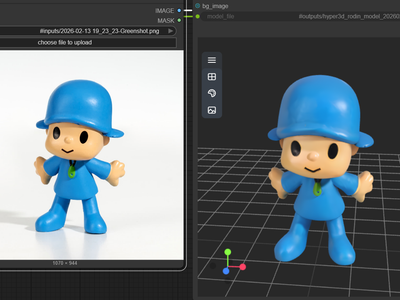
Hi3D for Multiview to 3D
Upload one to four photos of an object from different angles. Hi3D V3 reconstructs a textured, PBR-ready 3D model you can open in Blender, Unity, or Unreal.
3D
Hi3D
Image to 3D
Multiview
68
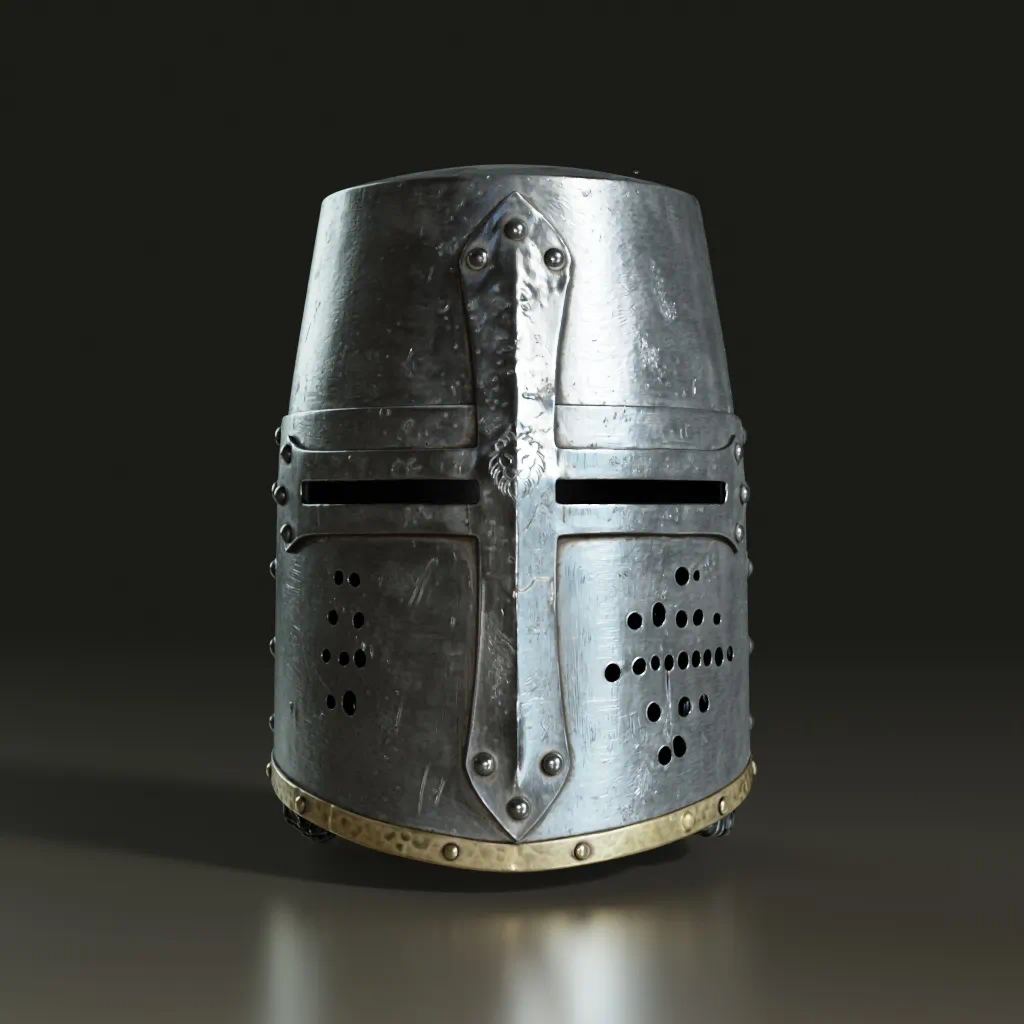

Nodes & Models
Hi3dV3MultiviewTo3d_floyo
LoadImage
Preview3D
PreviewImage
ShowText|pysssss
ShowText|pysssss
ABOUT THE WORKFLOW
Turn Photos Into a 3D Model
Upload photos of an object from up to four angles: front, back, left, and right. The workflow builds a textured 3D mesh with PBR materials in one pass and returns a downloadable model file plus an interactive 3D preview.
Partner node. This workflow calls an external API, so each run uses credits from your API wallet. No API key needed. Floyo handles the connection.
Model
Hi3D V3 by Hi3D (Hitem3D). Builds geometry at 2048 voxel resolution with textures up to 8K. Strong at clean topology, accurate proportions, and detailed surfaces for objects, props, and characters.
HOW IT WORKS
Step 1. Upload the front image
Required. The main view of your object. A clear, well-lit photo on a simple background gives the best results.
Works great with: product shots · props · characters · sculptures
Step 2. Add more angles (optional)
Upload back, left, and right views of the same object. More angles mean fewer blind spots in the final mesh. Even one extra view improves the result.
Step 3. Hit run
Hi3D V3 builds the geometry, generates textures and PBR materials, and returns the file. A thumbnail and interactive 3D viewer load so you can inspect the model before downloading.
Ready for: Blender · Unity · Unreal · 3D printing slicers
First time? Leave every setting as-is. The defaults (2048 quality · 2M faces · GLB · PBR on) are the right starting point for almost everyone.
RECOMMENDED SETTINGS
Quick-start guide. Find the goal that matches yours and copy the settings.
Standard use (most people) — 2048 quality · 2M faces · GLB · PBR on. The right starting point for almost everyone.
Highest quality mesh — 2048 master · 5M faces. Use when the asset goes into a final render or close-up shot. Slower and costs more per run.
Quick preview or test — 2048 quality · 100K faces. Fastest way to check if the object reconstructs well before committing to a full-detail run.
3D printing — 2048 quality or master · 2M+ faces · GLB. The mesh exports print-ready. Higher face counts preserve fine surface detail at small scales.
The mesh has holes or bad geometry — Add more views before raising face count. Two angles beat high-poly from one image. Clean backgrounds and even lighting matter more than any setting.
Need a different file format — Switch export format from GLB to match your pipeline. GLB works in most engines out of the box.
Prompt: This workflow has no text prompt. Quality depends entirely on your input images. Shoot the object on a clean, evenly lit background with consistent lighting across all angles. Mismatched lighting or cluttered backgrounds produce the most artifacts.
LEARN
📹 Videos
ComfyUI 101 Free Course ft. Sebastian Kamph
Floyo 101 for Team Collaboration
✨ Quick links
USE CASES
🎮 Game Developers
Turn reference photos of props, weapons, or environment pieces into textured GLB files ready to drop into Unity or Unreal. Skip the manual modeling step for asset libraries and level blockouts.
🖨️ 3D Printing
Photograph a physical object and get a printable mesh without learning CAD. Works well for figurines, jewelry prototypes, and replacement parts where you have the original to photograph.
🎨 3D Artists & VFX
Generate a base mesh from reference photos to use as a starting point in Blender or ZBrush. Faster than box-modeling from scratch when the shape already exists in front of you.
🛍️ E-commerce & Product Teams
Create 3D product views from studio photography. Upload the existing product shots and get a spinnable 3D model for web viewers or AR try-on experiences.
WHAT WORKS BEST / WHAT TO AVOID
✅ Works great
Objects on clean, simple backgrounds
Even, consistent lighting across all angles
Solid objects with clear geometry (props, figures, products)
Multiple views of the same object
⚠️ May produce softer results
Transparent or highly reflective surfaces
Thin structures like wire, netting, or fine hair
Cluttered backgrounds or mixed lighting across views
Images of different objects passed as multiple views
FAQ
What is Hi3D V3 and what makes it different from other AI 3D generators?
Hi3D V3 is an image-to-3D model made by Hi3D (Hitem3D), a 3D creation platform based in Beijing. It builds geometry at 2048 voxel resolution with textures up to 8K and outputs PBR-ready meshes. The key difference from single-image tools like TripoSR or InstantMesh is that Hi3D V3 accepts up to four views (front, back, left, right), so it reconstructs occluded areas from real data instead of guessing.
How many images do I need, and which angles matter most?
Only the front image is required. Back, left, and right are optional but each one fills in geometry the model would otherwise have to infer. For most objects, front plus one additional view (back or a side) is enough to get a clean mesh. All four angles produce the best results, especially for objects with detail on every side.
What is the difference between 2048 quality and 2048 master resolution?
Both use 2048 voxel resolution. Quality is the faster, cheaper option and works well for most use cases. Master applies a more thorough reconstruction pass that preserves finer surface detail, at higher cost and longer generation time. Use master when the asset goes into a final render, close-up shot, or high-fidelity 3D print.
Can I use the output in Blender, Unity, and Unreal without extra steps?
Yes. The default output is a standard GLB file with embedded textures and PBR materials. In Blender, import it with File > Import > glTF 2.0. In Unity, drag it into your Assets folder. In Unreal, use the glTF importer or convert to FBX. No third-party converter needed.
Does Hi3D V3 output PBR materials, and what maps are included?
Yes. When PBR is enabled (on by default), the output includes base color, metallic, roughness, and normal maps baked into the GLB file. These map directly to standard PBR shader inputs in Blender, Unity, and Unreal.
Is the output from Hi3D V3 licensed for commercial use?
Hi3D V3 is a proprietary model accessed through an API. Commercial use of generated assets is allowed through the Hi3D platform and its partner integrations. Review Hi3D's current terms for your specific use case, especially for resale of generated models or use in distributed products.
How to run Hi3D V3 multiview to 3D online?
You can run Hi3D V3 multiview to 3D online through Floyo. No installation, no setup, no API key to wire up. Open the workflow in your browser, upload your images, and hit run. Free to try.
WHY FLOYO?
Floyo is the only platform with team collaboration for ComfyUI in the browser. You run workflows with no install. You share run history, assets, and models across your team. You pay only when you generate. Floyo supports open-source and closed-source models.
A designer runs an edit and likes the result. A teammate opens that exact run from shared history and keeps going. No file handoffs. No version confusion.
For studios and enterprise teams, Floyo adds private workspaces, pooled resources, and a team usage dashboard. Other ComfyUI cloud tools run for one person at a time. Floyo runs for the whole team, with transparent per-generation costs.
Ready to try it?
Upload a front photo of your object and hit run. Add more angles for a better mesh.
Questions? Watch the free course or check the FAQ above.
Read more