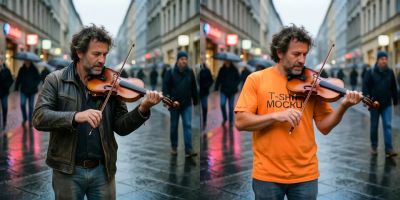
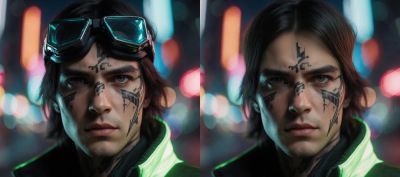
GPT Image 2.6 Flare Edit for Image Editing
Edit any image with a text instruction using GPT Image 2.6 Flare, OpenAI’s fastest image editing model. Upload a photo, describe the change, and hit run.
GPT Image 2.6 Flare Edit
Image
Image Editing
Image to Image
26
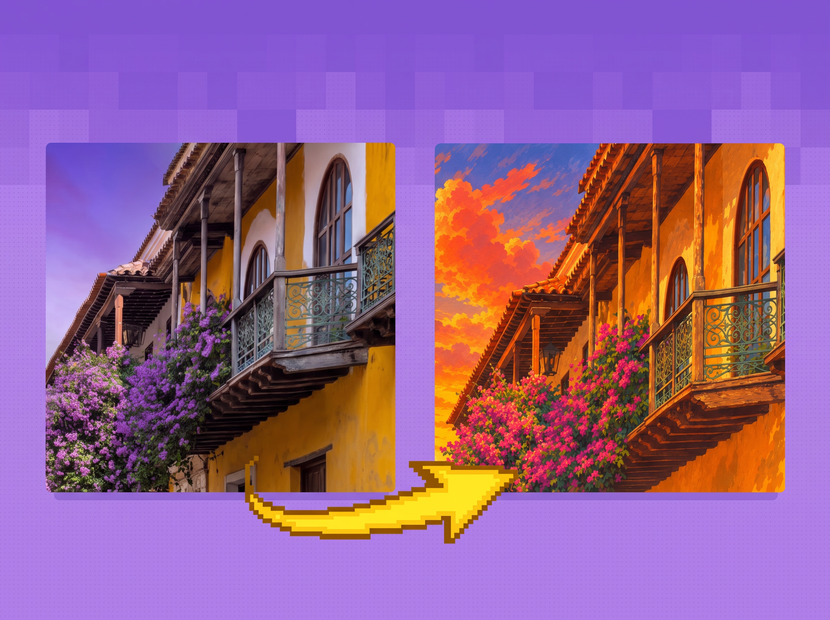

ABOUT THE WORKFLOW
Edit an Image
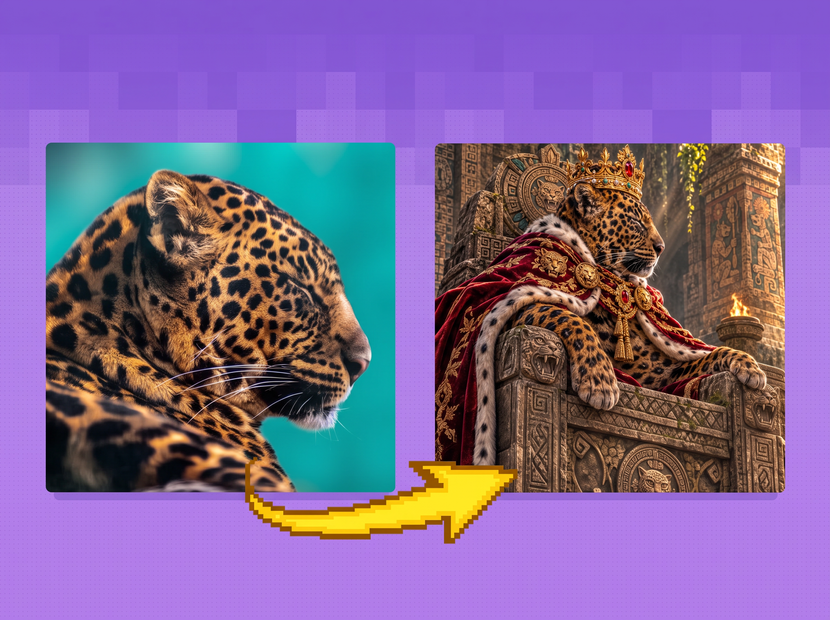
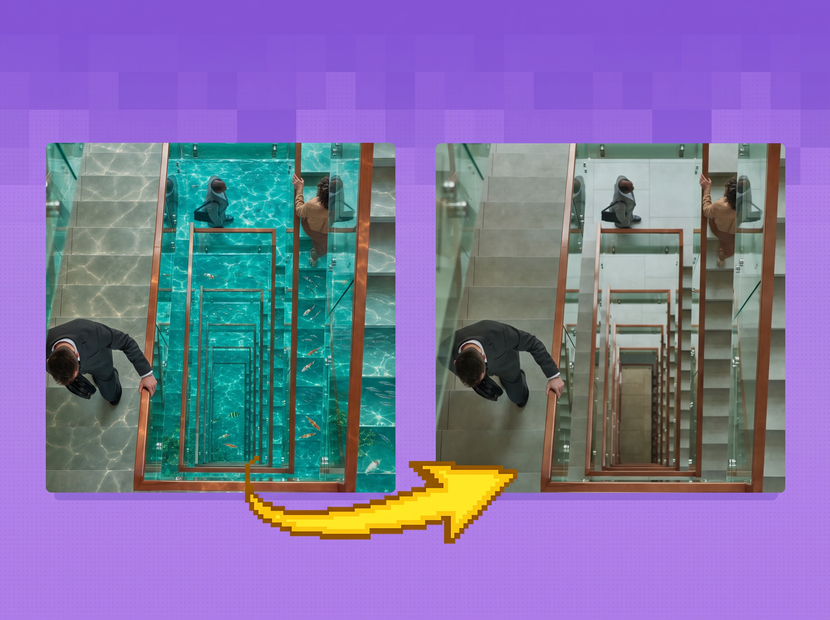
Upload a photo, describe the change you want, and get an edited version back. Add up to 16 reference images to guide the edit, or paint a mask to limit it to a specific area. That’s it.
Partner node. This workflow calls an external API, so each run uses credits from your API wallet. No API key needed. Floyo handles the connection.
Model
GPT Image 2.6 Flare by OpenAI. The faster of the two 2.6 models (Flare for speed, Sunburst for detail). Strong at photorealistic edits, legible in-image text, and consistent multi-round editing.
HOW IT WORKS
Step 1. Upload your image
The photo you want to edit. Works best with clear, well-lit images.
Works great with: photos · portraits · products · designs
Step 2. Describe the change
Say what to change in plain language, like “Add sunglasses” or “Change the background to a beach.”
Step 3. Add a mask (optional)
Limits the edit to a specific area. White means edit, black means keep. Leave it empty to let the model decide where to apply the change.
Step 4. Add markup (optional)
Upload a markup overlay to visually guide the edit. Draw arrows, circles, or highlights on a copy of the image to show the model where and how to change it.
Step 5. Hit run and download
GPT Image 2.6 Flare applies the edit and returns the result. Preview it in the workflow, then download.
Ready for: Photoshop · Figma · Canva · any editor
First time? Leave every setting as-is. The defaults are the right starting point for almost everyone.
RECOMMENDED SETTINGS
Image Inputs
image1 through image16 — at least one is required (pre-check blocks run if none connected)
A batch counts as one image per frame, so a batch of 4 fills 4 of the 16 slots
Max 16 images total counting every frame of a batch — exceeding this blocks the run
Images over 25 MB are auto-compressed; if still over 25 MB after compression, the run is blocked
Refer to images by number in the prompt: "put the dog from image 2 into the scene of image 1"
Mask (Optional)
Limits the edit to a specific area — white = edit, black = keep
Cannot be used together with markup — connecting both blocks the run
Applies to image1 only
Markup (Optional)
A transparent PNG drawn over image1 showing the model where and what to change (circles, arrows, notes)
Connect markup_image (IMAGE output) and markup_mask (MASK output) from the same Load Image node
Markup must be exactly the same size as image1 — mismatch blocks the run
markup_mask without markup_image (or vice versa) blocks the run
Cannot be used together with mask
Prompt
Required — empty prompt blocks the run
For edits: say what to change, then list what must stay the same
Be specific — vague prompts give vague edits
Image Size
Default: auto (matches the input image)
Options: auto, 14 presets, or custom
Custom best results: each side multiple of 16, longest side ≤ 3,840 px, shape no wider than 3:1, total pixels 655,360–8,294,400
Custom width/height must be typed on the node — feeding from another node causes an error
Quality
Default: high
Options: auto, low, medium, high, xhigh, max
Moves the price the most — every image you send adds to cost
Background
Default: auto
Options: auto, transparent, opaque
Transparent requires PNG or WebP — using JPEG with transparent blocks the run
Num Images
Default: 1, range 1–10
No SVG support in Edit nodes
Output Format
Default: png
Options: jpeg, png, webp, gif (no svg in Edit nodes)
Output Compression
Default: 0 (model decides), range 0–100
Applies to JPEG and WebP only
Reasoning Effort
Default: high
Options: low, medium, high
High helps with complex edits but takes longer
GIF Settings
frame_count: 2–16, default 9
frame_duration_ms: 20–2,000, default 200
Same canvas size limits as Text-to-Image — too many frames at large sizes get refused
Safe: ≤9 frames at 1024×768, or 16 frames at ≤960×540
Output
Edited image saved to My Files > outputs
GIF: .gif file saved; IMAGE output carries every frame separately
Common Error-Causing Mistakes to Avoid
No input image connected — blocks the run
Empty prompt — blocks the run
More than 16 images (counting batch frames) — blocks the run
Mask and markup both connected — cannot use both together
markup_image without markup_mask or vice versa — blocks the run
Markup not the same size as image1 — blocks the run
Image still over 25 MB after compression — blocks the run
Transparent background + JPEG — must use PNG or WebP
Custom width/height fed from another node — must type on the node
GIF with too many frames at large sizes (e.g. 16 frames at 1024×768)
Recommended Safe Defaults
Image size: auto (matches input)
Quality: high
Background: auto
Output format: png
Reasoning effort: high
Num images: 1
Use a mask to protect parts you don’t want changed
GIF: ≤9 frames at default size; 16 frames only at ≤960×540
LEARN
📹 Videos
ComfyUI 101 Free Course ft. Sebastian Kamph
Floyo 101 for Team Collaboration
✨ Quick links
USE CASES
🎨 Style Transfer
Upload a photo and describe a new art style to restyle the entire image in one pass.
🖼️ Object and Background Swaps
Replace backgrounds, add objects, or remove unwanted elements from a shot with a targeted prompt.
🛍️ Product Photography
Adjust product shots for different campaigns, swap settings, or add props without reshooting.
🔤 Text in Images
Add or edit legible text in an image, like signs, labels, or titles, where most image models struggle.
🎞️ Animated Edits
Generate short animated GIFs from your edited image for social posts or product showcases.
WHAT WORKS BEST / WHAT TO AVOID
✅ Works great
Clear, specific edit instructions with what to change and what to keep
Single, well-lit source images
Photorealistic edits and style changes
Adding or editing legible text in the image
Multi-round editing (edit the result, then edit it again)
⚠️ May produce softer results
Vague prompts like “make it better” or “improve this”
Abstract or highly stylized art (the model favors photorealism)
Text the model invents on its own (spell out exact words you want)
Too many conflicting instructions in a single prompt
FAQ
What is GPT Image 2.6 Flare?
GPT Image 2.6 Flare is OpenAI’s image generation and editing model optimized for speed. Released on November 4, 2026, it is the faster of the two 2.6 models. Flare is built for interactive editing and fast iteration, while its sibling Sunburst is tuned for detail and precision.
What is the difference between GPT Image 2.6 Flare and Sunburst?
Flare is faster and built for high-volume, interactive editing work. Sunburst is slower but offers tighter edit control and more consistent detail across multi-round edits. For most editing tasks, Flare gives you a strong result quickly. Use Sunburst when you need polished campaign-level output.
Can GPT Image 2.6 Flare render text in images?
Yes. Legible in-image text is one of its strengths. Spell out the exact words you want in the prompt and the model renders them clearly, which makes it a good fit for signs, labels, titles, and product text.
Does GPT Image 2.6 Flare support masks for selective editing?
Yes. You can upload a mask where white marks the area to edit and black marks the area to keep. This is useful when you want to change one part of an image without affecting the rest.
Can I generate animated GIFs with this workflow?
Yes. Switch the output format to GIF, set the frame count and frame duration, and the model returns an animated edit. This works for short loops, product spins, or social media content.
What resolution does GPT Image 2.6 Flare support?
It outputs edited images up to 4K resolution in PNG, JPEG, or WebP. The default size mode is auto, which matches your input image dimensions.
How to run GPT Image 2.6 Flare online?
You can run GPT Image 2.6 Flare online through Floyo. No installation, no setup, no API key to wire up. Open the workflow in your browser, upload your inputs, and hit run. Free to try.
WHY FLOYO?
Floyo is the only platform with team collaboration for ComfyUI in the browser. You run workflows with no install. You share run history, assets, and models across your team. You pay only when you generate. Floyo supports open-source and closed-source models.
A designer runs an edit and likes the result. A teammate opens that exact run from shared history and keeps going. No file handoffs. No version confusion.
For studios and enterprise teams, Floyo adds private workspaces, pooled resources, and a team usage dashboard. Other ComfyUI cloud tools run for one person at a time. Floyo runs for the whole team, with transparent per-generation costs.
Ready to try it?
Upload a photo, describe the change, and see the edit in seconds.
Questions? Watch the free course or check the FAQ above.
Read more