Anima Turbo: Restyle Any Photo Into Anime Art
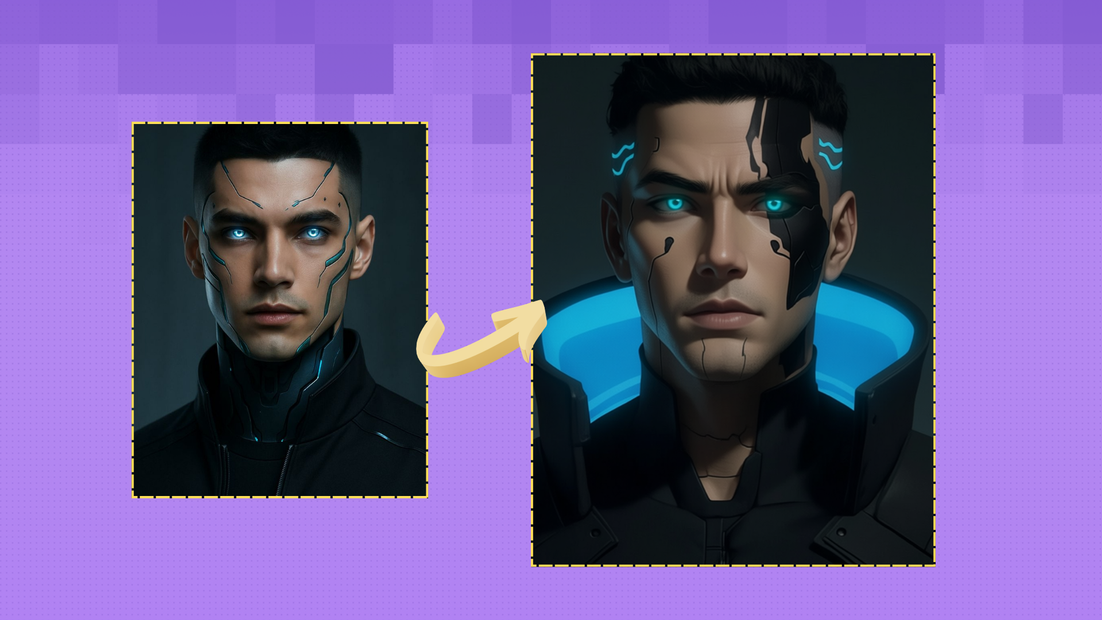
Turn a photo or sketch into an anime illustration with Anima Base v1.0 plus the Turbo LoRA. Upload an image, describe the look you want, and hit run.
anime
anime-turbo
illustration
Image
LoRAs
restyle
388
_1782111515139.png?width=1400&height=620&quality=80&resize=contain)
_1782111515139.png?width=1400&height=620&quality=80&resize=contain)
_1782111515139.png?width=104&height=104&quality=80&resize=cover)
_1782111515139.png?width=104&height=104&quality=80&resize=cover)

Nodes & Models
LoadImage
Note
CLIPLoader
qwen_3_06b_base.safetensors
CLIPTextEncode
UNETLoader
anima-base-v1.0.safetensors
SaveImage
KSamplerSelect
VAELoader
qwen_image_vae.safetensors
RandomNoise
UnofficialExtensions
LoraLoaderModelOnly
anima-turbo-lora-v0.2-anima-turbo-restyle-any-lwq7_84c.safetensors
BasicScheduler
VAEDecode
ImageScaleToTotalPixelsX
EmptySD3LatentImage
VAEEncode
CFGGuider
RFInversion
SamplerCustomAdvanced
UntwistingRoPE
ABOUT THE WORKFLOW
Restyle an Image
Upload an image and describe the anime look you want. The workflow reads the shapes and layout of your picture and redraws it as a new illustration that keeps the original composition. That's it.
Model
Anima Base v1.0 by CircleStone Labs, made with Comfy Org. A 2 billion parameter model built for anime and illustration art, not realism.
Turbo LoRA. Runs the model in only a few steps for much faster results and steadier output.
HOW IT WORKS
Step 1. Upload your image
The picture you want to restyle. Its shapes and layout guide the result.
Works great with: photos · portraits · sketches · 3D renders
Step 2. Describe the anime version
Name the subject, outfit, setting, and style in plain language, like "anime girl on a mint scooter in a city park at sunset, green cardigan, Makoto Shinkai style."
Step 3. Add a negative prompt (optional)
List anything to keep out, like "blurry, extra limbs, low quality." Leave it empty for a first run.
Step 4. Hit run and download
The workflow restyles the image and shows the result. Preview it, then download.
Ready for: Photoshop · Clip Studio Paint · Procreate · any editor
First time? Leave every setting as-is. The defaults (about 1 megapixel · 12 steps · guidance 1) are the right starting point for almost everyone.
RECOMMENDED SETTINGS
Quick-start guide. Find the goal that matches yours and copy the settings.
Standard restyle (most people) — About 1 megapixel · 12 steps · guidance 1 · random seed. The right starting point for almost everyone.
Want a different take on the same image — Change the seed. Each new seed gives a fresh interpretation while keeping your layout.
Want to reproduce a result you liked — Keep the seed fixed. Locking it lets your prompt edits change one thing at a time.
Pulling a named character or style — Name the character or artist, then describe their appearance. Anima follows a name better when you also spell out hair, outfit, and colors.
The result drifts from your image — Keep the prompt focused on the look, not new objects. The source image already sets the composition, so describe style and details.
Output looks burnt or messy — Leave steps near 12 and guidance at 1. The Turbo setup is tuned for low steps, so higher is not better here.
Prompt: Describe the subject, outfit, setting, and art style together. "Anime girl with long black hair and green highlights, white crop top, city park at sunset, cinematic lighting, detailed background" is clearer than "make it anime." Vague prompts give vague results.
LEARN
📹 Videos
ComfyUI 101 Free Course ft. Sebastian Kamph
Floyo 101 for Team Collaboration
✨ Quick links
USE CASES
🎨 Illustrators & Character Artists
Restyle a reference photo or rough sketch into a finished anime illustration to explore a look before drawing it by hand.
🎮 Game & Visual Novel Makers
Turn concept photos into anime character art and backgrounds that share a consistent style across a project.
📱 Social & Fan Artists
Convert a selfie or pet photo into an anime version for posts, avatars, and profile art in seconds.
🖼️ Concept & Mood Artists
Block out a scene with a photo, then restyle it to test how the same composition reads as anime art.
WHAT WORKS BEST / WHAT TO AVOID
✅ Works great
Clear images with a strong, readable subject
Photos, sketches, and 3D renders with good lighting
Prompts that name the style and key details
Single-character or single-scene compositions
⚠️ May produce softer results
Requests for photorealism, which this model is not built for
Cluttered images with many competing subjects
Vague prompts like "make it nice"
Very low-resolution or heavily compressed sources
FAQ
What is Anima?
Anima is a 2 billion parameter image model from CircleStone Labs, made with Comfy Org. It is focused on anime, characters, and other non-photorealistic illustration, and it is not designed for realism. This workflow pairs Anima Base v1.0 with the Turbo LoRA to restyle an image you upload into anime art.
What does the Turbo LoRA do?
The Turbo LoRA lets Anima run in only a few steps instead of the larger step counts the base model usually needs. That means much faster generations with steadier output, which is why this workflow defaults to around 12 steps and guidance of 1.
How does the image-to-image restyle keep my original layout?
The workflow reads the structure of your uploaded image and uses it to guide the new illustration, so the pose, framing, and composition carry over while the style and details are redrawn from your prompt. You describe the anime look you want, and the layout stays close to your source.
Can I use the results commercially?
The Anima model itself carries a non-commercial license, but the images you generate are treated separately, and the model card states you may use the generated outputs commercially. Review the current CircleStone Labs terms for your situation, since licenses can change.
Is Anima good for realistic photos?
No. Anima is built for anime and illustration styles and will not produce convincing realism. Use it when you want to turn a photo or sketch into stylized art, not when you need a photorealistic result.
How do I prompt Anima for a specific character?
Name the character first, then describe their basic appearance like hair, eyes, and outfit. The model follows a named character more reliably when you also spell out how they look, which matters most when you prompt for more than one character.
How to run Anima Turbo online?
You can run Anima Turbo online through Floyo. No installation, no setup, no model downloads to manage. Open the workflow in your browser, upload an image, write a prompt, and hit run. Free to try.
WHY FLOYO?
Floyo is the only platform with team collaboration for ComfyUI in the browser. You run workflows with no install. You share run history, assets, and models across your team. You pay only when you generate. Floyo supports open-source and closed-source models.
A designer runs a restyle and likes the result. A teammate opens that exact run from shared history and keeps going. No file handoffs. No version confusion.
For studios and enterprise teams, Floyo adds private workspaces, pooled resources, and a team usage dashboard. Other ComfyUI cloud tools run for one person at a time. Floyo runs for the whole team, with transparent per-generation costs.
Ready to try it?
Upload an image, describe the anime look, and run it. The settings are already set.
Questions? Watch the free course or check the FAQ above.
Read more
_1786518453053.png?width=400&height=300&quality=80&resize=cover)