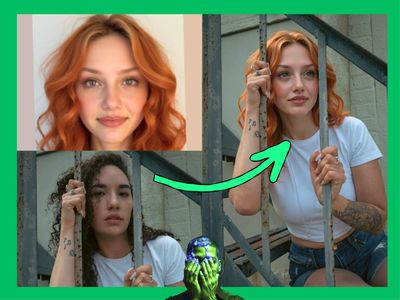
Recraft V3 Image to Image - Style Transfer
Transform an existing image with Recraft V3. Upload a reference, write a prompt, set strength, and pick a style. Controls how much of the original survives.
digital illustration
Image
image to image
recraft
style transfer
text to image
3
391
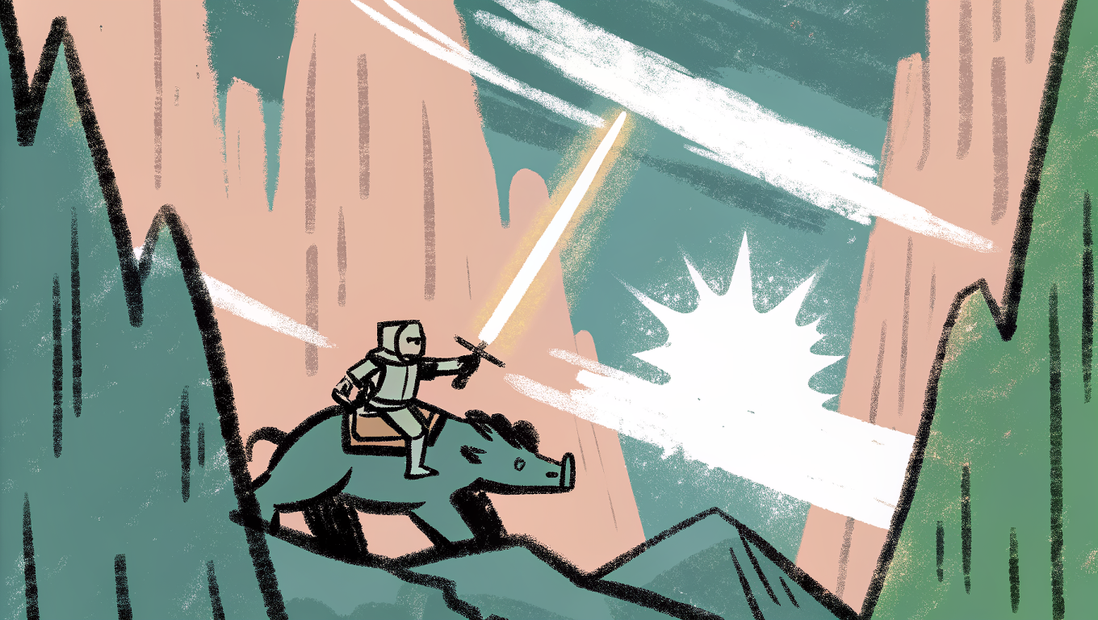
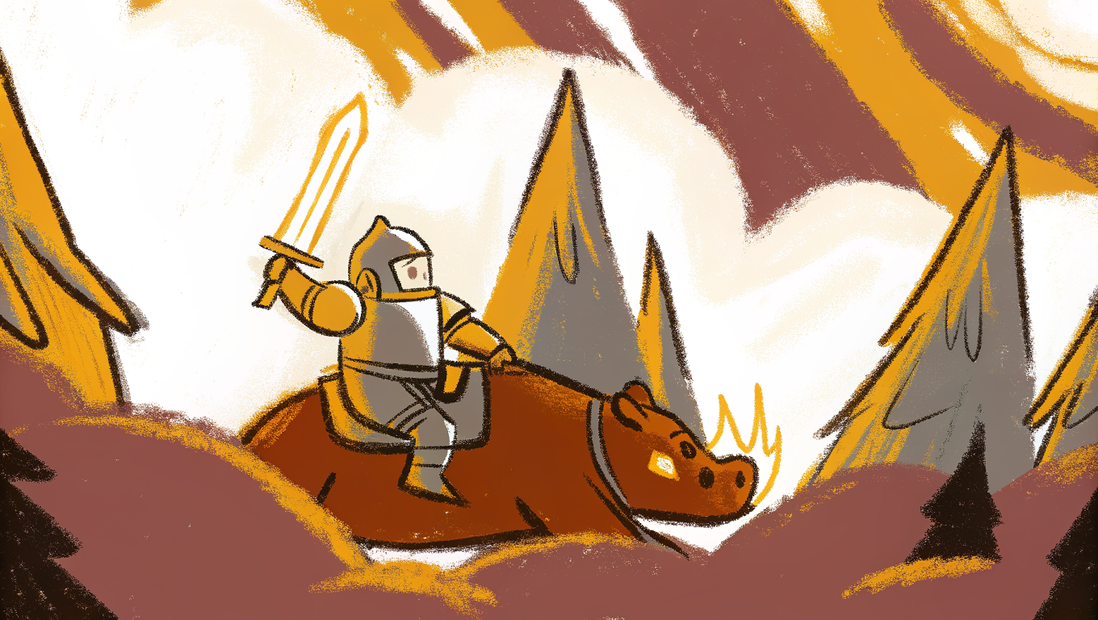



Nodes & Models
RecraftV3ImageToImage_floyo
WorkflowGraphics
LoadImage
PreviewImage
SaveImage
Recraft V3 Image to Image takes a reference photo or illustration and rewrites it according to your prompt.
Upload an image, describe what you want, set how strong the transformation should be, and pick a visual style. Recraft V3 applies the edit while using your original as the structural foundation. The higher the strength, the more the output departs from the source.
One image in. One transformed image out.
How do you use Recraft V3 image to image?
Upload a reference image and write a prompt describing the output you want. Use the strength slider to control how far the result departs from the original. Pick a style to set the visual treatment. Add a negative prompt to steer away from unwanted elements.
Reference image This is the input Recraft V3 builds from. It can be a photo, an illustration, a sketch, or any generated image. The composition and structure of your input carry through more strongly at lower strength values.
Prompt Describe the output you want, not the input you have. Focus on what you want the result to look like: subject, setting, lighting, mood, visual treatment. The more specific, the more intentional the output.
Strength This is the most important slider. It controls how much Recraft V3 departs from your reference image.
Low strength (closer to 0): the output stays close to the original. Composition, shapes, and layout are preserved. Good for style transfers where you want structure to stay intact.
High strength (closer to 1): the prompt takes over. The output diverges significantly from the source. Use this when you want a full transformation, not a full re-skin.
Start around 0.5 and adjust from there. A few test runs will tell you where the balance sits for your specific input.
Style Shapes the visual treatment of the output. Options include realistic_image, digital_illustration, digital_illustration/pastel_sketch, vector_illustration, icon, and others.
Want to convert a photo into an illustration? Pick a digital_illustration sub-style. Want to keep photorealistic output? Use realistic_image. Want a flat vector treatment? Try vector_illustration.
Negative prompt Optional. Describe what you don't want in the output. Useful for excluding specific elements, styles, or artifacts that keep appearing in your results.
Colors Optional. Use this to bias the output toward a specific color palette. Leave blank unless you have a specific palette requirement.
Style ID Optional. Paste a custom Recraft style ID here to apply a saved visual style. Leave blank to use the standard style options.
What is Recraft V3 image to image good for?
Style transfers, concept variations, illustration conversion, and iterative editing. It's the right tool when you have a visual starting point and want to push it in a different direction without rebuilding from scratch.
Converting a photo into an illustrated or stylized version is the most common use case. Upload the source, set strength around 0.4 to 0.6, pick a digital_illustration style, and write a prompt describing the desired treatment.
Concept iteration is another strong use: take a generated image you like, run it back through with a modified prompt and moderate strength, and explore variations without losing the original composition.
For pixel-precise edits, masking, or retouching specific areas of an image, an inpainting workflow will give you more control. Recraft V3 I2I works at a holistic level. It transforms the whole image, not a selected region.
Read more