Wan 2.2 Animate · Video to Video For AD Film
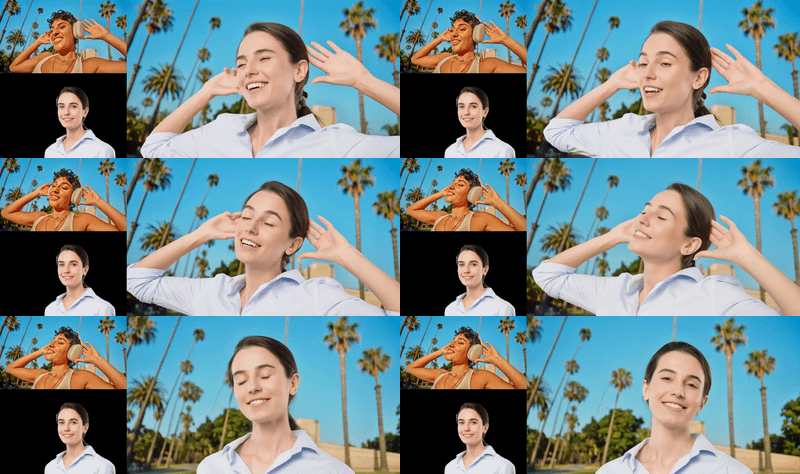
Transfer any character into a reference video's motion using Wan 2.2 Animate 14B with ViTPose and SAM2 preprocessing. Upload a video and a character photo, describe the scene, and hit run.
animate
LoRAs
motion transfer
pose transfer
Video
wan2.2
176
_1784596438092.webp)
_1784596438092.webp)
_1784597892906.webp)

Nodes & Models
LoadImage
GetNode
WanVideoVAELoader
wan_2.1_vae.safetensors
WanVideoTorchCompileSettings
MarkdownNote
WanVideoBlockSwap
WanVideoLoraSelectMulti
WanAnimate_relight_lora_fp16.safetensors
lightx2v_I2V_14B_480p_cfg_step_distill_rank64_bf16.safetensors
CLIPVisionLoader
clip_vision_h.safetensors
Note
WanVideoContextOptions
INTConstant
WanVideoTextEncodeCached
umt5-xxl-enc-bf16.safetensors
ImageConcatMulti
SetNode
WanVideoModelLoader
Wan2_2-Animate-14B_fp8_e4m3fn_scaled_KJ.safetensors
WanVideoClipVisionEncode
WanVideoSetLoRAs
WanVideoAnimateEmbeds
WanVideoSetBlockSwap
WanVideoSampler
WanVideoDecode
GetImageSizeAndCount
ImageResizeKJv2
DrawMaskOnImage
BlockifyMask
GrowMaskWithBlur
PreviewImage
FloyoStickyNote
DownloadAndLoadSAM2Model
sam2.1_hiera_base_plus.safetensors
OnnxDetectionModelLoader
Sam2Segmentation
PoseAndFaceDetection
DrawViTPose
VHS_LoadVideo
VHS_VideoCombine
DownloadAndLoadSAM2Model
sam2.1_hiera_base_plus.safetensors
Sam2Segmentation
DownloadAndLoadSAM2Model
sam2.1_hiera_base_plus.safetensors
Sam2Segmentation
OnnxDetectionModelLoader
PoseAndFaceDetection
DrawViTPose
ABOUT THE WORKFLOW
Transfer a Character to a Video
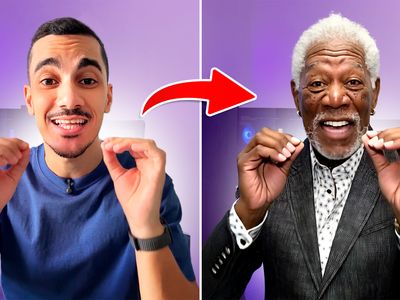
Upload a reference video and a character photo. The workflow extracts body pose and movement from the video, then generates a new video where your character performs those same motions. A preprocessing pipeline (ViTPose + SAM2) detects keypoints and segments the body in every frame, then Wan 2.2 Animate re-renders the scene with your character in place. That's it.
Model
Wan 2.2 Animate 14B by Alibaba. A 14B pose-driven character animation model, fp8 quantized by Kijai. Runs with a relighting LoRA for consistent lighting and a distilled speed LoRA for 4-step generation. Preprocessing by Kijai's WanAnimatePreprocess (ViTPose + SAM2). Workflow edition by MDMZ.
HOW IT WORKS
Step 1. Upload a reference video
The video whose motion you want to transfer. The workflow extracts body pose from each frame. Works best with a single person, clear motion, and a clean background.
Works great with: dance clips · walk cycles · exercise videos · performances
Step 2. Upload a character photo
The character you want to place into the video. A front-facing portrait or full-body shot works best. Clear lighting and a simple background help the model isolate the character.
Step 3. Describe the motion and scene
Write what the character does and where. "The man is walking through the stairs energetically" or "A woman dances on a rooftop at sunset." Match the prompt to the motion in the reference video.
Step 4. Hit run and download
The workflow extracts pose, builds embeddings, and generates the output video frame by frame. Preview it in the workflow, then download.
Ready for: Premiere Pro · DaVinci Resolve · After Effects · any editor
First time? Leave every setting as-is. The defaults (1920×1280 · 120 frame cap · skip 1 · 4 steps) are the right starting point for almost everyone.
RECOMMENDED SETTINGS
Quick-start guide. Find the goal that matches yours and copy the settings.
Standard generation (most people) — 1920×1280 · 120 frame cap · skip 1 · 4 steps · random seed. The right starting point for almost everyone.
Want a shorter output — Lower the frame load cap. At 16 fps output with skip set to 1, 60 frames of reference video produces roughly a 2-second clip. Faster generation, less credit usage.
Want smoother motion — Set skip frames to 0 to use every frame of the reference video instead of every other frame. The output will be smoother but generation takes longer.
Want to use a longer reference video — Raise the frame load cap above 120. Longer references produce longer outputs but increase generation time and memory usage.
The character does not look right — Use a clearer reference photo. Front-facing, full-body, well-lit shots with a plain background give the model the most to work with.
The motion is jittery or misaligned — Use a reference video with a single person and clear, exaggerated motion. Crowded scenes, rapid cuts, or multiple people confuse the pose extraction.
Want to reproduce a result — Set the seed to a fixed number. The same seed, inputs, and settings produce the same output every time.
Prompt: Describe what the character does, not what the reference video shows. Match the action to the motion in the video: if the video is a dance, write about dancing. "A woman in a red dress dances on a rooftop at golden hour" works better than "person moving." Include the setting and lighting for more consistent results.
LEARN
📹 Videos
ComfyUI 101 Free Course ft. Sebastian Kamph
Floyo 101 for Team Collaboration
✨ Quick links
USE CASES
💃 Dance and Performance Videos
Transfer a dance routine or performance to any character. Record or download a reference dance clip, upload a character photo, and get a new video with that character performing the same moves.
🎮 Game and Animation Pre-visualization
Animate a character design with real human motion before committing to a full rigging and animation pipeline. Test how a character reads in motion from a single photo.
🛍️ Virtual Try-On and Fashion
Place a model or character into a walk cycle or pose sequence to preview how an outfit or look reads in motion. Useful for lookbooks and campaign previews.
🎬 Filmmaking and Storyboarding
Transfer an actor's performance to a different character or setting. Previsualize a scene with a specific character before shooting, or re-render a rough take with a polished character design.
WHAT WORKS BEST / WHAT TO AVOID
✅ Works great
Single person in the reference video with clear, visible motion
Front-facing or full-body character reference photos
Clean backgrounds in both the video and the character photo
Dance, walk, and exercise videos with exaggerated movement
⚠️ May produce softer results
Multiple people in the reference video
Reference videos with rapid cuts or camera shake
Character photos with heavy occlusion (hands in front of face, crossed arms)
Very fast or very subtle motion in the reference
FAQ
What is Wan 2.2 Animate?
Wan 2.2 Animate is a 14B parameter pose-driven character animation model by Alibaba. It takes body pose data extracted from a reference video and a character reference image, then generates a new video where the character performs those same motions. This workflow uses Kijai's fp8 quantized version with ViTPose and SAM2 for automatic pose extraction.
How does the motion transfer work?
The workflow runs in four stages. First, ViTPose detects body keypoints in every frame of the reference video. Second, SAM2 segments the character region to create a mask. Third, the character photo, pose frames, face crops, and background are encoded into image embeddings. Fourth, Wan 2.2 Animate generates the output video frame window by frame window, animating your character with the extracted poses.
Do I need to prepare the reference video in any way?
No. Upload any video and the workflow handles the rest. For the best results, use a clip with a single person performing clear, visible motion against a clean background. Avoid reference videos with multiple people, rapid cuts, or heavy camera shake.
What resolution does the output video use?
The default output resolution is 1920×1280. Internal pose processing runs at a lower resolution (832×480), and the final video is generated at the full output size. You can adjust width and height through the exposed settings.
Why is this workflow slow?
Wan 2.2 Animate processes the video frame window by frame window, running pose extraction, embedding, and generation for each segment. A 120-frame reference video produces a multi-second clip that requires substantial GPU time. The distilled LoRA keeps each window to 4 steps, but the total generation time is still significant for longer clips.
Is Wan 2.2 Animate free to use commercially?
Wan 2.2 Animate is released under the Apache 2.0 license, which allows commercial use, modification, and redistribution. The ViTPose and SAM2 preprocessing models have their own open licenses. Check each component's terms if your use case is commercial.
How to run Wan 2.2 Animate online?
You can run Wan 2.2 Animate online through Floyo. No installation, no setup, no API key to wire up. Open the workflow in your browser, upload a reference video and a character photo, describe the scene, and hit run. Free to try.
WHY FLOYO?
Floyo is the only platform with team collaboration for ComfyUI in the browser. You run workflows with no install. You share run history, assets, and models across your team. You pay only when you generate. Floyo supports open-source and closed-source models.
An animator generates a motion transfer and likes the result. A teammate opens that exact run from shared history and keeps going. No file handoffs. No version confusion.
For studios and enterprise teams, Floyo adds private workspaces, pooled resources, and a team usage dashboard. Other ComfyUI cloud tools run for one person at a time. Floyo runs for the whole team, with transparent per-generation costs.
Ready to try it?
Upload a reference video and a character photo, describe the motion, and run it. The settings are already set.
Questions? Watch the free course or check the FAQ above.
Read more