Wan2.1 + SCAIL-2 for Character Motion Transfer
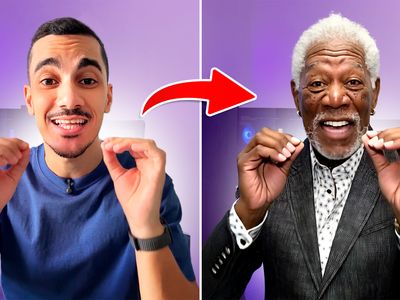
Transfer the motion from any video onto your own character with SCAIL 2, Z.ai's end-to-end character animation model built on Wan 2.1. Upload a video and a character photo, then hit run.
character animation
character replacement
LoRAs
motion transfer
scail 2
Video
video to video
wan 2.1
2.6k



Nodes & Models
LoadImage
KSamplerSelect
PrimitiveBoolean
PrimitiveInt
Note
PrimitiveFloat
UNETLoader
wan2.1_14B_SCAIL_2_fp16.safetensors
CLIPLoader
umt5_xxl_fp8_e4m3fn_scaled.safetensors
VAELoader
wan_2.1_vae.safetensors
CLIPVisionLoader
clip_vision_h.safetensors
ImageStitch
CheckpointLoaderSimple
sam3.1_multiplex_fp16.safetensors
MarkdownNote
INTConstant
LoraLoaderModelOnly
wan2.1_SCAIL_2_DPO_lora_bf16.safetensors
lightx2v_I2V_14B_480p_cfg_step_distill_rank64_bf16.safetensors
CLIPTextEncode
ComfyMathExpression
BasicScheduler
ModelSamplingSD3
SamplerCustom
SAM3_VideoTrack
SCAIL2ColoredMask
PreviewImage
VAEDecode
CLIPVisionEncode
WanSCAILToVideo
ImageResizeKJv2
VHS_LoadVideo
VHS_VideoCombine
VHS_VideoInfoLoaded
ABOUT THE WORKFLOW
Move Your Character With a Video

Upload a video and a photo of your character. The motion in the video gets transferred onto your character, so they perform the same movement. No skeleton rig, no pose extraction, no manual keyframing. Add a short prompt to set the scene and hit run.
Model
SCAIL 2 by Z.ai, built on Wan 2.1. An end-to-end character animation model that reads motion straight from a video and drives your character with it, skipping the skeleton and pose step that older animation models depend on. A LightX2V LoRA is included to speed up generation.
Heavy workflow. Expect longer generation times.
HOW IT WORKS
Step 1. Upload your driving video
The motion source. Its movement is copied onto your character.
Works great with: dance clips · acting takes · full-body movement
Step 2. Upload your character
A clear photo of the character you want in the video, such as a portrait or a full-body shot of a person, a stylised character, or an animal.
Step 3. Describe the scene
A short line setting the scene, like "a woman dancing in a neon-lit street at night." A fuller description gives steadier results.
Step 4. Hit run and download
SCAIL 2 builds the animation segment by segment and returns a finished video. Preview it in the workflow, then download.
Ready for: Premiere · After Effects · CapCut · any video editor
First time? Leave every setting as-is. The defaults are the right starting point for almost everyone.
RECOMMENDED SETTINGS
Quick-start guide. Find the goal that matches yours and copy the settings.
Standard use (most people) — Character replacement on · 512×896 · 81 frames · 8 steps · fixed seed. The right starting point for almost everyone.
Want more detail and sharper faces — Step the resolution up to 704×1280. Heavier and slower, but cleaner on close-up motion.
Want to drop your character into the scene instead of swapping someone out — Turn character replacement off. On replaces the person in the video with your character. Off blends your character into the existing scene.
Want a few different takes — Change the seed and run again. Each new seed gives a different version of the same motion.
Want to reproduce a result you liked — Keep the seed fixed. The same seed and inputs rebuild the same take.
The motion is not landing cleanly — Use a driving video with clear, unobstructed full-body movement, and write a fuller scene description rather than a one-word prompt.
Prompt: Describe the scene and the action plainly. "A man in a leather jacket walking through a busy market at dusk" gives the model more to anchor to than "a guy walking." You are setting the world around the motion, not the motion itself, since that comes from your video.
LEARN
📹 Videos
ComfyUI 101 Free Course ft. Sebastian Kamph
Floyo 101 for Team Collaboration
✨ Quick links
USE CASES
🎭 Character Animators
Bring a character design to life by feeding it a reference performance instead of rigging and keyframing by hand.
📱 Content Creators
Put yourself or an original character into a trending dance or action clip, then post the result.
🎮 Virtual Production & Indie Games
Generate quick character motion tests and cinematics from a single photo and a movement reference.
🎬 VFX & Previs
Block out how a character moves through a shot early, using a rough driving video, before committing to a full pipeline.
🐾 Animal & Stylised Characters
Drive non-human characters and animals from a video, since SCAIL 2 learns motion without a human skeleton step.
WHAT WORKS BEST / WHAT TO AVOID
✅ Works great
Clear, well-lit driving videos with full-body movement
A single character photo with a clean, readable subject
Front-facing or three-quarter character shots
A short prompt that describes the surrounding scene
⚠️ May produce softer results
Driving videos where the subject is partly cut off or occluded
Crowded source clips with many overlapping people
Very low-light or motion-blurred footage
Character photos where the face or body is hard to read
FAQ
What is SCAIL 2?
SCAIL 2 is an open-source character animation model from Z.ai (zai-org), built on Wan 2.1 and developed with researchers at Tsinghua University. It transfers motion from a driving video onto a character you provide, learning movement directly from the full video rather than from an extracted skeleton or pose map.
How does SCAIL 2 character animation work?
You give it a driving video and a character image. The model reads the motion in the video end to end and applies it to your character, building the result in segments that chain together for longer clips. Because it skips the intermediate pose step, it handles complex motion and characters that a skeleton-based approach struggles with.
What is the difference between SCAIL 2 and skeleton-based animation models?
Most character animation tools first convert motion into a skeleton or pose map, then drive the character from that. SCAIL 2 learns motion straight from the video itself. That removes a lossy middle step, so it copes better with complex movement, character replacement, and non-human subjects like animals.
What resolution should I use with SCAIL 2?
The default is 512×896, which is the right starting point for most runs. SCAIL 2 also supports 704×1280 for more detail, which helps on close-up faces and finer motion. Higher resolution is heavier and slower, so step up only when you need the extra clarity.
Can SCAIL 2 animate animals or non-human characters?
Yes. Because SCAIL 2 does not rely on a human skeleton step, it supports animal-driving and stylised characters as well as people. The cleaner and more readable your character image is, the steadier the result.
Can I use SCAIL 2 results commercially?
SCAIL 2 is released as an open-source model, so commercial use is generally allowed under its license. Review the current model license on the official repository, and make sure you hold the rights to both the driving video and the character image you upload.
How to run SCAIL 2 online?
You can run SCAIL 2 online through Floyo. No installation, no setup, no model downloads to manage. Open the workflow in your browser, upload a video and a character photo, and hit run. Free to try.
WHY FLOYO?
Floyo is the only platform with team collaboration for ComfyUI in the browser. You run workflows with no install. You share run history, assets, and models across your team. You pay only when you generate. Floyo supports open-source and closed-source models.
A designer runs an edit and likes the result. A teammate opens that exact run from shared history and keeps going. No file handoffs. No version confusion.
For studios and enterprise teams, Floyo adds private workspaces, pooled resources, and a team usage dashboard. Other ComfyUI cloud tools run for one person at a time. Floyo runs for the whole team, with transparent per-generation costs.
Ready to try it?
Upload a driving video and a character photo, then run it. The settings are already set.
Questions? Watch the free course or check the FAQ above.
Read more