TripoSplat · Image to 3D Turnaround
Turn one photo into a 3D Gaussian splat with TripoSplat by VAST-AI, plus colour, depth, normal, and clay turntable videos. Upload an image and hit run.
3D
3d asset
gaussian splatting
image to 3d
triposplat
Video
292
_1785159771865.webp)
_1785159771865.webp)

Nodes & Models
CreateCameraInfo
RemoveBackground
TripoSplatPreprocessImage
LoadImage
LoadBackgroundRemovalModel
birefnet.safetensors
KSampler
InvertMask
CLIPVisionLoader
dino_v3_vit_h.safetensors
JoinImageWithAlpha
VAELoader
flux2-vae.safetensors
triposplat_vae_decoder_fp16.safetensors
UNETLoader
triposplat_fp16.safetensors
PreviewImage
TripoSplatConditioning
RenderSplat
ComfySwitchNode
SplatToFile3D
VAEDecodeTripoSplat
TripoSplatSamplingPreview
CreateVideo
SaveGLB
SaveVideo
FloyoStickyNote
ABOUT THE WORKFLOW
Turn one photo into 3D
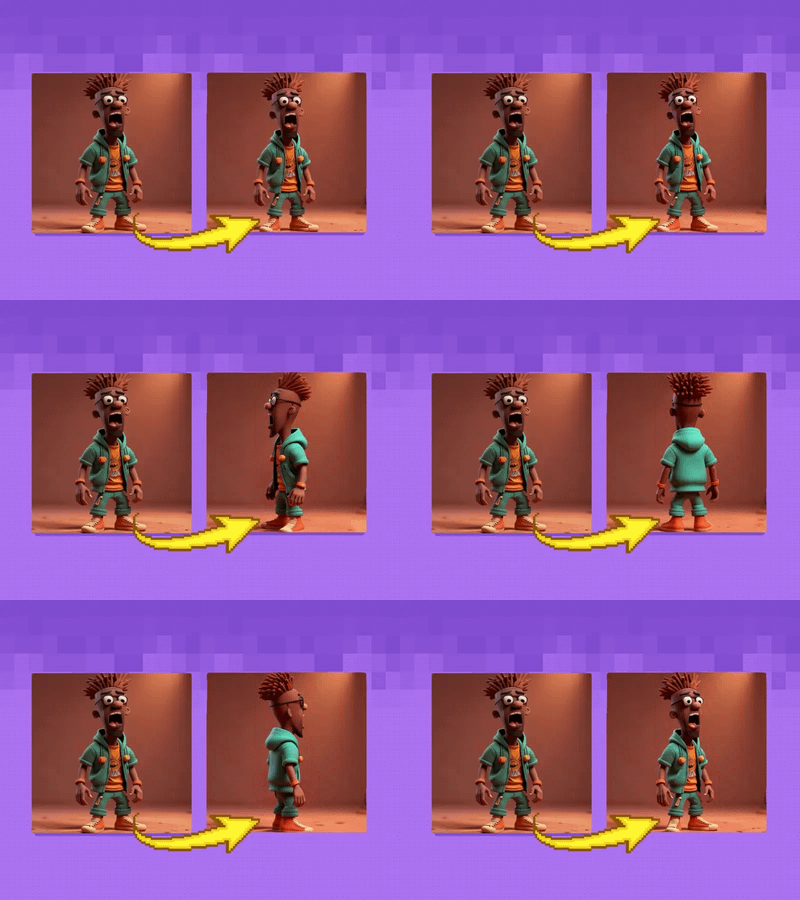

Upload a photo of an object and get a 3D Gaussian splat you can spin and download, plus four turntable videos: colour, depth, normal, and clay. The background is removed for you before the 3D is built, so a plain product shot or a character render works out of the box.
Model
TripoSplat by VAST-AI (Tripo). Turns a single image into a 3D Gaussian splat with up to 262,144 Gaussians, packing more detail where your image has it. Released under the MIT license.
HOW IT WORKS
Step 1. Upload your subject image
A photo of the object you want in 3D. A clear, centred subject on a simple background reads best.
Works great with: characters · props · product shots
Step 2. Add a background image (optional)
A backdrop for the colour turntable video. Skip it and a plain grey is used instead.
Step 3. Hit run
The settings are already dialled in. The background is removed automatically, then the 3D is built.
Step 4. Download your 3D and videos
You get a downloadable 3D file plus four turntable videos: colour, depth, normal, and clay.
Ready for: Blender · Unreal · Unity · web splat viewers
First time? Leave every setting as-is. The defaults are the right starting point for almost everyone.
RECOMMENDED SETTINGS
Quick-start guide. Find the goal that matches yours and copy the settings.
Standard use (most people) — 262,144 Gaussians, 1024x1024 render, 75 frames, 20 steps, guidance 3. The right starting point for almost everyone.
Need a lighter 3D file — lower the Gaussian count. Fewer points means a smaller file that renders faster, at some loss of fine detail.
Want maximum detail — keep Gaussians at 262,144. It packs the most points into the parts of your image that carry detail.
Want smoother turntable videos — raise the turntable frames above 75. The spin looks smoother and each run takes a little longer.
The shape is not matching your image — raise guidance above 3 so the model follows the source more closely, and add a few steps for extra refinement.
Want a faster preview — drop steps below 20 and lower the render size. You lose some quality but get a result sooner.
Input image: A clear, centred subject on a simple background reads best, since the background is removed before the 3D is built. Subjects that blend into their backdrop, or busy scenes, make the cutout harder and can soften the result.
LEARN
📹 Videos
ComfyUI 101 Free Course ft. Sebastian Kamph
Floyo 101 for Team Collaboration
✨ Quick links
USE CASES
🎮 Game & Asset Artists
Spin up a rotatable 3D preview of a character or prop from one concept image before committing to a full model.
🕶️ AR & VR Builders
Turn a single object photo into a 3D splat you can place in an AR or VR scene.
🛍️ Product & E-commerce
Turn a product shot into a 3D view customers can rotate, with a ready-made turntable video for the listing.
🎬 Look Dev & Previs
Use the depth, normal, and clay turntables to read form and lighting before you build the real asset.
WHAT WORKS BEST / WHAT TO AVOID
✅ Works great
Clear, centred single subjects
Characters, props, and product shots
Simple or plain backgrounds
Stylised or illustrated objects
⚠️ May produce softer results
Subjects that blend into the background
Busy or cluttered scenes
Flat, thin objects with little depth
Reflective or transparent surfaces like glass
FAQ
What is TripoSplat?
TripoSplat is an open-source model from VAST-AI (Tripo) that turns a single image into a 3D Gaussian splat. It supports up to 262,144 Gaussians and concentrates detail where your image has it. Both the code and weights are released under the MIT license.
What is a Gaussian splat, and how is it different from a 3D mesh?
A Gaussian splat represents an object with thousands of coloured 3D points rather than the vertices, edges, and faces of a mesh. Splats are great for rotatable previews, AR and VR, and real-time viewers. This workflow also saves a GLB alongside the splat, so you have a file for standard 3D apps too.
What do the depth, normal, and clay turntable videos show?
Depth shows how far each part of the object sits from the camera. Normal shows the direction each surface faces. Clay shows the untextured form, like a grey sculpt. They are useful for checking geometry and lighting before you commit to an asset.
Do I need to remove the background myself first?
No. The workflow removes the background automatically with BiRefNet before it builds the 3D, so you can upload a photo with its original backdrop. A cleaner subject still gives a cleaner cutout and a better result.
Can I use TripoSplat outputs commercially?
Yes. TripoSplat's code and weights are released under the MIT license, a permissive open-source license that allows commercial use, so the splat you generate is yours to use. Make sure you also have the rights to the image you upload.
What file formats do I get from this workflow?
You get four turntable videos plus a 3D file. The 3D comes as a GLB you can open in Blender, Unreal, or Unity, and a Gaussian splat file for web splat viewers and splatting pipelines.
How to run TripoSplat online?
You can run TripoSplat online through Floyo. No installation, no setup, no API key to wire up. Open the workflow in your browser, upload an image, and hit run. Free to try.
WHY FLOYO?
Floyo is the only platform with team collaboration for ComfyUI in the browser. You run workflows with no install. You share run history, assets, and models across your team. You pay only when you generate. Floyo supports open-source and closed-source models.
A 3D artist runs a photo and likes the splat. A teammate opens that exact run from shared history and keeps going. No file handoffs. No version confusion.
For studios and enterprise teams, Floyo adds private workspaces, pooled resources, and a team usage dashboard. Other ComfyUI cloud tools run for one person at a time. Floyo runs for the whole team, with transparent per-generation costs.
Ready to try it?
Upload a photo of your object and run it. The settings are already set.
Questions? Watch the free course or check the FAQ above.
Read more