

R2A for Klein · Image to Image For Anime
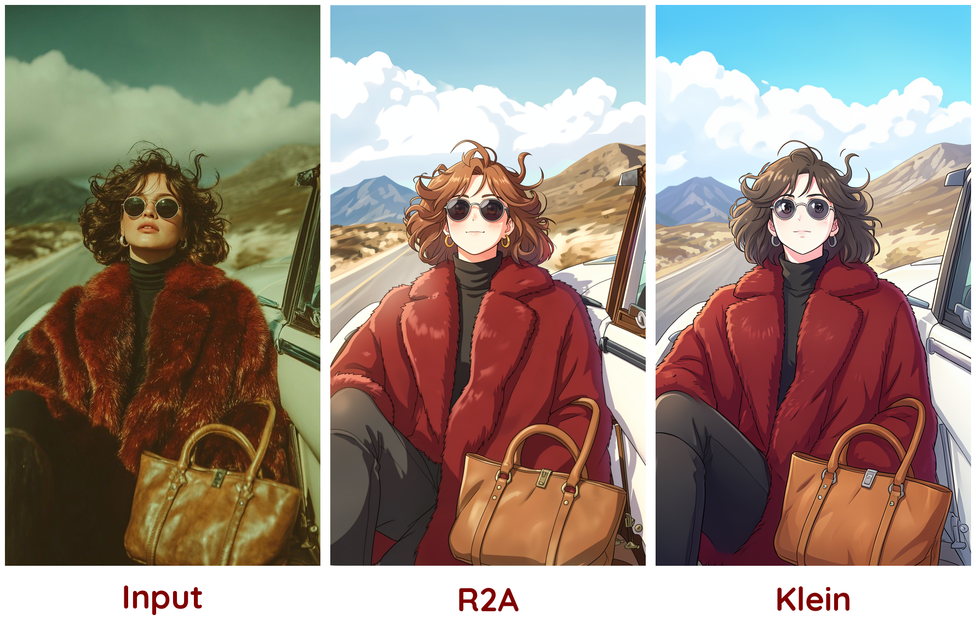
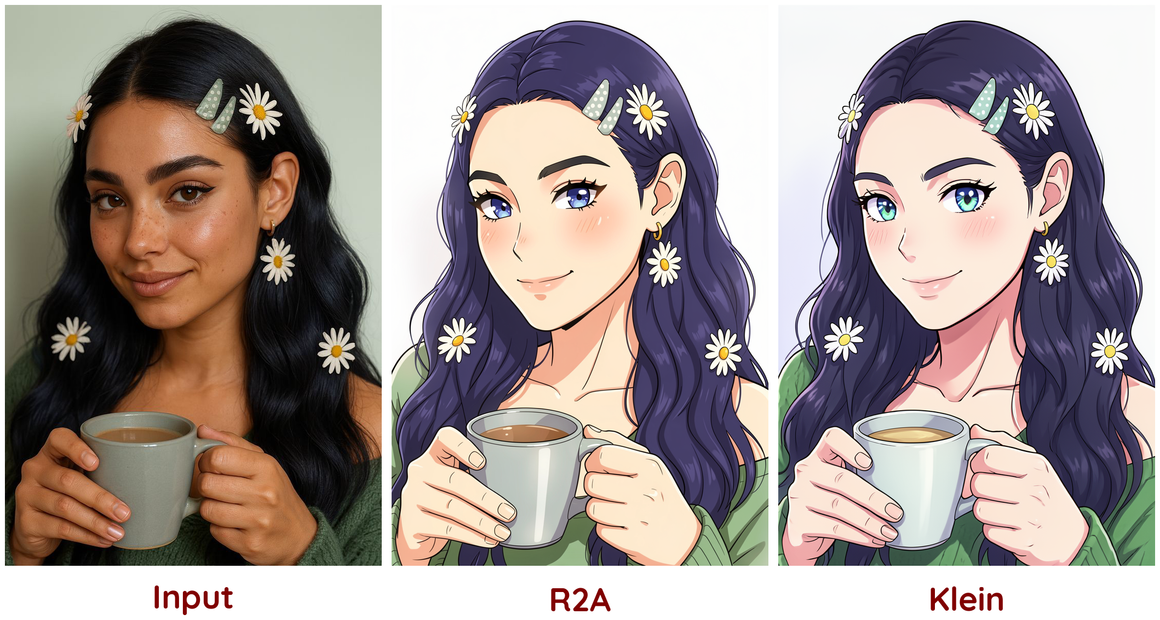
Upload any photo or render and FLUX.2 Klein converts it into an anime-style illustration with cel shading, clean lineart, and vibrant color, then upscales the result to high resolution.
cel shading
flux 2 klein
Image
image to image
real to anime
style transfer
305
_1783503668284.png?width=1400&height=620&quality=80&resize=contain)
_1783503668284.png?width=104&height=104&quality=80&resize=cover)

Nodes & Models
LoadImage
ImpactInt
easy seed
UNETLoader
flux-2-klein-9b-fp8.safetensors
VAELoader
flux2-vae.safetensors
CLIPLoader
qwen_3_8b_fp8mixed.safetensors
PreviewImage
Fast Groups Bypasser (rgthree)
UpscaleModelLoader
1x-Film-Degrainer-1-000.pth
RealESRGAN_x2.pth
LoraLoaderModelOnly
A2R_Klein_Sponsored .safetensors
easy promptConcat
easy showAnything
CLIPTextEncode
ConditioningZeroOut
VAEDecode
LayerUtility: ImageScaleByAspectRatio V2
ReferenceLatent
VAEEncode
Image Comparer (rgthree)
ImageFromBatch
easy imageConcat
ImageUpscaleWithModel
Image Tiled
KSamplerAdvanced
KSampler
easy imageColorMatch
LatentPixelScale
FloyoStickyNote
CR Text
CR Page Layout
CR Image Panel
CR Text
CR Page Layout
CR Image Panel
ABOUT THE WORKFLOW
Turn Photos into Anime
Upload a photo, 3D render, or screenshot. Write an instruction describing the transformation and a style prompt describing the target look. The workflow converts the image into an anime illustration, matches the color back to the original, then refines and upscales the result. The output is a high-resolution anime version of your input, with composition and subject detail preserved.
Model
FLUX.2 Klein 9B by Black Forest Labs. A fast 9-billion-parameter image model that unifies generation and editing in one architecture. Step-distilled with an 8B Qwen 3 text embedder. Strong at style transfer while preserving the structure of the source image.
A2R Klein LoRA (strength 0.9). A style transfer adapter trained for photo-to-anime conversion on the Klein architecture.
HOW IT WORKS
Step 1. Upload your image
Any photo, 3D render, AI-generated image, or screenshot. The workflow scales it to 1024px on the longest side for processing.
Works great with: portraits · landscapes · street scenes · character renders · product shots
Step 2. Write the instruction prompt
Describe the transformation you want. The default is "Convert the image into an anime illustration." You can change this to target a different style or add specific instructions.
Step 3. Write the style prompt
Describe the visual style of the output. The default is "anime illustration, 2D anime style, cel shading, clean lineart, vibrant saturated colors, soft anime shading, detailed anime artwork, high quality anime screencap, studio quality." Edit this to shift the aesthetic.
Step 4. Hit run and download
The workflow runs a two-pass conversion, matches the color palette back to your original image, then upscales with RealESRGAN x2 and a film degrainer for a clean final result.
Ready for: social media · print · portfolio · animation reference · webtoon assets
First time? Leave every setting as-is. The default prompts and LoRA strength produce strong anime conversions out of the box.
RECOMMENDED SETTINGS
Quick-start guide. Find the goal that matches yours and copy the settings.
Standard anime conversion (most people) — Default instruction and style prompts, LoRA at 0.9, seed randomized. No changes needed.
Different anime style — Edit the style prompt. Replace "cel shading, clean lineart" with the look you want: "watercolor anime," "90s retro anime grain," or "Studio Ghibli soft lighting." The model follows the style prompt closely.
Preserve more of the original photo — Lower the LoRA strength from 0.9 toward 0.5. This keeps more photographic detail and reduces the stylization intensity.
Stronger stylization — Push the LoRA strength toward 1.0 and add more specific style keywords. "Heavy cel shading, thick black outlines, flat color fills" drives a more graphic result.
Non-anime style transfer — Change both prompts. Set the instruction to "Convert the image into an oil painting" and the style prompt to match. The Klein model handles other style transfers beyond anime.
Result looks washed out or color-shifted — The workflow includes automatic color matching back to the original. If colors still drift, the source image may have unusual white balance. Try a photo with neutral, balanced lighting.
Reproduce or tweak a result — Lock the seed. Same seed with a small prompt edit lets you refine one element at a time.
Prompt: The instruction prompt tells the model what to do ("Convert the image into an anime illustration"). The style prompt describes the target aesthetic ("cel shading, clean lineart, vibrant saturated colors"). Keep the instruction short and direct. Put the visual detail in the style prompt.
LEARN
📹 Videos
ComfyUI 101 Free Course ft. Sebastian Kamph
Floyo 101 for Team Collaboration
✨ Quick links
USE CASES
🎨 Character Design and Concept Art
Convert reference photos or 3D renders into anime character sheets for animation pipelines, game dev, or webtoon production.
📱 Social Media and Profile Content
Turn selfies, portraits, or travel photos into polished anime illustrations for profile pictures, banners, and posts.
🎮 Game Asset Previsualization
Convert real-world photos or 3D screenshots into anime-style references to set the visual direction for 2D game environments and characters.
📚 Webtoon and Manga Backgrounds
Turn landscape and interior photos into anime-style backgrounds that match your comic's art direction without painting from scratch.
WHAT WORKS BEST / WHAT TO AVOID
✅ Works great
Well-lit photos with clear subjects and defined features
Portraits with visible facial detail
Landscapes and architectural scenes with strong composition
3D renders and screenshots with clean edges
⚠️ May produce softer results
Extremely dark or low-contrast images
Heavy motion blur or out-of-focus shots
Images with dense text overlays or watermarks
Very busy scenes with many overlapping subjects
FAQ
What is FLUX.2 Klein 9B?
FLUX.2 Klein 9B is a 9-billion-parameter image model by Black Forest Labs. It unifies text-to-image generation and image editing in a single architecture, step-distilled to run fast on consumer GPUs. It pairs with an 8B Qwen 3 text embedder for strong prompt understanding.
How does the real-to-anime conversion work?
The workflow encodes your uploaded image, then runs a two-pass sampling process guided by your instruction and style prompts plus a Klein-specific LoRA. The first pass handles the core style transformation. The second pass refines detail at higher resolution. Color matching brings the palette back in line with the original photo so the output does not drift into unexpected tones.
Can I use this for styles other than anime?
Yes. The instruction and style prompts are fully editable. Change the instruction to "Convert the image into a watercolor painting" or "Convert the image into a comic book panel" and adjust the style prompt to match. The Klein model responds to a wide range of style descriptions.
What resolution does the workflow output?
The base conversion runs at 1024px on the longest side. The workflow then upscales 2x in latent space with a refinement pass and applies RealESRGAN x2 upscaling, producing a final image at approximately 4x the base resolution.
Does the LoRA need to stay at 0.9 strength?
No. 0.9 is the default that works well for most anime conversions. Lower it toward 0.5 to keep more photographic realism. Push it toward 1.0 for heavier stylization. You can also swap in a different LoRA for other style targets.
Is FLUX.2 Klein 9B licensed for commercial use?
FLUX.2 Klein 9B is released under the FLUX Non-Commercial License for open-weight users. For commercial use, Black Forest Labs offers a separate Self-Hosted Commercial License. Check the current licensing terms on the Black Forest Labs site for your use case.
How to run real-to-anime conversion online?
You can run real-to-anime conversion with FLUX.2 Klein online through Floyo. No installation, no setup, no local GPU needed. Open the workflow in your browser, upload your image, and hit run. Free to try.
WHY FLOYO?
Floyo is the only platform with team collaboration for ComfyUI in the browser. You run workflows with no install. You share run history, assets, and models across your team. You pay only when you generate. Floyo supports open-source and closed-source models.
A designer runs an edit and likes the result. A teammate opens that exact run from shared history and keeps going. No file handoffs. No version confusion.
For studios and enterprise teams, Floyo adds private workspaces, pooled resources, and a team usage dashboard. Other ComfyUI cloud tools run for one person at a time. Floyo runs for the whole team, with transparent per-generation costs.
Ready to try it?
Upload a photo and hit run. The prompts and LoRA are already set for anime conversion.
Questions? Watch the free course or check the FAQ above.
Read more






_1786518453053.png?width=400&height=300&quality=80&resize=cover)

