

Qwen Image 3.0 Pro Unified for Generated / Edit
Generate images from text or edit existing ones using Qwen Image 3.0 Pro, Alibaba's flagship image model. Write a prompt, add reference images to edit, and hit run.
Image
Image Editing
Text to Image
62





Nodes & Models
QwenImage3ProUnified_floyo
LoadImage
PreviewImage
ABOUT THE WORKFLOW
Generate or Edit an Image
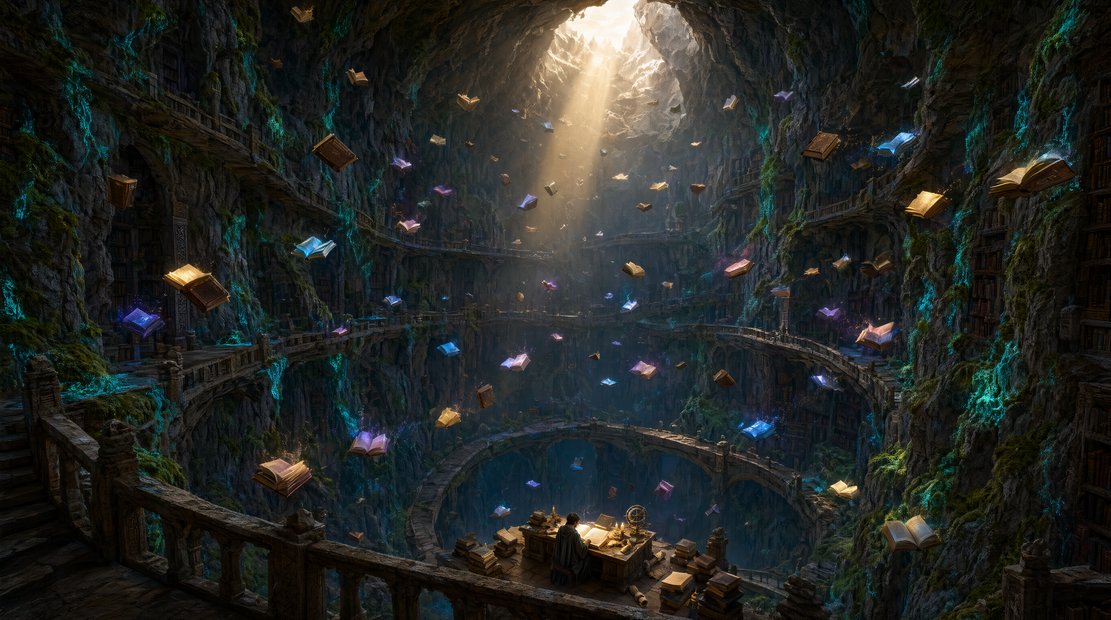
Write a prompt and the model creates an image from scratch. Connect up to three reference images and it switches to editing mode, applying your instruction to what you uploaded. Both modes run from the same workflow.
Partner node. This workflow calls an external API, so each run uses credits from your API wallet. No API key needed. Floyo handles the connection.
Model
Qwen Image 3.0 Pro by Alibaba. A flagship image model ranked among the top globally, strong at dense layouts, accurate in-image text, and reference-based editing across 12 languages.
HOW IT WORKS
Step 1. Write your prompt
Describe what you want. The model reads long prompts well, up to 4,500 tokens, so be specific about layout, text content, and composition.
Works great with: product shots · infographics · posters · storyboards
Step 2. Add reference images (optional)
Connect up to three images to switch the model into editing mode. Use them to guide a style transfer, bring in an object, or rework a scene. Leave them disconnected to generate from text alone.
Step 3. Hit run and download
The model returns a finished image. Preview it in the workflow, then download or pass it to another node.
Ready for: Photoshop · Figma · Canva · any editor
First time? Leave every setting as-is. The defaults (1024 x 1024 · 1 image · prompt extend on) are the right starting point for almost everyone.
RECOMMENDED SETTINGS
Quick-start guide. Find the goal that matches yours and copy the settings.
Standard generation (most people) — Default size · 1 image · prompt extend on · random seed. Write a prompt and run it.
Want options to choose from — Raise num_images to generate several versions in one run and keep the strongest. Each image is a separate API credit.
Need a custom aspect ratio — Set image size to "custom," then enter your own width and height (512 to 2048 per side).
Editing an existing image — Connect your image to image1. Write a prompt that describes the change and what to keep. Add more reference images to image2 or image3 to guide the look.
Adding or editing text in the image — Spell out the exact words you want. The model renders legible text down to small sizes across 12 languages.
The result feels generic — Turn prompt extend off. The auto-expansion adds detail, but it can override your specific choices. Try writing a longer, more explicit prompt instead.
Want to reproduce a result — Lock the seed to a specific number. Same seed plus same prompt gives the same output.
Prompt: Be specific. "A magazine cover with a bold serif title reading 'SUMMER ISSUE', beach scene with turquoise water, golden hour light" beats "a nice magazine cover." For editing, describe both what should change and what should stay. Over-broad instructions like "make it better" give the model nothing to work with.
LEARN
📹 Videos
ComfyUI 101 Free Course ft. Sebastian Kamph
Floyo 101 for Team Collaboration
✨ Quick links
USE CASES
📰 Infographics & Dense Layouts
Generate full newspaper pages, menus, storyboards, or data-heavy layouts in a single pass, with legible text baked in.
🛍️ Product & Marketing
Create product shots, social media graphics, and campaign visuals from a text description, or restyle existing assets with reference images.
🔤 Text-Heavy Designs
Render signs, labels, titles, and body copy inside the image. The model handles small text and multiple languages where most image models break down.
🎨 Reference-Based Editing
Upload an image and describe what to change. Add style references or object references to steer the edit without starting from scratch.
📐 Concept Art & Storyboarding
Block out scenes, UI mockups, or multi-panel layouts with long, structured prompts that describe every section.
WHAT WORKS BEST / WHAT TO AVOID
✅ Works great
Long, detailed prompts with explicit layout instructions
Dense text and typography in images
Reference-based editing with clear instructions
Infographics, menus, posters, and structured designs
⚠️ May produce softer results
Vague one-line prompts like "a cool poster"
Real-world landmarks and specific public figures (accuracy is unverified)
Editing instructions that conflict with the reference images
Heavy reliance on prompt extend for niche or technical subjects
FAQ
What is Qwen Image 3.0 Pro?
Qwen Image 3.0 Pro is Alibaba's flagship image generation and editing model, released in mid-2026. It handles both text-to-image creation and reference-based image editing from a single model. It accepts prompts up to 4,500 tokens and renders legible text across 12 languages, which makes it strong at layouts, infographics, and designs that carry readable copy.
How does editing work with Qwen Image 3.0 Pro?
Connect one to three images as references, then write a prompt describing the change. The model reads your images and applies the instruction while drawing on those references. You can use references for style transfer, object insertion, background swaps, or restyling. Without any images connected, the model generates from your text prompt alone.
Is Qwen Image 3.0 Pro open source?
No. Earlier versions of Qwen-Image (1.0 and 2.0) shipped open source under Apache 2.0 with published weights. Qwen Image 3.0 Pro is API-only with no downloadable weights and no open license. Alibaba has not published a technical report, benchmark scores, or a parameter count for this version.
Can I use Qwen Image 3.0 Pro outputs commercially?
Commercial use is governed by Alibaba's terms of service for the Qwen Image 3.0 API, not by an open-source license. Review the current terms before using outputs in client work or shipped products. Note that the model can apply a watermark to outputs, though this workflow has it off by default.
How is Qwen Image 3.0 Pro different from Nano Banana Pro or GPT Image?
Qwen Image 3.0 Pro is strongest at dense layouts and in-image text, such as infographics, newspapers, and menus. Nano Banana Pro (Google Gemini 3 Pro) is strong at realistic photo edits. GPT Image focuses on general-purpose generation with broad style range. Choose based on whether your output needs readable text and structured layout, or photorealism and natural editing.
What resolution does Qwen Image 3.0 Pro support?
The default output is 1024 x 1024. You can set custom dimensions from 512 to 2048 pixels per side by switching image size to "custom." All resolutions run at high detail. For non-square outputs, set custom width and height to match your target aspect ratio.
How to run Qwen Image 3.0 Pro online?
You can run Qwen Image 3.0 Pro online through Floyo. No installation, no setup, no API key to wire up. Open the workflow in your browser, write your prompt, and hit run. Free to try.
WHY FLOYO?
Floyo is the only platform with team collaboration for ComfyUI in the browser. You run workflows with no install. You share run history, assets, and models across your team. You pay only when you generate. Floyo supports open-source and closed-source models.
A designer runs an edit and likes the result. A teammate opens that exact run from shared history and keeps going. No file handoffs. No version confusion.
For studios and enterprise teams, Floyo adds private workspaces, pooled resources, and a team usage dashboard. Other ComfyUI cloud tools run for one person at a time. Floyo runs for the whole team, with transparent per-generation costs.
Ready to try it?
Write a prompt or upload an image to edit. The settings are already set.
Questions? Watch the free course or check the FAQ above.
Read more

_1786522681696.png?width=400&height=300&quality=80&resize=cover)




