Qwen Image 2.1 Outfit Swap
Upload a photo of a person and a photo of an outfit. Qwen Image 2.1 dresses them in it and keeps their face, body, and pose. Swap the full look or one piece.
character design
image to image
portrait
qwen
95
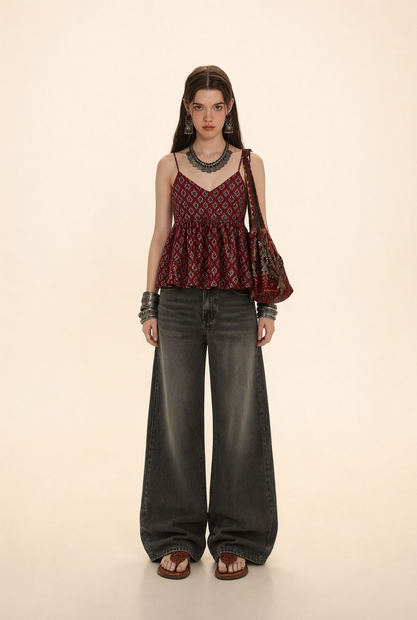


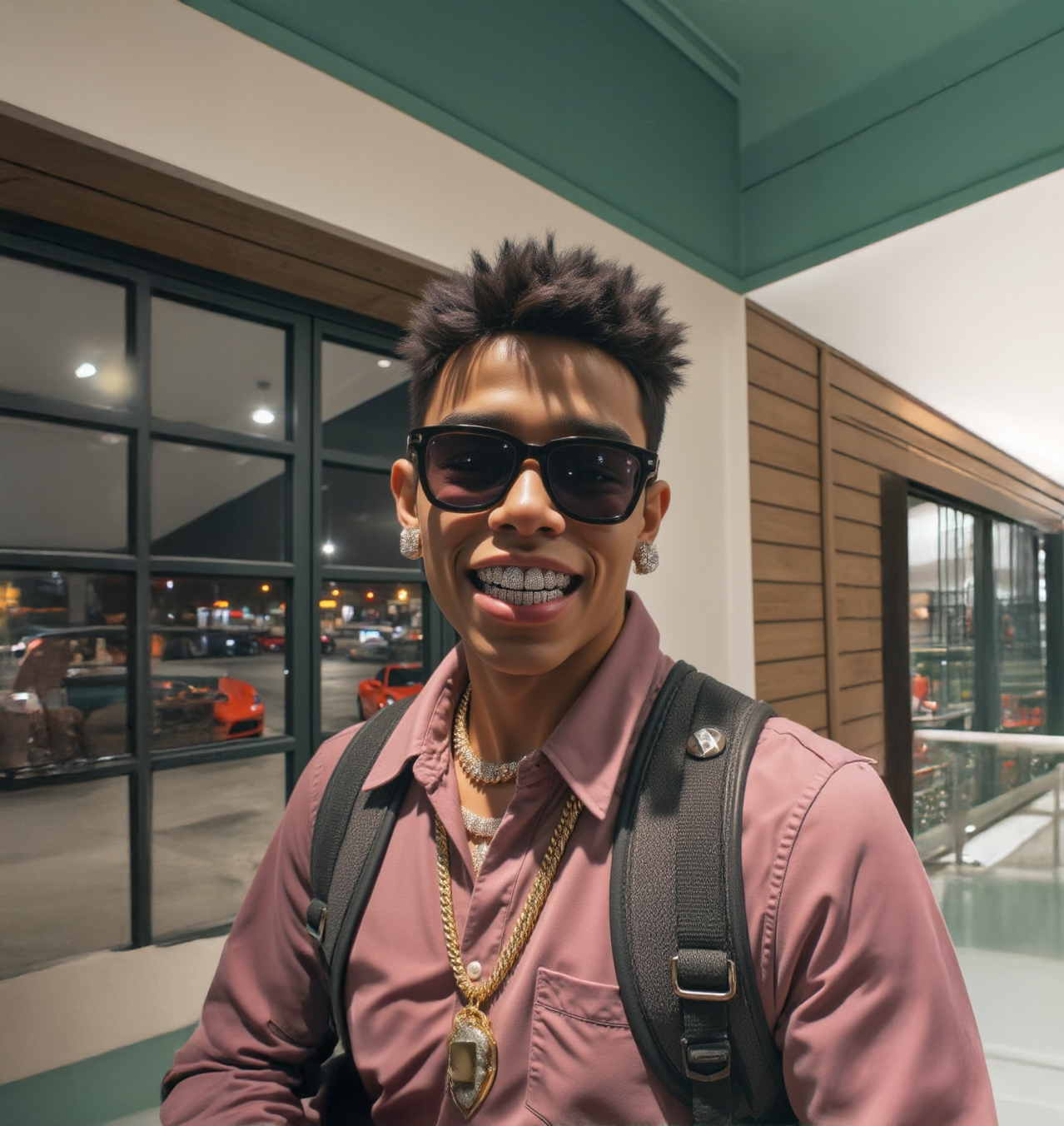
Put the outfit from one photo onto the person in another.
Upload a photo of the person and a photo of the clothes. A helper model turns your short instruction into a detailed edit brief. Qwen Image 2.1 then draws the person wearing that outfit, with the same face, body, and pose.
The default prompt dresses one woman in the full outfit. Dressing a man, or only want the jacket? Change a few words and run it.
How do you do a virtual try-on with Qwen Image 2.1?
Upload the person as Image 1 and the outfit as Image 2. Edit the prompt so it names the person and what you want moved, either the full outfit or one piece. Set the aspect ratio to match your person photo, then run. Megapixels can stay at the default for a first pass.
You need two uploads, a quick prompt edit, and one setting to check.
Person photo (Image 1) This is the person who gets dressed. Face, body, and pose come from here. Swapping a full outfit, or pants and shoes? Use a full-length photo. If the legs or feet are cropped out, the model has nowhere to put the trousers or shoes.
Outfit photo (Image 2) These are the clothes to put on. A clear, front-on view of the full outfit works best. Getting the wrong details, like a different neckline or a missing pattern? Use an outfit photo where nothing covers the clothes: no crossed arms, bags, or hair falling over the top.
Prompt The default reads: "Dress the woman in Image 1 in the complete outfit shown in Image 2." Image 1 is your person and Image 2 is the outfit. Dressing a man? Change "woman" to "man." Want one piece only? Name it: "Put only the jacket from Image 2 on the man in Image 1." Keep it to a sentence or two. The helper model writes the detailed brief for you, and long, complex prompts tend to confuse Qwen Image 2.1.
Aspect ratio (default: 2:3 portrait) This sets the shape of your result. It does not follow your photo automatically. 2:3 matches a standard portrait photo. Person photo is square or landscape? Switch to the ratio closest to it. The catch: a shape that doesn't match your photo makes the model reframe the scene, and that can change the pose.
Megapixels (default: 2) This sets the output size. Testing different outfits? Drop to 1 for faster runs. Want fabric texture and stitching to come through in the final? Try 3 or 4. Stay at 4 or below, since the model is built for up to 2048x2048.
The seed is fixed, so the same photos and prompt give the same result every time. That keeps comparisons fair: swap only the outfit photo, and the outfit is the only input that changed. Want a different take on the same outfit? Reword the prompt a little.
What is Qwen Image 2.1 outfit swap good for?
It's for seeing a specific outfit on a specific person without a new photo. Think trying clothes from a shop photo on yourself before you buy, planning a look for an event, or building costume variations for a character. The person keeps their face, body, and pose while the clothes change.
It works best when both photos are clean. A full-length person photo, an unblocked view of the outfit, and similar framing between the two. A full outfit shot can't land on a waist-up photo of a person.
The tradeoff: this redraws the whole image instead of patching only the clothes. Face and pose follow your original closely, but background details and colors can shift. Check buttons, prints, and stitching against your outfit photo before you rely on a result.
Qwen Image 2.1 can add a yellowish cast and some grain, so compare the garment color to the original. Planning to use results for client work or product listings? Read the license question below first.
FAQ
Can Qwen Image 2.1 swap only one piece of clothing? Yes. Name the piece in the prompt, like "Put only the jacket from Image 2 on the man in Image 1." The rest of their clothes are meant to carry over from Image 1. If other pieces change too, add it to the prompt: "keep the jeans and shoes from Image 1."
Why are the pants or shoes missing from my Qwen Image 2.1 outfit swap? Your person photo is probably cropped above the knees or feet, so the model has nowhere to draw them. Use a full-length photo of the person. Also check the aspect ratio. A wide or square shape can reframe a tall photo and cut off the bottom of the outfit.
Why does Qwen Image 2.1 give me the same try-on result every time? This workflow uses a fixed seed, so the same photos and prompt produce the same image on every run. That's useful for fair side-by-side comparisons. For a different version of the same outfit, change the wording of your prompt slightly and run it again.
Can I use Qwen Image 2.1 try-on images for commercial work? Qwen Image 2.1 is released under the Qwen Research License, which bars commercial use of the model without a separate commercial license from Alibaba. Personal projects, tests, and research are fine. For product listings, ads, or client work, read the license and get that agreement first.
How to run Qwen Image 2.1 outfit swap online? You can run Qwen Image 2.1 outfit swap online through Floyo. No installation, no setup. Open the workflow in your browser, upload your inputs, and hit run. Free to try.
Ready to try it? Upload a photo of the person and the outfit, set the aspect ratio, and hit run.
Read more