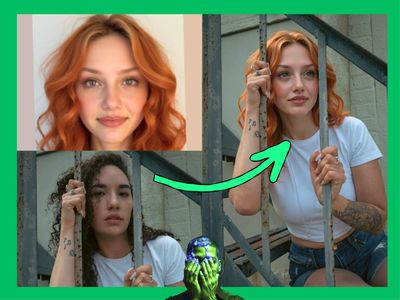
Flux.2 Klein Enhancer for Identity Transfer
Edit a photo of a person with Klein 9B while an identity transfer enhancer keeps their face and likeness locked, so they still look like themselves after.
character design
concept art
consistency
flux 2 klein
Image
image to image
portrait
434
_1781095044969.png?width=1400&height=620&quality=80&resize=contain)

_1781095044969.png?width=104&height=104&quality=80&resize=cover)



Nodes & Models
VAELoader
flux2-vae.safetensors
KSamplerSelect
RandomNoise
LoadImage
UNETLoader
flux-2-klein-9b.safetensors
CLIPLoader
qwen_3_8b_fp8mixed.safetensors
ImageScaleToTotalPixels
IdentityFeatureTransferV3
CLIPTextEncode
GetImageSize
VAEEncode
ConditioningZeroOut
Flux2Scheduler
EmptyFlux2LatentImage
ReferenceLatent
CFGGuider
SamplerCustomAdvanced
VAEDecode
SaveImage
Flux 2 Klein 9B image editing that keeps a person looking like themselves while you change everything around them.
Upload a photo of someone, describe a new scene, outfit, or pose, and Klein 9B generates it. An identity transfer enhancer holds the face, features, and likeness steady so the person doesn't turn into a stranger in the result.
No trigger word. Runs fast in four steps. Pick a lock strength, write your prompt, run it.
How do you keep a face consistent when editing with Flux 2 Klein 9B?
Upload your subject photo, write a prompt for the new scene, and pick a lock strength. The identity transfer enhancer reads the face and features from your image and forces them back into the generation as Klein 9B builds the edit. Stronger lock holds the likeness tighter. Lighter lock gives the prompt more room to change things.
All the advanced values are already dialled in. Most runs only need three things: your image, your prompt, and the lock strength.
Input image The face you want to keep. Use a clear, well-lit shot where the person's features read cleanly. Soft, blurry, or heavily shadowed faces give the enhancer less to hold onto, so the likeness drifts more.
Prompt Describe the scene, action, or look you want. Keep it about what changes. The enhancer handles the identity, so you don't need to describe the face. Want a new outfit and setting? Say that. Want a different pose or expression? Say that too.
Lock strength This is the main dial. Want bigger changes to pose, angle, or styling? Drop to a lighter lock so the prompt has more freedom. Need the face to stay as close to the original as possible? Go to a stronger lock. The default sits in the middle, which holds identity well while still letting the scene change. Try a couple of settings on the same prompt and compare.
Subject mask (optional) Leave this empty and the enhancer works on the whole frame. Add a mask over the person when the background or other figures are pulling the result around, and the identity lock focuses only on your subject.
Seed Set to randomize, so every run gives a fresh take. Found a result that's almost right? Lock the seed and make small prompt changes to refine that exact version instead of starting over.
Similarity and commit values These control how aggressively the enhancer forces the identity in and when it decides a match is good enough. They are tuned already. Leave them alone for normal use. Open them up only when you want to push past the presets and fine-tune the balance yourself.
What is the Flux 2 Klein 9B identity transfer enhancer good for?
It's for putting the same person into new images without their face changing. Upload one reference photo and generate that person in different scenes, outfits, poses, or moods while the likeness stays consistent. It's built for character work where the face has to match across every shot.
Character design and storyboards where one person appears in many frames. Portrait sessions where you want the same subject in new settings without a reshoot. Concept art and pitch decks where a recurring character needs to stay recognisable from panel to panel.
It works best when your source photo shows the face clearly. The cleaner the reference, the tighter the lock holds across edits.
Doing a single quick edit where the face doesn't need to stay exact? A plain Klein 9B image edit will get you there with less setup. Reach for this when consistency of the person is the whole point.
FAQ
What does the identity transfer enhancer do in Flux 2 Klein 9B? It reads the face and identity features from your uploaded photo and feeds them back into the model as it generates. The result is the same person in a new image. It runs as part of the model pipeline, so there's no separate face-swap step after generation.
How do I stop faces from changing when I edit with Flux 2 Klein 9B? Raise the lock strength. A stronger lock holds the original likeness tighter against the prompt. If the face still drifts, check that your source photo is sharp and well-lit, and add a subject mask so the enhancer focuses only on the person.
Why does Flux 2 Klein 9B only use four steps and CFG 1? Klein 9B is a fast model and runs cleanly at low step counts, so four steps keeps generation quick without losing quality. CFG 1 means it follows your prompt directly without extra guidance pressure, which suits identity work where you want the enhancer, not the guidance, doing the heavy lifting.
Can I change the pose and outfit while keeping the same face in Flux 2 Klein 9B? Yes. Describe the new pose, outfit, or setting in your prompt and keep a medium lock strength. The enhancer holds the identity while the prompt changes the rest. For bigger pose changes, drop to a lighter lock so the body has more freedom to move.
How to run Flux 2 Klein 9B online? You can run Flux 2 Klein 9B online through Floyo. No installation, no setup. Open the workflow in your browser, upload your inputs, and hit run. Free to try.
Two notes from the JSON: the workflow scales your input to about 1 megapixel and matches its aspect ratio, and the example prompt baked into the file is a placeholder, so I wrote the prompt guidance generically rather than quoting it. This was Fast mode (JSON only), so Layer 3 stays grounded in what the nodes actually do. If you have community context, a comparison to other identity tools, or the real preset names, I can write a fuller Layer 3 and more targeted FAQ.
Read more