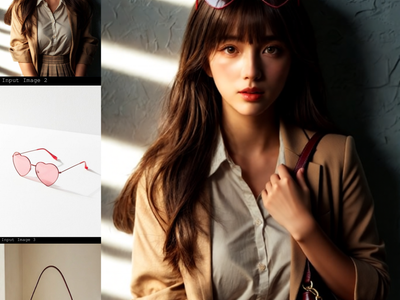
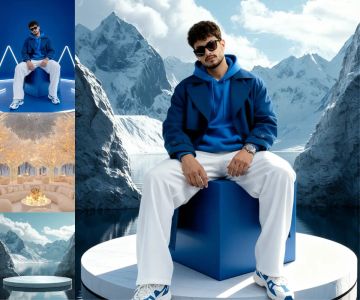
Qwen Image 2.1 for Virtual Try-On
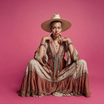
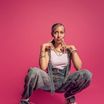
Upload a person photo and a clothing reference. Qwen Image 2.1 re-dresses them in the new outfit while keeping their face, pose, and background intact.
character design
e-commerce
Image
image to image
product photography
qwen
style transfer
135
Nodes & Models
LoadImage
ResolutionSelector
UNETLoader
qwen_image_2.1_int8_convrot.safetensors
CLIPLoader
qwen3vl_8b_bf16.safetensors
VAELoader
qwen_image_2.1_vae_bf16.safetensors
EmptyLatentImage
QwenImage21Cache
SaveImageAdvanced
VAEDecode
PreviewImage
KSampler
SaveImage
ComfySwitchNode
TextEncodeQwenImage21
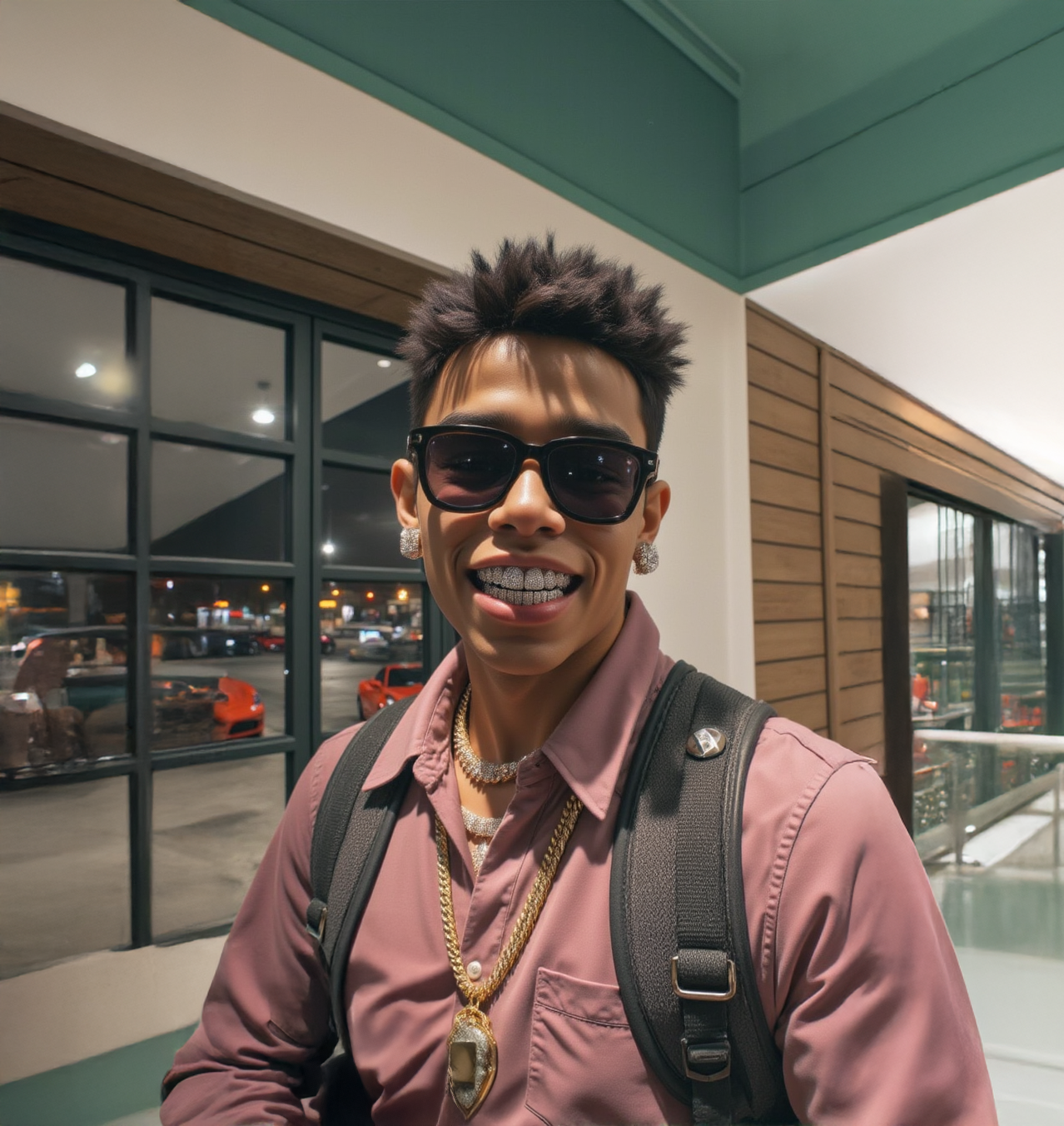
Qwen Image 2.1 virtual try-on. Upload a photo of a person and a photo of an outfit, and the model puts them together.
The workflow reads both images and generates a new one with the person wearing the referenced clothing. Face, pose, and background carry over. Outfit details, colors, and texture stay accurate.
No setup. The prompt is pre-filled. Upload two images and hit run.
How do you use Qwen Image 2.1 for virtual try-on?
Upload a photo of the person you want to re-dress and a clear shot of the outfit. The model reads both, keeps the person's identity and pose, and generates a new image with them wearing the referenced clothing. The prompt is already written. Change nothing on your first run.
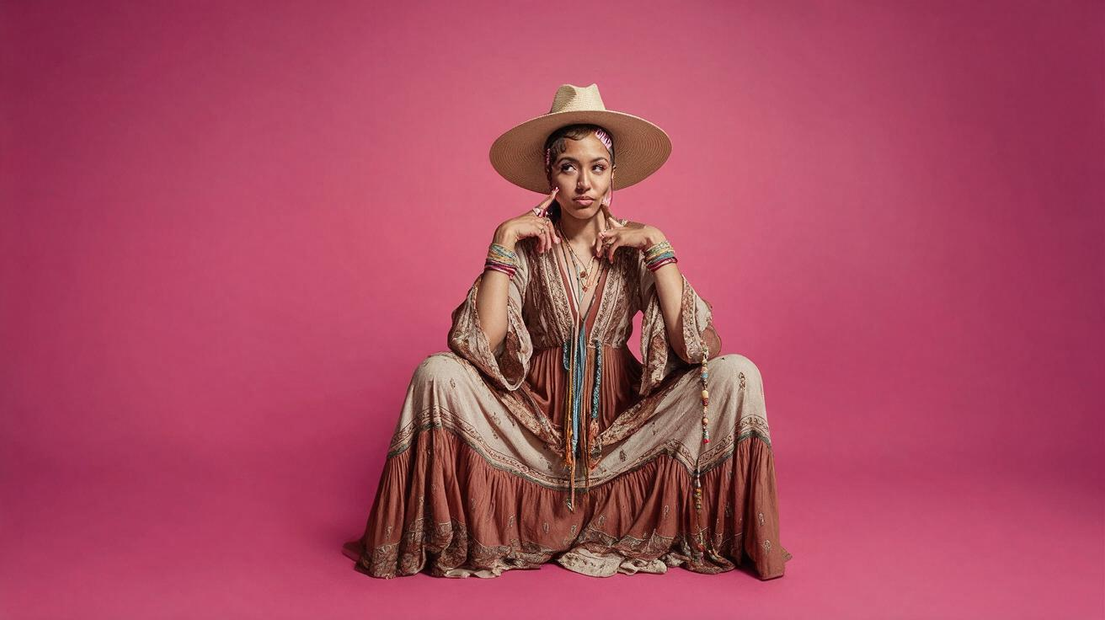
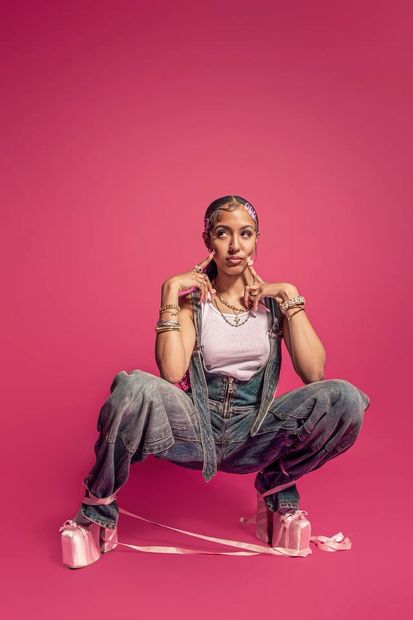
Image 1 (Model)
The person you want to re-dress. Face, pose, and background carry over to the result. A clear, well-lit photo with the full body visible works best.
Image 2 (Clothing)
The outfit you want applied. A front-facing product shot with even lighting gives the cleanest results. Busy backgrounds in the clothing image can bleed into the output.
Prompt
Pre-filled with a virtual try-on instruction. For your first run, leave it alone. If the result misses something, rewrite the prompt before touching any other setting. You can also use the prompt for non-try-on edits: describe any change you want and the model will apply it.
Negative Prompt
Blank by default. Add terms here if something unwanted keeps appearing in the output. Keep it short.
Steps (default: 25)
How many passes the model makes. Want faster results? Try 20. Need more detail? Go up to 30. Past 30, gains taper off. Below 15, detail drops.
Megapixels (default: 1)
Total output resolution. 1 megapixel is the right starting point. Want a larger image? Try 1.5. Past 1.5, quality gains are small and generation time climbs.
Aspect Ratio (default: 16:9)
Shape of the output when the switch is on. Match this to your input images to reduce cropping.
Switch (default: on)
On: the workflow uses the aspect ratio and megapixels you set. Off: the model picks the layout from your input images. If your input photos are unusual sizes, try turning this off.
Seed (default: random)
Controls the randomness. Want to reproduce a result you liked? Lock the seed number from that run. Want variety? Leave it on random.
What is Qwen Image 2.1 good for?
Qwen Image 2.1 handles multi-image editing where you need one image to influence another. Virtual try-on is the primary use case, but the same pipeline works for any edit where a reference image defines what changes. Identity preservation is strong, and fine clothing details hold up.
E-commerce teams can shoot a model once and swap outfits across an entire catalog without rebooking a studio. Upload the model photo, swap in each product shot, and get a full lookbook from a single session.
Stylists and fashion designers can test combinations before producing samples. See how a fabric reads on a body without sewing anything.
The model also works for non-clothing edits. Change the prompt and it becomes a general image editor that takes reference images as context. Want to place a product in a new setting? Upload the product and the environment, describe what you want, and run it.
The tradeoff: Qwen Image 2.1 is not fast. Expect around 20 seconds per image at default settings on a single GPU. If you need rapid iteration on dozens of variations, batch your runs.
FAQ
What resolution should I use for Qwen Image 2.1 virtual try-on?
Start at 1 megapixel with a 16:9 aspect ratio. That covers most use cases. For larger output (print, catalog), bump megapixels to 1.5. Going higher adds generation time without visible improvement. Match your aspect ratio to the input photo to avoid cropping.
Can I use Qwen Image 2.1 for edits besides virtual try-on?
Yes. The model takes up to 10 reference images and a text prompt. Rewrite the prompt to describe any edit: background swaps, object placement, style transfer, or compositing. This workflow's two-image setup is a starting point, not a limit.
How long does Qwen Image 2.1 take to generate?
About 20 seconds at default settings (25 steps, 1 megapixel) on a single GPU. Raising megapixels or steps increases the time. Dropping steps to 20 speeds things up with a small trade in detail.
Is Qwen Image 2.1 free to use commercially?
The weights are open on Hugging Face under the Qwen Research License, which is non-commercial by default. Commercial use requires a separate agreement with Alibaba. On Floyo, you pay per generation.
How do I run Qwen Image 2.1 virtual try-on online?
You can run Qwen Image 2.1 virtual try-on online through Floyo. No installation, no setup. Open the workflow in your browser, upload your inputs, and hit run. Free to try.
Read more