

Qwen Image Edit 2511 · Composite
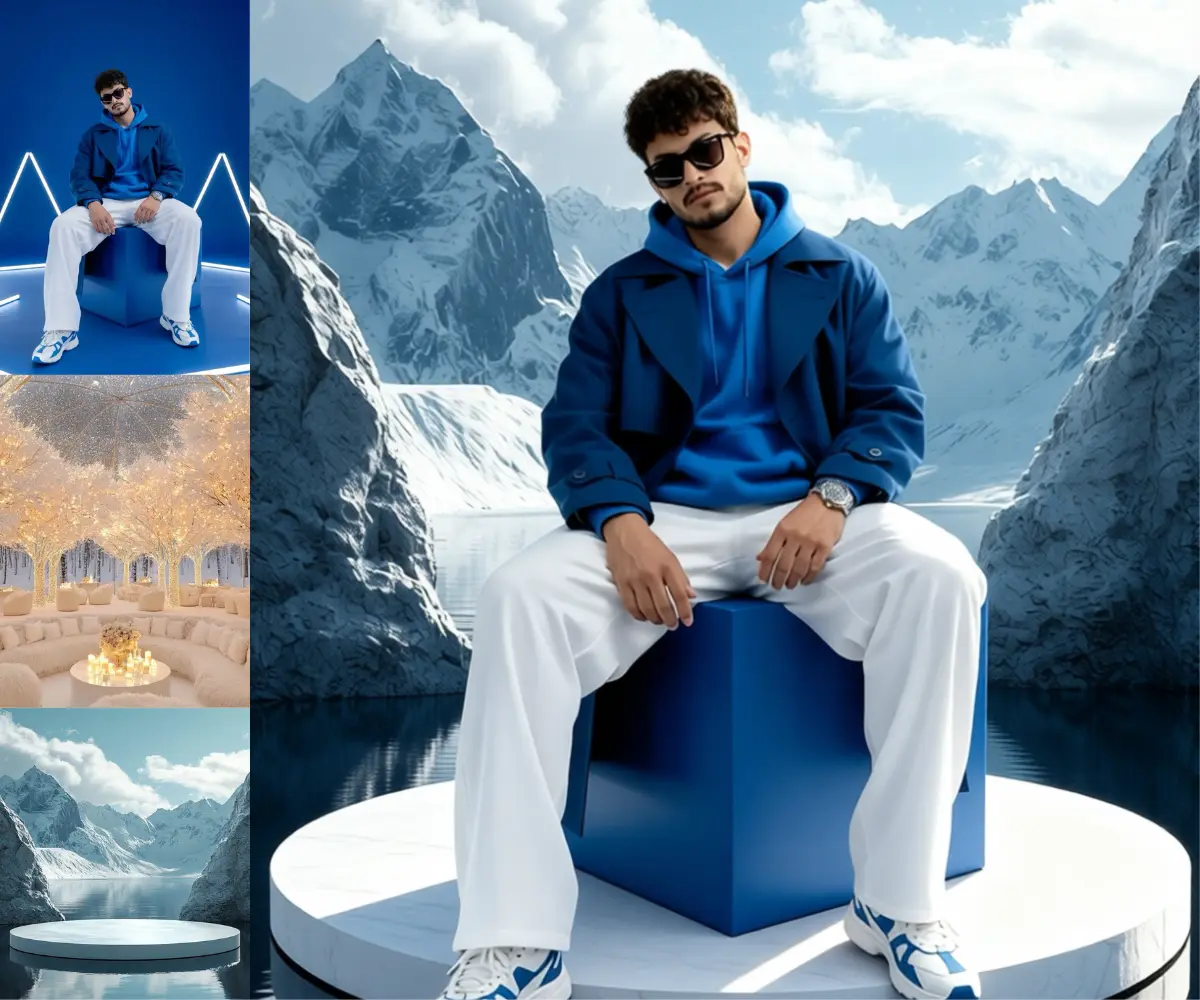
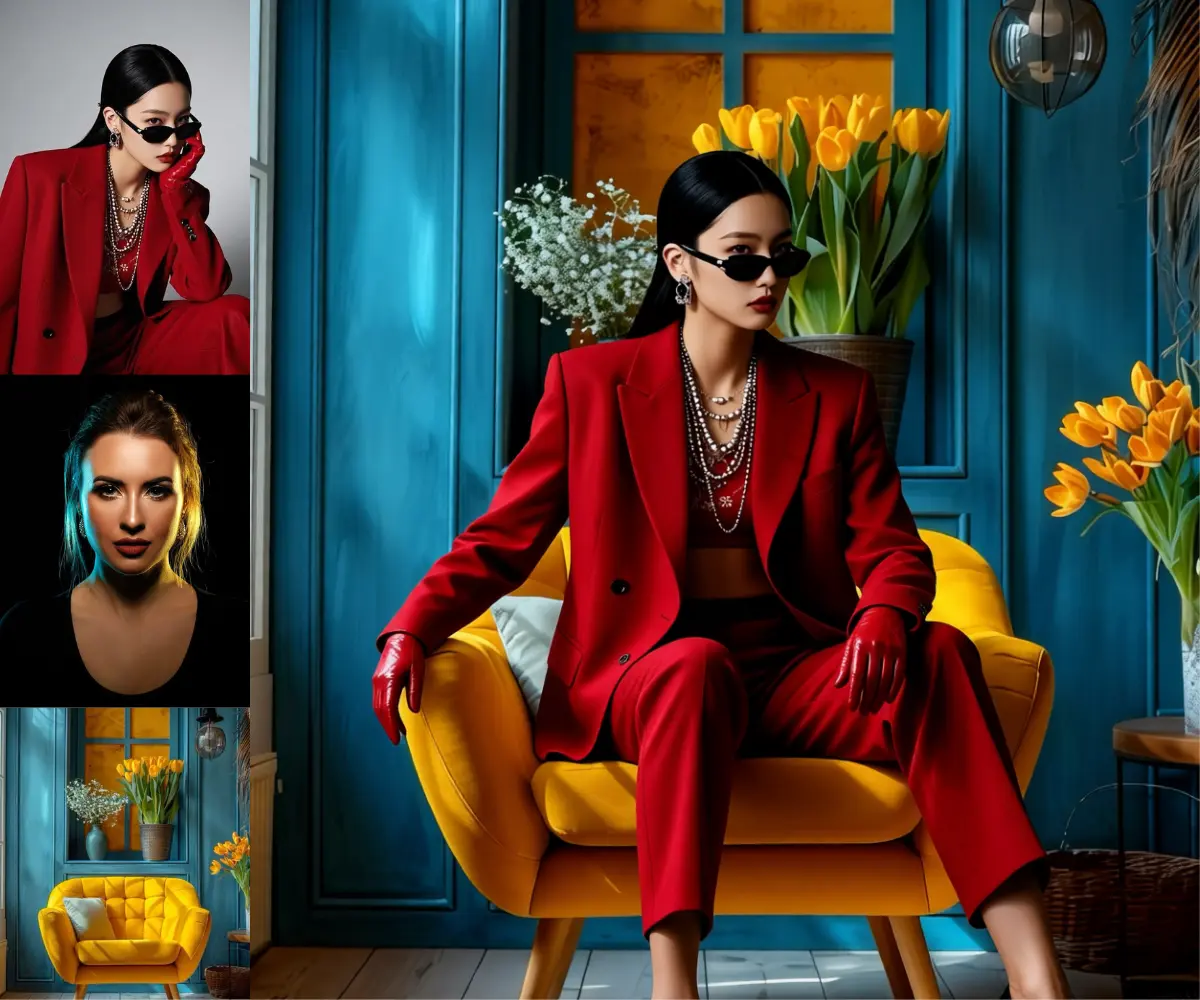
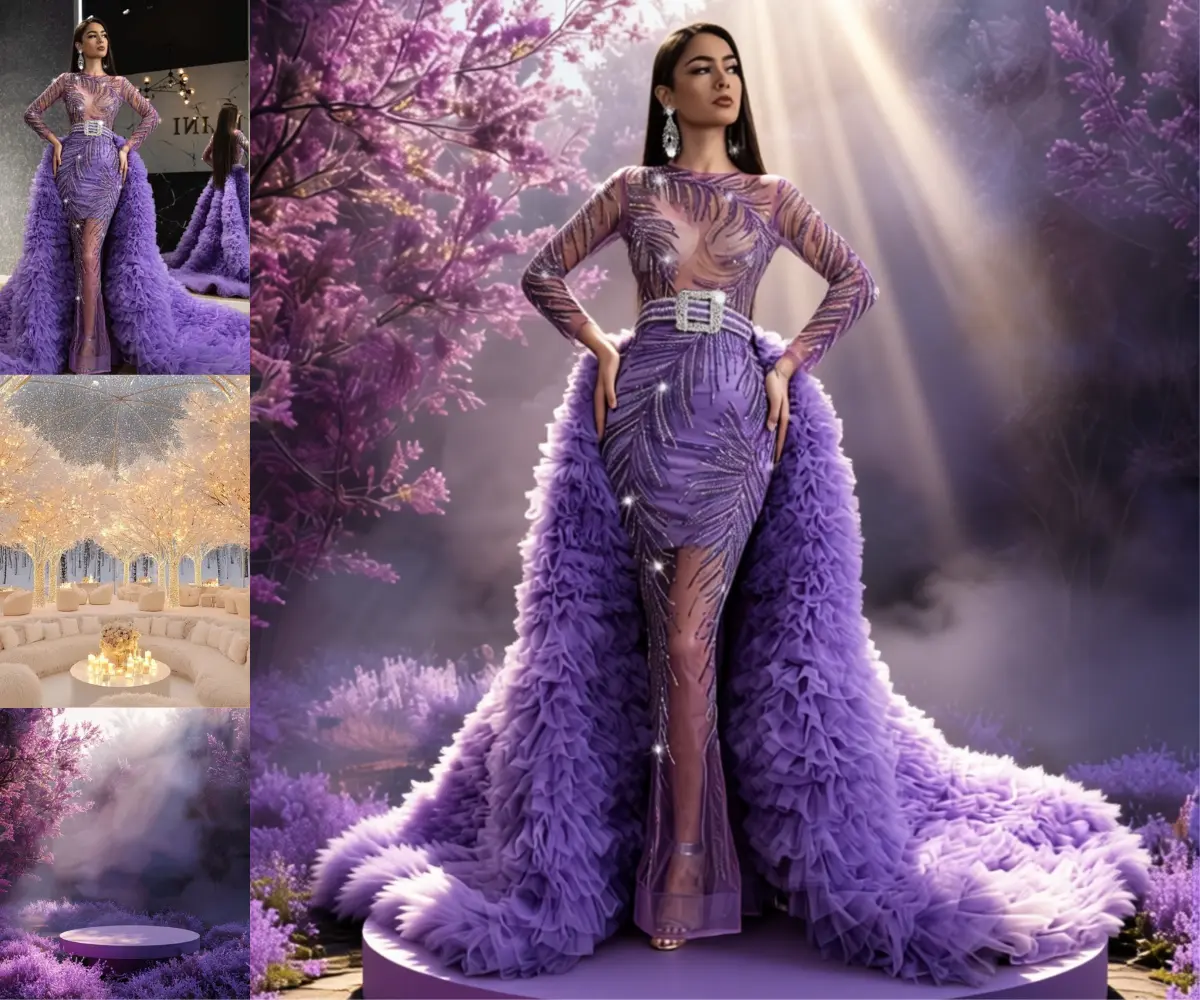
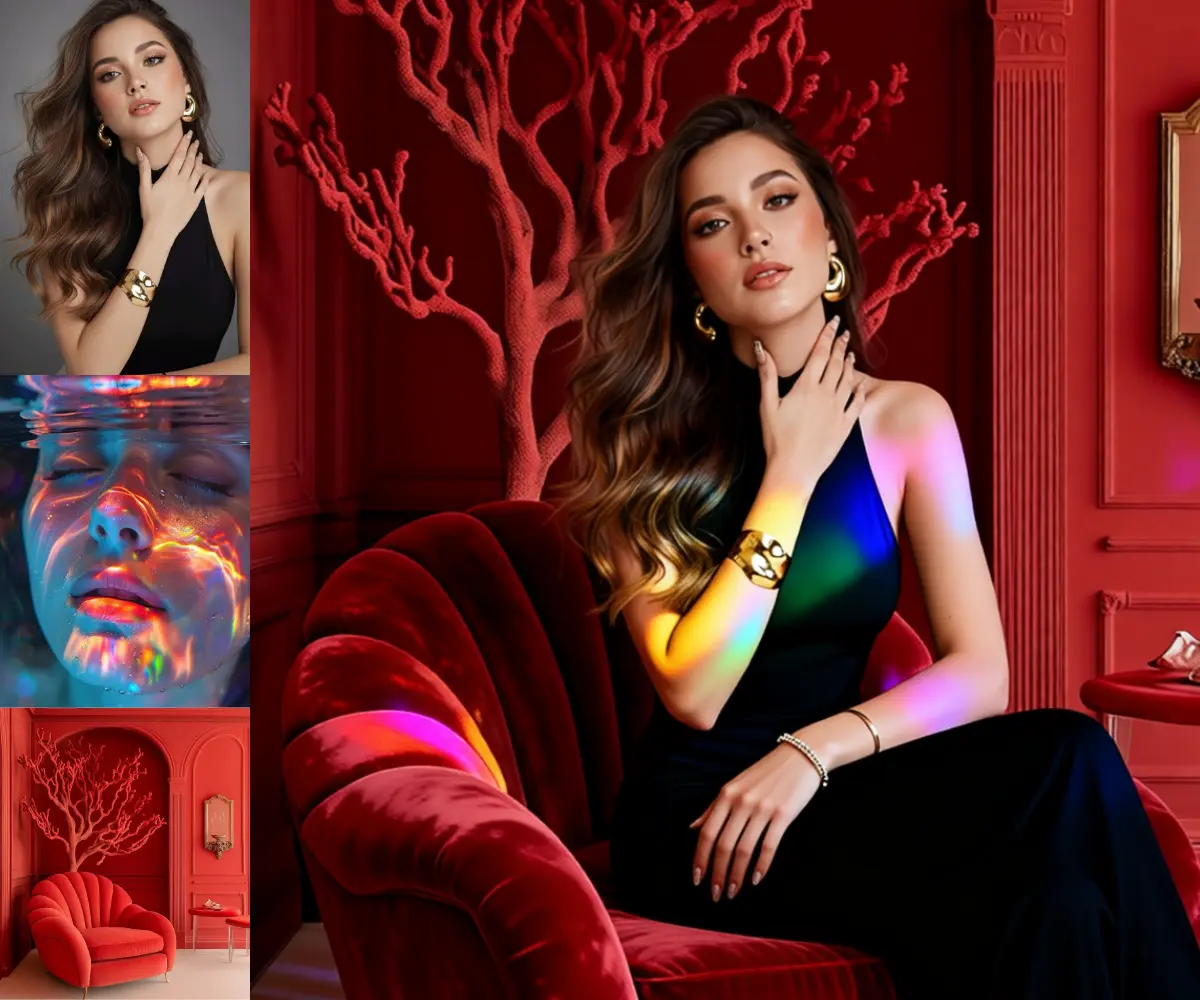
Place a subject into a new scene using Qwen Image Edit 2511 and the Kontext multi-reference method. Upload a subject and a background, describe the edit, run.
composite
Image
Image to Image
portrait
product photography
qwen image edit 251
Reference Image
3.6k

Nodes & Models
LoadImage
VAELoader
qwen_image_vae.safetensors
VAEDecode
UNETLoader
qwen_image_edit_2511_bf16.safetensors
KSampler
CLIPLoader
qwen_2.5_vl_7b_fp8_scaled.safetensors
TextEncodeQwenImageEditPlus
LoraLoaderModelOnly
Qwen-Image-Edit-2511-Lightning-4steps-V1.0-bf16.safetensors
ModelSamplingAuraFlow
FluxKontextMultiReferenceLatentMethod
CFGNorm
VAEEncode
ImageScaleToTotalPixels
SaveImage
ABOUT THE WORKFLOW
Place a Subject Into a New Scene Upload a subject image and one or two reference backgrounds. The model places your subject into the reference scene, adjusting pose and scale to fit. Uses the Kontext multi-reference method to bind each image to its role in the composite.
Model
Qwen Image Edit 2511 by the Qwen team at Alibaba. Released December 2025. The newer iteration of the Qwen Image Edit family, improving multi-image consistency, multi-person identity preservation, and multi-angle view generation over the 2509 release. 20 billion parameter MMDiT with a Qwen 2.5 VL 7B encoder. Apache 2.0.
Lightning 4-step LoRA. A speed adapter that compresses sampling to four passes.
HOW IT WORKS
Step 1. Upload your subject The person or object you want placed into a new scene. This is the main image. Works great with: portraits · characters · products · pets
Step 2. Upload reference image 1 The background or scene to place the subject into. A chair, a room, a landscape.
Step 3. Upload reference image 2 (optional) A second reference for additional scene elements like furniture, props, or a style to match.
Step 4. Describe the composite Start the prompt with "image 1 ," then describe the placement. "image 1 ,Place the subject from the main image seated on the chair in the reference interior. Preserve the subject's identity, facial features, hairstyle, and outfit."
Step 5. Hit run and download The model composites the subject into the scene in four passes. The result is saved under ComfyUI at 1.6 megapixels. Ready for: Photoshop · Figma · Canva · any editor
First time? Leave every setting as-is. The defaults (1.6 megapixels · 4 steps · CFG 1 · random seed) are the right starting point for almost everyone.
RECOMMENDED SETTINGS
Quick-start guide. Find the goal that matches yours and copy the settings.
Standard composite (most people) — 1.6 megapixels · 4 steps · CFG 1 · random seed. The right starting point for almost everyone.
The subject looks pasted in — Describe the pose adjustment in the prompt. "Seated elegantly, relaxed posture, natural hand placement, correct scale and perspective" steers the model toward a natural fit.
Identity drifts after placement — Name what must stay unchanged. "Preserve the subject's facial features, hairstyle, makeup, jewelry, outfit, and body proportions exactly" anchors the identity.
Scale or perspective is wrong — Add explicit size and alignment instructions. "Ensure correct scale and perspective so the subject fits the chair. No floating or misalignment."
Want a sharper or larger result — Raise the megapixels value above 1.6. Generation time climbs with pixel count.
Want a different take — The seed runs on random by default. Set a fixed number to reproduce a result you liked.
The prompt is not binding to the image — Check that it starts with "image 1 ," (note the comma and space). Without that prefix the model reads the instruction as a standalone generation.
Prompt: Start with "image 1 ," then name the placement and what to preserve. The shipped prompt is a good template: it describes pose adjustment, identity preservation, and scale matching in detail. When editing, keep the structure and change the specifics. Longer, more explicit prompts produce tighter composites.
LEARN
📹 Videos
ComfyUI 101 Free Course ft. Sebastian Kamph
Floyo 101 for Team Collaboration
✨ Quick links
USE CASES
📸 Product Placement Drop a product or a model into a lifestyle scene from separate source images without a reshoot.
👗 Virtual Try-On and Staging Place a person into a setting to test how they look in a room, on a set, or in an outfit.
🎨 Character Compositing Build a character-in-environment composite from separate art and background references.
🏠 Real Estate and Interior Staging Place furniture or a person into an empty room for staging shots from individual product photos.
WHAT WORKS BEST / WHAT TO AVOID
✅ Works great
Clear subject images with clean edges
Background references with readable depth and perspective
Prompts that describe pose, scale, and what to preserve in detail
Two to three inputs with distinct roles
⚠️ May produce softer results
Extreme lighting mismatches between subject and scene
Subjects with complex transparency like hair or glass
Short prompts that leave scale and placement to the model
Forgetting the "image 1 ," prefix in the prompt
FAQ
What is Qwen Image Edit 2511? Qwen Image Edit 2511 is the December 2025 update to Alibaba's 20 billion parameter Qwen Image Edit model. It improved multi-image editing consistency, multi-person identity preservation, and multi-angle view generation over the 2509 release. Open weights under Apache 2.0 with the same Qwen 2.5 VL 7B encoder. This workflow uses it for subject-into-scene compositing.
What is the Kontext multi-reference method? It is a technique for binding multiple reference images to specific roles in a generation. Each image is encoded as a latent and injected at a controlled timestep so the model knows which image supplies the subject and which supplies the background. The FluxKontextMultiReferenceLatentMethod nodes in this workflow handle that binding.
How is this different from the Qwen Image Edit 2509 combine workflow? Both composite multiple images. The 2509 workflow uses the September model with a simpler concatenation method. This workflow uses the newer 2511 model with the Kontext latent injection method, which gives tighter identity preservation and more natural placement, especially for subjects that need a pose adjustment to fit the scene.
Does the prompt need a special format? Yes. Start with "image 1 ," (comma and space after the number). Without that prefix the model treats the instruction as a standalone generation rather than an edit of your uploaded image. Then describe the placement, the pose, and what to preserve.
Is Qwen Image Edit 2511 free for commercial use? Yes. It is released under Apache 2.0, which allows commercial use, modification, fine-tuning, and self-hosted deployment with no revenue threshold and no territory restrictions.
What resolution does this workflow output? 1.6 megapixels by default (the ImageScaleToTotalPixels node). The megapixels value is adjustable inside the subgraph for larger or smaller output.
How to run Qwen Image Edit 2511 compositing online? You can run Qwen Image Edit 2511 compositing online through Floyo. No installation, no setup, no model downloads. Open the workflow in your browser, upload a subject and a background, describe the placement, and hit run. Free to try.
WHY FLOYO?
Floyo is the only platform with team collaboration for ComfyUI in the browser. You run workflows with no install. You share run history, assets, and models across your team. You pay only when you generate. Floyo supports open-source and closed-source models.
A designer runs an edit and likes the result. A teammate opens that exact run from shared history and keeps going. No file handoffs. No version confusion.
For studios and enterprise teams, Floyo adds private workspaces, pooled resources, and a team usage dashboard. Other ComfyUI cloud tools run for one person at a time. Floyo runs for the whole team, with transparent per-generation costs.
Ready to try it? Upload a subject and a background, describe where to place them, and run it. The settings are already set.
Questions? Watch the free course or check the FAQ above.
Read more

_1786518453053.png?width=400&height=300&quality=80&resize=cover)




